
Appearance
CRM Accounts: set up and daily use
Accounts are the organizations you do business with: customers, prospects, partners, suppliers and competitors' customers. This guide takes you from installing the module to everyday work, in the order you meet things.
1. What it is and who uses it
Every account has a number (ACC-000001, with a region suffix when one applies), a type, a status, an owner, a revenue figure in its own currency and in your base currency, and a health score. Around the account sit addresses, locations, a team, relationships to other accounts, notes, documents, credit limit requests and a parent and child hierarchy.
| Role | Can see | Can do |
|---|---|---|
| CRM Account Viewer | Accounts, their addresses, locations, team, relationships and notes, the dashboards, the hierarchy and the duplicate list | Nothing that changes data |
| CRM Account Manager | The same | Create and edit accounts, add addresses, locations, team members, relationships, notes and documents, request a credit limit change |
| CRM Account Administrator | Everything | Everything, including delete, merge duplicates and import |
| CRM Settings Administrator, CRM Admin | Everything | Everything; they also approve credit limit changes |
| Sales Manager | Everything | Edit accounts and approve credit limit changes |
| Auditor | Accounts and the logs | Nothing that changes data |
A person who holds none of these roles cannot open the screens, and the data is not returned to them even if they know the address.
Editions
SparkCRM is one product in four editions. Your edition decides which features are switched on; the screens and data are the same engine.
| Edition | For | Accounts features |
|---|---|---|
| SparkCRM Lite | Freelancers and small businesses | Accounts, detail page, addresses, locations, team, relationships, notes, documents, competitors |
| SparkCRM | Growing companies | Lite plus insights and health dashboards, health score, duplicates and merge, hierarchy, credit limit approval, base-currency totals |
| SparkCRM Enterprise | Large organizations | SparkCRM plus the AI assistant tools and country and industry pack extension points |
| SparkCRM Plus | CRM with marketing and customer service | Enterprise plus the marketing and customer service modules as they arrive |
A feature that is not in your edition answers "This feature is not part of your SparkCRM edition". Ask your administrator or your reseller to move you to a higher edition. A tenant that has no edition applied yet is not restricted.
2. Before you start
- Install CRM Foundation first, then CRM Accounts (Platform Admin, Plugins). Accounts needs Foundation for the menu and the roles.
- The module is on the free licence tier: no feature key is needed.
- Exchange rates: for totals in the base currency, the tenant needs its base currency (default USD) and exchange rates under Common Data. A currency with no rate stays out of the totals and is named when you refresh them.
- Give each person both kinds of role: the platform role (opens the screens and the data) and the CRM application role (allows the actions). In the user administration screen add the role; in CRM, Roles, assign the same role name. A person with only one of the two will see some screens and be refused on others.
3. Set up
- Roles. Assign CRM Account Viewer, Manager or Administrator as in the table above.
- Base currency and rates. Check Common Data: base currency and the exchange rates for the currencies your accounts use. After changing a rate, press Refresh totals on the Accounts screen.
- Health job. The health score is recalculated every night at 01:30 once the job
crm-accounts.healthis switched on in Scheduled Jobs. It starts switched off. You can always press Recalculate health on the Account health screen. - Approvers for credit limit changes. Anyone with the CRM Account Administrator, CRM Account Manager, Sales Manager or CRM Admin role can approve in the Workflow Approval Inbox.
- Trial data. In Demo Data generate the pack CRM Accounts to get about 60 accounts in several currencies, countries and industries, with competitors, notes, addresses and two duplicate pairs to practise merging. Then press Refresh totals and Recalculate health. Clear the batch from Demo Data when you are done.
4. Daily use
The Accounts list
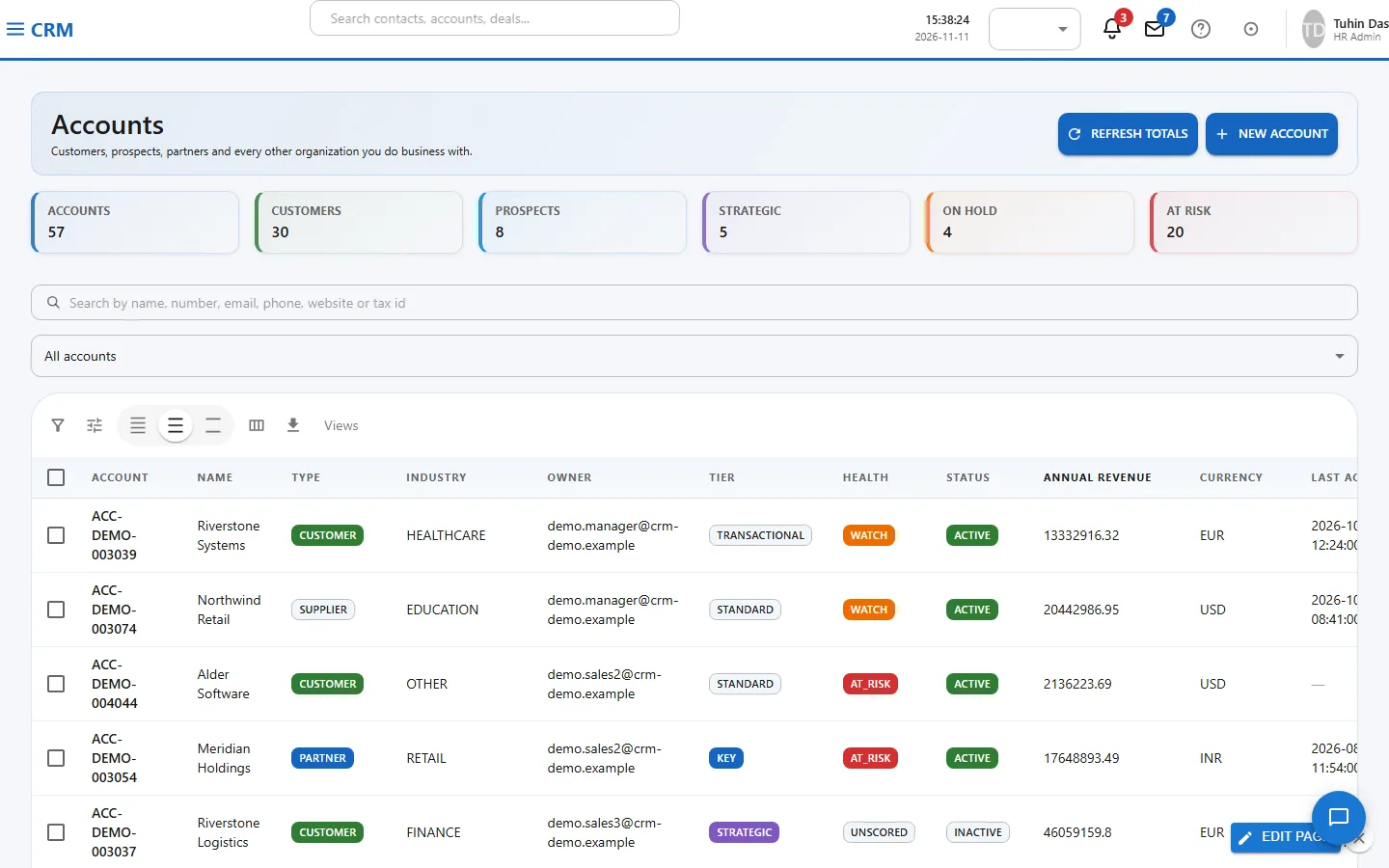
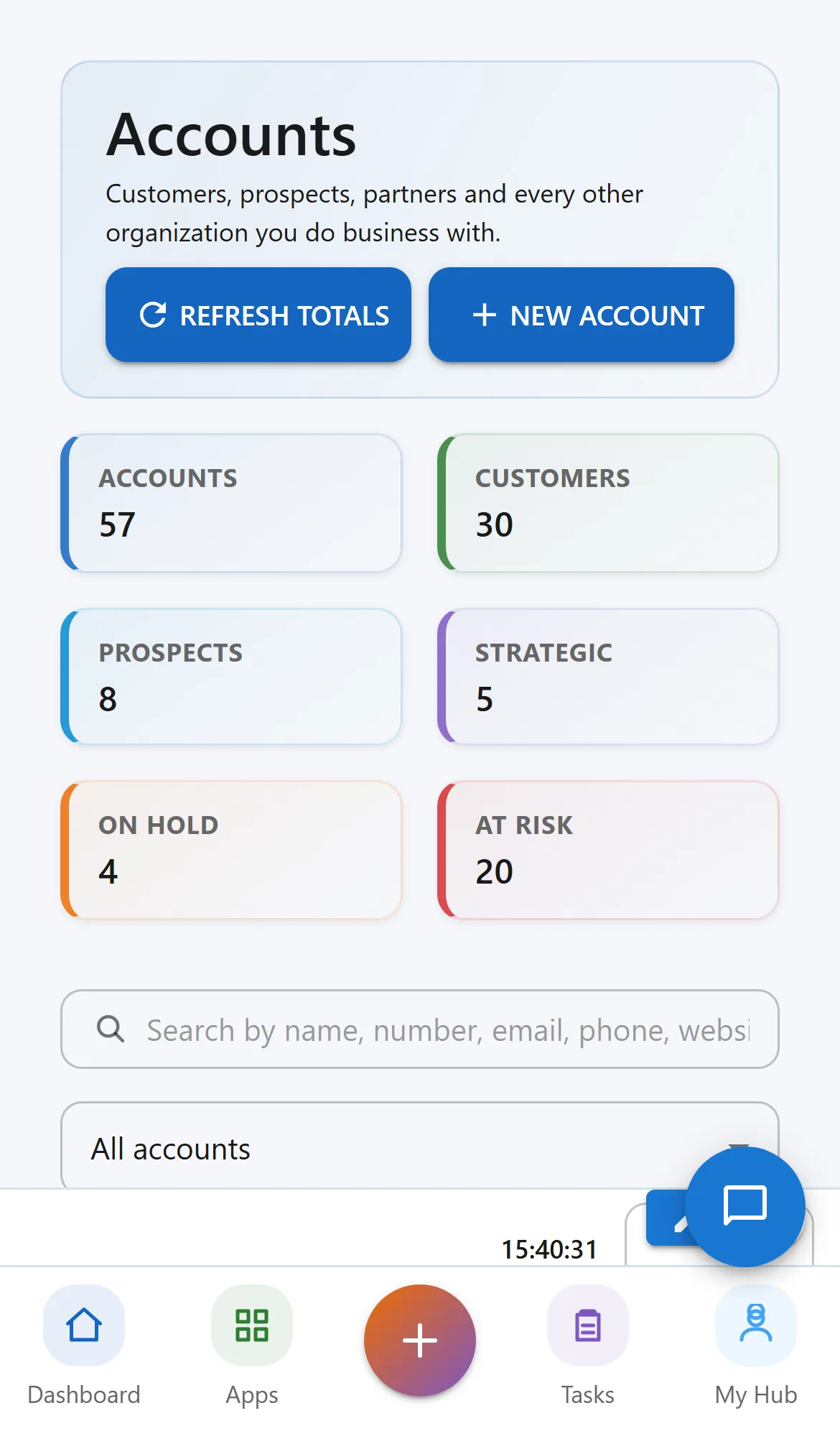
The tiles show the number of accounts, customers, prospects, strategic accounts, accounts on hold and accounts at risk. The search box finds an account by name, number, email, phone, website or tax id. The drop-down above the list holds the saved views (all accounts, my accounts, one for each account type, active, inactive, on hold, former customers, strategic accounts and more). Use the column chooser to show or hide columns and the download icon to export.
Create an account
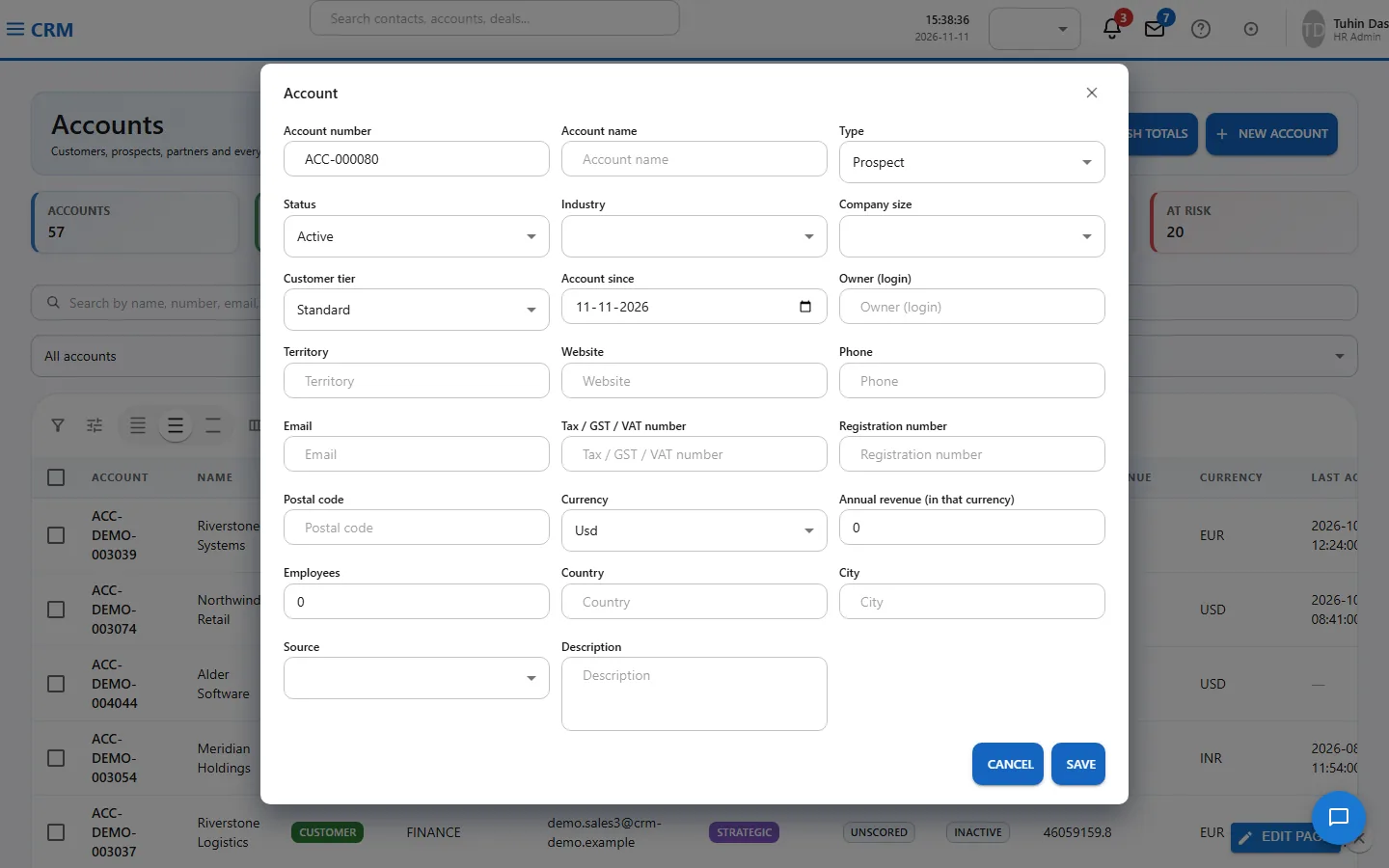
- Press New account.
- Fill in at least the name. The number is given for you when you save. Choose the type, status, owner and the currency of the revenue figure.
- Press Save. The revenue is converted to the base currency with the exchange rate of the day and kept with the rate used.
Work on one account
Open an account with the eye icon. The header shows the name, number and four chips (type, status, tier, health). The tiles show revenue in the account currency and in the base currency, the health score, the date the account was opened and the last activity.
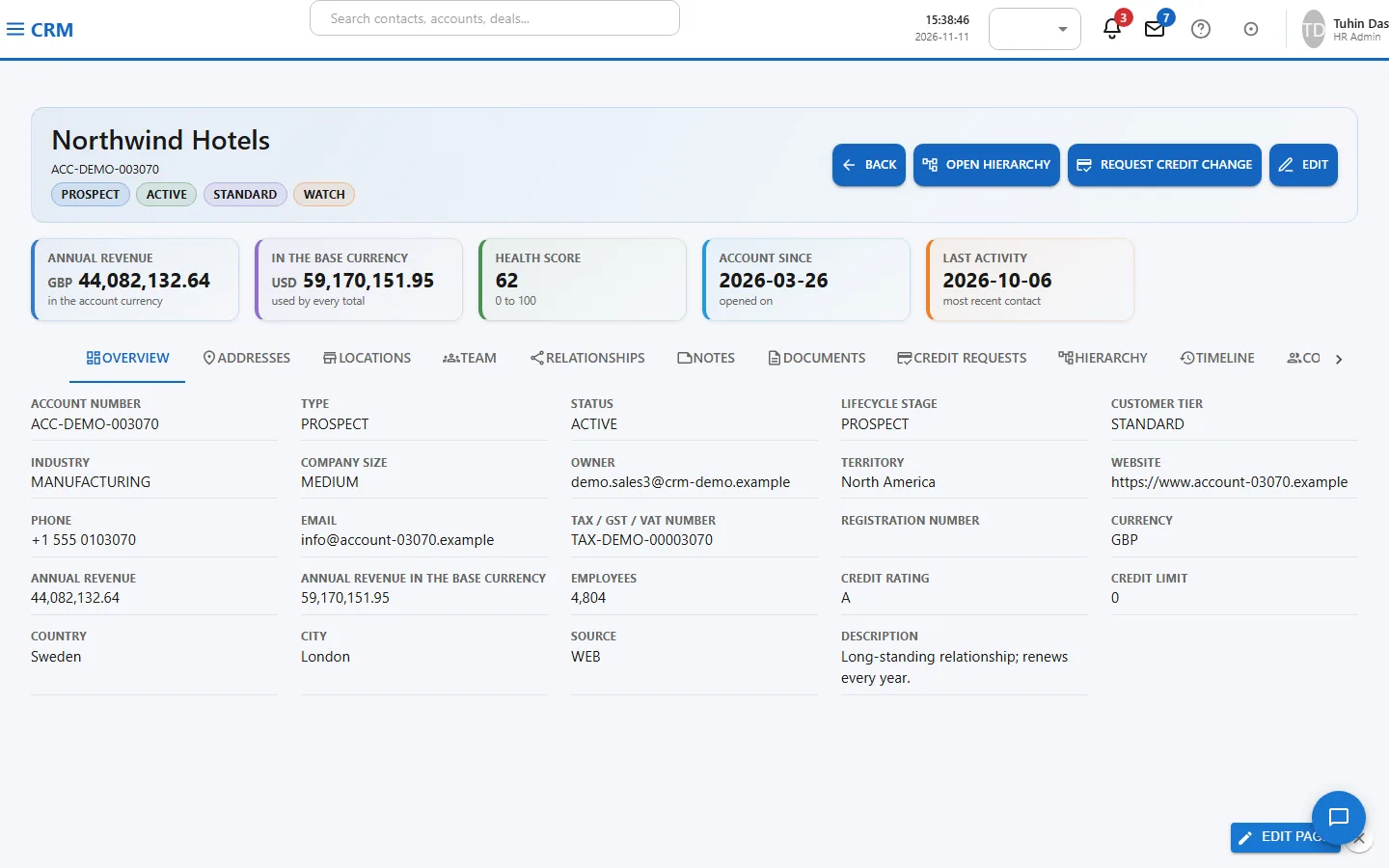
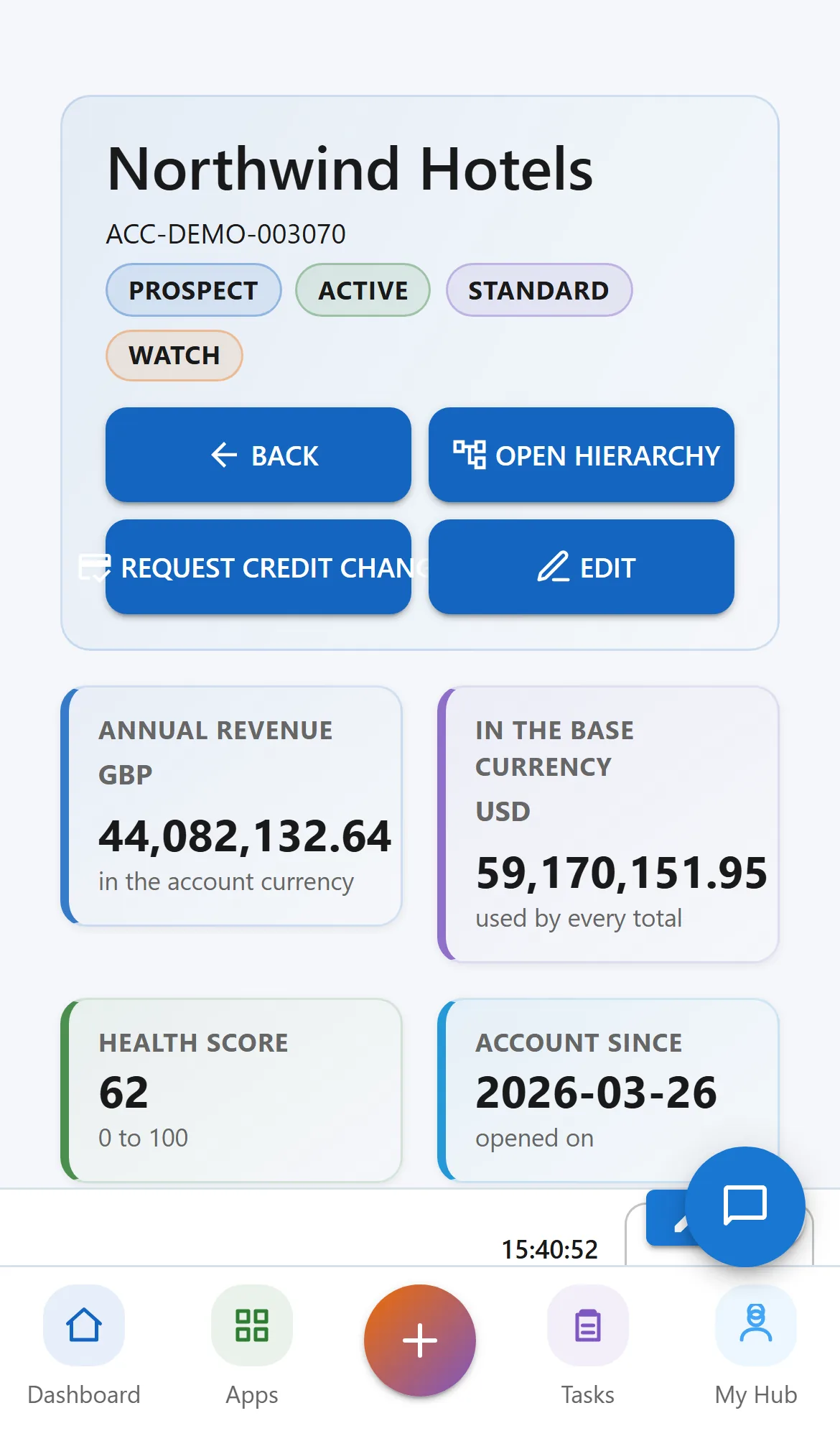
The tabs: Overview (every field), Contracts (the account's contracts from CRM Contracts, in force first), Addresses, Locations, Team (who works the account and with what access), Relationships (to other accounts: partner, supplier, subsidiary and so on), Notes (pin the important ones), Documents, Credit requests, Hierarchy (the child accounts), Timeline (everything that happened on the account, newest first: notes, credit requests and their decisions, merges, additions and changes of the health status; Show only a type and In the last (days) narrow it, then press Filter) and More details (fields your organization or industry added; see Industry and country packs). Open hierarchy opens the full tree, and Parent account (shown when the account has a parent) opens the parent. Edit changes the account; the revenue is converted again when you save.
Ask for a credit limit change
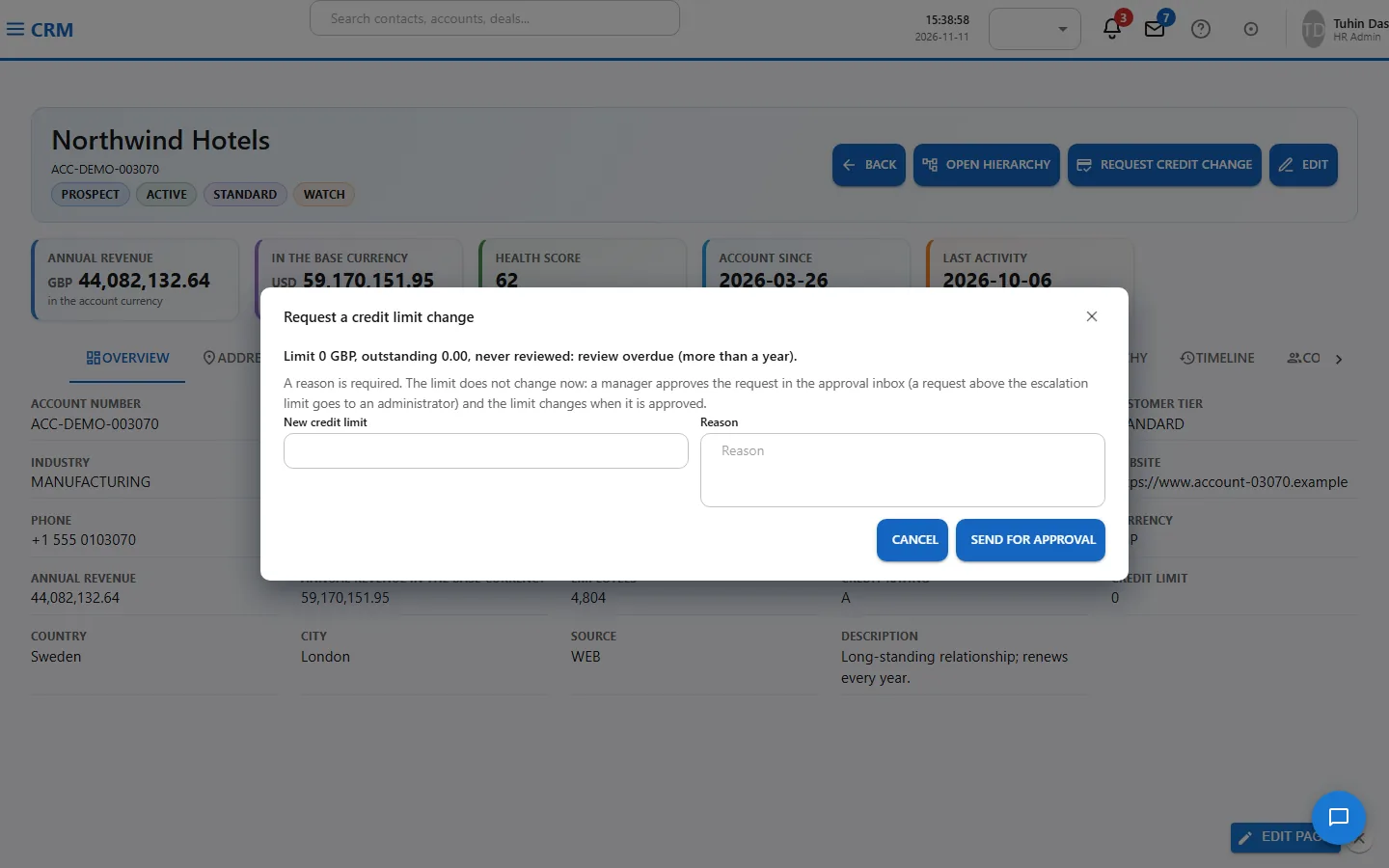
- On the account press Request credit change. The dialog shows the exposure first: the current limit, the outstanding balance, how much of the limit is used and when the limit was last reviewed.
- Type the new limit and the reason (the reason is required), then press Send for approval. A request above the escalation limit your administrator set (Common Data setting
crm_credit_escalation_limit, in the account's currency) goes to an administrator instead of a manager. - The limit does not change yet. The request appears on the Credit requests tab as Pending approval and in the approval inbox of the approvers.
- When an approver approves it, the status becomes Approved and the account's credit limit is changed. Only one request per account can wait at a time. Approving also sets the account's credit review date; the Account health page lists the limits that were not reviewed for a year (and has a tile for the count).
Import accounts and change many at once
Import accounts (Customer menu) creates many accounts from a spreadsheet saved as CSV. Paste the text (the first line names the columns, account_name is required; the page fills in an example for you), press Check to see how many accounts would be created, skipped (an account with the same tax id, or the same name when there is none, is already there) or rejected and why, then press Import. Numbers come from the same counter as a New account and revenue is converted to the base currency. A row matches an existing account by tax id, then by website domain (a website or, failing that, the email domain; free mail such as gmail is ignored), then by name. By default a match is skipped. Tick Update accounts that already exist to change them instead: only the cells that hold a value are written, an empty cell never erases what is there. Every import run gets a batch id; Undo the last import removes the accounts that run created (accounts that already have child accounts, notes or credit requests are kept, and counted). Up to 5000 rows at a time; only the CRM Account Administrator can import.
On the Accounts list, tick several accounts: an action bar appears with Change owner, Change status and Change tier. Type the new value when asked (a login for the owner; ACTIVE, INACTIVE, ON_HOLD, FORMER or CLOSED for the status; STRATEGIC, KEY, STANDARD or TRANSACTIONAL for the tier). Change territory is there too. An account that already holds the new value is left alone and counted ("3 changed, 2 already had this value"). Up to 500 accounts at a time.
Account insights
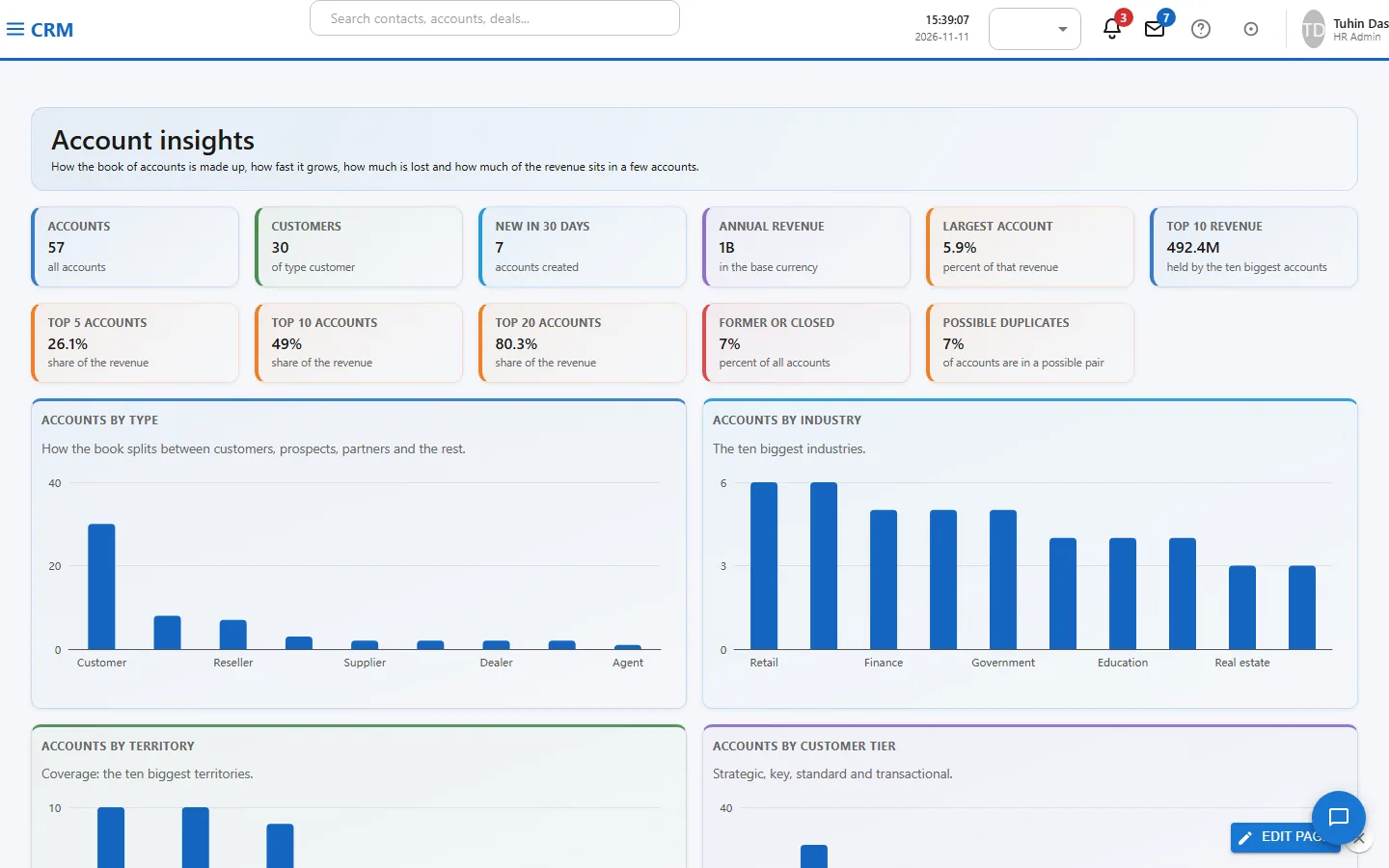
Read it from top to bottom: the tiles give the size of the book (accounts, customers, new in 30 days, annual revenue in the base currency) and how concentrated it is (the largest account, and the top 5, top 10 and top 20 accounts as a share of all revenue; a high share means you depend on a few customers). The charts show the book by type, industry, territory, customer tier and size, new accounts and lost accounts for each of the last twelve months, and the ten accounts with the most revenue.
Account health
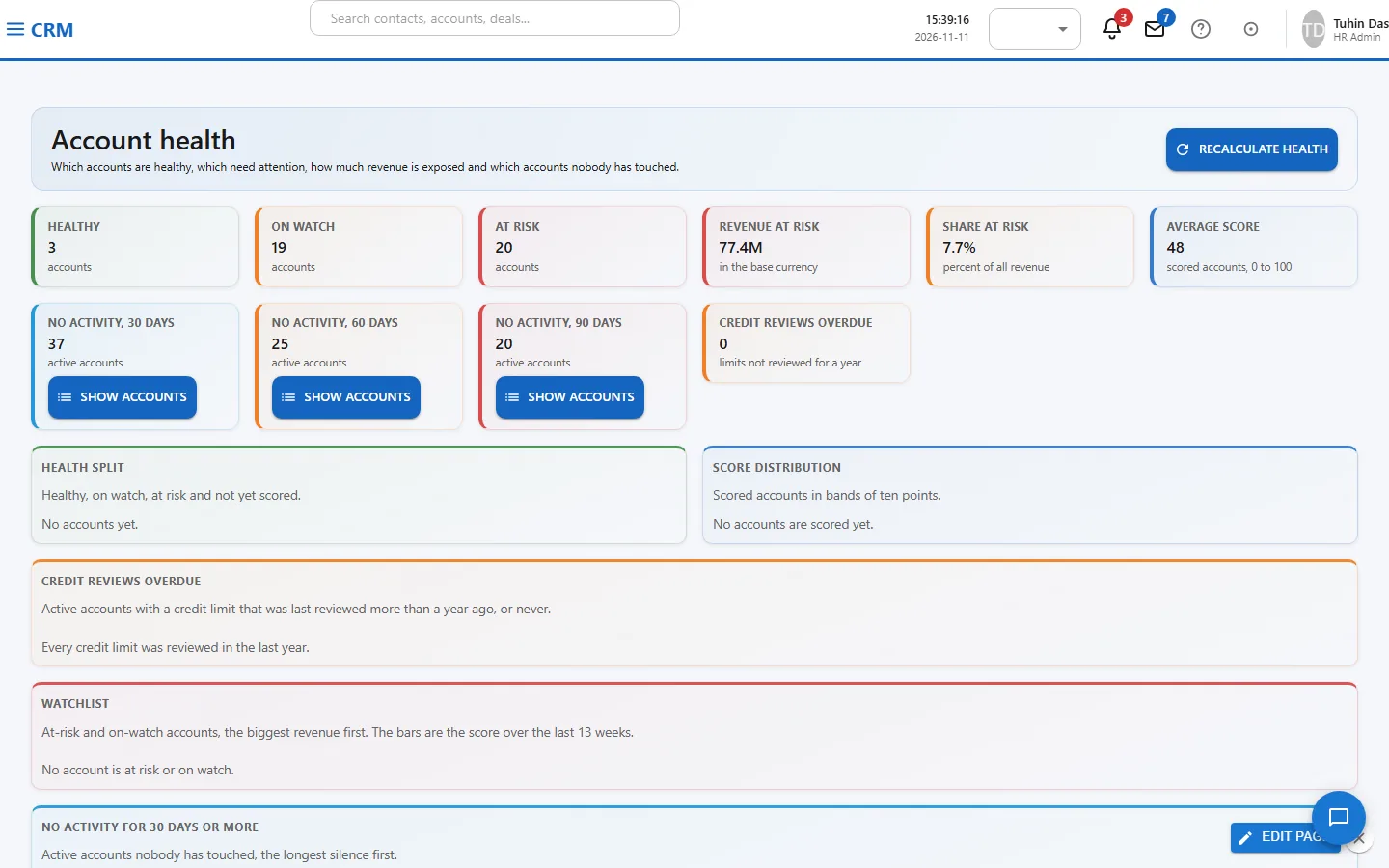
The score runs from 0 to 100. It adds how recent the last activity is (up to 25 points), how much engagement there is (notes and team members, up to 25), the state of support (a neutral 20 until the Customer Service module is installed) and the commercial standing (15 points when the account has revenue, 10 more for an open opportunity and 5 less when it owes money; the last two arrive with the Opportunities and Billing modules). 70 and above is Healthy, 45 and above is On watch, below that is At risk. An account with no data is Unscored.
- Revenue at risk is the revenue of the at-risk accounts, and Share at risk is that revenue as a percentage of all revenue.
- Score distribution shows how many scored accounts fall in each band of ten points.
- Watchlist lists the at-risk and on-watch accounts with the most revenue first; the small bars after the score are the score over the last 13 weeks (a falling line is a warning).
- No activity for 30 days or more lists the active accounts nobody has touched, the longest silence first. The three tiles count them at 30, 60 and 90 days; Show accounts on a tile opens the accounts behind the number.
Duplicate accounts and merging
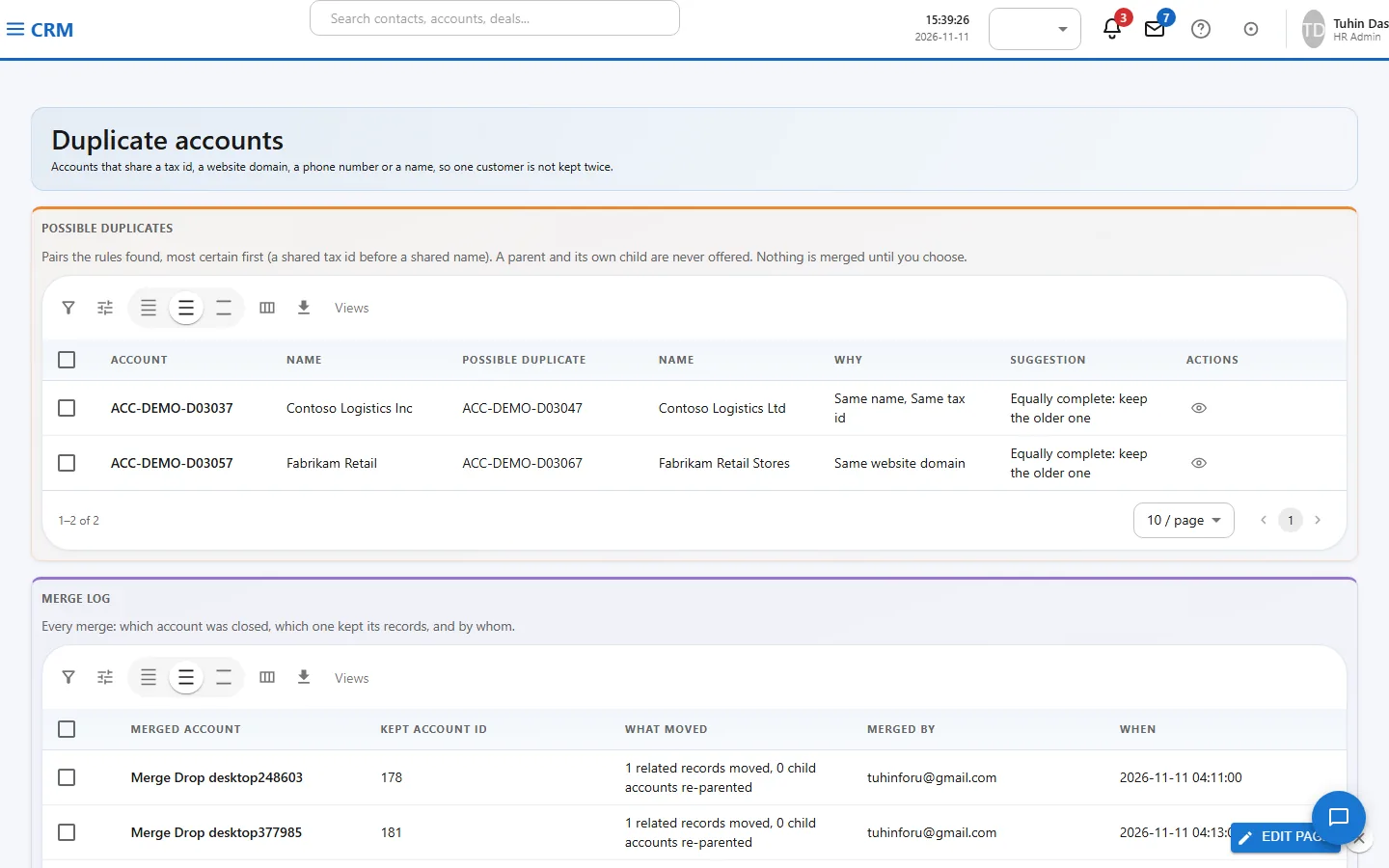
The list shows pairs of accounts that share a tax id, a website domain, a phone number or a very similar name, with a suggestion of which to keep (the more complete one: filled fields, notes, addresses, team and documents). Press Review to see the two side by side. The Insights page shows the share of accounts that are in a possible pair. Merge keeps one account, moves the addresses, locations, team, relationships, notes, documents and children of the other onto it, and writes a line in the merge log that also names the empty fields of the kept account that were filled from the merged one. A merge cannot be undone: look at both accounts first. Only the CRM Account Administrator can merge.
Account hierarchy
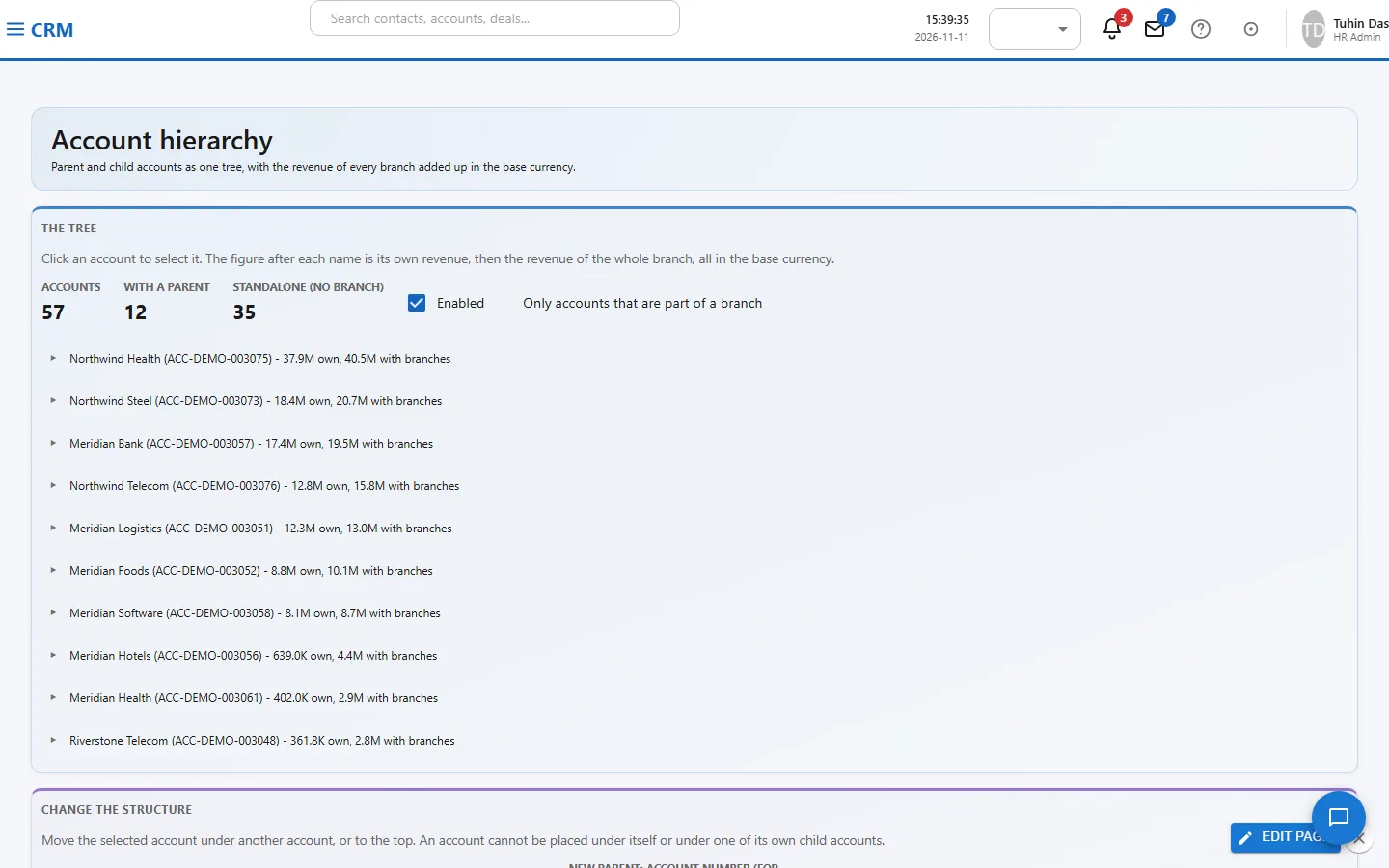
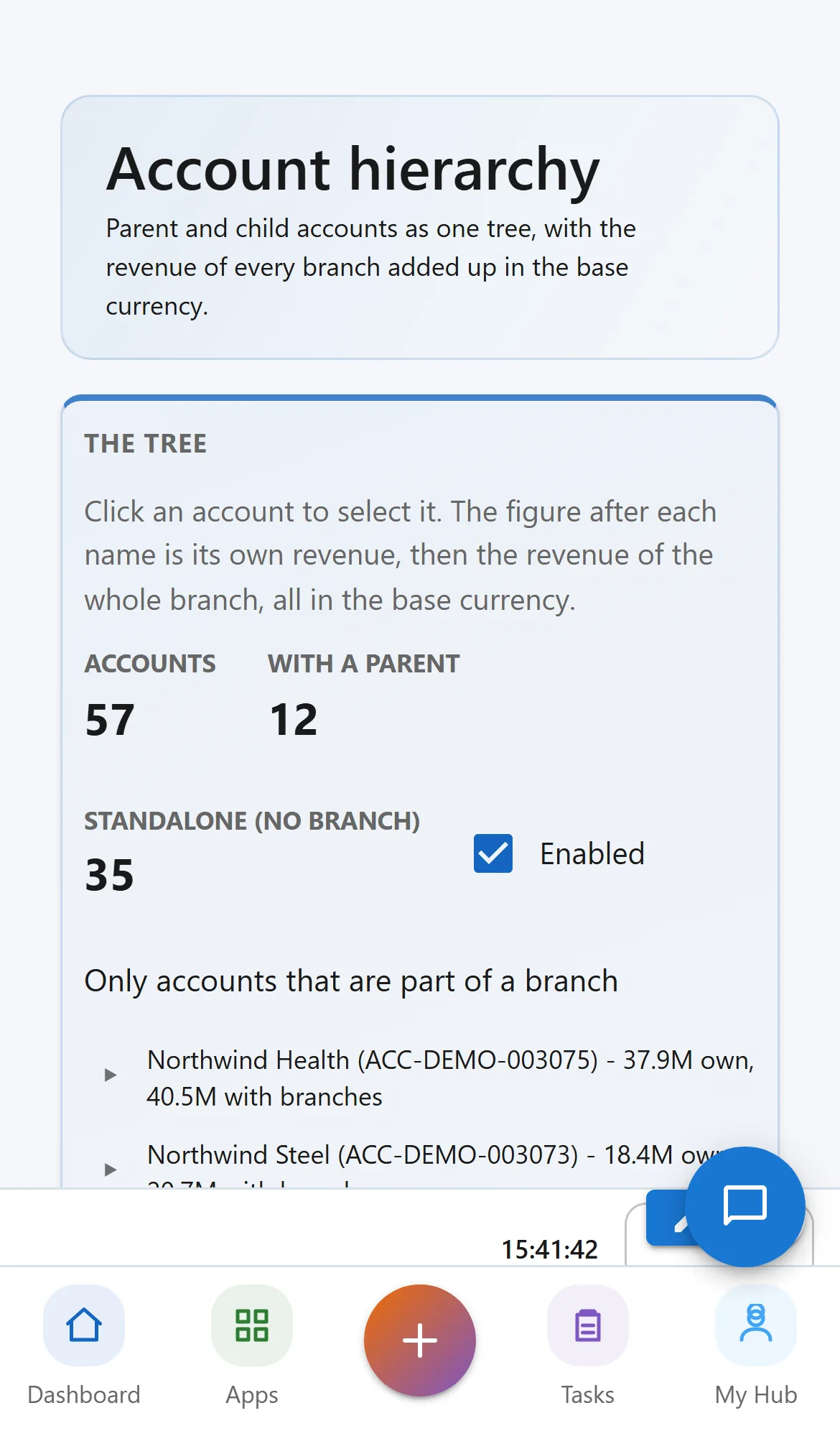
The tree shows parent and child accounts. The figures after each name are the account's own revenue and the revenue of its whole branch, in the base currency. Select an account and press Move to give it another parent, or Top to make it a top-level account. An account cannot be moved under itself or under one of its own children; the screen refuses the move.
Competitors
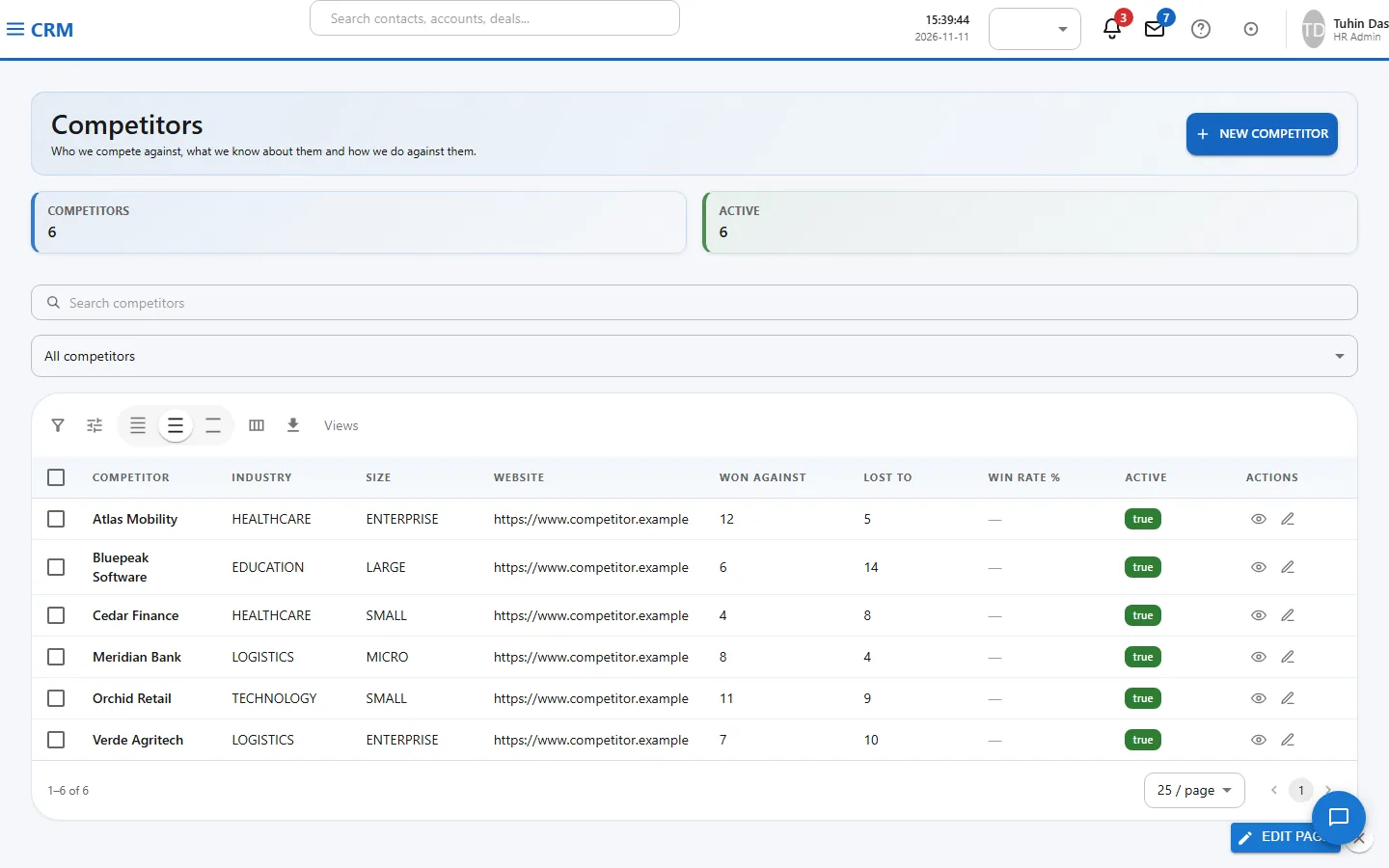
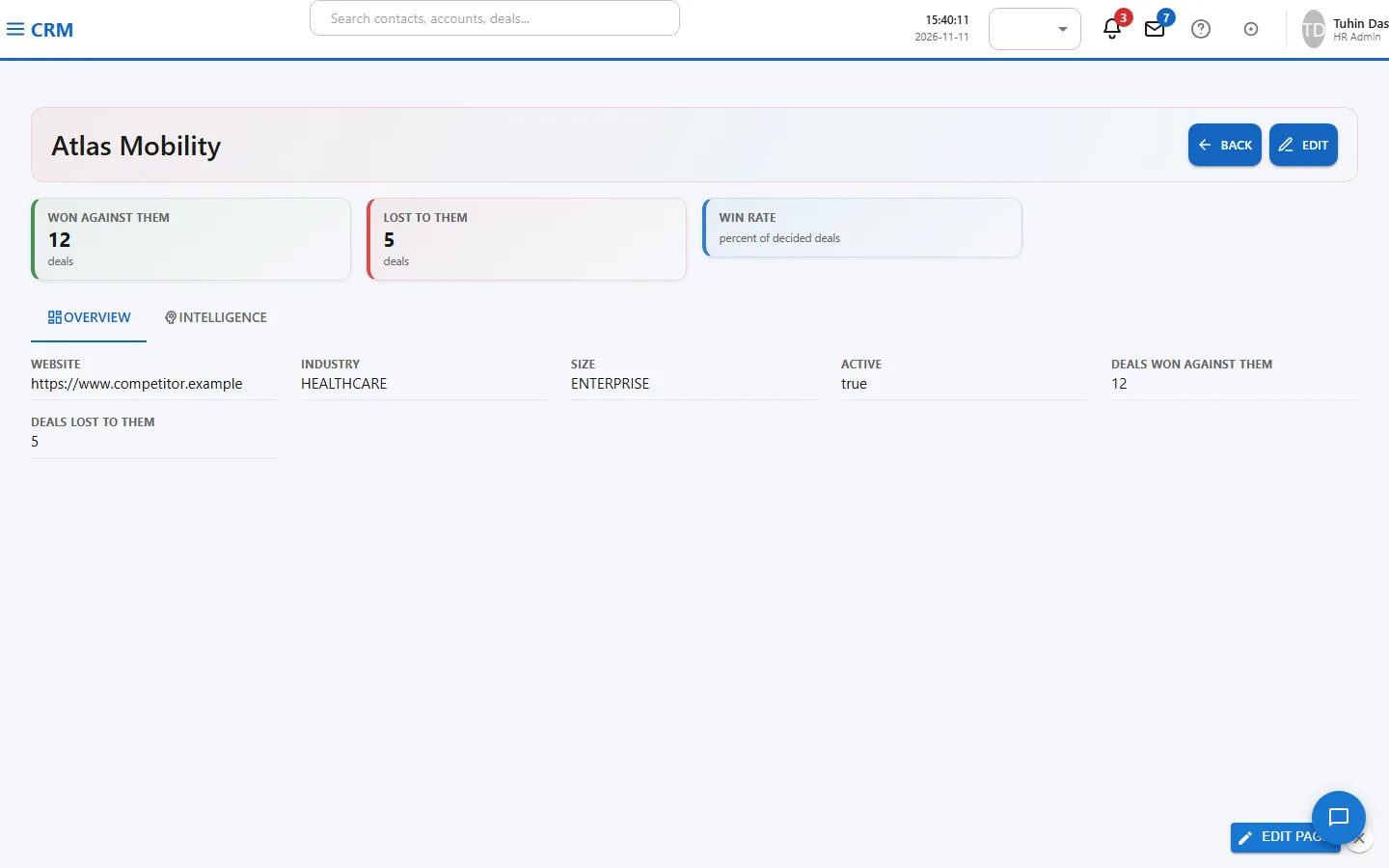
Keep what you know about the companies you compete with: website, size, strengths, weaknesses, pricing and how many deals you won against them and lost to them. The list shows each competitor's win rate (deals won divided by won plus lost). Competitor insights (Customer menu) charts the win rate by competitor and the deals lost to each, the biggest threats first. Open a competitor with the eye icon.
Industry and country packs
The module does not know any country's or industry's rules; a pack supplies them as data, and an administrator applies one with python tools/dev/apply-crm-pack.py --pack <name> (--list shows them).
- Country packs (India, United Kingdom, United States, Germany): the rule of the country for the tax id (GSTIN, VAT number, EIN, USt-IdNr.), the registration number, the postal code and the phone number. The New and Edit account screens warn when a value does not look right for the account's country and still save. A country with no pack is not checked.
- Industry packs (banking, insurance, logistics): extra fields shown on the More details tab (for example regulator licence number, KYC status, line of business, fleet size) and the weights of the health score (for example banking counts the commercial part more). A tenant normally applies one industry pack, because the health weights are tenant-wide.
- Your own rules: add Common Data settings
crm_taxid_pattern_<COUNTRY>,crm_postal_pattern_<COUNTRY>and so on, or define your own fields under Custom Fields for the entitycrm_account. Settings are read again after five minutes.
5. Charts, reports and exports
| Figure | What it counts |
|---|---|
| Annual revenue | The sum of the base-currency revenue of all accounts. Never a plain sum of mixed currencies. |
| Largest account, Top 5 / 10 / 20 | Revenue of the biggest accounts as a percentage of the same total. |
| Former or closed | Accounts with status Former or Closed as a percentage of all accounts. |
| Accounts lost per month | Accounts whose close date falls in that month. |
| Revenue at risk | Base-currency revenue of accounts whose health status is At risk. |
| Average score | Mean score of the accounts that are not Unscored. |
| Top 10 revenue | Base-currency revenue held by the ten accounts with the most revenue. |
| Top 5 / 10 / 20 share | That revenue as a percentage of all revenue. |
Every list can be downloaded with the download icon. The charts read the same data as the lists, so a number that looks wrong is wrong in the data, not in the chart.
6. On a phone or tablet
The tiles stack, the lists become cards, and the tabs scroll sideways. Everything on the desktop can be done on a phone; the two-column dialogs become one column. The hierarchy tree is easier to read on a tablet or larger.
7. Rules and limits
- Access is by role (section 1). Without a role the data is not returned, not just hidden.
- A credit limit changes only through the approval. Rejecting a request in the approval inbox needs a comment.
- Totals in the base currency use the exchange rate of the day the account was saved or refreshed, kept on the account with its date.
- The tax id, registration number, postal code and phone are free text; country-specific format checks come with a country pack.
- Not built yet: contacts, opportunities, quotes and the other CRM modules. The Related tab says so until they are installed. Support score is neutral until Customer Service is installed.
8. Troubleshooting
| Symptom | Cause | Fix |
|---|---|---|
| You open Accounts and are told you have no permission | The person has no CRM platform role | Assign a CRM role in the user administration screen |
| The screens open but a button answers "Account.Edit is required" | The person has the platform role but not the CRM application role | Assign the same role in CRM, Roles |
| Totals in the base currency are 0 or too low | Rates missing, or demo records were just generated | Add the rate under Common Data, then press Refresh totals |
| Health shows Unscored for everything | The score has not been calculated yet | Press Recalculate health on the Account health screen |
| A credit request stays pending | Nobody has approved it | Open the Workflow Approval Inbox as an approver |
| New request refused: "already waiting for approval" | One request per account at a time | Decide the pending request first |
| The merge button is missing | Only the Account Administrator can merge | Ask for the role |
| A menu item or tab is missing | It is not part of your SparkCRM edition, or your role does not allow it | Ask your administrator; see Editions |
| A rule warning appears for a correct number | The country pack's pattern is stricter than your numbers | Adjust crm_*_pattern_<COUNTRY> in Common Data |
9. Related guides
- HCM user guide for the shared platform concepts (roles, approvals, demo data).
Notes and network, and Account intelligence
- Notes and network tab: notes can be visible to the whole account, the account team or only you (private);
@loginin the text is kept as a mention; a note can be pinned (shown first) and locked (nobody can edit it until its author or a manager unlocks it). "Related accounts" walks the current relationships up to two steps (an ended relationship is skipped; a one-way relationship is followed only in its direction). "Locations open now" reads the operating hours of each location (for exampleMON-FRI 09:00-17:00; SAT 10:00-14:00) and its closed dates and time zone. "Pipeline with sub-accounts" adds up the open deals of the account and every account below it. - Documents carry a confidentiality level, tags, a keep-until date and a legal hold. Expiring documents and documents past their retention (not on legal hold) are listed, and a person decides what to remove. Restricted documents are listed only to managers.
- Competitors have a threat level, where we win, objections and answers, and a battlecard; opening the battlecard marks it reviewed, and cards not reviewed for six months are listed.
- Account intelligence (Customer menu): inactive customers by age, prospects by engagement, customers to win back (by revenue to date), customers ready to grow (active, healthy, no open deal), documents expiring or past retention, accounts with only old notes, battlecards to review, ended relationships.