
Appearance
CRM Activities: set up and daily use
Activities are everything done with customers and prospects: tasks, calls, meetings, emails, visits, follow-ups, notes, demos, appointments, reminders and to-dos. One engine holds them all; the screens are views of it.
1. What it is and who uses it
An activity has a number (ACT-000001), a kind, a subject, a status, a priority, the person who does it, the record it is about (account, contact, lead or opportunity), a due time or a start time, an outcome and a respond-by time.
| Role | Can see | Can do |
|---|---|---|
| CRM Activity Viewer | Activities, the calendar, the dashboards | Nothing that changes data |
| CRM Activity User | The same | Create, edit, complete, take from the queue, comment, use templates |
| CRM Activity Manager | The same | Also assign, reschedule, cancel, run the assignment rules |
| CRM Activity Administrator, CRM Admin | Everything | Everything, including delete, bulk changes, templates, recurring series, rules and teams |
Editions
Lite: activities and the calendar. SparkCRM adds the queue, recurring activities, templates, the insights, outside calendar sync and mail logging. Enterprise and Plus add assignment rules, team capacity, respond-by times and escalation.
2. Before you start
- Install CRM Foundation, then CRM Activities. Accounts, Contacts, Leads and Opportunities are optional; with them installed an activity can be about their records, and each record page gets an Activities tab.
- Working days and holidays come from the platform's business calendar (Tenant policy, area Calendar: working days and holidays). Respond-by times count working days, and escalation does nothing on a day off. Open activities with a time also appear in the platform Calendar, next to leave and holidays.
- Optional Common Data settings:
crm_activity_sla_hours(grace after the due time, default 24;crm_activity_sla_hours_<KIND>per kind) andcrm_activity_retry_days(when a call nobody answered is planned again, default 2). - Three jobs start switched off; switch them on in Scheduled Jobs: escalation (every 15 minutes), reminders (every 5 minutes) and recurring activities (nightly).
- Demo data: pack CRM Activities (needs the four other CRM packs), then call
POST /api/v1/plugins/crm-activities/activities/recalculateand.../plans/series/materialise.
3. Set up
- Activity teams: the people of a team and how many open activities each can carry.
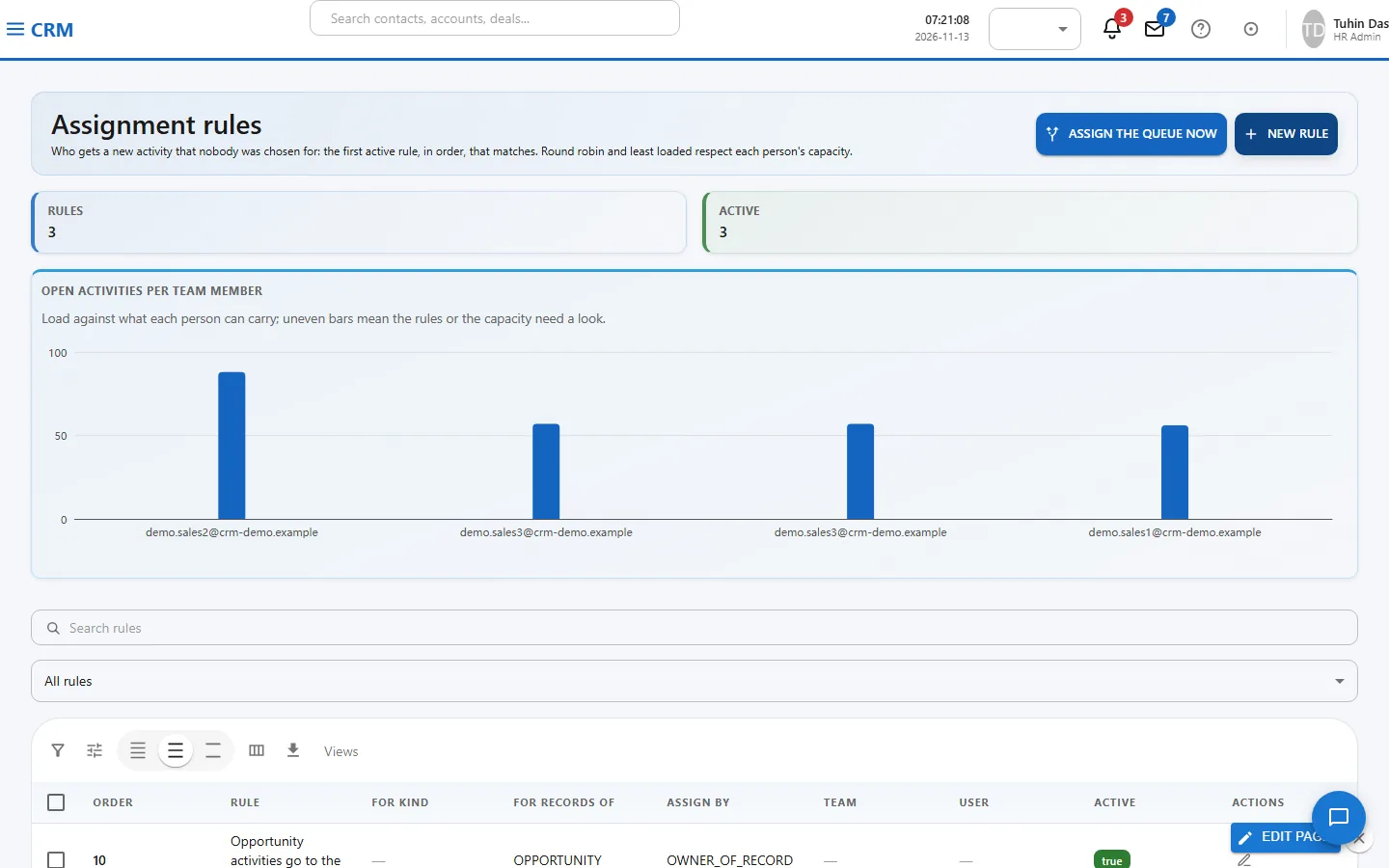
- Assignment rules: the first active rule, in order, that matches picks the person: the owner of the record, a fixed person, round robin or least loaded within a team. A person at capacity is skipped.
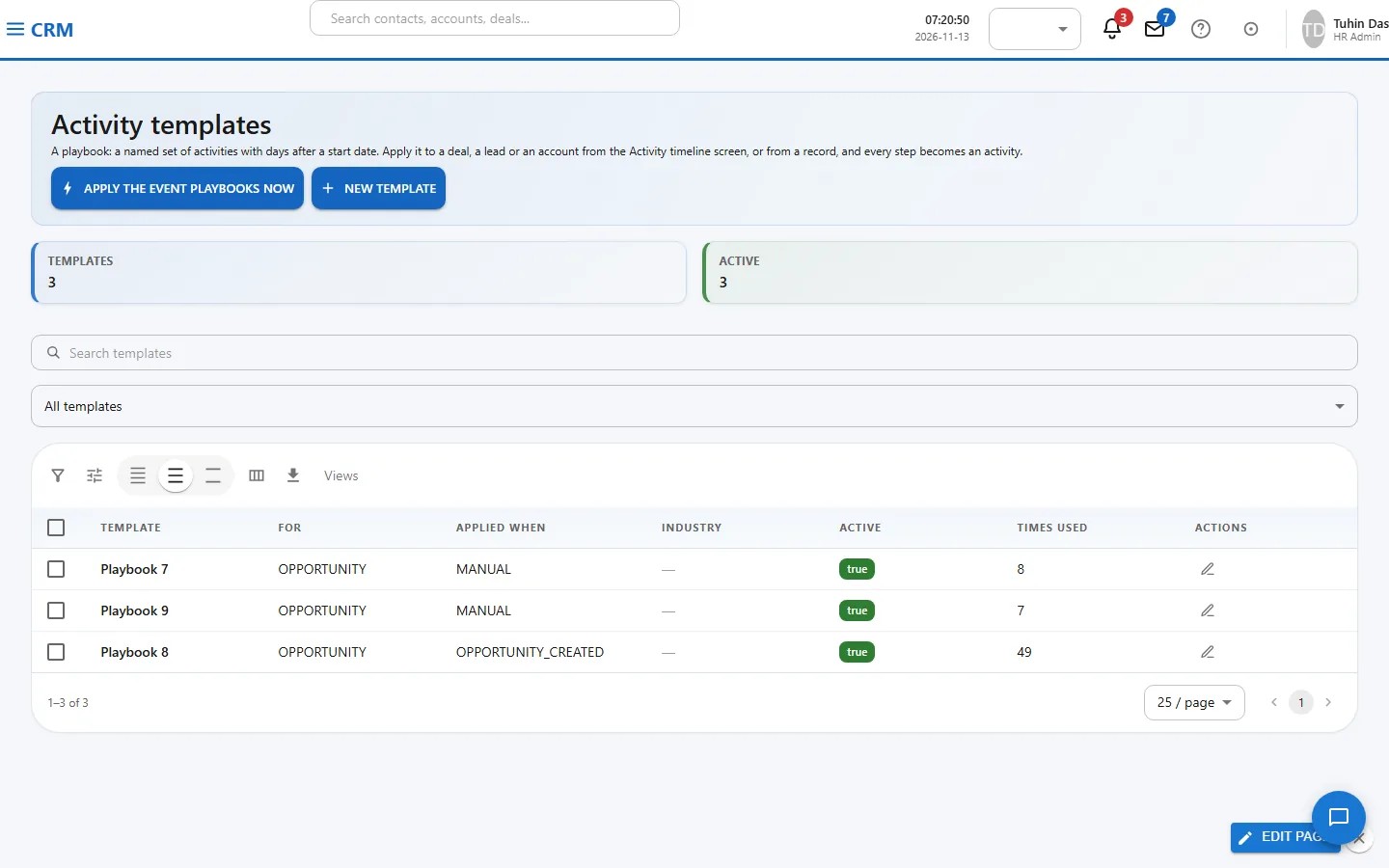
- Templates and template steps: a playbook of steps with days after a start date. Set Applied when to start it by itself on an event: a lead, account or deal is created, or a deal is won or lost. Every 15 minutes (job CRM playbook triggers, switched off by default; or the button Apply the event playbooks now) the playbooks are applied to records of the last week that do not have them yet, never twice to one record.
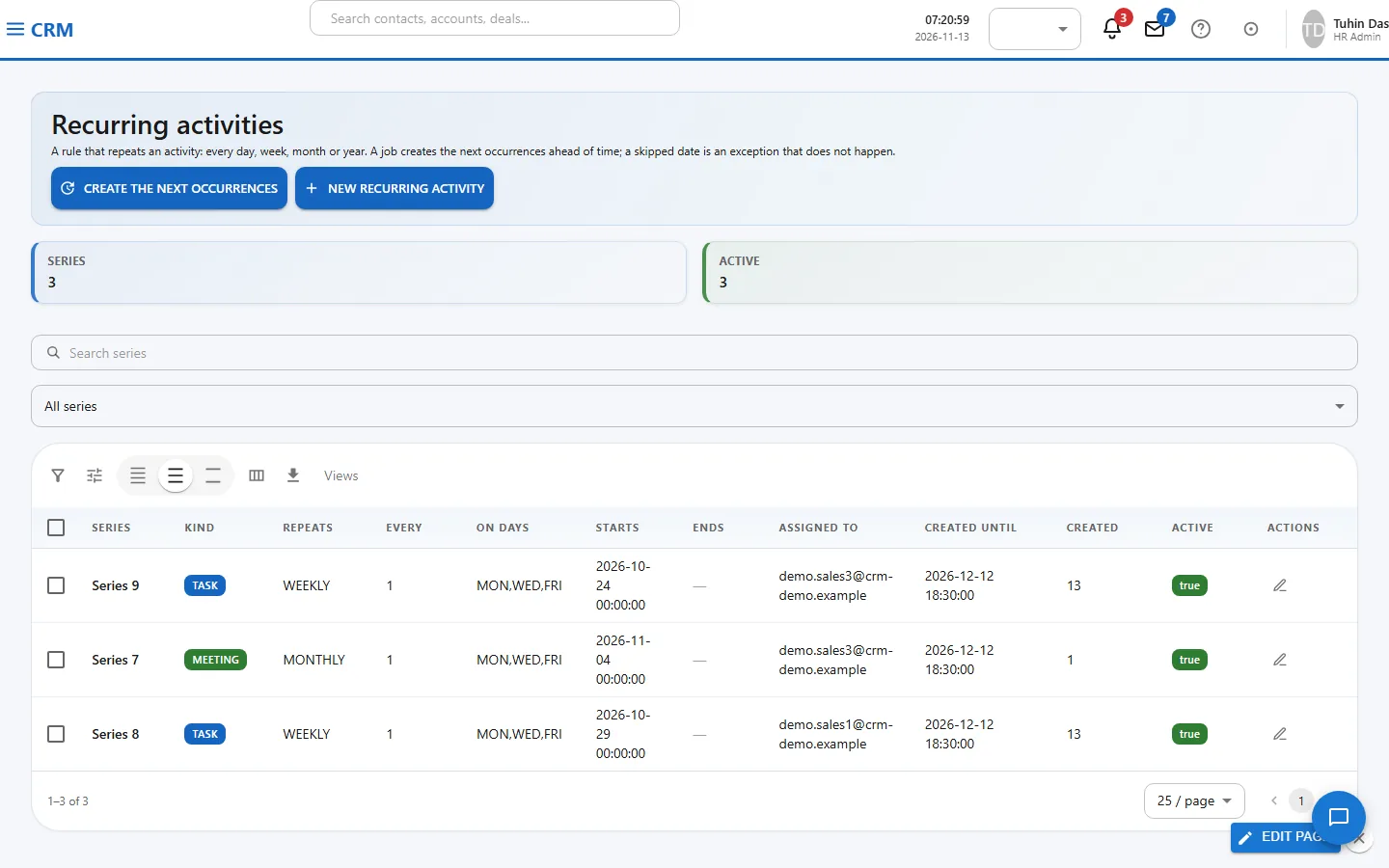
- Recurring activities: a rule (daily, weekly, monthly, yearly) with skipped dates.
4. Daily use
Activities list
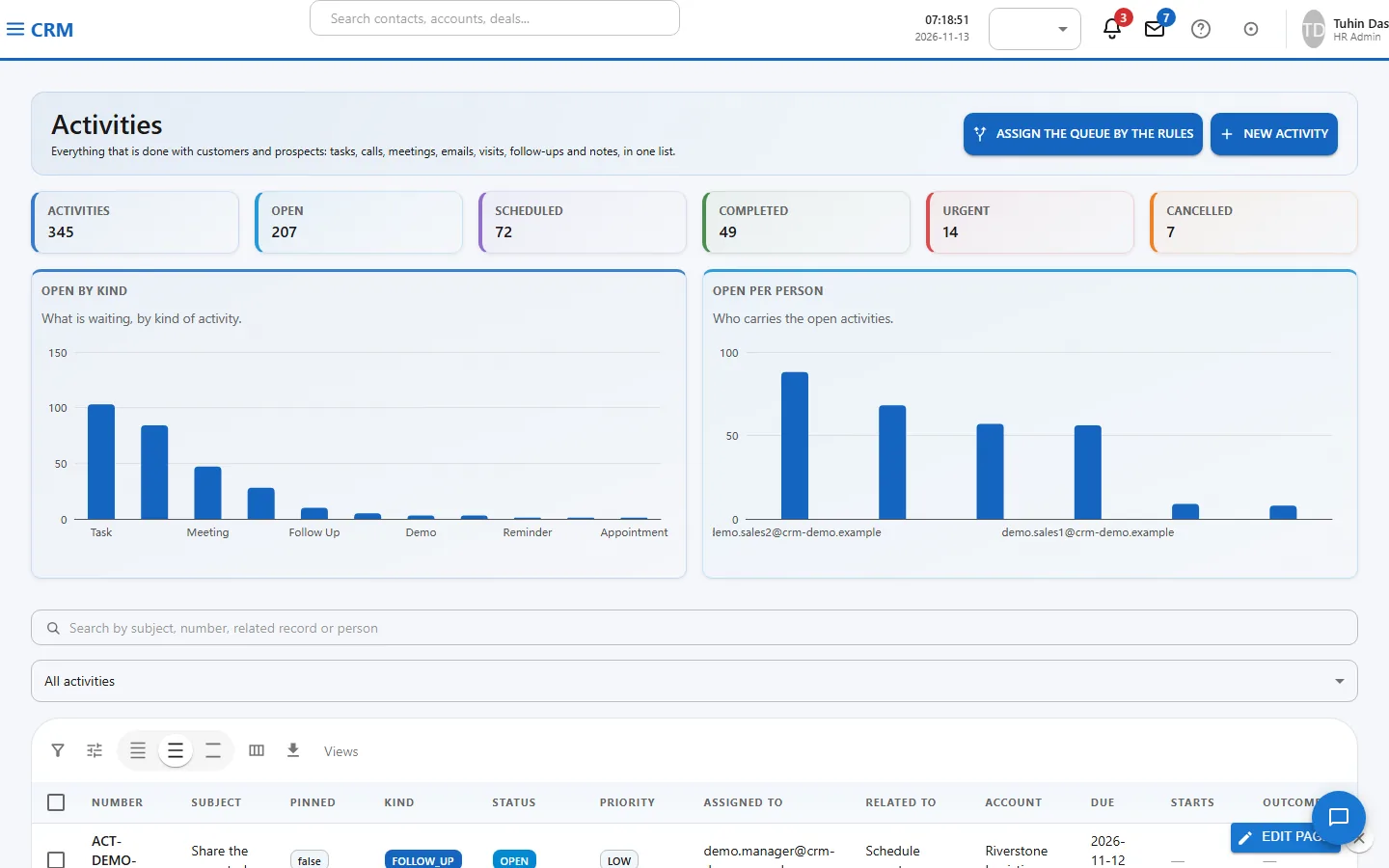
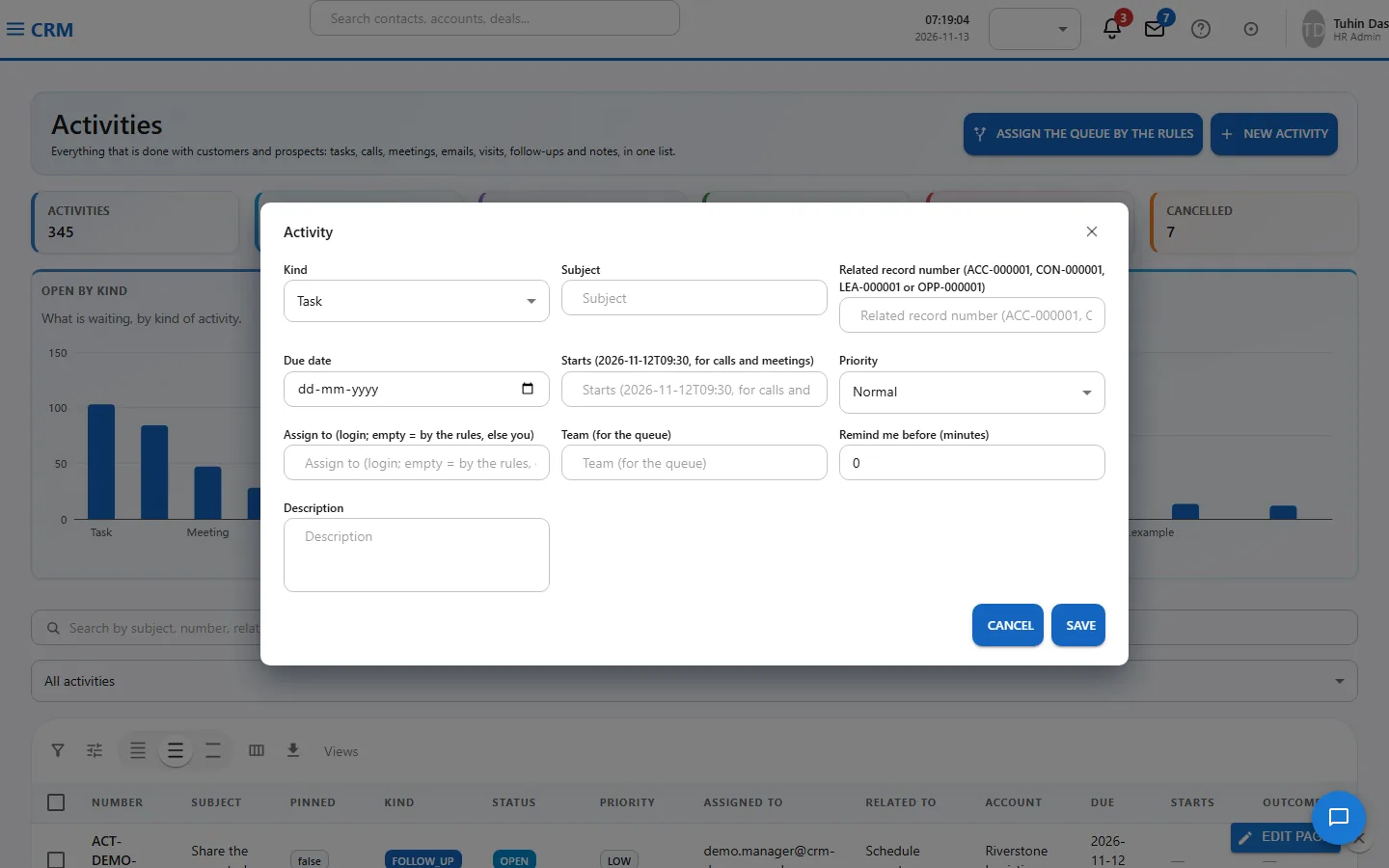
Sales, Activities lists everything with a view per kind (tasks, calls, meetings, emails ...). New activity needs a kind and a subject; give the related record by its number (OPP-000001); a call or meeting also needs a start time. Without a person, the rules choose; if none matches, you do it. A warning appears when the person is already busy then. Bulk actions: complete, assign, reschedule, change priority, cancel.
The activity page
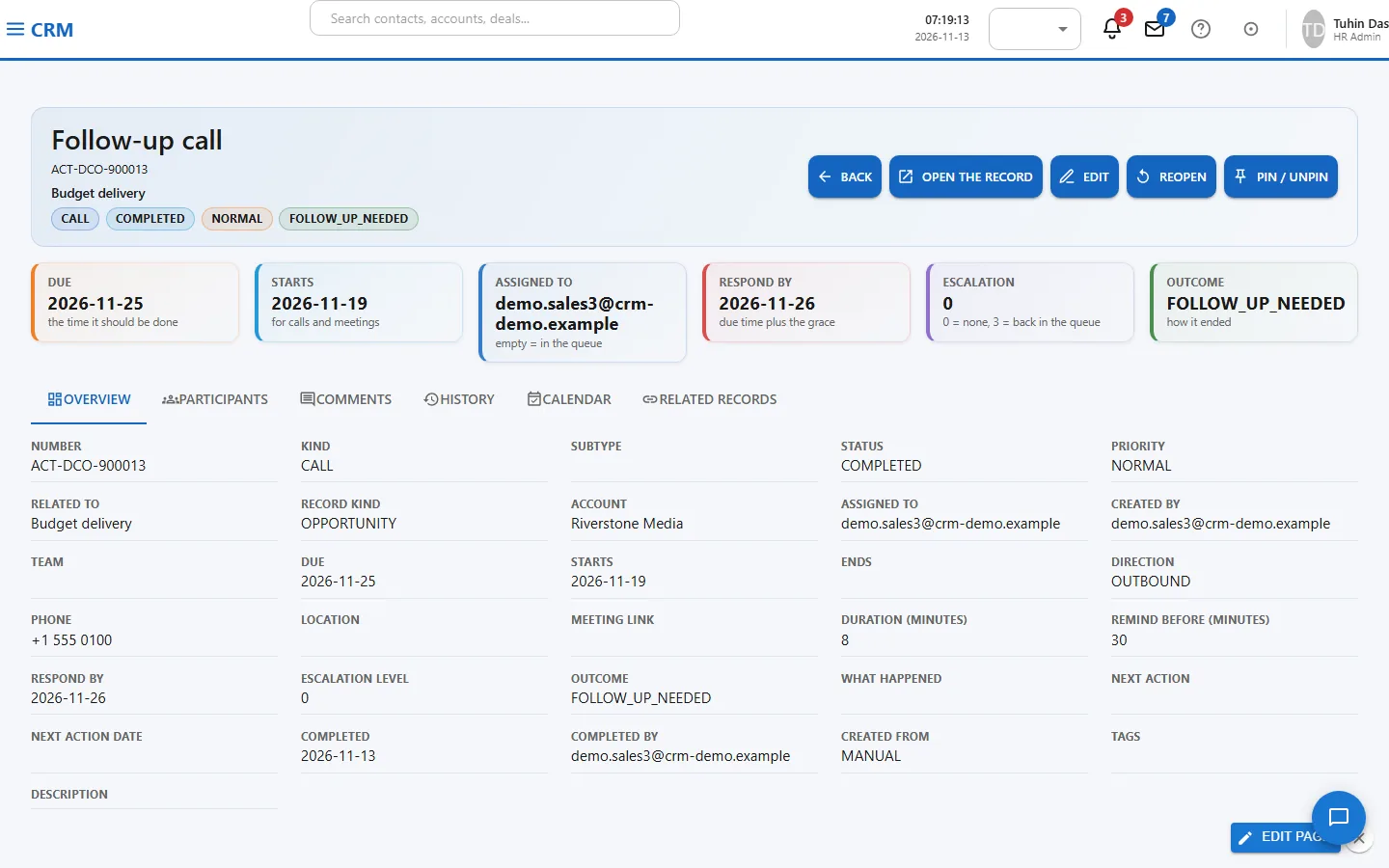
Actions: Edit, Take it, Start, Complete, Reschedule, Cancel, Reopen, Pin, Send invitations (every participant with an address is told by the platform's messaging), Accept and Decline (your own answer; the organiser is told), Skip this one in the series (for an activity made by a recurring rule), Add to my calendar and Take off the calendar. Complete records the outcome (a call must have one), what happened, the duration and a next action; a next action with a date plans the follow-up, and a call nobody answered plans a new call by itself. Cancel needs a reason. Tabs: Overview, Participants, Comments, History, Related records.
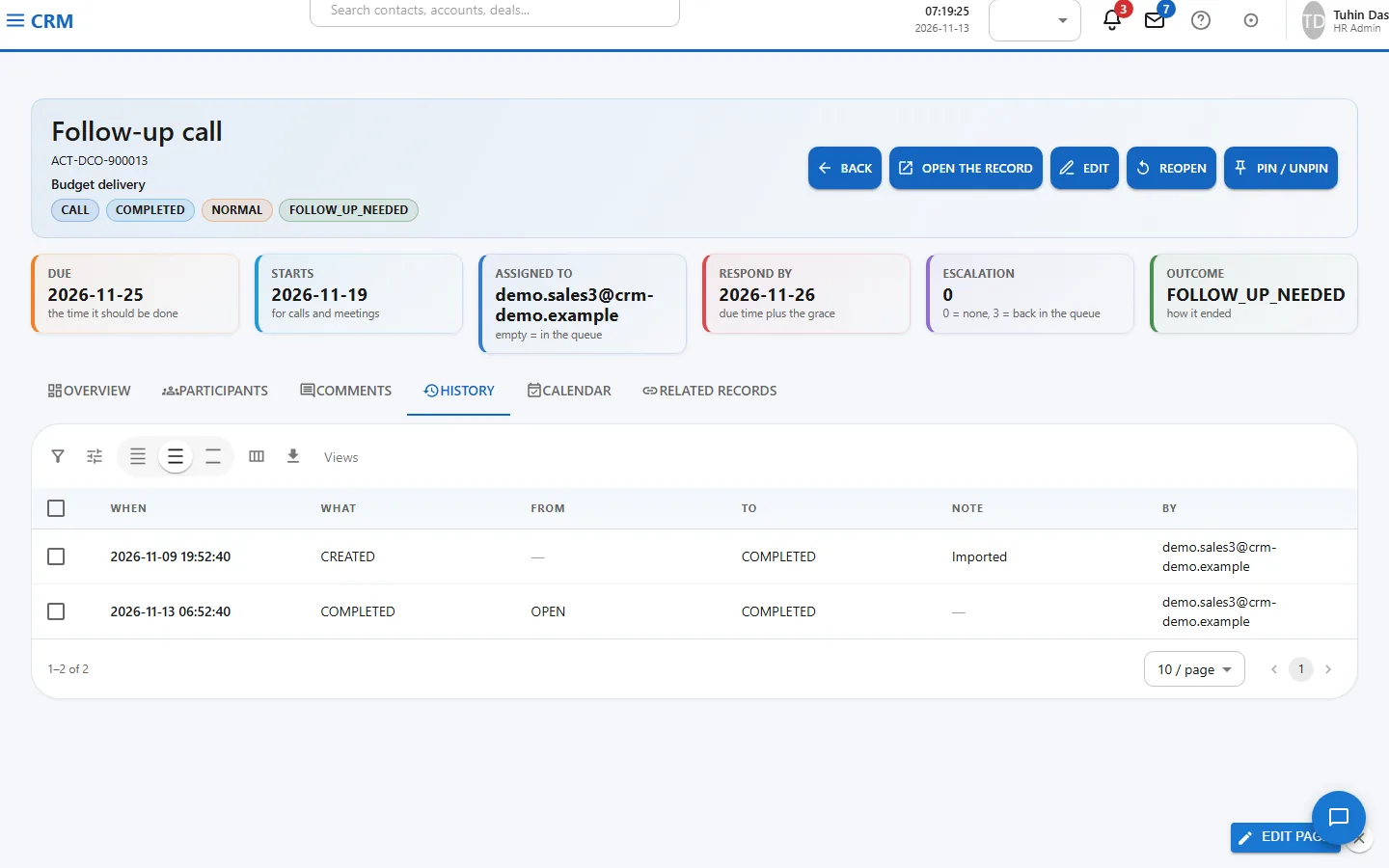
More on the activity page
- Checklist: steps on an activity. A step marked "needed" must be done before the activity can be completed.
- Sub-tasks and waiting for: an activity can be a sub-task of another (the parent cannot be completed while a sub-task is open) or wait for another activity to be done first.
- Follow-ups and the chain: plan several follow-ups at once and see the whole chain from the first activity.
- Snooze and dismiss: put a reminder off for a number of minutes, or switch it off. The daily digest (every morning at 8) tells each person how many activities are overdue and due today; snoozed ones are left out.
- Reopen with a reason, hand over (the previous holder is kept), and @mentions in comments notify the person.
- Visible to: record (default), team or private (only the creator and the assignee see it).
- Notes: turn a note into a task, call, meeting or follow-up. Visits: check in and check out with your position; the distance to the planned place is kept and a check-in far away is flagged.
- Calls and email: on the Calls screen, "Log a call" matches the phone number to a contact, lead or account (with outcome, sentiment, recording link); "Send an email" goes through your organisation's mail account and is logged on the record.
- Timeline: shows a summary line (last and next contact, open and overdue) and "Find free time" for a person.
- Assignment can also pick by skill, by territory, or the person with free time; a team member has skills and a territory.
- Screens: "Completed late" lists work finished after its due time with the days late; lists show a priority score and, for overdue work, a severity. Activity reports add due-within-24-hours, completed late, snoozed, visits, workload by day and person, buyer intent, sentiment and accounts with no activity.
- AI assistant (Enterprise and Plus): "activity summary" and "find activities" tools.
Worklists
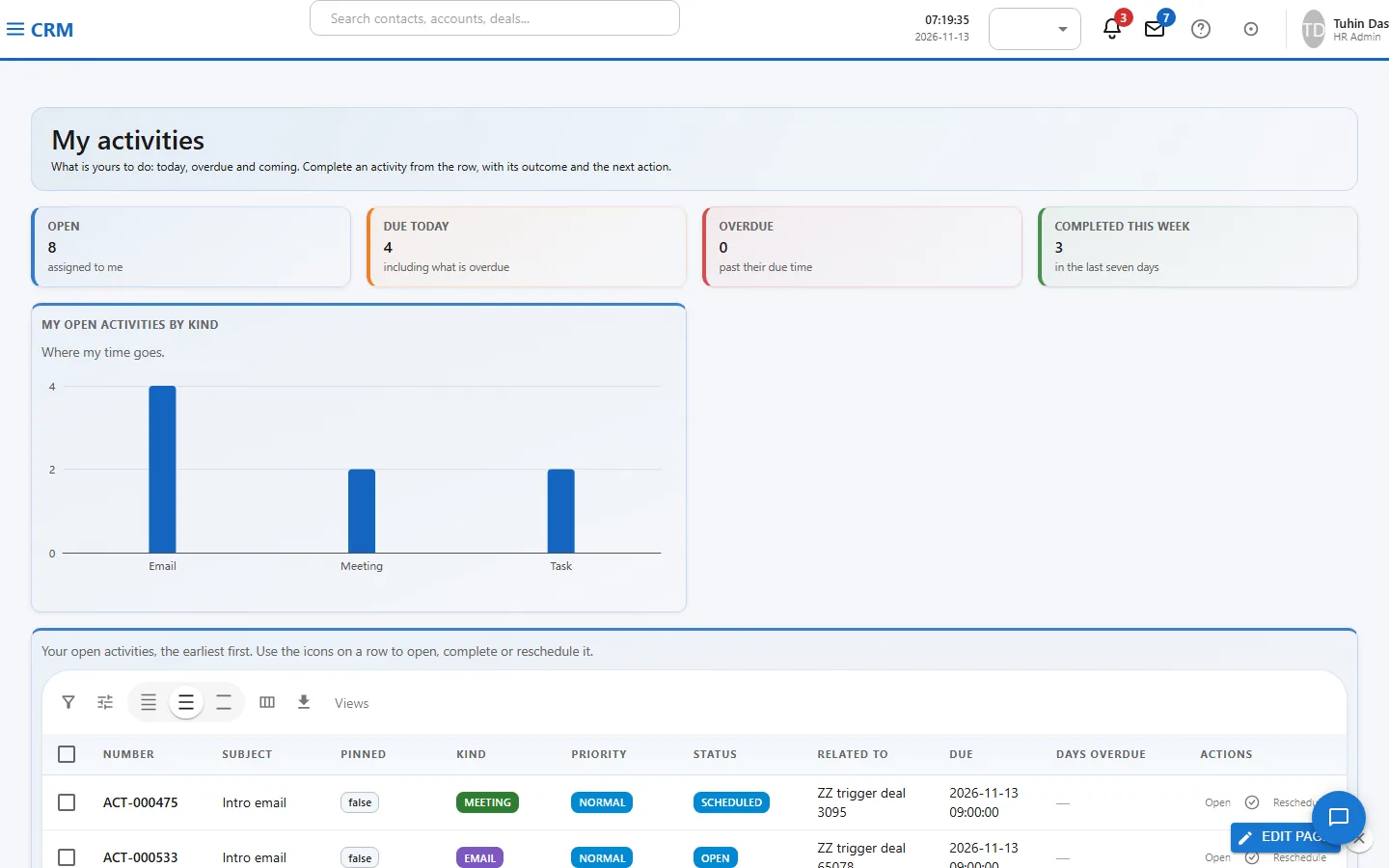
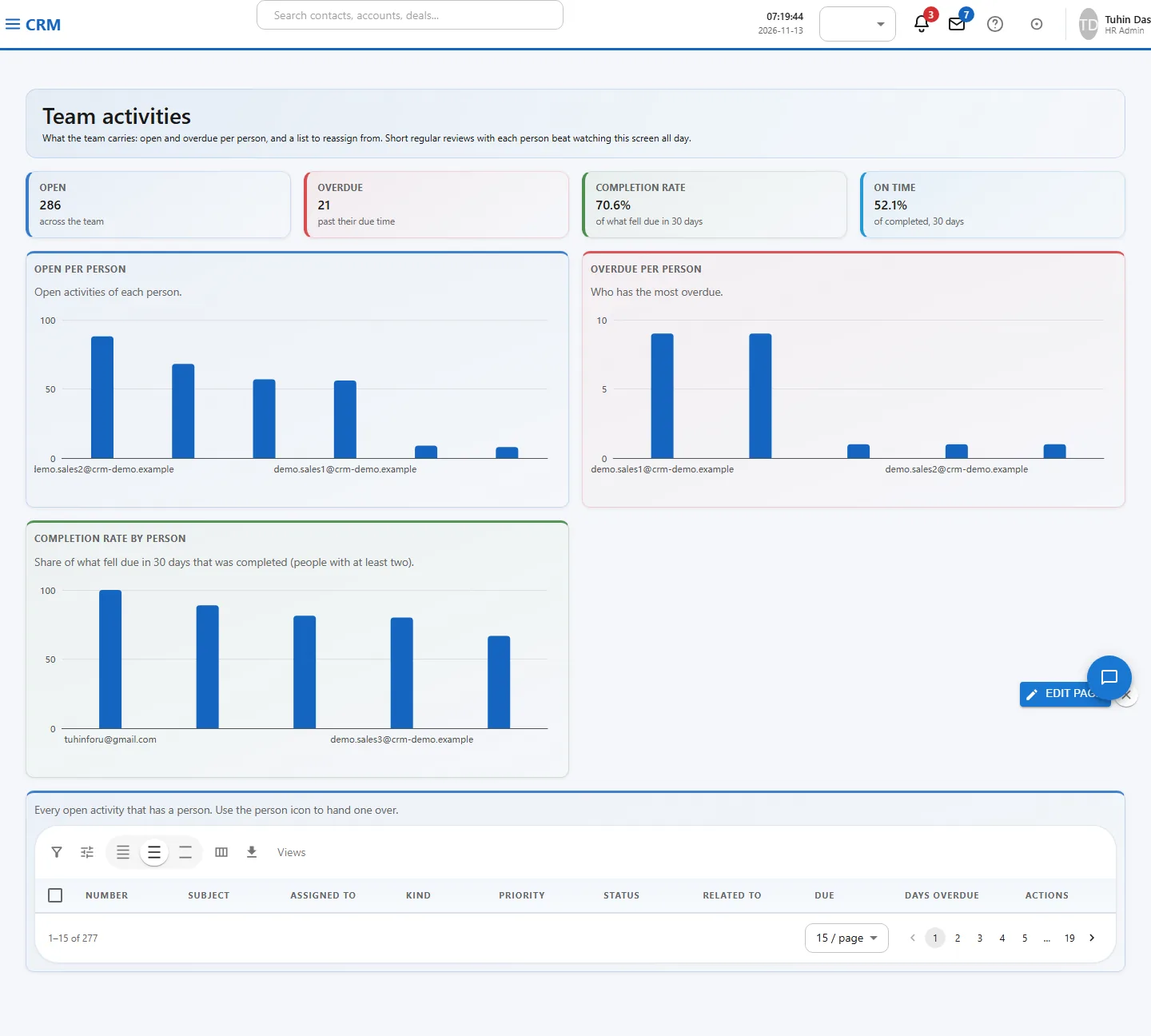
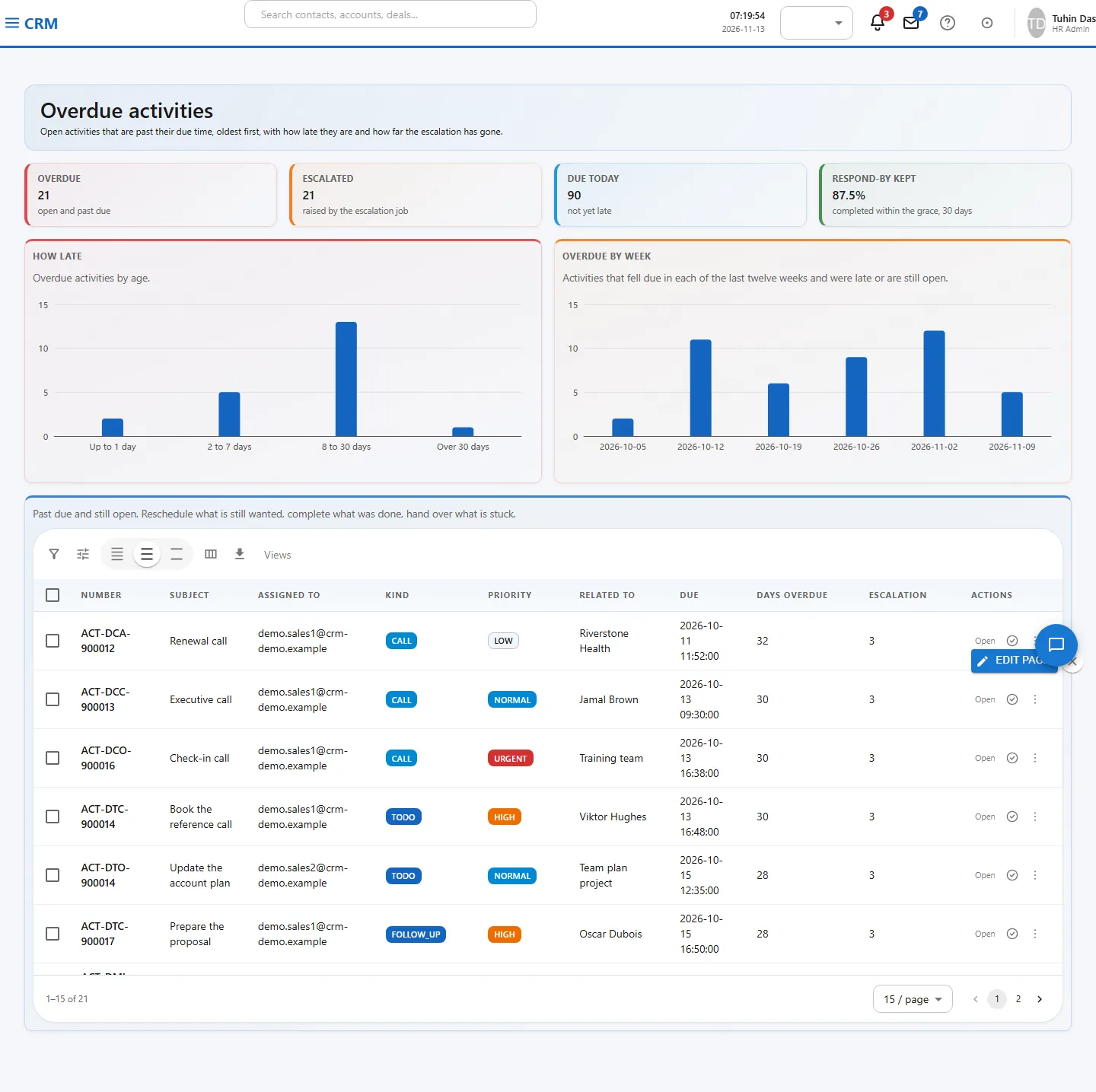
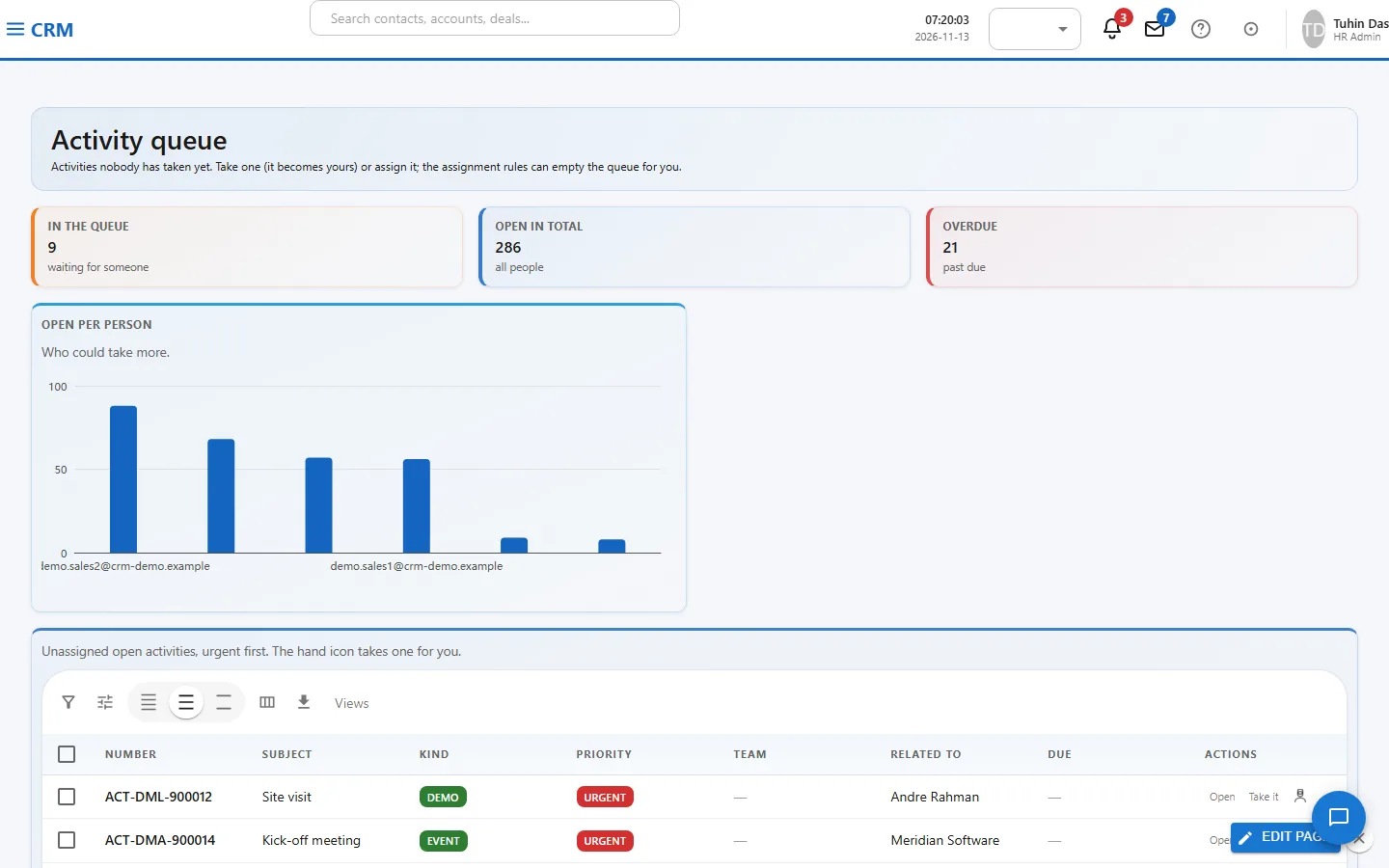
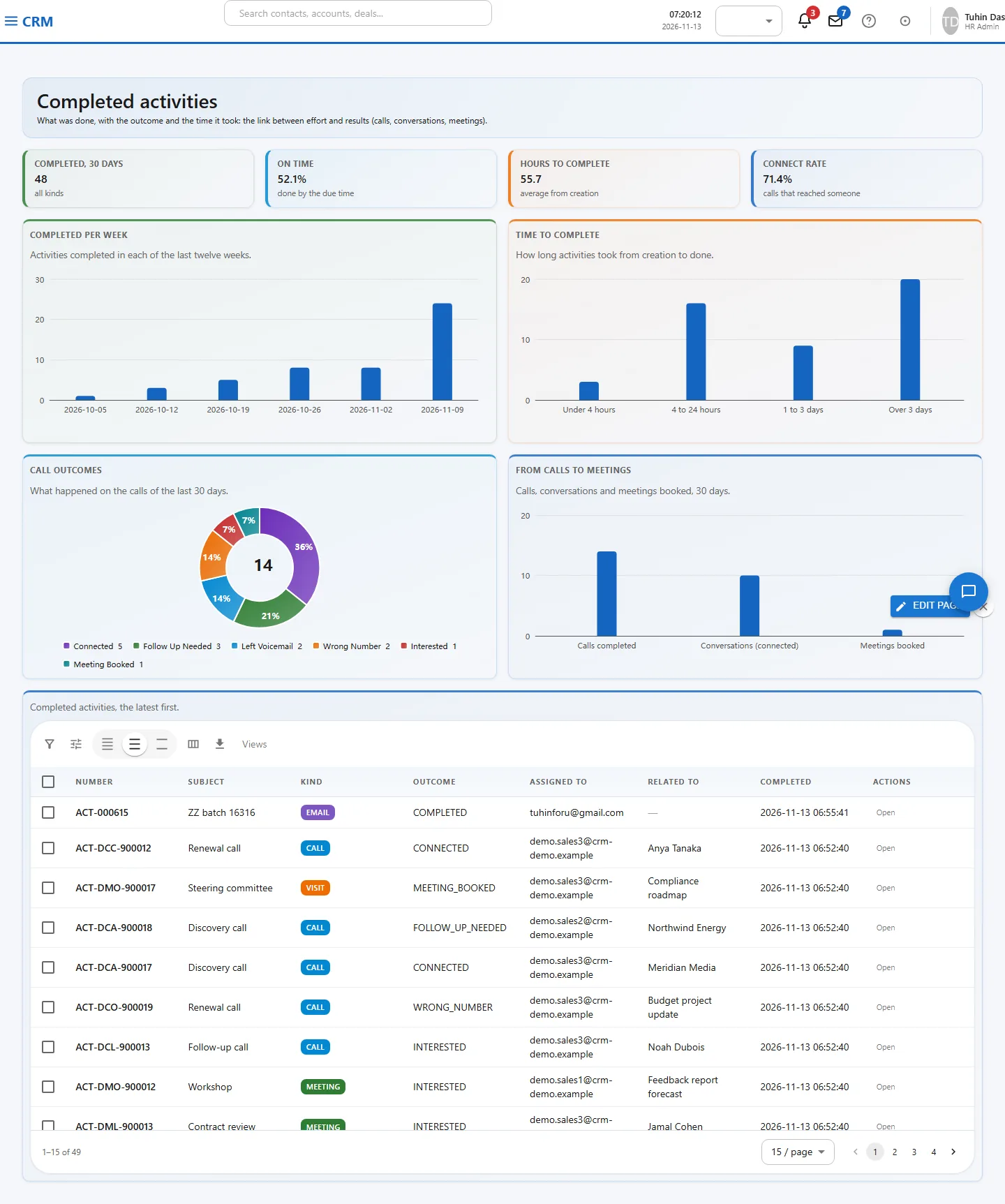
My activities (today, overdue, coming), Team activities (open and overdue per person), Overdue (with age and escalation), Activity queue (take one), Escalated, Completed, Calls, Meetings, Tasks and follow-ups.
Calendar and timeline
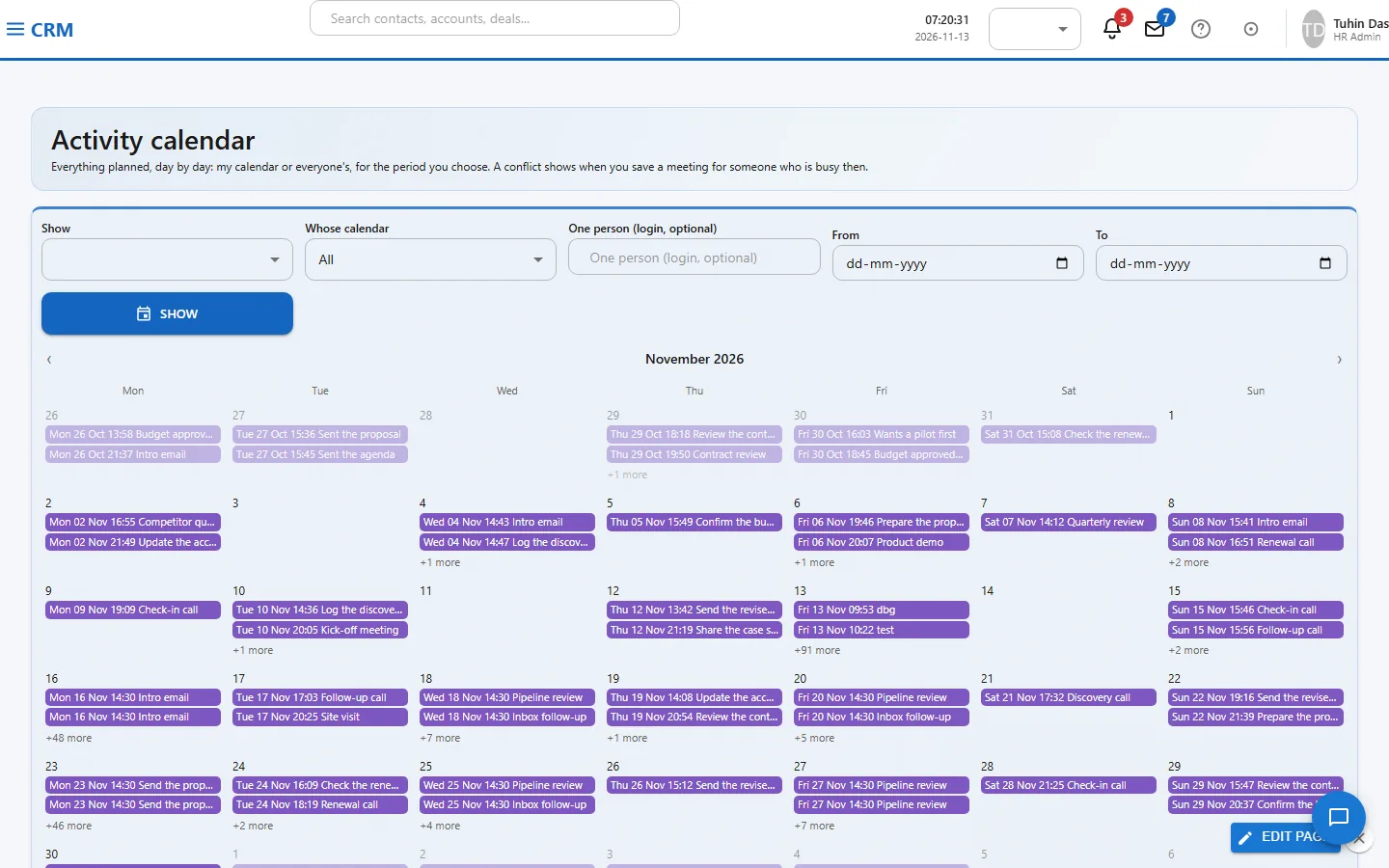
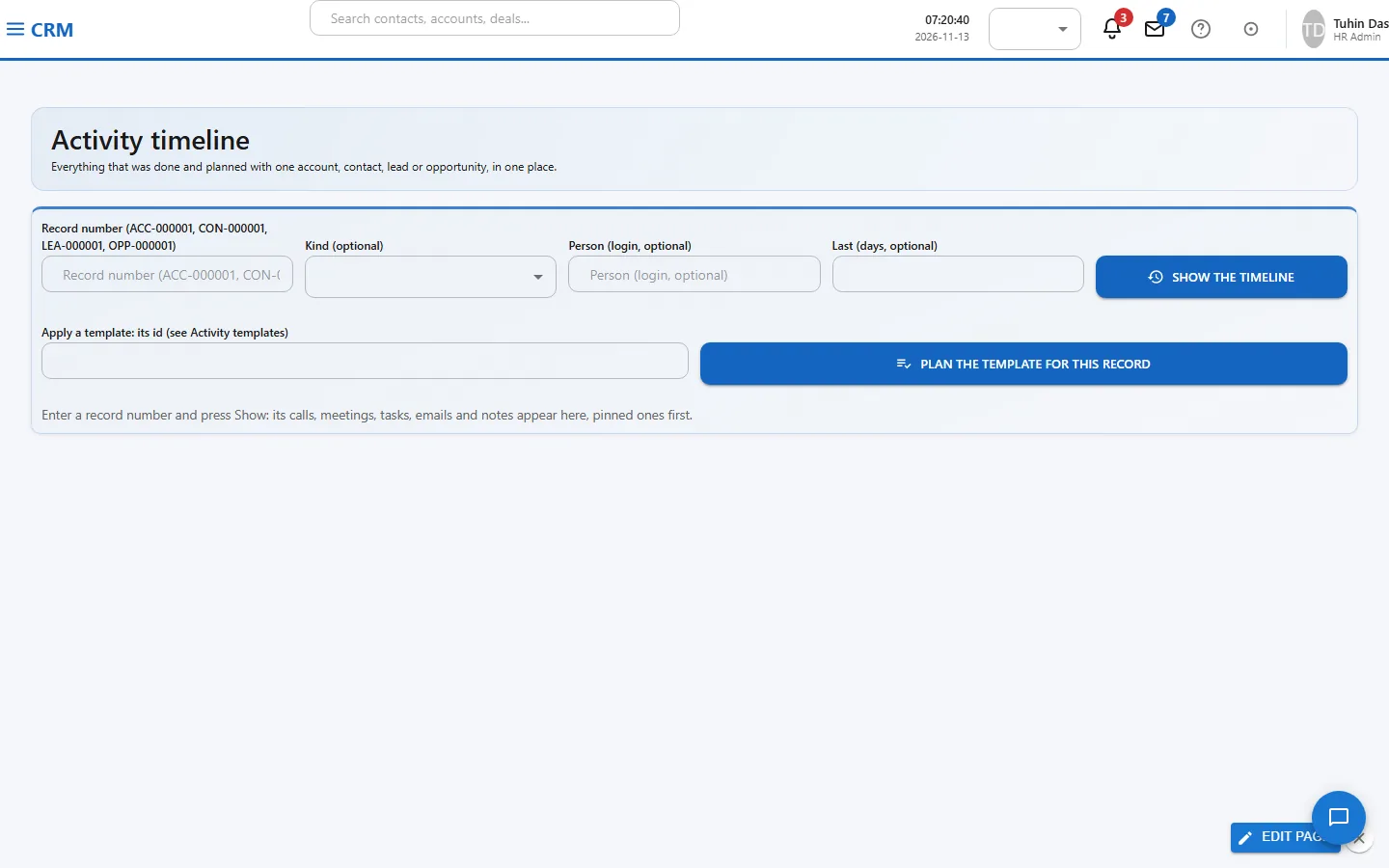
Activity calendar shows what is planned as a month grid with the list below it, for me or everyone, and a Show choice of day, week or month for the list. Open activities with a time also appear in the platform Calendar; the .ics download comes in two forms, everyone's or only mine. Drag an activity to another day to reschedule it (it keeps its time of day and length; the history records the move). Download as an .ics file saves the calendar for any calendar program. Activity timeline shows everything about one record by its number, pinned first, and applies a template to it.
Templates, recurring, assignment
Outside calendar and mail
- Calendar sync. An administrator adds a calendar sync account (Google or Outlook) under Calendar, sync accounts. On an activity with a time, Add to my calendar puts it on that calendar; moving the activity moves the outside event and cancelling it removes the event. The Calendar tab of the activity shows the links and any error. For a trial,
node dummy-services/setup-calendar.mjs --tenant 1adds a dummy Google calendar (a stand-in, not a real provider). - Mail logging, from a mailbox. An administrator adds a connection of type Mailbox (IMAP) in the Integration Designer, Connections (address
imaps://user@mail.example.com:993, the password or app password as the secret; for Gmail or Microsoft 365 choose an OAuth sign-in kind instead, tick "This signs in to a mailbox", fill the token address, client id and secret, and press Connect: the platform's token service gets and renews the access token and IMAP signs in with XOAUTH2) and presses Test. Then set the Common Data settingcrm_activity_mailbox_connectionto the connection's code (optionallycrm_activity_mailbox_sent_folderfor the sent mail andcrm_activity_mailbox_ownerfor the salesperson the mails belong to) and switch on the job CRM mailbox logging in Scheduled Jobs. Every ten minutes the unread mails are read, marked as read and logged as completed Email activities about the contact (or lead) that owns one of the addresses, with the addresses as participants. A mail is logged once per Message-ID. Reading alone never marks a mail as read. - Mail logging, pushed. Anything else that reads mail (a flow with the
mail.fetchstep, a mail rule, a BCC address processor) can send each mail toPOST /api/v1/plugins/crm-activities/outside/log-email(orlog-emailswith a list):messageId,direction,from,to,cc,subject,body,sentAt.
Insights
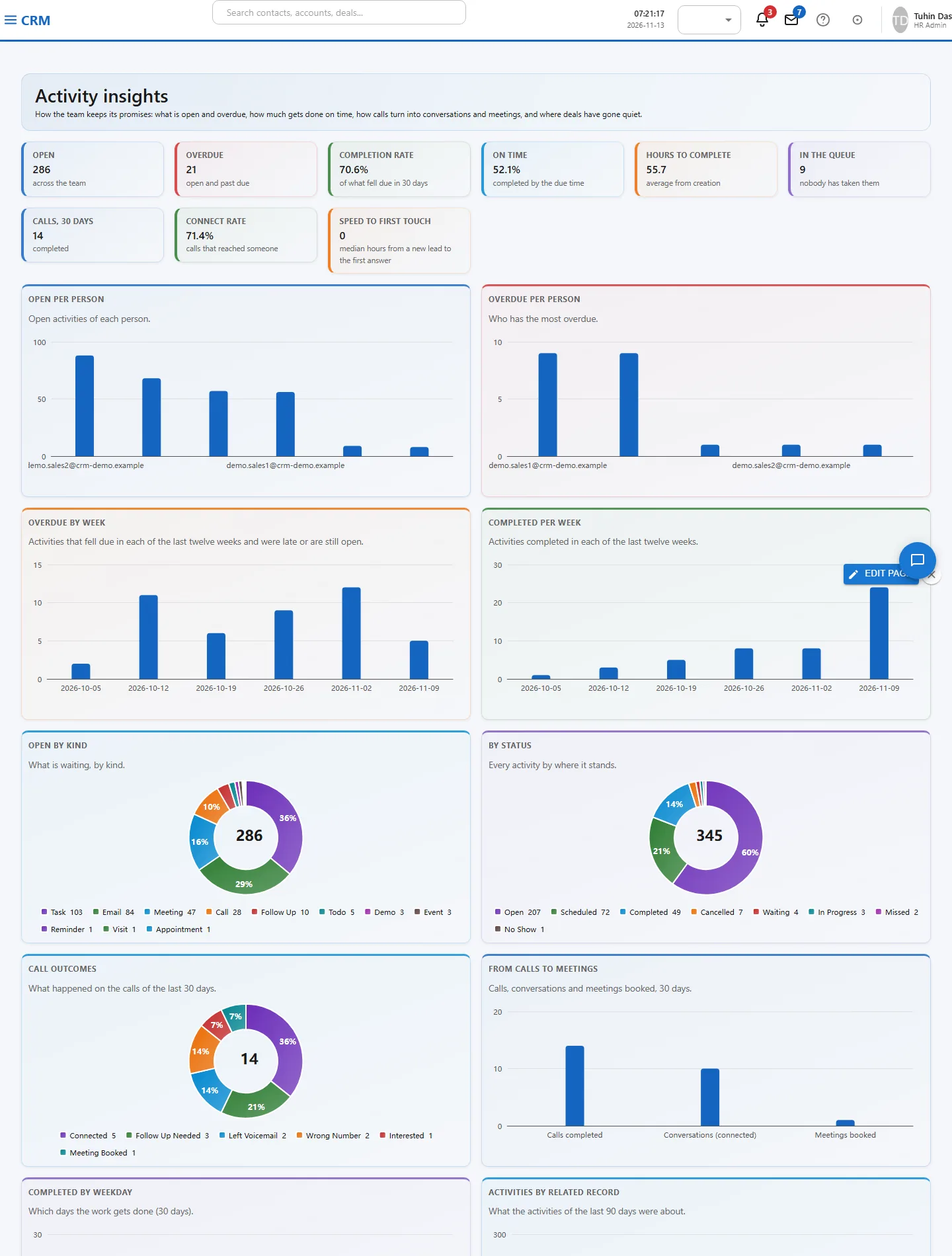
Open and overdue per person, overdue by week, completed per week, kinds and status, call outcomes, calls to conversations to meetings booked, completion rate, on-time share, time to complete, and deals with no activity for 14 days.
5. On a phone or tablet
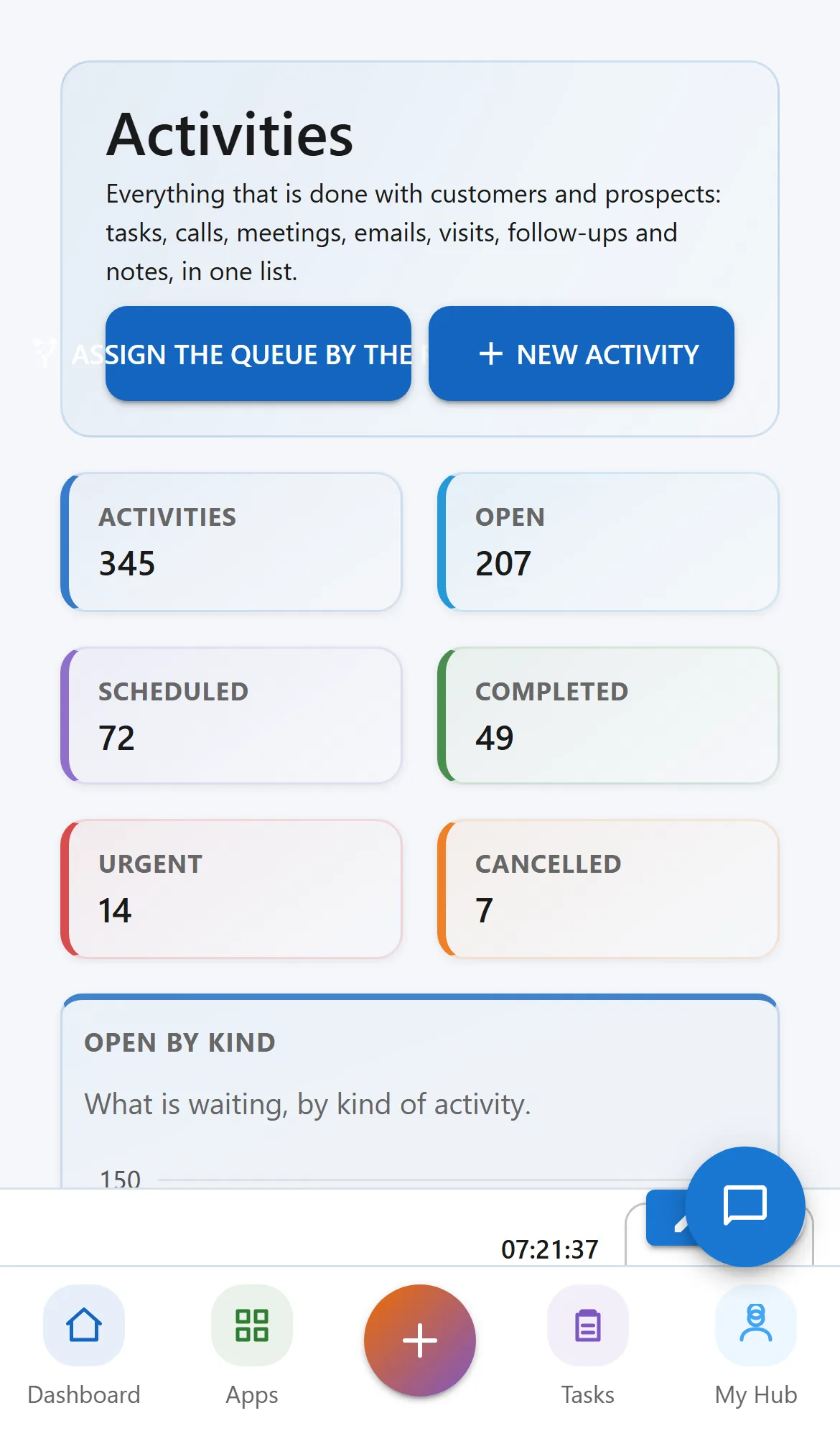
Every screen reflows to one column; dialogs fit the screen.
6. Rules and limits
- Escalation: level 1 tells the person when the due time passes, level 2 tells the creator when the respond-by time passes, level 3 returns the activity to the queue.
- A skipped date of a recurring series is never created; one already planned is cancelled.
- Quotes, Orders, Contracts and Cases can already be named as the record an activity is about (kept by id and label); they open and resolve once those modules exist.
7. Troubleshooting
| Symptom | Cause | Fix |
|---|---|---|
| "Activity.Create is required" | The CRM application role is missing | Wait five minutes for the role mirror |
| "No record OPP-... that you can see" | Wrong number, or no right to that record | Check the number and your Opportunities role |
| My activities is empty | Nothing is assigned to you | Look at Team activities or the queue |
| Nothing escalates | The job is switched off | Switch on the escalation job |
| A menu item is missing | Not in your edition or role | Ask your administrator |