
Appearance
Instructors & Training Providers (HCM)
This page documents two shipped Learning screens (hcm-learning). Not for plugin developers.
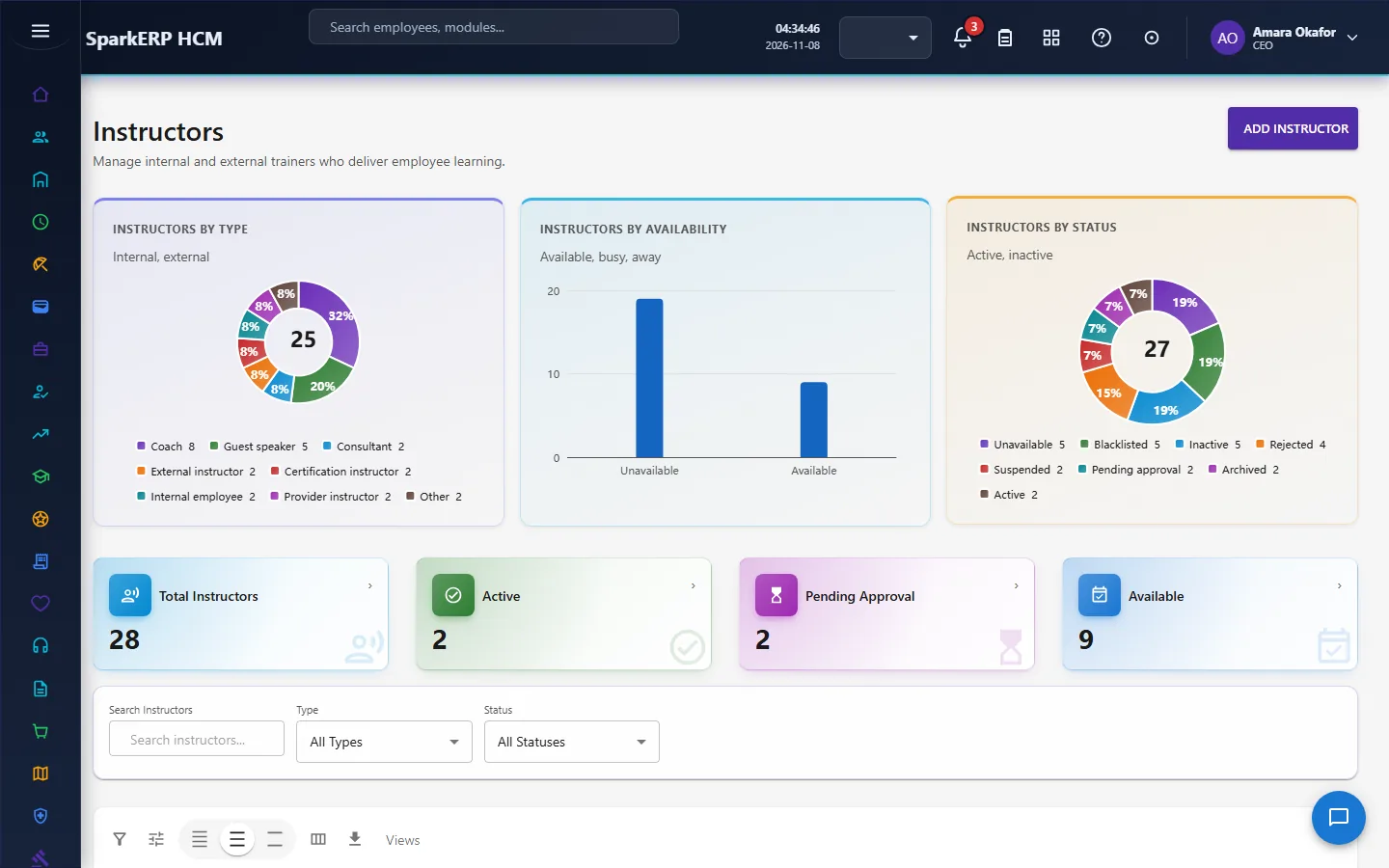
Instructors
Manage the instructors who deliver your training.
Open it at /hcm-learning/instructors (or from the HCM menu).
- Sections: Instructors by type, Instructors by availability, Instructors by status.
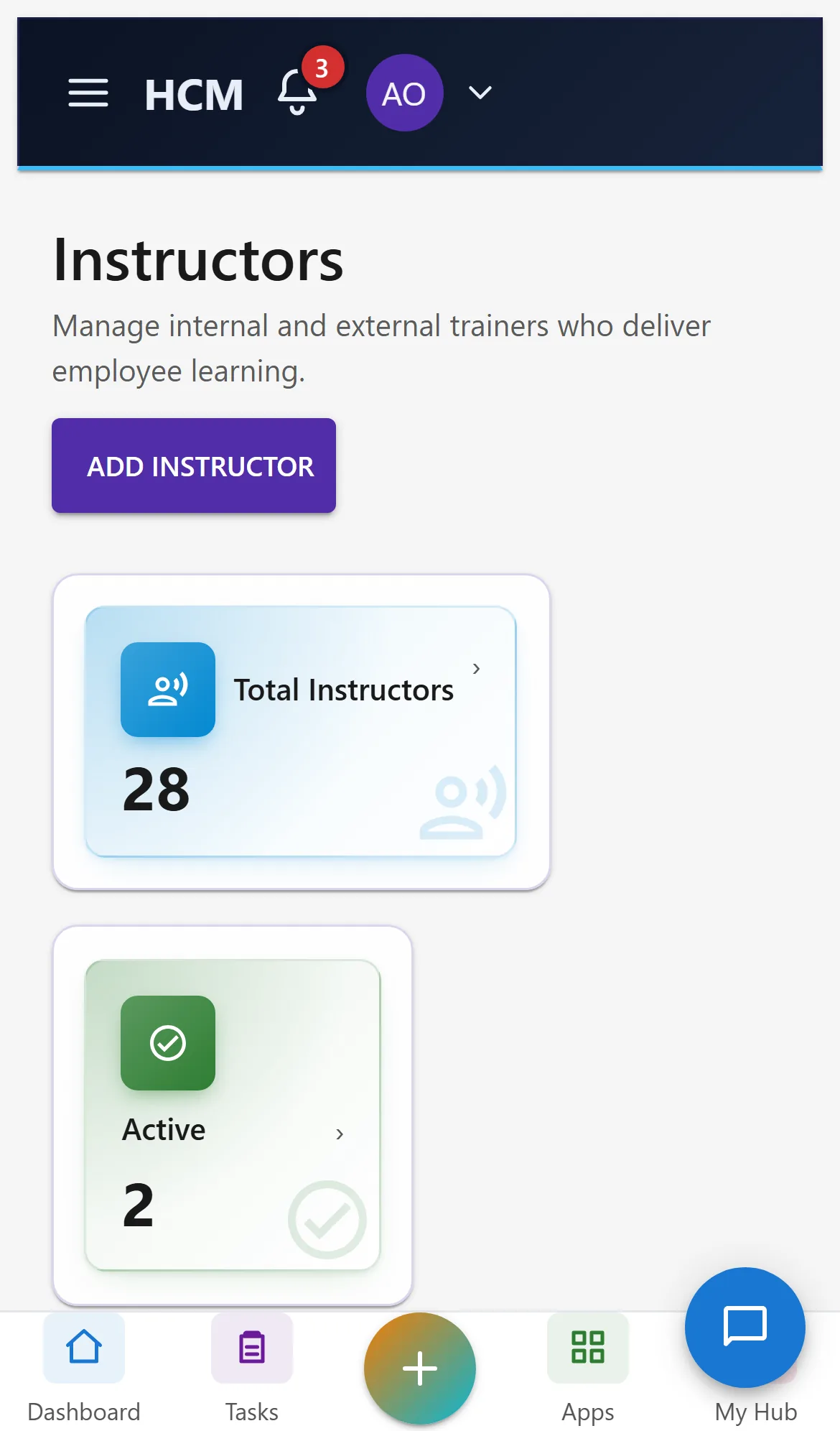
- Cards: Total Instructors, Active, Pending Approval, Available.
- Table columns: Instructor Name, Type, Country, Rating, Availability, Status, Actions.
- Actions: Add Instructor, Submit for Approval, Back to Draft, Suspend, Reactivate, Archive, Cancel, Save.
How to: Add Instructor
- Open Learning & Development > Instructors.
- Select Add Instructor.
- In the window Instructor fill in:
| Field | What to enter |
|---|---|
| Instructor Code | Type it (for example: Instructor code). |
| Full Name | Type it (for example: Full name). |
| Instructor Type | Choose one: Internal Employee, External Instructor, Provider Instructor, Freelance Trainer, Subject Matter Expert, Coach, Mentor, Guest Speaker, Certification Instructor, Consultant... |
| Type it. | |
| Phone | Type it. |
| Job Title | Type it (for example: Job title). |
| Country Code | Type it (for example: Country code). |
| City | Type it. |
| Rating | Type it (for example: Rating (0-5)). |
| Availability | Choose one: Available, Unavailable |
- Select Submit for Approval.
- The window closes and the table refreshes with the result. If the screen shows a message instead, read it: it says what is missing.
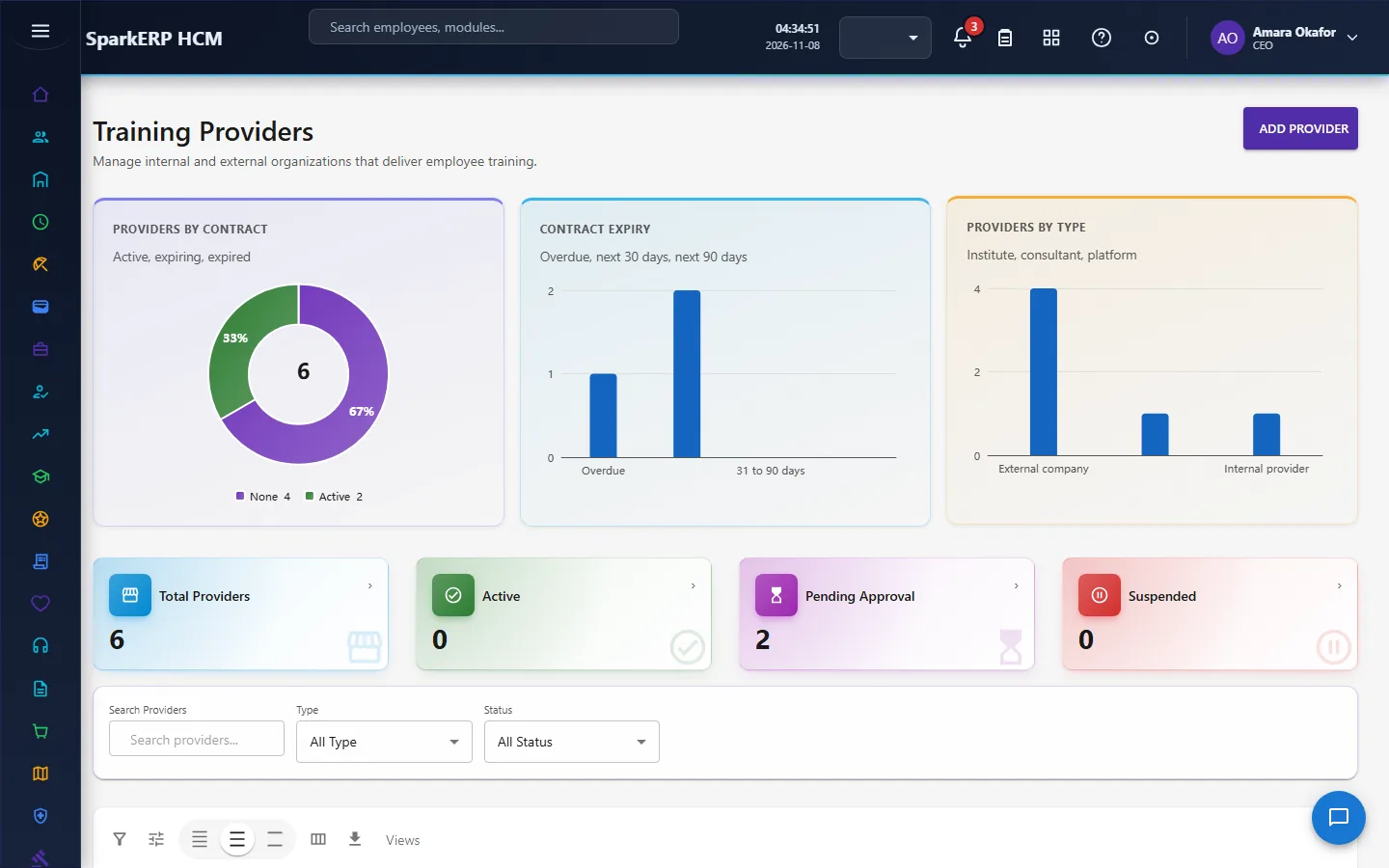
Training Providers
Manage external training providers/vendors.
Open it at /hcm-learning/training-providers (or from the HCM menu).
- Sections: Providers by contract, Contract expiry, Providers by type.
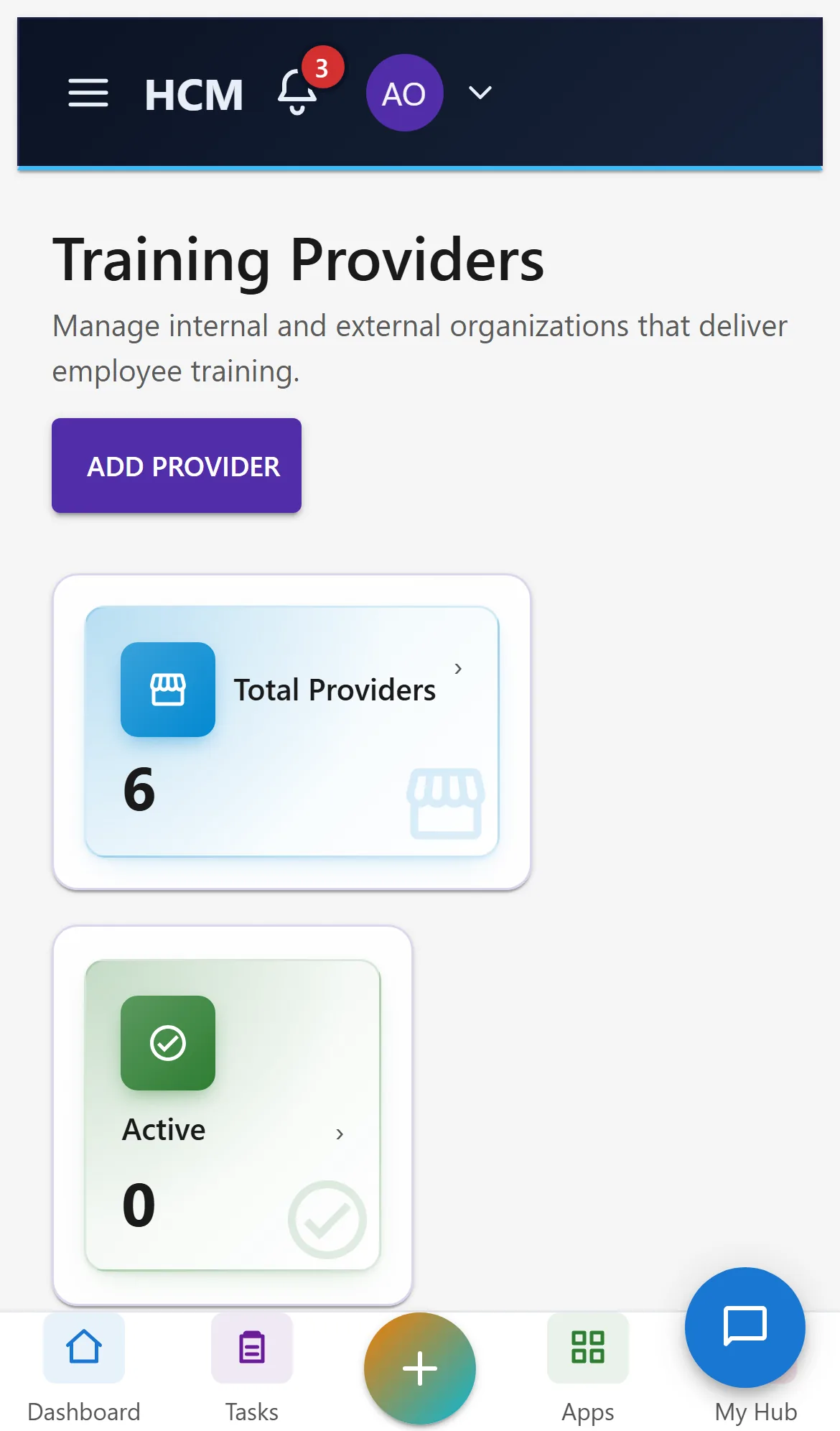
- Cards: Total Providers, Active, Pending Approval, Suspended.
- Table columns: Provider Name, Type, Country, Rating, Status, Actions.
- Actions: Add Provider, Submit for Approval, Back to Draft, Suspend, Reactivate, Blacklist, Archive, Cancel, Save.
How to: Add Provider
- Open Learning & Development > Training Providers.
- Select Add Provider.
- In the window Training Provider fill in:
| Field | What to enter |
|---|---|
| Provider Code | Type it (for example: Provider code). |
| Provider Name | Type it (for example: Provider name). |
| Provider Type | Choose one: External Company, Individual Consultant, Freelance Trainer, University, College, Certification Body, Professional Institute, Online Provider, Government Provider, Internal Provider... |
| Legal Name | Type it (for example: Legal name). |
| Website | Type it. |
| Description | Type it. |
| Primary Contact Name | Type it (for example: Primary contact name). |
| Primary Contact Email | Type it (for example: Primary contact email). |
| Primary Contact Phone | Type it (for example: Primary contact phone). |
| City | Type it. |
| Country Code | Type it (for example: Country code). |
| Rating | Type it (for example: Rating (0-5)). |
- Select Submit for Approval.
- The window closes and the table refreshes with the result. If the screen shows a message instead, read it: it says what is missing.