
Appearance
My Benefits, Documents, Expenses, Goals, Training & Performance (HCM)
This page documents six Employee Self Service screens (hcm-employee-services). Not for plugin developers. See Employee Self Service — Overview for how this portal relates to each domain module's own self-service screens.
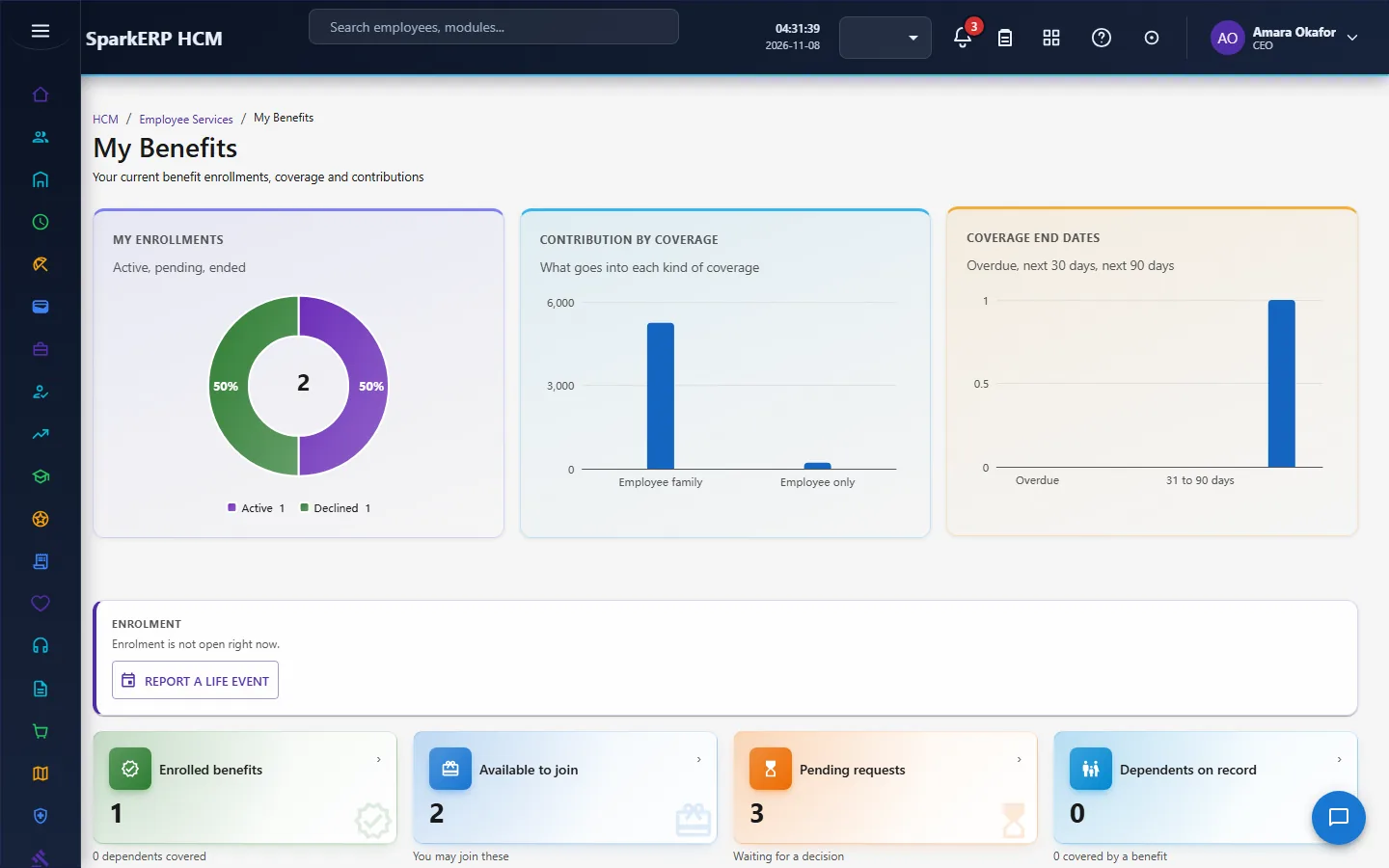
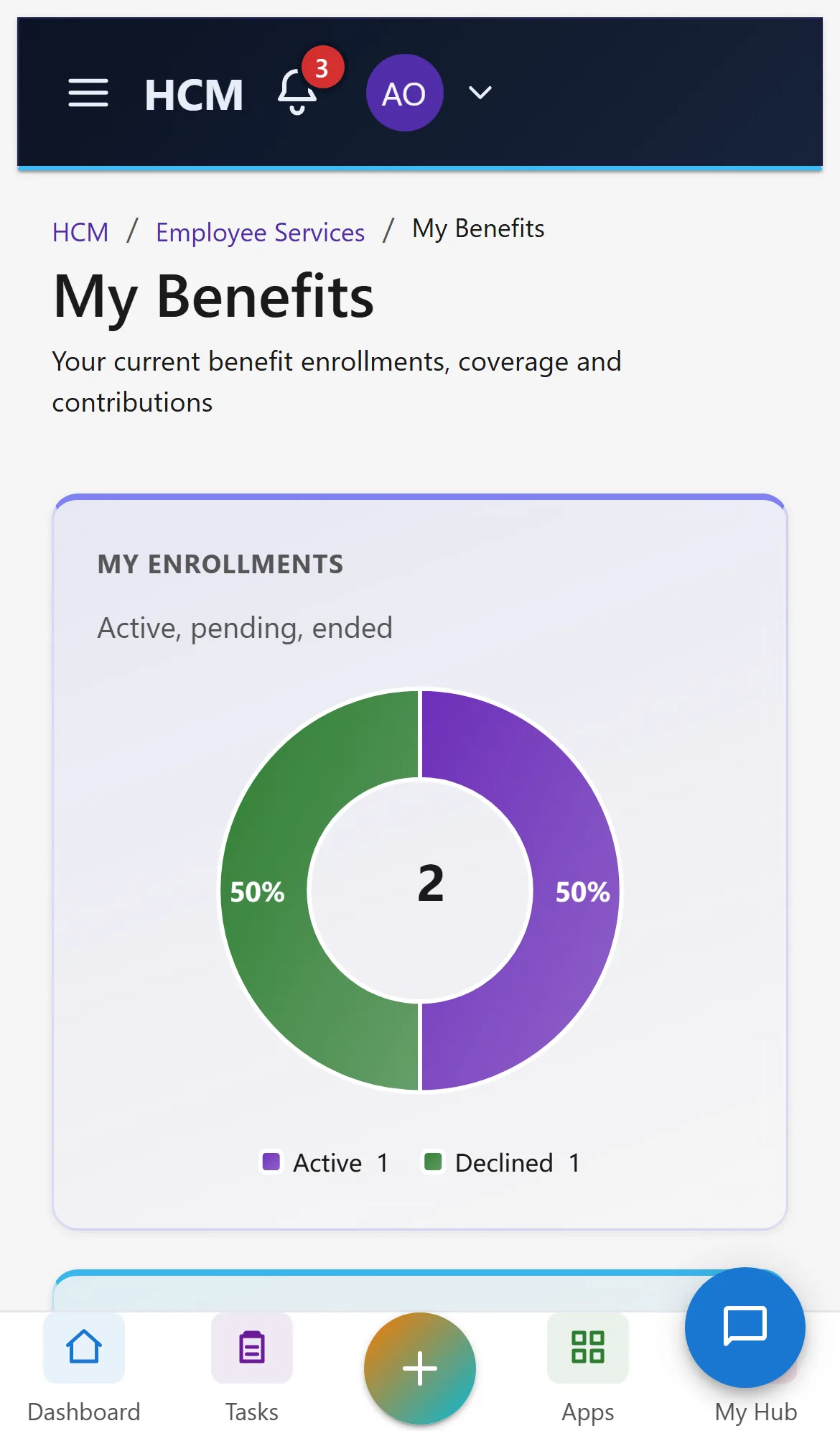
My Benefits
Your own real benefit enrollments.
Open it at /hcm-employee-services/my-benefits (or from the HCM menu).
- Sections: My enrollments, Contribution by coverage, What goes into each kind of coverage, Coverage end dates, info, No employee record linked to your account, Enrolment, days left, Who pays what, Yearly value by kind of benefit, Your cost and your employer's cost together, Taken from your pay this year and 56 more.
- Cards: Enrolled benefits, Available to join, Pending requests, Dependents on record, You pay each month, You pay each year, Employer pays each month, Total cover.
- Charts: Amount.
- Actions: Retry, Report a life event, Add a dependent, Previous, Next, Submit a claim, Open reimbursements, Save, Add an offer, Add a window, Set up the carrier feed, Enrol and 16 more.
How to: Enrol in a benefit
- Open Employee Services > My Benefits.
- Select the record you want to change, or the button that adds a new one.
- In the window Enrol in a benefit fill in:
| Field | What to enter |
|---|---|
| Coverage option and cost | Type it. |
| Beneficiary name | Type it. |
| Relationship | Type it. |
| Share (%) | Type it. |
| Primary or contingent | Choose one: Primary, Contingent |
| I accept these terms | Tick or untick. |
| Note | Type it. |
- Select the confirm button.
- The window closes and the table refreshes with the result. If the screen shows a message instead, read it: it says what is missing.
How to: Request a change
- Open Employee Services > My Benefits.
- Select Request a change.
- In the window Request a change fill in:
| Field | What to enter |
|---|---|
| What do you want to do? | Choose one: Change plan or coverage, Add a dependent, Remove a dependent, Change beneficiaries, Cancel this benefit, Something else |
| New coverage option | Type it. |
| Beneficiary name | Type it. |
| Relationship | Type it. |
| Share (%) | Type it. |
| Primary or contingent | Choose one: Primary, Contingent |
| Reason | Type it. |
- Select Send request.
- The window closes and the table refreshes with the result. If the screen shows a message instead, read it: it says what is missing.
How to: Report a life event
- Open Employee Services > My Benefits.
- Select Report a life event.
- In the window Report a life event fill in:
| Field | What to enter |
|---|---|
| What happened? | Choose one: Marriage, Divorce or legal separation, Birth of a child, Adoption, Death of a dependent, Loss of other coverage, Change of employment, Relocation, Other qualifying event |
| Date of the event | Pick a date. |
| Note | Type it. |
- Select Send the life event.
- The window closes and the table refreshes with the result. If the screen shows a message instead, read it: it says what is missing.
My Documents
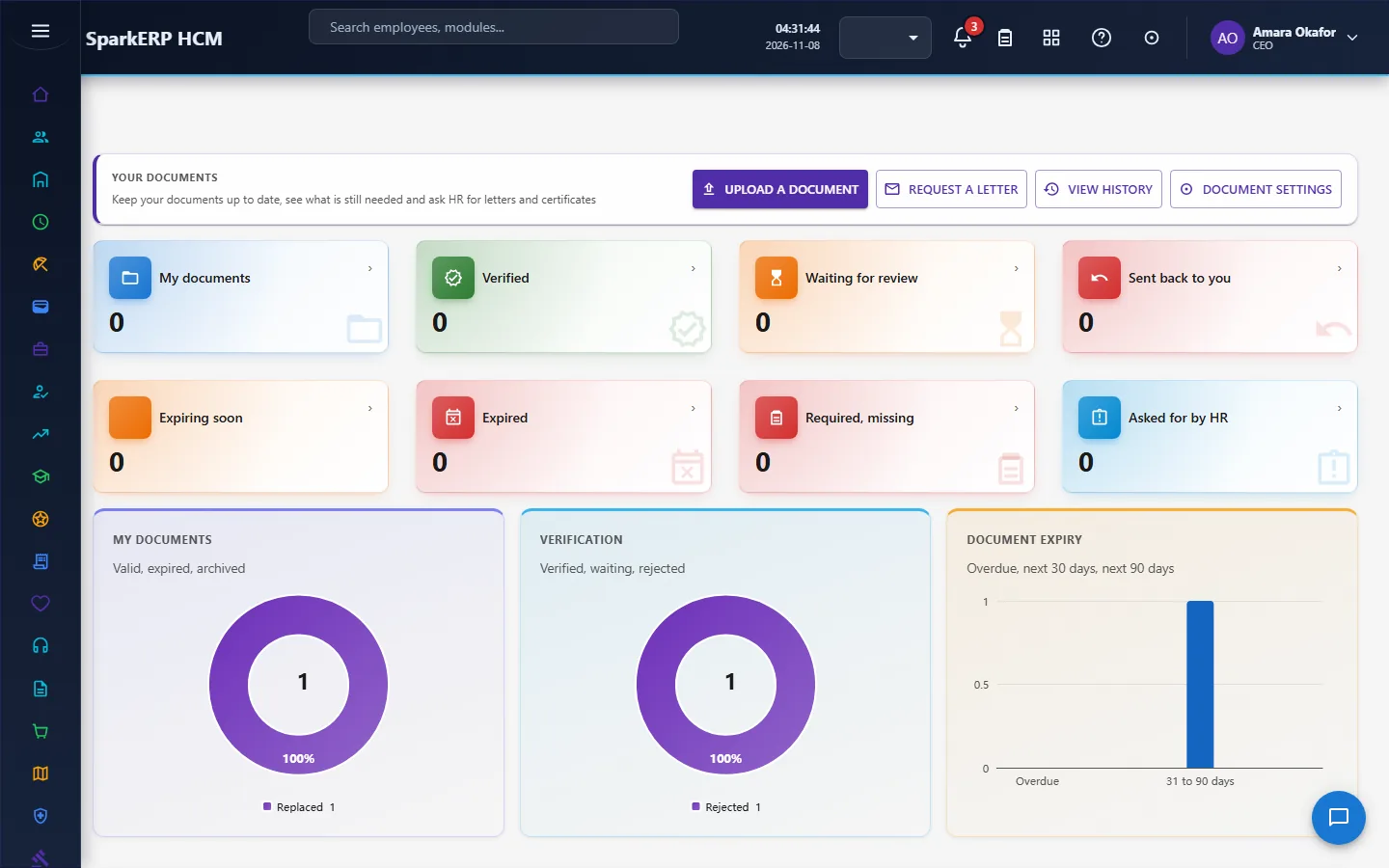
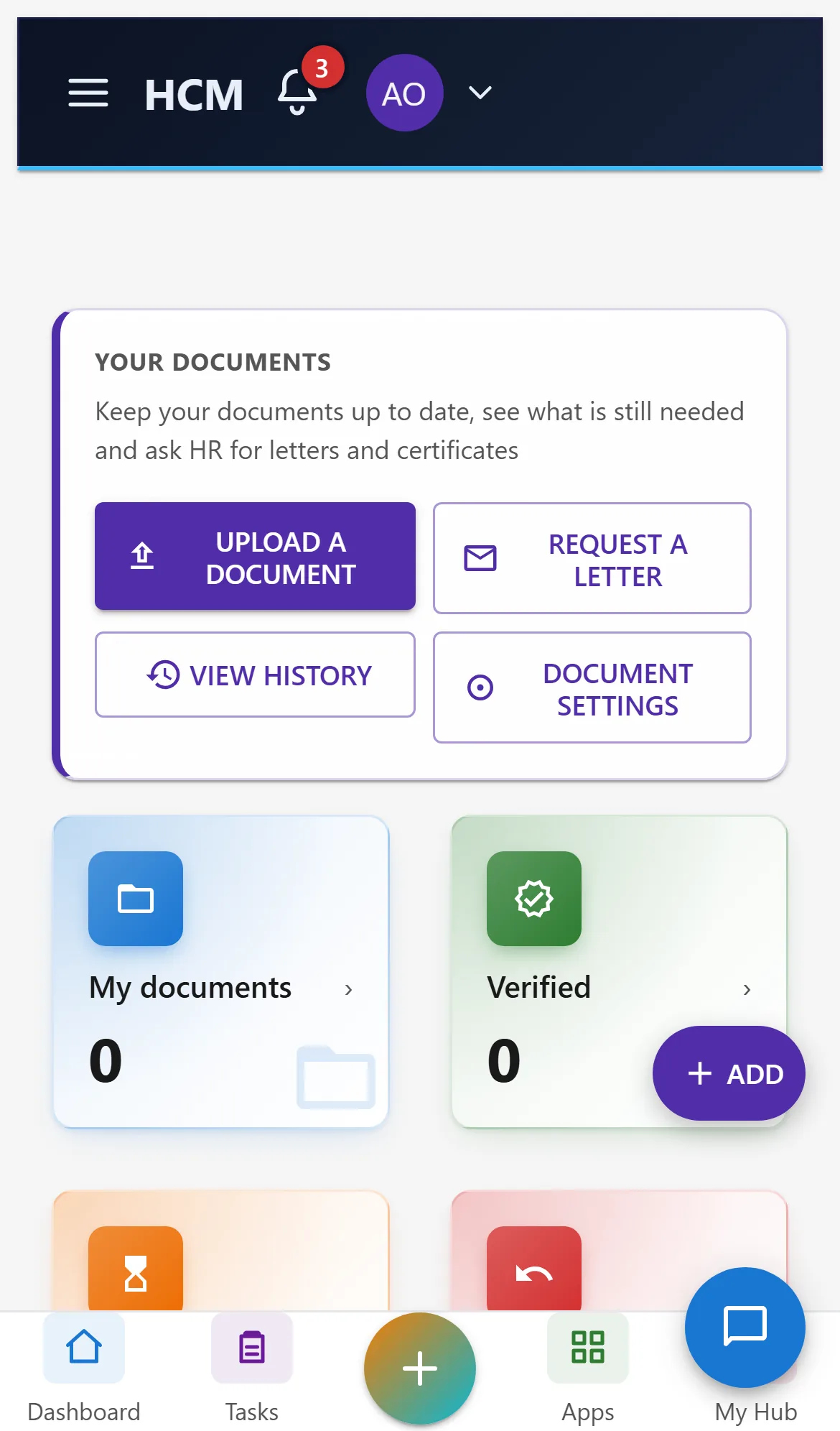
Your own real documents on file.
Open it at /hcm-employee-services/my-documents (or from the HCM menu).
- Sections: Your documents, Verification, Document expiry, Needs your attention, Required and missing, Letters and certificates, Documents by status, Everything you have uploaded, Documents by category, How your documents are spread, Expiring in the next six months, Documents that will need renewing and 20 more.
- Cards: My documents, Verified, Waiting for review, Sent back to you, Expiring soon, Expired, Required, missing, Asked for by HR.
- Charts: Documents.
- Actions: Retry, Upload a document, Request a letter, View history, Document settings, Search, Clear, Previous, Next, Add a requirement, Add, Cancel and 15 more.
How to: Document settings
- Open Employee Services > My Documents.
- Select Document settings.
- In the window Document settings fill in:
| Field | What to enter |
|---|---|
| Days before expiry to remind (for example 90,60,30,7,0) | Type it. |
| How people are told (IN_APP, PUSH, EMAIL, SMS) | Type it. |
- Select Save document settings.
- The window closes and the table refreshes with the result. If the screen shows a message instead, read it: it says what is missing.
How to: Upload a document
- Open Employee Services > My Documents.
- Select Upload a document.
- In the window Upload a document fill in:
| Field | What to enter |
|---|---|
| Document type (required) | Type it. |
| Document number | Type it. |
| Issue date | Pick a date. |
| Expiry date | Pick a date. |
| Issuing organisation | Type it. |
| Notes | Type it. |
- Select Send for review.
- The window closes and the table refreshes with the result. If the screen shows a message instead, read it: it says what is missing.
How to: Replace with a new file
- Open Employee Services > My Documents.
- Select Replace with a new file.
- In the window Replace the file fill in:
| Field | What to enter |
|---|---|
| What changed | Type it. |
- Select Send the new file.
- The window closes and the table refreshes with the result. If the screen shows a message instead, read it: it says what is missing.
My Expenses
Your own real expense claims.
Open it at /hcm-employee-services/my-expenses (or from the HCM menu).
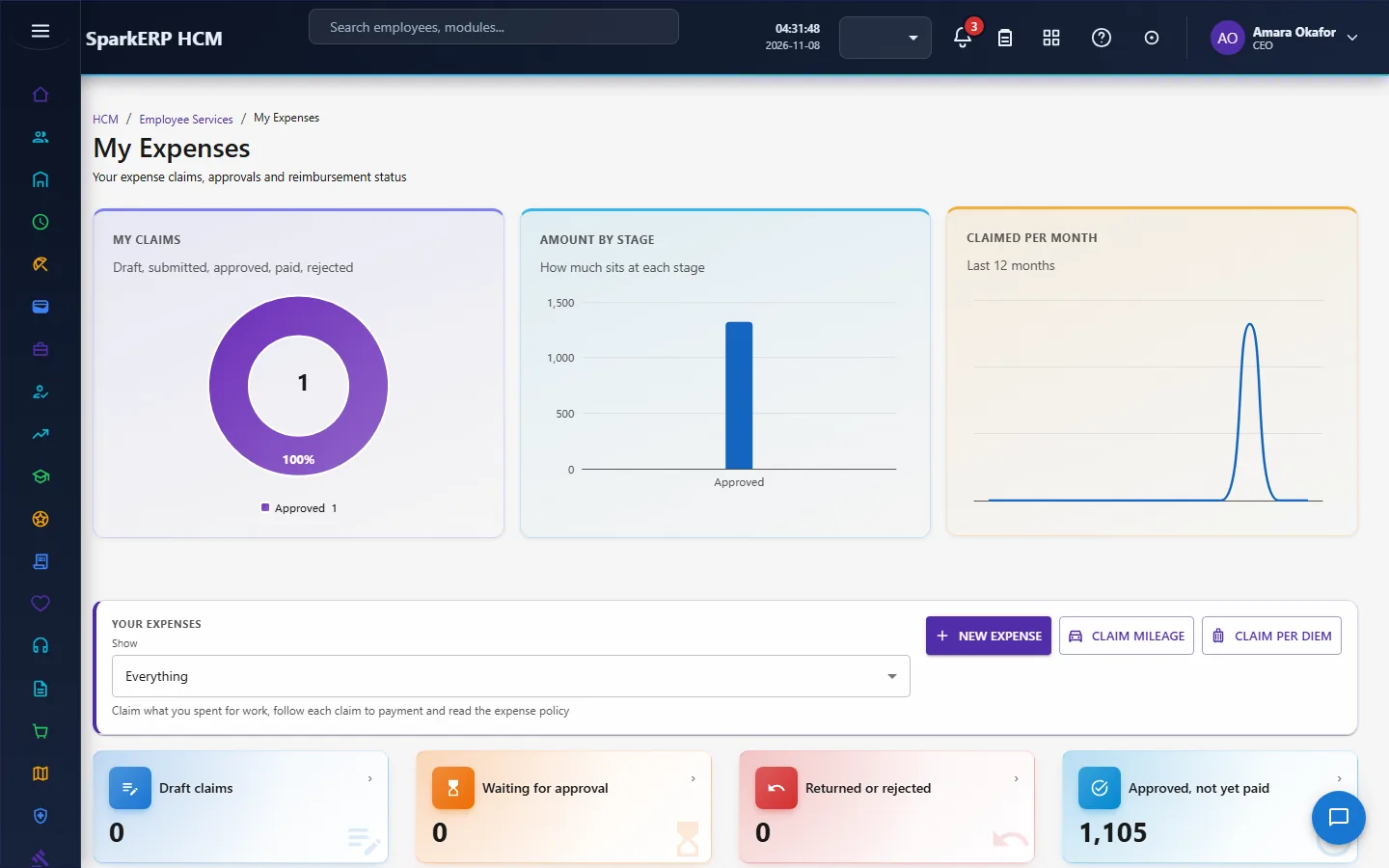
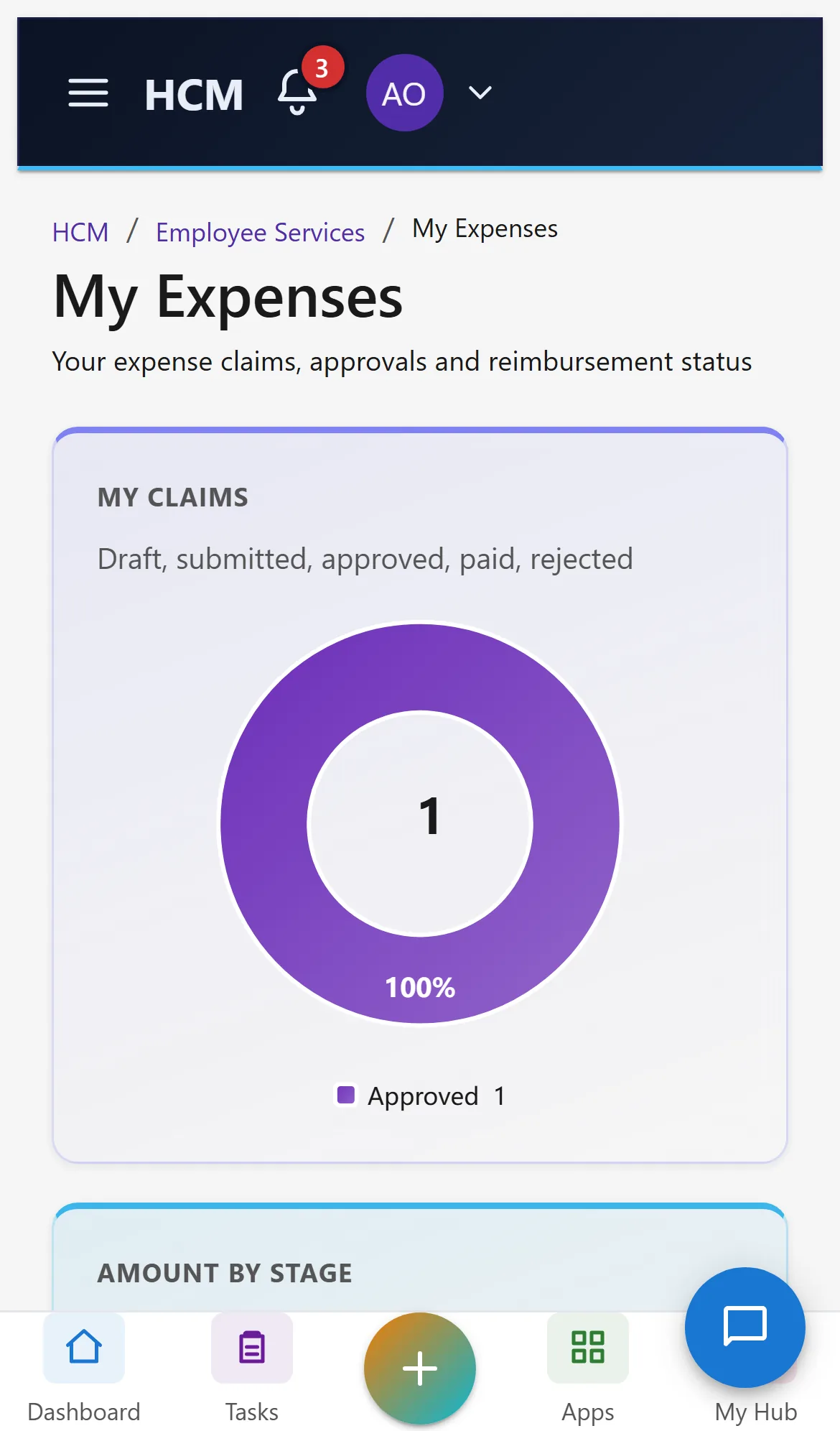
- Sections: My claims, Amount by stage, How much sits at each stage, Claimed per month, Last 12 months, info, No employee record linked to your account, Your expenses, Also on your account, Money still to come and what is waiting to be claimed, Outstanding reimbursement, Company card items to claim and 30 more.
- Cards: Draft claims, Waiting for approval, Returned or rejected, Approved, not yet paid, Reimbursed, This month, This year, Reimbursements overdue.
- Charts: Claims.
- Actions: Retry, New expense, Claim mileage, Claim per diem, Search, Clear, Previous, Next, Save expense settings, Load card transactions, Add an item, Edit details and 11 more.
How to: New expense
- Open Employee Services > My Expenses.
- Select New expense.
- In the window Expense claim fill in:
| Field | What to enter |
|---|---|
| What were the expenses for? (required) | Type it. |
| Claim date | Pick a date. |
| Currency (for example USD) | Type it. |
| Cost centre (if you charge one) | Type it. |
| Project (if any) | Type it. |
- Select Save draft.
- The window closes and the table refreshes with the result. If the screen shows a message instead, read it: it says what is missing.
How to: Add an item
- Open Employee Services > My Expenses.
- Select Add an item.
- In the window Expense item fill in:
| Field | What to enter |
|---|---|
| Category (required) | Type it. |
| Expense date (required) | Pick a date. |
| Merchant | Type it. |
| Amount (required) | Type it. |
| Tax included (if on the receipt) | Type it. |
| Paid with | Choose one: My own money, Company card, Cash |
| Description | Type it. |
| Receipt number (if printed) | Type it. |
- Select Save item.
- The window closes and the table refreshes with the result. If the screen shows a message instead, read it: it says what is missing.
How to: Claim mileage
- Open Employee Services > My Expenses.
- Select Claim mileage.
- In the window Claim mileage fill in:
| Field | What to enter |
|---|---|
| Add it to | Type it. |
| Travel date (required) | Pick a date. |
| From (required) | Type it. |
| To (required) | Type it. |
| Distance (required) | Type it. |
| Unit | Choose one: Kilometres, Miles |
| Vehicle (for example car, motorbike) | Type it. |
| Purpose of the trip | Type it. |
- Select Add to my claim.
- The window closes and the table refreshes with the result. If the screen shows a message instead, read it: it says what is missing.
My Goals
Your own real performance goals.
Open it at /hcm-employee-services/my-goals (or from the HCM menu).
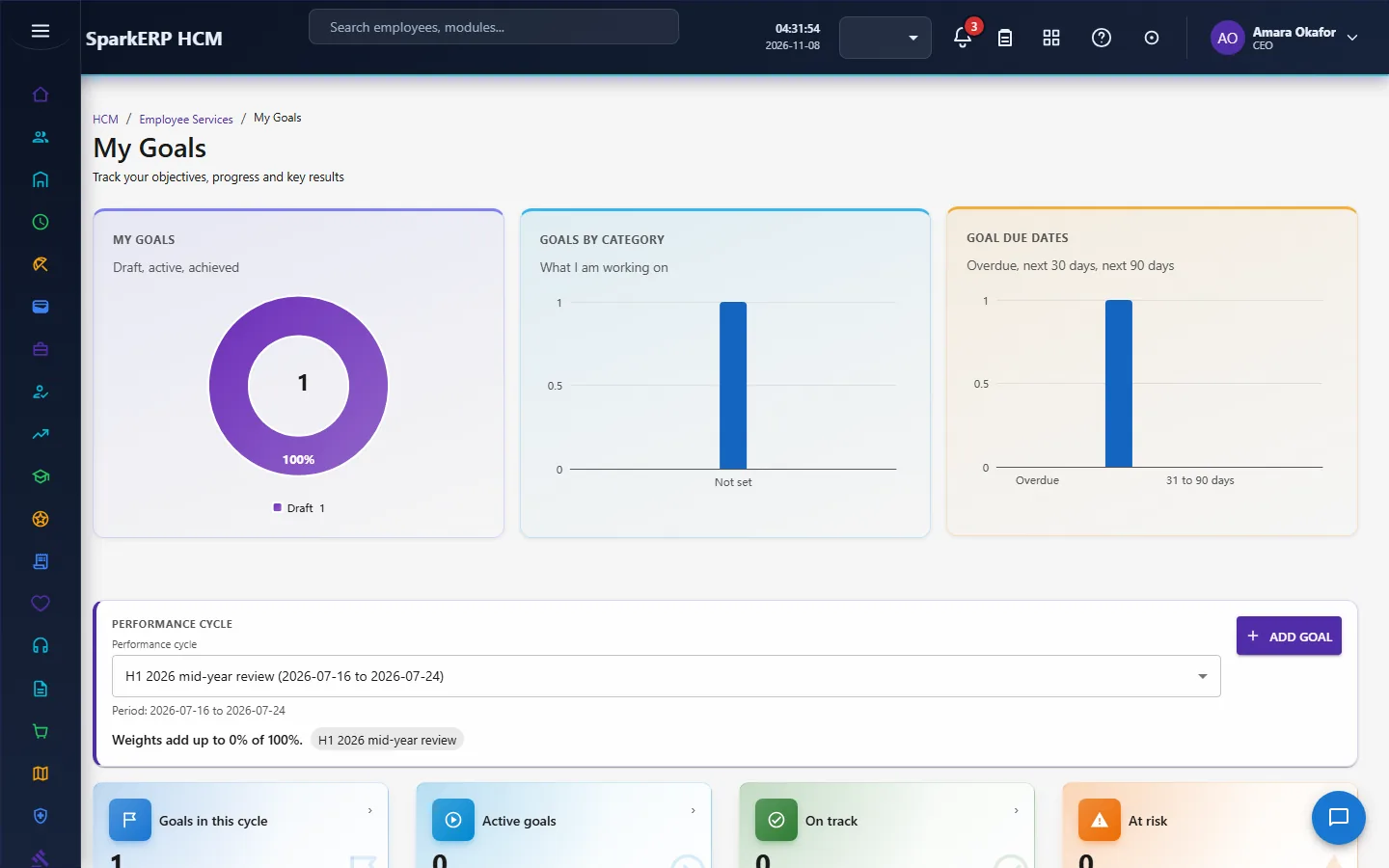
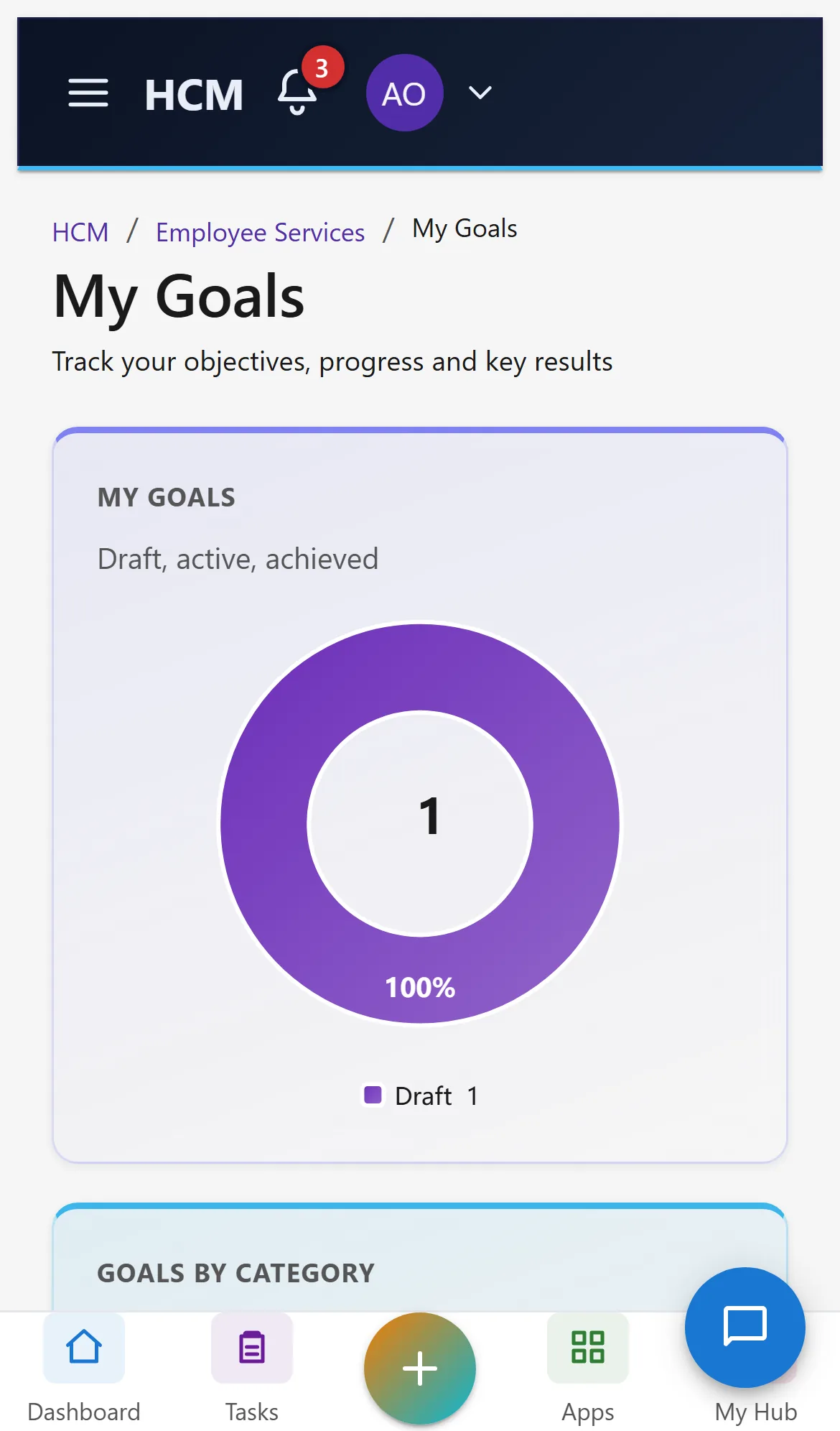
- Sections: My goals, Goals by category, What I am working on, Goal due dates, info, No employee record linked to your account, Performance cycle, Goals by status, How your goals are doing, Progress of each goal, Progress and weight side by side, Where the weight sits and 29 more.
- Cards: Goals in this cycle, Active goals, On track, At risk, Behind or overdue, Completed, Average progress (%), Weighted achievement (%), Due this month, Overdue, Waiting for approval, Need an update.
- Charts: Goals, Weight.
- Actions: Retry, Add goal, Start from a template, Save, Add a template, Save draft, Submit goal, Cancel, Add a key result, Add a milestone, Add this evidence, Add a comment and 20 more.
How to: Add goal
- Open Employee Services > My Goals.
- Select Add goal.
- In the window Goal fill in:
| Field | What to enter |
|---|---|
| Goal title | Type it. |
| Description | Type it. |
| Goal type | Choose one: Individual, Team, Department, Project, Development, Behavioural, KPI, OKR, SMART, Custom |
| Start date | Pick a date. |
| Due date | Pick a date. |
| Weight | Type it. |
| Priority | Choose one: Low, Medium, High, Critical |
| How it is measured | Choose one: Percentage, Number, Currency, Count, Score, Done or not done, Milestones, Date, Other |
| Unit | Type it. |
| Direction | Choose one: Higher is better, Lower is better, Exact target |
| Baseline | Type it. |
| Target | Type it. |
| Success criteria | Type it. |
| Who can see it | Choose one: Me and my manager, Only me, My team, My department, Everyone |
| Key results | Type it. |
| Milestones | Type it. |
- Select Save draft.
- The window closes and the table refreshes with the result. If the screen shows a message instead, read it: it says what is missing.
How to: Update progress
- Open Employee Services > My Goals.
- Select Update progress.
- In the window Update progress fill in:
| Field | What to enter |
|---|---|
| Current value | Type it. |
| Progress | Type it. |
| Confidence | Type it. |
| What went well | Type it. |
| Challenges | Type it. |
| Support needed | Type it. |
| Next steps | Type it. |
| Comment | Type it. |
- Select Save update.
- The window closes and the table refreshes with the result. If the screen shows a message instead, read it: it says what is missing.
How to: Add a key result
- Open Employee Services > My Goals.
- Select Add a key result.
- In the window Add a key result fill in:
| Field | What to enter |
|---|---|
| Key result | Type it. |
| Baseline | Type it. |
| Target | Type it. |
| Unit | Type it. |
| Weight | Type it. |
| Due date | Pick a date. |
| KPI id | Type it. |
- Select Add key result.
- The window closes and the table refreshes with the result. If the screen shows a message instead, read it: it says what is missing.
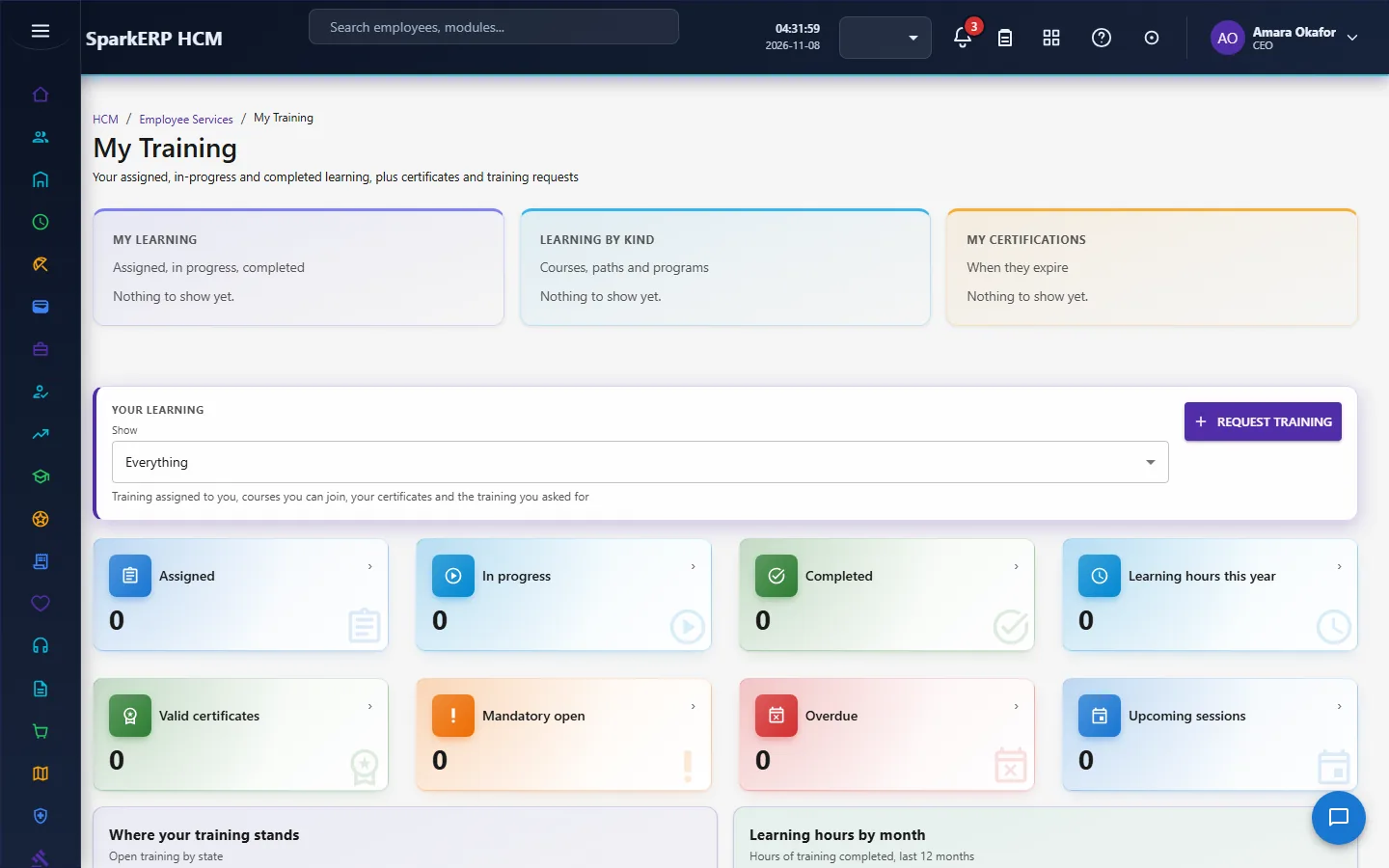
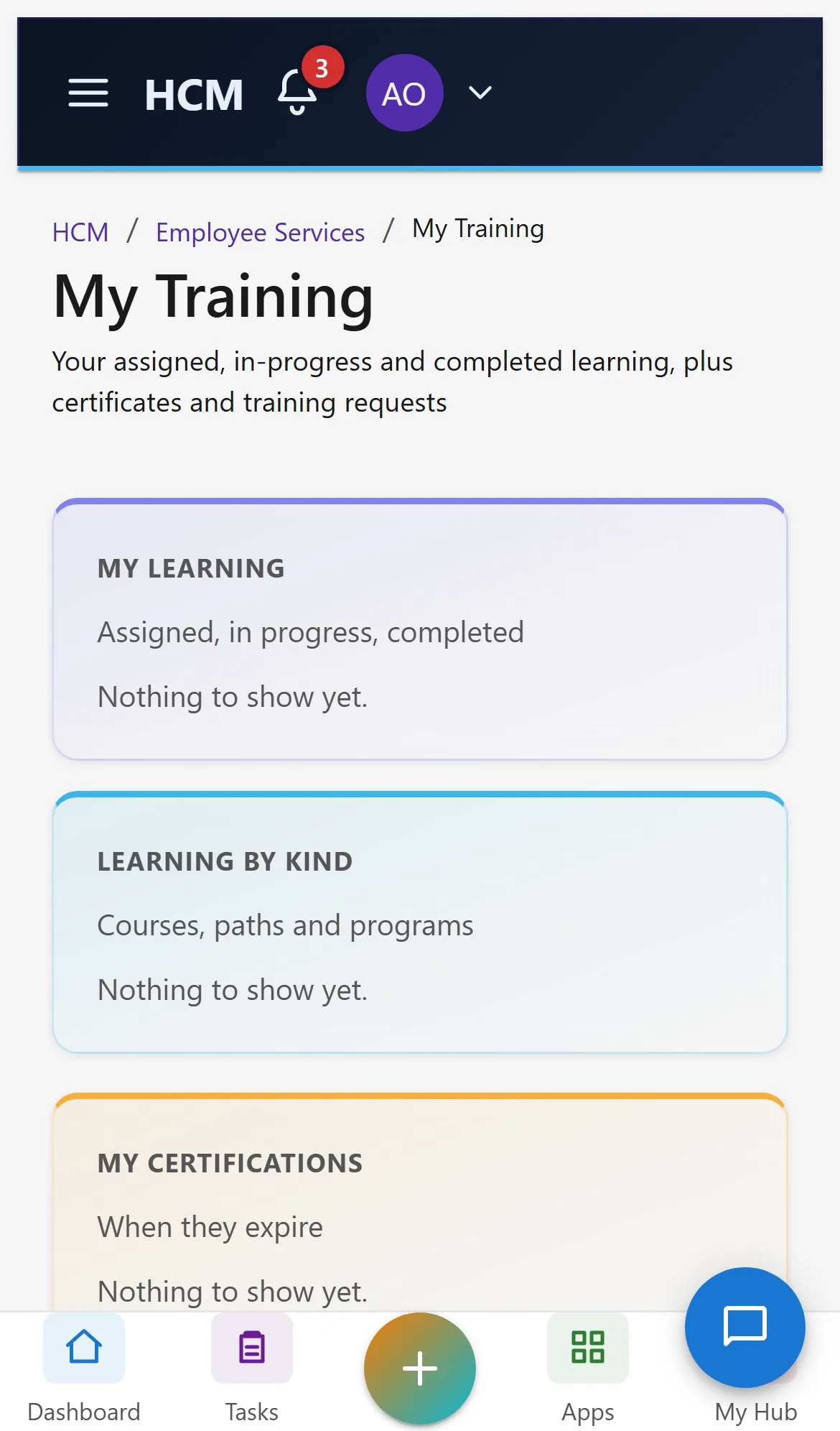
My Training
Your own real assigned/enrolled/completed learning, and any certifications you've earned.
Open it at /hcm-employee-services/my-training (or from the HCM menu).
- Sections: My learning, Learning by kind, My certifications, When they expire, info, No employee record linked to your account, Your learning, Where your training stands, Open training by state, Learning hours by month, Mandatory and optional learning, Certificates and 50 more.
- Cards: Assigned, In progress, Completed, Learning hours this year, Valid certificates, Mandatory open, Overdue, Upcoming sessions.
- Charts: Training.
- Actions: Retry, Request training, Search, Clear, Recommend this course, Save reminder settings, Join session, Add to calendar, Cancel my registration, Cancel, Open the course, Withdraw and 7 more.
How to: Request training
- Open Employee Services > My Training.
- Select Request training.
- In the window Request training fill in:
| Field | What to enter |
|---|---|
| What training would you like? (required) | Type it. |
| How would it help your work? (required) | Type it. |
| Preferred start date | Pick a date. |
| How would you like to learn? | Choose one: No preference, At my own pace, Classroom, Virtual classroom, Blended, External provider, On the job |
| How urgent is it? | Choose one: Low, Medium, High, Critical |
| Estimated cost, if you know it | Type it. |
- Select Send for approval.
- The window closes and the table refreshes with the result. If the screen shows a message instead, read it: it says what is missing.
How to: Training feedback
- Open Employee Services > My Training.
- Select the record you want to change, or the button that adds a new one.
- In the window Training feedback fill in:
| Field | What to enter |
|---|---|
| Overall experience (required) | Choose one: Choose, 1 - Poor, 2 - Fair, 3 - Good, 4 - Very good, 5 - Excellent |
| Trainer | Choose one: Choose, 1 - Poor, 2 - Fair, 3 - Good, 4 - Very good, 5 - Excellent |
| Content quality | Choose one: Choose, 1 - Poor, 2 - Fair, 3 - Good, 4 - Very good, 5 - Excellent |
| Would you recommend it? | Choose one: Choose, Yes, No |
| Comments | Type it. |
- Select Submit feedback.
- The window closes and the table refreshes with the result. If the screen shows a message instead, read it: it says what is missing.
How to: Assessment
- Open Employee Services > My Training.
- Select the record you want to change, or the button that adds a new one.
- In the window Assessment fill in:
| Field | What to enter |
|---|---|
| Your answer | Type it. |
- Select Submit answers.
- The window closes and the table refreshes with the result. If the screen shows a message instead, read it: it says what is missing.
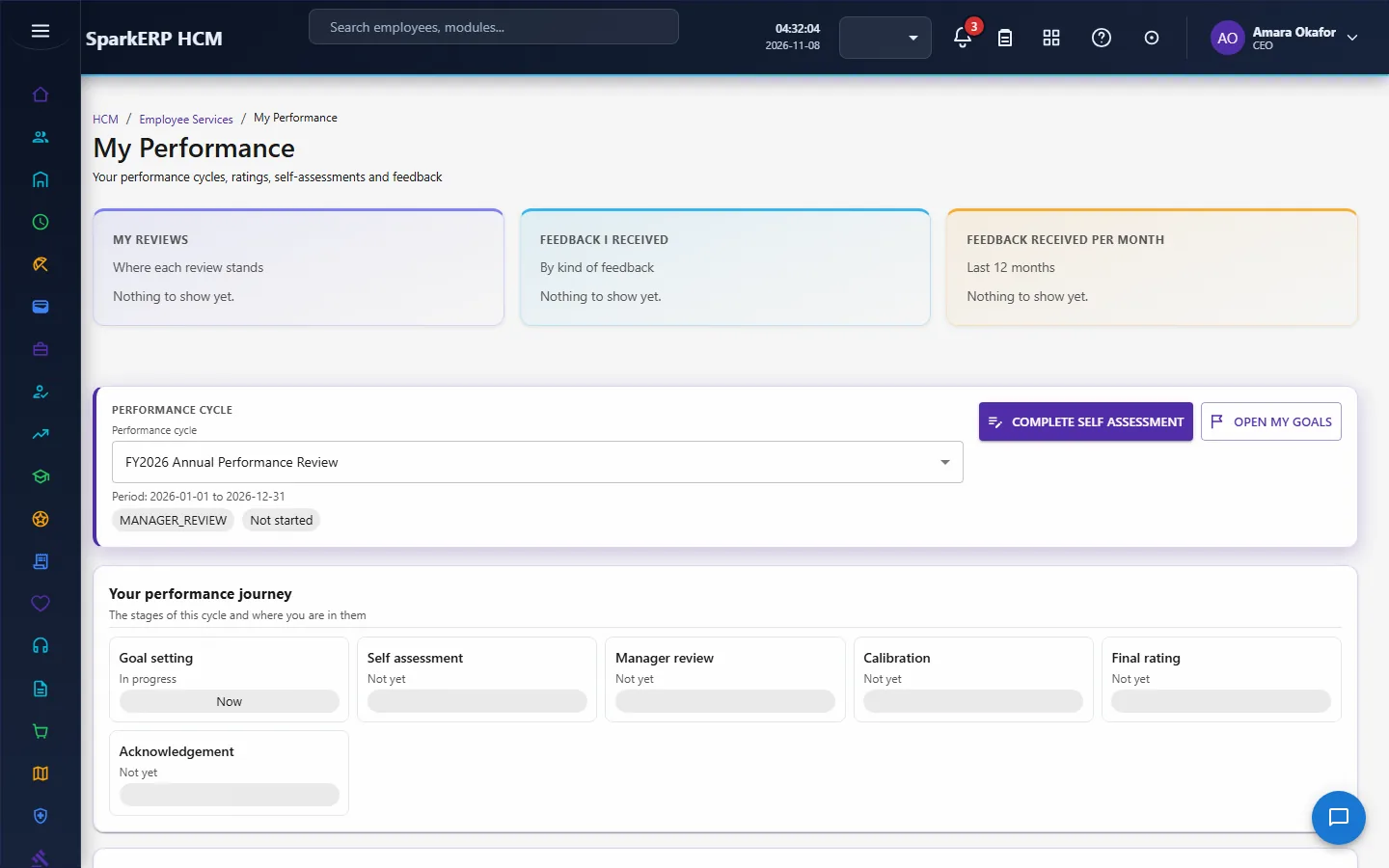
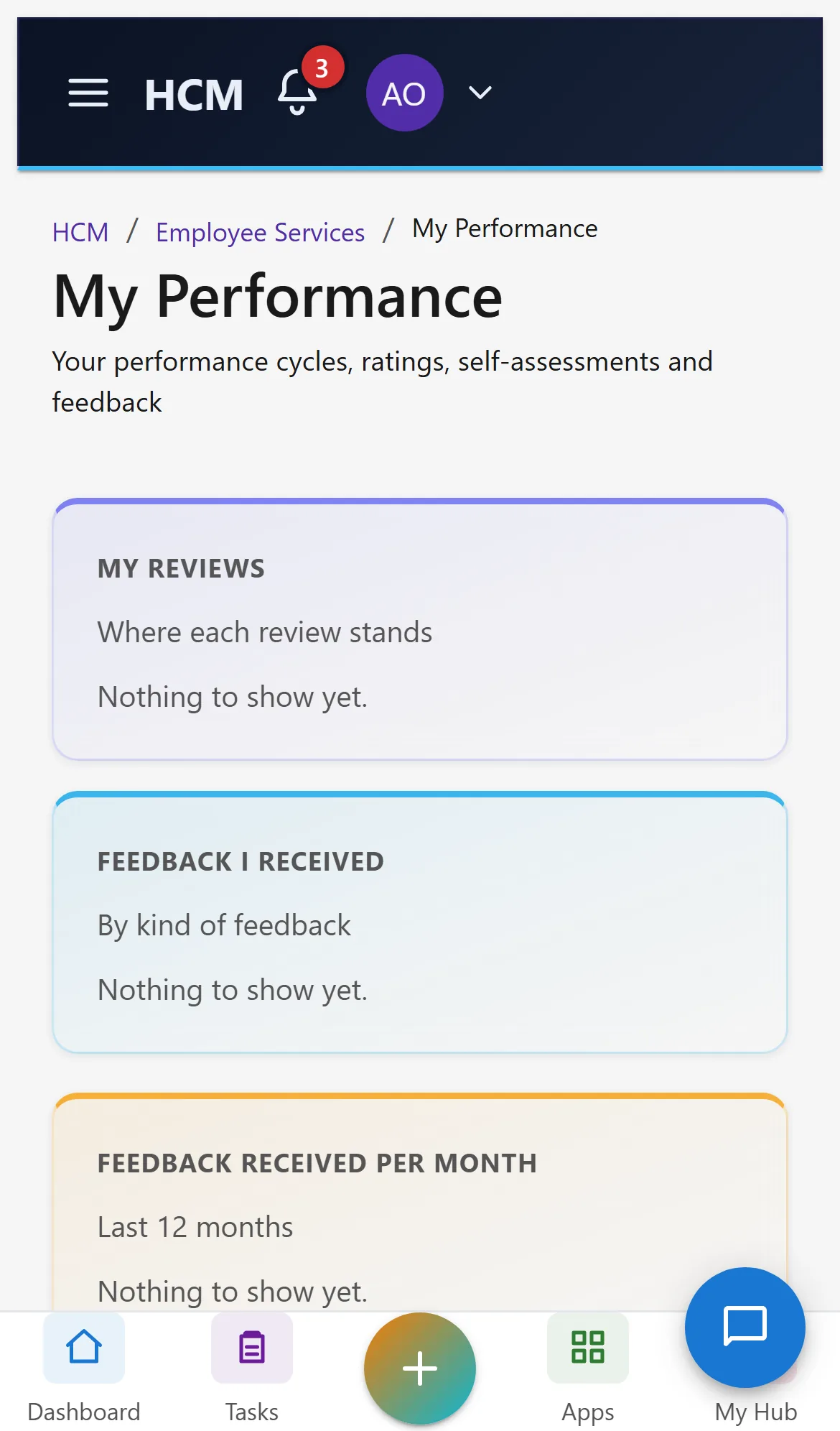
My Performance
Your own appraisal history, self-assessment status, and latest rating, in one place.
Open it at /hcm-employee-services/my-performance (or from the HCM menu).
- Sections: My reviews, Where each review stands, Feedback I received, By kind of feedback, Feedback received per month, Last 12 months, info, No employee record linked to your account, Performance cycle, Your performance journey, The stages of this cycle and where you are in them, Needs your attention and 55 more.
- Cards: Goals this cycle, Goal achievement (%), Competency score (%), Final rating (of 5), Feedback received, Self assessment done (%).
- Charts: Feedback.
- Actions: Retry, Complete self assessment, Acknowledge review, Open My Goals, Open the self assessment, Add this document, Save reminder settings, Save draft, Submit to my manager, Cancel, Acknowledge.
How to: Complete self assessment
- Open Employee Services > My Performance.
- Select Complete self assessment.
- In the window Self assessment fill in:
| Field | What to enter |
|---|---|
| How well did you meet your goals? | Choose one: Choose, 1 - Needs improvement, 2 - Below expectations, 3 - Meets expectations, 4 - Exceeds expectations, 5 - Outstanding |
| How did you do on your measures and key results? | Choose one: Choose, 1 - Needs improvement, 2 - Below expectations, 3 - Meets expectations, 4 - Exceeds expectations, 5 - Outstanding |
| How did you show the competencies expected of you? | Choose one: Choose, 1 - Needs improvement, 2 - Below expectations, 3 - Meets expectations, 4 - Exceeds expectations, 5 - Outstanding |
| Key accomplishments (required) | Type it. |
| Challenges you faced | Type it. |
| What would help you develop? | Type it. |
| Career aspirations | Type it. |
| Anything else you want your manager to know | Type it. |
| Your answer | Type it. |
- Select Save draft.
- The window closes and the table refreshes with the result. If the screen shows a message instead, read it: it says what is missing.
How to: Acknowledge review
- Open Employee Services > My Performance.
- Select Acknowledge review.
- In the window Acknowledge your review fill in:
| Field | What to enter |
|---|---|
| Your comment (optional) | Type it. |
- Select the confirm button.
- The window closes and the table refreshes with the result. If the screen shows a message instead, read it: it says what is missing.