
Appearance
Exit Interviews, Experience Letter & Relieving Letter — hcm-separation (HCM)
This page documents three shipped screens in the hcm-separation module. Not for plugin developers.
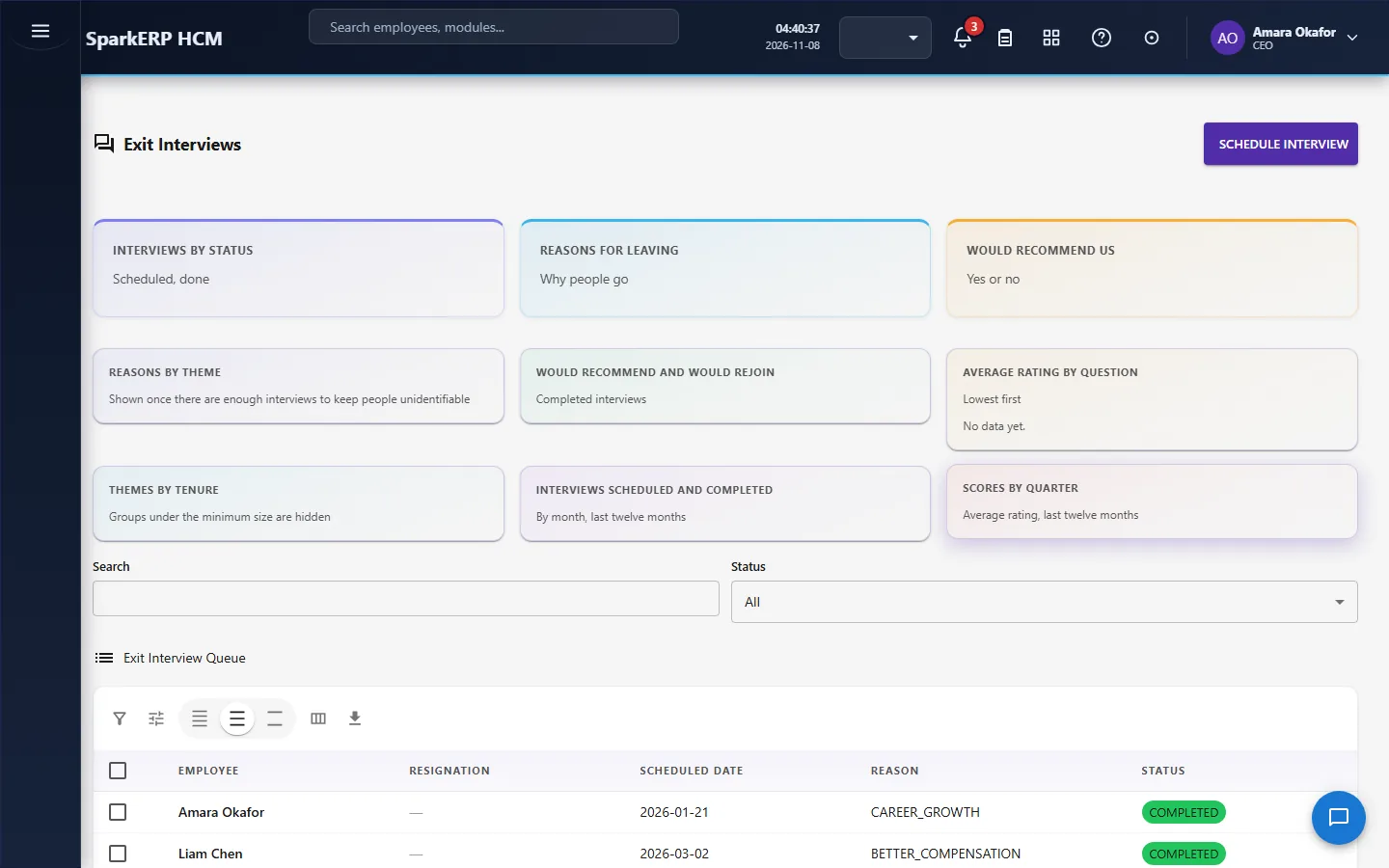
Exit Interviews
Manage employee exit interviews and record their feedback.
Open it at /hcm-separation/exit-interviews (or from the HCM menu).
- Sections: Interviews by status, Reasons for leaving, Why people go, Would recommend us, Yes or no, Reasons by theme, Would recommend and would rejoin, Completed interviews, Average rating by question, Lowest first, Themes by tenure, Groups under the minimum size are hidden and 26 more.
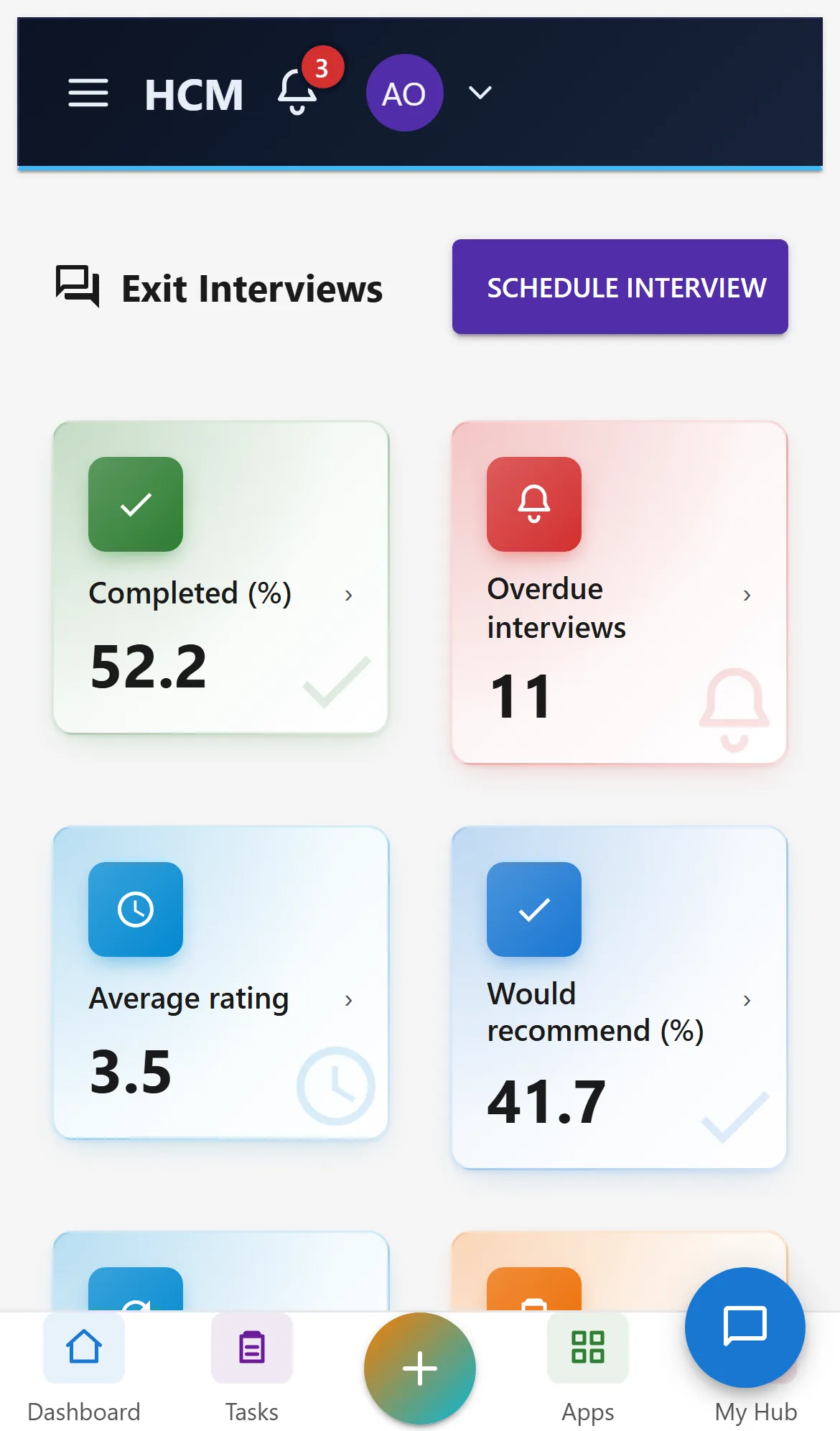
- Cards: Completed (%), Overdue interviews, Average rating, Would recommend (%), Would rejoin (%), Top reason.
- Table columns: Employee, Resignation, Scheduled Date, Reason, Status.
- Actions: Schedule Interview, Try again, Cancel, Save, Cancel Interview, Mark Completed, Get survey link, E-mail survey link to the person, Save the answer, Save the themes, Show the confidential notes, Add the note and 2 more.
How to: Exit Interview
- Open Separation > Exit Interviews.
- Select the record you want to change, or the button that adds a new one.
- In the window Exit Interview fill in:
| Field | What to enter |
|---|---|
| Rating | Choose one: Choose, 5, 4, 3, 2, 1 |
| Yes or no | Choose one: Choose, Yes, No |
| Reason | Choose one: Choose, Career growth, Better compensation, Management, Work environment, Personal, Relocation, Health, Retirement, Other |
| Answer | Type it. |
| Main theme | Choose one: Choose, Career growth, Better compensation, Management, Work environment, Personal, Relocation, Health, Retirement, Other |
| Second theme | Choose one: None, Career growth, Better compensation, Management, Work environment, Personal, Relocation, Health, Retirement, Other |
| Third theme | Choose one: None, Career growth, Better compensation, Management, Work environment, Personal, Relocation, Health, Retirement, Other |
| Fourth theme | Choose one: None, Career growth, Better compensation, Management, Work environment, Personal, Relocation, Health, Retirement, Other |
| Note | Type it. |
- Select Save.
- The window closes and the table refreshes with the result. If the screen shows a message instead, read it: it says what is missing.
How to: Add an action
- Open Separation > Exit Interviews.
- Select Add an action.
- In the window Follow-up actions fill in:
| Field | What to enter |
|---|---|
| What has to change * | Type it. |
| Owner (employee number) | Type it. |
| Due date | Type it. |
| Status | Choose one: Open, Done, Dropped |
- Select Save.
- The window closes and the table refreshes with the result. If the screen shows a message instead, read it: it says what is missing.
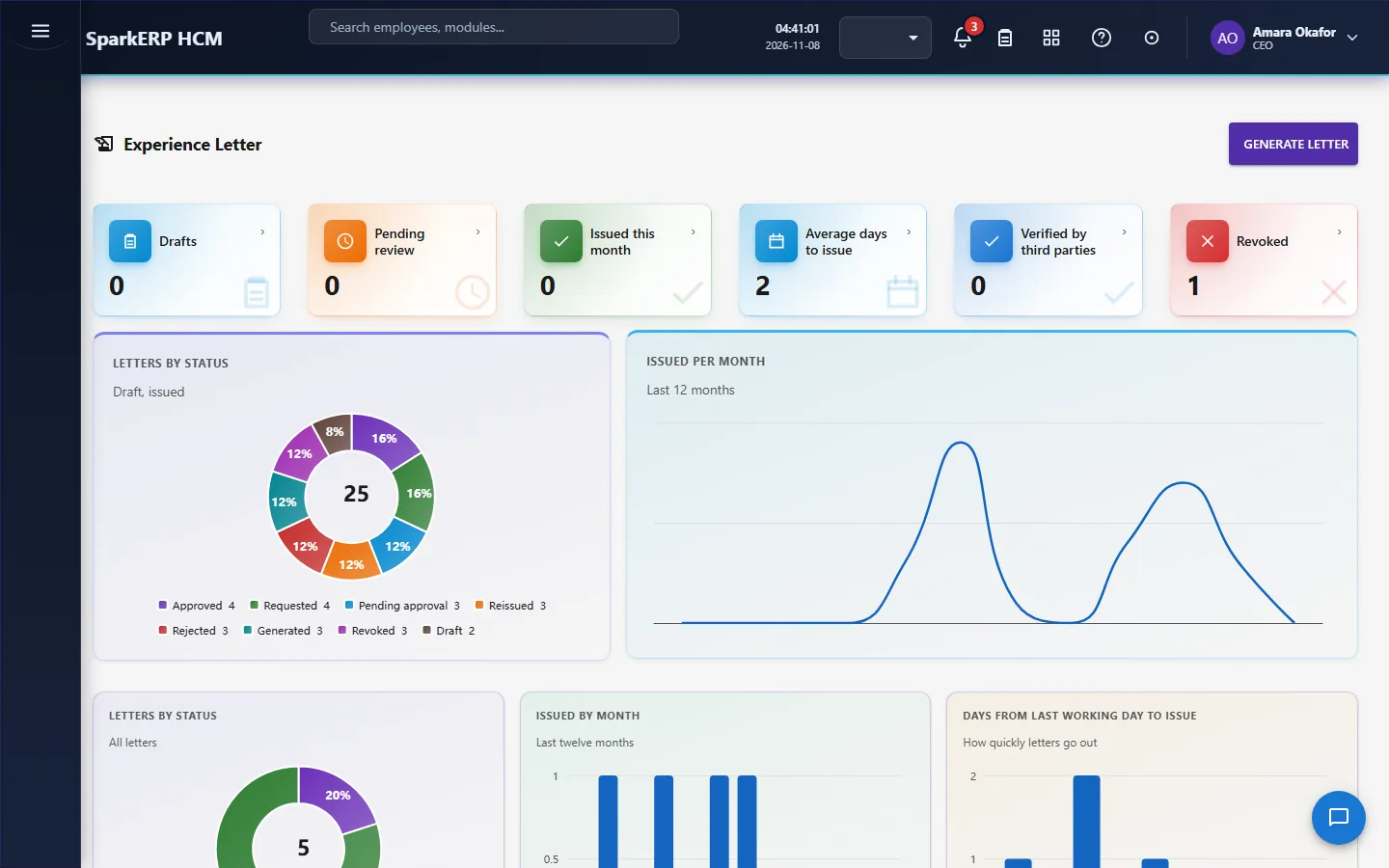
Experience Letter
Generate and issue employee experience letters.
Open it at /hcm-separation/experience-letter (or from the HCM menu).
- Sections: Letters by status, Issued per month, Last 12 months, All letters, Issued by month, Last twelve months, Days from last working day to issue, How quickly letters go out, Verifications by month, Successful checks of a letter code, Pending review by age, Where letters wait and 12 more.
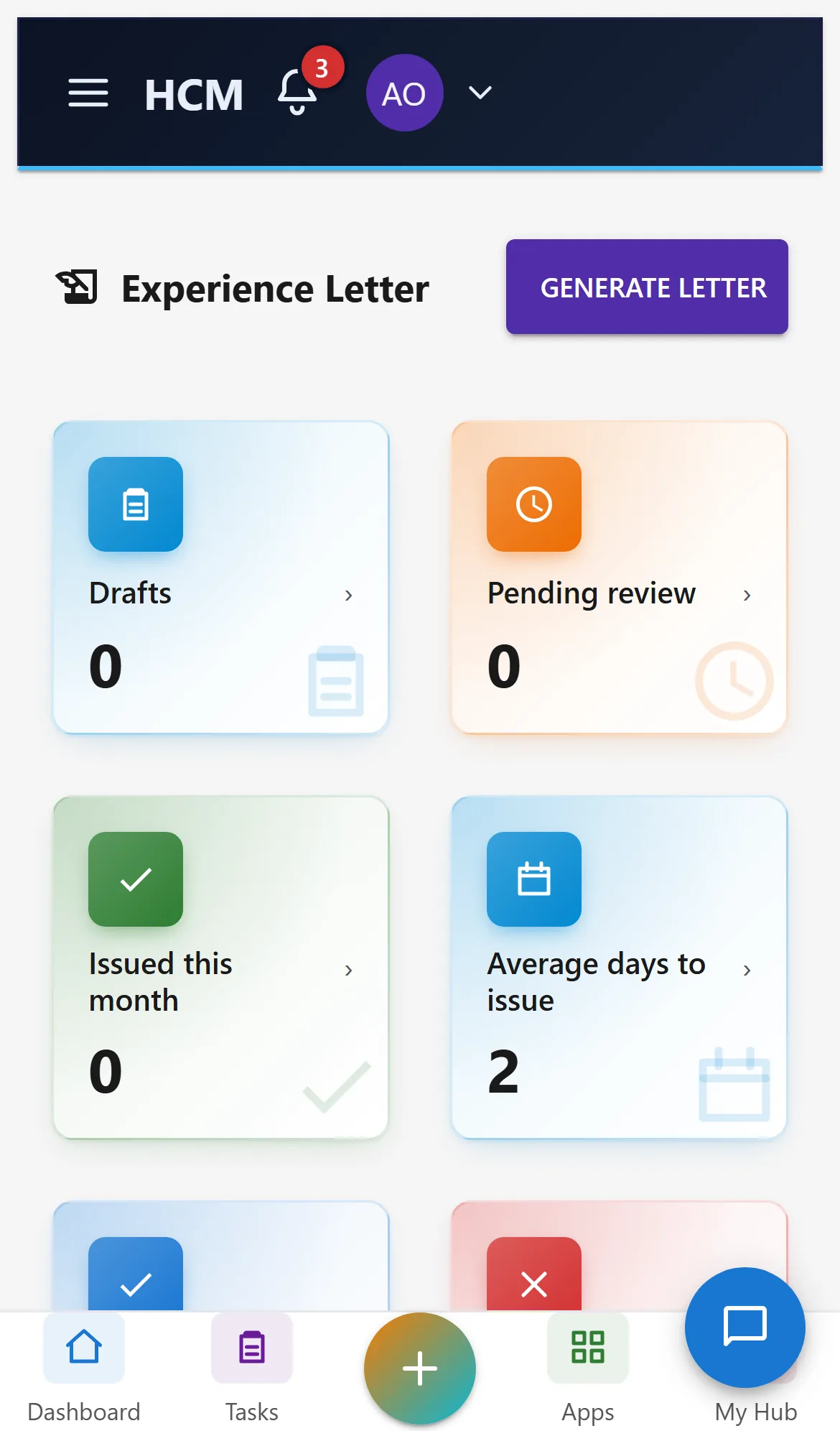
- Cards: Drafts, Pending review, Issued this month, Average days to issue, Verified by third parties, Revoked.
- Table columns: Number, Employee, Issued Date, Status.
- Actions: Generate Letter, Try again, Cancel, Save, Cancel Letter, Submit for HR Review, Approve, Issue, Get verification code, Download PDF, Download QR code, E-mail the letter and 6 more.
How to: Experience Letter
- Open Separation > Experience Letter.
- Select the record you want to change, or the button that adds a new one.
- In the window Experience Letter fill in:
| Field | What to enter |
|---|---|
| Include salary | Choose one: Yes, No |
| Language | Choose one: English, French, Spanish, German, Portuguese, Russian, Greek, Chinese, Japanese, Korean |
- Select Submit for HR Review.
- The window closes and the table refreshes with the result. If the screen shows a message instead, read it: it says what is missing.
Relieving Letter
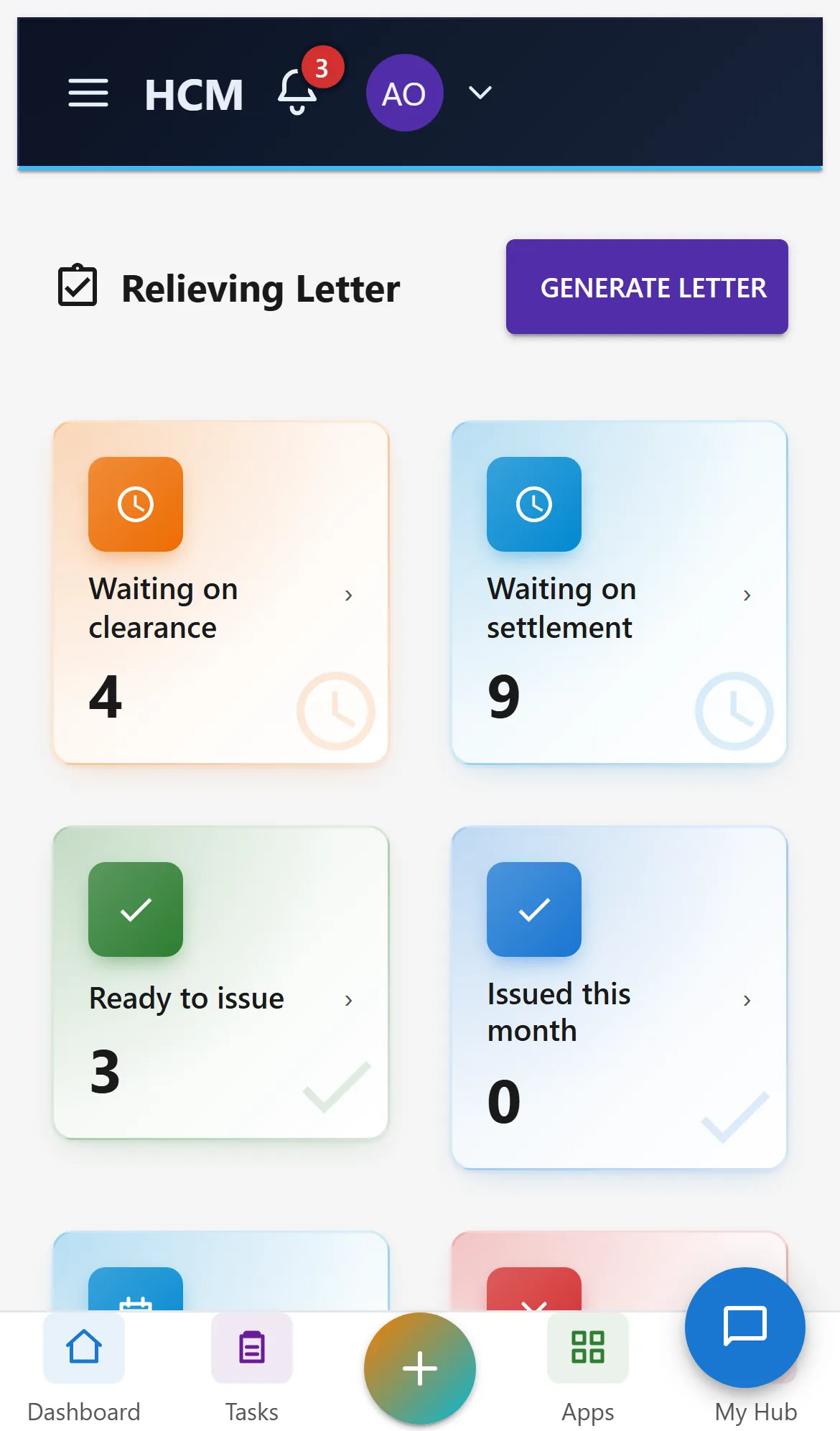
Generate and issue employee relieving letters — gated so it can only be issued once the appropriate conditions are met, not on demand at any point in the process.
Open it at /hcm-separation/relieving-letter (or from the HCM menu).
- Sections: Letters by status, Issued per month, Last 12 months, Ready versus blocked, What each open letter waits on, All letters, Days from last working day to the letter, How quickly letters go out, Issued by month, Last twelve months, Overrides and revocations, Letters with a recorded reason and 15 more.
- Cards: Waiting on clearance, Waiting on settlement, Ready to issue, Issued this month, Average days after the last working day, Revoked.
- Table columns: Number, Employee, Last Working Day, Status.
- Actions: Generate Letter, Try again, Cancel, Save, Confirm Clearance Complete, Confirm Settlement Complete, Revoke, Submit for HR Review, Approve, Issue, Check blockers and get code, Download PDF and 5 more.
How to: Relieving Letter
- Open Separation > Relieving Letter.
- Select the record you want to change, or the button that adds a new one.
- In the window Relieving Letter fill in:
| Field | What to enter |
|---|---|
| Reason | Type it. |
| Language | Choose one: English, French, Spanish, German, Portuguese, Russian, Greek, Chinese, Japanese, Korean |
- Select Confirm Clearance Complete.
- The window closes and the table refreshes with the result. If the screen shows a message instead, read it: it says what is missing.