
Appearance
Shifts, Scheduling & Rosters (HCM)
This page documents three shipped Shift Scheduling screens (hcm-shift-scheduling). Not for plugin developers.
Each screen has a distinct, deliberate role:
Shifts
Reusable work-shift templates — define the actual working hours a shift represents (e.g. "Morning 9-5"). This is the raw material everything else in this module is built from.
Open it at /hcm-shift-scheduling/shifts (or from the HCM menu).
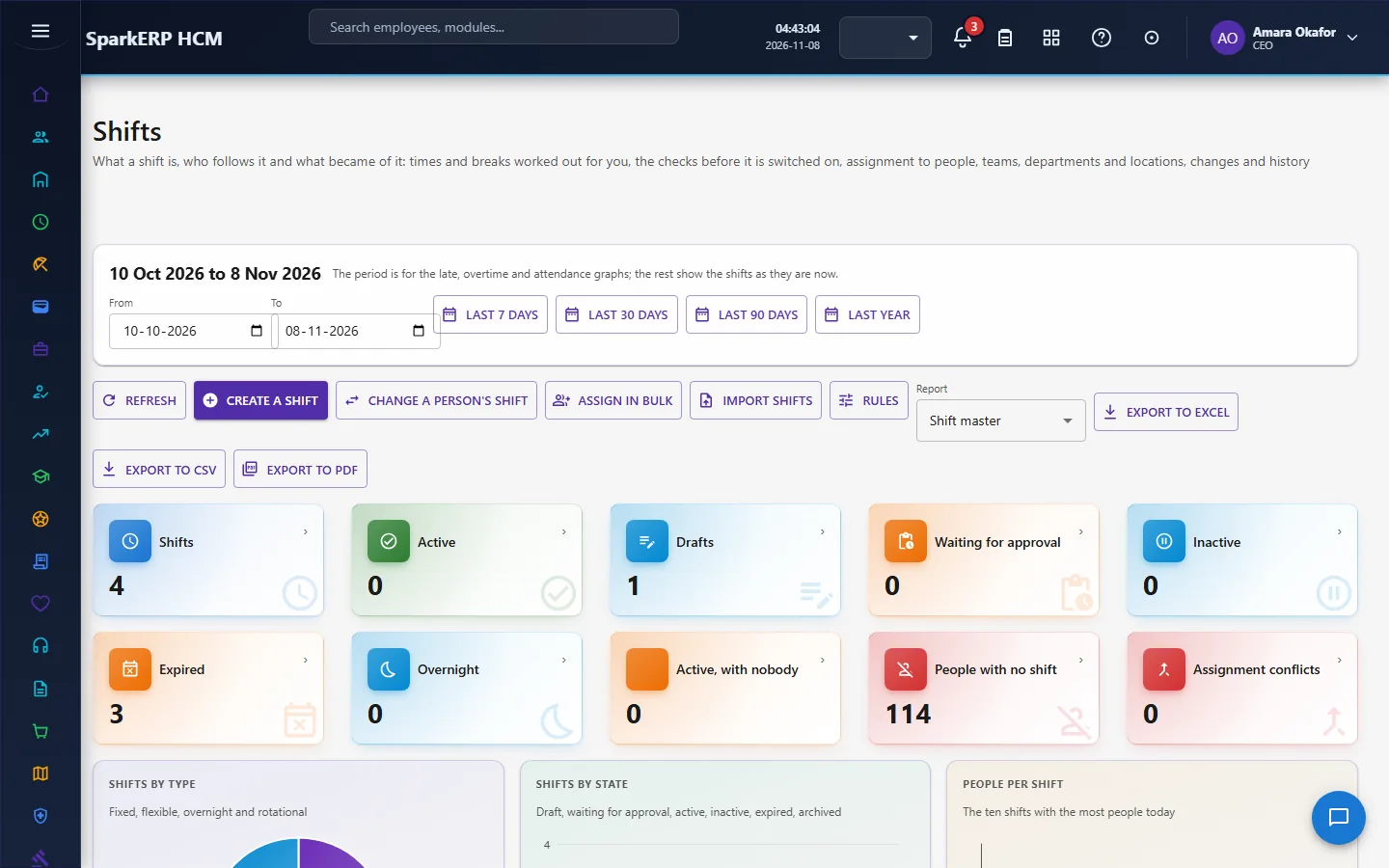
- Sections: Shifts by type, Shifts by state, People per shift, The ten shifts with the most people today, People due at work by the hour, Length against working time, Break minutes, Late minutes by shift, Overtime by shift, Attendance by shift, How shifts are assigned, Assignments in force by what they are made to and 16 more.
- Cards: Shifts, Active, Drafts, Waiting for approval, Inactive, Expired, Overnight, Active, with nobody, People with no shift, Assignment conflicts.
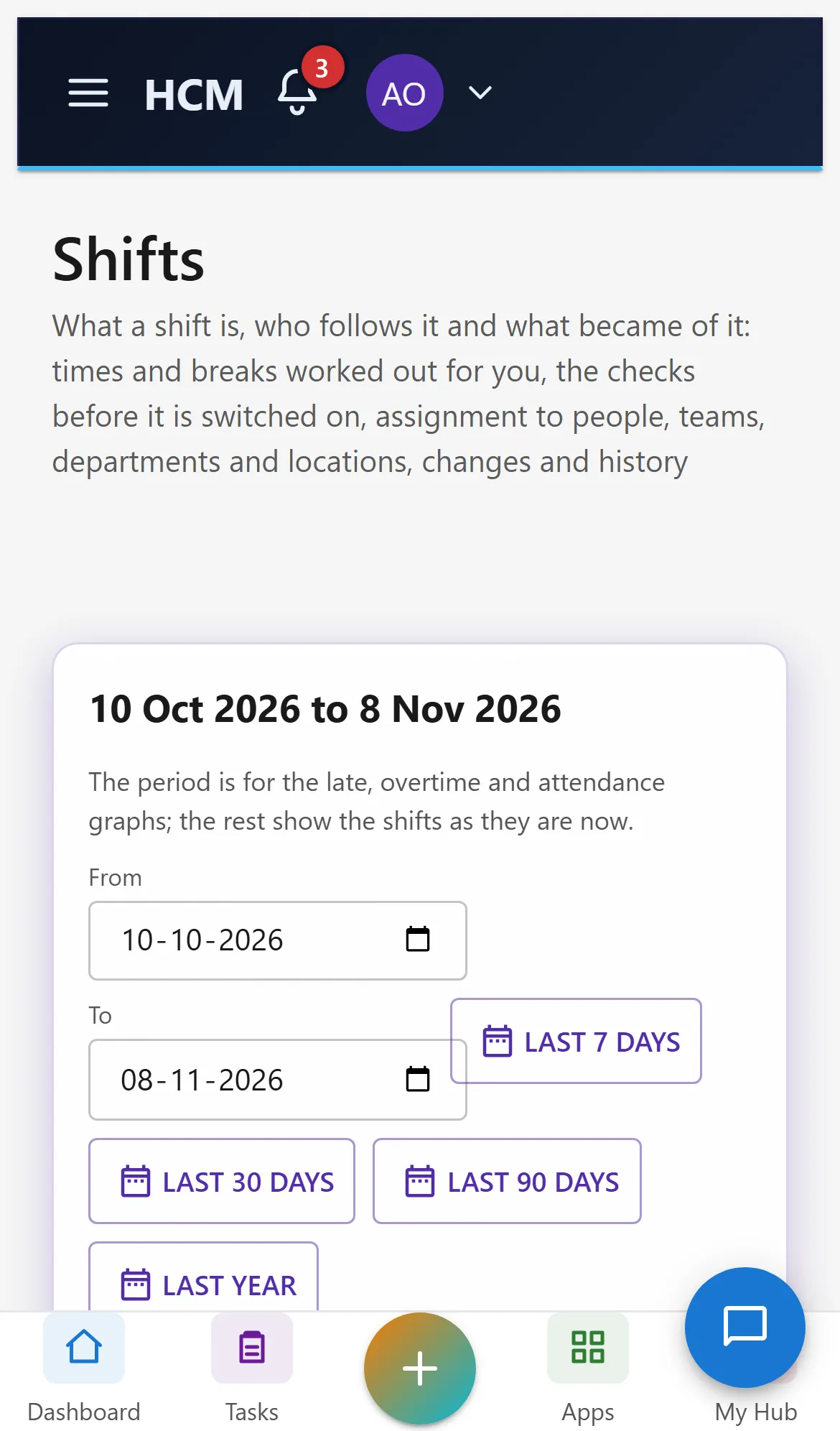
- Actions: Try again, Last 7 days, Last 30 days, Last 90 days, Last year, Refresh, Create a shift, Change a person's shift, Assign in bulk, Import shifts, Rules, Export to Excel and 45 more.
How to: Create a shift
- Open Time & Attendance > Shifts.
- Select Create a shift.
- In the window Shift fill in:
| Field | What to enter |
|---|---|
| Shift code (unique, cannot be changed later) | Type it (for example: MOR-001). |
| Shift name | Type it (for example: Morning). |
| Description | Type it. |
| Shift type | Choose one: Fixed, Flexible, Overnight, Rotational |
| Start time | Type it (for example: 09:00). |
| End time | Type it (for example: 18:00). |
| Crosses midnight | Choose one: Work it out from the times, Yes, it ends the next day, No, it ends the same day |
| Late-in grace (minutes) | Type it. |
| Early-out grace (minutes) | Type it. |
| Latest start of a flexible shift | Type it (for example: 11:00). |
| Core hours start (flexible shift) | Type it (for example: 11:00). |
| Core hours end (flexible shift) | Type it (for example: 16:00). |
| Effective from | Pick a date. |
| Effective to (empty: no end) | Pick a date. |
| Work location | Type it. |
| Time zone | Type it (for example: Europe/Berlin). |
| Minimum rest before the next shift (minutes) | Type it. |
| Longest working time (minutes) | Type it. |
| Night shift allowance | Choose one: Yes, No |
| Night shift allowance amount | Type it. |
| Clock-in rounding | Choose one: Not set here, None, 5 minutes, 10 minutes, 15 minutes, 30 minutes |
| Clock-out rounding | Choose one: Not set here, None, 5 minutes, 10 minutes, 15 minutes, 30 minutes |
| Late threshold: a day this late is serious (minutes) | Type it. |
| Tell the manager about a missing punch | Choose one: Leave to the policy, Yes, No |
| Mark absent when there is no valid attendance | Choose one: Leave to the policy, Yes, No |
| Half day needs at least (minutes worked) | Type it. |
| Full day needs at least (minutes worked) | Type it. |
| Overtime is allowed | Choose one: Leave to the policy, Yes, No |
| Overtime starts after this many minutes beyond the shift | Type it. |
| Most overtime a day (minutes) | Type it. |
| Time worked before the shift counts as overtime | Choose one: Leave to the policy, Yes, No |
| Time worked after the shift counts as overtime | Choose one: Leave to the policy, Yes, No |
| Overtime needs the manager to approve it | Choose one: Leave to the policy, Yes, No |
| Holiday calendar | Type it. |
| Weekly off days (1 Monday to 7 Sunday) | Type it (for example: 6,7). |
| Overtime counts only after this time of day | Type it (for example: 18:00). |
| Most days in a row on this shift | Type it. |
| Attendance policy for people on this shift | Type it. |
| Overtime policy for work on this shift | Type it. |
| Rounding policy (an attendance policy whose rounding this shift uses) | Type it. |
| Leave policy of the people on this shift | Type it. |
| Payroll calendar (pay group) | Type it. |
| Attendance device group (the devices people on this shift punch on) | Type it (for example: Head office gates). |
| Why you are changing it (kept in the history) | Type it. |
- Select Save the shift.
- The window closes and the table refreshes with the result. If the screen shows a message instead, read it: it says what is missing.
How to: Add a break
- Open Time & Attendance > Shifts.
- Select Add a break.
- In the window Break fill in:
| Field | What to enter |
|---|---|
| Break name | Type it (for example: Lunch). |
| Starts | Type it (for example: 13:00). |
| Ends | Type it (for example: 14:00). |
| Paid | Choose one: Yes, No |
| Mandatory | Choose one: Yes, No |
| Taken off by itself | Choose one: Yes, No |
| The person punches out and in | Choose one: Yes, No |
- Select Save the break.
- The window closes and the table refreshes with the result. If the screen shows a message instead, read it: it says what is missing.
How to: Assign
- Open Time & Attendance > Shifts.
- Select Assign.
- In the window Assign the shift fill in:
| Field | What to enter |
|---|---|
| Made to | Choose one: A person, A team, A department, A location, A business unit, The organization |
| Find the employee | Type it (for example: Type two letters of a name or code). |
| Person | Type it. |
| Which one | Type it. |
| From | Pick a date. |
| To (empty: no end) | Pick a date. |
| Apply to all future dates (no end date) | Choose one: Yes, No |
| Priority (a higher number wins between two of the same kind) | Type it. |
| Replace the existing shift (it ends the day before) | Choose one: Yes, No |
| Allow exceptions (short rest, too many days in a row) | Choose one: Yes, No |
| Why | Type it. |
- Select the confirm button.
- The window closes and the table refreshes with the result. If the screen shows a message instead, read it: it says what is missing.
Scheduling
The planner's working workspace — draft and adjust who's assigned to which shift, before anything is finalized.
Open it at /hcm-shift-scheduling/scheduling (or from the HCM menu).
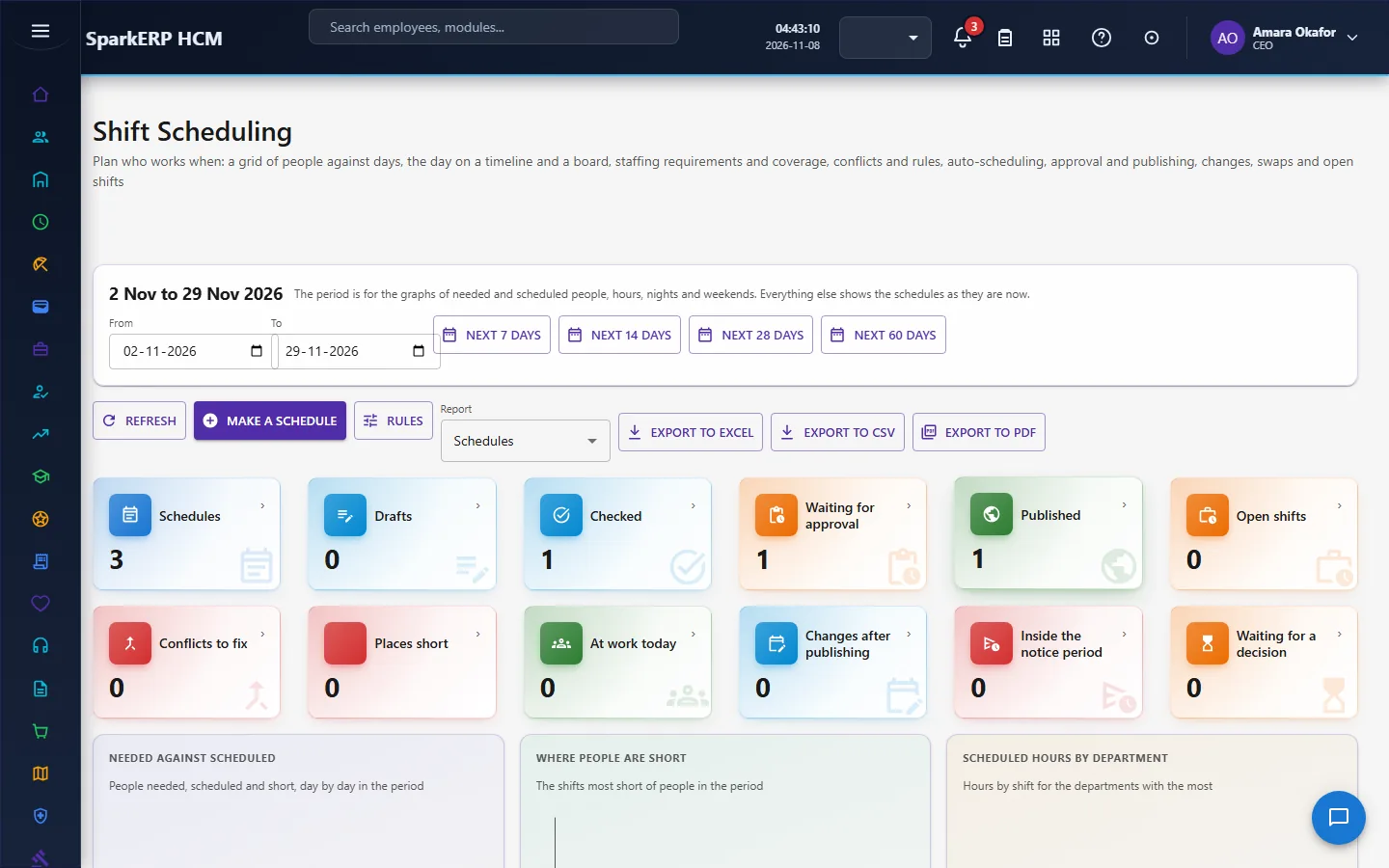
- Sections: Shift Scheduling, Needed against scheduled, Where people are short, The shifts most short of people in the period, Scheduled hours by department, Hours by shift for the departments with the most, People at work by the hour, A daily average over the first week of the period, Schedules by state, Open shifts by age, Conflicts by kind, Open and accepted conflicts and 32 more.
- Cards: Schedules, Drafts, Checked, Waiting for approval, Published, Open shifts, Conflicts to fix, Places short, At work today, Changes after publishing, Inside the notice period, Waiting for a decision.
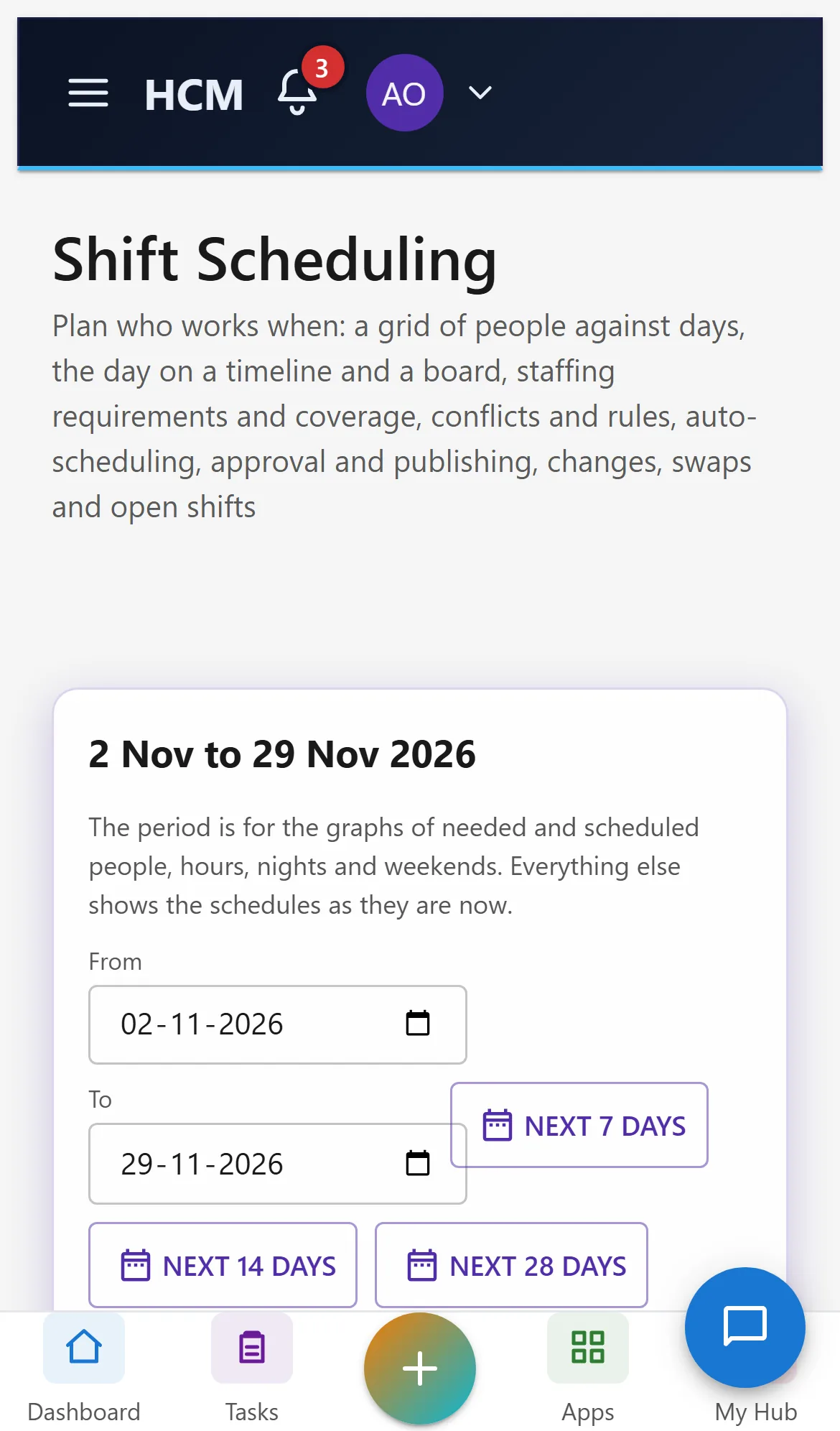
- Actions: Try again, Next 7 days, Next 14 days, Next 28 days, Next 60 days, Refresh, Make a schedule, Rules, Export to Excel, Export to CSV, Export to PDF, Schedules and 88 more.
How to: Make a schedule
- Open Time & Attendance > Shift Scheduling.
- Select Make a schedule.
- In the window Schedule fill in:
| Field | What to enter |
|---|---|
| Name | Type it (for example: Store floor, week 41). |
| Code (empty: made for you; cannot be changed later) | Type it (for example: SCH-2026-41). |
| Description | Type it. |
| How it is made | Choose one: By hand, Copy a schedule, Rotation, Auto-scheduled, Import |
| Made for | Choose one: A department, A team, A location, Chosen people |
| Department | Type it. |
| Team | Type it. |
| Location | Type it. |
| Employee codes (separated by commas or spaces) | Type it. |
| First day | Pick a date. |
| Last day | Pick a date. |
| Schedule to copy (its days move to the new dates; its staffing requirements are copied) | Type it. |
| Rotation: one line for each week, seven codes from Monday to Sunday | Type it (for example: MOR,MOR,MOR,MOR,MOR,OFF,OFF). |
| Each person starts one week further on in the rotation | Choose one: Yes, No |
| Or continue each person from where their last published schedule left off | Choose one: Yes, No |
| Staffing needed: one line for each shift: code, people, weekdays (1 to 7, optional) | Type it (for example: MOR,3,1 2 3 4 5). |
| Auto-schedule it now | Choose one: Yes, No |
| Publish this many days ahead | Type it. |
| Rest between two shifts (hours) | Type it. |
| Most hours in a day | Type it. |
| Most hours in a week | Type it. |
| Most days in a row | Type it. |
| Days off a week (at least) | Type it. |
| Check skills | Choose one: The organization's setting, Yes, No |
| Do not plan people on a holiday | Choose one: The organization's setting, Yes, No |
| Share hours, nights and weekends evenly | Choose one: The organization's setting, Yes, No |
| Why (kept in the history) | Type it. |
- Select Save the schedule.
- The window closes and the table refreshes with the result. If the screen shows a message instead, read it: it says what is missing.
How to: Set a day
- Open Time & Attendance > Shift Scheduling.
- Select the record you want to change, or the button that adds a new one.
- In the window Set a day fill in:
| Field | What to enter |
|---|---|
| The day is | Type it. |
| Why (kept in the history) | Type it. |
- Select the confirm button.
- The window closes and the table refreshes with the result. If the screen shows a message instead, read it: it says what is missing.
How to: Suggest from history
- Open Time & Attendance > Shift Scheduling.
- Select Suggest from history.
- In the window Staffing from history fill in:
| Field | What to enter |
|---|---|
| Weeks of history to look at (1 to 52) | Type it. |
| Add this percentage for a busy period | Type it. |
| Lines that are already there | Choose one: Leave them as they are, Change them to the suggestion |
- Select the confirm button.
- The window closes and the table refreshes with the result. If the screen shows a message instead, read it: it says what is missing.
Rosters
The official, published, controlled version of a schedule — once Scheduling's draft is finalized, it becomes a Roster: what's actually communicated to employees and used operationally, as distinct from the planner's working draft.
Open it at /hcm-shift-scheduling/rosters (or from the HCM menu).
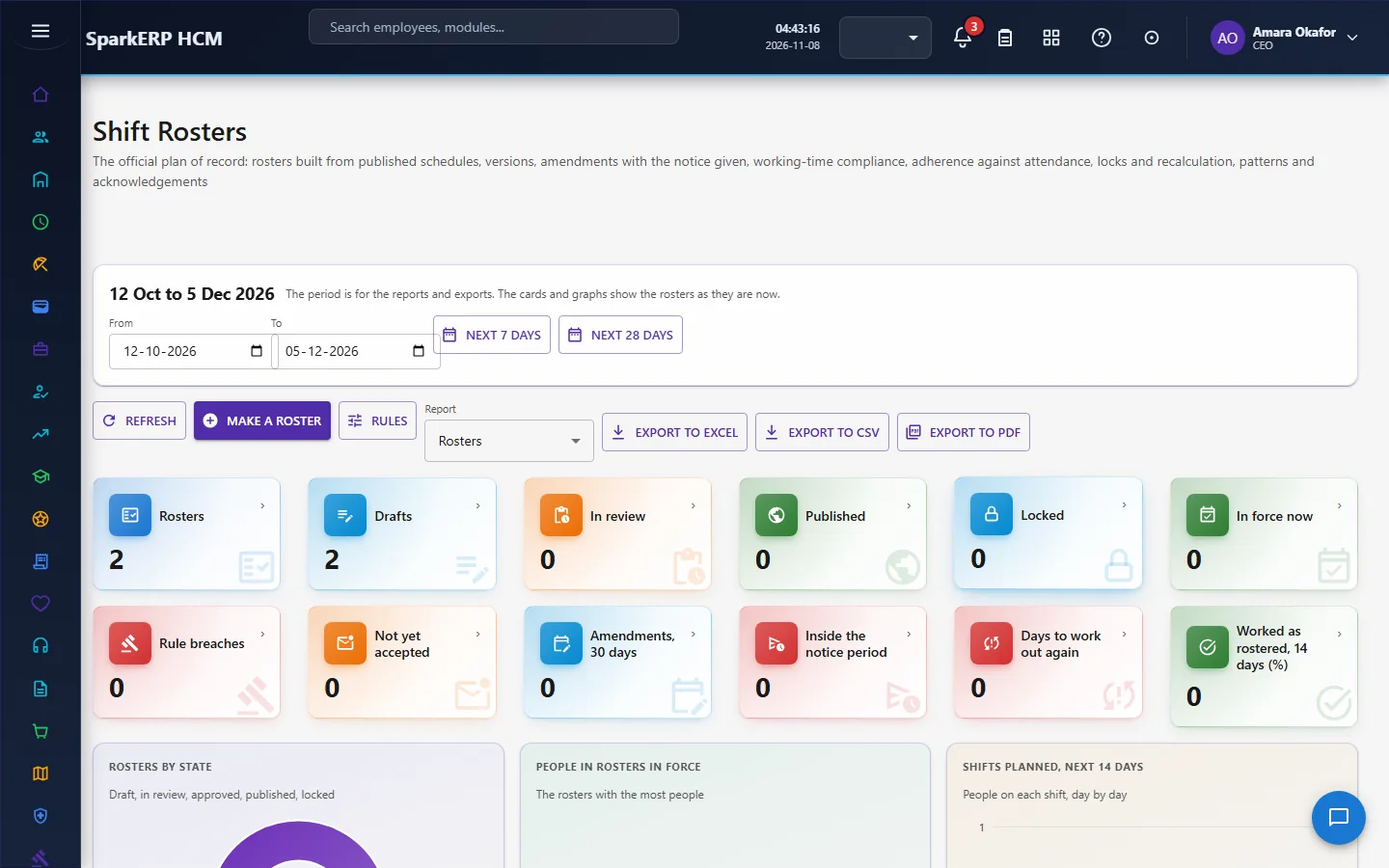
- Sections: Shift Rosters, Rosters by state, People in rosters in force, The rosters with the most people, Breaches by rule, Open working-time breaches, Breaches by department, Where the rules are broken most, Amendments by week, Amendments by kind, Acknowledgements, Worked as rostered and 27 more.
- Cards: Rosters, Drafts, In review, Published, Locked, In force now, Rule breaches, Not yet accepted, Amendments, 30 days, Inside the notice period, Days to work out again, Worked as rostered, 14 days (%).
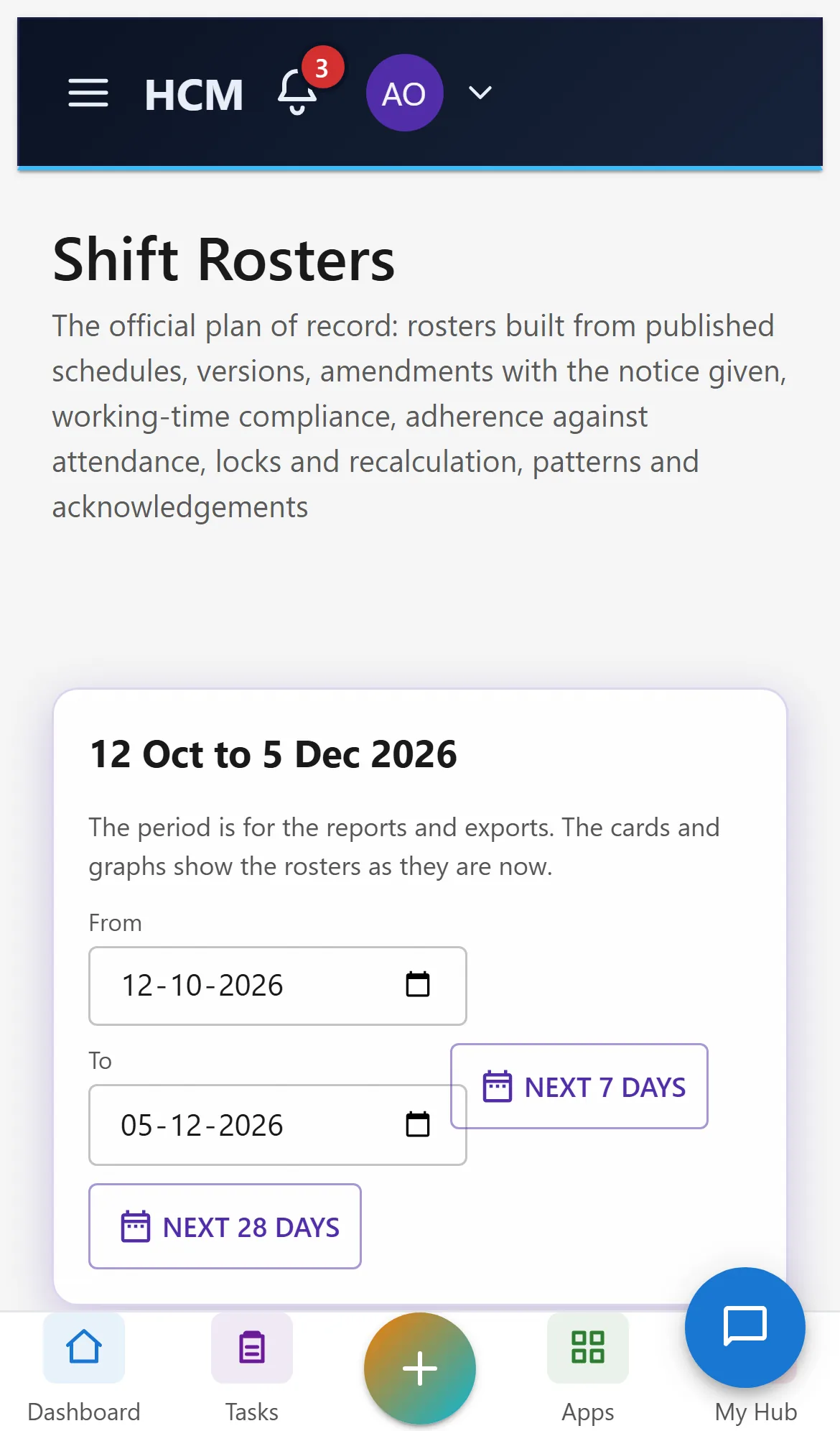
- Actions: Try again, Next 7 days, Next 28 days, Refresh, Make a roster, Rules, Export to Excel, Export to CSV, Export to PDF, Rosters, Roster, Patterns and 75 more.
How to: Make a roster
- Open Time & Attendance > Shift Rosters.
- Select Make a roster.
- In the window Roster fill in:
| Field | What to enter |
|---|---|
| Name | Type it (for example: Store floor, October). |
| Code (empty: made for you; cannot be changed later) | Type it (for example: RS-202610-01). |
| Description | Type it. |
| Kind | Choose one: Daily, Weekly, Monthly, Custom period, Rotational |
| Made for | Choose one: A department, A team, A location, Chosen people |
| Department | Type it. |
| Team | Type it. |
| Location | Type it. |
| Employee codes (separated by commas or spaces) | Type it. |
| First day | Pick a date. |
| Last day | Pick a date. |
| A published schedule to start with | Type it. |
| Compliance profile | Type it. |
| Days lock | Choose one: When attendance is finalized, After payroll is processed, When the period is over, By hand only |
| People accept the roster | Choose one: Yes, No |
| Notice a change needs, in days (empty: the organization's setting) | Type it. |
| Weekly off rule | Choose one: No rule, Fixed weekdays off, A number of days off a week, any days, At least a number of days off a week, Days off in a row, Alternate weekends |
| Weekdays off (1 Monday to 7 Sunday) | Type it (for example: 6,7). |
| Days off a week (at least) | Type it. |
| Days off in a row (at least) | Type it. |
| Breaking the rule is | Choose one: A warning, Not allowed (blocks publishing) |
| Why (kept in the history) | Type it. |
- Select Save the roster.
- The window closes and the table refreshes with the result. If the screen shows a message instead, read it: it says what is missing.
How to: Add a schedule
- Open Time & Attendance > Shift Rosters.
- Select Add a schedule.
- In the window Add a schedule fill in:
| Field | What to enter |
|---|---|
| Published schedule | Type it. |
- Select Add it.
- The window closes and the table refreshes with the result. If the screen shows a message instead, read it: it says what is missing.
How to: Approve or turn down
- Open Time & Attendance > Shift Rosters.
- Select Approve or turn down.
- In the window Approve the roster fill in:
| Field | What to enter |
|---|---|
| Comment (needed when turning it down) | Type it. |
- Select the confirm button.
- The window closes and the table refreshes with the result. If the screen shows a message instead, read it: it says what is missing.