
Appearance
Payslips, Bank Transfer, Payroll Accounting & Lock (HCM)
This page documents four shipped Payroll screens (hcm-payroll) that all work from a finalized Payroll Run — what happens after payroll is calculated. Not for plugin developers.
Payslips
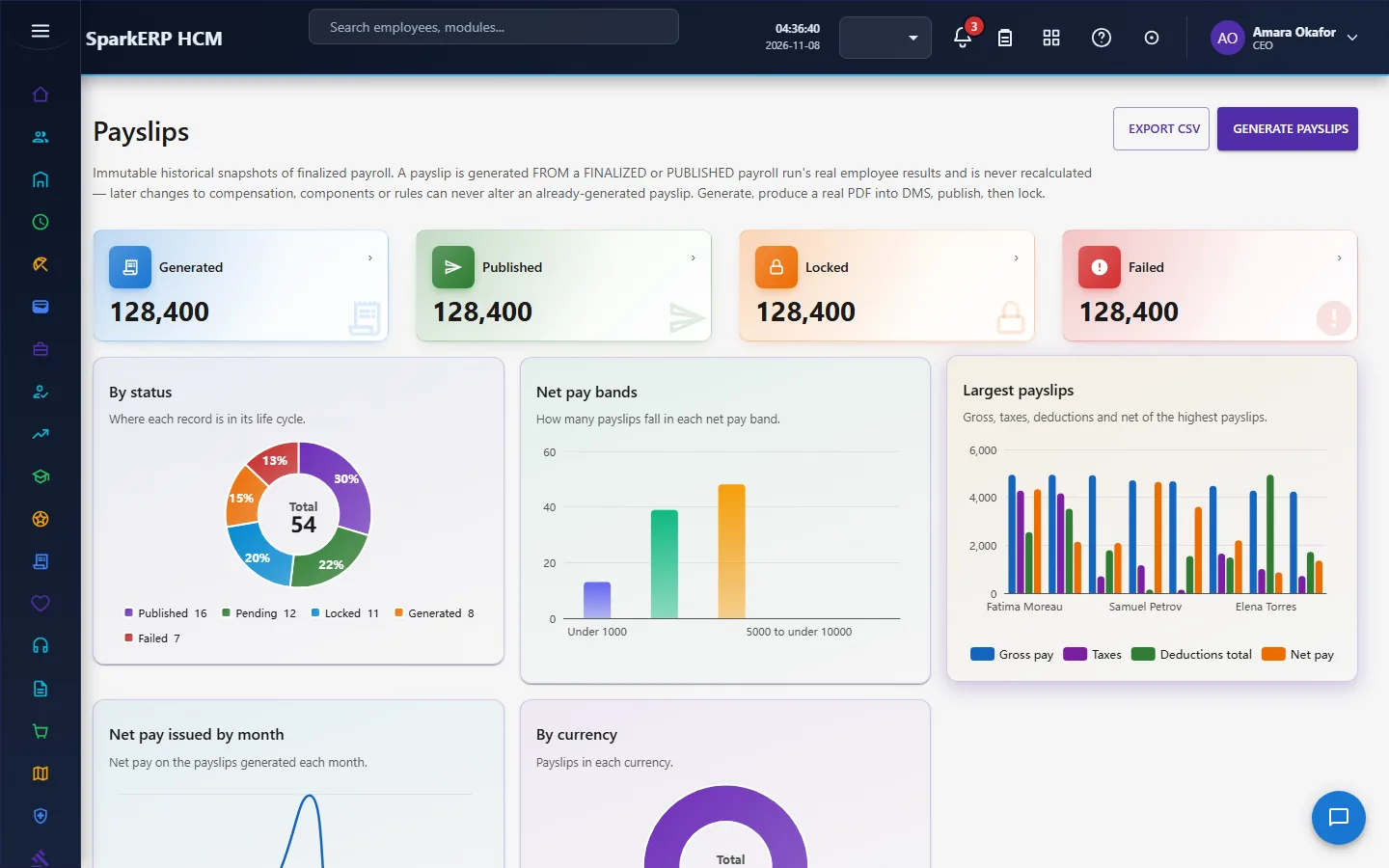
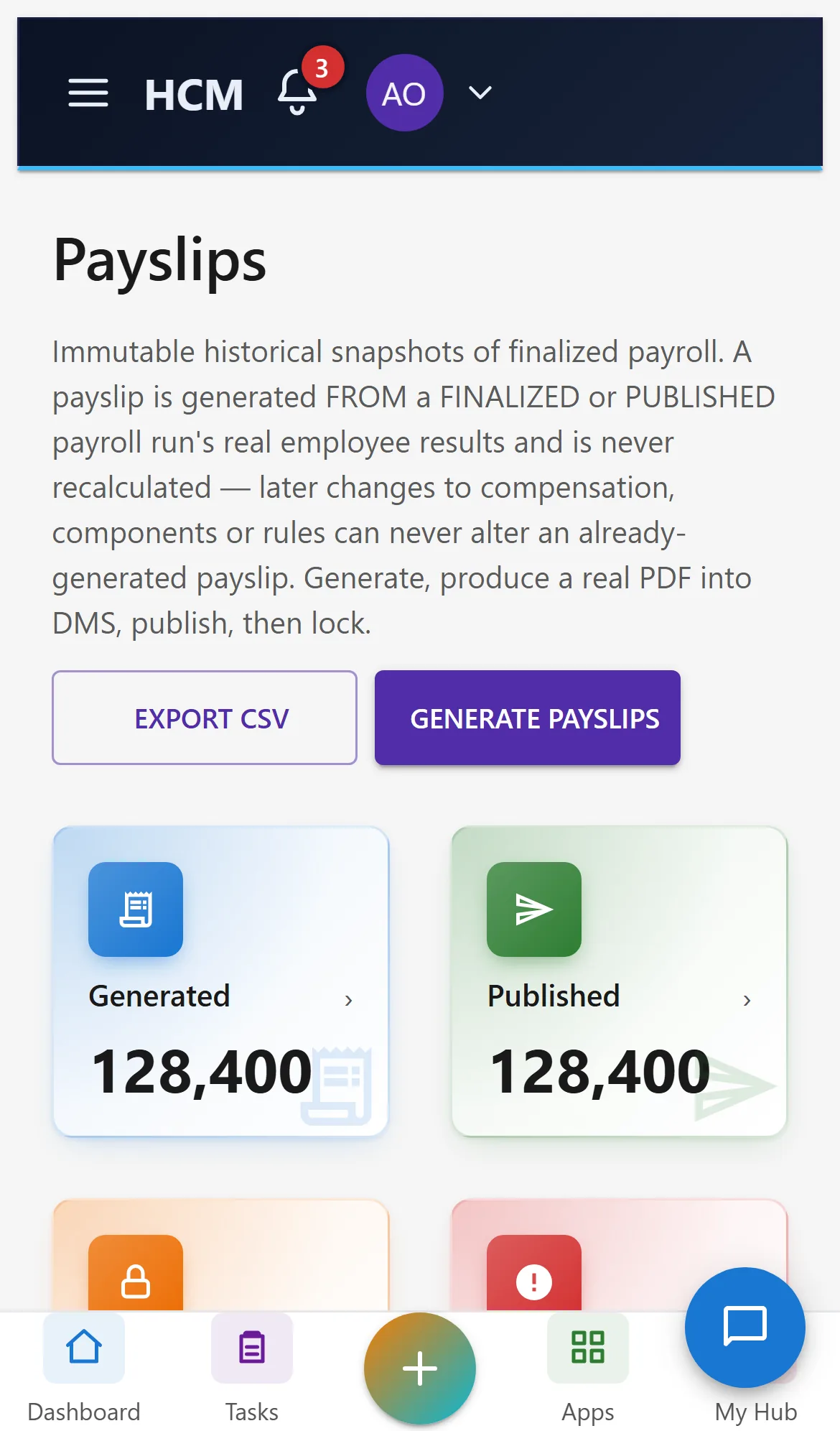
Generates a real, immutable PDF payslip for each employee once a run is finalized and published — a snapshot of that run, not something that changes later even if other data changes.
Open it at /hcm-payroll/payslips (or from the HCM menu).
- Sections: By status, Net pay bands, Largest payslips, Net pay issued by month, By currency, Generate payslips from a finalized payroll run, Payslip Reference, Employee, Pay Period, Source Payroll Run, Status, DMS Document and 1 more.
- Cards: Generated, Published, Locked, Failed, Gross Pay, Deductions, Taxes, Net Pay.
- Charts: Total.
- Table columns: Reference, Employee Code, Employee, Period, Gross Pay, Deductions, Taxes, Net Pay, DMS Document, Status, Net % of gross, Low net pay and 5 more.
- Actions: Export CSV, Generate Payslips, Cancel, Generate, Generate PDF, Download PDF, Publish, Lock, Send, Compare with previous payslip, Close.
How to: Generate Payslips
- Open Payroll > Payslips.
- Select Generate Payslips.
- In the window Generate Payslips fill in:
| Field | What to enter |
|---|---|
| Payroll Run Id | Type it. |
| Employee Id (optional) | Type it. |
- Select the confirm button.
- The window closes and the table refreshes with the result. If the screen shows a message instead, read it: it says what is missing.
Bank Transfer
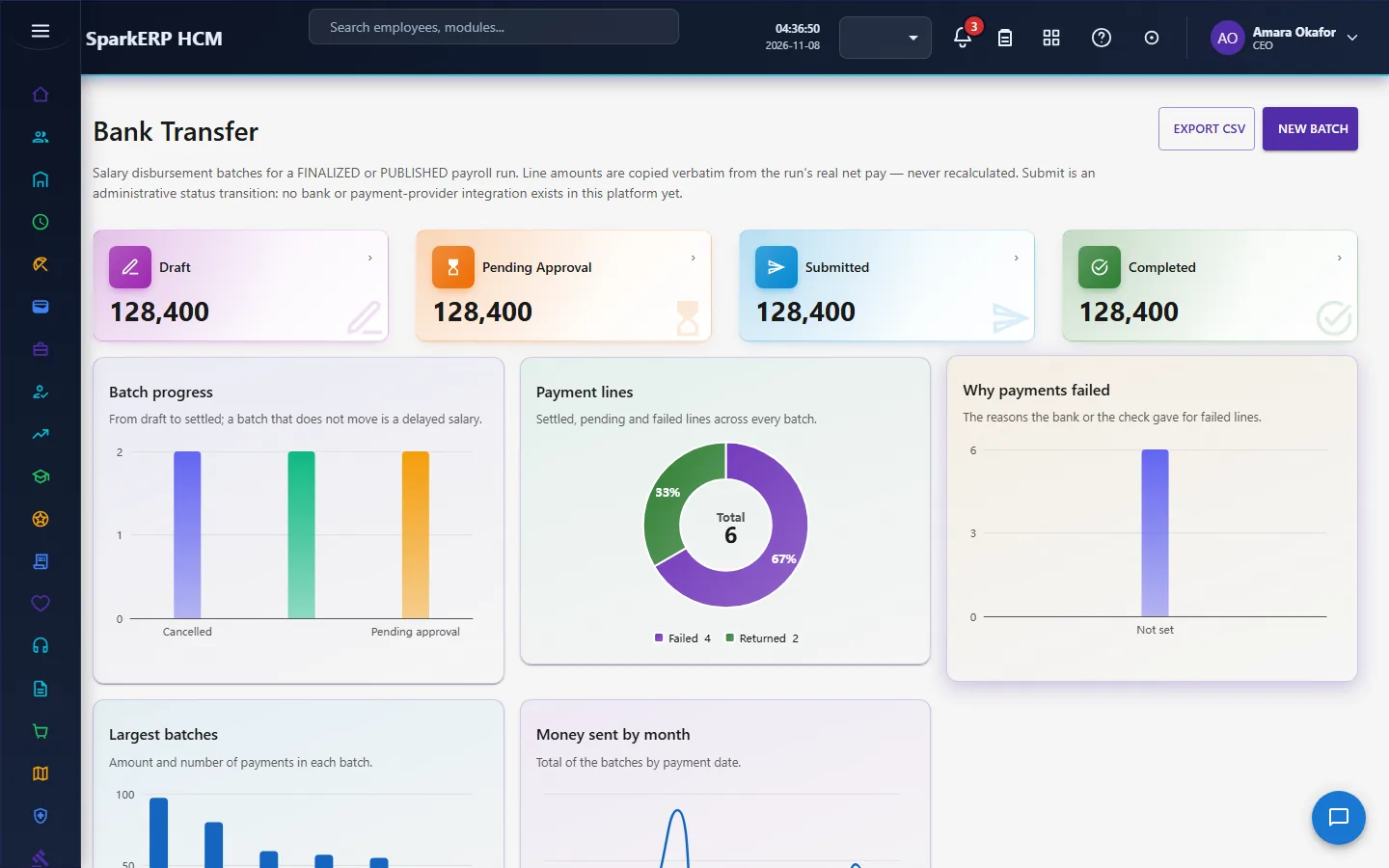
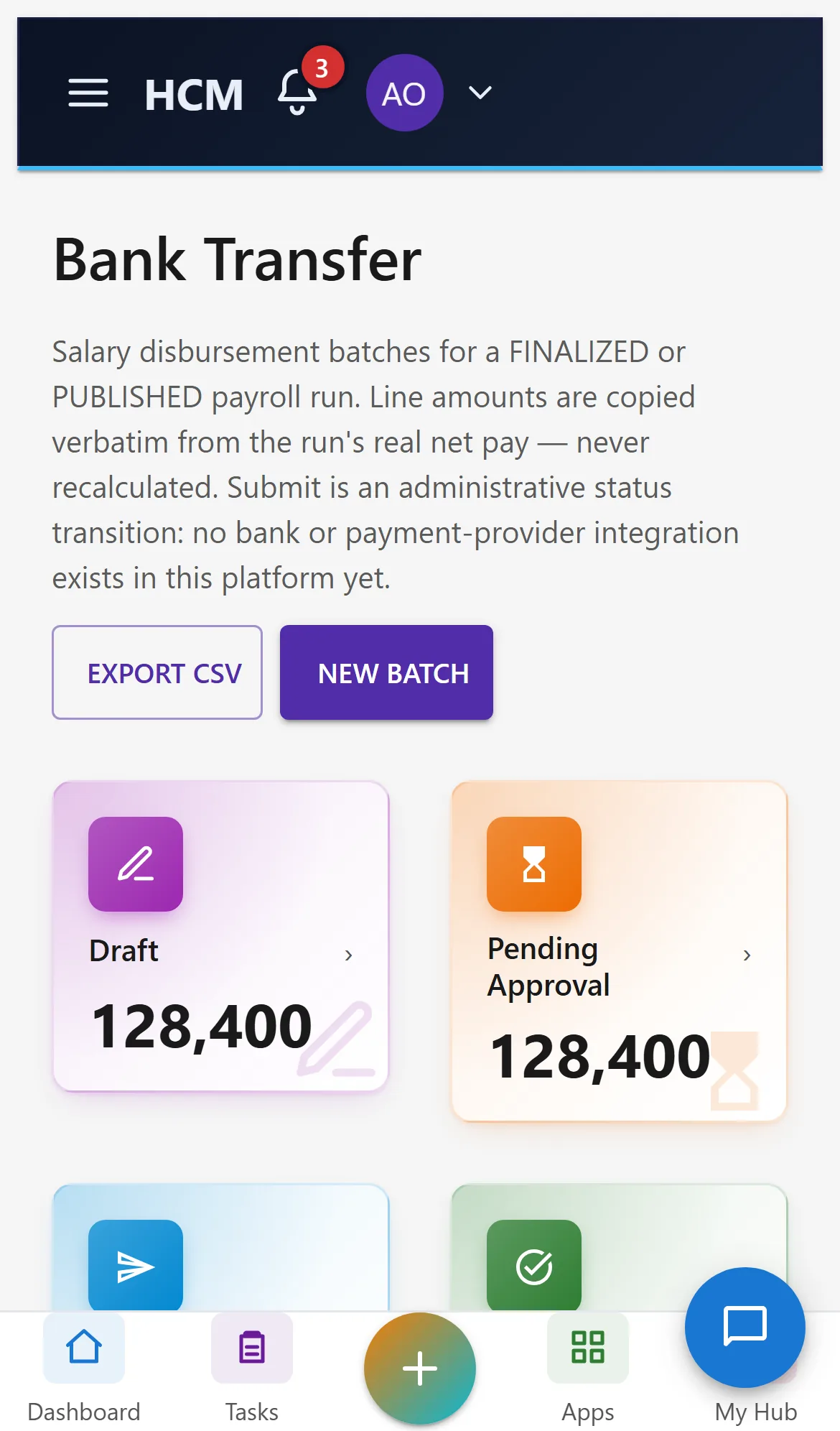
Builds disbursement batches from a finalized run's real net pay figures — the actual instruction set for paying people — with an approval workflow and per-line reconciliation tracking (so you can confirm each payment actually went through).
Open it at /hcm-payroll/bank-transfer (or from the HCM menu).
- Sections: Batch progress, Payment lines, Why payments failed, Largest batches, Money sent by month, Create a disbursement batch from a finalized payroll run, Batch Reference, Pay Period, Source Payroll Run, Currency, Status, Workflow Instance and 3 more.
- Cards: Draft, Pending Approval, Submitted, Completed, Lines, Total Amount.
- Charts: Total.
- Table columns: Batch Reference, Period, Run, Lines, Total Amount, Currency, Payment Date, Status, Average payment, Employee Code, Employee, Net Pay and 2 more.
- Actions: Export CSV, New Batch, Cancel, Create Batch, Submit for Approval, Submit to Bank, Reconcile, Cancel Batch, Mark Completed, Mark Failed, Mark Returned, Import return file and 4 more.
How to: New Batch
- Open Payroll > Bank Transfer.
- Select New Batch.
- In the window Create Bank Transfer Batch fill in:
| Field | What to enter |
|---|---|
| Payroll Run Id | Type it. |
| Batch Reference (optional) | Type it. |
| Payment Date | Type it. |
| Notes | Type it. |
- Select Create Batch.
- The window closes and the table refreshes with the result. If the screen shows a message instead, read it: it says what is missing.
How to: Bank Transfer Batch
- Open Payroll > Bank Transfer.
- Select the record you want to change, or the button that adds a new one.
- In the window Bank Transfer Batch fill in:
| Field | What to enter |
|---|---|
| Line Id | Type it. |
| Failure Reason | Type it. |
- Select Submit for Approval.
- The window closes and the table refreshes with the result. If the screen shows a message instead, read it: it says what is missing.
Payroll Accounting
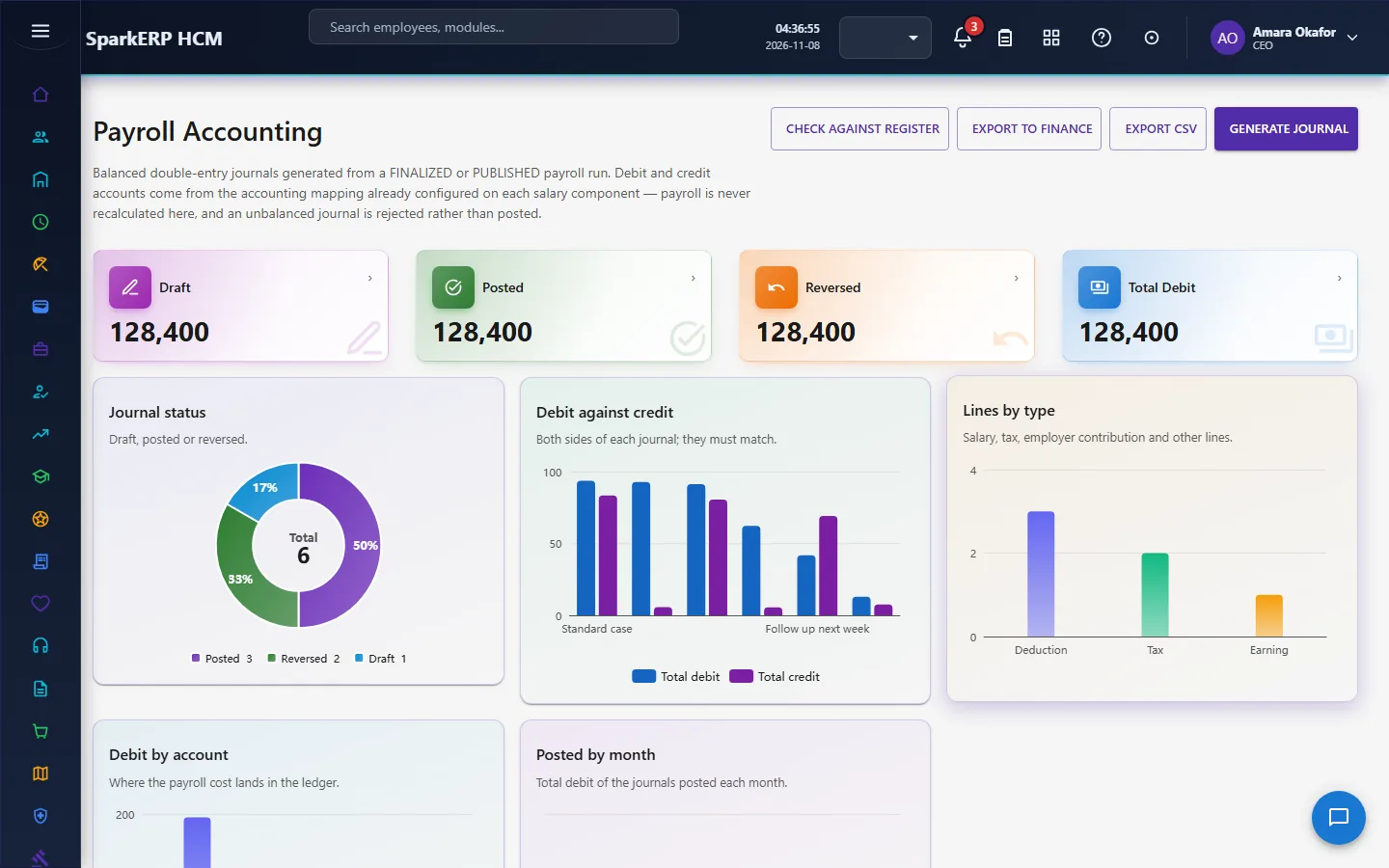
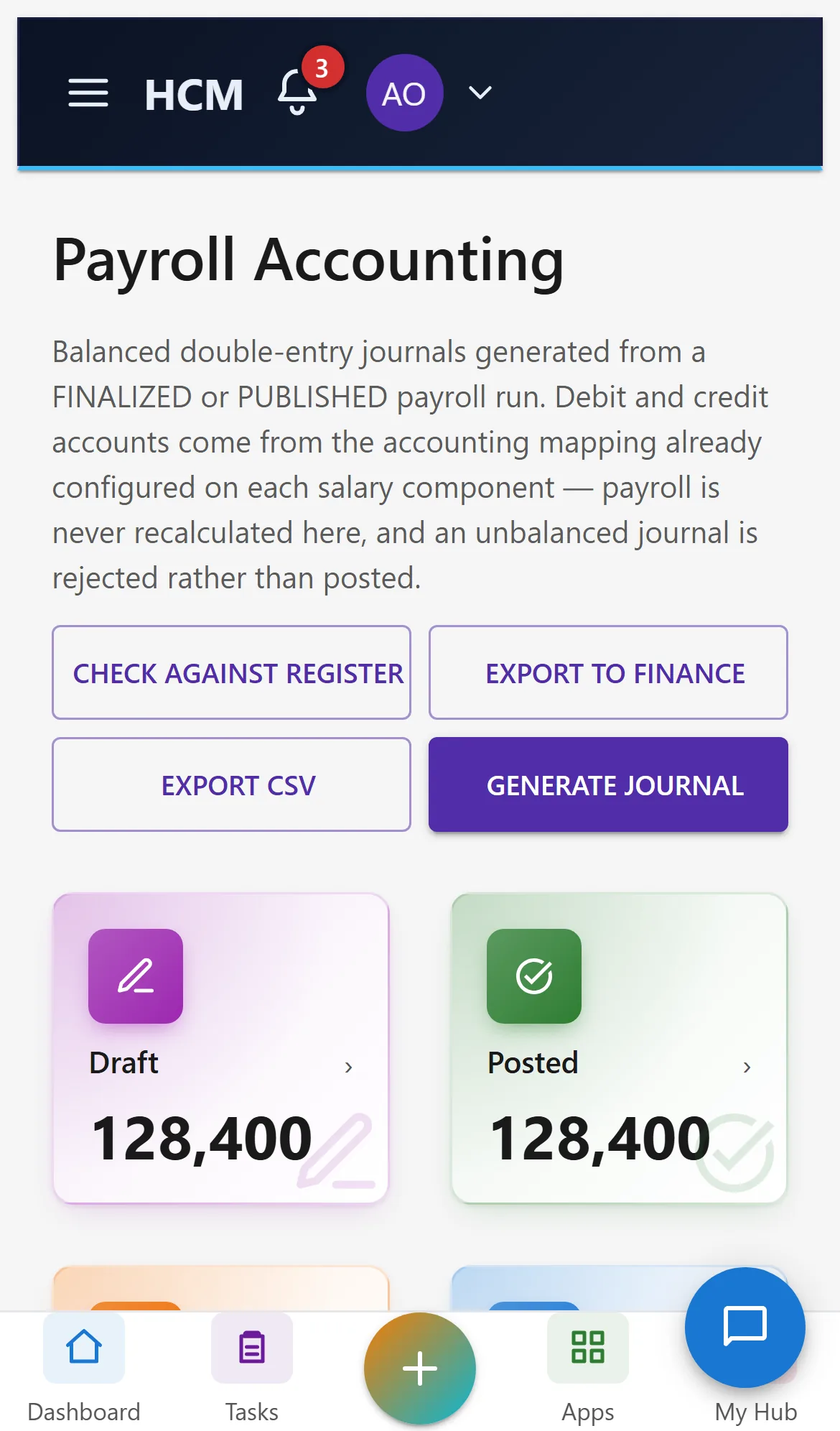
Generates balanced accounting journals from a finalized run, using each salary component's own debit/credit account mapping. You can post a journal, or reverse it if something needs correcting.
Open it at /hcm-payroll/payroll-accounting (or from the HCM menu).
- Sections: Journal status, Debit against credit, Lines by type, Debit by account, Posted by month, Generate a journal from a finalized payroll run, Journal Reference, Pay Period, Source Payroll Run, Currency, Status, Reversal Of Journal and 1 more.
- Cards: Draft, Posted, Reversed, Total Debit, Total Credit, Lines.
- Charts: Total.
- Table columns: Journal Reference, Period, Run, Lines, Total Debit, Total Credit, Currency, Reversal Of, Status, Balance gap, Balanced, # and 8 more.
- Actions: Check against register, Export to Finance, Export CSV, Generate Journal, Cancel, Generate, Post, Reverse, Close, Download JSON, Download CSV, Check.
How to: Generate Journal
- Open Payroll > Payroll Accounting.
- Select Generate Journal.
- In the window Generate Payroll Journal fill in:
| Field | What to enter |
|---|---|
| Payroll Run Id | Type it. |
| Journal Reference (optional) | Type it. |
| Notes / Reversal Reason | Type it. |
- Select the confirm button.
- The window closes and the table refreshes with the result. If the screen shows a message instead, read it: it says what is missing.
Payroll Lock
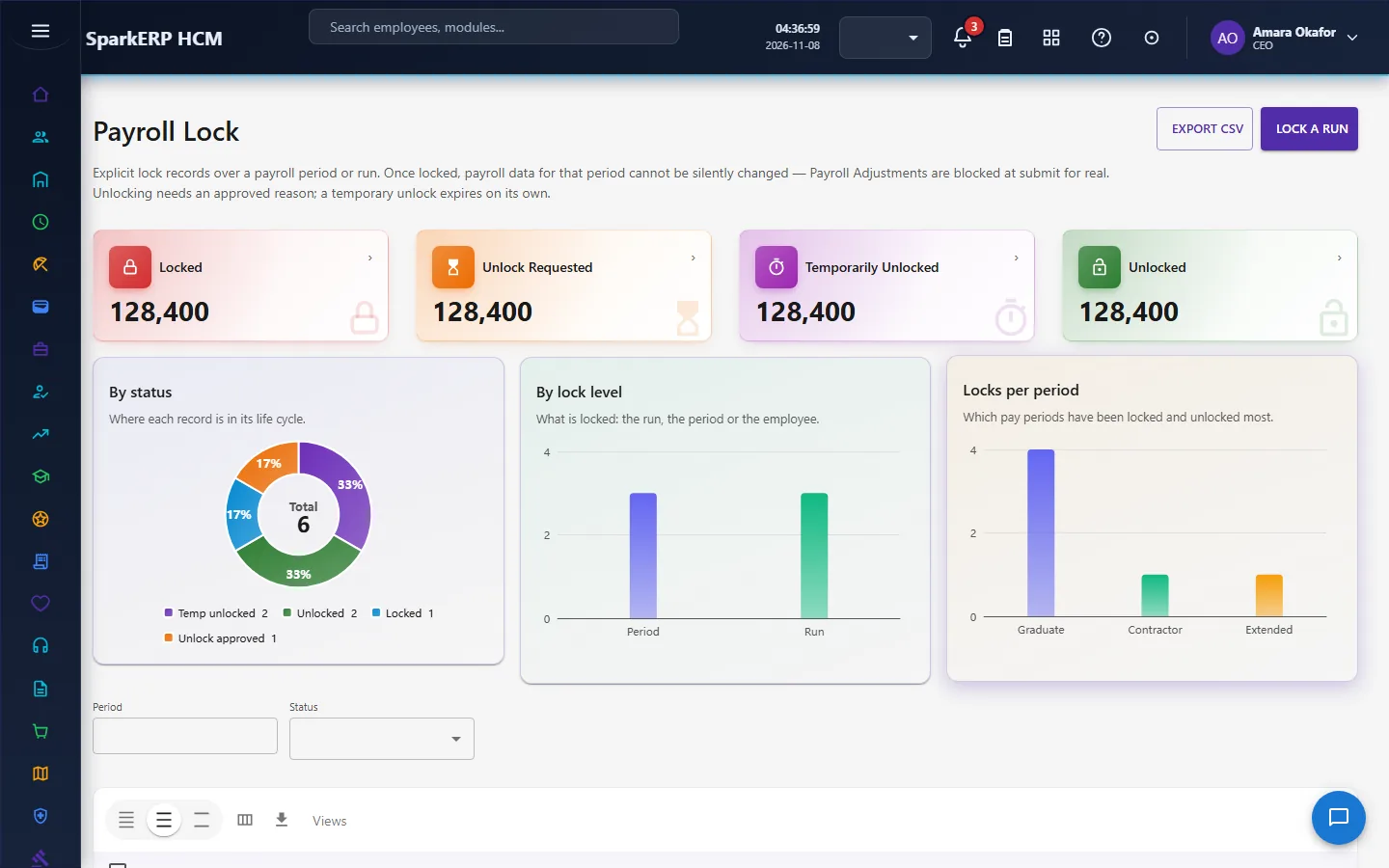
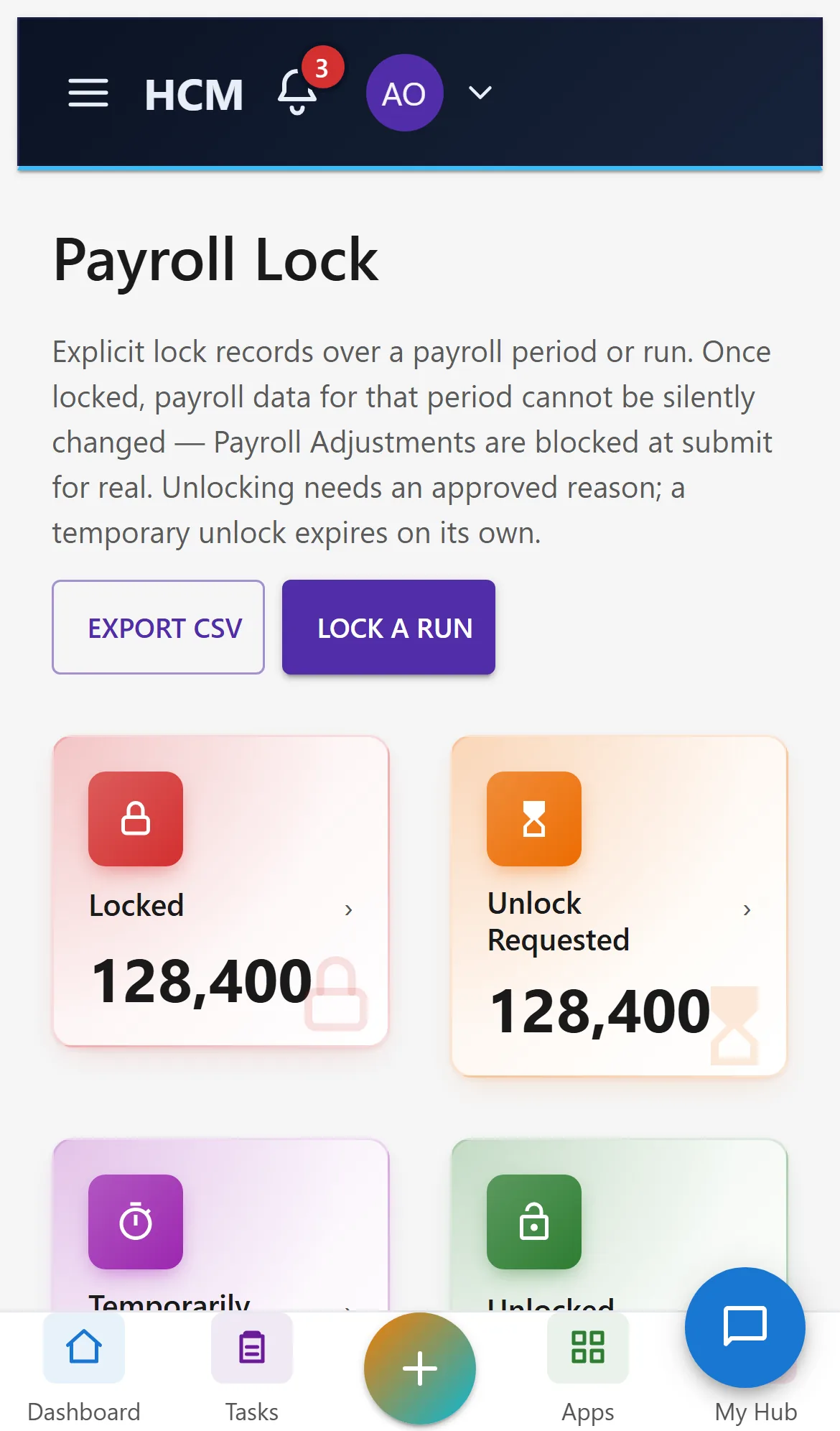
Locks a finalized run at the period or run level so it can't be changed further. If you genuinely need to reopen a locked run, there's a real unlock process — it goes through a single-stage approval, opens for a limited, time-boxed window, and then re-locks automatically.
Open it at /hcm-payroll/payroll-lock (or from the HCM menu).
- Sections: By status, By lock level, Locks per period, Lock a finalized payroll run, Pay Period, Lock Level, Locked By, Locked At, Status, Unlock Reason, Unlocked By, Temporary Unlock Expires At.
- Cards: Locked, Unlock Requested, Temporarily Unlocked, Unlocked, Source Payroll Run.
- Charts: Total.
- Table columns: Period Label, Run Id, Lock Level, Locked By, Locked At, Temp Expires, Unlocked By, Status.
- Actions: Export CSV, Lock a Run, Cancel Btn, Save Btn, Request Unlock, Unlock, Temporary Unlock, Relock, Close Btn.
How to: Lock a Run
- Open Payroll > Payroll Lock.
- Select Lock a Run.
- In the window Lock a Payroll Run fill in:
| Field | What to enter |
|---|---|
| Payroll Run Id | Type it. |
| Lock Level | Choose one: Run, Period |
| Notes | Type it. |
- Select Save Btn.
- The window closes and the table refreshes with the result. If the screen shows a message instead, read it: it says what is missing.
How to: Payroll Lock
- Open Payroll > Payroll Lock.
- Select the record you want to change, or the button that adds a new one.
- In the window Payroll Lock fill in:
| Field | What to enter |
|---|---|
| Unlock Reason | Type it. |
| Temporary Unlock Minutes | Type it. |
- Select the confirm button.
- The window closes and the table refreshes with the result. If the screen shows a message instead, read it: it says what is missing.