
Appearance
Candidates, Candidate Pools & Resumes (HCM)
This page documents three shipped Recruitment screens (hcm-recruitment) covering the people side of hiring — independent of any specific opening they're applying to. Not for plugin developers.
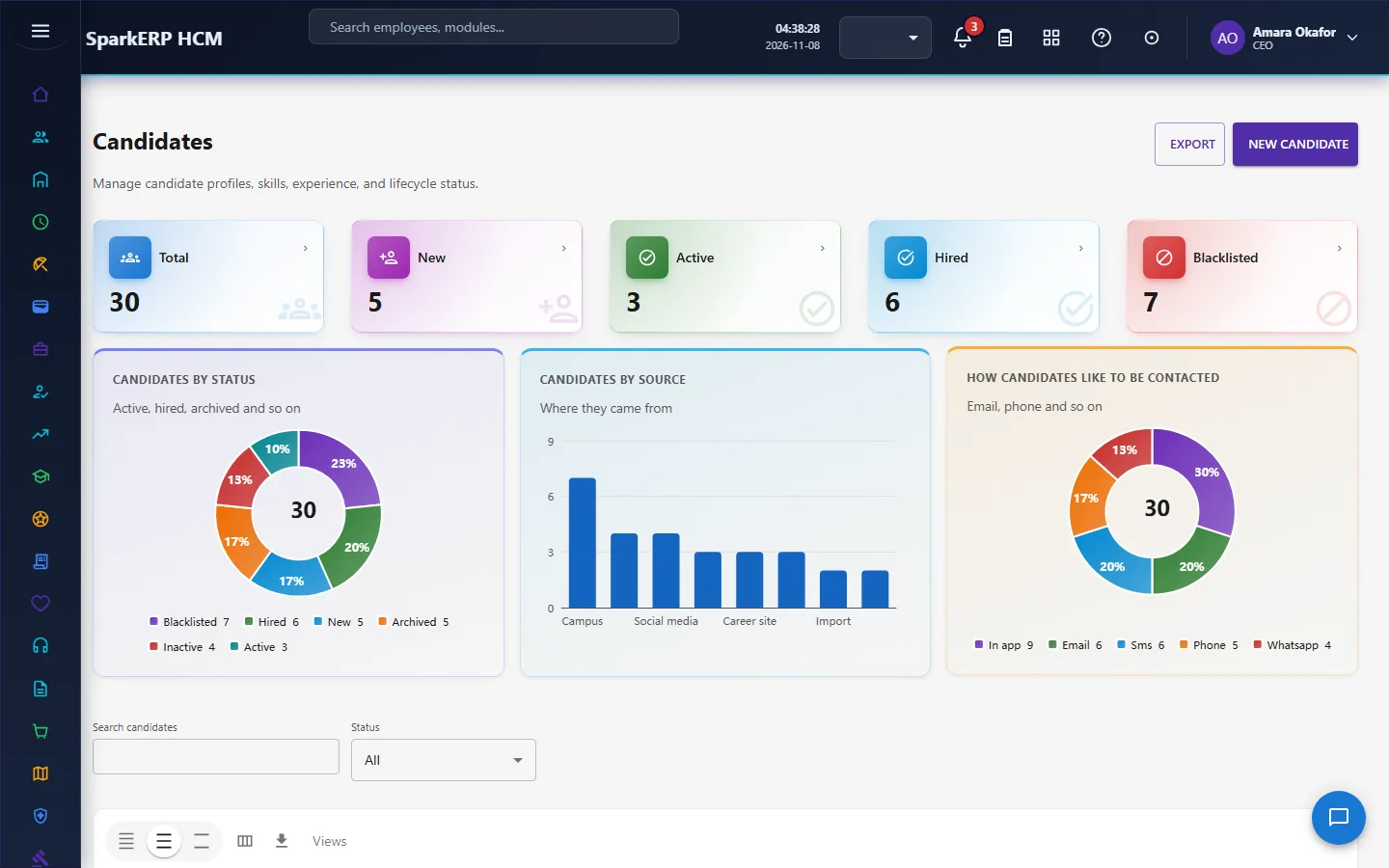
Candidates
The candidate master — a person's profile, kept separate from any one opening they apply to. A candidate can have applied to multiple openings over time; this is their one, ongoing record.
Open it at /hcm-recruitment/candidates (or from the HCM menu).
- Sections: Candidates by status, Candidates by source, Where they came from, How candidates like to be contacted, Personal Information, Contact Information, Professional Profile, Preferences, Source, Skills, Employment History, Education and 1 more.
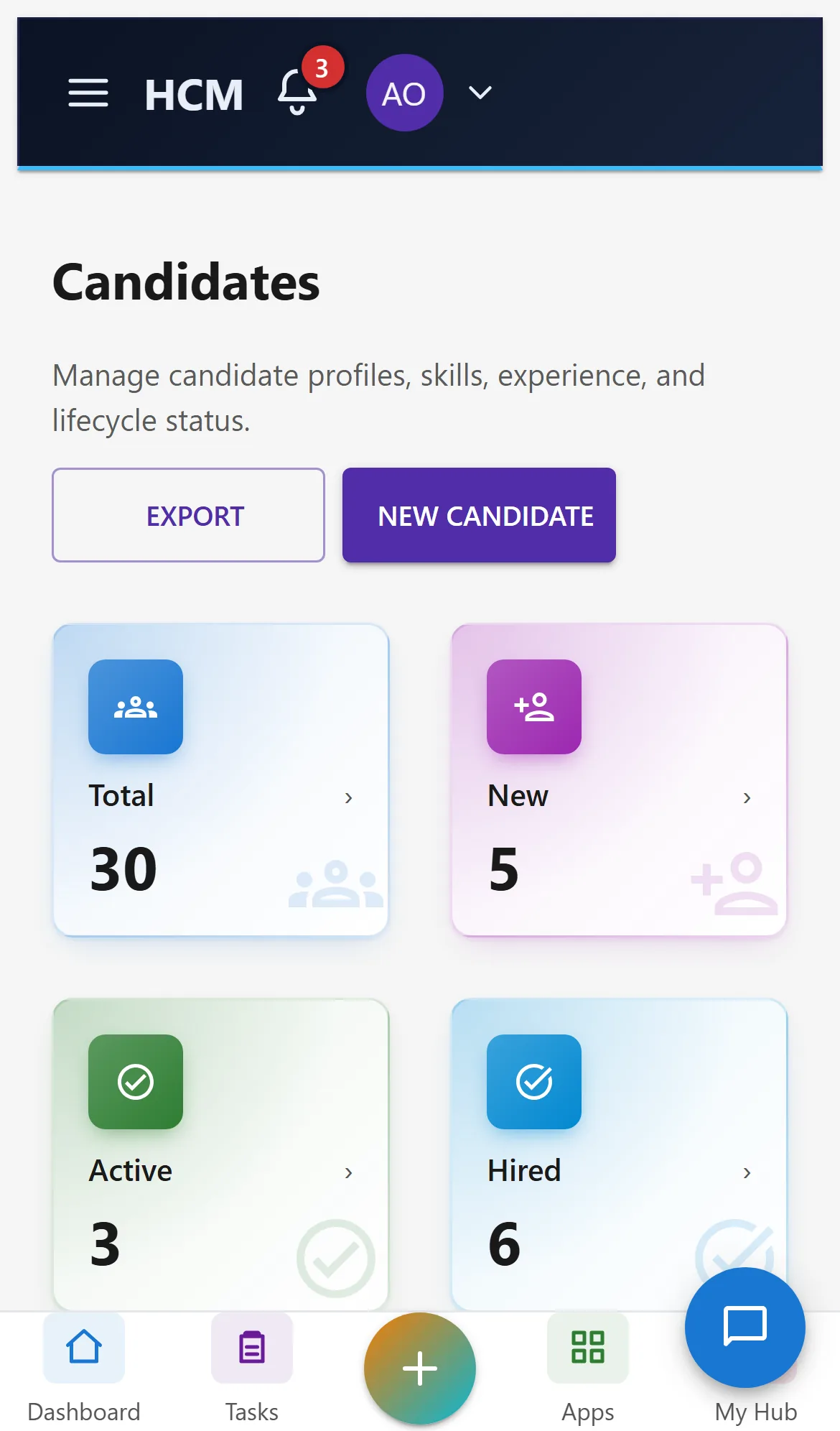
- Cards: Total, New, Active, Hired, Blacklisted.
- Table columns: Candidate, First Name, Last Name, Email, Current Title, Experience (Yrs), Source, Recruiter Id, Status.
- Actions: Export, New Candidate, Cancel, Save Candidate, Close, Activate, Deactivate, Mark Hired, Archive, Blacklist, Remove From Blacklist, Confirm Blacklist.
How to: New Candidate
- Open Recruitment > Candidates.
- Select New Candidate.
- In the window New Candidate fill in:
| Field | What to enter |
|---|---|
| First Name | Type it. |
| Last Name | Type it. |
| Preferred Name | Type it. |
| Gender | Type it. |
| Primary Email | Type it. |
| Primary Mobile | Type it. |
| Professional Headline | Type it. |
| Professional Summary | Type it. |
| Total Experience (Years) | Type it. |
| Current Employer | Type it. |
| Current Job Title | Type it. |
| Expected Compensation | Type it. |
| Notice Period (Days) | Type it. |
| Source | Choose one: Career Site, Job Board, Employee Referral, Agency, Social Media, Direct, Recruiter, Talent Pool, Import, Event... |
- Select Save Candidate.
- The window closes and the table refreshes with the result. If the screen shows a message instead, read it: it says what is missing.
How to: Blacklist
- Open Recruitment > Candidates.
- Select Blacklist.
- In the window Blacklist Candidate fill in:
| Field | What to enter |
|---|---|
| Blacklist Reason | Type it. |
- Select Confirm Blacklist.
- The window closes and the table refreshes with the result. If the screen shows a message instead, read it: it says what is missing.
Candidate Pools
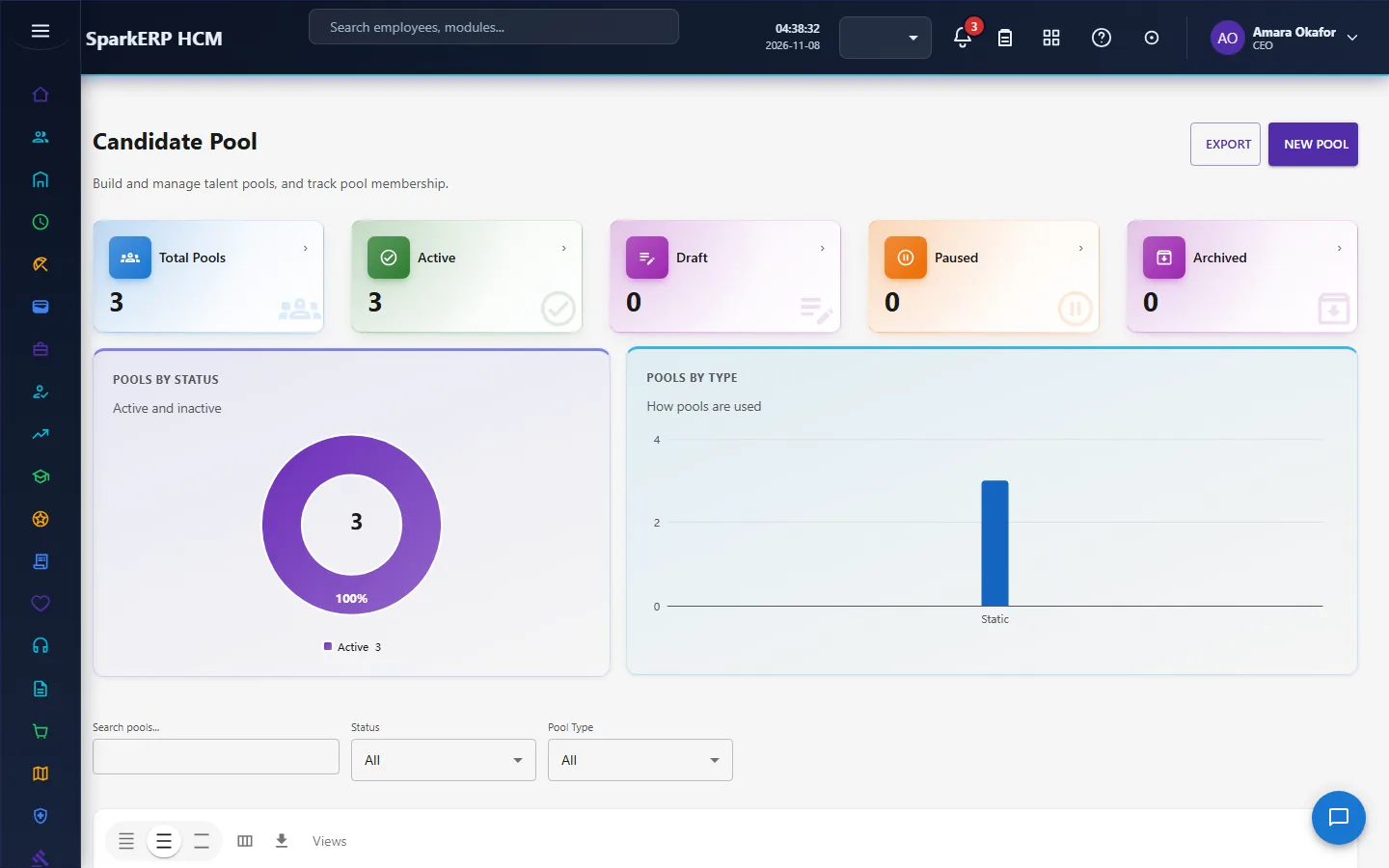
A bench of candidates you're tracking for future openings, even though they're not actively applying to anything right now — useful for keeping in touch with strong candidates from past searches.
Open it at /hcm-recruitment/candidate-pools (or from the HCM menu).
- Sections: Candidate Pool, Pools by status, Active and inactive, Pools by type, How pools are used, Basic Information, Candidate Members, Add Candidate to Pool, Remove Candidate from Pool.
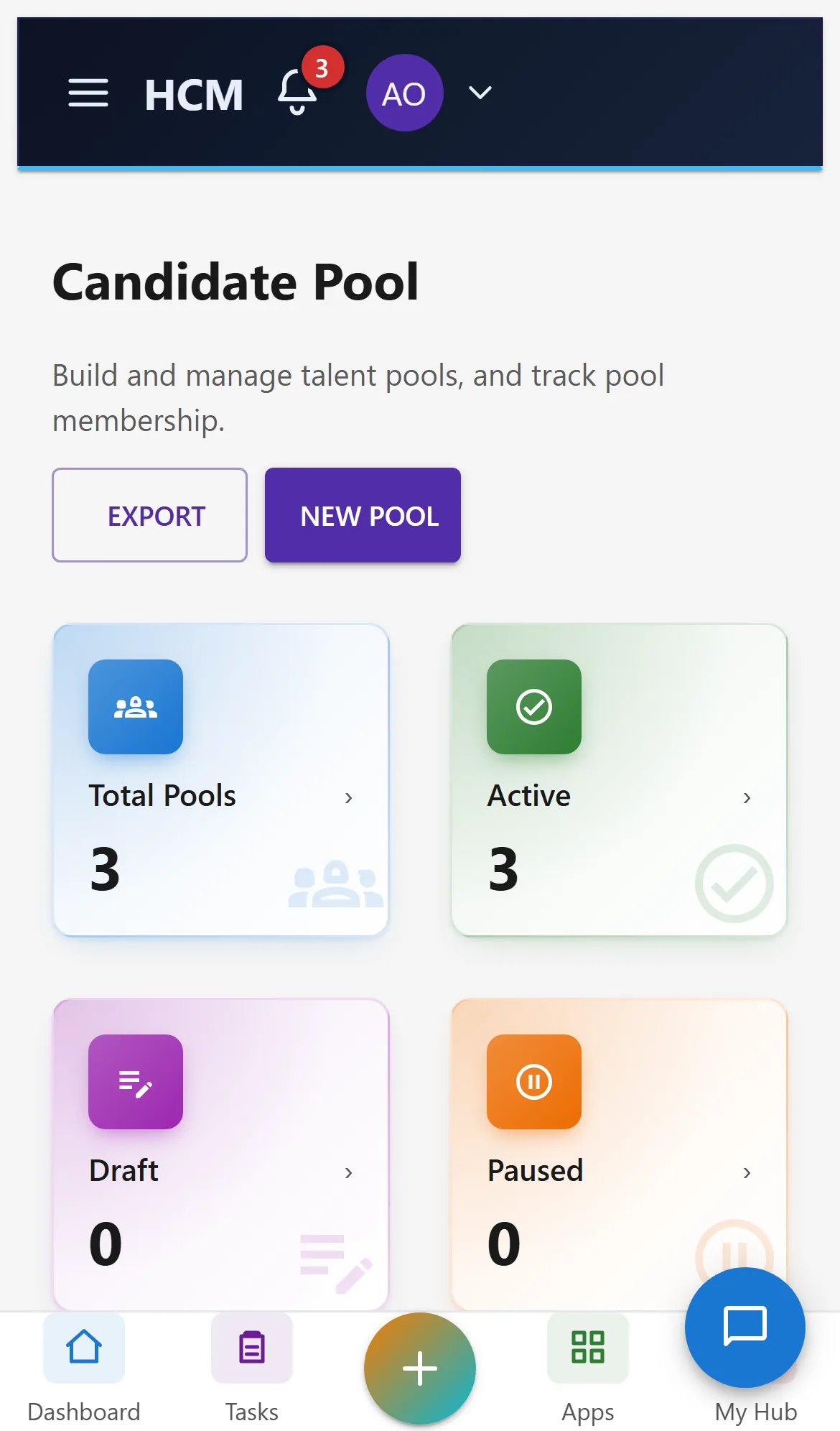
- Cards: Total Pools, Active, Draft, Paused, Archived.
- Table columns: Pool Code, Pool Name, Type, Category, Members, Owner, Status.
- Actions: Export, New Pool, Cancel, Create Pool, Add, Remove, Close, Activate, Pause, Archive, Confirm Pause, Confirm Archive and 1 more.
How to: New Pool
- Open Recruitment > Candidate Pool.
- Select New Pool.
- In the window New Candidate Pool fill in:
| Field | What to enter |
|---|---|
| Pool Name | Type it. |
| Description | Type it. |
| Pool Type | Choose one: Static, Dynamic, Hybrid |
| Category | Choose one: None, Skill Pool, Job Family Pool, Location Pool, Campus Pool, Referral Pool, Executive Pool, Contractor Pool, Future Hiring Pool, Silver Medalist Pool... |
- Select Create Pool.
- The window closes and the table refreshes with the result. If the screen shows a message instead, read it: it says what is missing.
How to: Candidate Pool Detail
- Open Recruitment > Candidate Pool.
- Select the record you want to change, or the button that adds a new one.
- In the window Candidate Pool Detail fill in:
| Field | What to enter |
|---|---|
| Reason (optional) | Type it. |
- Select Add.
- The window closes and the table refreshes with the result. If the screen shows a message instead, read it: it says what is missing.
How to: Pause
- Open Recruitment > Candidate Pool.
- Select Pause.
- In the window Pause Pool fill in:
| Field | What to enter |
|---|---|
| Reason (optional) | Type it. |
- Select Confirm Pause.
- The window closes and the table refreshes with the result. If the screen shows a message instead, read it: it says what is missing.
Resumes
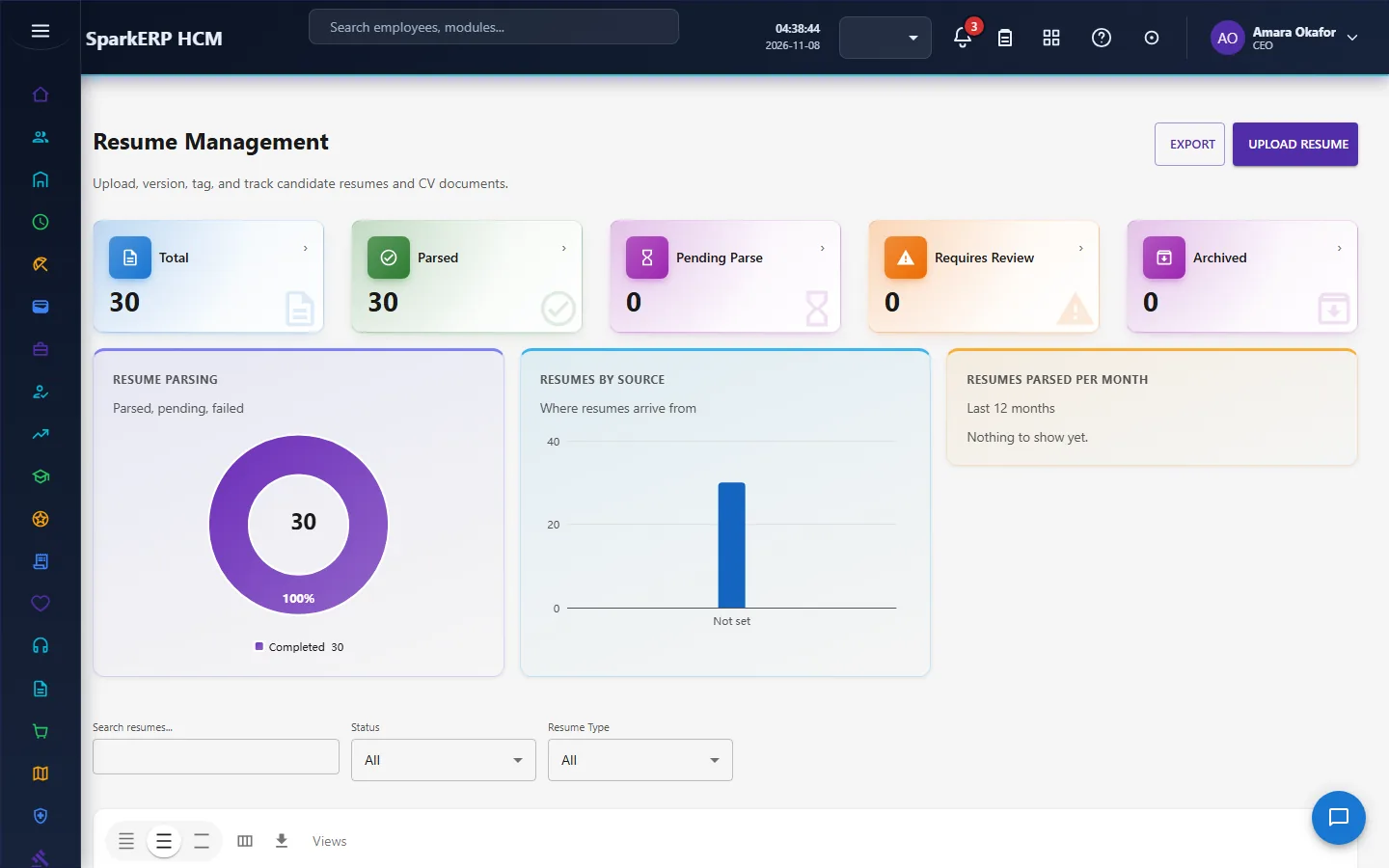
Real file storage for candidate resumes/CVs, with version history (upload a new version rather than losing the old one), tagging, and activity tracking.
Open it at /hcm-recruitment/resumes (or from the HCM menu).
- Sections: Resume Management, Resume parsing, Resumes by source, Where resumes arrive from, Resumes parsed per month, Last 12 months, Candidate & Type, Source, File, Overview, Type, Version and 5 more.
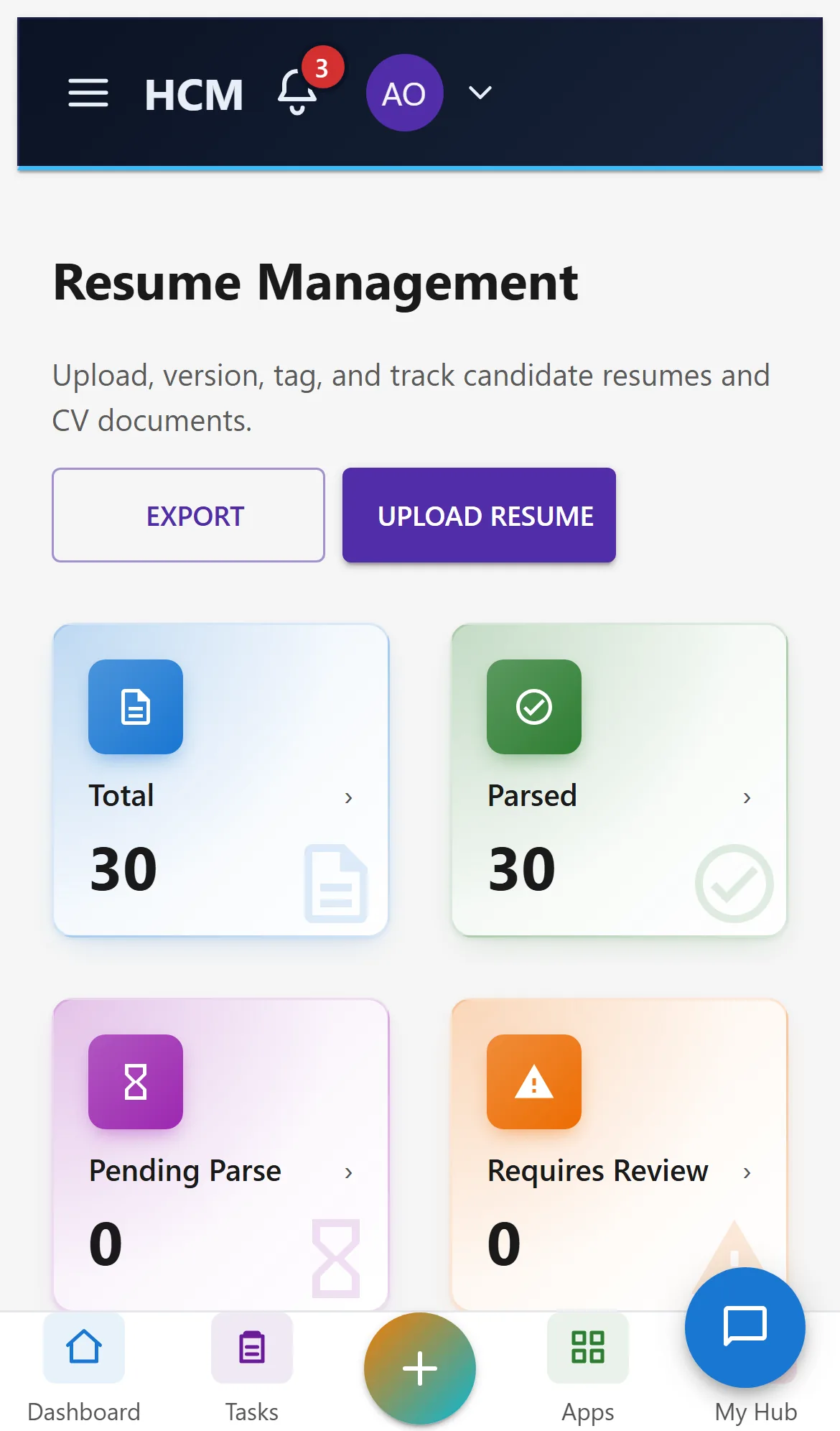
- Cards: Total, Parsed, Pending Parse, Requires Review, Archived.
- Table columns: Resume Code, Candidate Id, Type, Version, Status, Parser Status, Source, Primary.
- Actions: Export, Upload Resume, Cancel, Upload, Add Tag, Remove Tag, Close, Download, Parse, Set as Primary, Replace (New Version), Archive and 2 more.
How to: Upload Resume
- Open Recruitment > Resume Management.
- Select Upload Resume.
- In the window Upload Resume fill in:
| Field | What to enter |
|---|---|
| Resume Type | Choose one: CV, RESUME, BIODATA, PROFILE, PORTFOLIO, ACADEMIC CV, EXECUTIVE CV, CUSTOM |
| Source | Choose one: CAREERS, APPLICATION, RECRUITER, CANDIDATE, REFERRAL, AGENCY, JOB BOARD, CANDIDATE POOL, EMAIL, IMPORT... |
| Source Reference | Type it. |
| File Name (e.g. jane_resume.pdf) | Type it. |
- Select the confirm button.
- The window closes and the table refreshes with the result. If the screen shows a message instead, read it: it says what is missing.
How to: Resume Details
- Open Recruitment > Resume Management.
- Select the record you want to change, or the button that adds a new one.
- In the window Resume Details fill in:
| Field | What to enter |
|---|---|
| Tag | Type it. |
- Select Add Tag.
- The window closes and the table refreshes with the result. If the screen shows a message instead, read it: it says what is missing.
How to: Replace (New Version)
- Open Recruitment > Resume Management.
- Select Replace (New Version).
- In the window Replace Resume (New Version) fill in:
| Field | What to enter |
|---|---|
| New File Name | Type it. |
| Change Reason (required) | Type it. |
- Select the confirm button.
- The window closes and the table refreshes with the result. If the screen shows a message instead, read it: it says what is missing.