
Appearance
Help Desk (HCM): from setup to daily use
The Help Desk lets employees get answers and raise requests, and lets agents work them to a promised time. It has three desks, each with its own categories, ticket numbers and figures: HR (HR-2026-000001), IT (IT-...) and Facility (FAC-...). The same screen, rules and knowledge base serve all three.
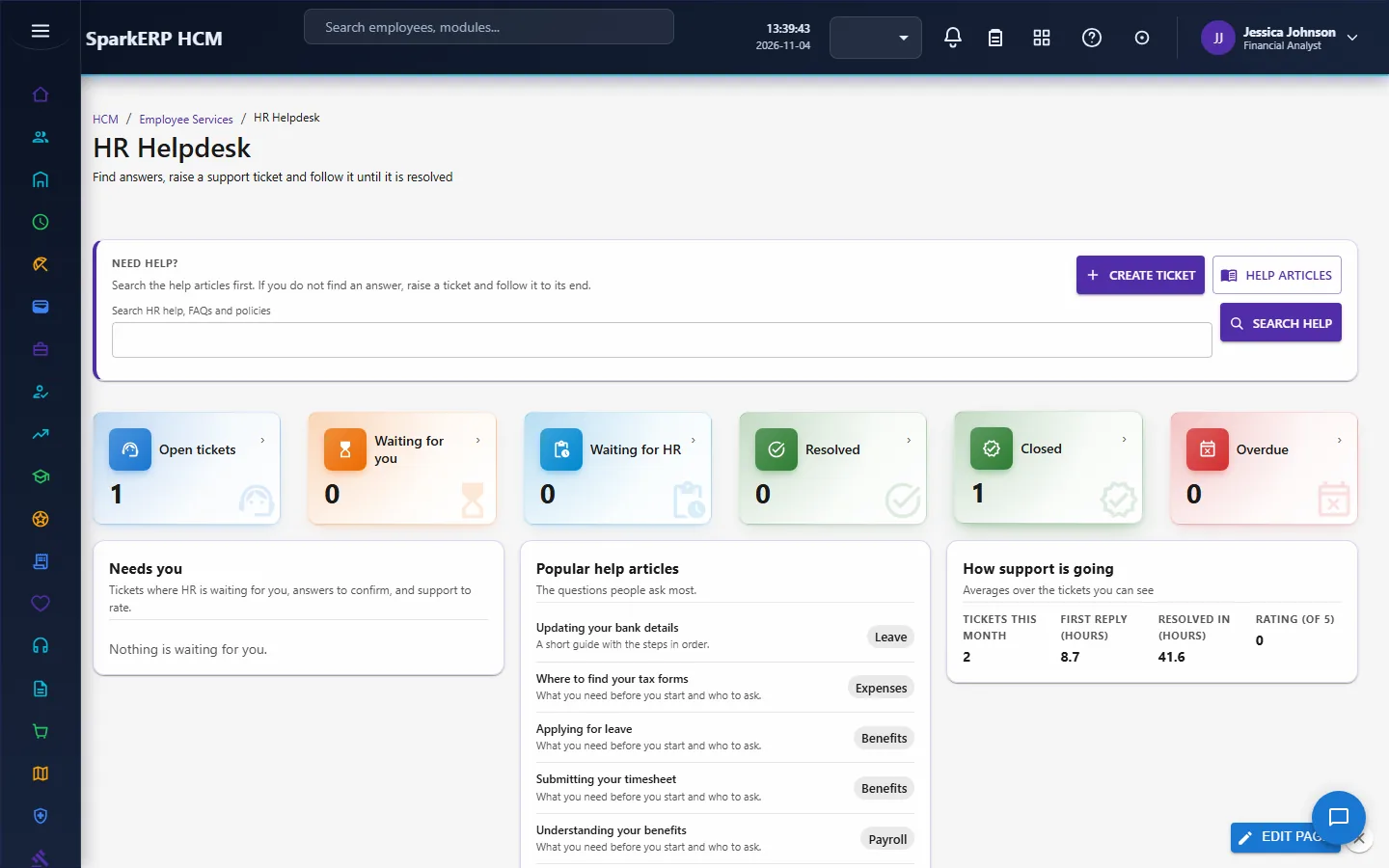
1. Who uses it
| Role | What they can do |
|---|---|
| Employee | Search help articles and FAQs, raise a ticket (or save a draft), add documents, follow their tickets, reply, confirm a resolution, reopen a resolved ticket within the allowed days, rate the support. Sees only their own tickets. |
| Agent | Everything an employee can, plus the agent queue (all tickets of the desk) and the agent actions on a ticket: reply, internal note, start work, assign or transfer, change priority, ask for information, wait for another team, escalate, resolve. |
| Administrator | Everything an agent can, plus categories, articles and FAQs, the helpdesk settings and the Service Reports. |
| Reporting manager | Can ask for one of their team's tickets to be escalated. |
2. Before you start
- Installed plugins.
hcm-helpdesk(pages, ticket numbering) andhcm-employee-services(the ticket engine and its services).hcm-helpdeskneeds HCM Foundation and Employee; Employee Services needs several other HCM plugins and is part of the HCM bundle. Both are the free tier, so no licence feature has to be granted. - Access. Every signed-in employee can use the employee side. A tenant administrator is an agent and administrator automatically. For anyone else, grant the HrHelpdesk "Agent" permission through your access policies; no ready-made helpdesk role ships with the plugin.
- An employee record. An employee's tickets are tied to their employee record. A login without one (for example a platform administrator) can use the agent and administrator screens but cannot raise tickets; the page says so.
- Trial data. In a trial tenant, generate the Help desk pack in Demo Data (and Learning, Documents and Expenses for the related-service choices). It creates a year of HR, IT and Facility tickets with messages and ratings, 8 help articles and 12 FAQs.
3. Set up (administrator)
Do these in order, once. Everything applies at once and takes effect on the next ticket.
3.1 Categories
Open the HR Helpdesk and choose Categories (administrator). A category is a configuration: the form people fill, who handles it and how fast.
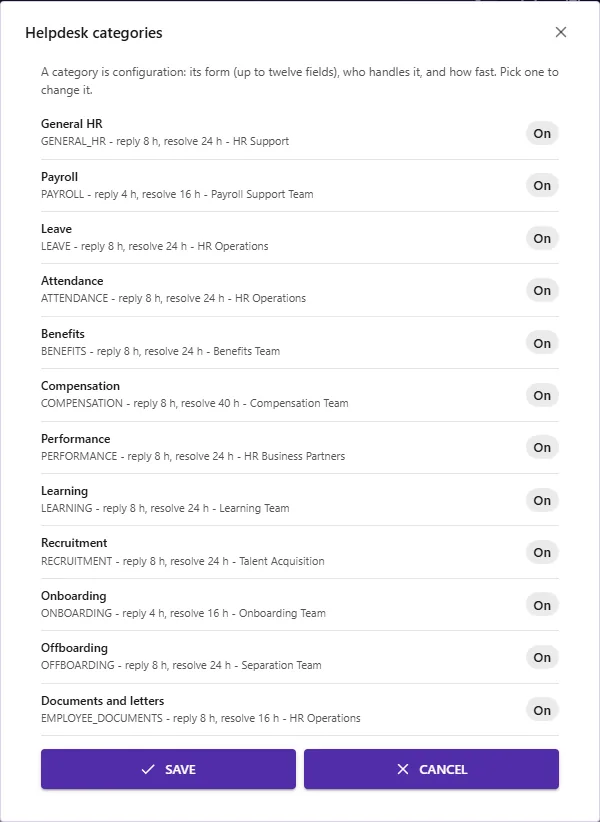
For each category you set its name and code, its default team, its first-reply and resolution hours (working hours, see 3.2), its default priority and whether employees may change it, whether the clock pauses while the ticket waits for the employee, whether a breached ticket escalates, the extra questions the form asks (up to twelve fields: text, number, date, choice, longer text; a field can be marked sensitive), and optional routing rules (for example, urgent payroll tickets to a named team). Switch a category Off to hide it from new tickets without losing history.
Each desk has its own list. The HR desk starts with 18 categories (General HR, Payroll, Leave, Attendance, Benefits ...); the IT desk with 5 (Access and accounts, Laptops and devices, Software and apps, Network VPN and Wi-Fi, Email and collaboration); the Facility desk with 6 (Workspace and seating, Repairs and maintenance, Cleaning and supplies, Access cards and security, Parking and transport, Meeting rooms and events). A desk is chosen by opening its own page; a ticket takes its desk from its category.
3.2 Settings
Choose Settings. The rules for reopening, closing, documents, working hours and escalation:
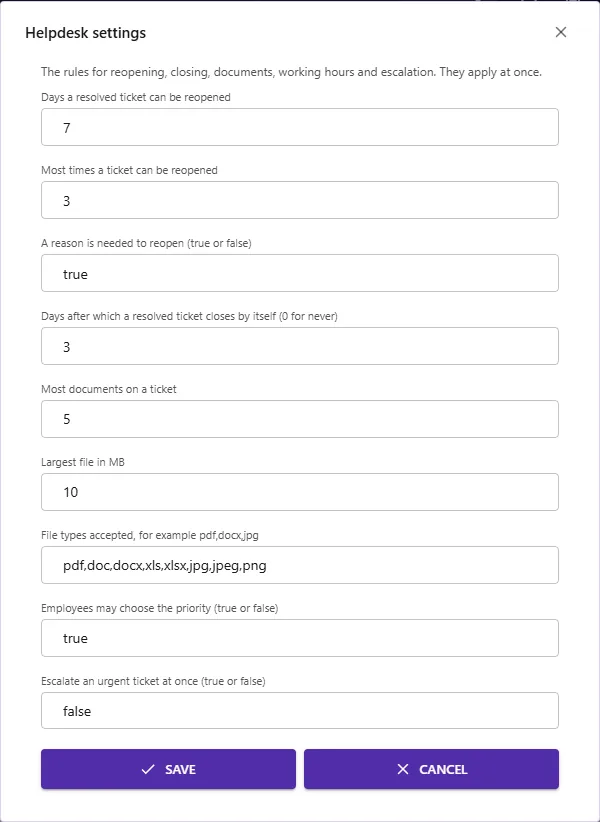
| Setting | Meaning | Default |
|---|---|---|
| Days a resolved ticket can be reopened | After this many days a resolved ticket can no longer be reopened | 7 |
| Most times a ticket can be reopened | The limit per ticket | 3 |
| A reason is needed to reopen | The employee must say why | true |
| Days after which a resolved ticket closes by itself | 0 means never | 3 |
| Most documents on a ticket / largest file / file types | Attachment limits | 5 / 10 MB / pdf, doc, docx, xls, xlsx, jpg, jpeg, png |
| Employees may choose the priority | If false, the category's default priority is used | true |
| Escalate an urgent ticket at once | An urgent ticket starts escalated | false |
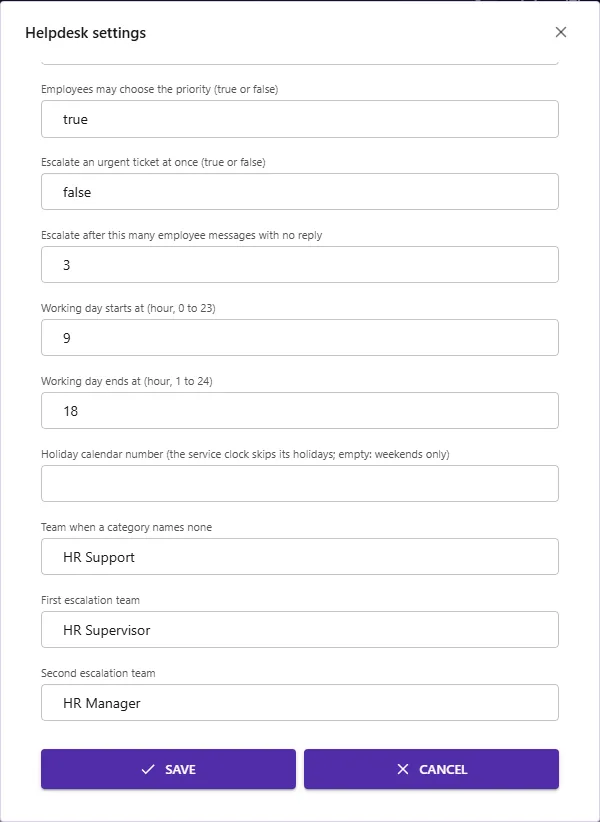
| Setting | Meaning | Default |
|---|---|---|
| Escalate after this many employee messages with no reply | A ticket the desk has not answered escalates | 3 |
| Working day starts / ends at | The hours the service clock runs, Monday to Friday | 9 and 18 (UTC) |
| Holiday calendar number | The service clock skips the public holidays of this calendar (the number of a holiday calendar from HCM Settings). Leave empty for weekends only. A number that is not a calendar is refused | empty |
| Team when a category names none / first and second escalation team | Where tickets go | HR Support / HR Supervisor / HR Manager |
The booleans are typed as true or false.
3.3 Articles and FAQs
Articles (administrator) opens the editor for help articles. Give each a code, title, short summary, full text, topic, search words, status (published, draft, archived), related articles and an optional expiry date. Each edit keeps the earlier text as a version, and the list shows the version number. FAQs have their own editor on the FAQs page (Knowledge Base & FAQs).
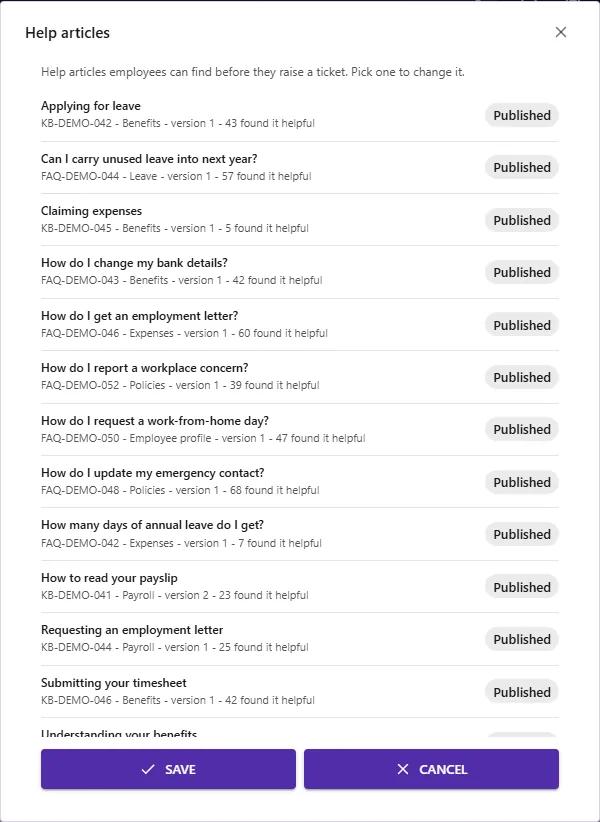
3.4 Agents
Grant the HrHelpdesk "Agent" permission to the people who work tickets (see section 2). They then see Agent queue.
4. Daily use
4.1 Employee: find an answer, or raise a ticket
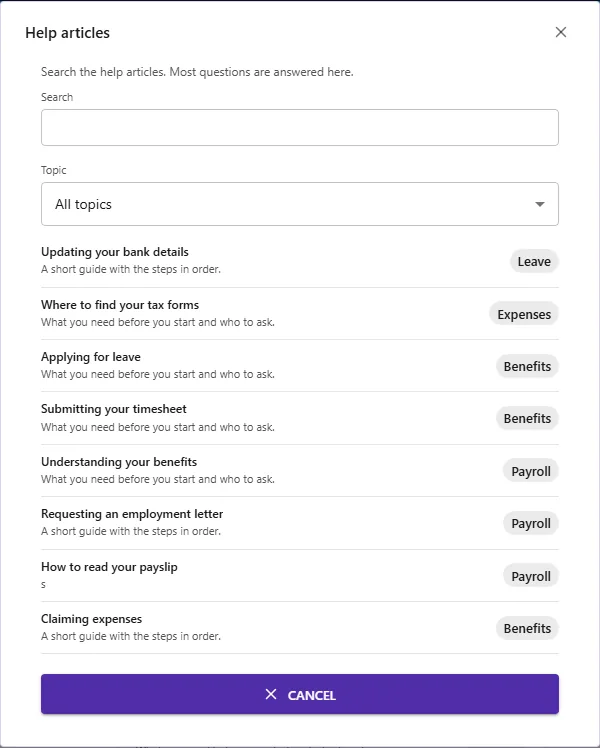
- Open HR Helpdesk (Employee Services > HR Helpdesk, or Help Desk > HR Tickets). Type your question in the search box and choose Search help, or choose Help articles to browse. Matching articles, policies, services and your own resolved tickets appear; an article can be marked This helped or Not helpful.
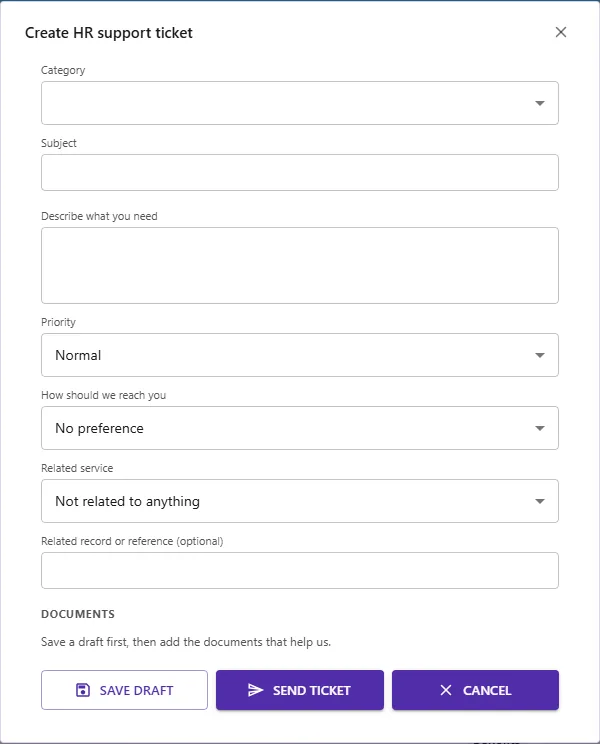
- If you did not find an answer, choose Create ticket. Pick the category (the form changes to ask what that category needs), give a subject, describe what you need, and choose the priority, how you want to be reached and the related service. Choose Save draft to keep it, or Send ticket. After saving a draft you can add documents.
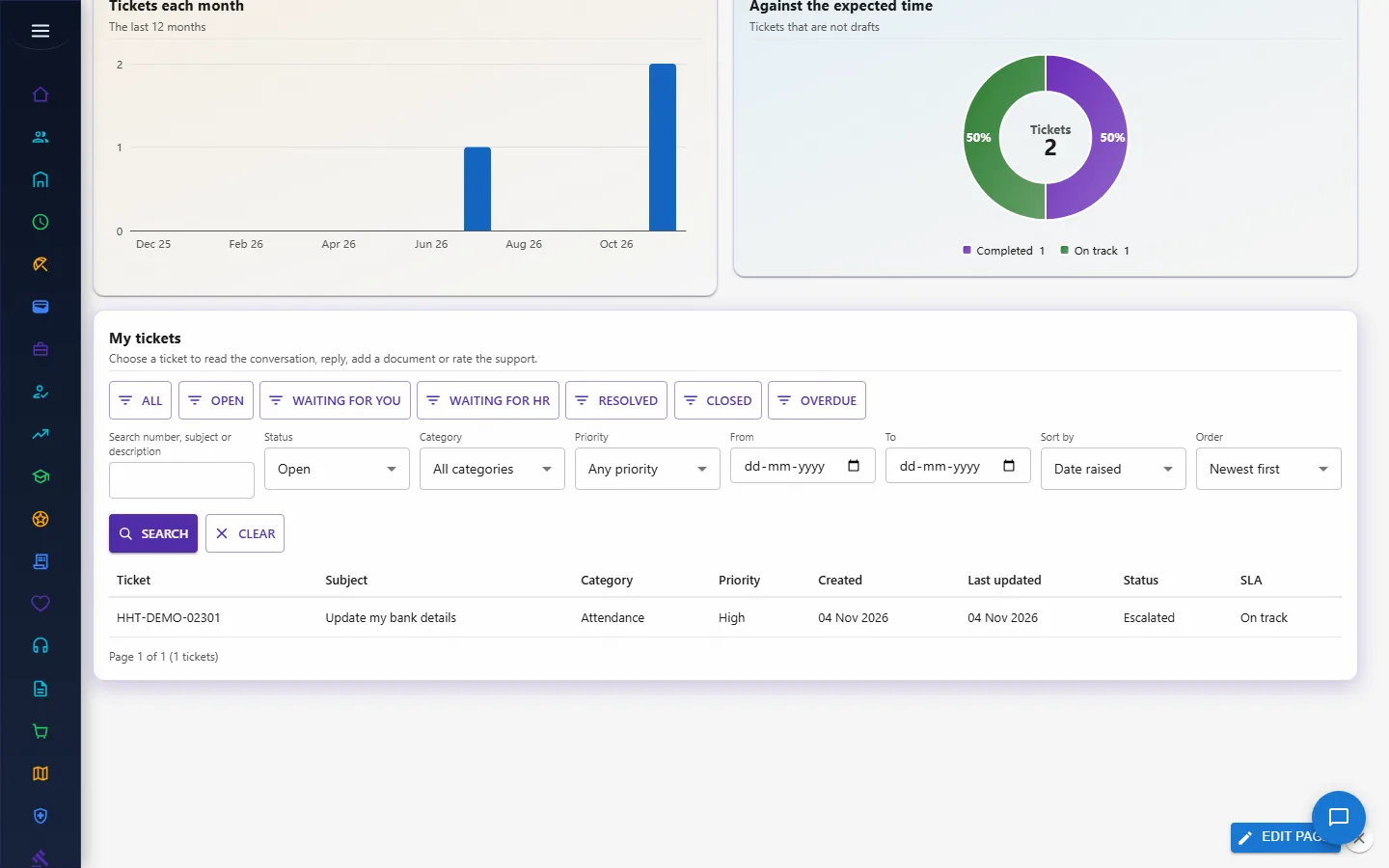
- Follow it on the page. The tiles count your tickets (open, waiting for you, waiting for HR, resolved, closed, overdue); the list below filters by the same names, a search, status, category, priority and dates.
- Open a ticket to read the conversation, reply, add a document, or, when it is resolved, confirm it, reopen it (within the allowed days, with a reason if the settings ask for one) or rate the support from 1 to 5. A ticket the desk is waiting on you for shows under Needs you.
4.2 Agent: work the queue
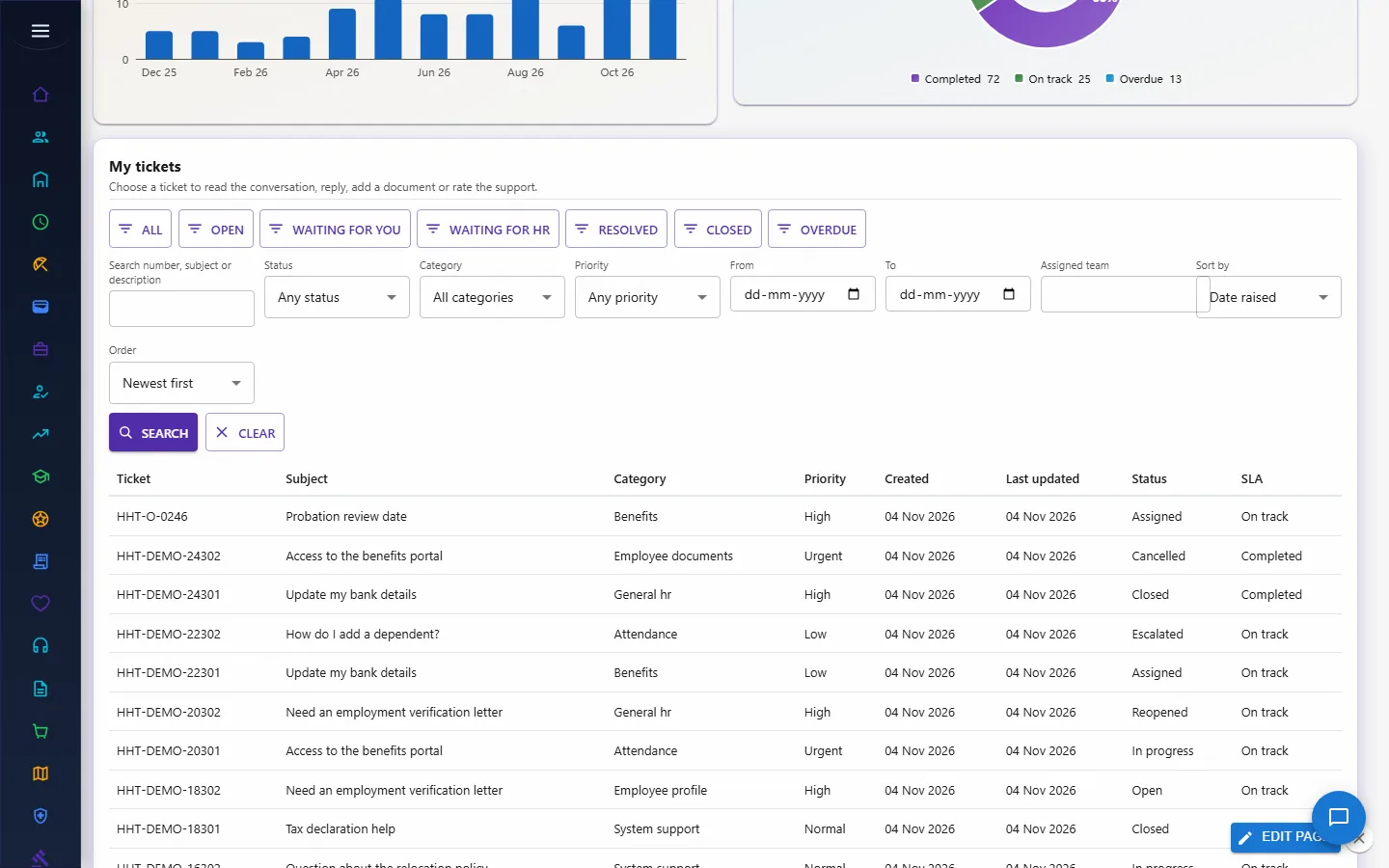
- Choose Agent queue. The tiles, charts and list now cover all tickets of the desk, with an extra filter for the assigned team.
- Open a ticket. Its header shows the status, category, priority, who handles it, when it was created, the SLA state (on track, due soon, overdue, paused, completed), the first-response time and the resolution due time.
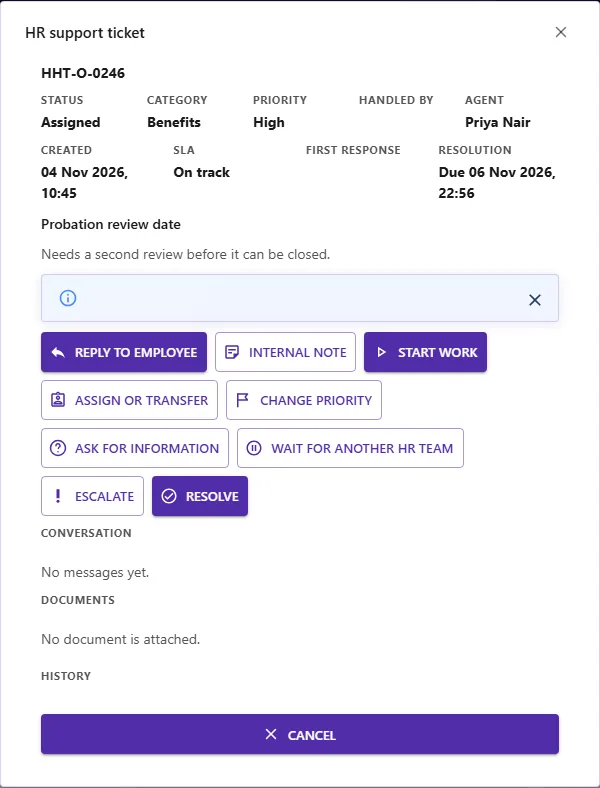
Use the actions: Reply to employee, Internal note (never shown to the employee), Start work, Assign or transfer (a person or a team), Change priority, Ask for information (pauses the clock until the employee answers), Wait for another HR team, Escalate (to the next team in the chain) and Resolve (with a resolution note).
The engine keeps the clock for you: the due times come from the category's hours, counted in working hours (and skipping the holiday calendar if one is set), paused while the ticket waits for the employee. A breached ticket escalates, a ticket about to breach is flagged, and a ticket that stays resolved is closed after the configured days.
4.3 IT and Facility desks
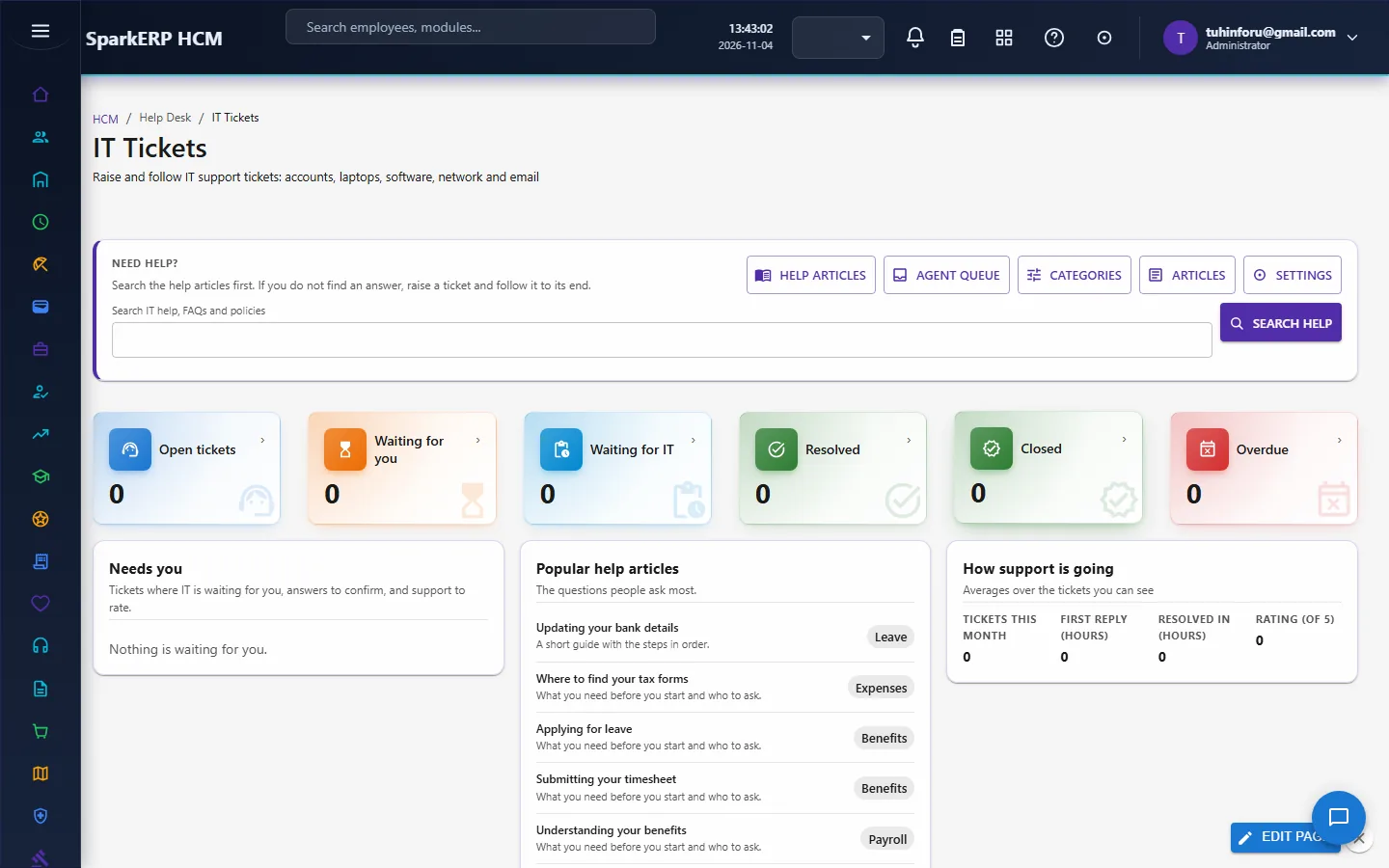
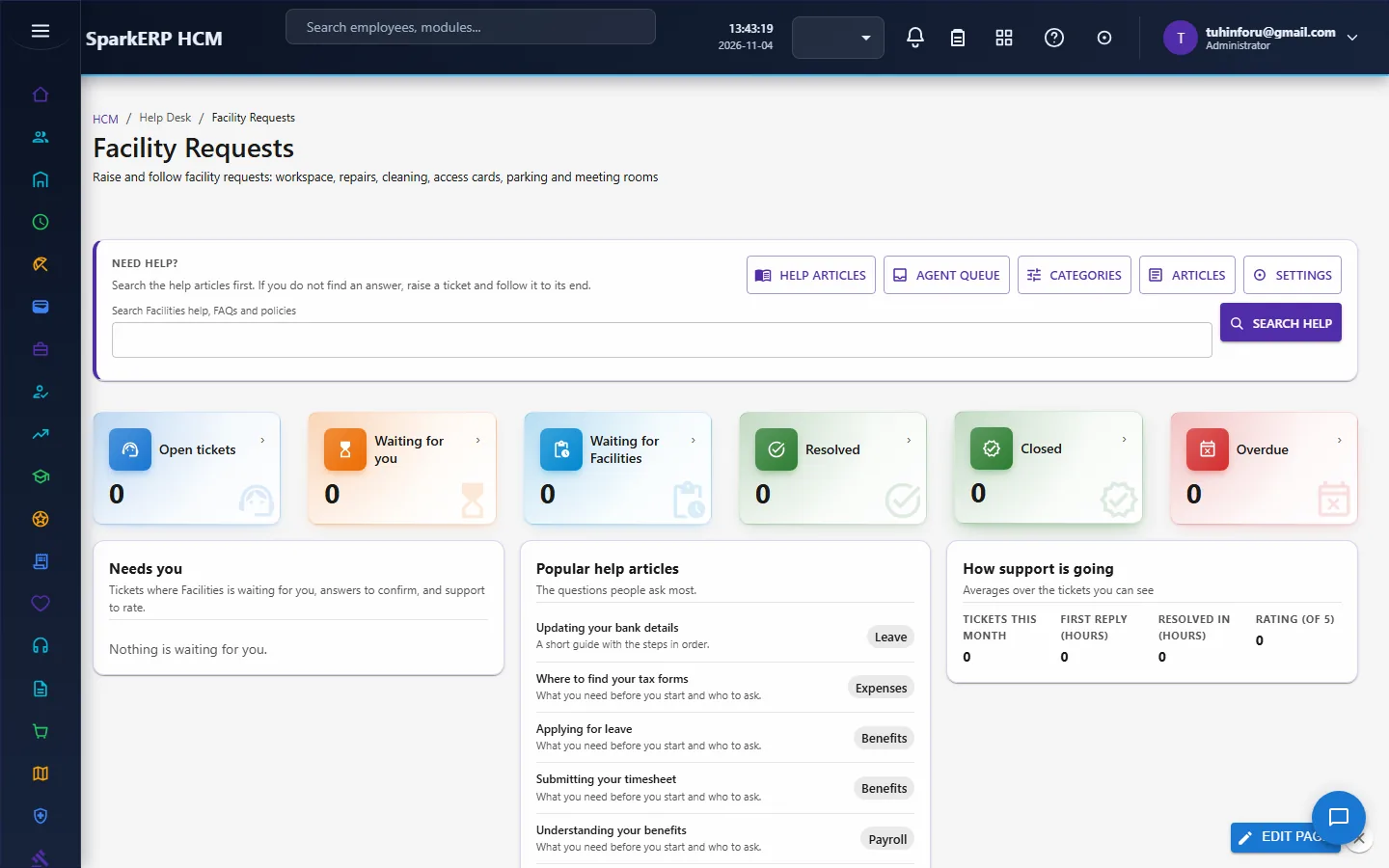
IT Tickets and Facility Requests (Help Desk menu) are the same screen for the other desks. Employees raise a ticket by choosing one of that desk's categories; agents see that desk's queue.
4.4 Knowledge Base and FAQs
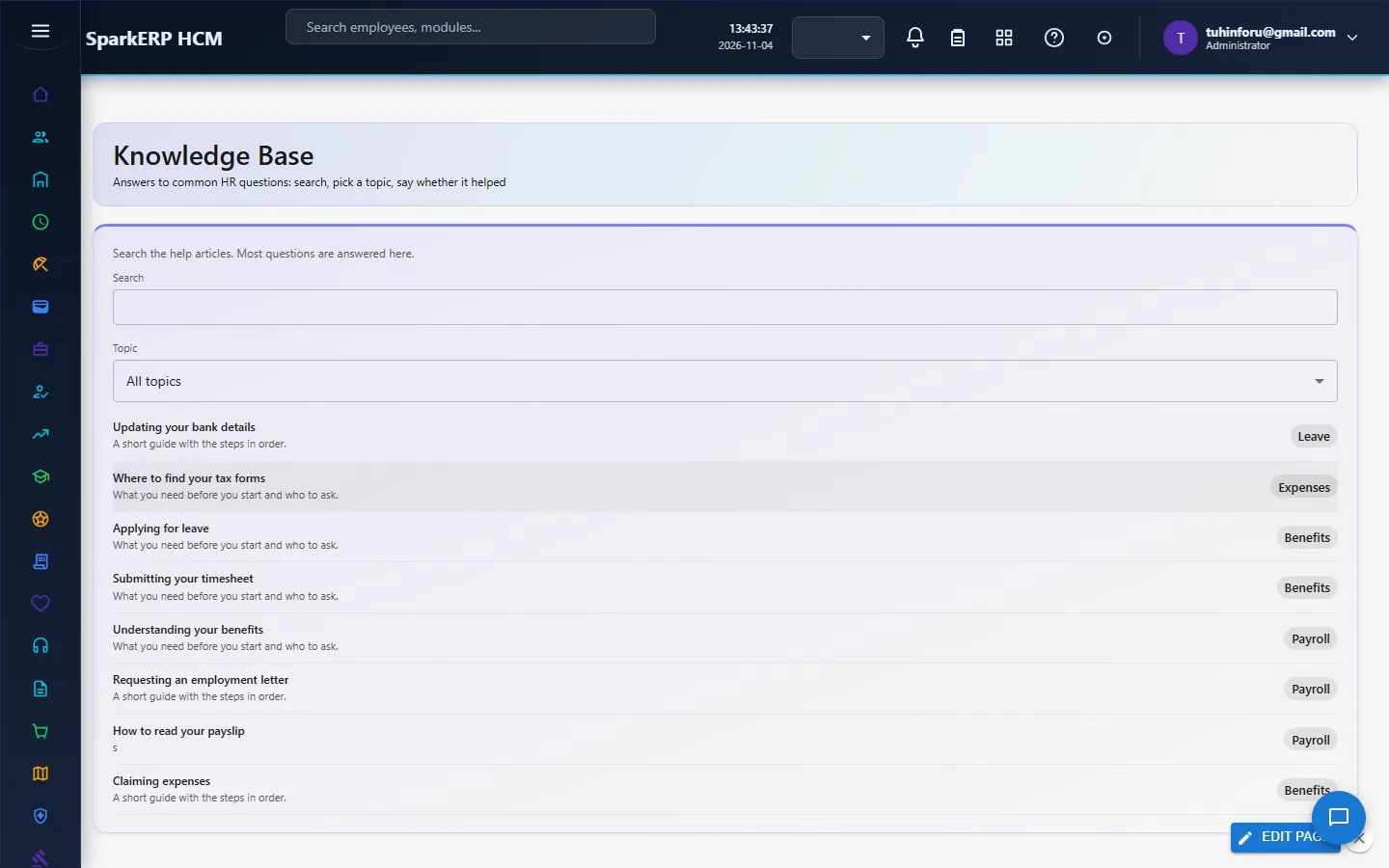
Knowledge Base and FAQs (Help Desk menu) are the same search as the help box, as screens of their own, with the article viewer and the helped votes. See Knowledge Base & FAQs.
5. Reports
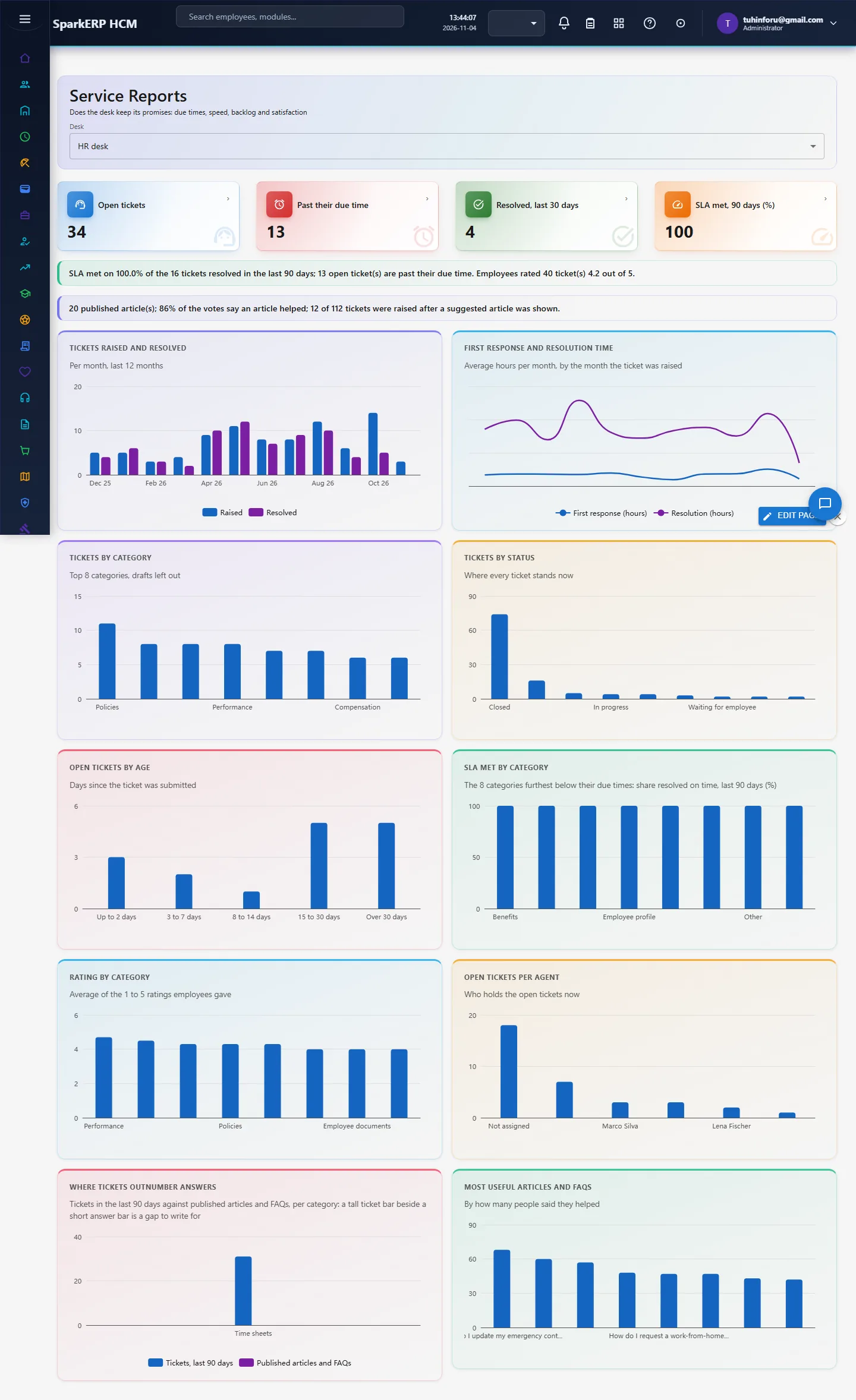
Service Reports (Help Desk menu; agents and administrators) shows whether the desk keeps its promises. A desk selector in the header switches every figure between HR, IT and Facility. The tiles are open tickets, tickets past their due time, resolved in the last 30 days and the share of tickets resolved on or before their due time in the last 90 days; the charts show tickets raised and resolved per month, average first-response and resolution hours, tickets by category and status, open tickets by age, SLA met by category (weakest first), ratings by category, open tickets per agent, where tickets outnumber published answers (a tall ticket bar beside a short answer bar is a gap to write for) and the most useful articles and FAQs. Full definitions: Helpdesk Service Reports.
6. On a phone or tablet
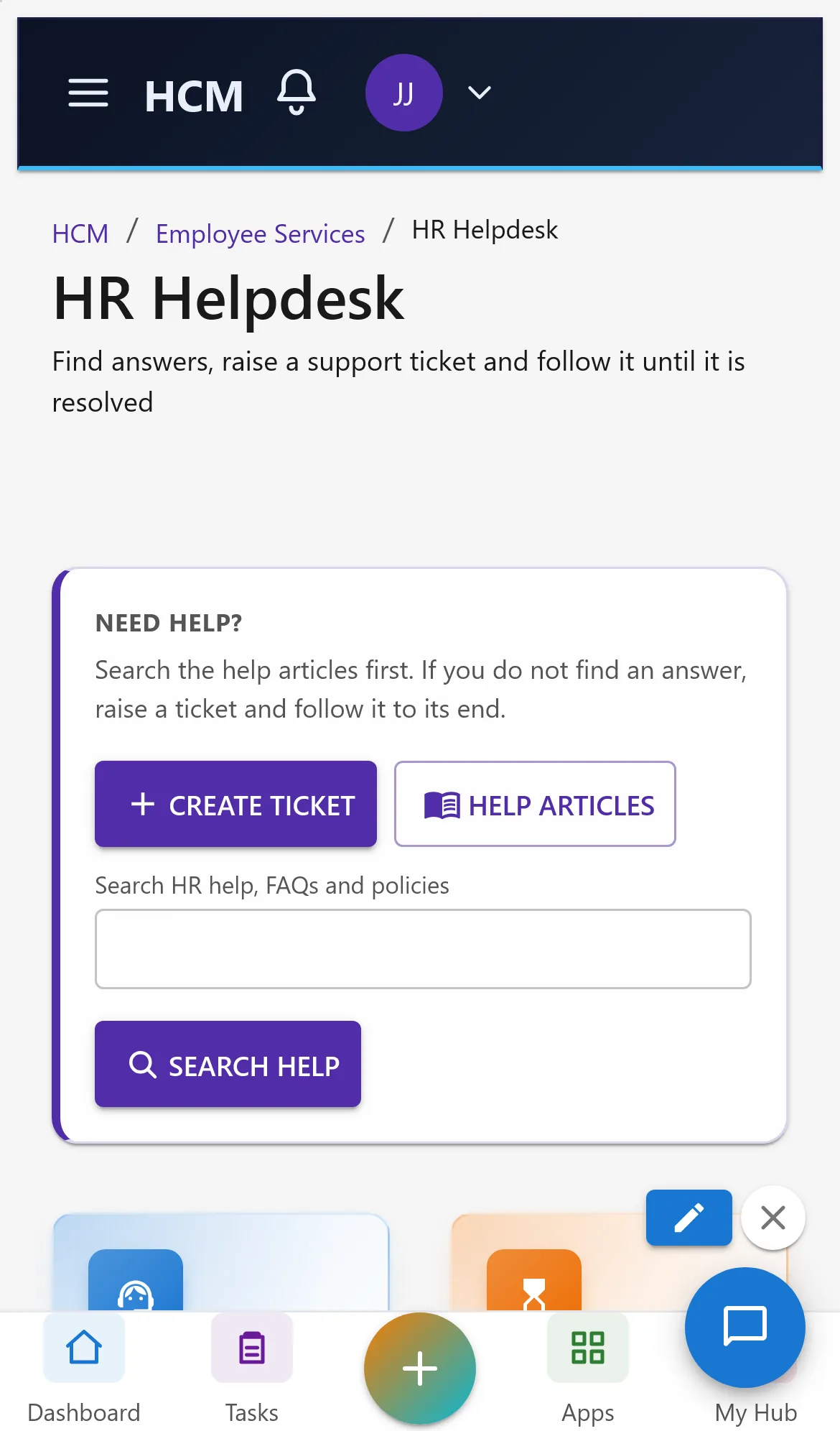
Every Help Desk screen works on a phone: the tiles and charts stack one per row, dialogs fit the screen, and the ticket list scrolls. Employees can raise and follow tickets from the phone.
7. Rules and limits
- An employee sees only their own tickets; an internal note is never shown to them.
- A ticket takes its number when it is first saved, even as a draft; a draft that is never sent keeps its number.
- Working hours are in UTC; the working week is Monday to Friday; holidays are skipped only when a holiday calendar is set.
- Not built yet: an FAQ approval workflow, FAQ translations, restoring an earlier article version from the screen (versions are listed through the API), asset links and change-management links on IT tickets, and a ticket mailbox (tickets are raised on the screen).
- In the agent queue the list is still titled "My tickets".
8. Troubleshooting
| Symptom | Cause and fix |
|---|---|
| "No employee record is linked to your login" and no Create ticket | The login has no employee record. Link the login to an employee (HCM Settings) or sign in as an employee. |
| A person cannot see Agent queue | They are not an administrator and do not hold the HrHelpdesk Agent permission. |
| Saving the settings says "There is no holiday calendar with that number" | Use the number of an existing holiday calendar (HCM Settings, holiday calendars), or leave it empty. |
| Due times ignore a holiday | No holiday calendar number is set, or the holiday is not in that calendar, or it is not active. |
| Services show no category choices | The desk's categories are created the first time its page is opened; open the page once as an administrator. |
| Editing an article creates a second one | Fixed in 1.0.303; on older versions a code with hyphens (such as KB-DEMO-001) was cleaned to underscores and treated as new. |