
Appearance
CRM Leads: set up and daily use
A lead is a person or company that showed interest and is not yet a customer. This guide takes you from installing the module to everyday work: capturing leads, routing them to the right person, scoring them, qualifying them and converting them into an account, a contact and a deal.
1. What it is and who uses it
A lead has a number (LEA-000001), a name, a company, ways to reach the person, a source and the touch that first brought them (campaign, medium), a status (new, assigned, contacted, qualified, nurturing, disqualified, converted, merged), an owner, a score with a grade (A to D), an estimated value and consent for email and SMS.
| Role | Can see | Can do |
|---|---|---|
| CRM Lead Viewer | Leads and everything on them | Nothing that changes data |
| CRM Lead Manager | The same | Create and edit, assign, convert, record consent, adjust the sales team capacity |
| CRM Lead Administrator | Everything | Everything, including delete, merge, import, the scoring and the sales team set-up |
| Sales Representative | The leads assigned to them | Create, read and update |
| Sales Manager | Leads | View, edit, assign and convert; approves high-value conversions |
| CRM Admin, Administrator | Everything | Full lead lifecycle; delete and merge need a second approval |
Editions
SparkCRM is one engine in four editions. Lite has the lead list, the lead page, notes and status changes. SparkCRM adds lead capture (from web forms with campaign tracking), assignment rules, scoring, conversion with undo, duplicate leads with merge and the insights dashboard. Enterprise and Plus add the AI assistant tools. A screen or button that is not part of your edition is hidden.
2. Before you start
- Install CRM Foundation and CRM Accounts and CRM Contacts, then CRM Leads. A conversion creates or links an account and a contact.
- Add your sales team under Sales team (a lead rep has a capacity, a territory and a status) so assignment has people to choose from.
- Demo data: Demo Data, pack CRM Leads. Afterwards call
POST /api/v1/plugins/crm-leads/lead/rescore-all,.../lead/recalculate-baseand.../lead/assignso scores, base-currency values and owners are filled in.
3. Daily use
The lead list
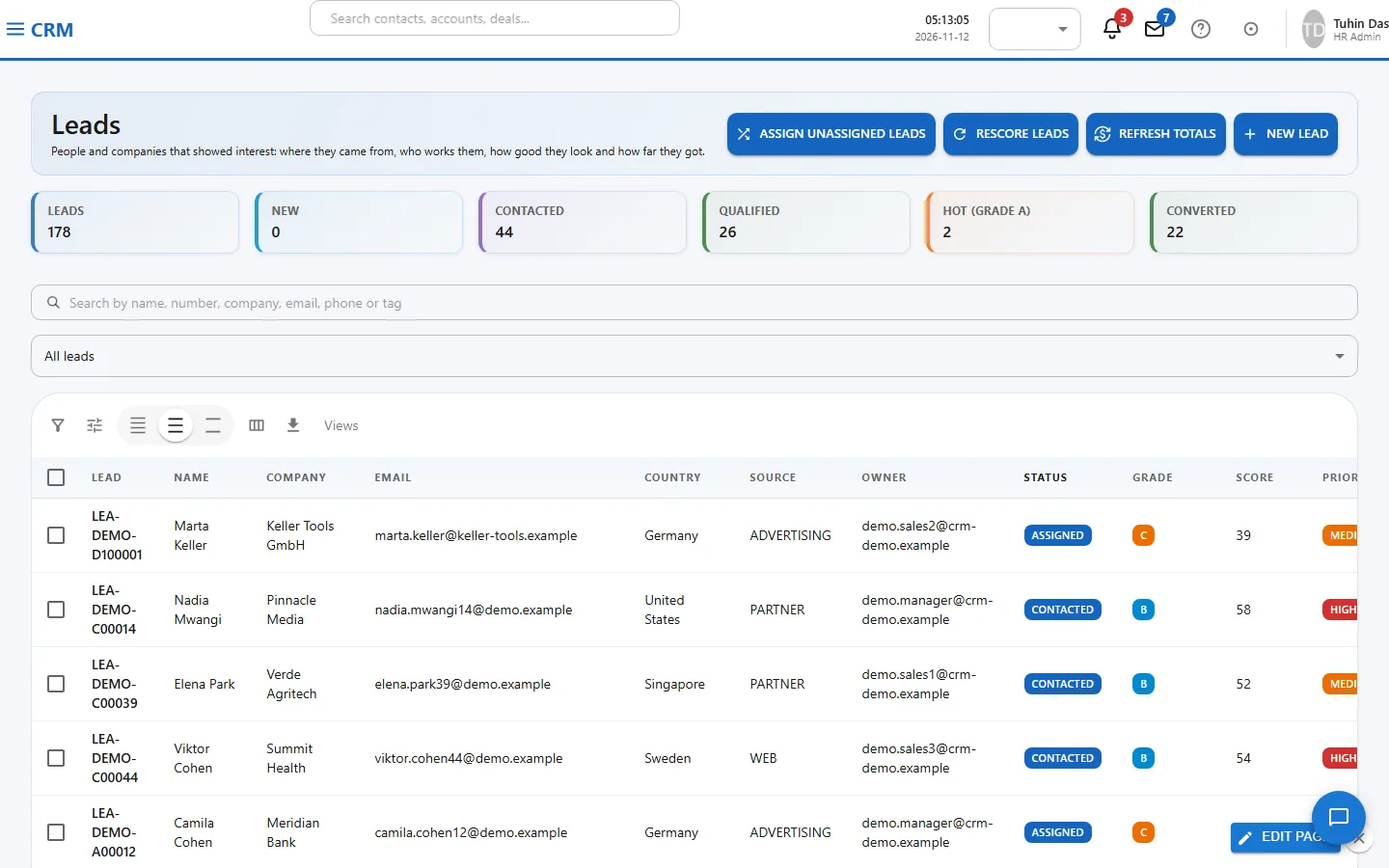
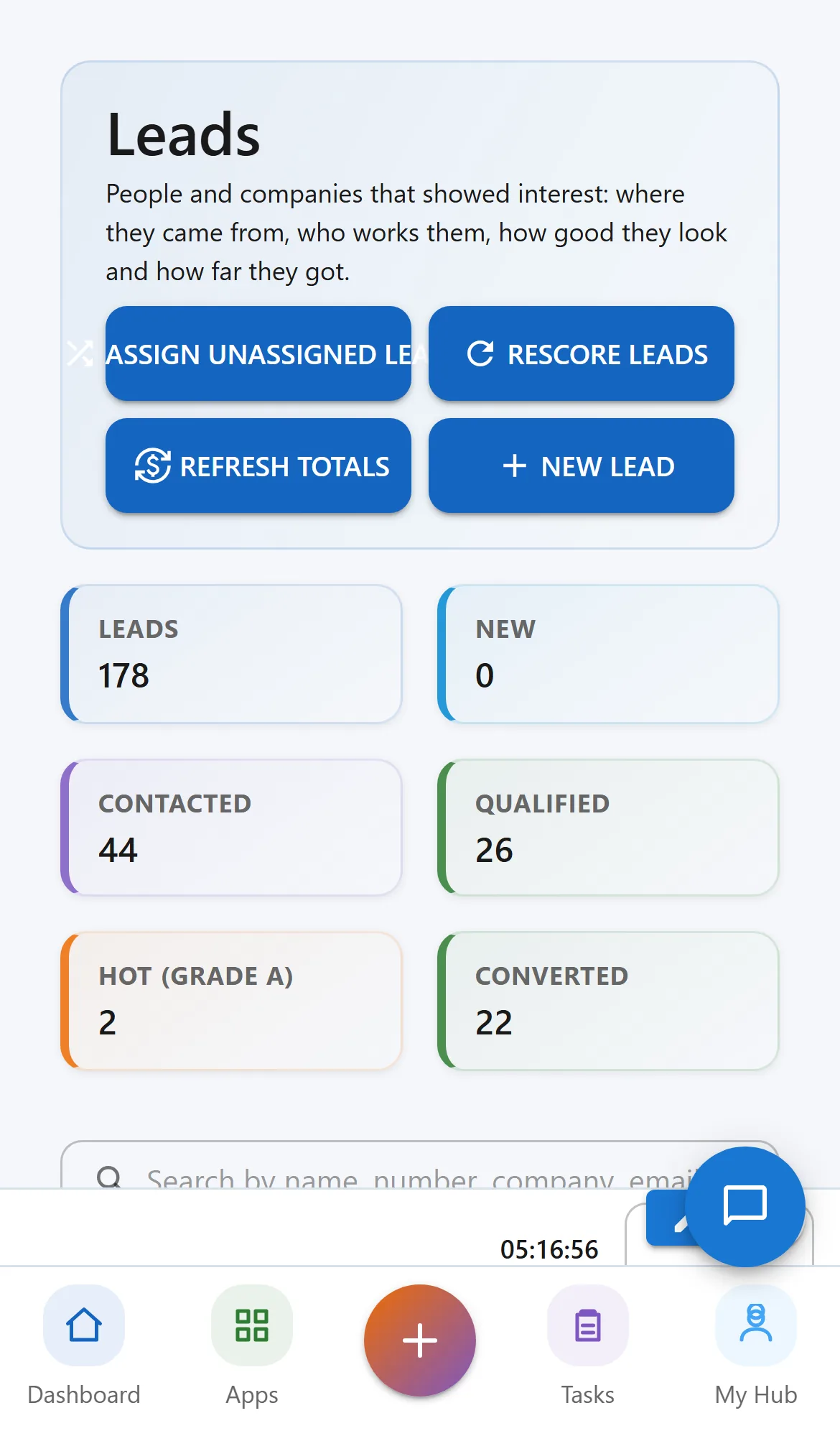
Sales, Leads shows every lead with figures above (leads, new, contacted, qualified, hot, converted). Search by name, number, company, email, phone or tag; choose a saved view. Header buttons: Assign unassigned leads (applies the assignment rules), Rescore leads and Refresh totals. New lead captures a lead by hand; the number is generated, the owner is chosen by the rules and the duplicate guard warns when the email or phone already exists.
The lead page
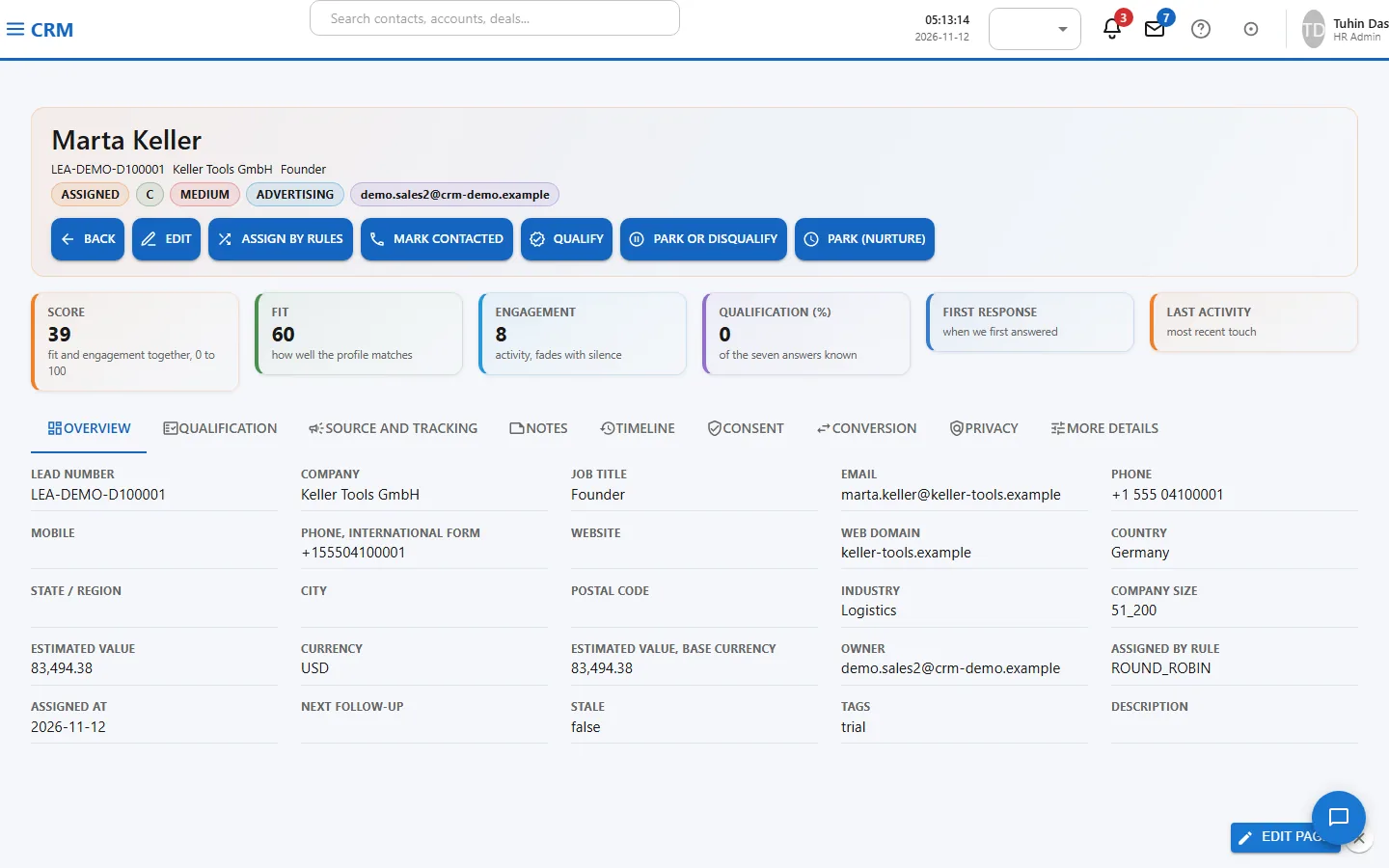
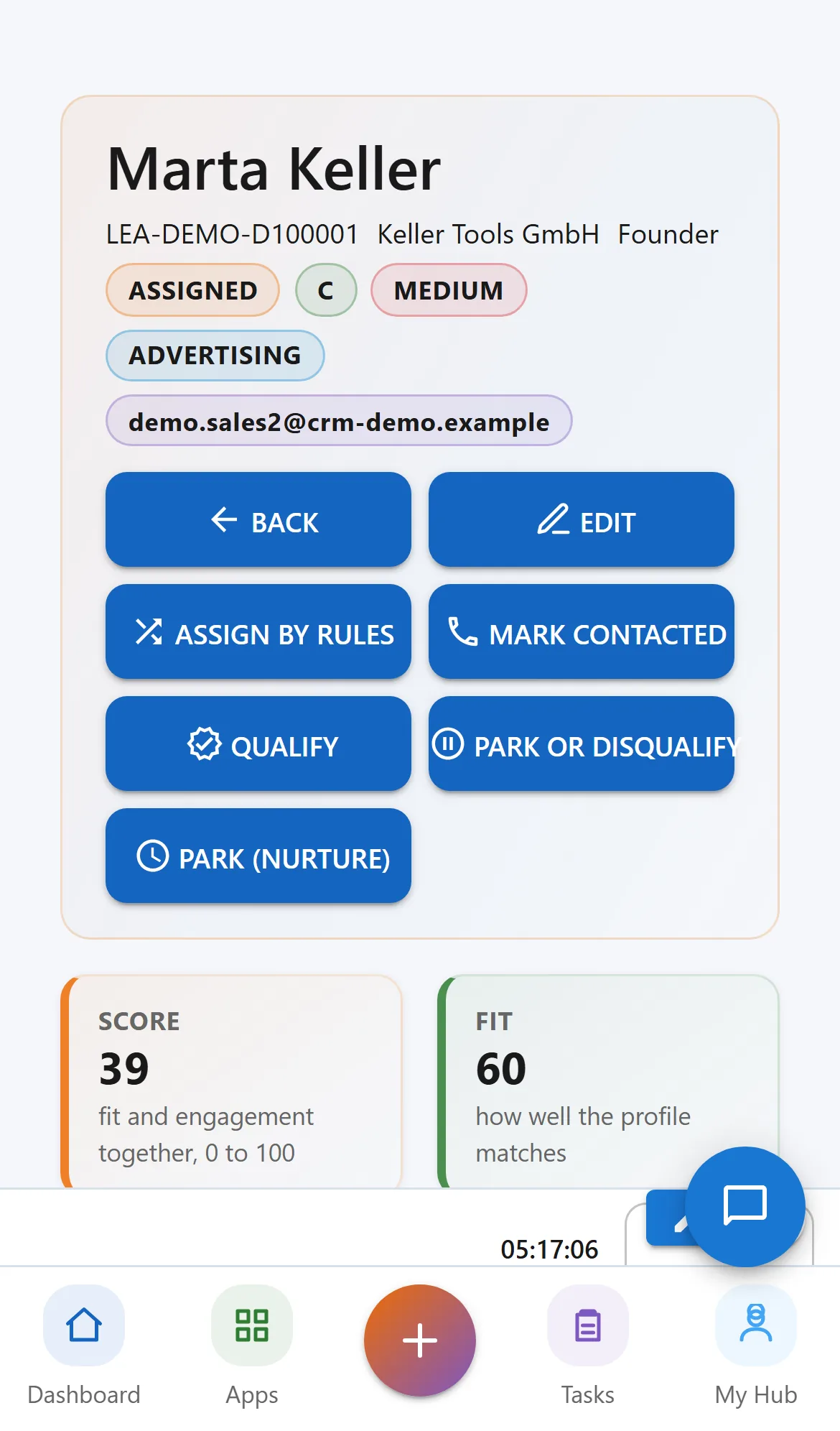
The header shows the name, number, company and chips (status, grade, priority, source, owner) with the stage actions: Assign by rules, Mark contacted, Qualify, Park or disqualify (a reason is required), Park (nurture) with a return date, Reopen and Convert. Figures: score, fit, engagement, qualification complete and the first response. Tabs: Overview, Qualification (budget, authority, need, timeline and the buying group), Source and tracking, Notes, Timeline, Consent, Conversion, Privacy and More details.
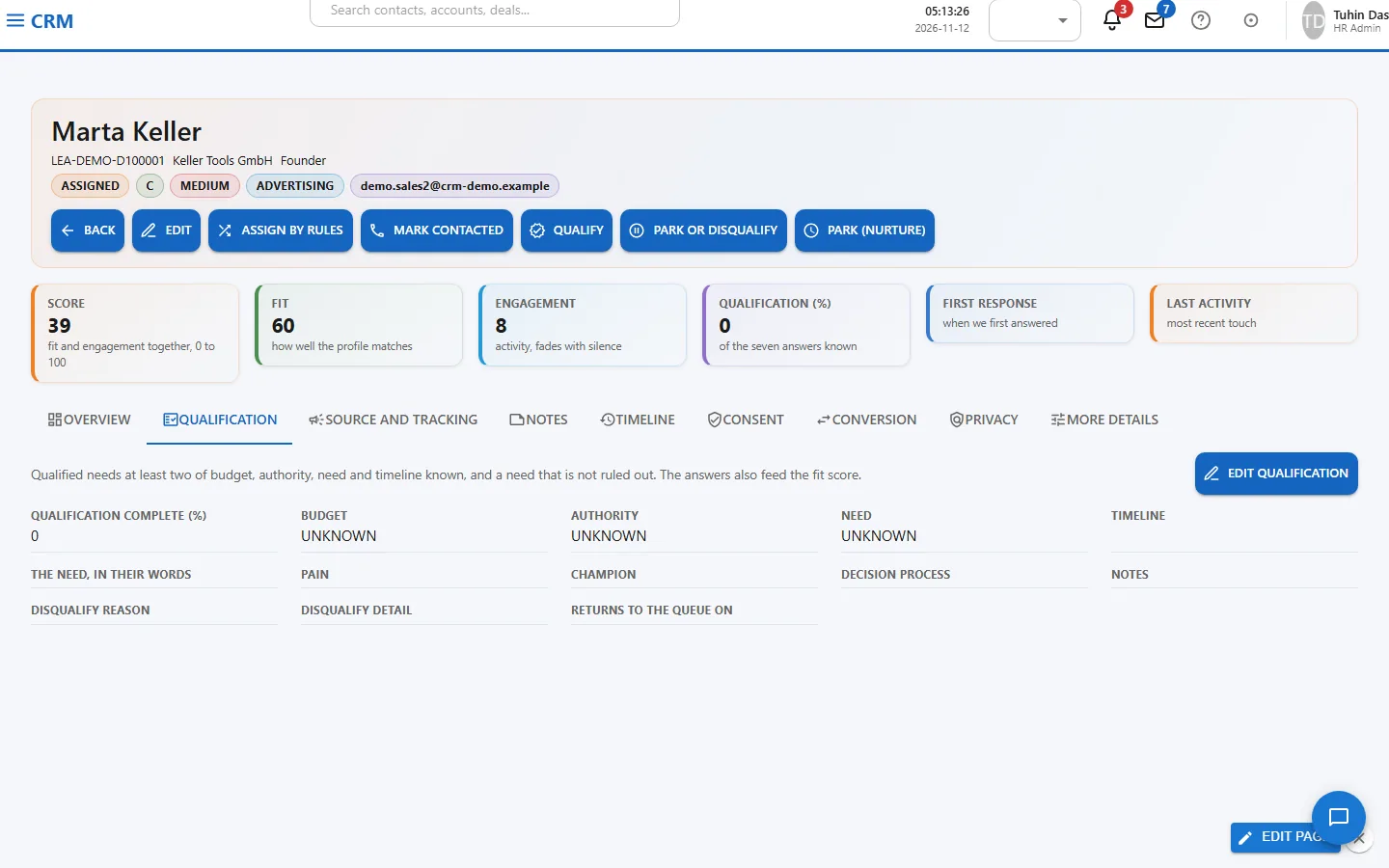
The first note or call stamps the first response, which the speed-to-lead dashboard measures.
Scoring
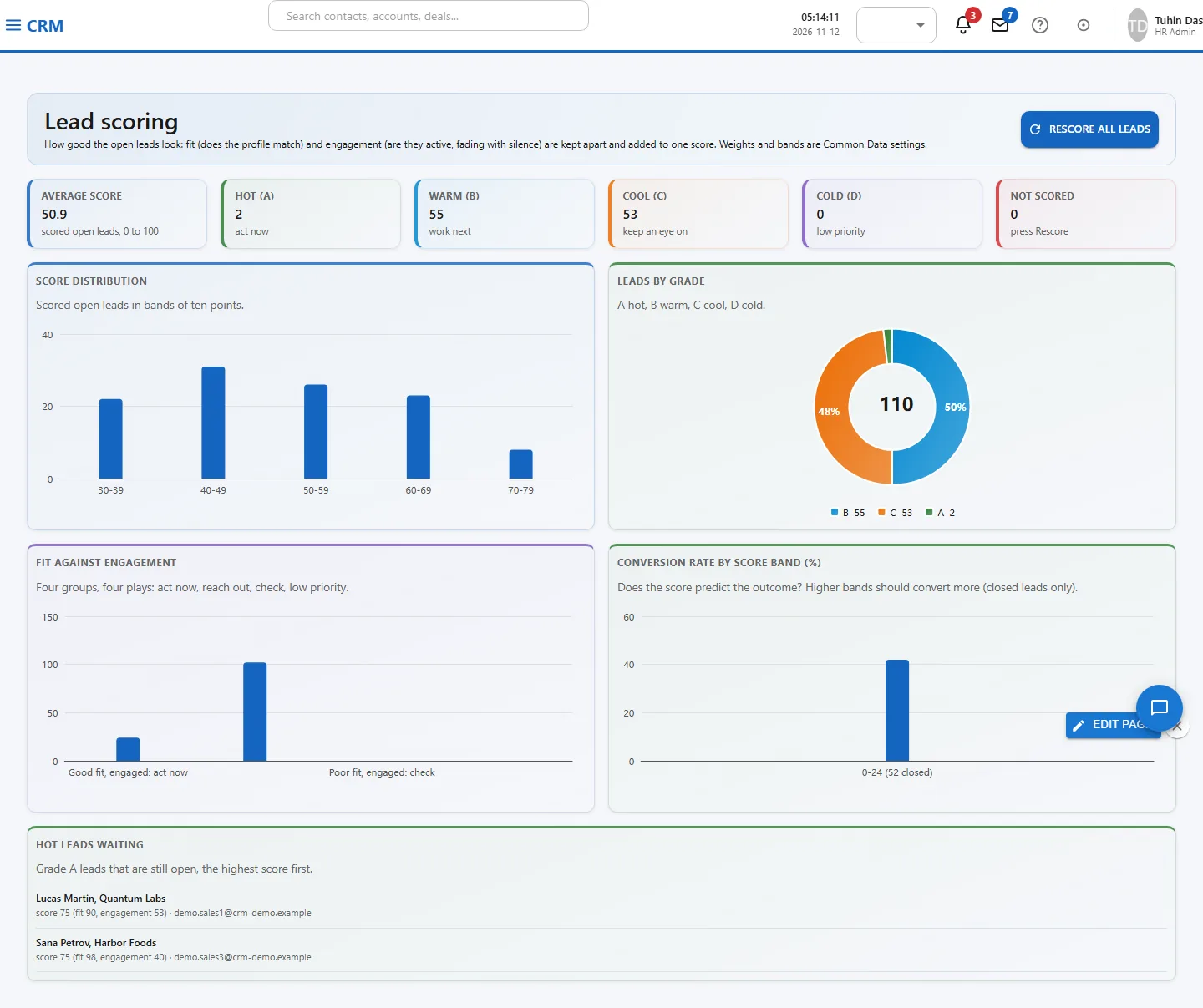
The score has two parts: fit (how well the profile matches your target: industry, company size, country, job title, estimated value) and engagement (activity, which fades with silence). The grade bands are A (hot), B, C and D. Rescore leads recalculates every open lead; a nightly job does the same. The Lead scoring screen shows the grade mix and what moves scores.
Assignment
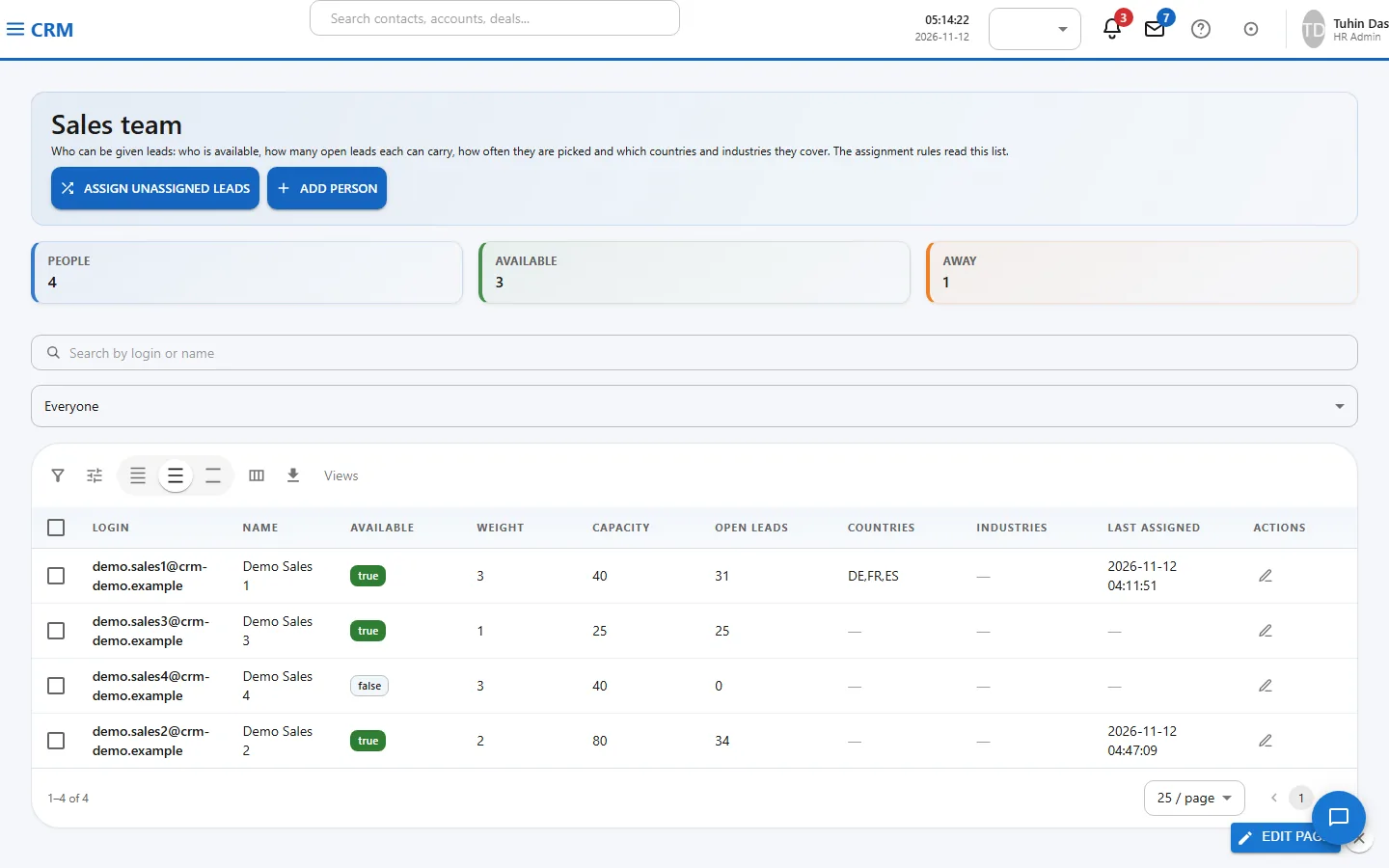
Assignment rules route a new lead by territory, capacity and round robin. Sales team shows each rep's open leads against capacity and the speed of their first response. Assign unassigned leads applies the rules to everything waiting.
Converting a lead
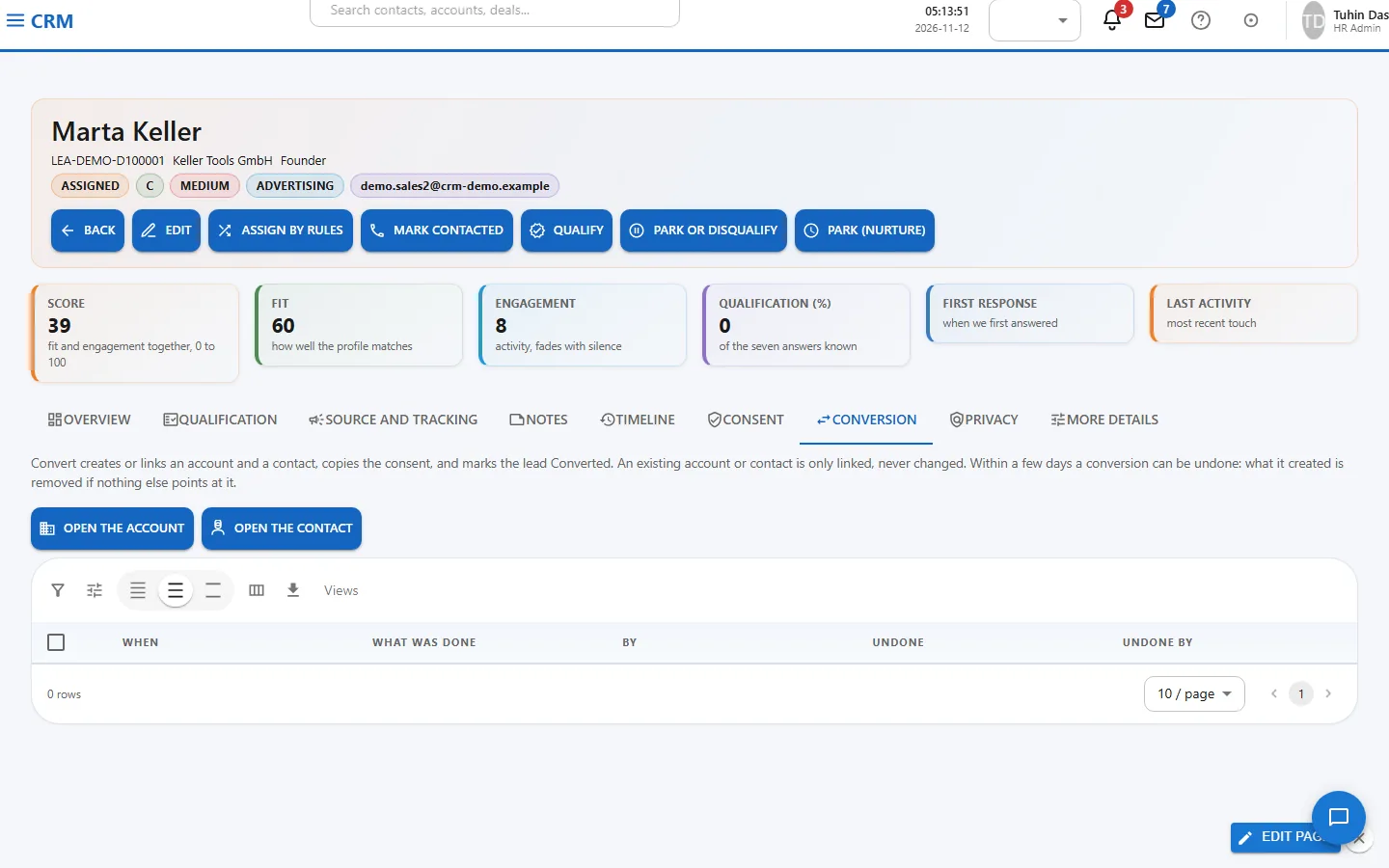
Convert first checks for an existing account and contact (by company name, website domain, email) and offers to link instead of creating a duplicate. It creates or links the account and the contact, copies the consent, optionally creates a deal in CRM Opportunities, and marks the lead Converted. An existing account or contact is only linked, never changed. Within a few days a conversion can be undone from the Conversion tab: what it created is removed if nothing else points at it. A high-value conversion goes to a manager for approval.
Insights
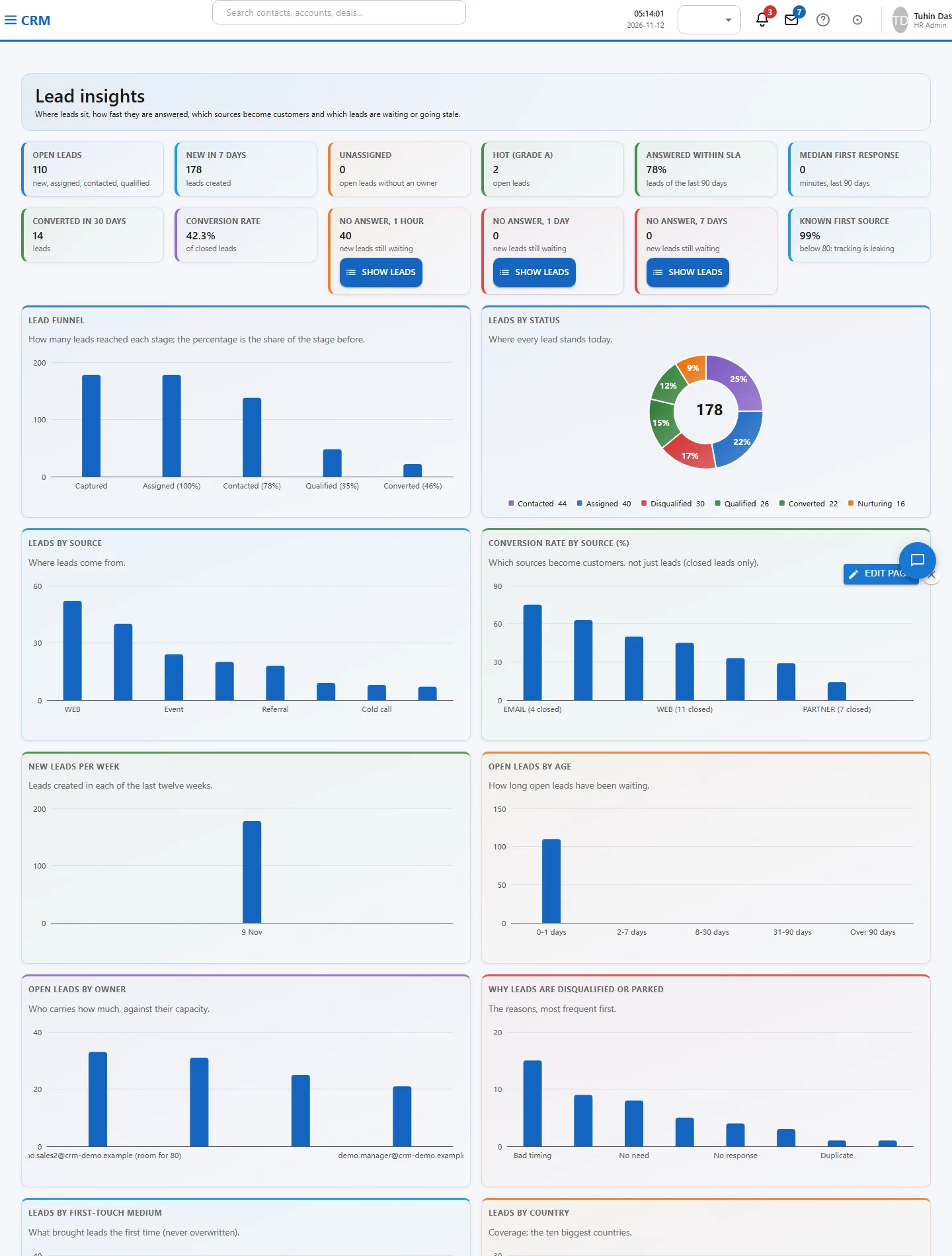
Lead insights shows the funnel (how many leads reached each stage), leads by status, source and country, conversion rate by source (closed leads only), new leads per week, open leads by age and by owner, the reasons leads were disqualified, leads by first-touch medium, and the lists of leads waiting for a first response and stale leads. A tile marked "known first source" tells you when tracking is leaking.
Duplicate leads and import
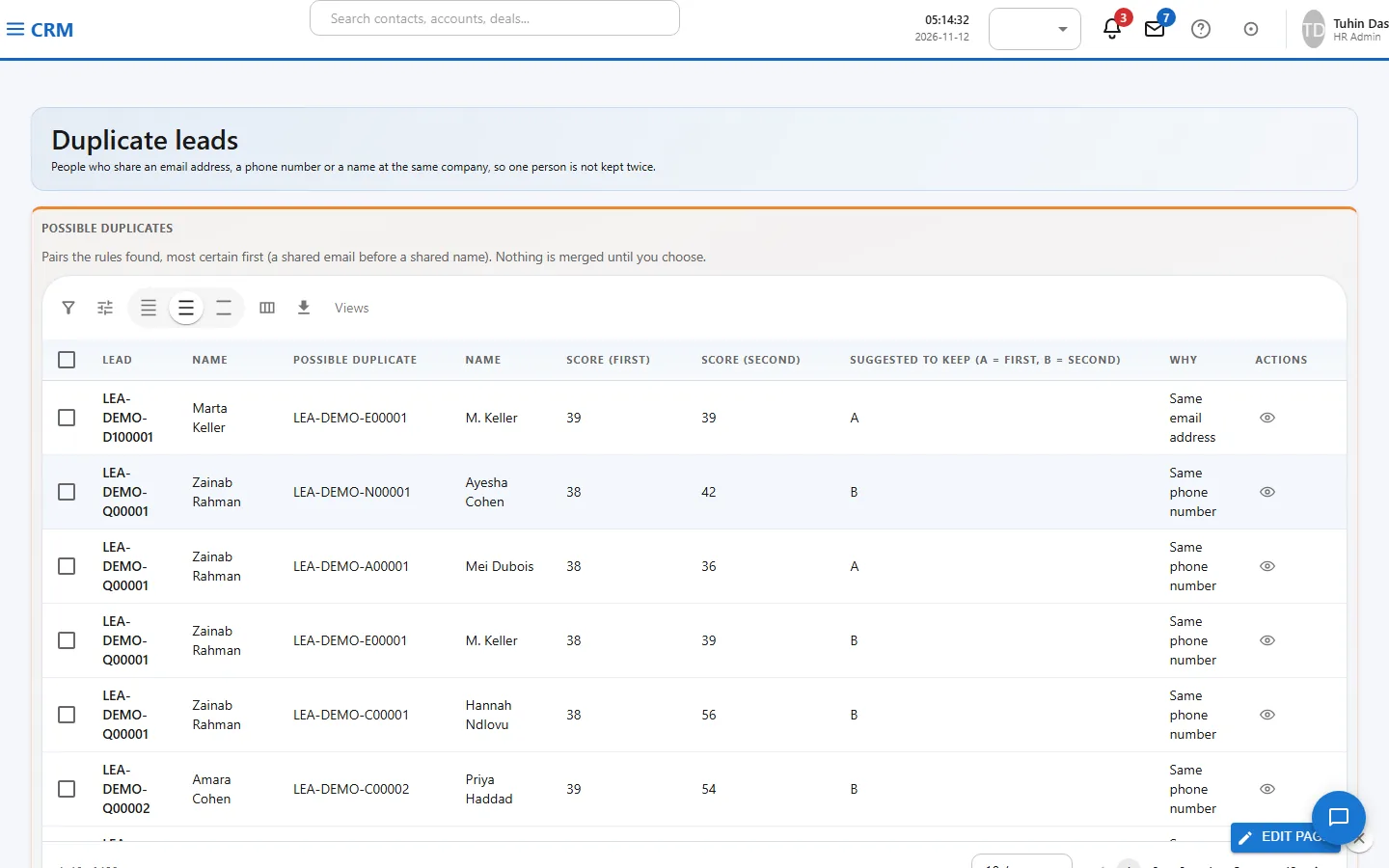
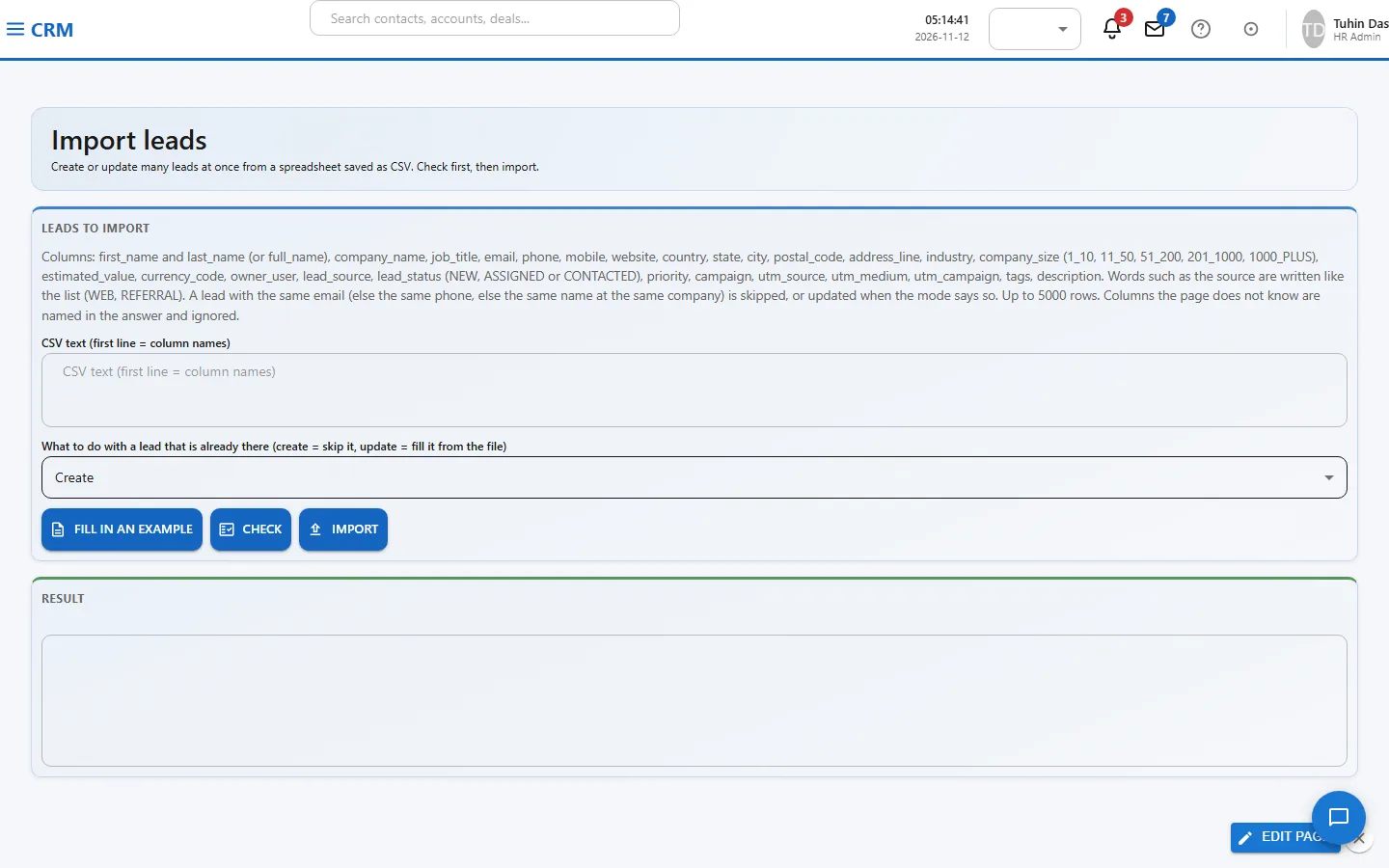
Duplicate leads lists pairs that share an email address, a phone number or a name at the same company, with a suggested lead to keep; a merge moves notes and consent history to the kept lead and cannot be undone. Import leads takes a CSV: Check first (nothing is written), then import; rejected rows come back as CSV with the reason and a whole import can be undone.
Consent and privacy
Each channel (email, SMS) keeps the opt-in or opt-out with its evidence and moment. Privacy exports everything held about a lead or anonymises it.
Importing and exporting leads
Import is safe to repeat. Each real import is recorded with a fingerprint of the file (Sales > Lead imports). Sending the same file again is refused ("already imported as IMP-...") unless you undo that import first or force it; leads already in the system are skipped anyway (matched by email, then phone, then name and company). Line-end differences do not matter.
Export is secured and logged. The Export button on the Leads list saves a CSV with the default fields (the same rules as below). The export (screen, API or integration) needs the Lead.Export right. Someone who is not a manager exports only their own leads, and email, phone, mobile and address are masked for them. Choose the fields (the default set has no contact data), filters (status, grade, source, owner, country, tag, created dates, search, selected leads) and a format: CSV, JSON or JSONL. CSV cells that start with =, +, - or @ get a leading apostrophe so a spreadsheet never runs them. Every export is listed under Sales > Lead exports with who, when, how many rows, fields and filters.
Lead inbox and qualification frameworks
Lead inbox (Sales) lists every conversation with a lead on every channel, with its state (new, open, waiting, snoozed, closed), priority, mood, intent, owner and the time a reply is due. Filter by state, channel, unhappy or asking about price. Qualification frameworks (Settings) lists BANT, CHAMP, MEDDIC and GPCTBA/C and your own: the criteria, the ones that must be met, and the company sizes and sources the framework is chosen for.
4. On a phone or tablet
Every screen reflows to one column; tabs scroll; dialogs fit the screen.
5. Troubleshooting
| Symptom | Cause | Fix |
|---|---|---|
| Every lead shows Unscored | The scoring has not run | Press Rescore leads |
| Leads have no owner | No assignment has run, or no rep has capacity | Add reps under Sales team, then Assign unassigned leads |
| Convert says an account already exists | The company name or domain matches an account | Choose to link to it |
| A button answers "Lead.Edit is required" | The CRM application role is missing | Wait five minutes for the role mirror, or press it in CRM Roles |
| A menu item is missing | It is not part of your SparkCRM edition, or your role does not allow it | Ask your administrator |
| A chart says there is nothing yet | There are no leads in that state | Generate the demo pack and run the calls in section 2 |
6. Related guides
- CRM Accounts: set up and daily use
- CRM Contacts: set up and daily use
- CRM Opportunities: set up and daily use: the deal a conversion can create.
Intelligence tab and the Lead intelligence screen
The lead page has an Intelligence tab; every button shows its answer at the top.
- Rating and temperature: the rating (A to D) says how good the lead is, the temperature (very hot to cold) how strong the intent is now. "Why this rating" lists the factors. "Rate by hand" needs a reason and can end on a date or be locked; "System rating" goes back to the scoring. Do-not-contact and invalid leads are rated D. Every change is in the rating history.
- Verification: "Verify now" checks identity, email, phone, company, employment, consistency, duplicates and freshness and gives a score and a status. "May I email?" says whether outreach is allowed; "A mail bounced" marks the address. Common Data
crm_lead_verification_gatecan block email, calls or conversion until a lead is verified. - Type: new business, existing, upsell, cross-sell, renewal, reactivation, referral, partner. "Detect the type" looks for an existing account; a type set by hand stays. Leaving Renewal or Partner for New business needs a manager.
- Enrichment: "Enrich by the rules" fills seniority, department and domain. Provider results are posted to the enrichment endpoint through the Integration Designer; a value is written only if the field is empty or the source ranks higher (Common Data
crm_lead_enrichment_priority), locked fields and "do not enrich" leads are never changed, and "Where the data came from" shows the history. - Qualification: BANT, CHAMP, MEDDIC, GPCTBA/C or your own framework (chosen by company size and source). Answer each criterion; completeness and "What to do next" (qualify, nurture, disqualify, pending) follow.
- Disqualify: reason, notes, type and disposition, evidence, and a requalification date for non-permanent reasons. Existing customers, partner leads and high value leads wait for a manager. A reactivated lead keeps the decision in the history.
- Merge keeps a snapshot, so a merge can be undone. Routing also matches the lead type to a rep's skills and ends at a fallback owner (Common Data
crm_lead_routing_fallback_user). The inbox collects conversations on every channel with snooze, close and respond-by times.
The Lead intelligence screen (Sales menu) shows the charts and lists of all of these. After a first install, run "Rescore all leads" and "Verify the leads that are due" once so the screen has data.
After generating the demo data run "Rescore all leads" and "Verify the leads that are due" (Lead intelligence screen) once, so the new ratings, temperatures and verification figures have data.