Appearance
Employee Documents & Document Types (HCM Employee Documents)
This page documents two shipped screens in the hcm-employee-documents module — a separate, more comprehensive document system from both Employee Documents (in hcm-employee) and the Document Management screen (in hcm-employee-information). Not for plugin developers.
Three document screens exist across three modules. This one is the most complete — real DMS-backed upload, verification lifecycle, letter generation, digital signatures, and expiry tracking. If your company uses document management heavily, this is the module to standardize on.
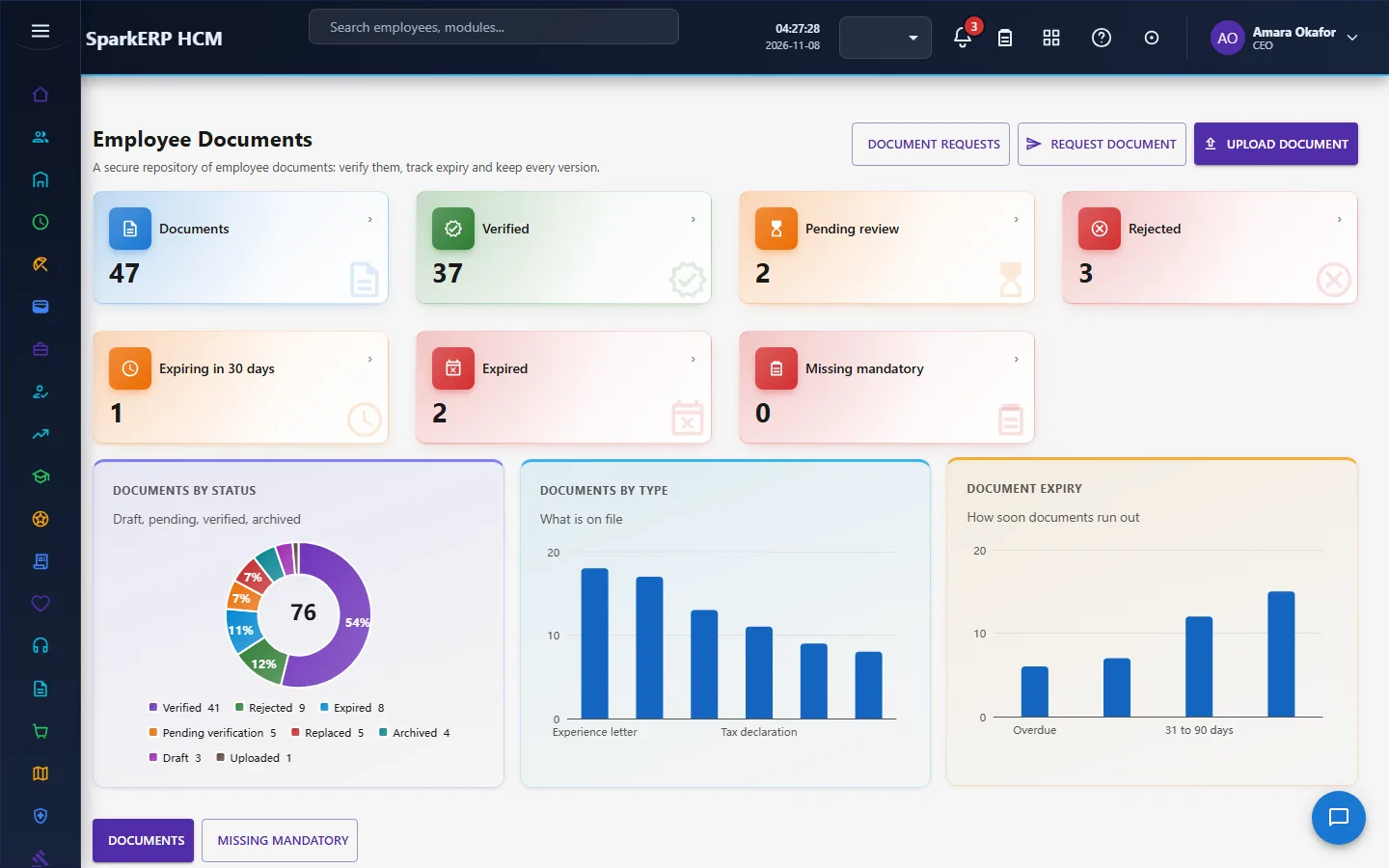
Employee Documents
The core per-employee document record — real upload (through the platform's own document storage), with a real verification lifecycle, not just a file listing.
Open it at /hcm-employee-documents/employee-documents (or from the HCM menu).
- Sections: Documents by status, Documents by type, What is on file, Document expiry, How soon documents run out, Document, Document type, Category, Document number, Classification, Mandatory, Notes and 25 more.
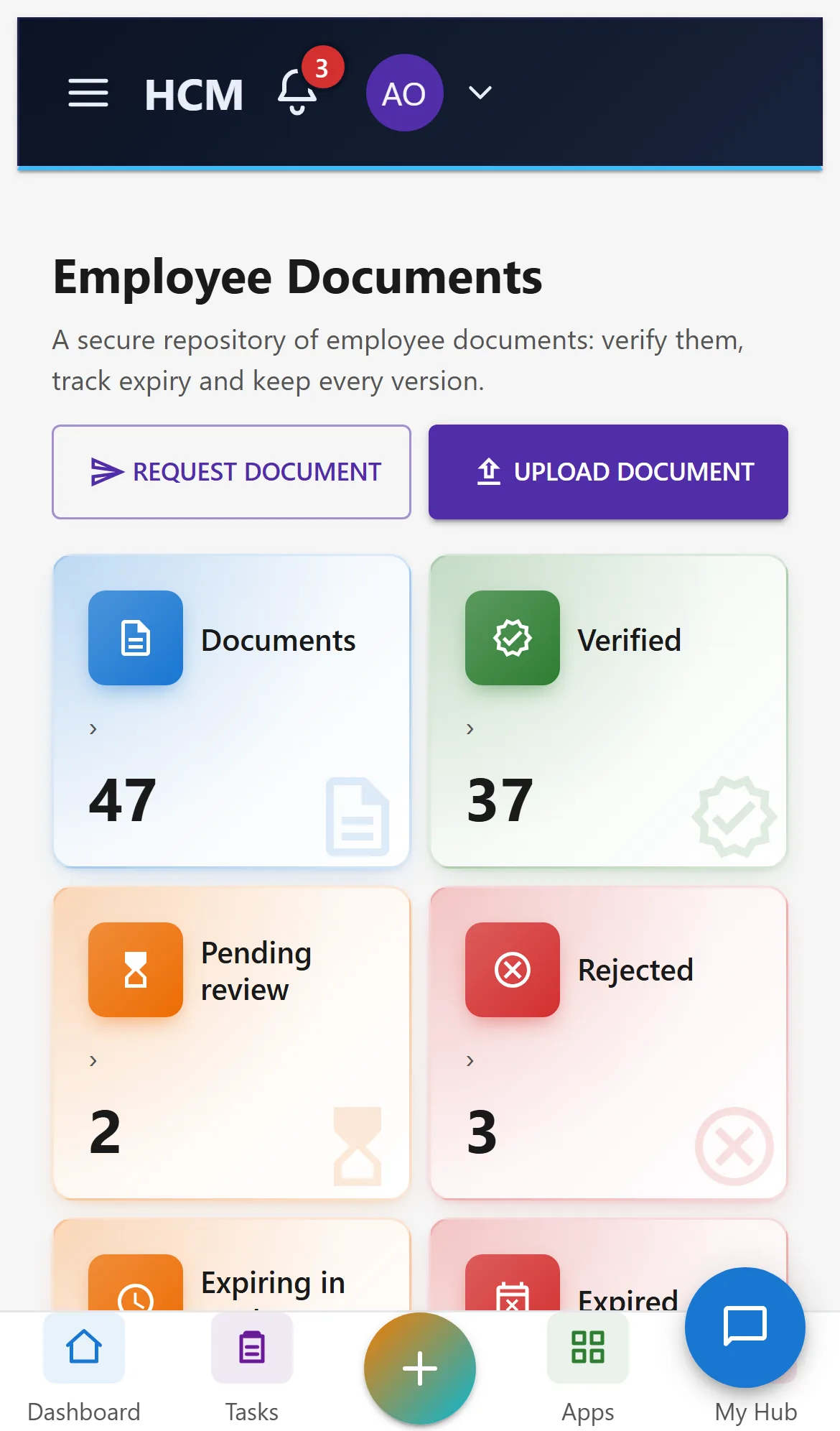
- Cards: Documents, Verified, Pending review, Rejected, Expiring in 30 days, Expired, Missing mandatory.
- Table columns: Employee, Document, Category, Status, Expiry, Validity, Classification, Uploaded, Actions, Missing document, Requested - due.
- Actions: Document requests, Request document, Upload document, Documents, Missing mandatory, Clear filters, Verify, Reject, Preview, Share, Stop sharing, Legal hold and 13 more.
How to: Reject
- Open Employee Documents.
- Select Reject.
- In the window Reject document fill in:
| Field | What to enter |
|---|---|
| Reason | Type it (for example: Reason for rejection). |
- Select the confirm button.
- The window closes and the table refreshes with the result. If the screen shows a message instead, read it: it says what is missing.
How to: Upload document
- Open Employee Documents.
- Select Upload document.
- In the window Upload employee document fill in:
| Field | What to enter |
|---|---|
| Document number | Type it (for example: Optional). |
| Issue date | Pick a date. |
| Expiry date | Pick a date. |
| Classification | Choose one: Automatic (based on the document type), Public (HR), Internal, Confidential, Highly confidential, Restricted |
| Description | Type it (for example: Optional). |
- Select the confirm button.
- The window closes and the table refreshes with the result. If the screen shows a message instead, read it: it says what is missing.
How to: Upload new version
- Open Employee Documents.
- Select Upload new version.
- In the window Upload a new version fill in:
| Field | What to enter |
|---|---|
| What changed? (optional) | Type it (for example: For example: renewed passport). |
- Select the confirm button.
- The window closes and the table refreshes with the result. If the screen shows a message instead, read it: it says what is missing.
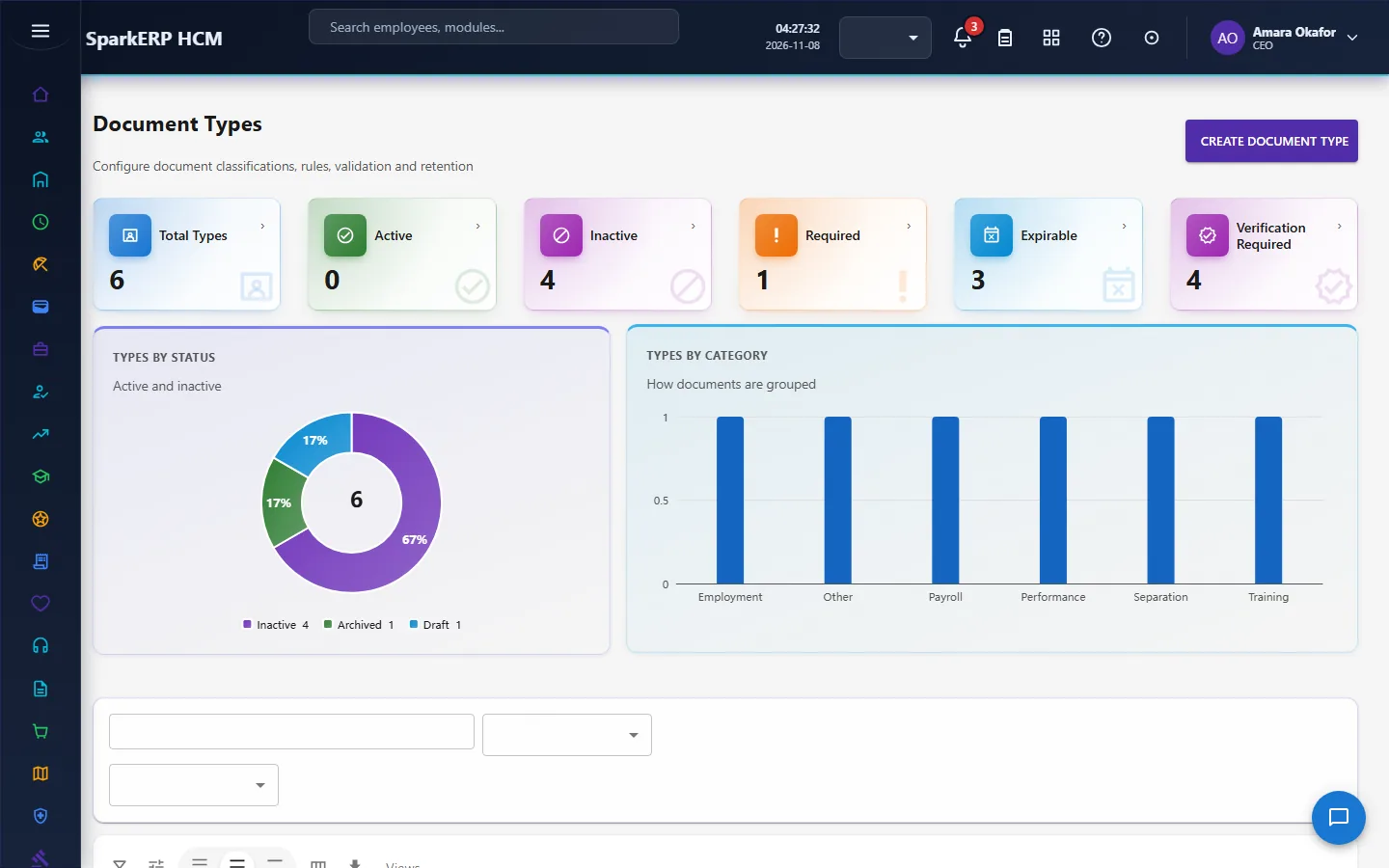
Document Types
Master data: define the document types your company tracks, each with its own simple administrative status.
Open it at /hcm-employee-documents/document-types (or from the HCM menu).
- Sections: Types by status, Active and inactive, Types by category, How documents are grouped, Basic Information, Document Code, Document Type Name, Category, Scope, Description, Employee Upload Enabled, HR Upload Enabled and 11 more.
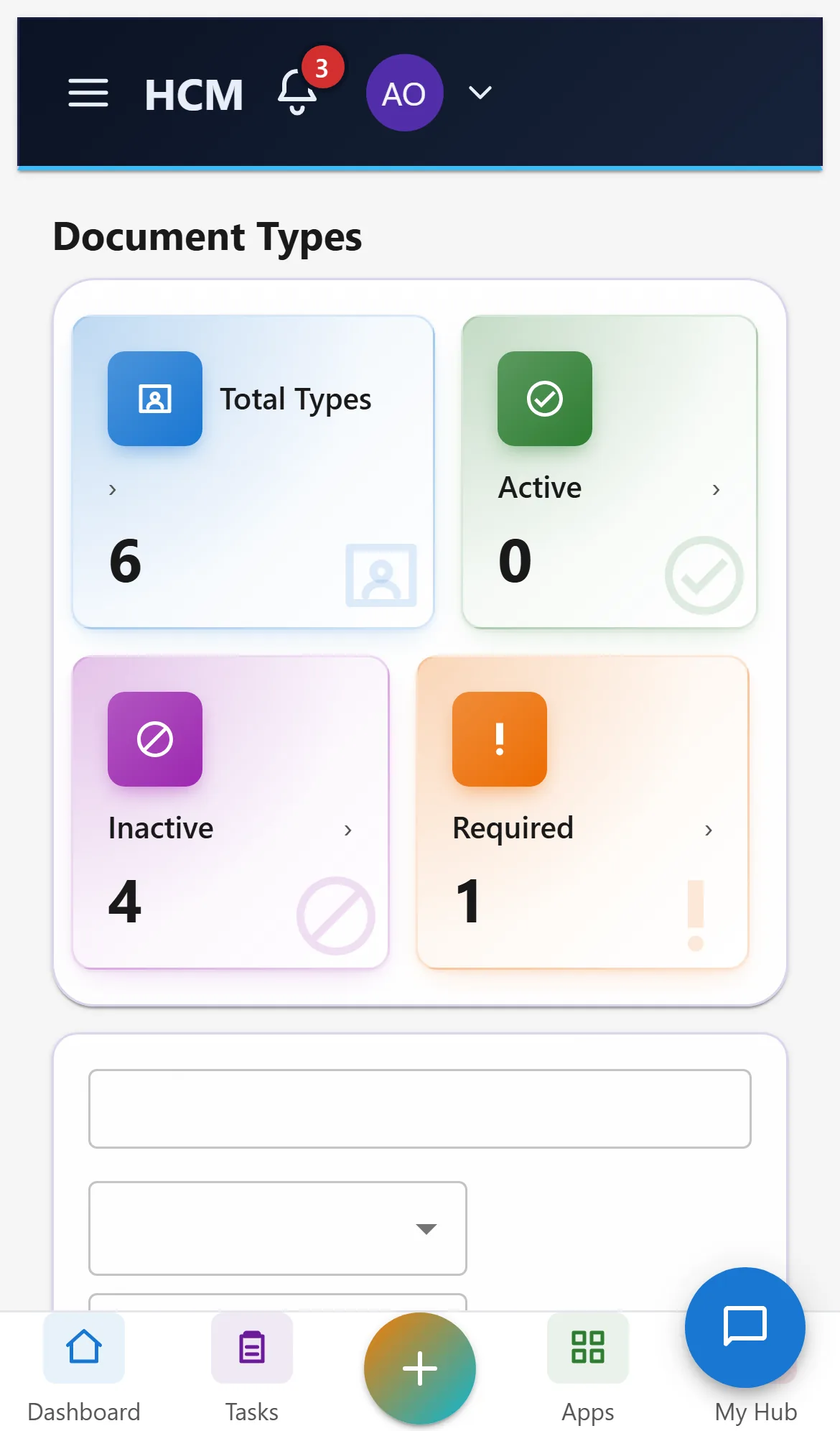
- Cards: Total Types, Active, Inactive, Required, Expirable, Verification Required.
- Table columns: Document Type, Code, Category, Required, Status, Actions.
- Actions: Create Document Type, Cancel, Save, Activate, Deactivate, Archive, Close.