
Appearance
CRM Opportunities: set up and daily use
An opportunity is a deal you are working to win: who it is with, how much it is worth, which stage it has reached, when it should close and what could go wrong. This guide takes you from installing the module to everyday work, in the order you meet things.
1. What it is and who uses it
An opportunity has a number (OPP-000001), a name, an account, a primary contact, an amount in its own currency and in your base currency, a stage in a pipeline, a probability, an expected close date, a forecast category (pipeline, best case, commit, closed, omitted), an owner, a next step and a risk score. Every change of stage, amount, close date or owner is kept as history.
| Role | Can see | Can do |
|---|---|---|
| CRM Opportunity Viewer | Deals, the pipeline, the forecast and the dashboards | Nothing that changes data |
| CRM Sales Representative | The same | Create and edit deals, move stages, win and lose, add contacts, competitors and notes, request approval, export |
| CRM Sales Manager | The same | Everything a representative does, plus change owners and set forecast targets |
| CRM Opportunity Administrator | Everything | Everything, including delete, merge, import, pipelines, stages, loss reasons and the risk scoring |
| CRM Settings Administrator, CRM Admin | Everything | Everything |
A deal is saved on behalf of the person who saves it, and the account is read with that person's own Accounts rights. A sales person therefore also holds an Accounts role (for example CRM Account Viewer); with only an Opportunity role the account is not visible and the deal cannot be created.
Editions
SparkCRM is one engine in four editions. Lite has the deal list, the deal page and the Kanban pipeline. SparkCRM adds the sales forecast, the pipeline and win and loss dashboards, duplicate deals with merge, and import with undo. Enterprise and Plus add discount and large-deal approvals (with their dashboard) and the deal risk score. A screen or button that is not part of your edition is hidden, and its endpoint answers "not part of your SparkCRM edition".
2. Before you start
- Install CRM Foundation, CRM Accounts and CRM Contacts first, then CRM Opportunities (Platform Admin, Plugins). Deals link to accounts and contacts.
- Open the Pipeline once. The first visit creates a standard pipeline (Qualification, Needs analysis, Proposal, Negotiation, Closed won, Closed lost) and the standard loss reasons.
- Set your base currency and exchange rates in Common Data; every total is shown in the base currency.
- Optional approval limits in Common Data:
crm_opp_discount_approval_percent,crm_opp_large_deal_approval_amountand the escalation limitscrm_opp_discount_escalation_percent,crm_opp_large_deal_escalation_amount. Until they are set no deal needs approval.
3. Set up
- Pipelines and stages (Settings, Opportunity): several pipelines, each with stages that carry a probability, a forecast category, required fields before a deal may enter the stage, a work-in-progress limit and the number of days after which a deal is stale.
- Loss reasons (Settings, Lost reasons): the reasons offered when a deal is lost; a reason can require the competitor's name.
- Forecast targets (Sales, Forecast targets): the target per person and period, used for coverage.
- Demo data: Demo Data, pack CRM Opportunities (needs the Accounts and Contacts packs). After it has been generated call, in this order,
POST /api/v1/plugins/crm-opportunities/opportunities/recalculate-deals(base amounts, stage names, close dates, history, loss reasons, competitors),.../opportunities/recalculate,.../opportunities/recalculate-riskand.../opportunities/forecast-snapshot.
4. Daily use
The deal list
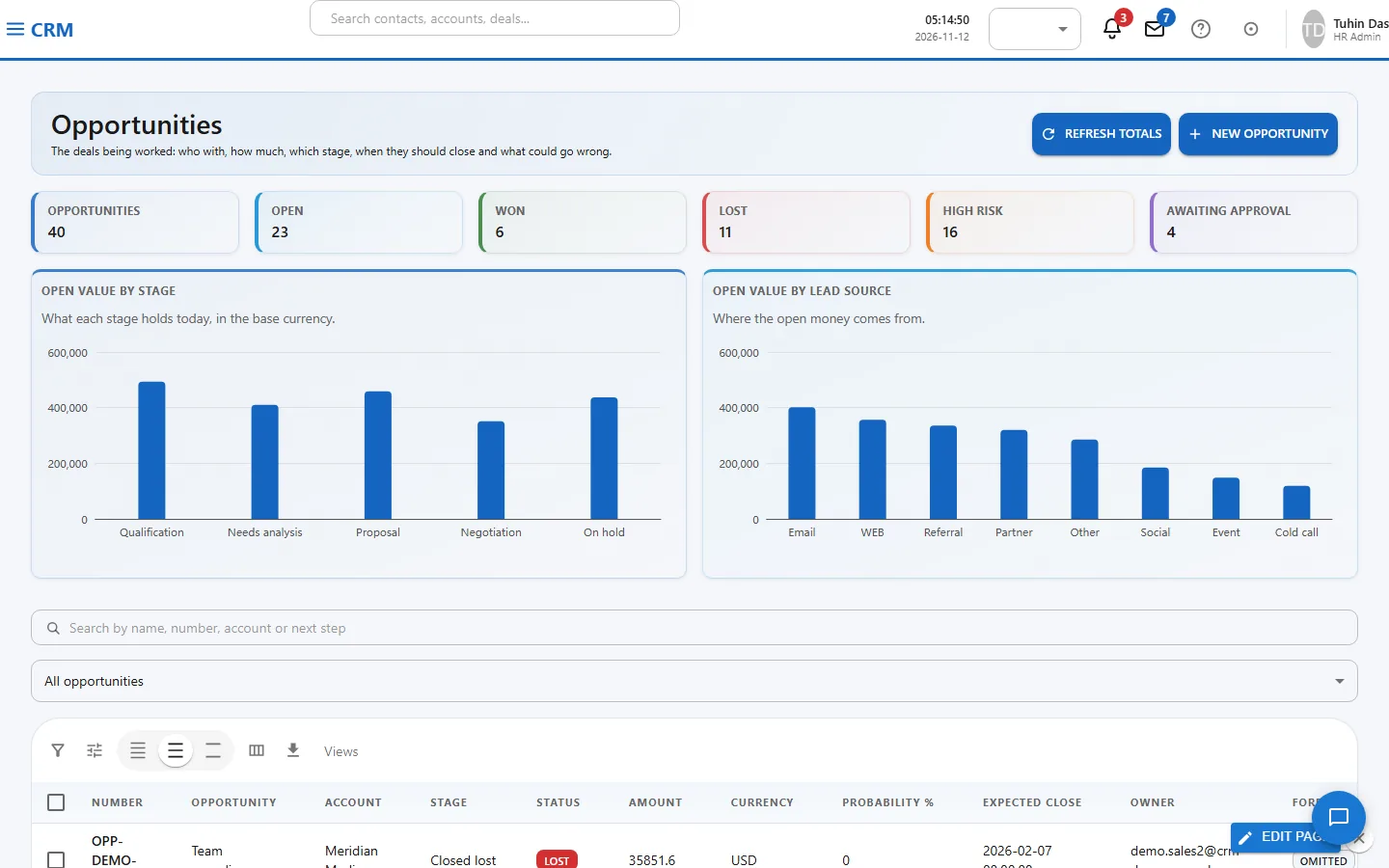
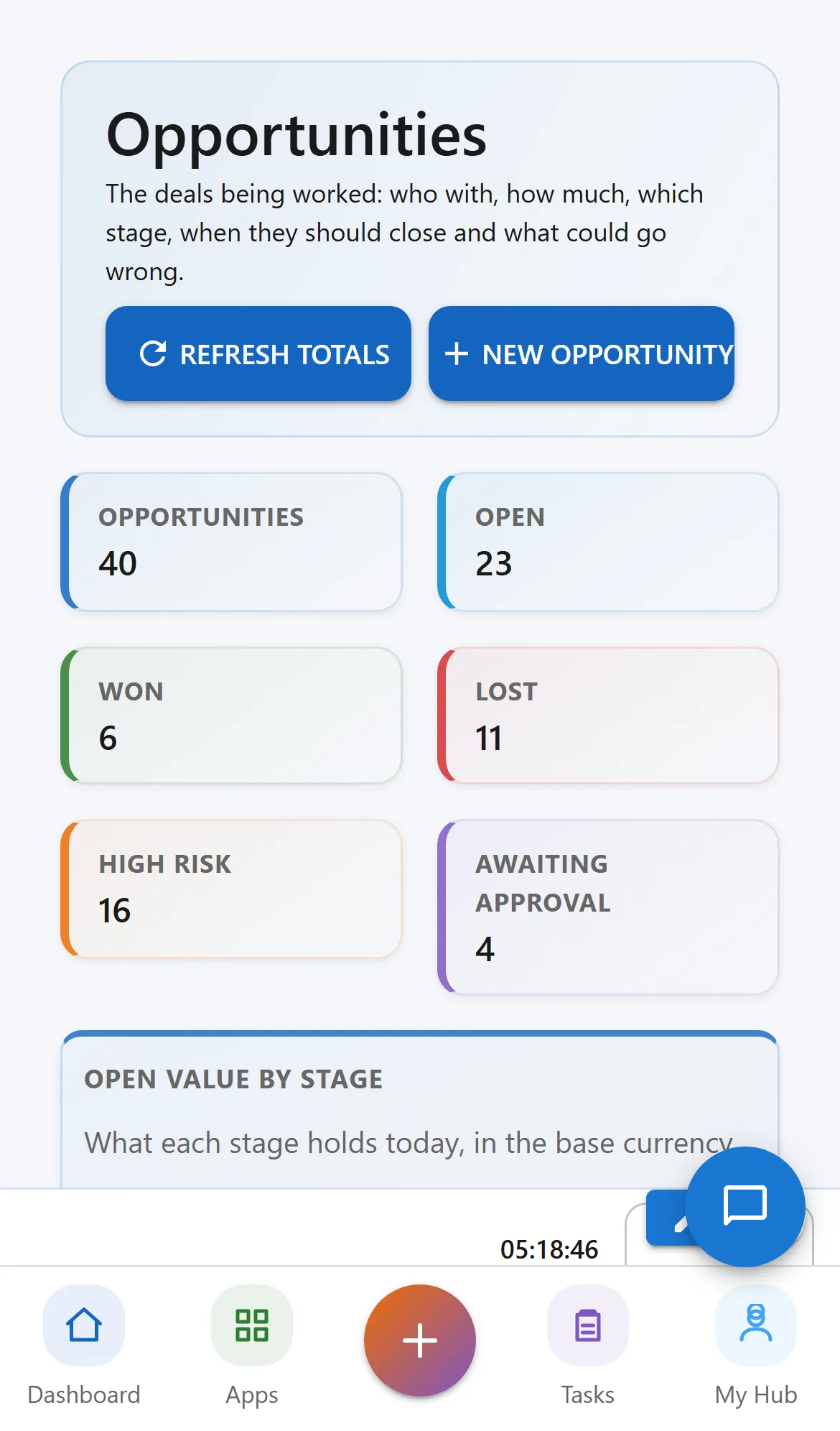
Sales, Opportunities lists every deal with figures above it (all, open, won, lost, high risk, awaiting approval) and two charts: open value by stage and open value by lead source. Search by name, number, account or next step; choose a saved view (my deals, open, won, lost, high risk, watch, commit, best case, awaiting approval, new business, renewals, upsell, open without a next step). Tick deals for a bulk action: change owner, move to a stage, change close date, change forecast category (administrators can delete). "Select all N in this view" applies the action to the whole view.
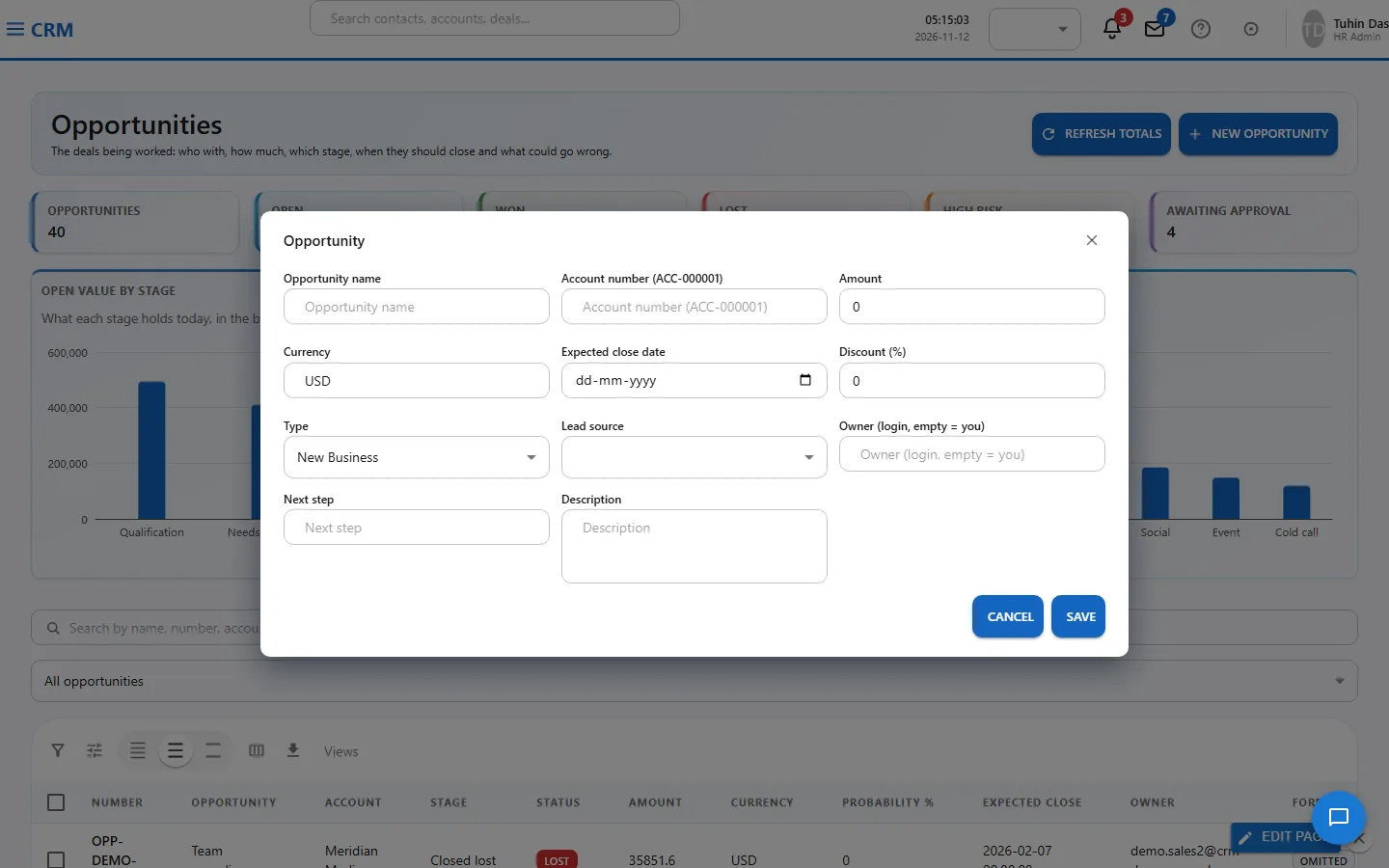
New opportunity asks for a name, the account number, the amount, the currency, the expected close date, the discount, the type and the source. The deal starts in the first stage of the default pipeline.
The pipeline board
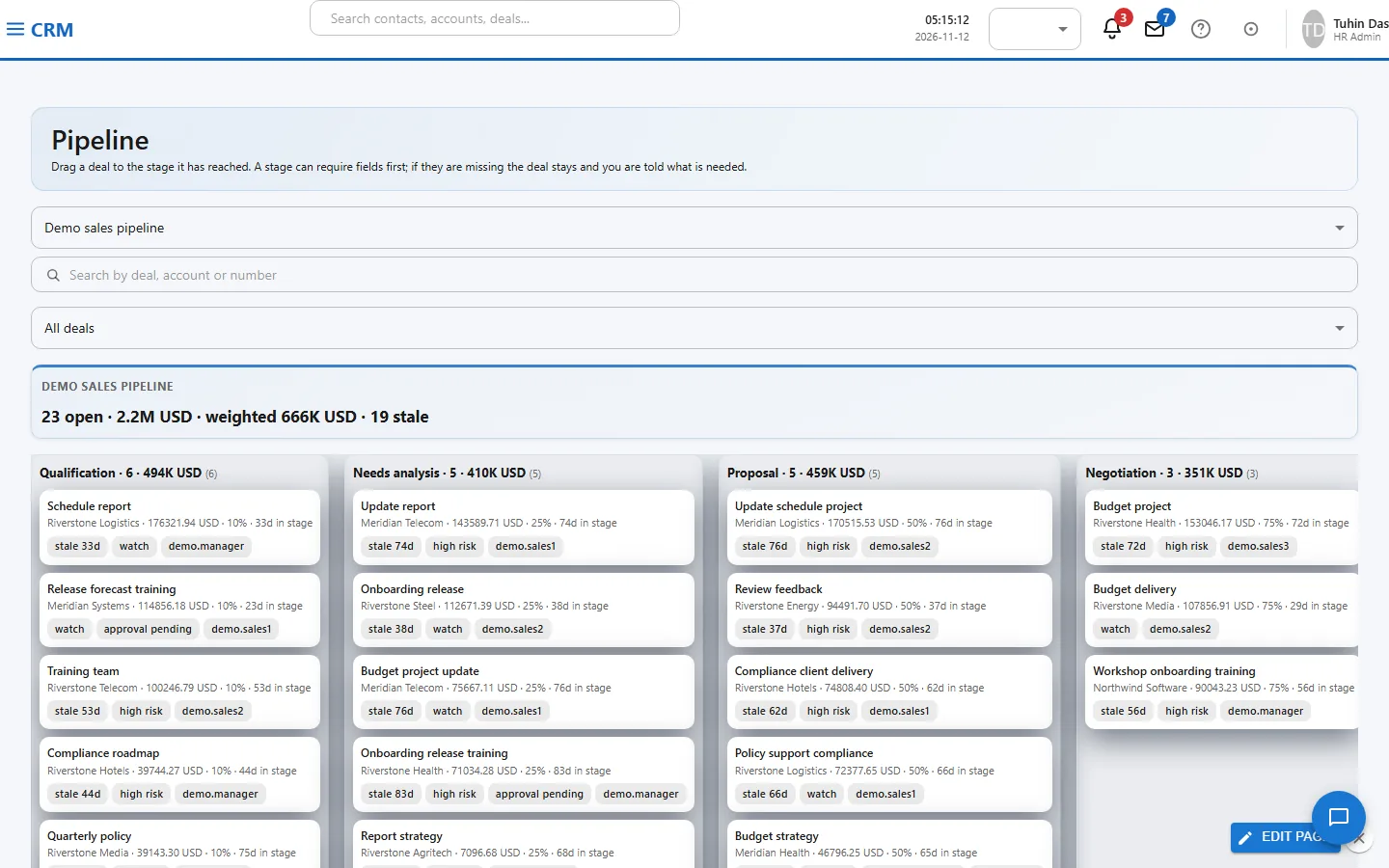
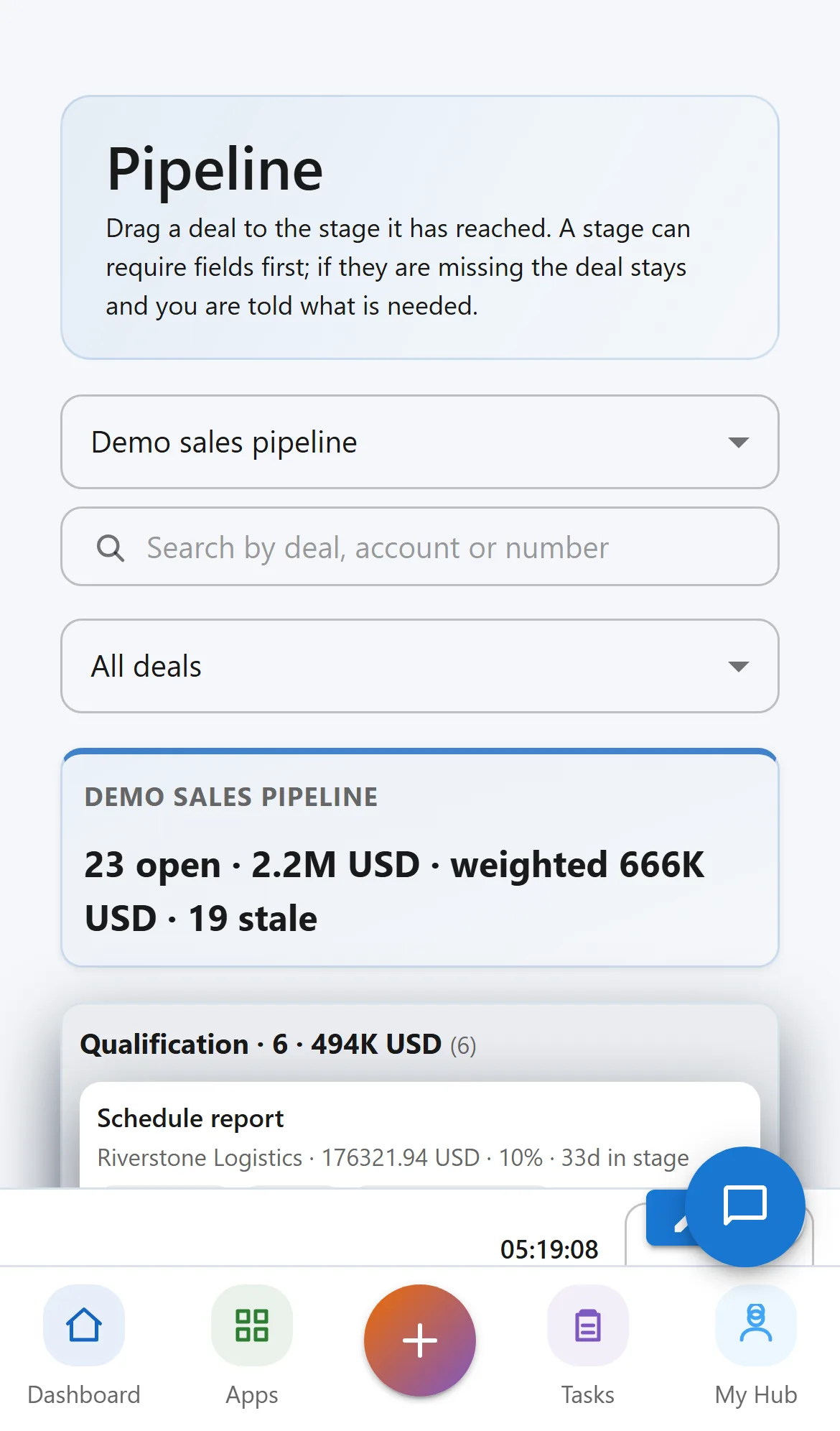
Sales, Pipeline shows the deals as cards in a column per stage. Drag a card to the stage it has reached. A stage can require fields first; when they are missing the card stays and you are told what is needed. A stage with a work-in-progress limit warns when a person holds more deals than the limit. Choose the pipeline, search, or show only your deals. The board opens on the pipeline with the most open deals.
The deal page
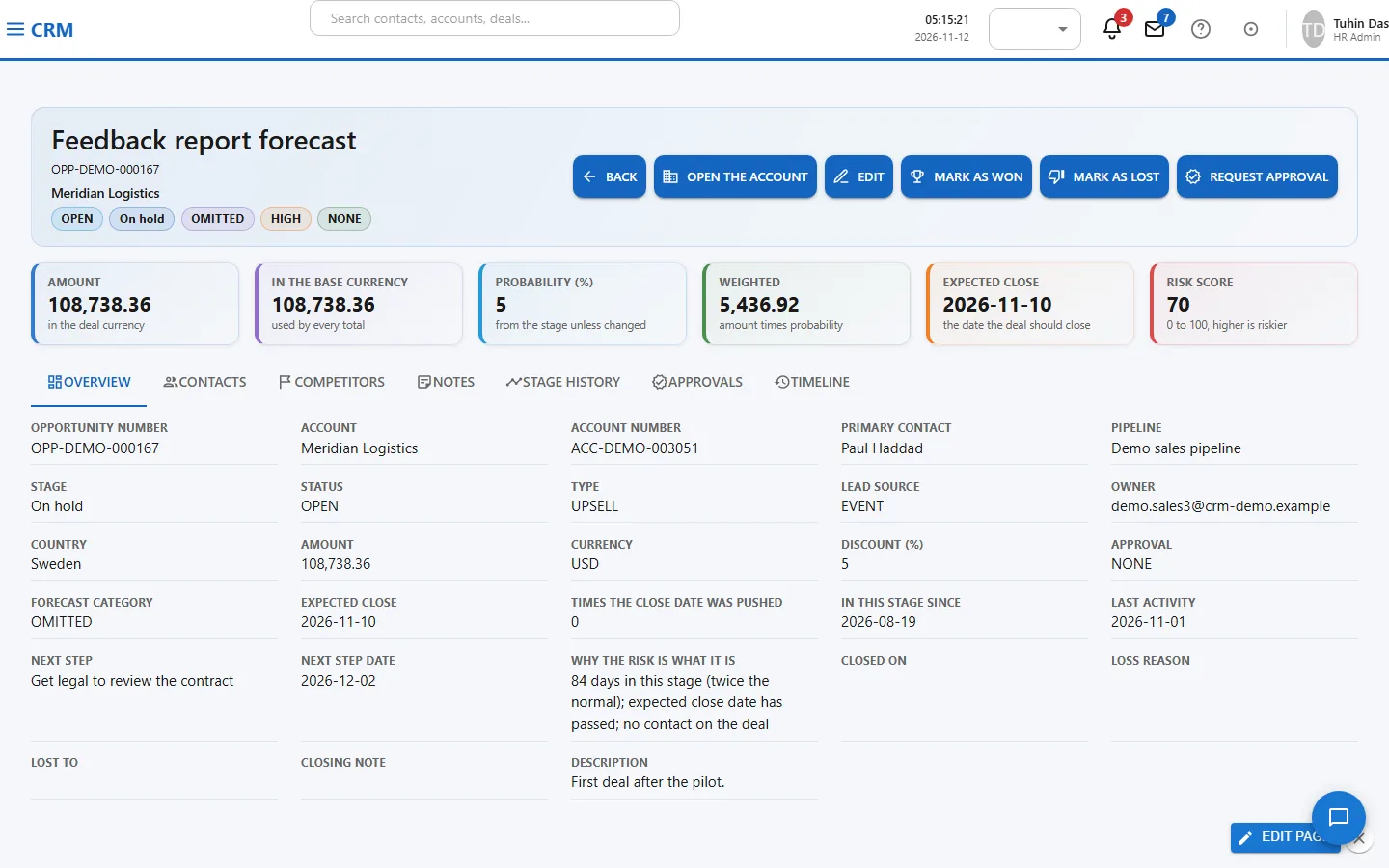
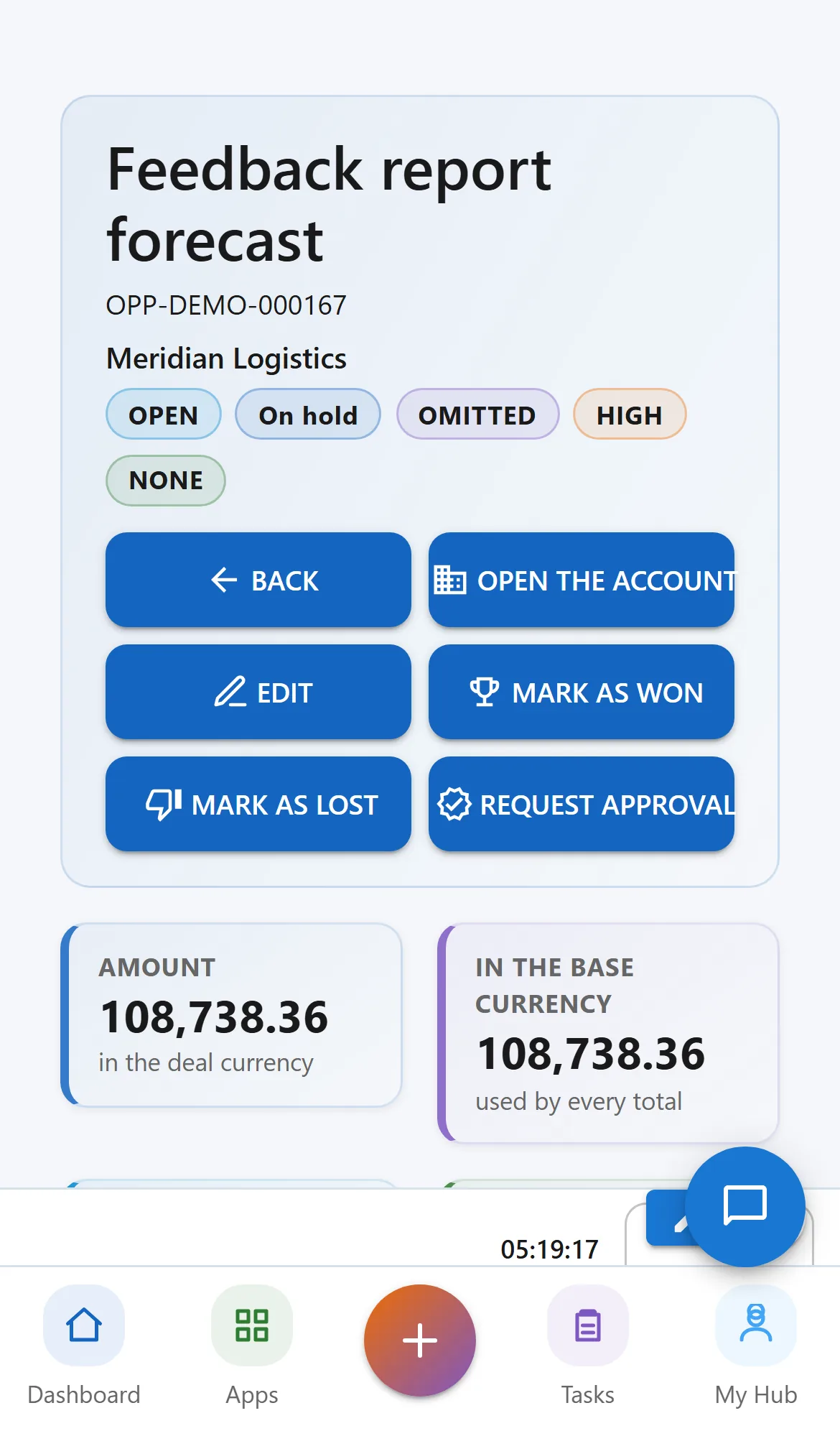
Click a deal. The header shows the name, number, account and chips (status, stage, forecast category, risk, approval) with the actions: Edit, Open the account, Mark as won, Mark as lost, Request approval and Reopen. Figures: amount, base amount, probability, weighted amount, expected close and risk score. Tabs: Overview, Contacts (the buying group and each role), Competitors, Notes, Stage history, Approvals and Timeline.
Losing a deal always asks for a reason; the win and loss dashboards and the competitor insights are built from it.
Forecast
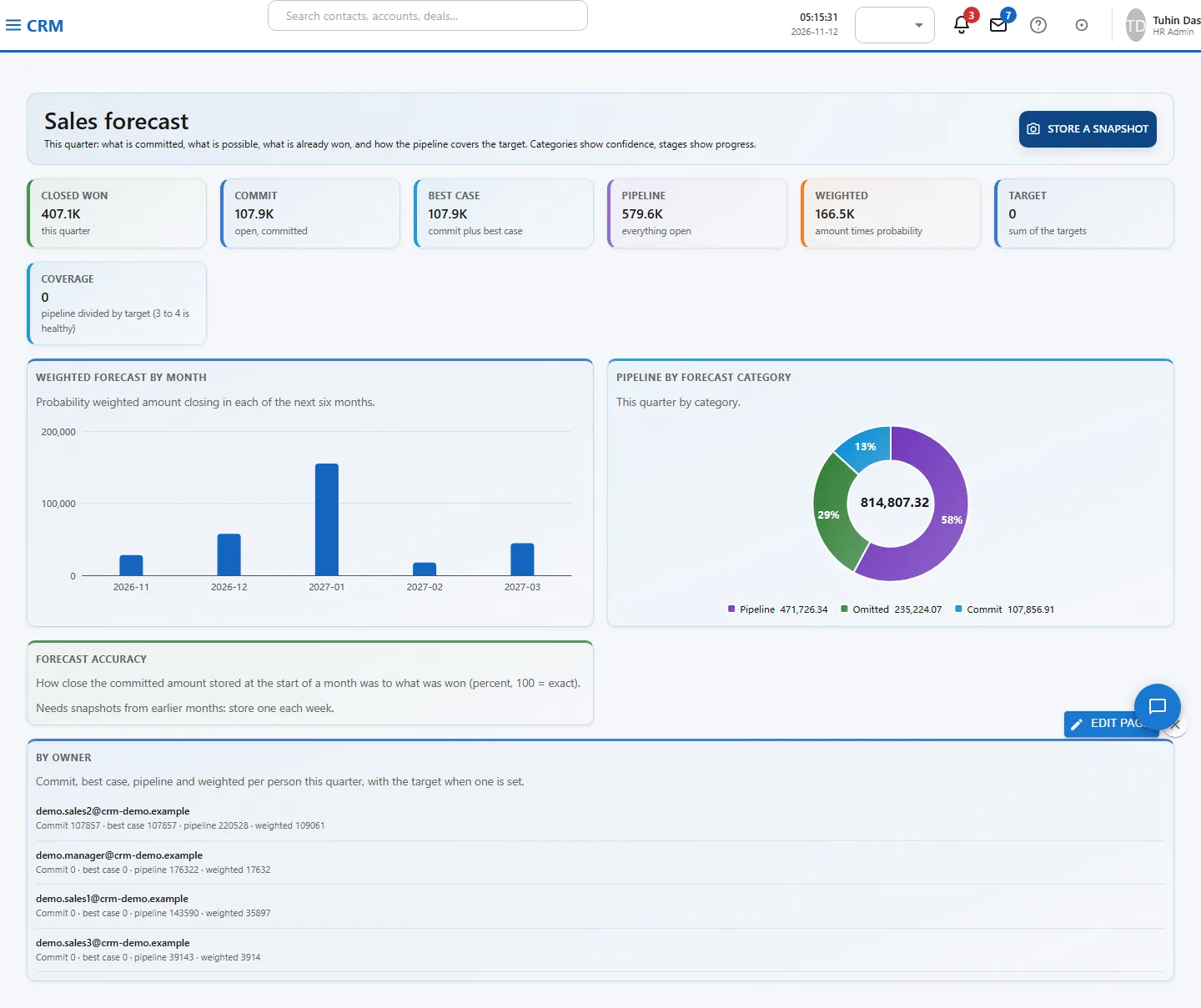
Analytics, Forecast shows this quarter: closed won, commit, best case, pipeline, weighted amount, target and coverage, the weighted forecast by month, the pipeline by forecast category, the forecast accuracy (from stored snapshots) and the figures per person. Store a snapshot keeps today's forecast; a weekly job can do it automatically (switch it on in Scheduled Jobs).
Dashboards
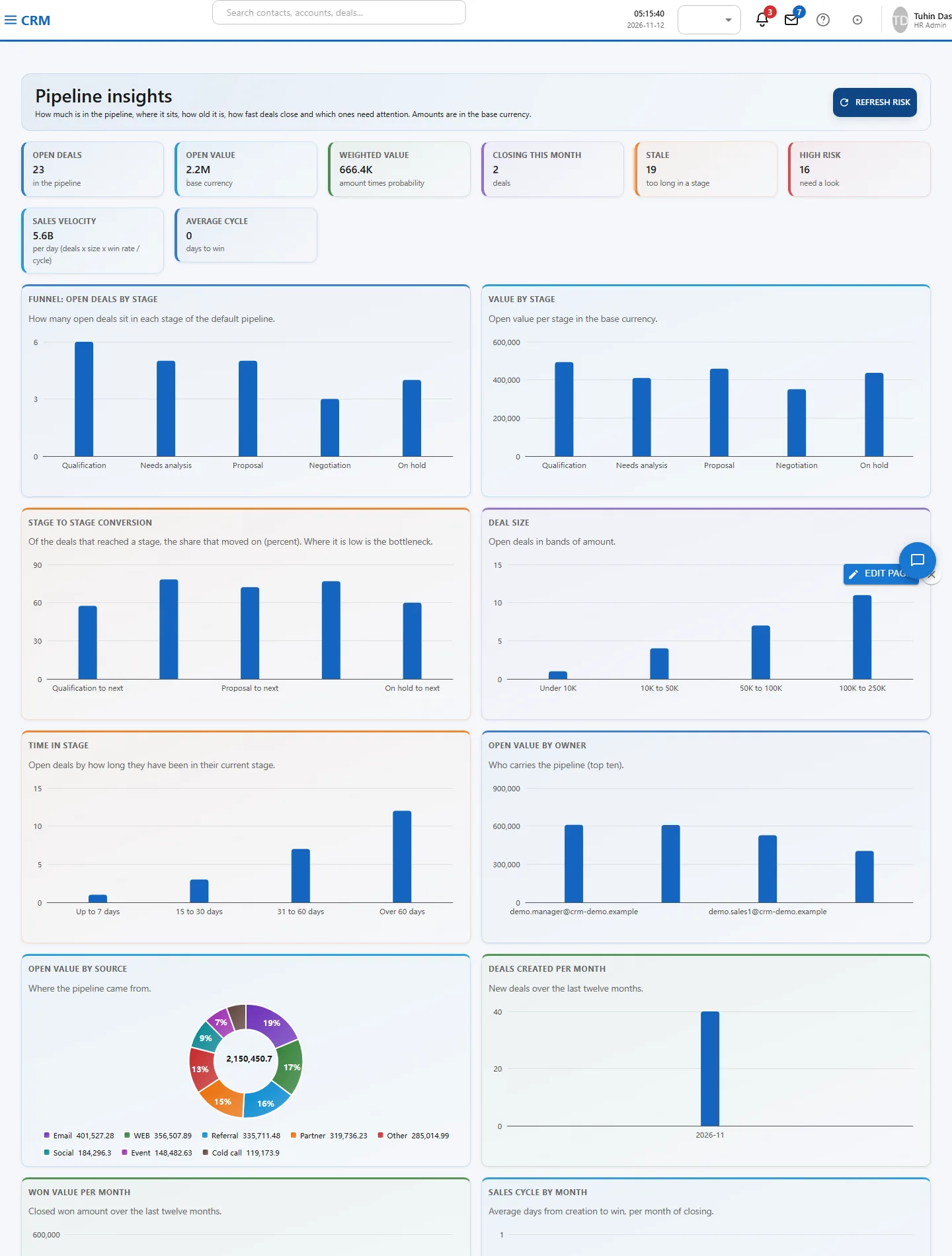
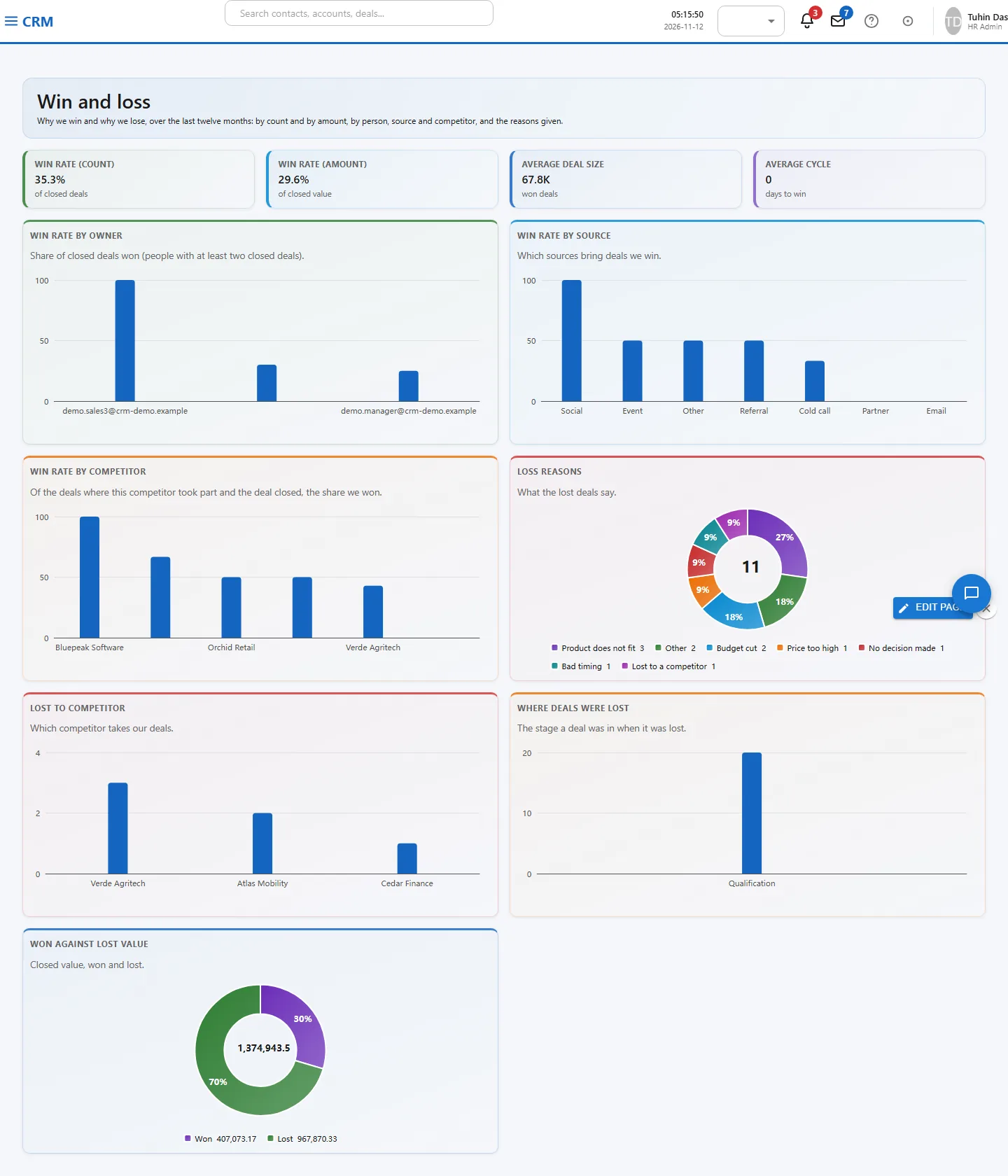
Pipeline insights (funnel, value by stage, stage-to-stage conversion, deal size, time in stage, value by owner and by source, deals created per month, won value per month, sales cycle, deals at high risk, stale deals, closing soon, deals without a next step, biggest deals) and Win and loss (win rate by count and amount, by owner, source and competitor, loss reasons, lost to which competitor, where deals were lost).
Approvals
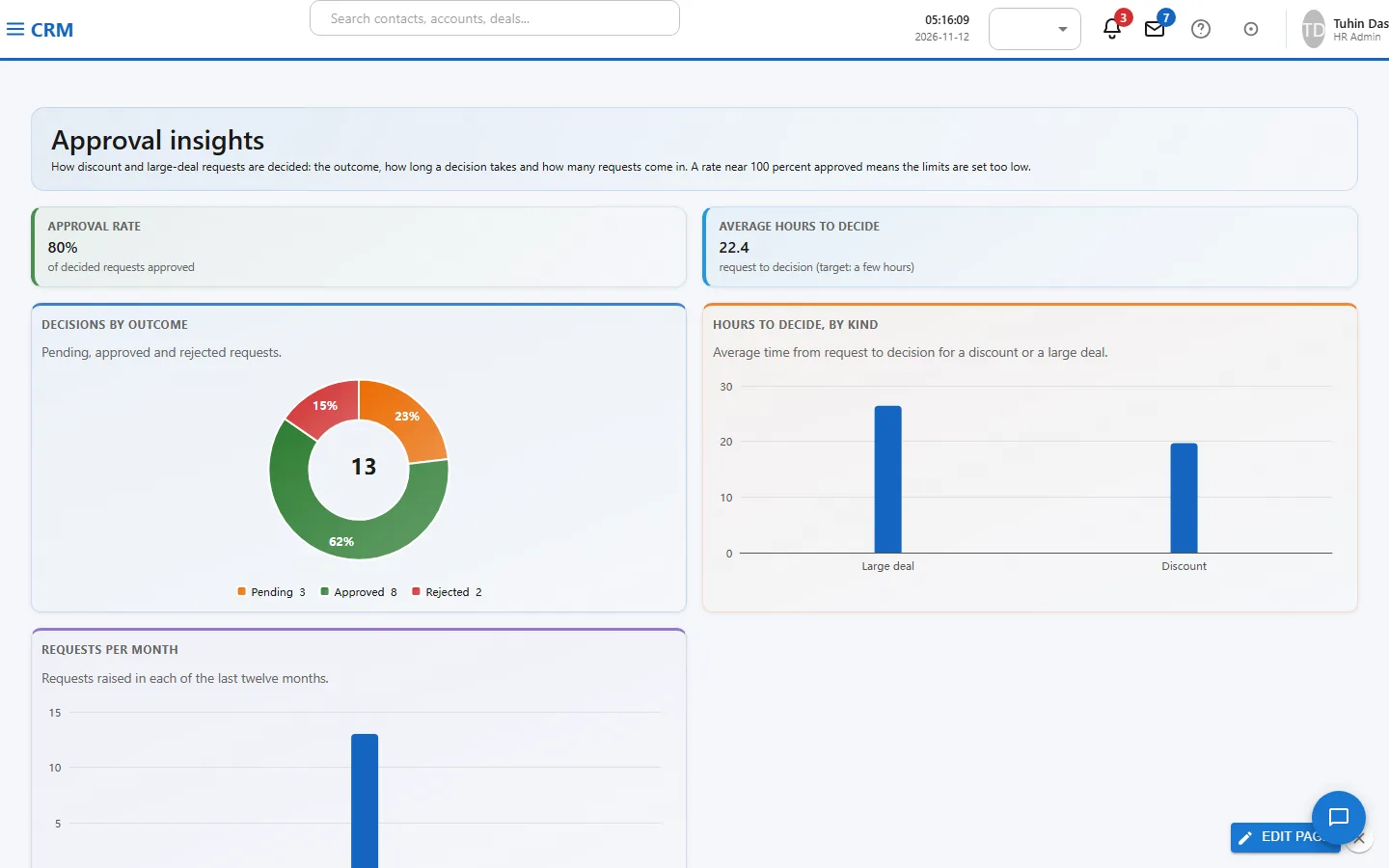
A big discount or a large deal needs approval before it can be won. Press Request approval and give the reason; the request starts a workflow and a manager decides in the Workflow Approval Inbox (above the escalation limit an administrator decides). Sales, Deal approvals lists the requests; Approval insights shows the decisions by outcome, the hours it takes to decide and the requests per month. An approval rate near 100 percent means the limits are set too low.
Duplicate deals
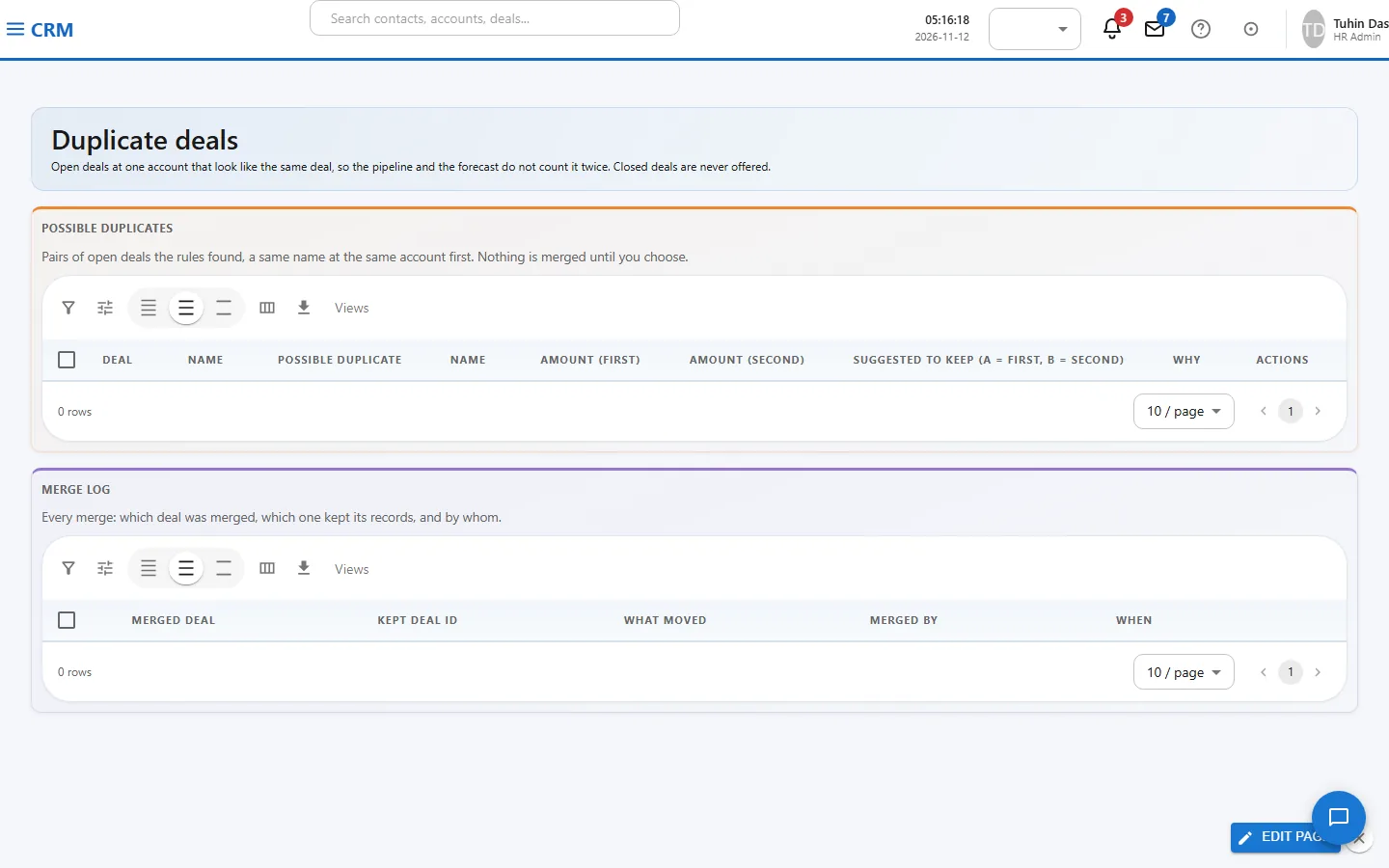
Sales, Duplicate deals lists open deals at one account that look like the same deal (same name, or the same amount and close month). Review and merge shows both deals, the reason and a preview of what a merge would move; you choose which deal to keep. A merge moves contact roles, competitors, history, notes and approvals to the kept deal and cannot be undone. Closed deals are never offered.
Sales packages on a deal
On the deal's Products tab: Packages on the deal lists them; Put a package on takes the package id, a quantity and an extra discount. The deal keeps the published version it chose. A low margin or a big extra discount sets the package to "approval required"; another person decides with Decide on a package. Take a package off removes it. See the Products guide, section 7b.
Notes on a deal
The deal's Notes tab: Show the notes, Add a note, Edit a note, Pin a note, Lock a note. Each note is visible to everyone who sees the deal, to the deal team, or only to you (a manager can still see private notes). Use @login in the text to mention someone. A pinned note stays at the top; a locked note cannot be edited by anyone until it is unlocked; only the author or a manager can edit or lock. The deal timeline shows a note only to people who may see it.
Pipelines, stages and templates
Settings > Pipelines lists your sales processes (exactly one is the default); Sales stages lists every stage with its probability, forecast category, the fields required to enter it, the stale days and exit criteria (a pipeline keeps one won and one lost stage). Settings > Pipeline templates creates a ready-made pipeline with one button: B2B, B2C, SMB, Enterprise, Channel, Partner, Cross-sell, Upsell, Renewal or Subscription. The new pipeline is an ordinary one: rename it, change its stages, make it the default.
5. On a phone or tablet
Every screen reflows to one column; the board scrolls sideways one stage at a time. The deal page tabs scroll; dialogs fit the screen.
6. Rules and limits
- A deal in a closed stage cannot be edited by moving it; reopen it first.
- The base amount is calculated from the exchange rate of the day; if a currency has no rate the deal keeps its last base amount and the screen says so.
- A deal won or lost updates the account's open-deal figures and the competitors' win and loss counts.
- Import: at most 5000 rows per file; use Check first; an import can be undone as a batch.
7. Troubleshooting
| Symptom | Cause | Fix |
|---|---|---|
| "Opportunity.Create is required" | The CRM application role is missing | Wait five minutes for the role mirror, or press it in CRM Roles |
| "No such account" when creating a deal | The person cannot read the account, or the number is wrong | Give the person an Accounts role; check the number (ACC-000001) |
| A chart says there is nothing yet | There are no deals in that state | Generate the demo pack and run the recalculate calls |
| The board shows an empty pipeline | The chosen pipeline has no open deals | Choose another pipeline |
| Winning a deal is refused | An approval is pending or rejected | Decide the approval in the inbox, or ask for a new request |
| A move to a stage is refused | The stage requires fields | Fill in the fields named in the message |
| A button is missing | It is not part of your SparkCRM edition, or your role does not allow it | Ask your administrator |
| Merge refused | Only the CRM Opportunity Administrator can merge | Ask for the role |
8. Related guides
- CRM Accounts: set up and daily use
- CRM Contacts: set up and daily use
- CRM Leads: set up and daily use: a qualified lead is converted into an account, a contact and a deal.
Products on a deal, the deal team and the buying committee
- Products tab: "Add a product" prices the line from the price lists of CRM Products for this customer, quantity and currency (the list price), then applies the discount or the sales price you give. A discount over the approval limit (Common Data
crm_opp_discount_approval_percent), or a sales price under the product's floor price, marks the line approval required; a product priced only by its own list price is a warning. The deal amount becomes the sum of the lines (amount source Products) and the deal's discount the weighted discount of the lines, so the existing discount approval sees it. While lines exist a typed amount is refused, unless an administrator sets Common Datacrm_opp_allow_manual_amountto true. A removed line stays, switched off, and the amount is recalculated. "Product mix" shows each product's share. - Team and buyers tab: "Add to the team" gives a person a role (sales engineer, solution architect, customer success, executive sponsor ...), what they are responsible for and a revenue credit; the credit of the team cannot go over 100% and only one member is primary. The owner and the only primary member cannot be removed. "Buying committee" lists the contacts with role, influence, stance and when they were last engaged; "Committee gaps" says what is missing: no decision maker, no champion, a blocker, a single-threaded deal, nobody engaged for 30 days, the economic buyer not engaged.
- Attention lists (API, for the dashboards): overdue deals by how late, stalled deals (no activity for
crm_opp_stalled_days, default 21) each with a recovery play (multi-thread, re-forecast, break-up email, call about the open point), and high value deals by a fixed amount or the top percentile of the open pipeline. - Documents tab: proposal, quote, contract, NDA, technical and security papers of the deal, each with a status (draft, sent, viewed, signed, rejected, expired), a version, a valid-until date and whether it is shared with the customer; the file itself is in the document store (give its id). "What is missing" compares the stage with the documents it needs (Common Data
crm_opp_required_documents, for exampleproposal=PROPOSAL;negotiat=PROPOSAL|CONTRACT; default: a proposal at the proposal stage, a proposal and a contract in negotiation). Documents that expire within 14 days are listed for the dashboards.