
Appearance
Late & Early Records, Overtime & Regularization (HCM)
This page documents three shipped attendance exception screens (hcm-attendance) — the "something wasn't a normal on-time day" cases. Not for plugin developers.
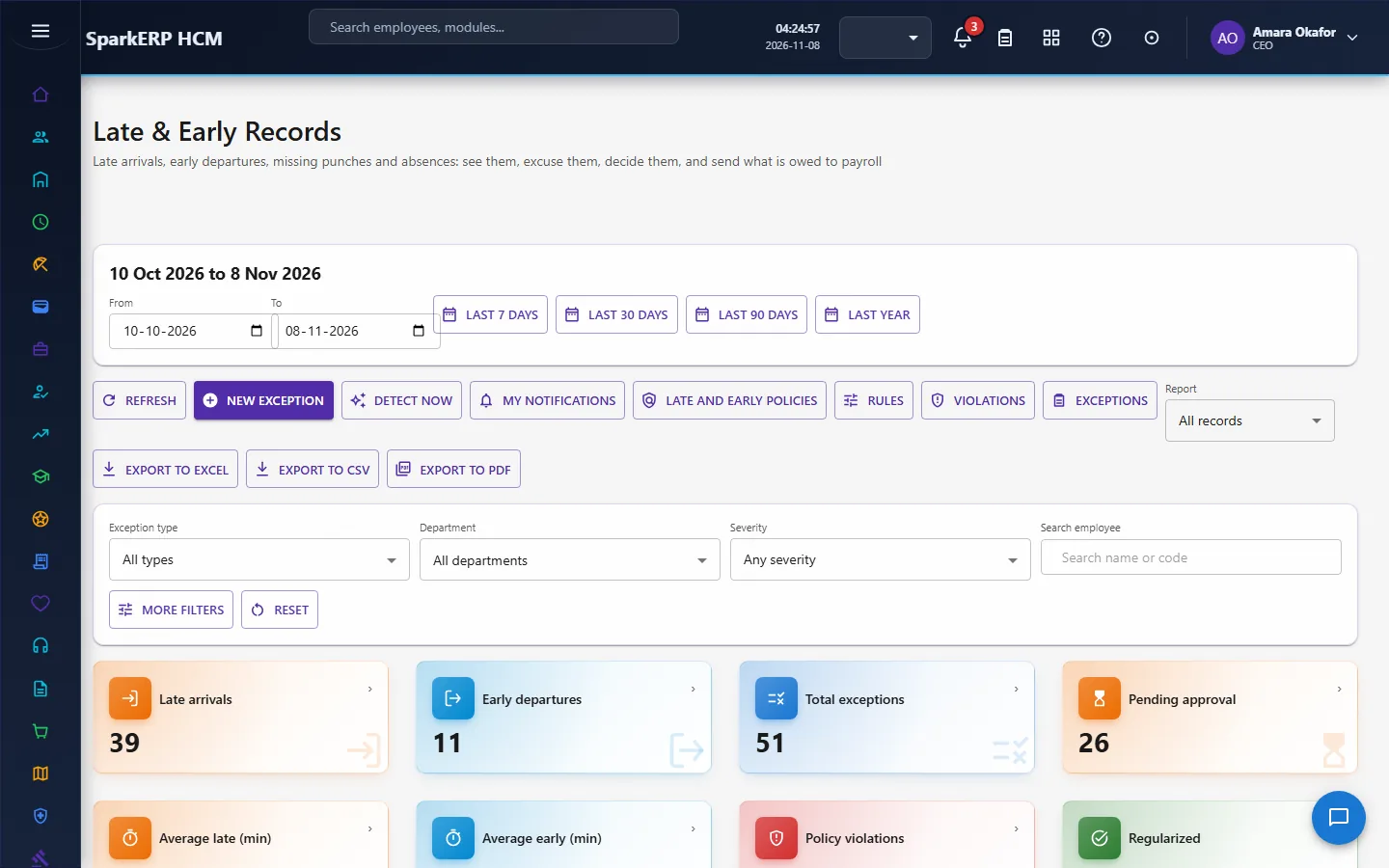
Late & Early Records
Every detected late-arrival or early-departure, with severity, how many minutes it's chargeable for, whether it's been regularized, and whether it affects payroll.
Open it at /hcm-attendance/late-early-records (or from the HCM menu).
- Sections: Showing the people in your reporting line, Exports take the selected rows when some are selected, Late and early over time, Records week by week (month by month for a long period), By day of the week, Which days late and early records pile up on, Severity, How late or early, Records by the size of the deviation, When late people arrive, Late arrivals by the hour they clocked in, Hours lost by department and 23 more.
- Cards: Late arrivals, Early departures, Total exceptions, Pending approval, Average late (min), Average early (min), Policy violations, Regularized, Overdue decisions, Missing punches, Unapproved absences, Waived and 4 more.
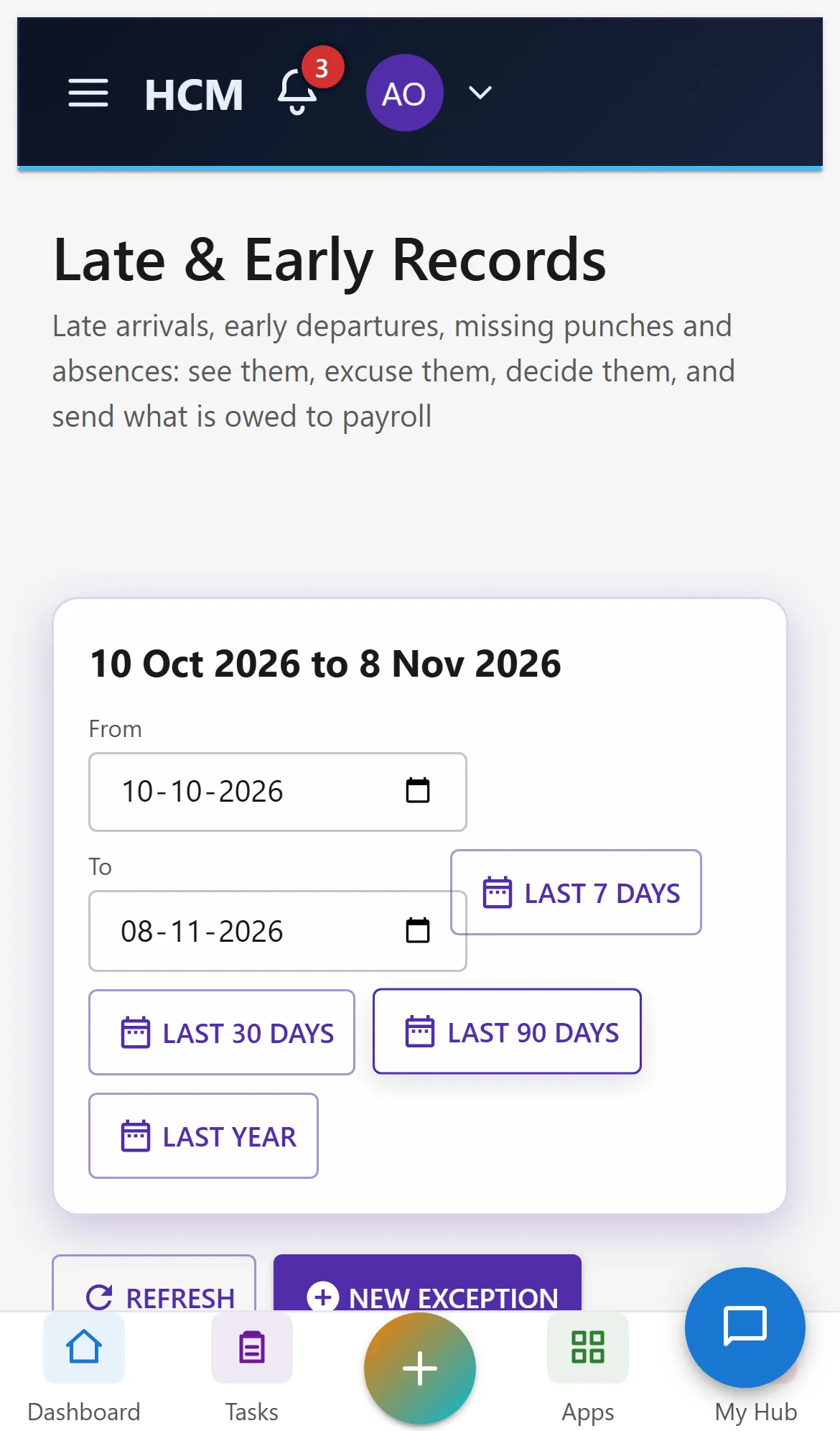
- Actions: Try again, Last 7 days, Last 30 days, Last 90 days, Last year, Refresh, New exception, Detect now, My notifications, Late and early policies, Rules, Violations and 49 more.
How to: Approve
- Open Time & Attendance > Late & Early Records.
- Select Approve.
- In the window Decide fill in:
| Field | What to enter |
|---|---|
| Minutes to excuse | Type it (for example: 10). |
| Comment (needed to reject or to excuse only part) | Type it. |
- Select Confirm.
- The window closes and the table refreshes with the result. If the screen shows a message instead, read it: it says what is missing.
How to: Ask to excuse
- Open Time & Attendance > Late & Early Records.
- Select Ask to excuse.
- In the window Ask to excuse fill in:
| Field | What to enter |
|---|---|
| Minutes to excuse (empty is all of what is counted) | Type it (for example: 14). |
| Reason (required) | Type it. |
- Select Send the request.
- The window closes and the table refreshes with the result. If the screen shows a message instead, read it: it says what is missing.
How to: Waive
- Open Time & Attendance > Late & Early Records.
- Select Waive.
- In the window Waive fill in:
| Field | What to enter |
|---|---|
| Reason for the waiver (required) | Type it. |
- Select the confirm button.
- The window closes and the table refreshes with the result. If the screen shows a message instead, read it: it says what is missing.
Overtime
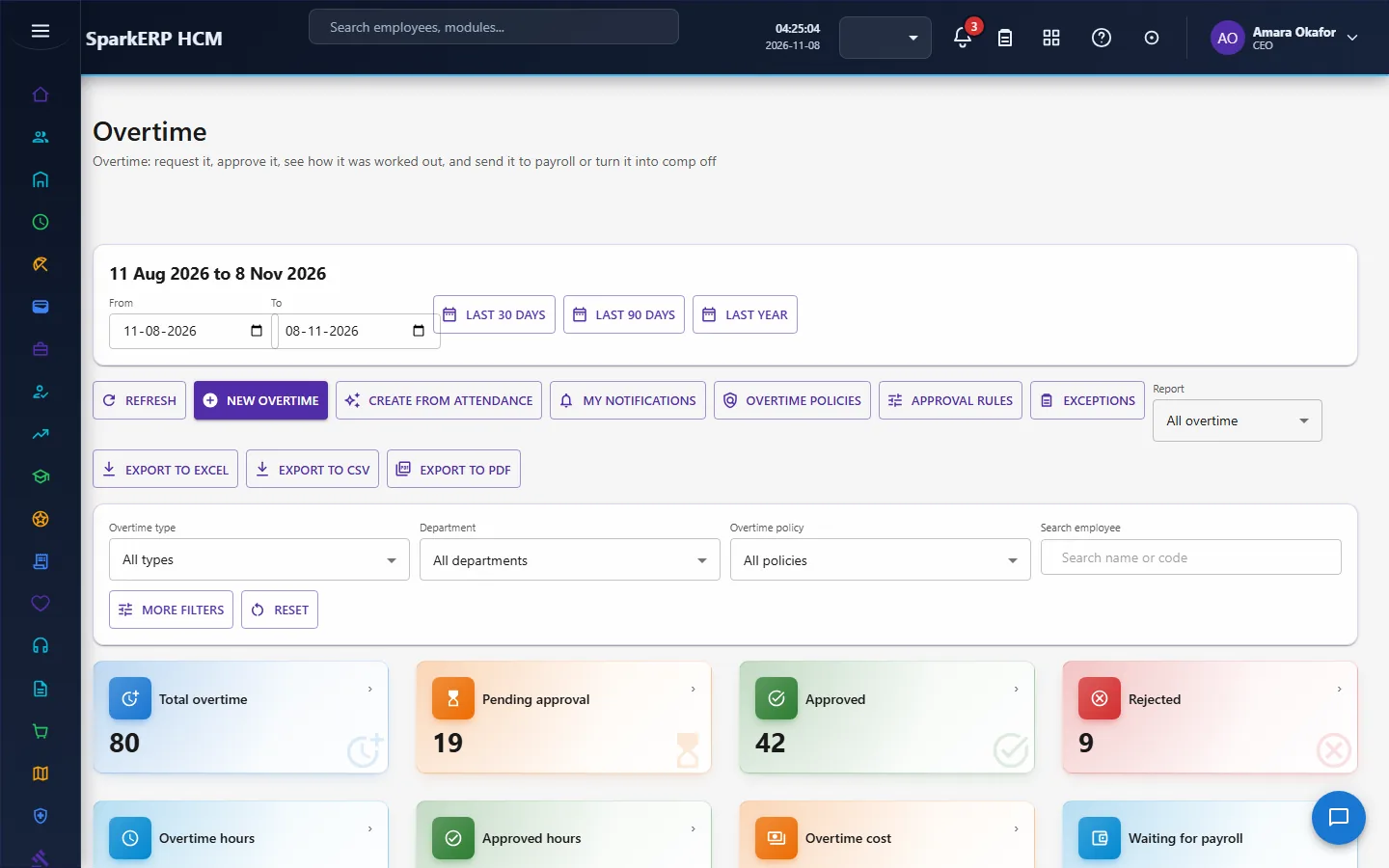
Overtime records — type, rate, and approval status — checked against whatever overtime policy applies to that employee. Submitting overtime routes through an approval workflow.
Open it at /hcm-attendance/overtime (or from the HCM menu).
- Sections: Showing the people in your reporting line, Overtime hours over time, Cost by department, Kinds of overtime, Who works most overtime, The ten people with the most hours in the period, How long approvals have waited, Hours by department and week, Where and when overtime piles up, Comp off earned, Close to the weekly limit, This week's hours and what is left under the policy limit and 14 more.
- Cards: Total overtime, Pending approval, Approved, Rejected, Overtime hours, Approved hours, Overtime cost, Waiting for payroll, Drafts, Overdue approvals, With exceptions, Taken as comp off.
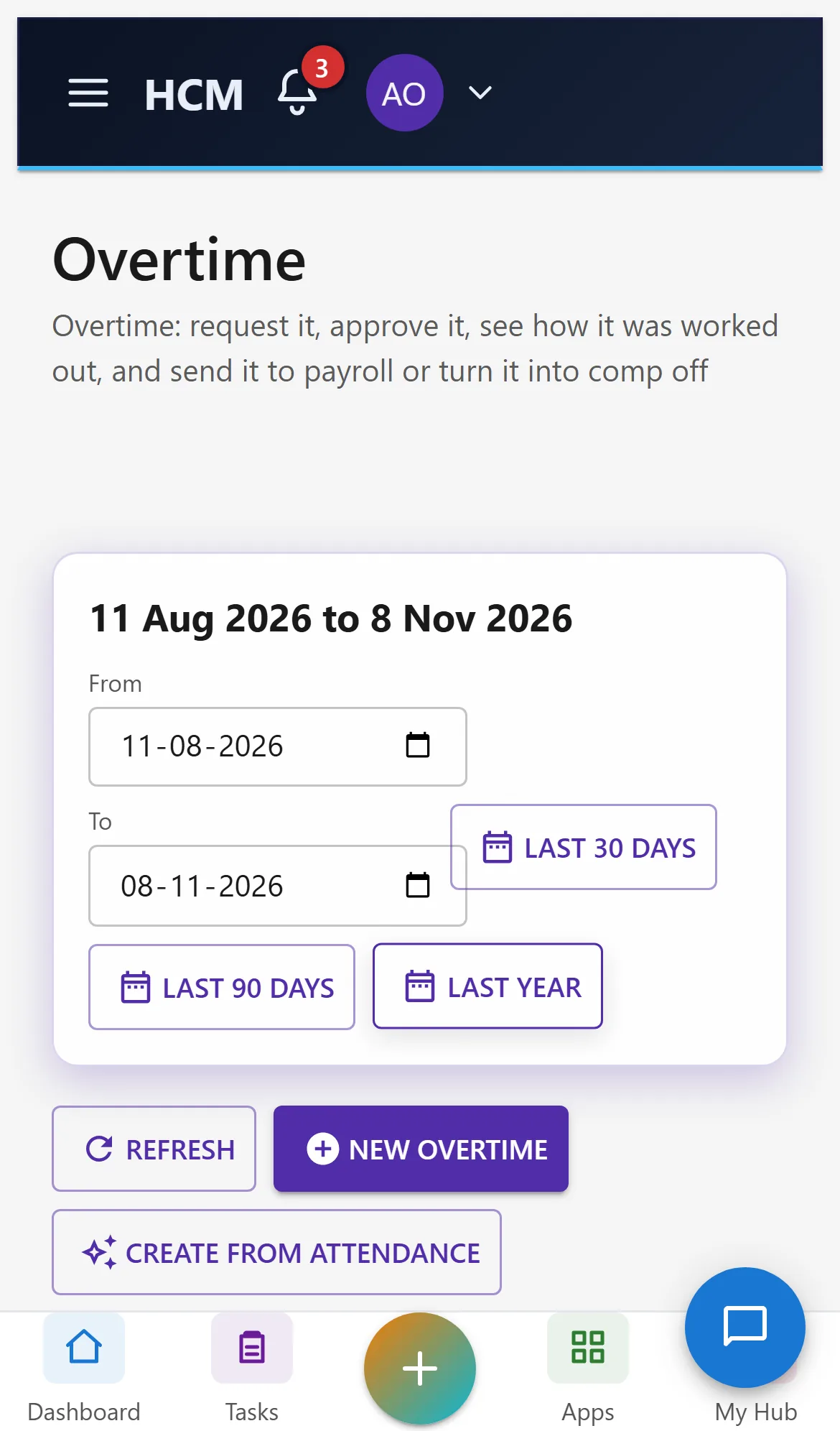
- Actions: Try again, Last 30 days, Last 90 days, Last year, Refresh, New overtime, Create from attendance, My notifications, Overtime policies, Approval rules, Exceptions, Export to Excel and 46 more.
How to: Approve
- Open Time & Attendance > Overtime.
- Select Approve.
- In the window Decide fill in:
| Field | What to enter |
|---|---|
| Approved time (hours:minutes, for example 01:30) | Type it (for example: 01:30). |
| Comment (needed to reject or approve less) | Type it. |
- Select Confirm.
- The window closes and the table refreshes with the result. If the screen shows a message instead, read it: it says what is missing.
How to: Change
- Open Time & Attendance > Overtime.
- Select Change.
- In the window Change overtime fill in:
| Field | What to enter |
|---|---|
| Overtime (minutes) | Type it. |
| Type of overtime | Choose one: From the day, Regular day, Weekend, Holiday, Rest day, Night, Emergency |
| Compensation | Choose one: Paid, Comp off |
| Reason | Type it. |
- Select Save.
- The window closes and the table refreshes with the result. If the screen shows a message instead, read it: it says what is missing.
How to: Cancel or take back
- Open Time & Attendance > Overtime.
- Select Cancel or take back.
- In the window Cancel overtime fill in:
| Field | What to enter |
|---|---|
| Reason | Type it. |
- Select the confirm button.
- The window closes and the table refreshes with the result. If the screen shows a message instead, read it: it says what is missing.
Regularization
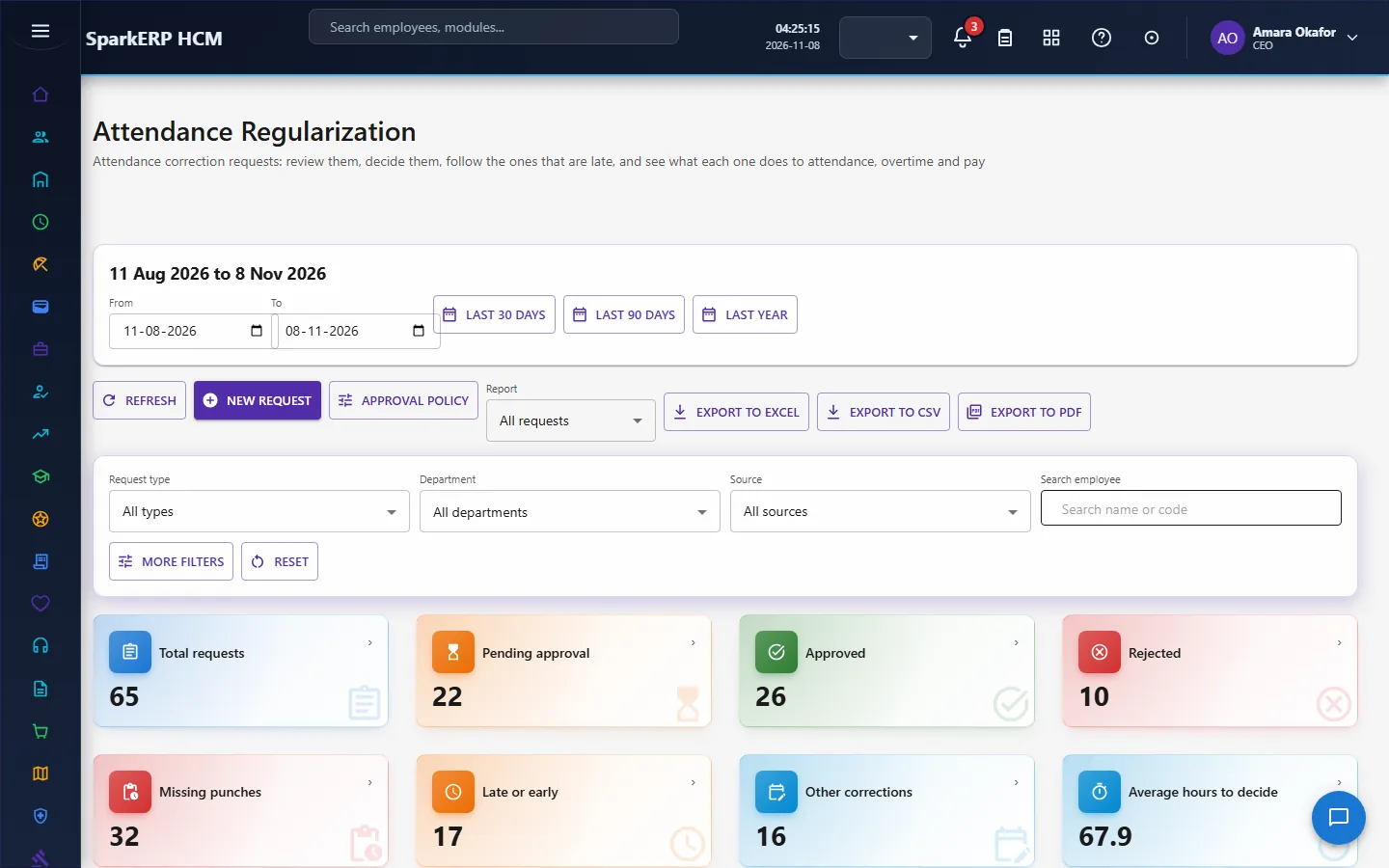
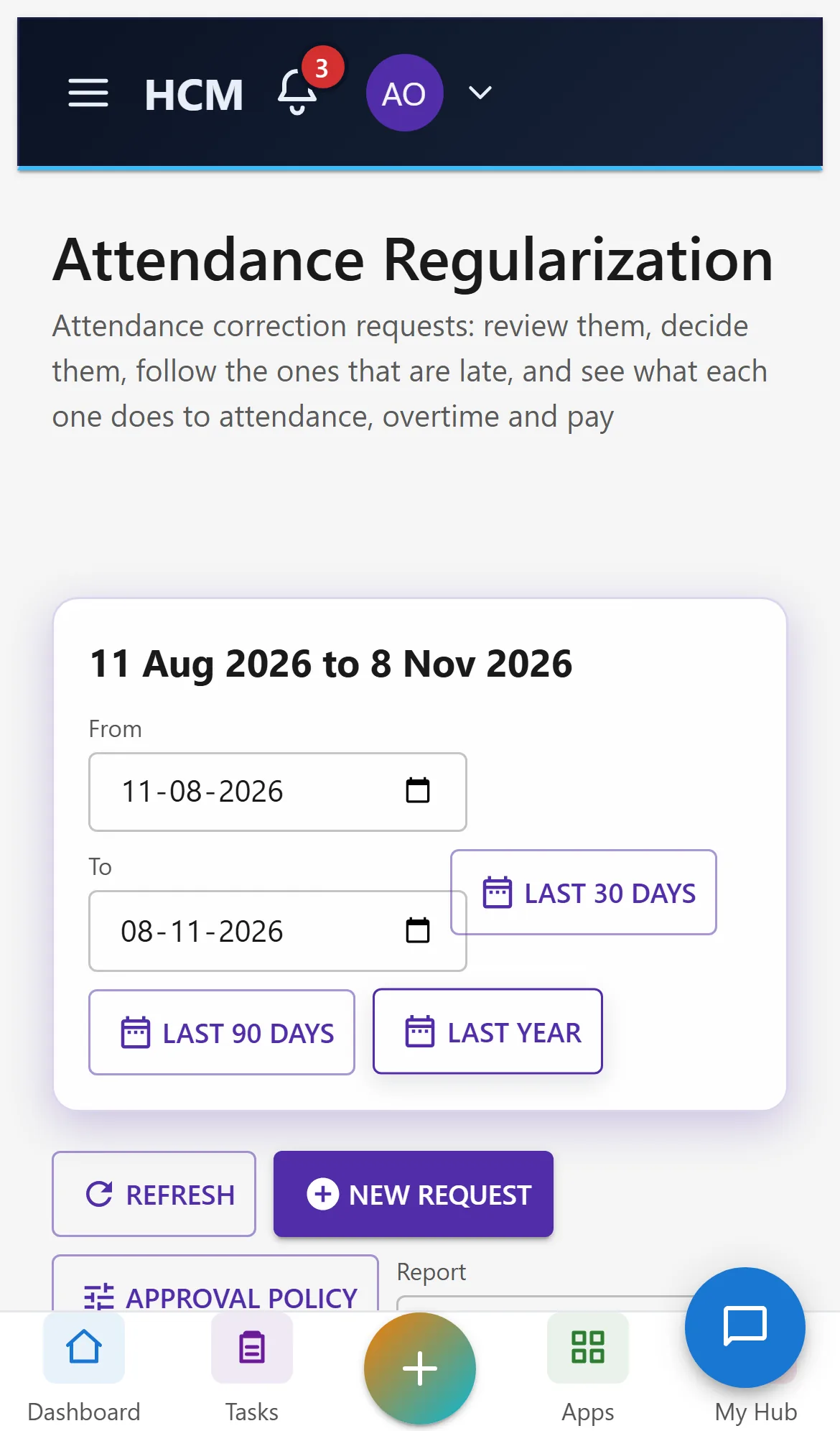
Where an employee (or their manager, on their behalf) corrects an attendance mistake — a missed punch, a wrong time — as a numbered, trackable request that goes through approval rather than editing the attendance record directly.
Open it at /hcm-attendance/regularization (or from the HCM menu).
- Sections: Attendance Regularization, Showing the people in your reporting line, Requests by type, Requests over time, Time to decide, How long they have waited, Who asks most, People with the most correction requests in the period, Why people ask, The reason chosen on the request, Correction requests, The request and 8 more.
- Cards: Total requests, Pending approval, Approved, Rejected, Missing punches, Late or early, Other corrections, Average hours to decide, Sent back, Overdue, Failed to apply.
- Actions: Try again, Last 30 days, Last 90 days, Last year, Refresh, New request, Approval policy, Export to Excel, Export to CSV, Export to PDF, More filters, Reset and 35 more.
How to: Approve
- Open Time & Attendance > Regularization.
- Select Approve.
- In the window Decide fill in:
| Field | What to enter |
|---|---|
| Approved in time (24 hour) | Type it (for example: 09:00). |
| Approved out time (24 hour) | Type it (for example: 18:00). |
| Comment (needed to reject, send back or approve in part) | Type it. |
- Select Confirm.
- The window closes and the table refreshes with the result. If the screen shows a message instead, read it: it says what is missing.
How to: Change and send again
- Open Time & Attendance > Regularization.
- Select Change and send again.
- In the window Change and send again fill in:
| Field | What to enter |
|---|---|
| What to correct | Choose one: Missing in punch, Missing out punch, Wrong times, Incorrect in punch, Incorrect out punch, Late arrival, Early departure, Shift mismatch, Official duty, Business travel... |
| In time (24 hour) | Type it (for example: 09:05). |
| Out time (24 hour) | Type it (for example: 18:10). |
| Why | Choose one: Forgot to punch, Device failure, System error, Client visit, Travel, Medical, Other |
| Reason | Type it. |
| Comment for the approver | Type it. |
- Select Send again.
- The window closes and the table refreshes with the result. If the screen shows a message instead, read it: it says what is missing.
How to: Cancel the request
- Open Time & Attendance > Regularization.
- Select Cancel the request.
- In the window Cancel a request fill in:
| Field | What to enter |
|---|---|
| Reason | Type it. |
- Select the confirm button.
- The window closes and the table refreshes with the result. If the screen shows a message instead, read it: it says what is missing.