Appearance
Asset Inventory & Asset Categories (HCM)
This page documents two shipped Assets screens (hcm-assets). Not for plugin developers.
Asset Inventory
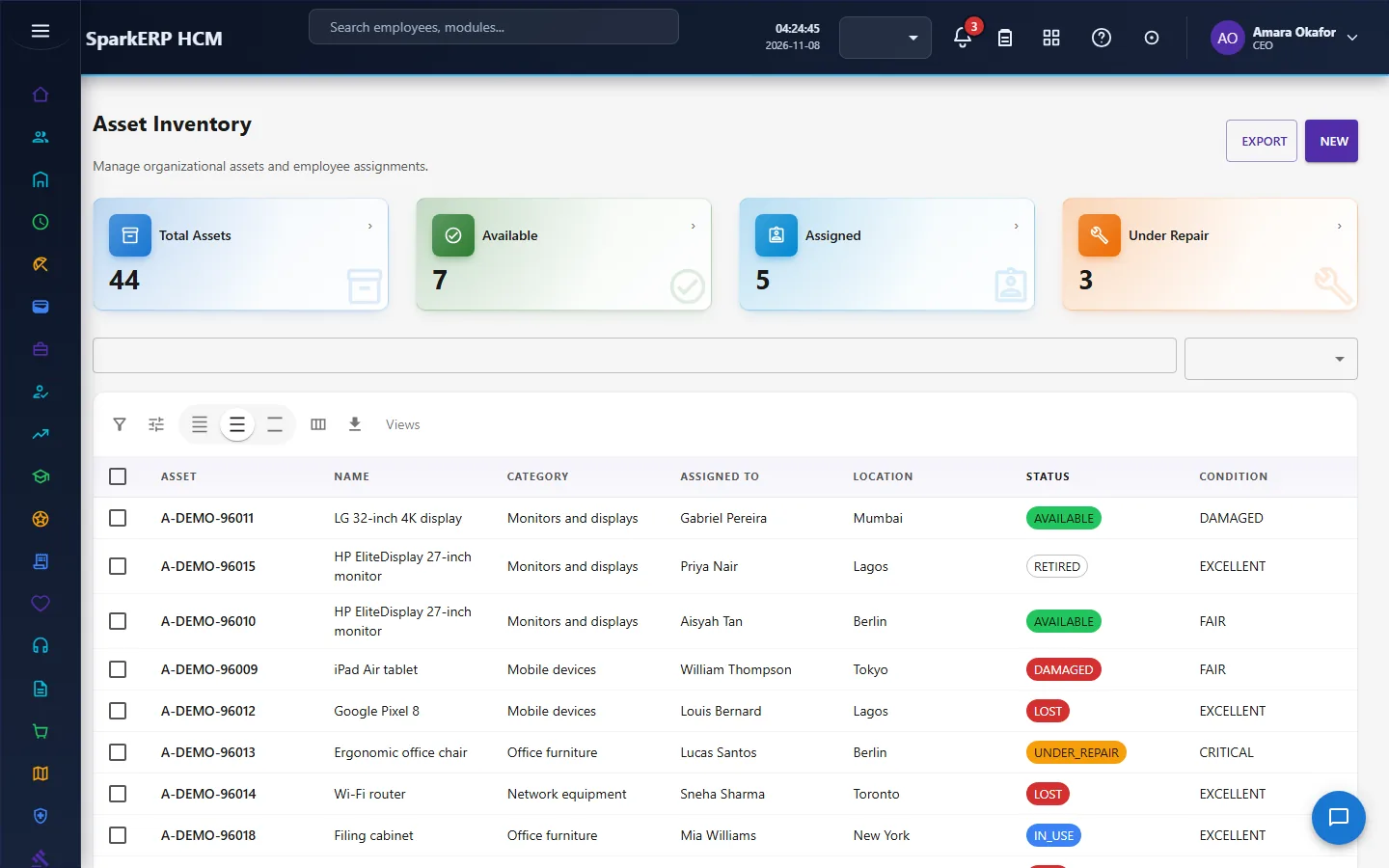
New Asset — Asset Name, Asset Number, Asset Type, Category, Manufacturer, Model, Serial Number, Purchase Date, Warranty Expiry, and Condition. The grid shows Category, Location, Condition, Status, and who it's Assigned To. KPIs: Total Assets, Available, Assigned, Under Repair — so you can see at a glance how much of your inventory is actually sitting idle vs. deployed.
Open it at /hcm-assets/asset-inventory (or from the HCM menu).
- Sections: Details, Asset Name, Category, Asset Number, Asset Type, Serial Number, Manufacturer, Model, Purchase Date, Warranty Expiry, Location, Condition and 10 more.
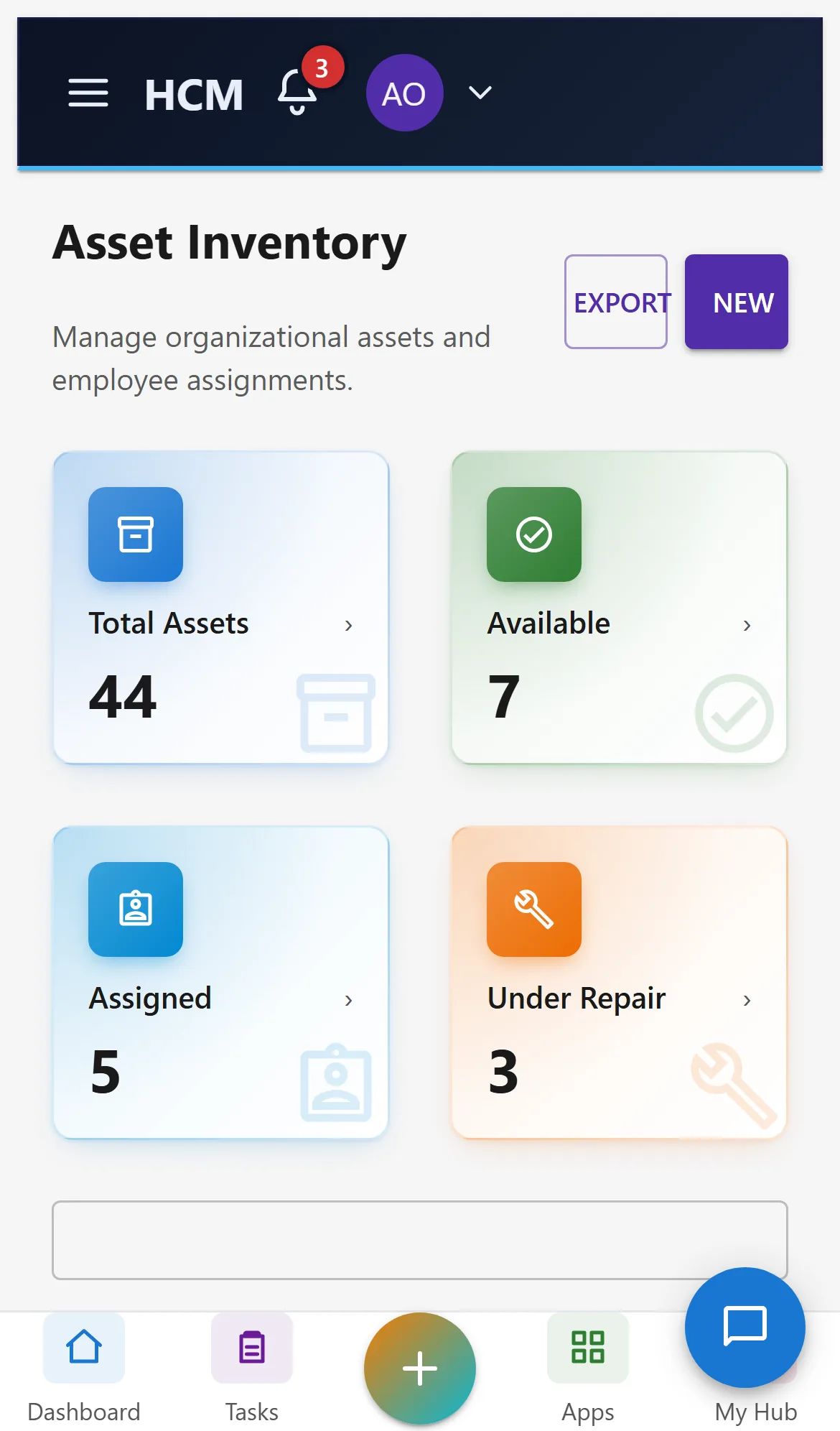
- Cards: Total Assets, Available, Assigned, Under Repair.
- Table columns: Asset, Name, Category, Assigned To, Location, Status, Condition.
- Actions: Export, New, Cancel, Save, Report Damage, Report Lost, Retire, Save Document, Download, Close.
Asset Categories
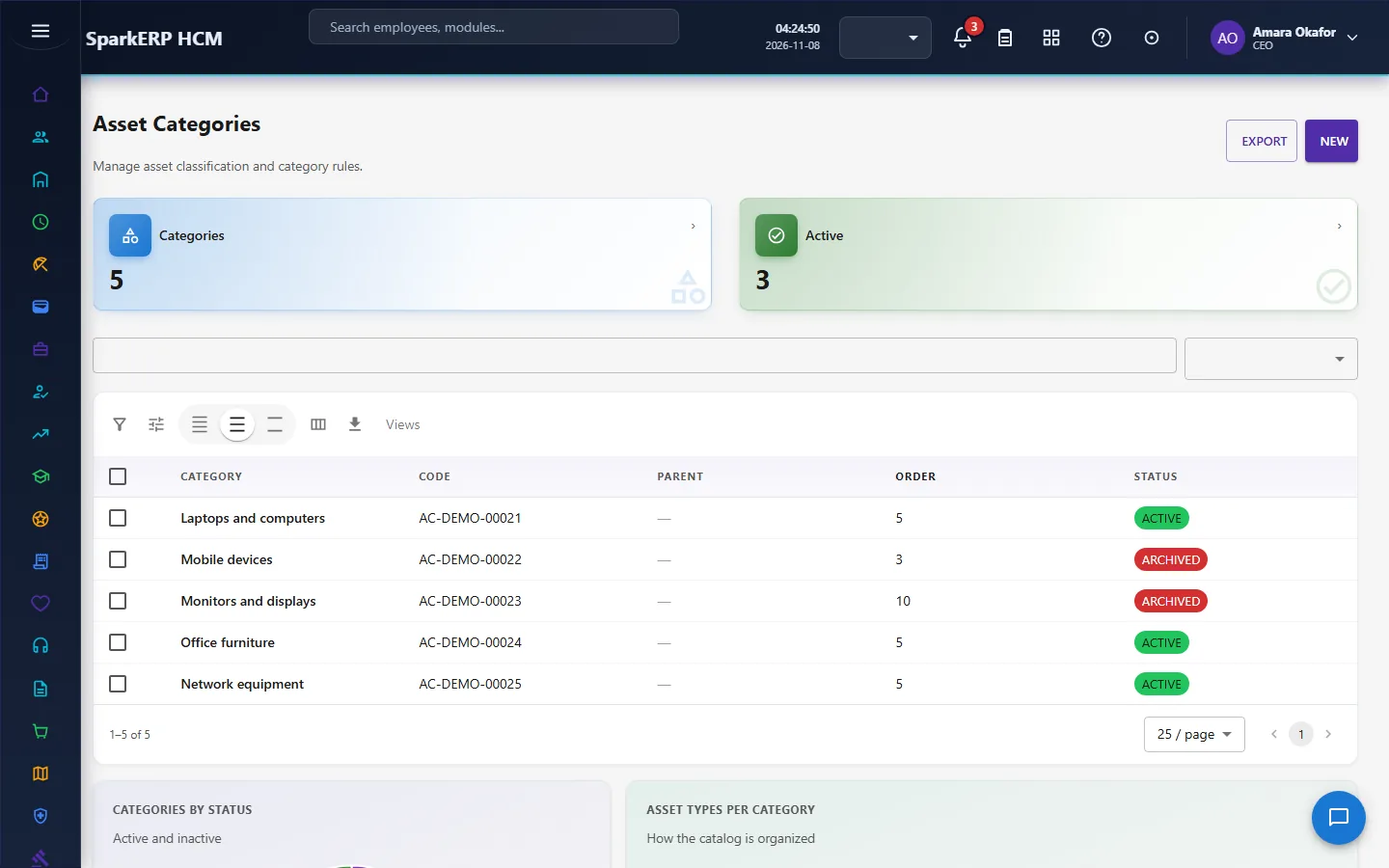
New Asset Category — Category Name/Code, an optional Parent Category (to build a category hierarchy), Display Order, and three toggles that control what a category actually enables downstream: Allow Employee Assignment (can assets in this category be allocated to a person at all), Maintenance Enabled (does this category get maintenance tracking), and Audit Required (does this category get pulled into audit campaigns). Set these deliberately — they change what other Assets screens let you do with assets in this category, not just cosmetic grouping.
Open it at /hcm-assets/asset-categories (or from the HCM menu).
- Sections: Details, Category Name, Category Code, Parent Category, Display Order, Description, Status, Allow Employee Assignment, Audit Required, Maintenance Enabled, Overview, Asset Types and 7 more.
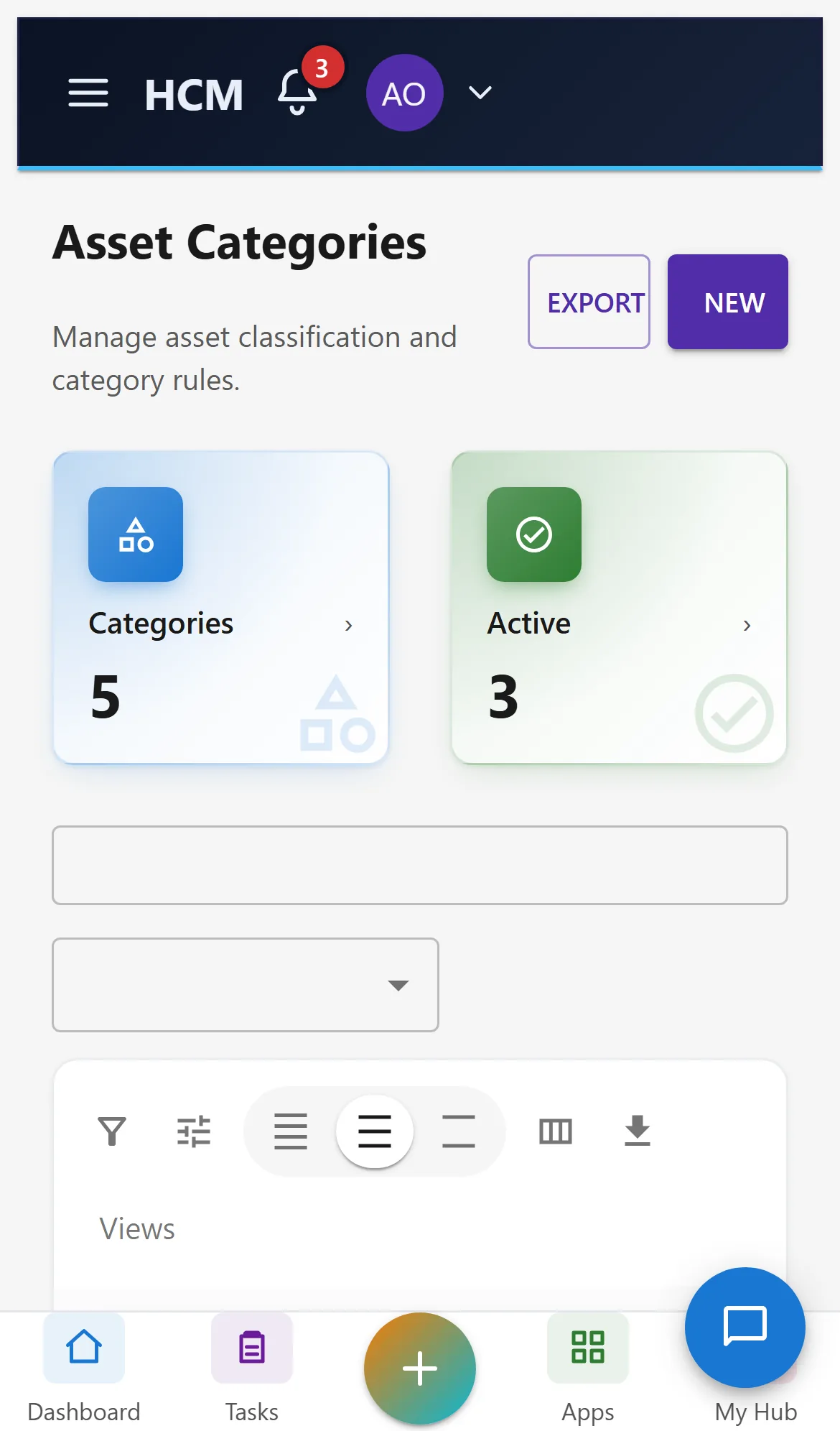
- Cards: Categories, Active.
- Table columns: Category, Code, Parent, Order, Status.
- Actions: Export, New, Cancel, Save, Add, Activate, Deactivate, Close.