
Appearance
Document Settings, Custom Fields, Custom Forms & Numbering Sequences (HCM)
This page documents four shipped Settings screens (hcm-settings-extended) — how you extend HCM without code. Not for plugin developers.
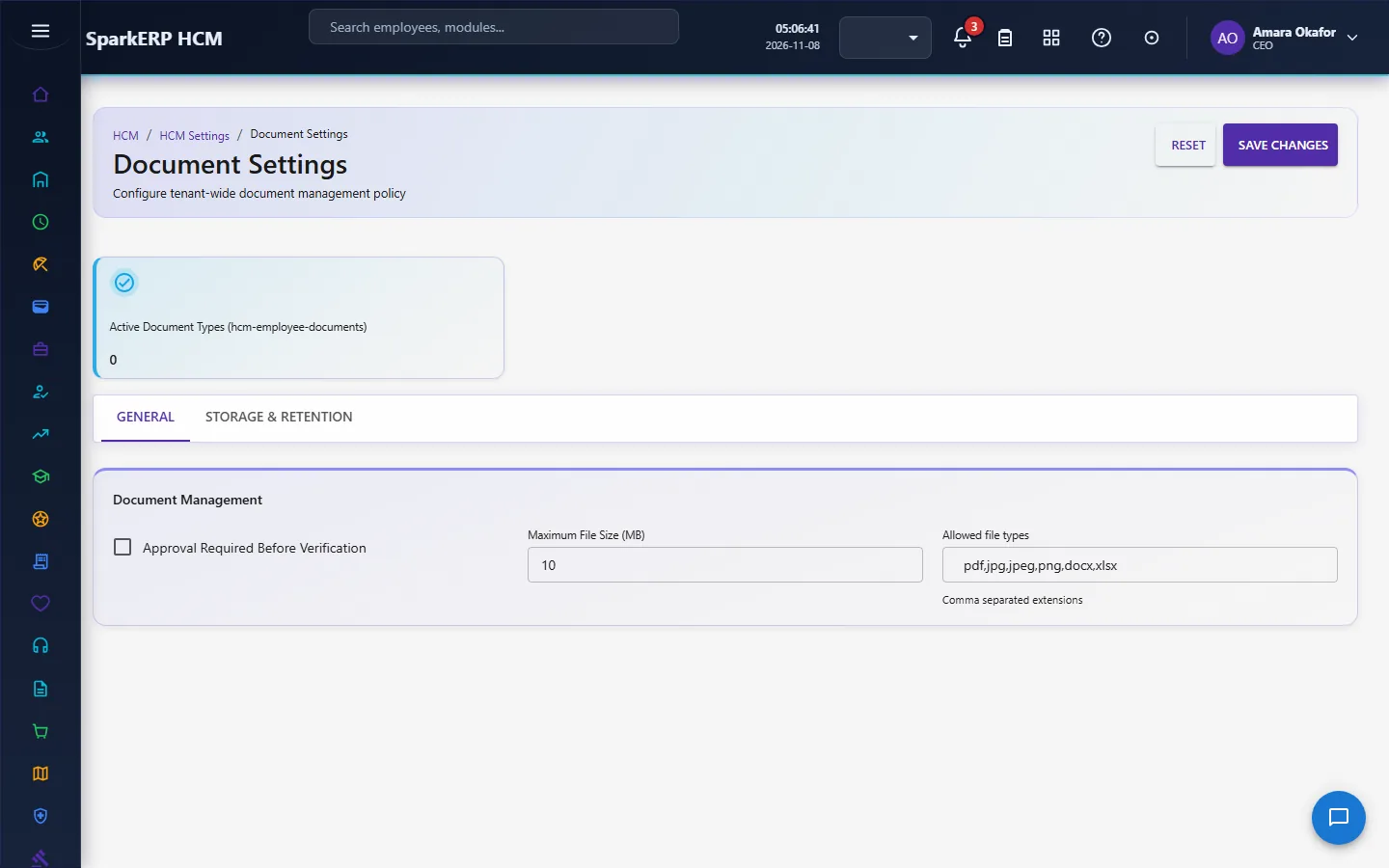
Document Settings
Tenant-wide document management policy.
Open it at /hcm-settings-extended/document-settings (or from the HCM menu).
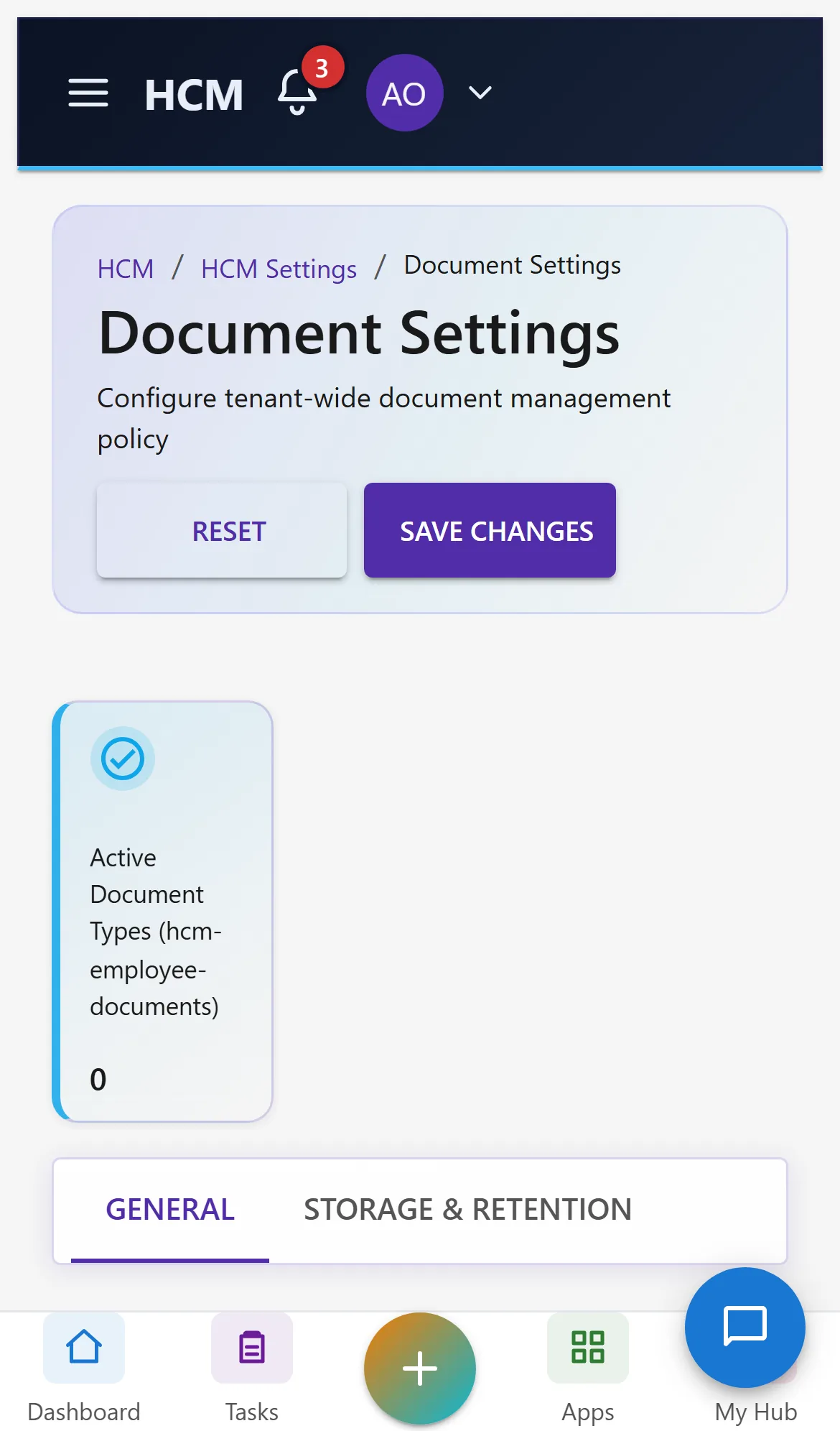
- Sections: Configure tenant-wide document management policy, Active Document Types (hcm-employee-documents), Maximum File Size (MB), Allowed file types, Comma separated extensions.
- Actions: Reset, Save Changes.
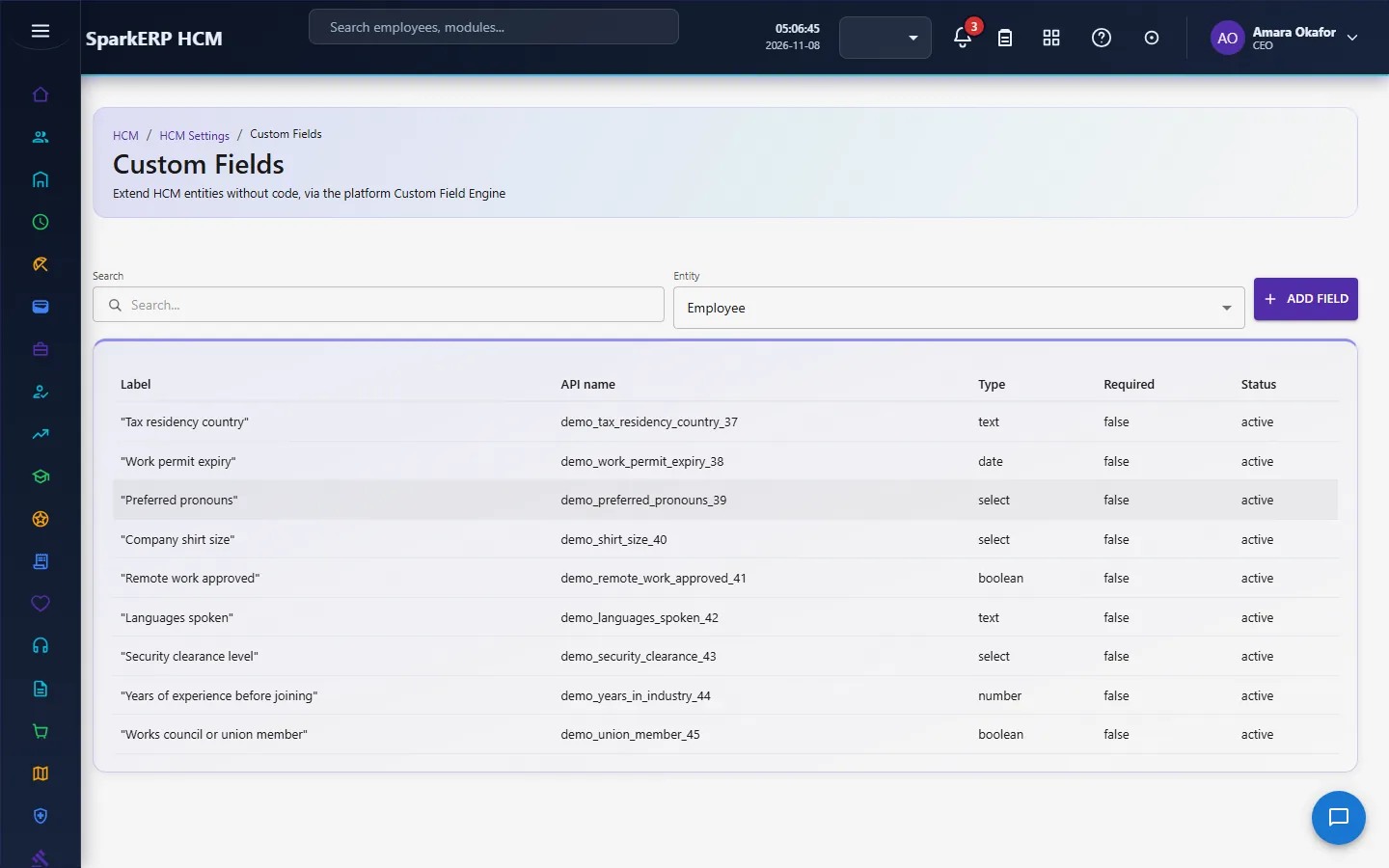
Custom Fields
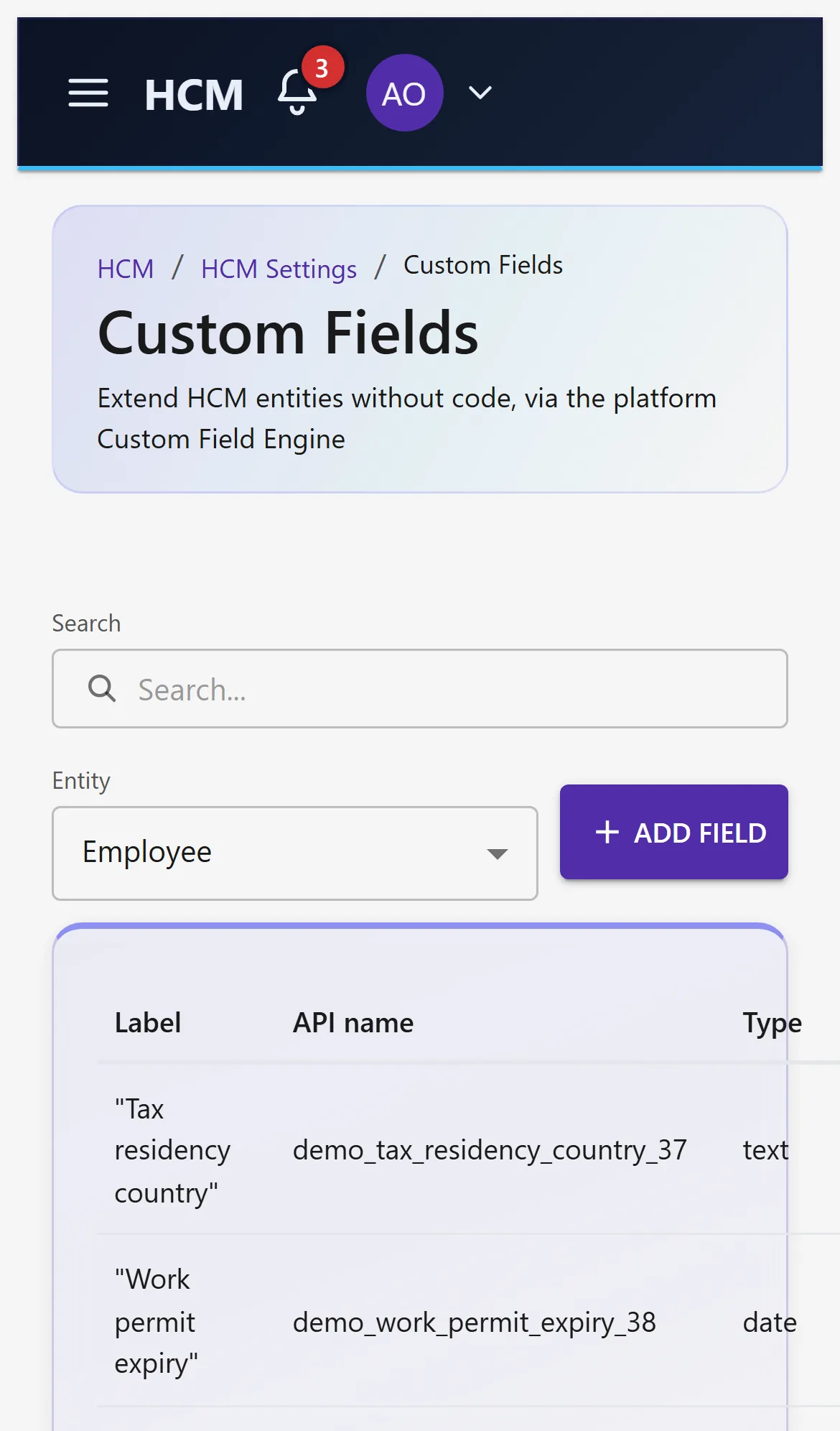
Extend HCM entities with your own fields, without writing code.
Open it at /hcm-settings-extended/custom-fields (or from the HCM menu).
- Actions: Add Field, Cancel, Save Changes.
How to: Add Field
- Open HCM Settings > Custom Fields.
- Select Add Field.
- In the window Custom Field fill in:
| Field | What to enter |
|---|---|
| Entity | Choose one: Employee, Position, Organization Unit, Leave Request |
| API Name | Type it (for example: API Name (e.g. blood_group)). |
| Field Label | Type it. |
| Field Type | Choose one: Text, Number, Date, Boolean, Select, Lookup |
| Options | Type it (for example: Options JSON (SELECT only), e.g. [{"value":"A","label":"A"}]). |
| Required | Choose one: No, Yes |
| Display Order | Type it. |
- Select Save Changes.
- The window closes and the table refreshes with the result. If the screen shows a message instead, read it: it says what is missing.
Custom Forms
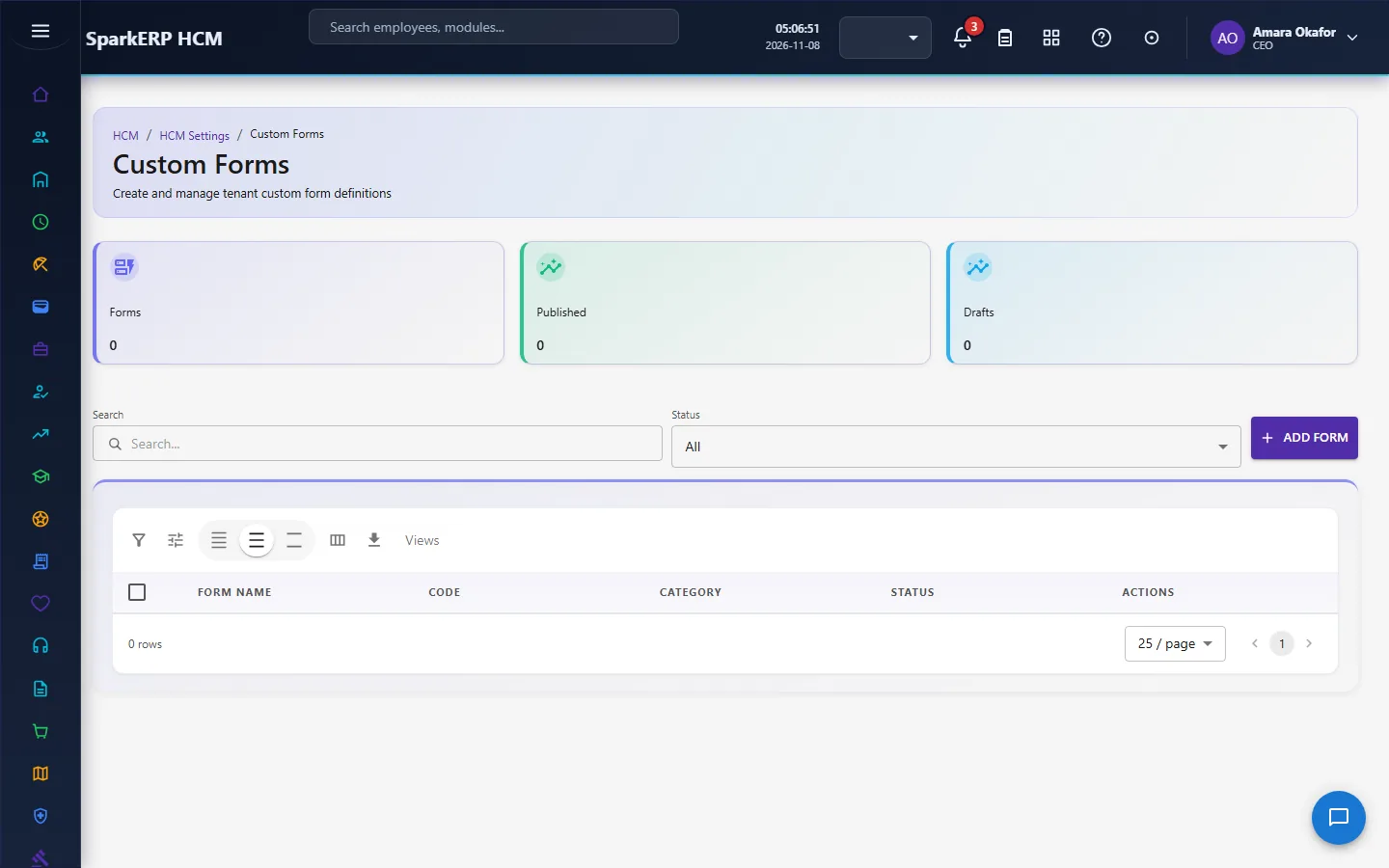
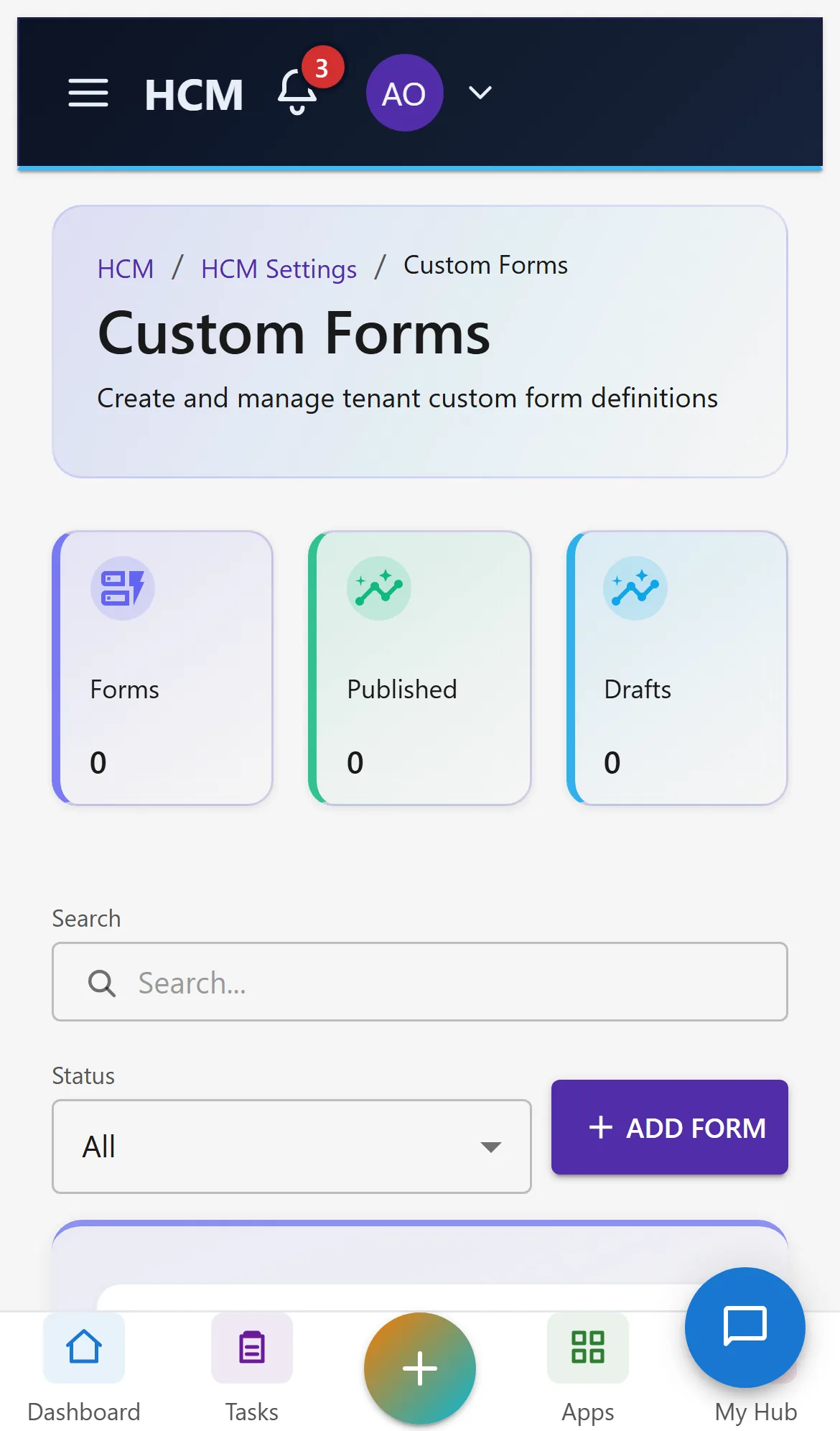
Create and manage your own custom form definitions.
Open it at /hcm-settings-extended/custom-forms (or from the HCM menu).
- Sections: Create and manage tenant custom form definitions, Forms, Published, Drafts.
- Table columns: Form Name, Code, Category, Status, Actions.
- Actions: Add Form, Cancel, Save Changes.
How to: Add Form
- Open HCM Settings > Custom Forms.
- Select Add Form.
- In the window Custom Form fill in:
| Field | What to enter |
|---|---|
| Form Name | Type it. |
| Form Code | Type it. |
| Category | Choose one: Employee, Lifecycle, Learning, Recruitment, Performance, Compliance, Other |
| Target Entity | Type it. |
| Status | Choose one: Draft, Published, Archived |
- Select Save Changes.
- The window closes and the table refreshes with the result. If the screen shows a message instead, read it: it says what is missing.
Numbering Sequences
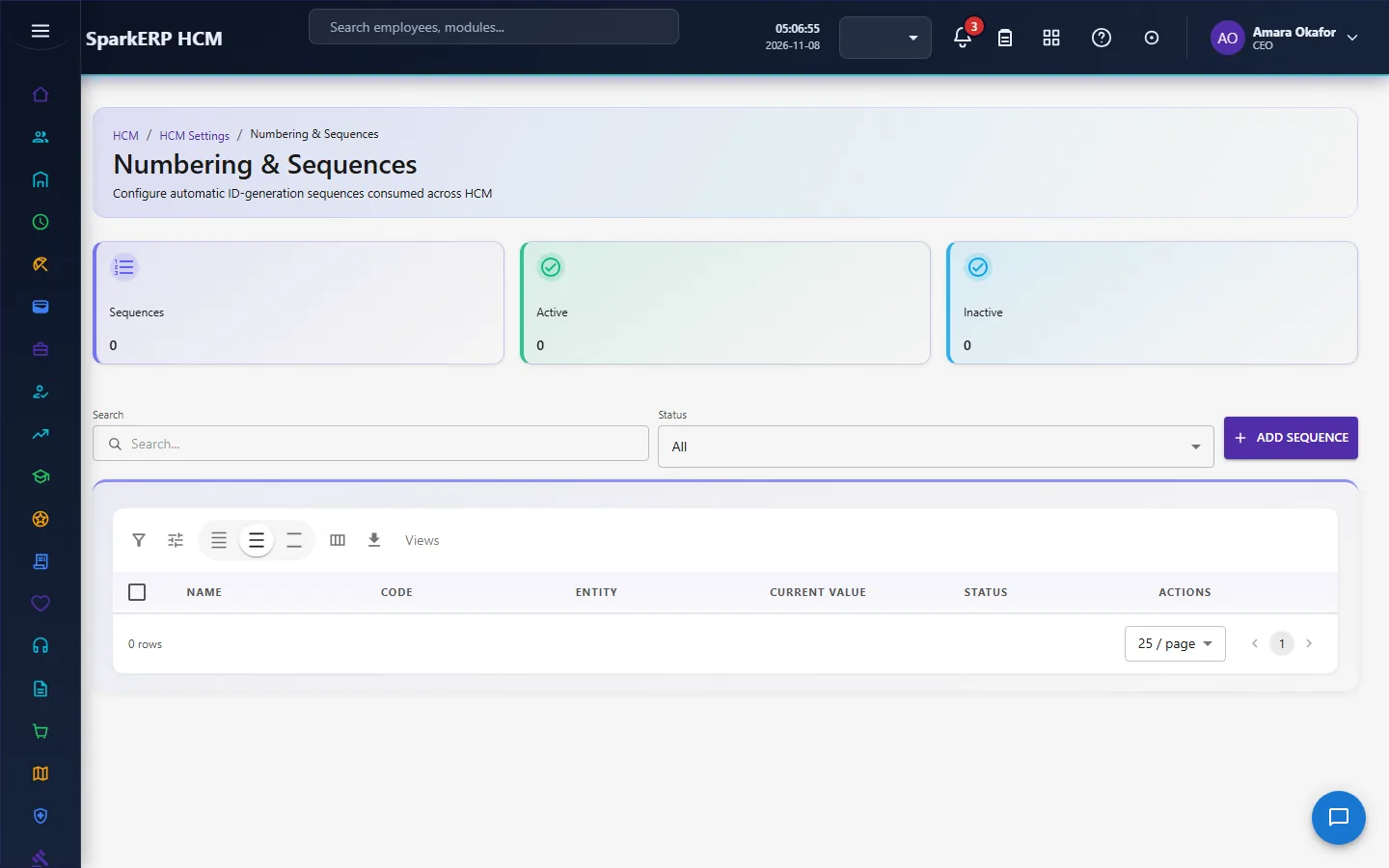
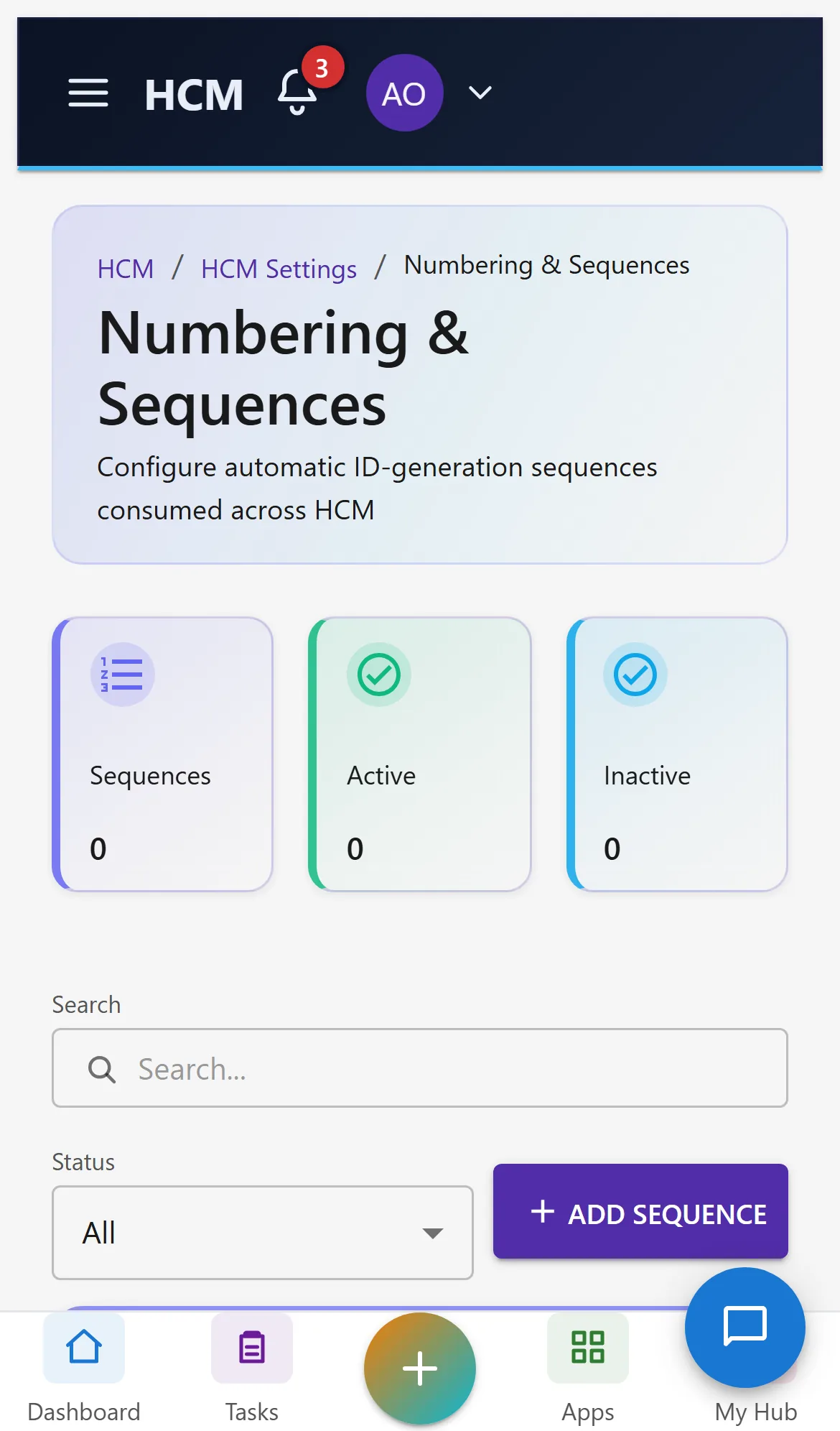
Configure automatic ID-generation sequences (e.g. how employee IDs or request numbers are formatted and incremented).
Open it at /hcm-settings-extended/numbering-sequences (or from the HCM menu).
- Sections: Numbering & Sequences, Sequences, Active, Inactive, Preview.
- Table columns: Name, Code, Entity, Current Value, Status, Actions.
- Actions: Add Sequence, Cancel, Save Changes.
How to: Add Sequence
- Open HCM Settings > Numbering & Sequences.
- Select Add Sequence.
- In the window Numbering Sequence fill in:
| Field | What to enter |
|---|---|
| Sequence Name | Type it. |
| Sequence Code | Type it. |
| Entity | Type it (for example: Entity (e.g. leave_request)). |
| Prefix | Type it (for example: Prefix (e.g. LEV-)). |
| Date Token | Choose one: None, YYYY, YY, YYYYMM, Financial Year |
| Digits | Type it. |
| Current Value | Type it. |
| Status | Choose one: Active, Inactive |
- Select Save Changes.
- The window closes and the table refreshes with the result. If the screen shows a message instead, read it: it says what is missing.