
Appearance
Employee Compensation, Bonuses, Incentives, Overtime & Adjustments (HCM)
This page documents five shipped, per-employee Payroll transaction screens (hcm-payroll) — the things that affect what one specific person gets paid, on top of their base structure. Not for plugin developers.
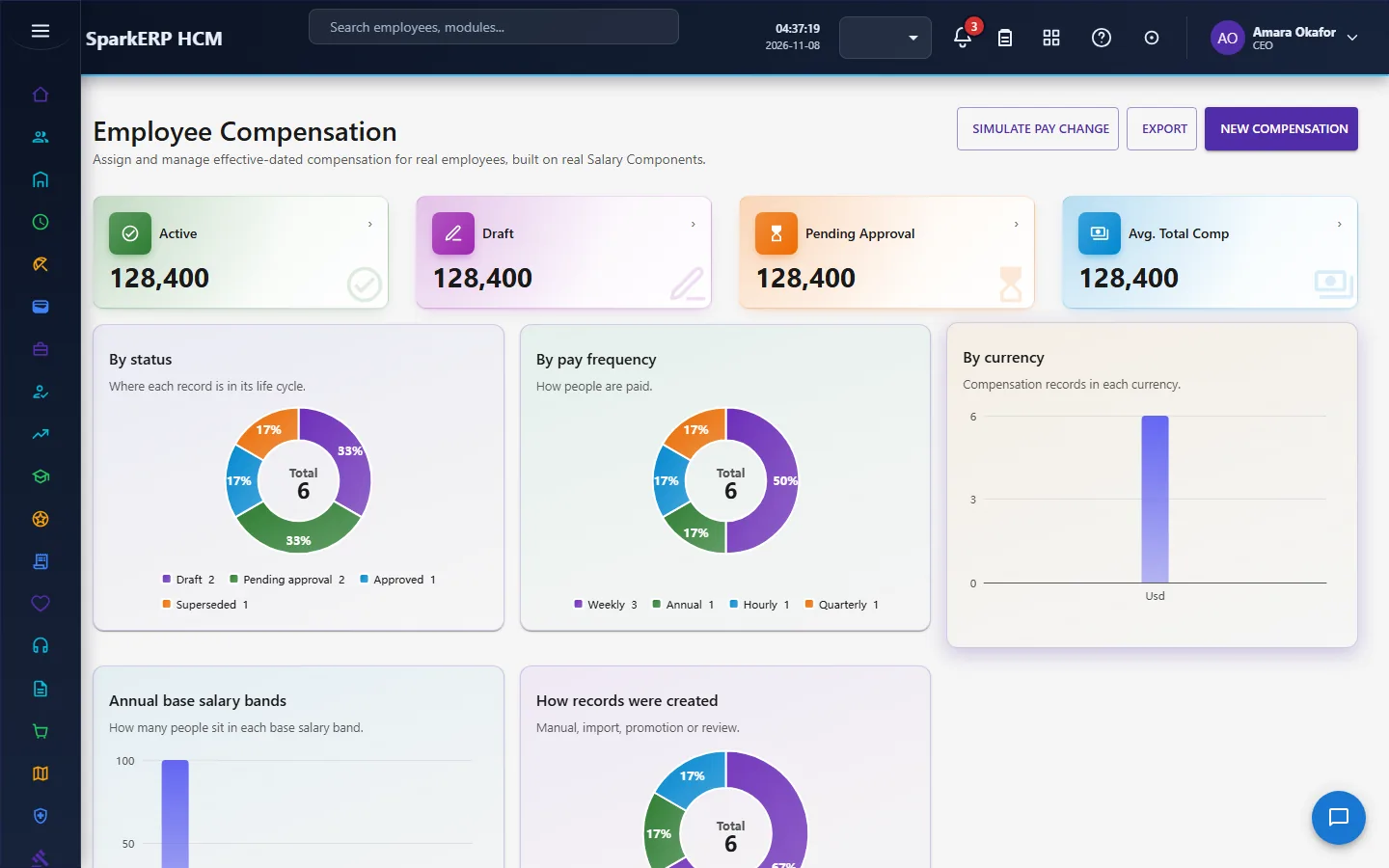
Employee Compensation
Assign a Salary Structure to an employee and set their actual compensation amounts against it.
Open it at /hcm-payroll/employee-compensation (or from the HCM menu).
- Sections: By status, By pay frequency, By currency, Annual base salary bands, How records were created, Payroll Applicability, Benefit Applicability, Percent change, Flat amount per person per year.
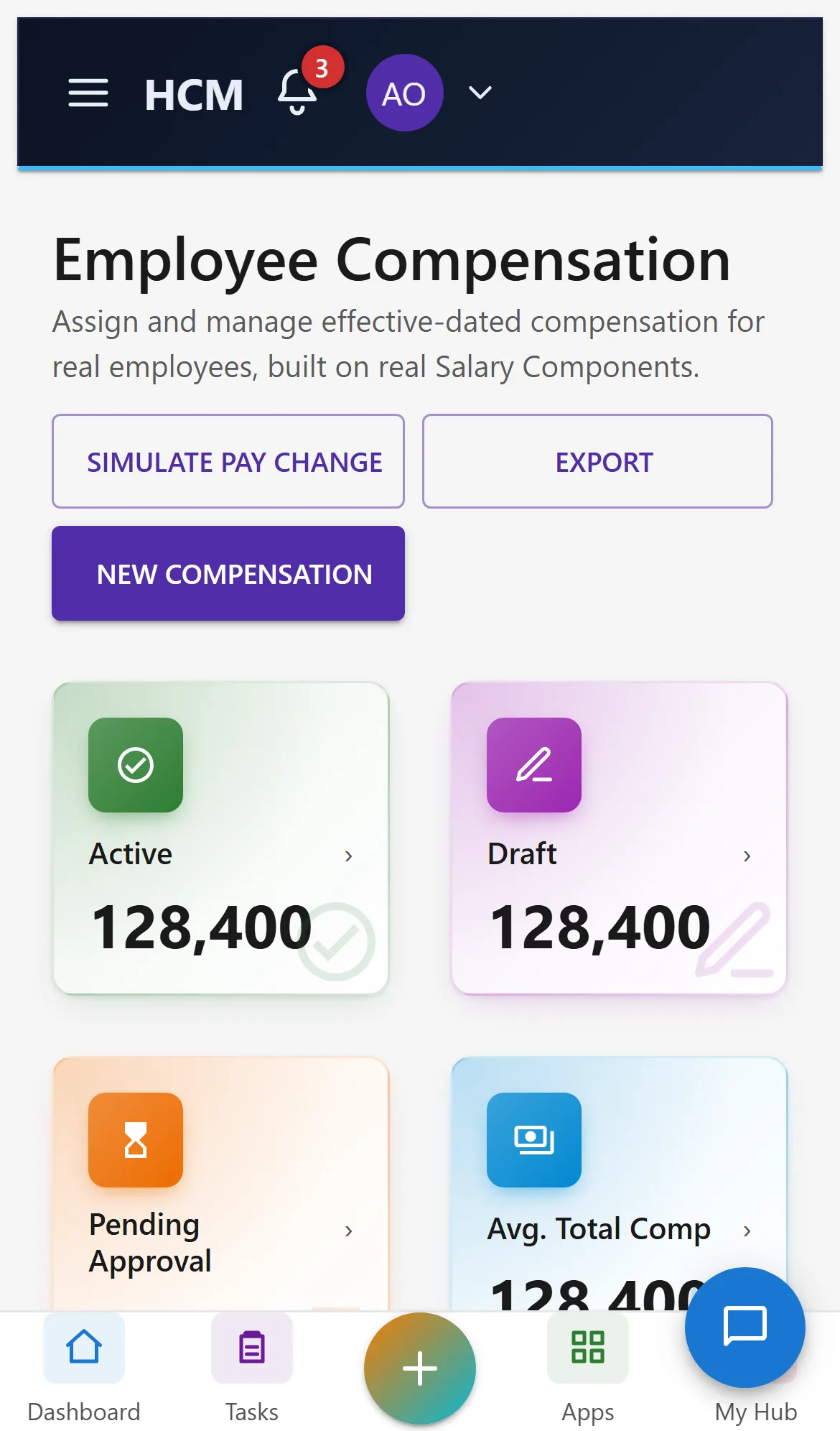
- Cards: Active, Draft, Pending Approval, Avg. Total Comp, Base Salary, Total Earnings, Total Comp, Currency.
- Charts: Total.
- Table columns: Employee Id, Pay Group, Effective From, Effective To, Currency, Frequency, Base Salary, Total Comp, Status, Version.
- Actions: Simulate pay change, Export, New Compensation, Cancel, Save Draft, Submit for Approval, Activate, Recalculate, Create Revision, Add Component, Compare Versions, Close and 1 more.
How to: New Compensation
- Open Payroll > Employee Compensation.
- Select New Compensation.
- In the window Employee Compensation fill in:
| Field | What to enter |
|---|---|
| Employee Id | Type it. |
| No real Pay Group entity yet — plain id/code placeholder | Type it. |
| YYYY-MM-DD | Type it. |
| YYYY-MM-DD (optional) | Type it. |
| Pay Frequency | Choose one: Hourly, Daily, Weekly, Biweekly, Semimonthly, Monthly, Quarterly, Annual |
- Select Save Draft.
- The window closes and the table refreshes with the result. If the screen shows a message instead, read it: it says what is missing.
How to: Employee Compensation Detail
- Open Payroll > Employee Compensation.
- Select the record you want to change, or the button that adds a new one.
- In the window Employee Compensation Detail fill in:
| Field | What to enter |
|---|---|
| YYYY-MM-DD | Type it. |
| Reason code | Type it. |
| Salary Component Id | Type it. |
| Calculation Type | Choose one: Fixed Amount, Percentage Of Component, Percentage Of Total, Formula, Quantity X Rate, Manual |
| Amount | Type it. |
| Percentage | Type it. |
| Base Component Id | Type it. |
| e.g. baseSalary * 0.1 | Type it. |
| Pay Frequency | Choose one: Hourly, Daily, Weekly, Biweekly, Semimonthly, Monthly, Quarterly, Annual |
| Effective From | Type it. |
| Effective To | Type it. |
| Reason Code | Type it. |
| Notes | Type it. |
| From Compensation Id | Type it. |
| To Compensation Id | Type it. |
- Select Submit for Approval.
- The window closes and the table refreshes with the result. If the screen shows a message instead, read it: it says what is missing.
Bonuses
One-off bonus payments for an employee.
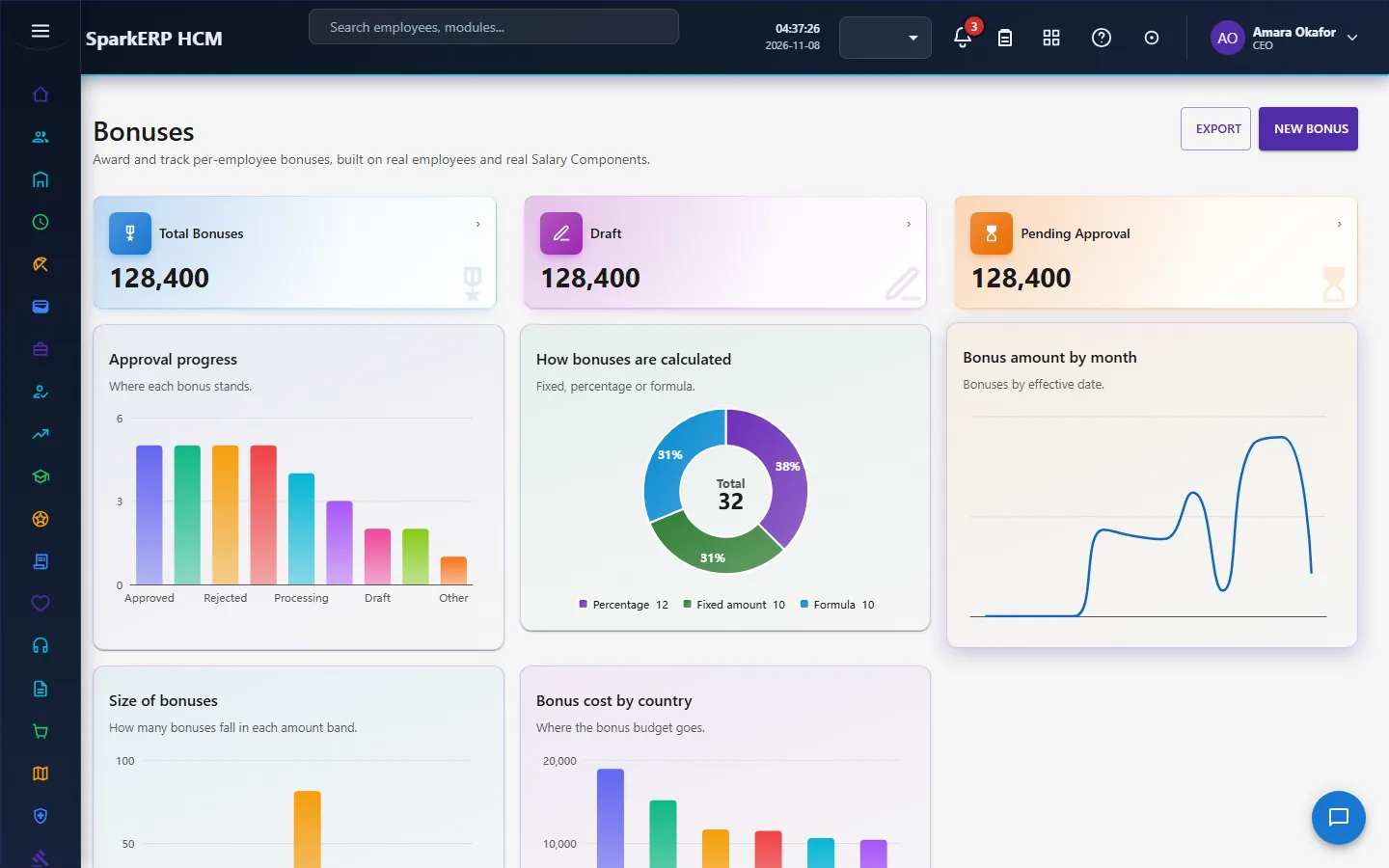
Open it at /hcm-payroll/bonuses (or from the HCM menu).
- Sections: Approval progress, How bonuses are calculated, Bonus amount by month, Size of bonuses, Bonus cost by country, Basic Information, Calculation, Approval Context, Workflow Instance Id.
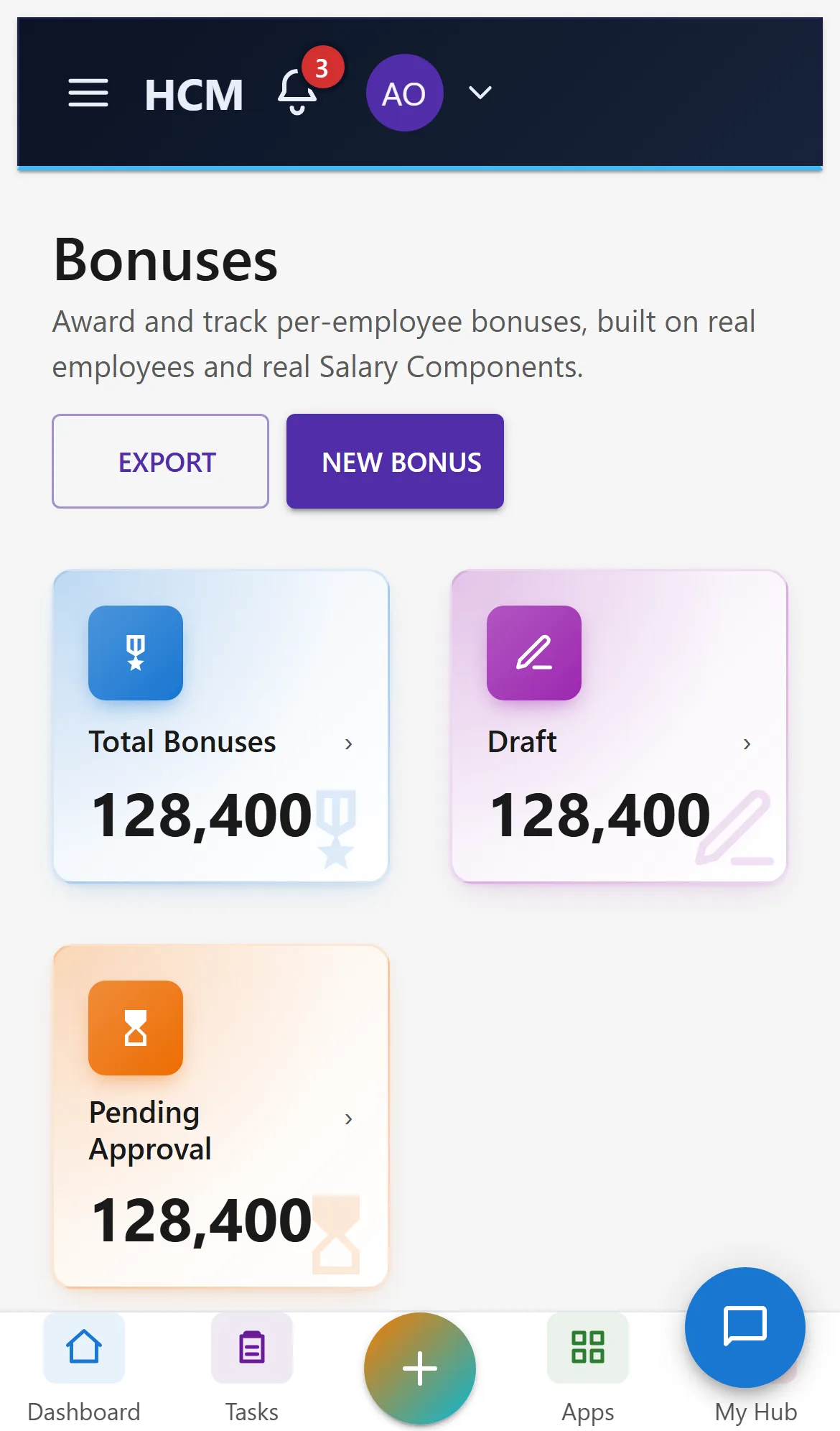
- Cards: Total Bonuses, Draft, Pending Approval, Approved, Paid, Base Amount, Bonus Amount, Status, Currency.
- Charts: Total.
- Table columns: Employee Id, Bonus Type Id, Reason, Effective Date, Payroll Period, Currency, Method, Bonus Amount, Status.
- Actions: Export, New Bonus, Cancel, Save Draft, Submit for Approval, Recalculate, Cancel Bonus, Process, Mark Paid, Reverse.
How to: New Bonus
- Open Payroll > Bonuses.
- Select New Bonus.
- In the window Bonus fill in:
| Field | What to enter |
|---|---|
| Employee Id | Type it. |
| Bonus Type Id | Type it. |
| YYYY-MM-DD | Type it. |
| Calculation Method | Choose one: Fixed Amount, Percentage, Formula |
| Base Component Id (optional — real salary_component) | Type it. |
| Base Amount (resolved) | Type it. |
| Percentage | Type it. |
| Fixed Amount | Type it. |
| Bonus Amount (computed) | Type it. |
| Legal Entity Id (placeholder) | Type it. |
- Select Save Draft.
- The window closes and the table refreshes with the result. If the screen shows a message instead, read it: it says what is missing.
How to: Bonus Detail
- Open Payroll > Bonuses.
- Select the record you want to change, or the button that adds a new one.
- In the window Bonus Detail fill in:
| Field | What to enter |
|---|---|
| Calculation Method | Choose one: Fixed Amount, Percentage, Formula |
| Base Component Id (optional — real salary_component) | Type it. |
| Base Amount (resolved) | Type it. |
| Percentage | Type it. |
| Fixed Amount | Type it. |
| Bonus Amount (computed) | Type it. |
- Select Submit for Approval.
- The window closes and the table refreshes with the result. If the screen shows a message instead, read it: it says what is missing.
Incentives
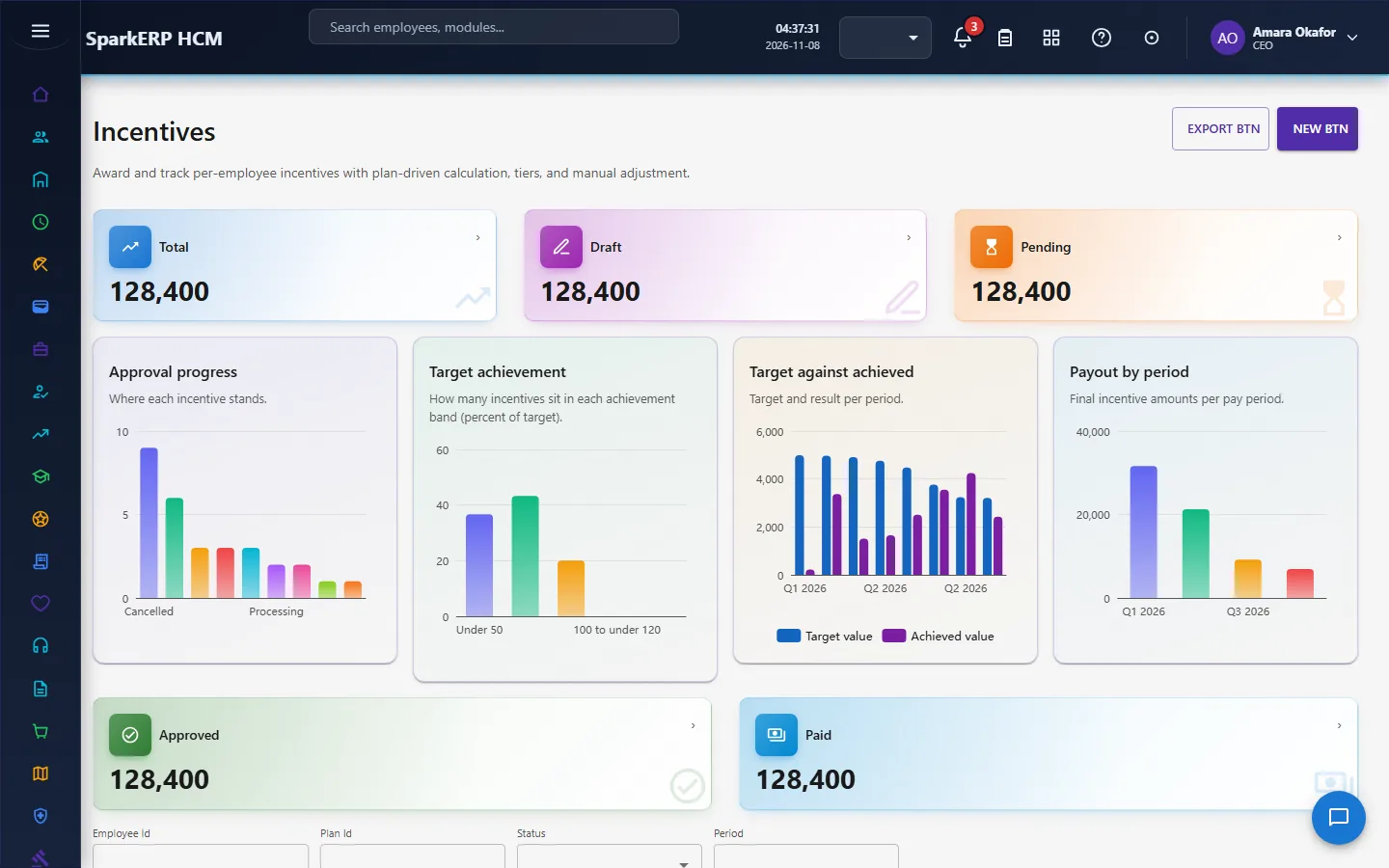
Incentive payouts against a reusable incentive plan — fixed amount, percentage, formula-based, or tiered, depending on how the plan is set up.
Open it at /hcm-payroll/incentives (or from the HCM menu).
- Sections: Approval progress, Target achievement, Target against achieved, Payout by period, Section Basic, Section Calculation, Section Approval, Approval Note, ${page.detailWorkflowInstanceId}.
- Cards: Total, Draft, Pending, Approved, Paid, Achievement Pct, Calculated Amount, Final Amount, Status.
- Table columns: Employee Id, Plan Id, Period Label, Target Value, Achieved Value, Achievement Pct, Final Amount, Status.
- Actions: Export Btn, New Btn, Cancel Btn, Save Btn, Submit Btn, Calculate Btn, Manual Adjust Btn, Process Btn, Mark Paid Btn, Reverse Btn.
How to: New Btn
- Open Payroll > Incentives.
- Select New Btn.
- In the window Title fill in:
| Field | What to enter |
|---|---|
| Employee Id | Type it. |
| Plan Id | Type it. |
| Target Value | Type it. |
| Achieved Value | Type it. |
| Achievement Pct | Type it. |
| Calculated Amount | Type it. |
| Manual Adjustment Amount | Type it. |
| Final Amount | Type it. |
- Select Save Btn.
- The window closes and the table refreshes with the result. If the screen shows a message instead, read it: it says what is missing.
Overtime (Payroll)
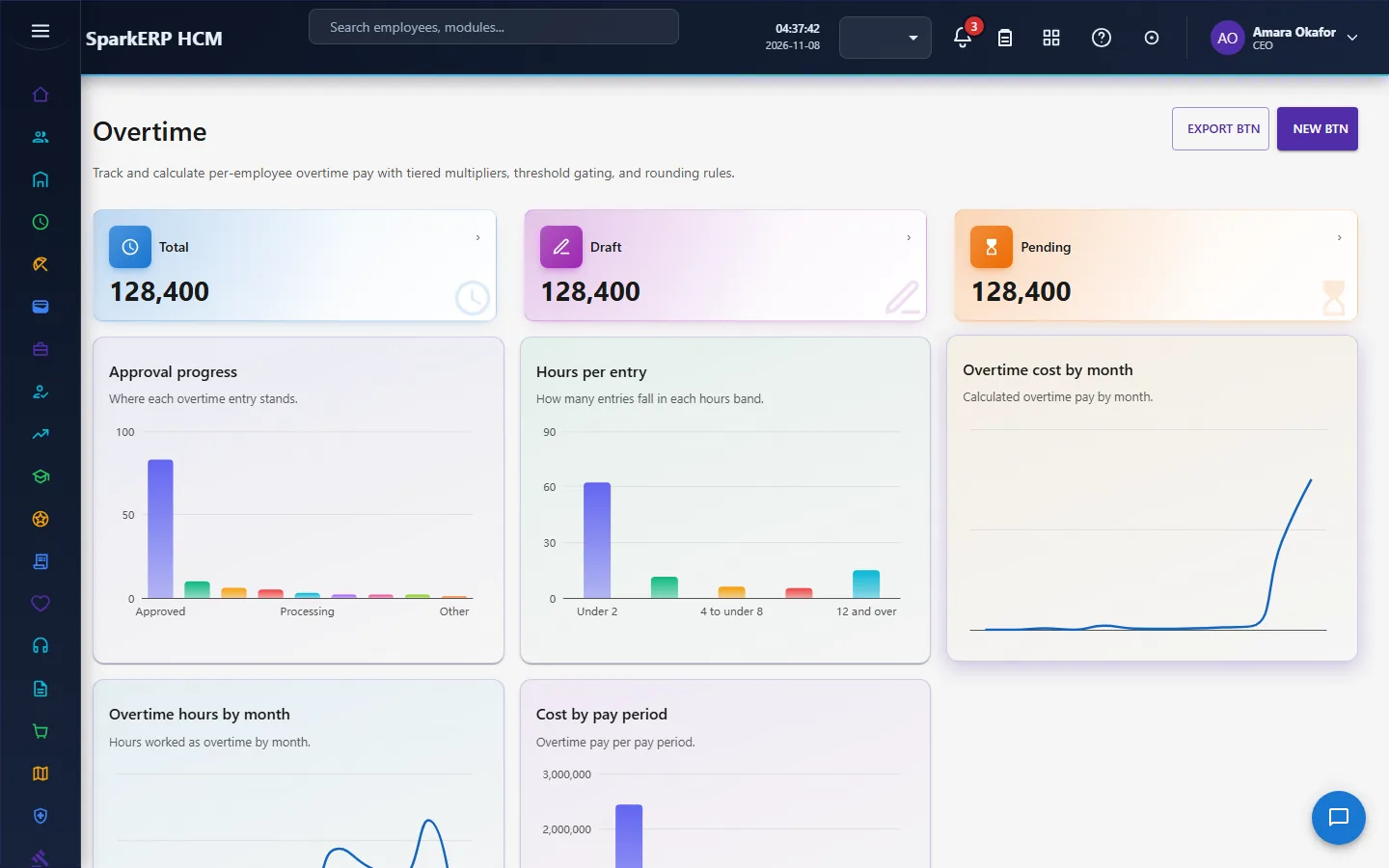
Overtime pay against a reusable overtime policy — either a flat rate or a tiered-hours multiplier. (This is the payroll side of overtime; see Late & Early Records, Overtime & Regularization for where the overtime hours themselves are tracked and approved.)
Open it at /hcm-payroll/overtime-payroll (or from the HCM menu).
- Sections: Overtime, Approval progress, Hours per entry, Overtime cost by month, Overtime hours by month, Cost by pay period, Section Basic, Section Calculation, Section Approval, Approval Note, ${page.detailWorkflowInstanceId}.
- Cards: Total, Draft, Pending, Approved, Paid, Hours Worked, Multiplier Applied, Calculated Amount, Status.
- Table columns: Employee Id, Policy Id, Period Label, Overtime Date, Hours Worked, Hourly Rate, Multiplier Applied, Calculated Amount, Status, Hours this period, Over cap.
- Actions: Export Btn, New Btn, Cancel Btn, Save Btn, Submit Btn, Calculate Btn, Process Btn, Mark Paid Btn, Reverse Btn.
How to: New Btn
- Open Payroll > Overtime Payroll.
- Select New Btn.
- In the window Title fill in:
| Field | What to enter |
|---|---|
| Employee Id | Type it. |
| Policy Id | Type it. |
| YYYY-MM-DD | Type it. |
| Hours Worked | Type it. |
| Hourly Rate | Type it. |
| Multiplier Applied | Type it. |
| Calculated Amount | Type it. |
- Select Save Btn.
- The window closes and the table refreshes with the result. If the screen shows a message instead, read it: it says what is missing.
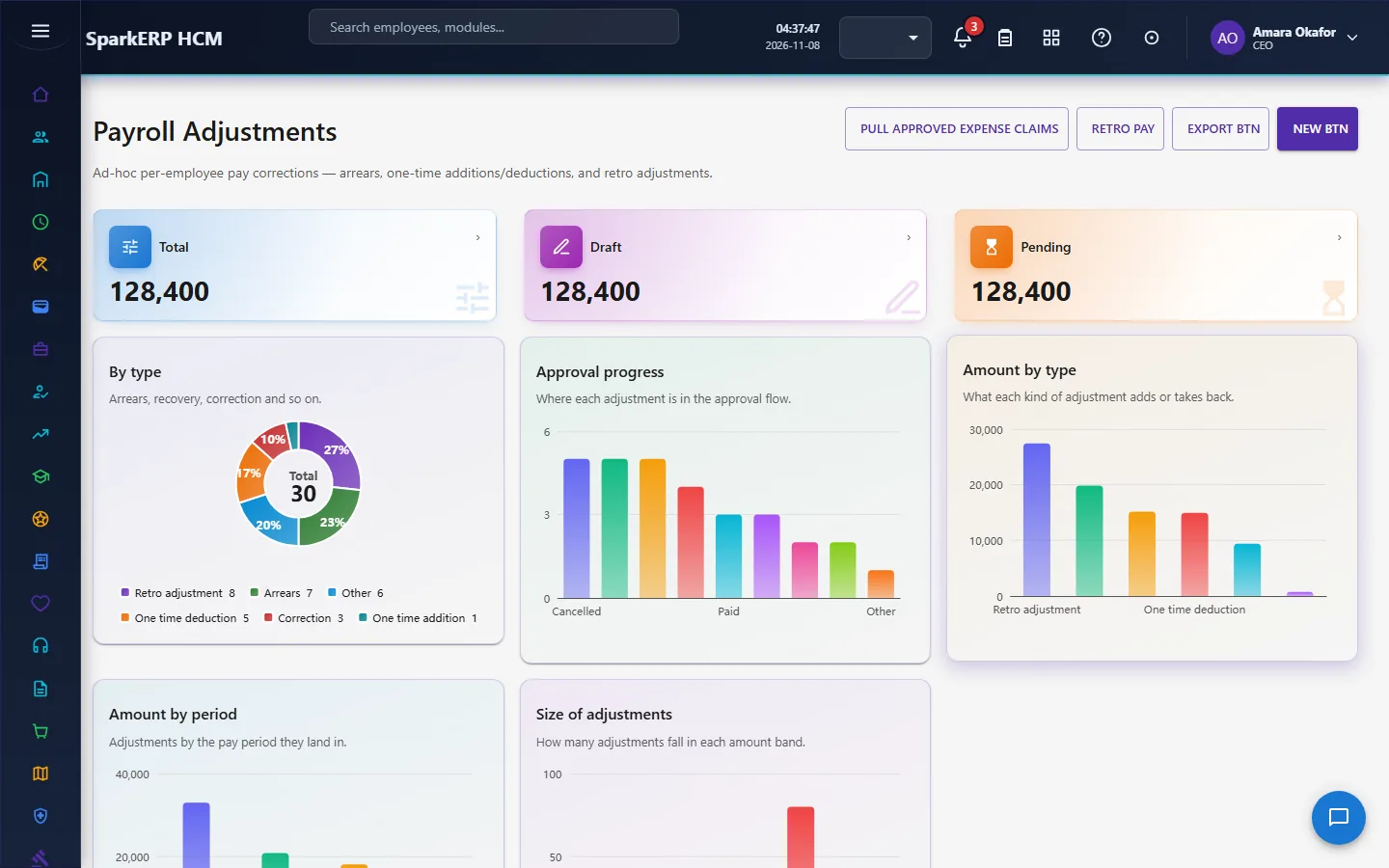
Payroll Adjustments
The simplest of these five: a generic, ad-hoc correction for one employee — just a signed amount (positive adds to pay, negative deducts), no plan or policy behind it, for one-off corrections that don't fit any of the above.
Open it at /hcm-payroll/payroll-adjustments (or from the HCM menu).
- Sections: By type, Approval progress, Amount by type, Amount by period, Size of adjustments, Section Basic, Section Approval, Approval Note, ${page.detailWorkflowInstanceId}, Employee id, Reason.
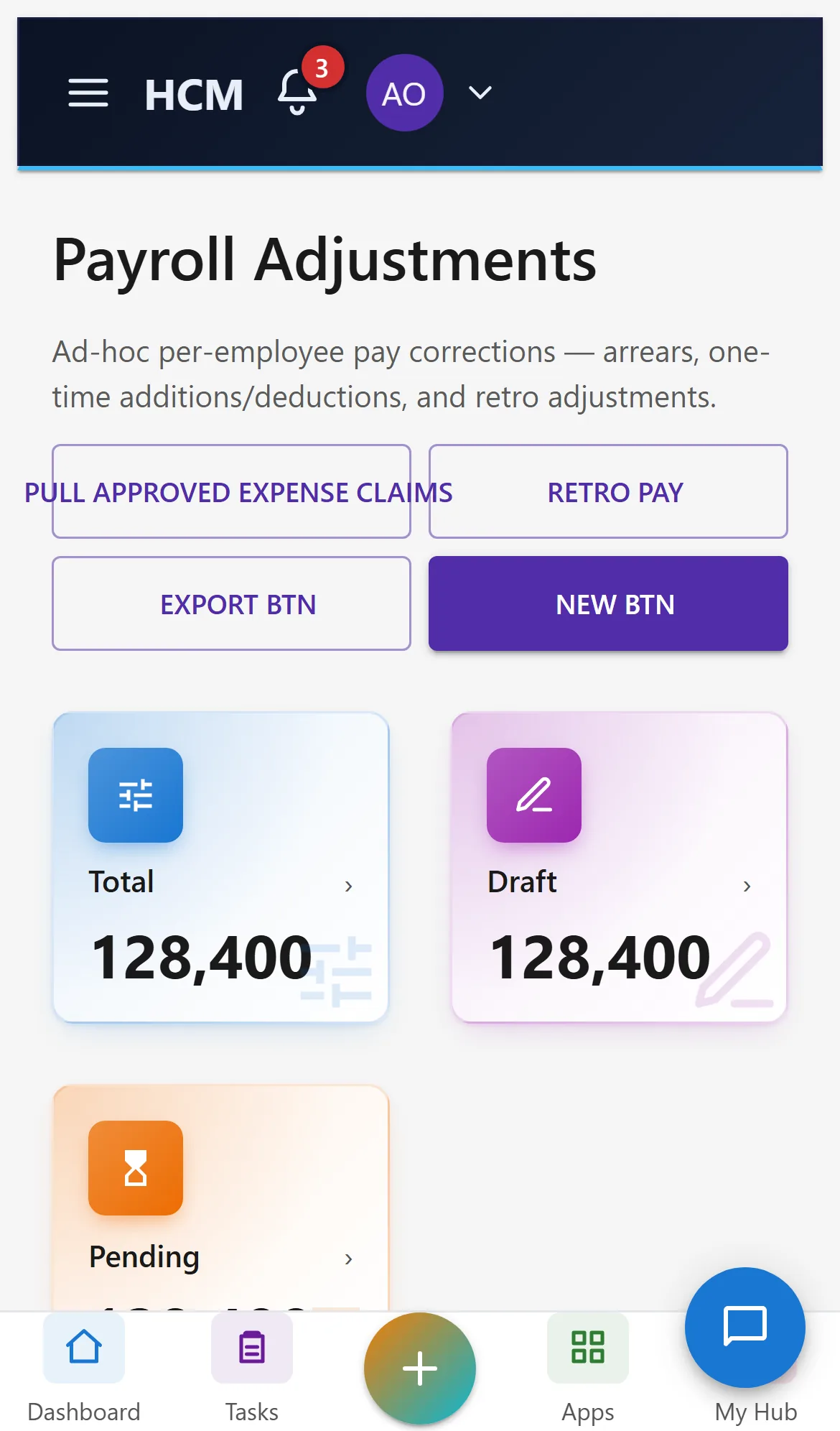
- Cards: Total, Draft, Pending, Approved, Paid, Amount, Adjustment Type, Status.
- Charts: Total.
- Table columns: Employee Id, Adjustment Type, Reason, Amount, Effective Period, Status.
- Actions: Pull approved expense claims, Retro pay, Export Btn, New Btn, Cancel Btn, Save Btn, Submit Btn, Process Btn, Mark Paid Btn, Close, Preview, Create adjustment.
How to: New Btn
- Open Payroll > Payroll Adjustments.
- Select New Btn.
- In the window Title fill in:
| Field | What to enter |
|---|---|
| Employee Id | Type it. |
| Adjustment Type | Choose one: Correction, Arrears, One Time Addition, One Time Deduction, Retro Adjustment, Other |
| Amount | Type it. |
| Linked Component Id | Type it. |
- Select Save Btn.
- The window closes and the table refreshes with the result. If the screen shows a message instead, read it: it says what is missing.