Appearance
General, Organization & Employee Settings (HCM)
This page documents three shipped Settings screens (hcm-settings-extended) — tenant-wide defaults, separate from HR Settings's own category cards. Not for plugin developers.
General HCM Settings
Tenant-wide default settings — one record per tenant.
Organization Settings
Your organization profile and defaults, plus a register of Legal Entities.
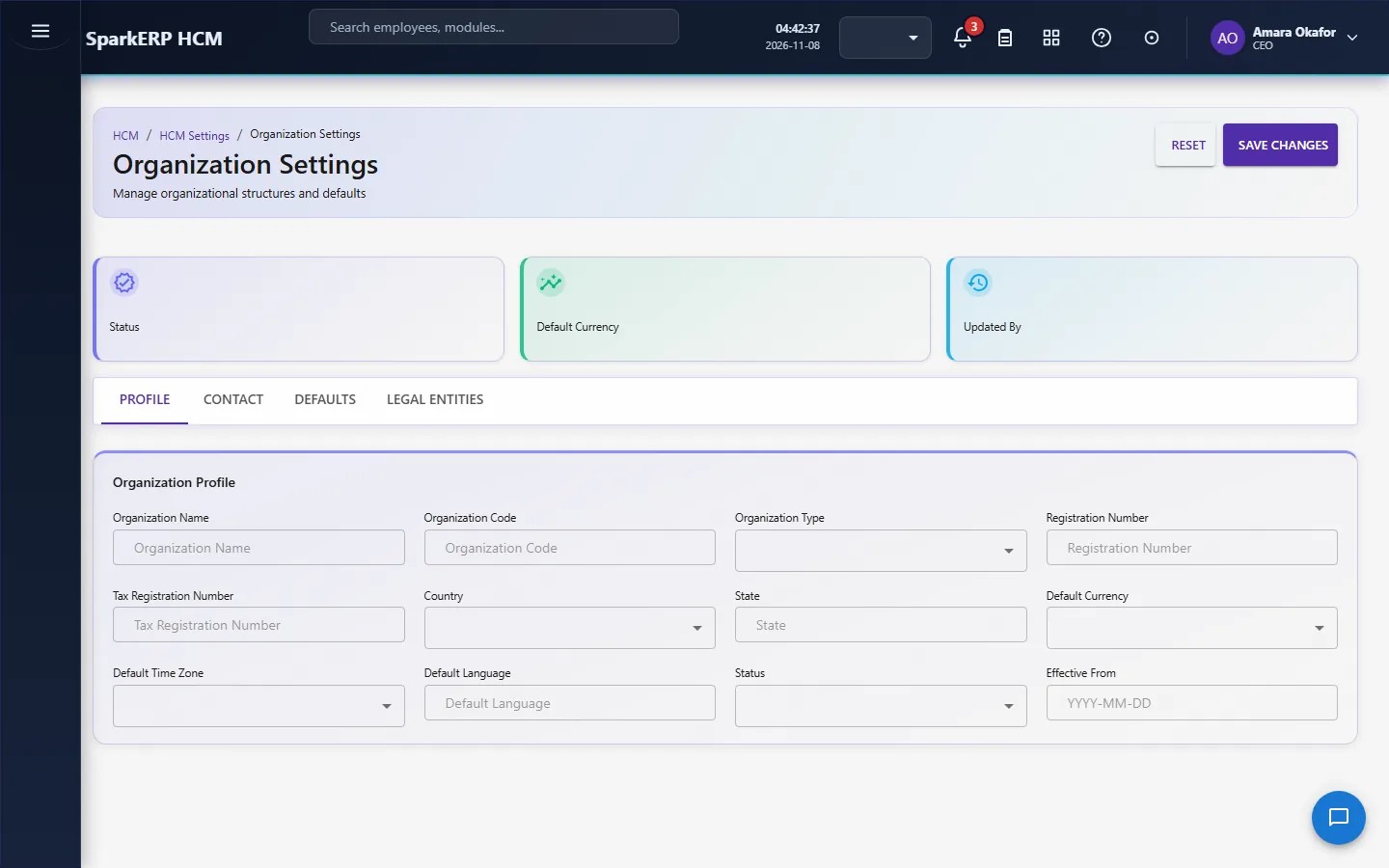
Open it at /hcm-settings-extended/organization-settings (or from the HCM menu).
- Sections: Manage organizational structures and defaults, Status, Default Currency, Updated By, Organization Name, Organization Code, Organization Type, Registration Number, Tax Registration Number, Country, State, Default Time Zone and 9 more.
- Table columns: Name, Code, Country, Status, Actions.
- Actions: Reset, Save Changes, Add Legal Entity, Cancel.
How to: Add Legal Entity
- Open HCM Settings > Organization Settings.
- Select Add Legal Entity.
- In the window Legal Entity fill in:
| Field | What to enter |
|---|---|
| Legal Entity Name | Type it. |
| Legal Entity Code | Type it. |
| Registration number | Type it (for example: Company registration number). |
| Tax number | Type it (for example: Tax identification number). |
| Currency | Type it (for example: Currency code, for example USD). |
| Time zone | Type it (for example: IANA time zone, for example Europe/London). |
| Country | Type it. |
| Status | Choose one: Active, Inactive |
- Select Save Changes.
- The window closes and the table refreshes with the result. If the screen shows a message instead, read it: it says what is missing.
Employee Settings
Tenant-wide employee master/lifecycle defaults.
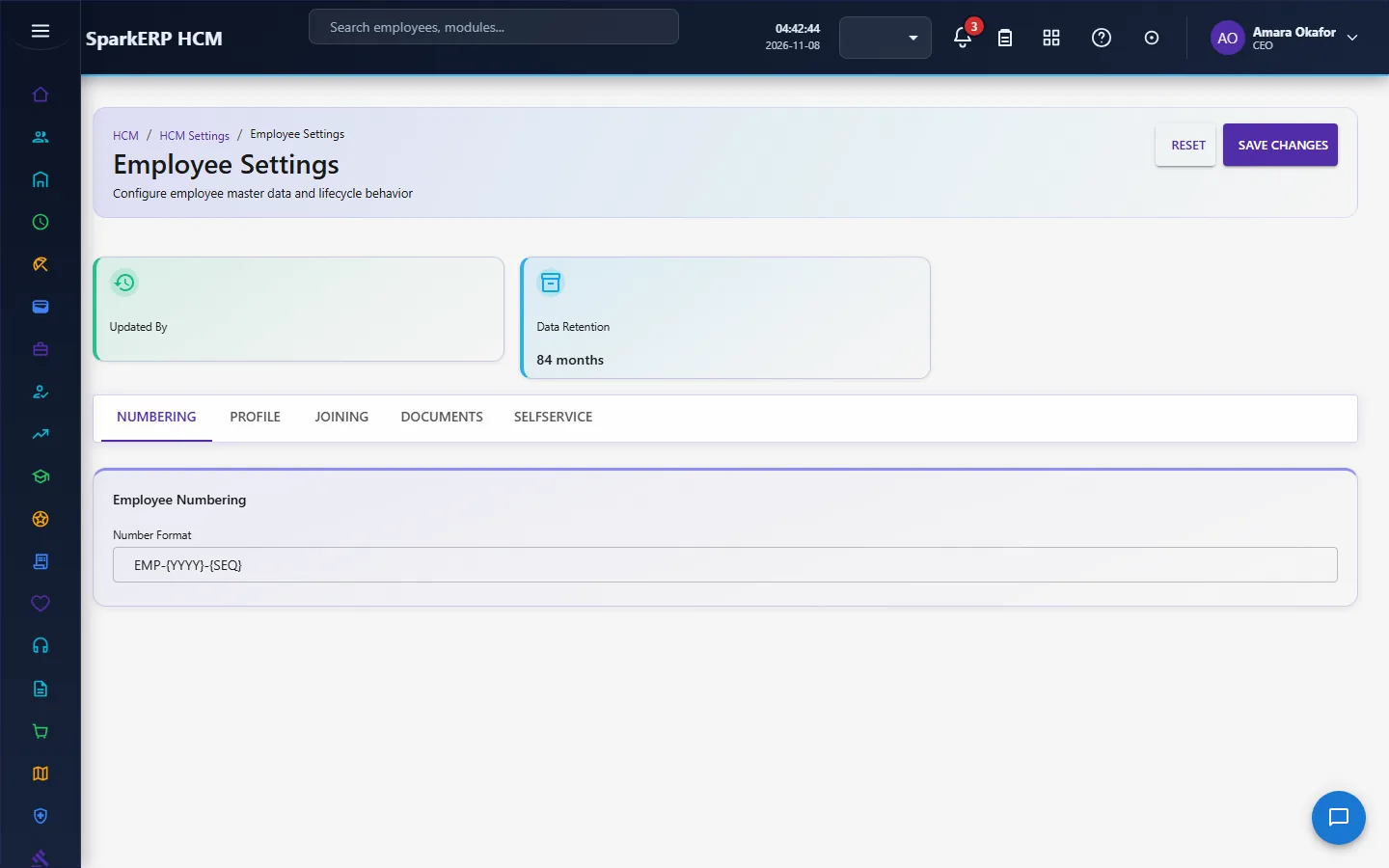
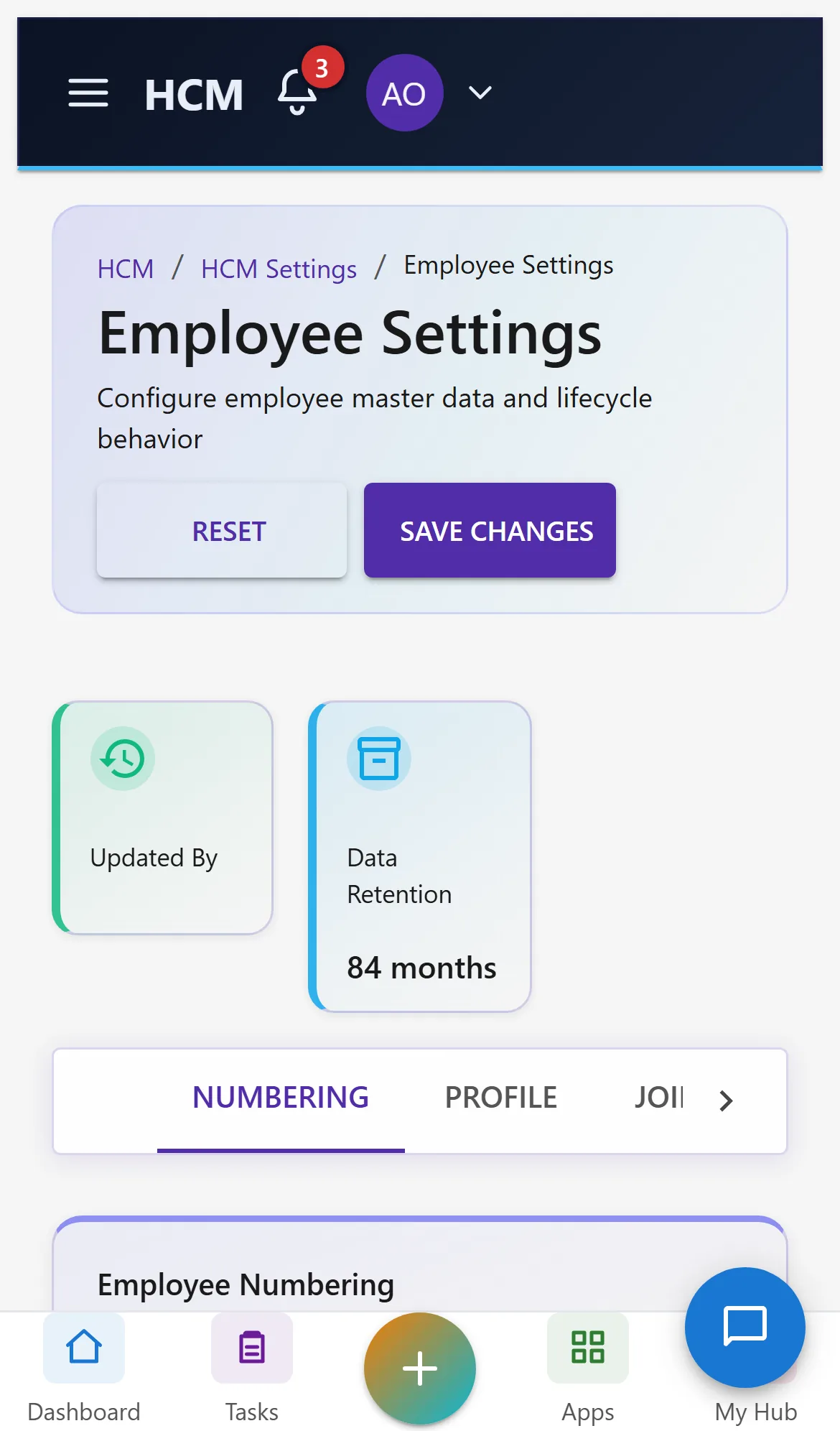
Open it at /hcm-settings-extended/employee-settings (or from the HCM menu).
- Sections: Configure employee master data and lifecycle behavior, Updated By, Data Retention, Number Format, Default Employment Type, Default Work Mode, Require Personal Email, Require Date of Birth, Emergency contact required, Blocks activation of a profile without one, Bank details required, Needed before the first payroll and 11 more.
- Actions: Reset, Save Changes.