
Appearance
Assessments & Quiz (HCM)
This page documents two shipped Learning screens (hcm-learning) — the same underlying assessment data, viewed two ways. Not for plugin developers.
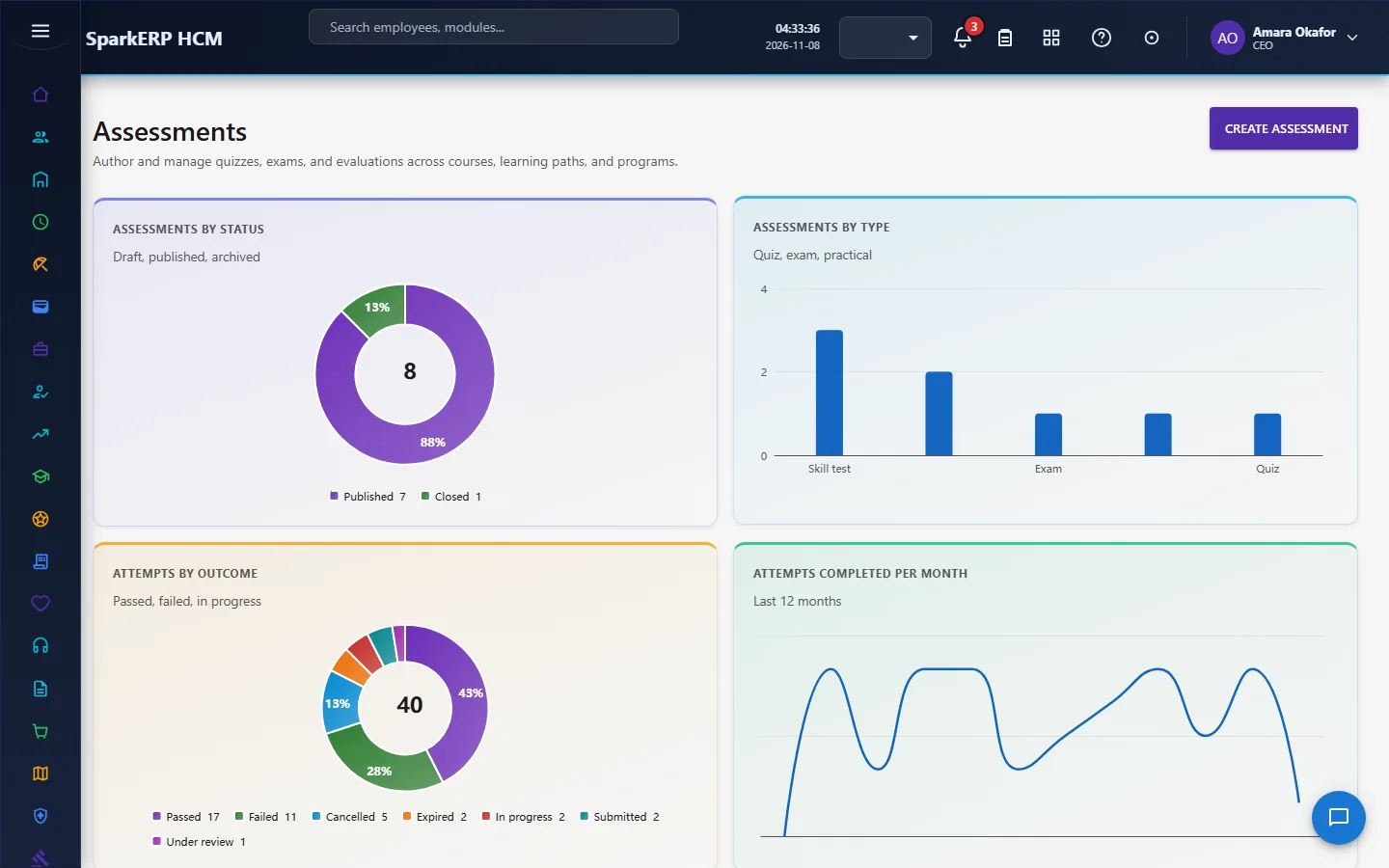
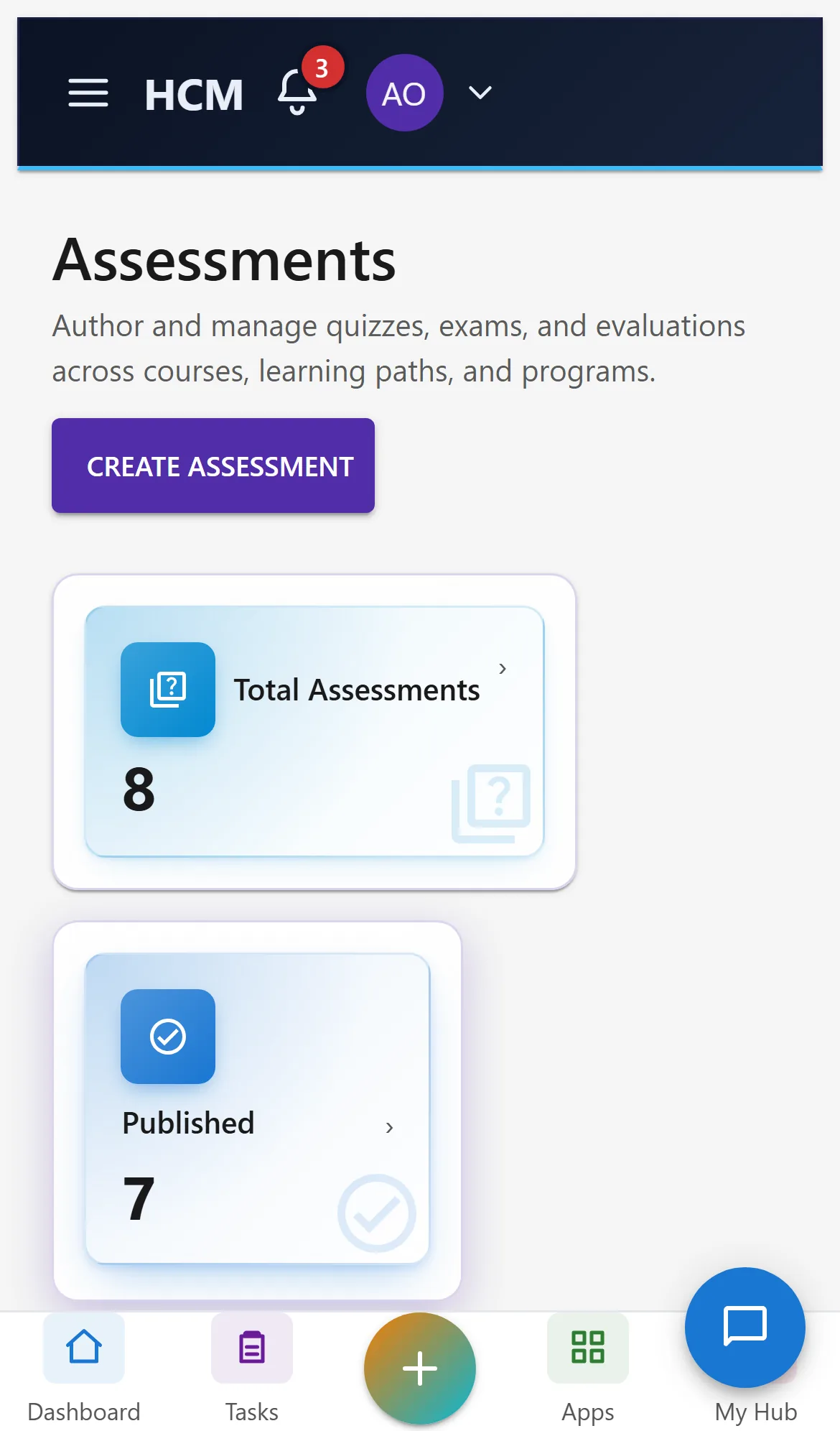
Assessments
The full assessment record, covering every assessment type.
Open it at /hcm-learning/assessments (or from the HCM menu).
- Sections: Assessments by status, Assessments by type, Attempts by outcome, Attempts completed per month, Last 12 months.
- Cards: Total Assessments, Published, Open, Mandatory.
- Table columns: Assessment Name, Type, Category, Pass Mark, Attempts, Mandatory, Status, Actions.
- Actions: Create Assessment, Publish, Schedule, Open, Close, Archive, Cancel, Save.
How to: Create Assessment
- Open Learning & Development > Assessments.
- Select Create Assessment.
- In the window Assessment fill in:
| Field | What to enter |
|---|---|
| Assessment Code | Type it (for example: Assessment code). |
| Assessment Name | Type it (for example: Assessment name). |
| Description | Type it. |
| Assessment Type | Choose one: Quiz, Exam, Final Exam, Practical, Assignment, Project, Case Study, Presentation, Interview, Skill Test... |
| Question Count | Type it (for example: Question count). |
| Maximum Score | Type it (for example: Maximum score). |
| Pass Mark | Type it (for example: Pass mark). |
| Duration (minutes) | Type it (for example: Duration in minutes). |
| Attempts Allowed | Type it (for example: Attempts allowed). |
- Select Publish.
- The window closes and the table refreshes with the result. If the screen shows a message instead, read it: it says what is missing.
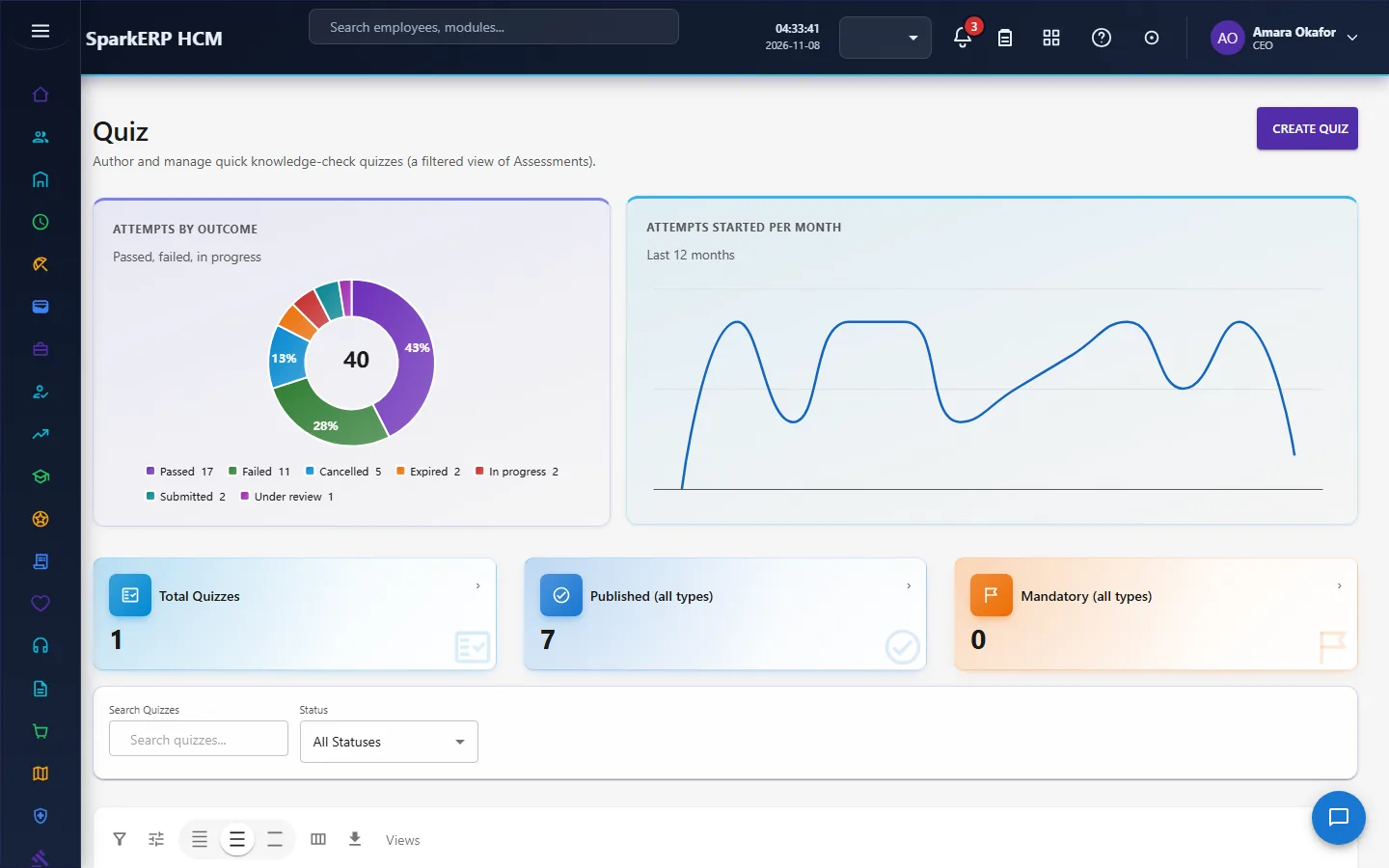
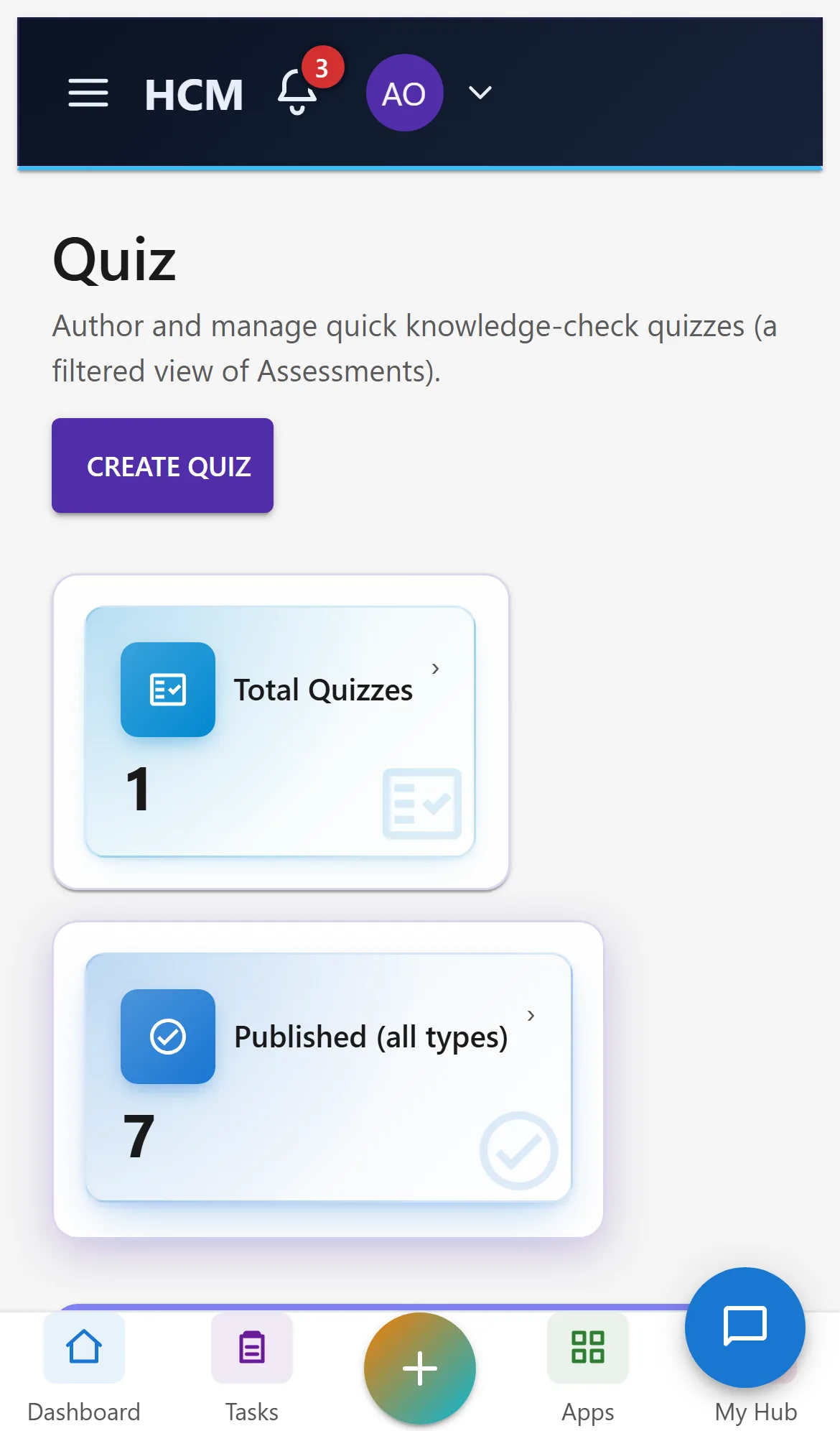
Quiz
The same underlying data as Assessments, filtered down to just quizzes.
Open it at /hcm-learning/quiz (or from the HCM menu).
- Sections: Attempts by outcome, Attempts started per month, Last 12 months.
- Cards: Total Quizzes, Published (all types), Mandatory (all types).
- Table columns: Quiz Name, Category, Questions, Pass Mark, Mandatory, Status, Actions.
- Actions: Create Quiz, Publish, Schedule, Open, Close, Archive, Cancel, Save.
How to: Create Quiz
- Open the HCM menu.
- Select Create Quiz.
- In the window Quiz fill in:
| Field | What to enter |
|---|---|
| Quiz Code | Type it (for example: Quiz code). |
| Quiz Name | Type it (for example: Quiz name). |
| Description | Type it. |
| Question Count | Type it (for example: Question count). |
| Pass Mark | Type it (for example: Pass mark). |
| Duration (minutes) | Type it (for example: Duration in minutes). |
| Attempts Allowed | Type it (for example: Attempts allowed). |
- Select Publish.
- The window closes and the table refreshes with the result. If the screen shows a message instead, read it: it says what is missing.