
Appearance
CRM Contacts: set up and daily use
Contacts are the people you deal with: the buyer who signs, the engineer who evaluates, the finance person who pays. This guide takes you from installing the module to everyday work, in the order you meet things. It is practice guidance for the people who use the screens; where it touches the law (consent, data subject requests) it is not legal advice: ask your data protection adviser.
1. What it is and who uses it
A contact has a number (CON-000001), a name, a job title, a role in the buying group (decision maker, influencer, champion, buyer, user, technical, finance, legal, executive sponsor), a seniority, ways to reach them, an owner, a lifecycle stage, tags, a consent record per channel and a data quality score. One person can work for several accounts: the link between a contact and an account carries the role, the job title there, whether the link is direct or indirect, whether it is the primary account and when it started and ended, so a person who changes company keeps their history.
| Role | Can see | Can do |
|---|---|---|
| CRM Contact Viewer | Contacts, their links, notes, social handles, consent history, the dashboards and the duplicate list | Nothing that changes data |
| CRM Contact Manager | The same | Create and edit contacts, link to accounts, add notes and handles, record consent, export one person's data, change owner, status, lifecycle, role and tags of selected contacts |
| CRM Contact Administrator | Everything | Everything, including delete, merge, import, anonymise and the quality job |
| CRM Settings Administrator, CRM Admin | Everything | Everything |
| Sales Manager, Auditor | Contacts | Sales Manager edits contacts; Auditor reads |
CRM Account roles may read the contacts linked to an account (the Contacts tab of the Account page) but not the contact list itself. A person who holds none of these roles cannot open the screens, and the data is not returned to them even if they know the address.
Editions
SparkCRM is one engine in four editions. Contacts follows the same rule as Accounts: Lite has the contact list, the contact page, links, consent recording, notes, social handles, bulk actions, import and the privacy export; SparkCRM adds the insights and quality dashboards and duplicates and merge; Enterprise and Plus add the AI assistant tools. A feature that is not in your edition answers "This feature is not part of your SparkCRM edition", and its menu item is not shown.
2. Before you start
- Install CRM Foundation and CRM Accounts first, then CRM Contacts (Platform Admin, Plugins). Contacts links to accounts, so Accounts must be there.
- The module is on the free licence tier: no feature key is needed.
- Give a person the platform role (it opens the screens) and the CRM application role of the same name follows within five minutes (or press the role mirror); see the Accounts guide for the two role layers.
- Country rules for phone, postal code and email come from the same country packs as Accounts:
python tools/dev/apply-crm-pack.py --pack country-germany. Without a pack only the shape of the email is checked.
3. Set up
- Roles. Assign CRM Contact Viewer, Manager or Administrator as in the table.
- Country and industry packs. A country pack gives the pattern of the phone, postal code and email of a country; an industry pack adds custom fields shown on the More details tab of a contact (for example KYC status for a bank). You can add your own fields under Custom Fields for the entity
crm_contact. - Data quality. The score is recalculated every night once the job
crm-contacts.qualityis switched on in Scheduled Jobs (it starts switched off), or press Refresh quality on the Contacts screen or Recalculate quality on the quality screen. You can weight the parts and move the bands with Common Data settingscrm_contact_quality_reach_pct,_profile_pct,_ownership_pct,_recency_pct(0 to 300, default 100) andcrm_contact_quality_complete_min/_partial_min(default 80 and 50). - Trial data. In Demo Data generate the pack CRM Contacts (it needs the CRM Accounts pack; Demo Data adds it for you). It creates about 60 contacts in twelve countries with links, a consent history, handles, notes, tags and two duplicate pairs. Then press Refresh quality on the Contacts screen: it computes the consent summaries from the history, the quality scores, the international phone numbers and the primary accounts. Clear the batch from Demo Data when you are done.
4. Daily use
The Contacts list
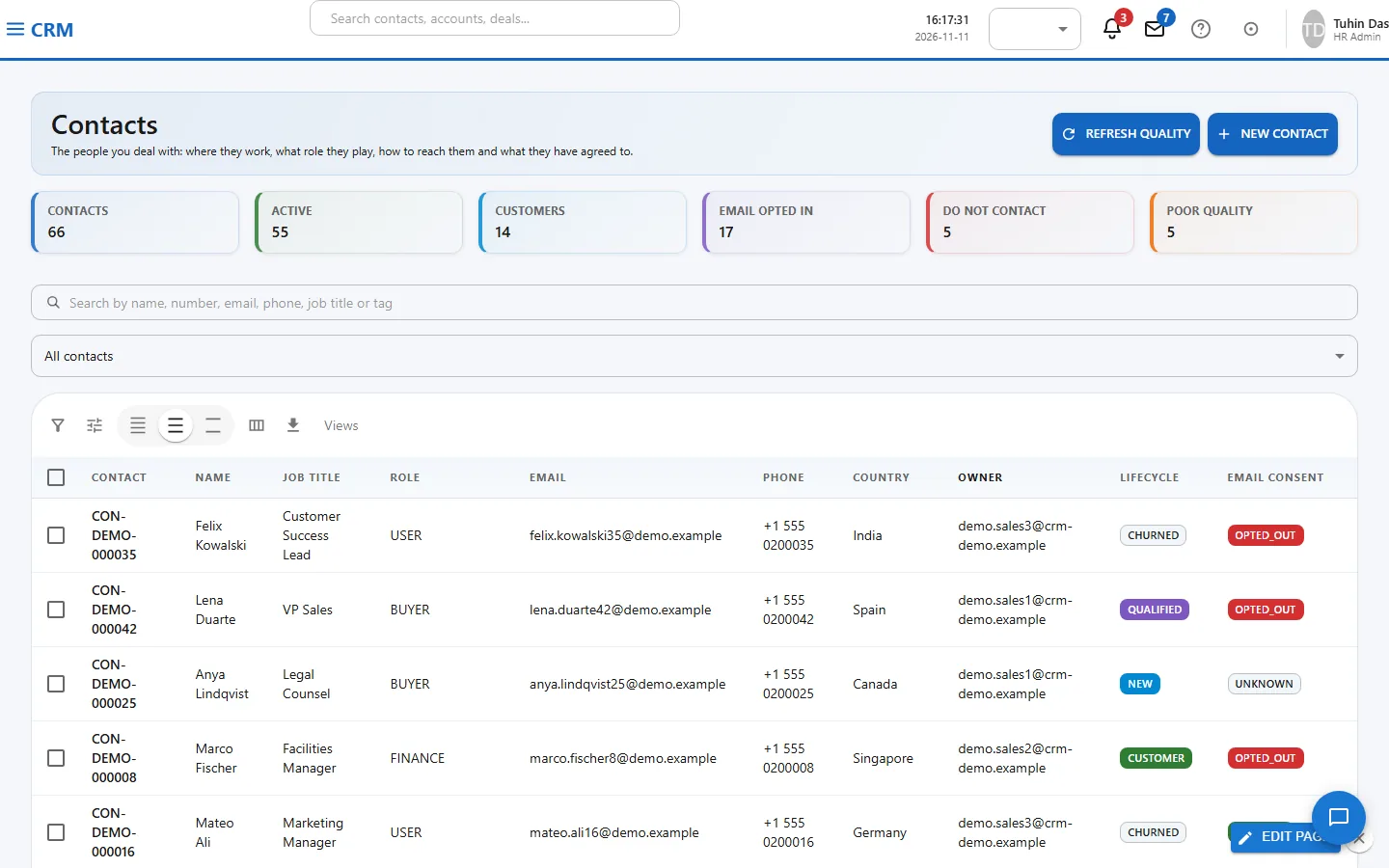
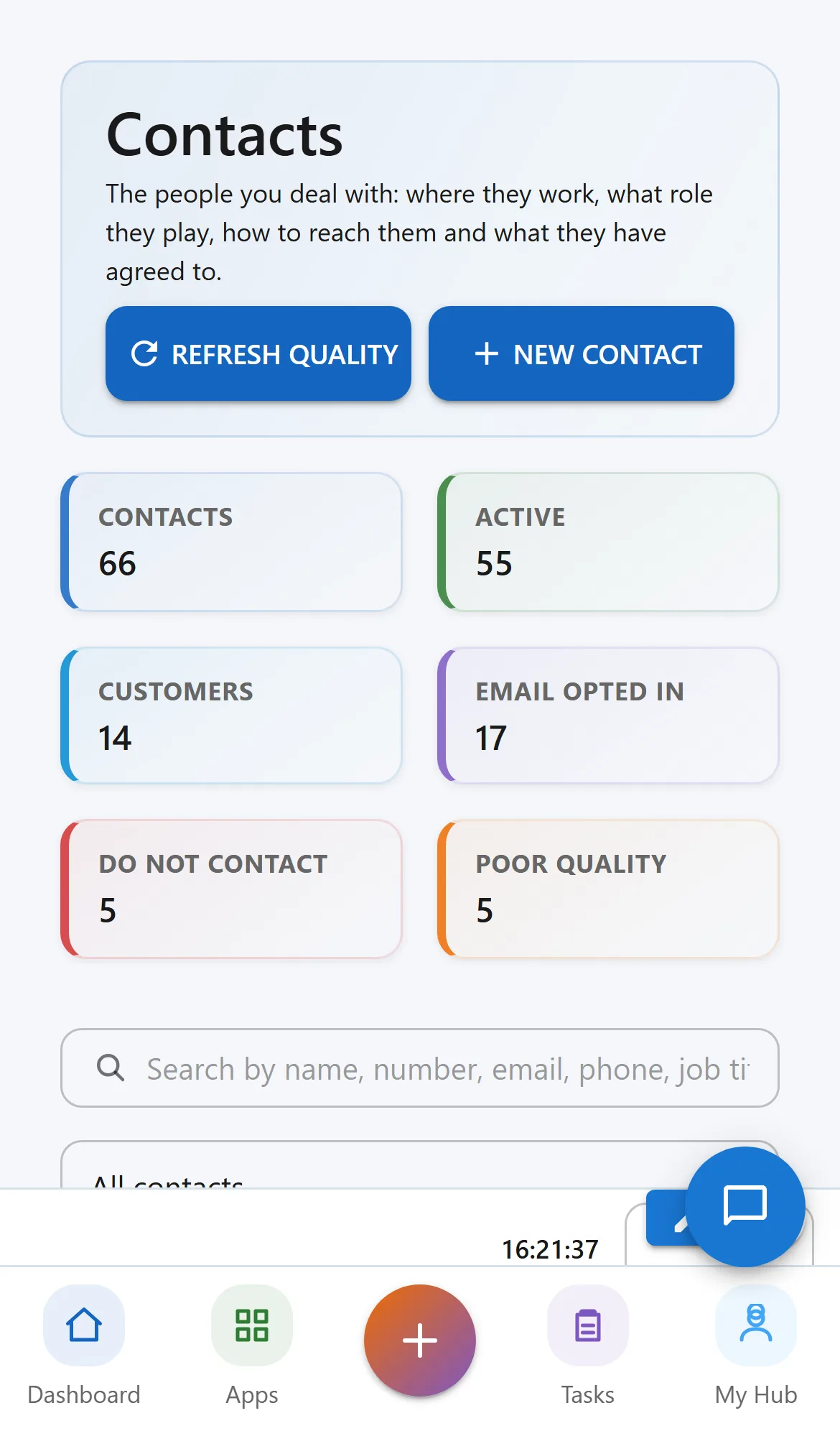
The tiles show contacts, active contacts, customers, email opt-ins, contacts marked Do Not Contact and contacts with poor data quality. The search box finds a contact by name, number, email, phone, job title or tag. The drop-down above the list holds the saved views, which are your segments: by status, lifecycle stage, role, seniority, consent, data quality, without an account, and the tags vip and newsletter. A view always reads the current data, so a contact enters and leaves it by itself. Use the column chooser to show or hide columns and the download icon to export.
Change many at once. Tick several contacts and an action bar appears: Change owner, Change status, Change lifecycle, Change role, Add tag, Remove tag and, for administrators, Delete. Type the value when asked (several tags: separate with commas). Up to 500 contacts at a time. Setting the status to DO_NOT_CONTACT also writes an opt-out for every promotional channel into the consent history. Delete asks you to type DELETE; it removes the contacts with their links, handles and notes but keeps their consent history as proof.
Create a contact
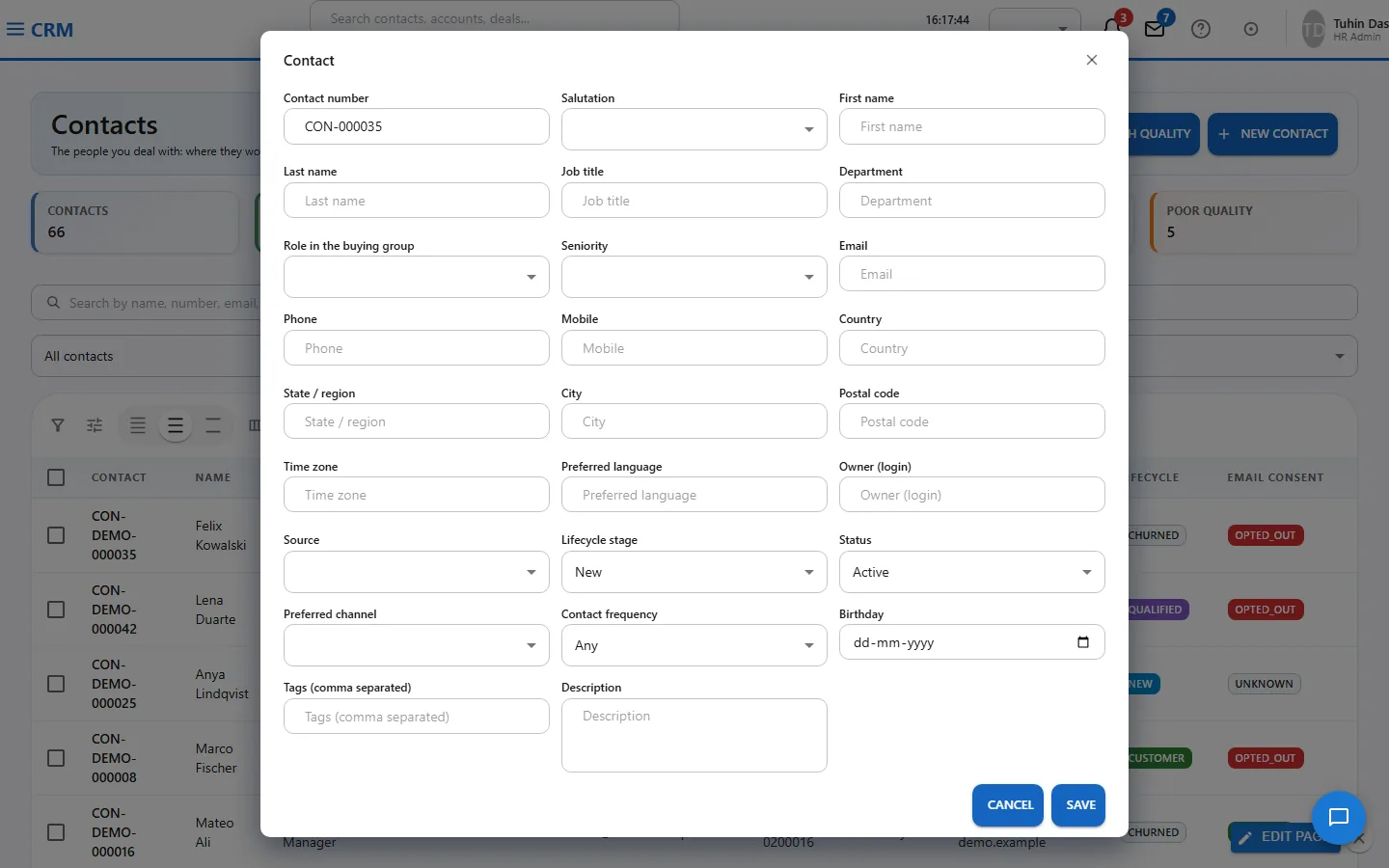
- Press New contact; the number is filled in for you.
- Fill in at least the first and last name and the owner. The country matters: it decides which rules check the phone, postal code and email.
- Press Save. A warning appears when a value does not look right for the country; the contact is saved anyway, because a rule that blocks a real number is worse than one that warns.
Work on one contact
Open a contact with the eye icon. The header shows the name, number, job title and chips: role, seniority, lifecycle stage, status, data quality and email consent. The tiles show the quality score, the last activity and the consent per channel.
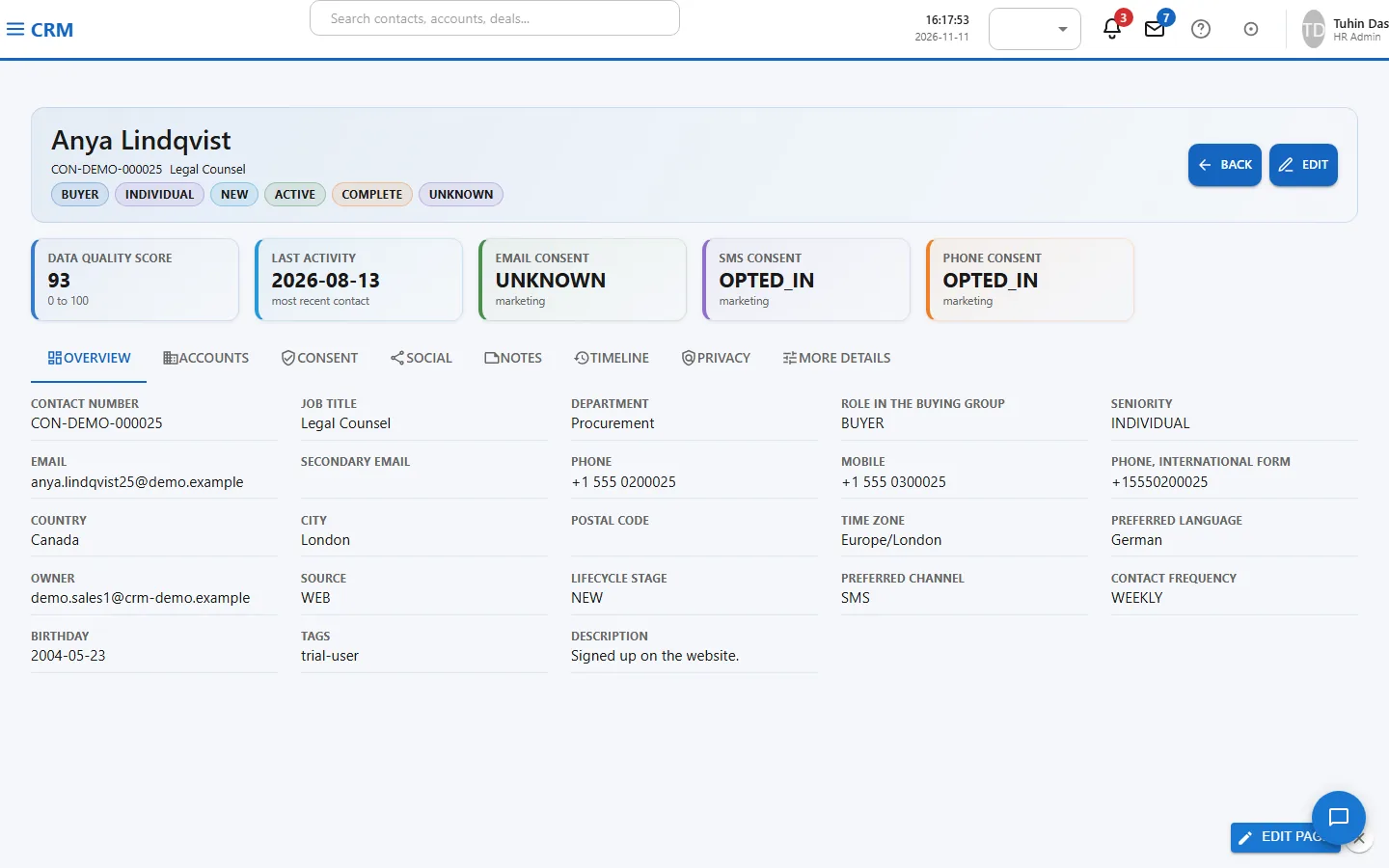
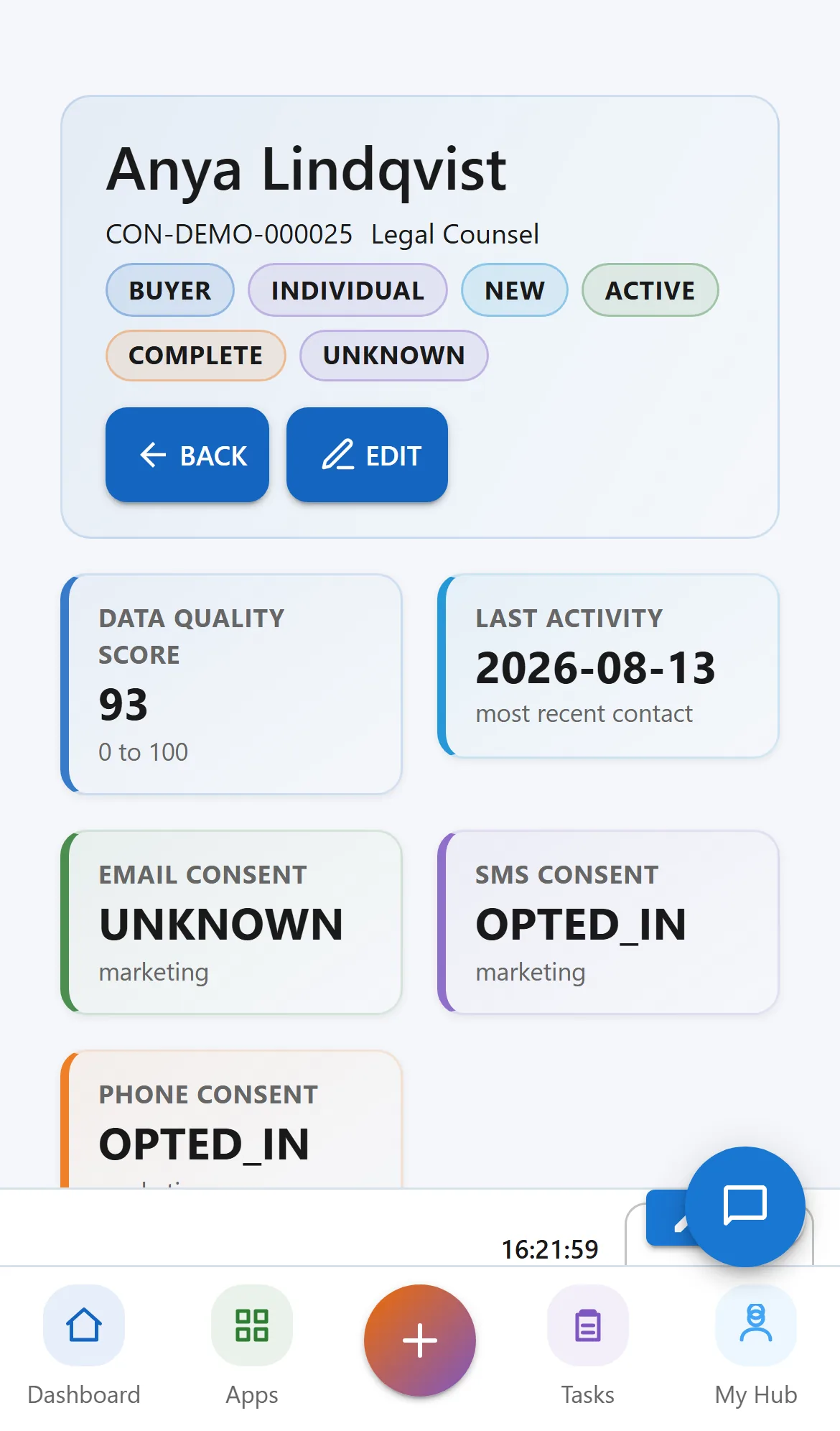
The tabs: Overview (every field), Accounts, Consent, Social, Notes, Timeline, Privacy and More details. Edit changes the contact.
Accounts. Link to an account takes the account number (for example ACC-000123), the role, other roles, the job title there, whether the relationship is direct (an advisor or a person reached through a partner is indirect), whether it is the primary account and the start date. Make primary moves the primary flag (exactly one current link is primary). End link records that the person left that account: the link stays as history and the primary moves to another current link. Linking again to an account you ended re-opens the link.
Consent. Record consent adds a line to the history: the channel (email, SMS, phone, post, WhatsApp), the purpose (marketing, operational, service, sales, events), what the person agreed, the lawful basis, where it came from, the evidence and an optional expiry. History lines are never edited. The rules:
- The summary of a channel on the contact is the newest marketing line of that channel. Operational and service messages do not change it.
- Do Not Contact is the broadest flag: while a contact has that status every promotional channel reads opted out, whatever the history says. One channel's opt-out does not change another channel.
- Opting in again after an opt-out, or after Do Not Contact, needs evidence (what the person saw or said, the wording or version, a form or message id). Without it the record is refused.
- An opt-in that has passed its expiry date reads pending: it must be renewed.
- When the two newest lines of a channel carry the same moment and disagree, the channel is held as pending, never resolved to the more permissive value.
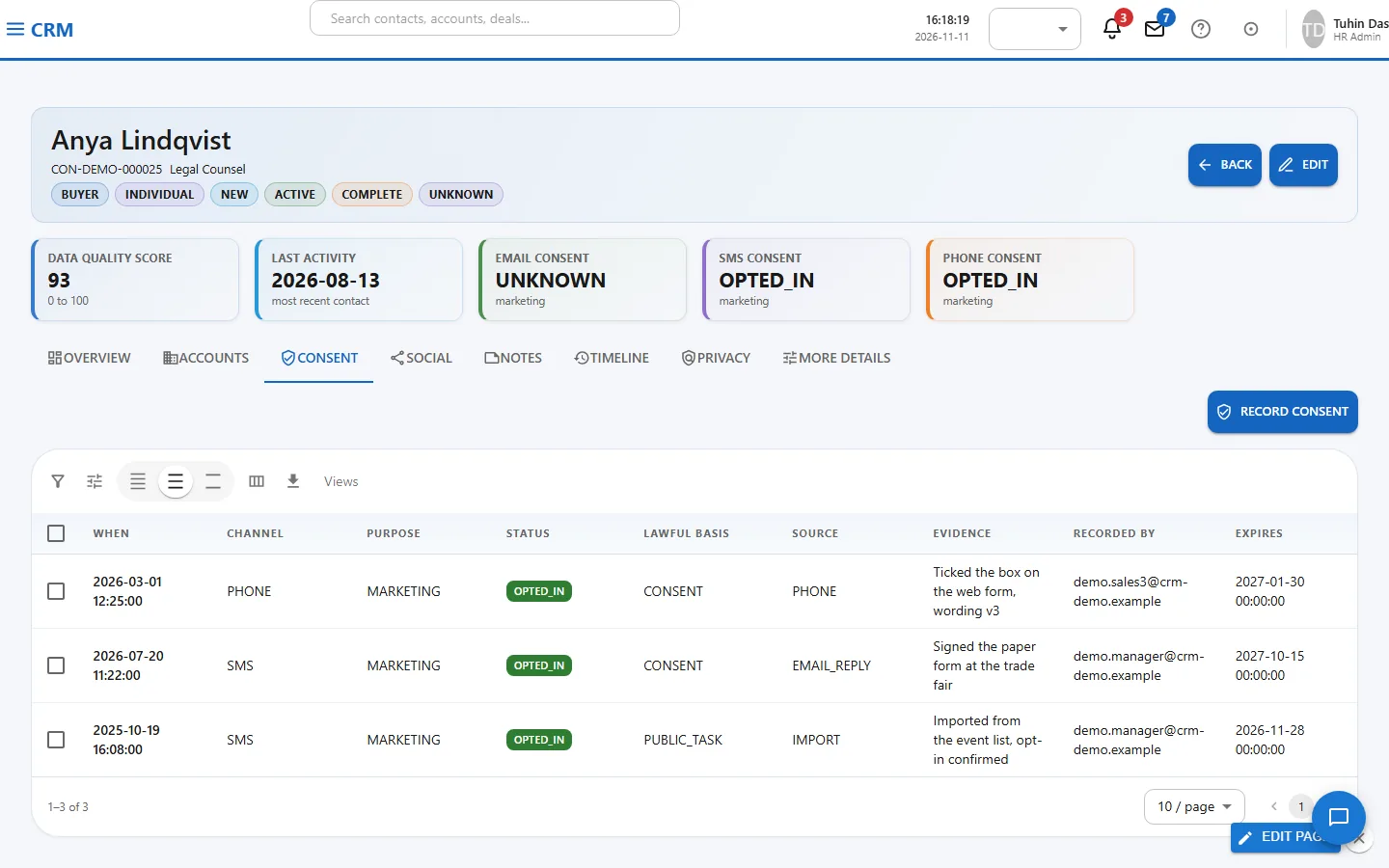
Social and Notes. Handles (LinkedIn, X, and so on) and notes with a pin.
Timeline. Everything that happened on the contact, newest first: notes, consent records, links added and ended, merges and privacy actions. Choose a type and a period and press Filter.
Privacy. A person can ask what you hold on them and ask you to erase it. Export everything held on this person collects the contact, its links, consent history, handles and notes into one answer (the page confirms it; the full JSON is the API answer of POST /api/v1/plugins/crm-contacts/contacts/privacy/export). Anonymise (administrators) removes the name, email addresses, phones, address, birthday, description and tags, deletes the handles and notes and ends the account links; the number, the row and the consent history stay as proof. It cannot be undone. Both actions are written to the log under the buttons. Which requests you must honour, and when, is a question for your data protection adviser.
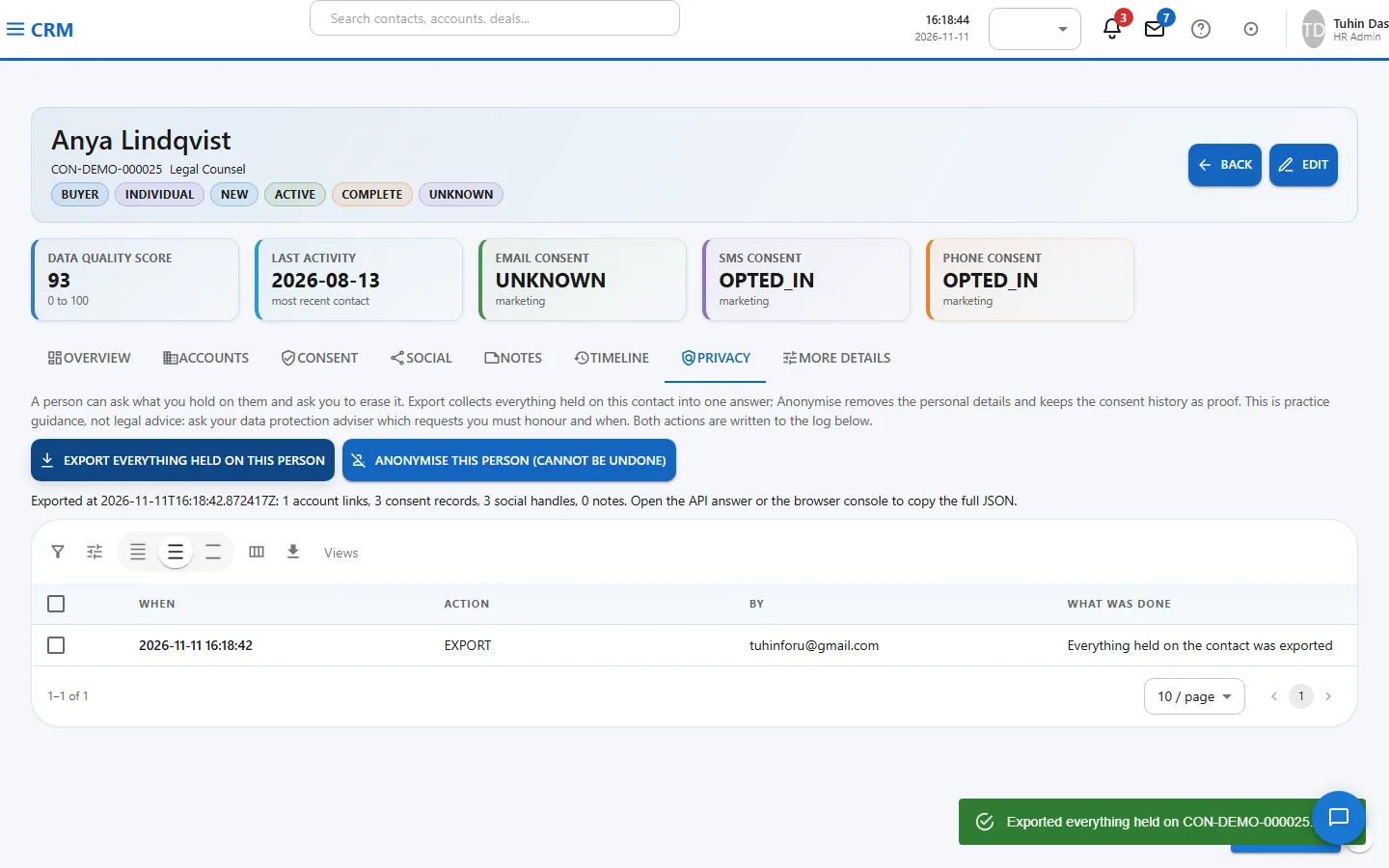
More details. Fields your organization or industry added (see Industry and country packs).
Contacts on the Account page
The Account page has a Contacts tab listing the people linked to that account (current first, the primary account marked). It needs CRM Contacts; without it the tab says so.
Import contacts
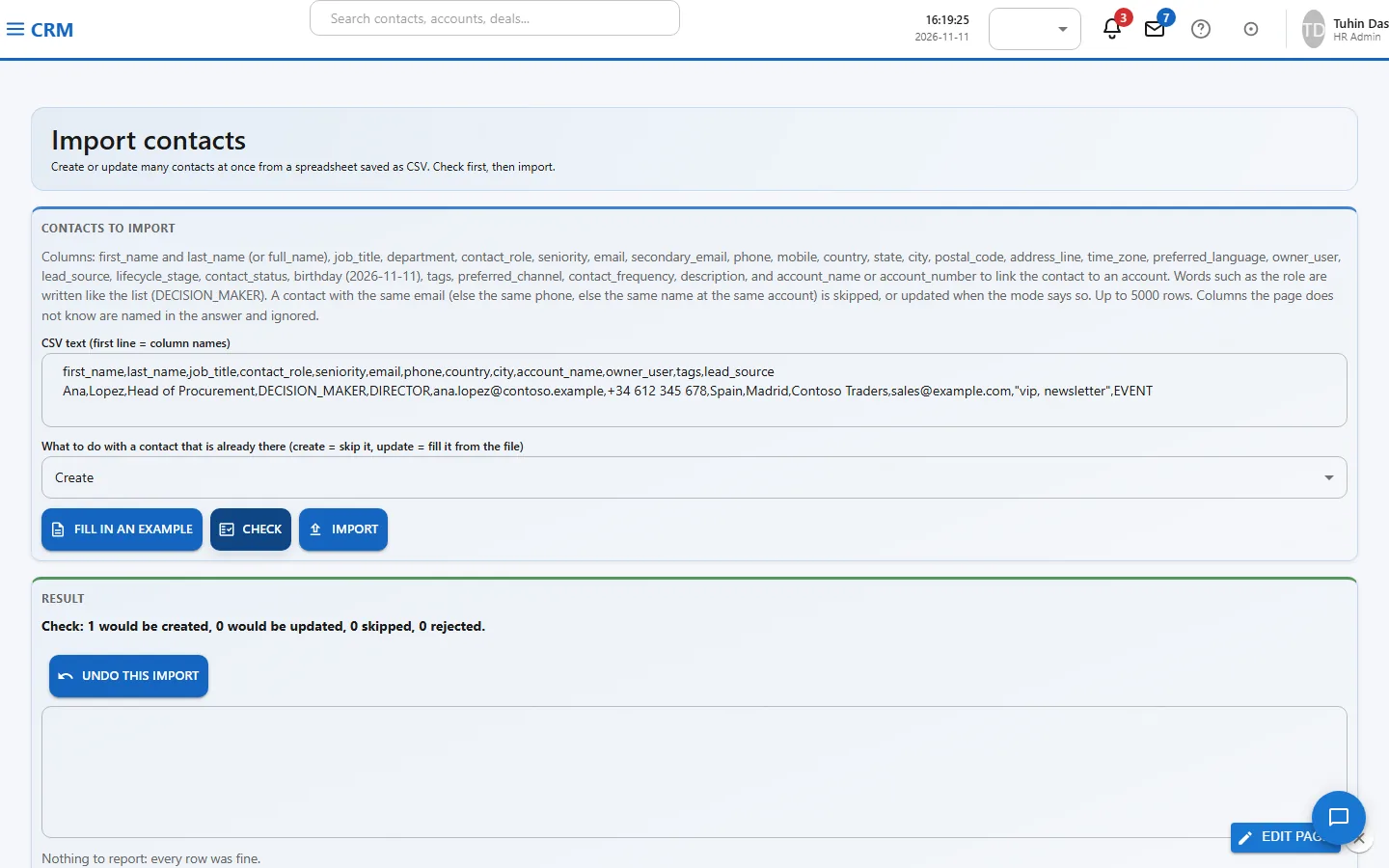
Import contacts (Customer menu) creates or updates many contacts from a spreadsheet saved as CSV. Paste the text (the first line names the columns; Fill in an example shows the usual ones), choose what to do with a contact that is already there (create skips it, update fills it from the non-empty cells of the file), press Check and read the answer, then Import.
- A contact is matched on the email address, else the international phone number, else the same name at the same account.
- The answer says how many would be created, updated, skipped and rejected, names the columns it did not recognise (they are ignored), lists what happened per row and gives the rejected rows with the reason as CSV text that you can fix and send again. Two rows for the same person inside the file are caught.
account_nameoraccount_numberlinks the new contact to that account (primary when it is the first). Phone numbers are normalised to international form.- Every contact a real import creates carries an import batch id; Undo this import removes them (with their links, handles and notes; consent history is kept).
- Up to 5000 rows at a time; only the CRM Contact Administrator can import. Check with a small file first.
Contact insights
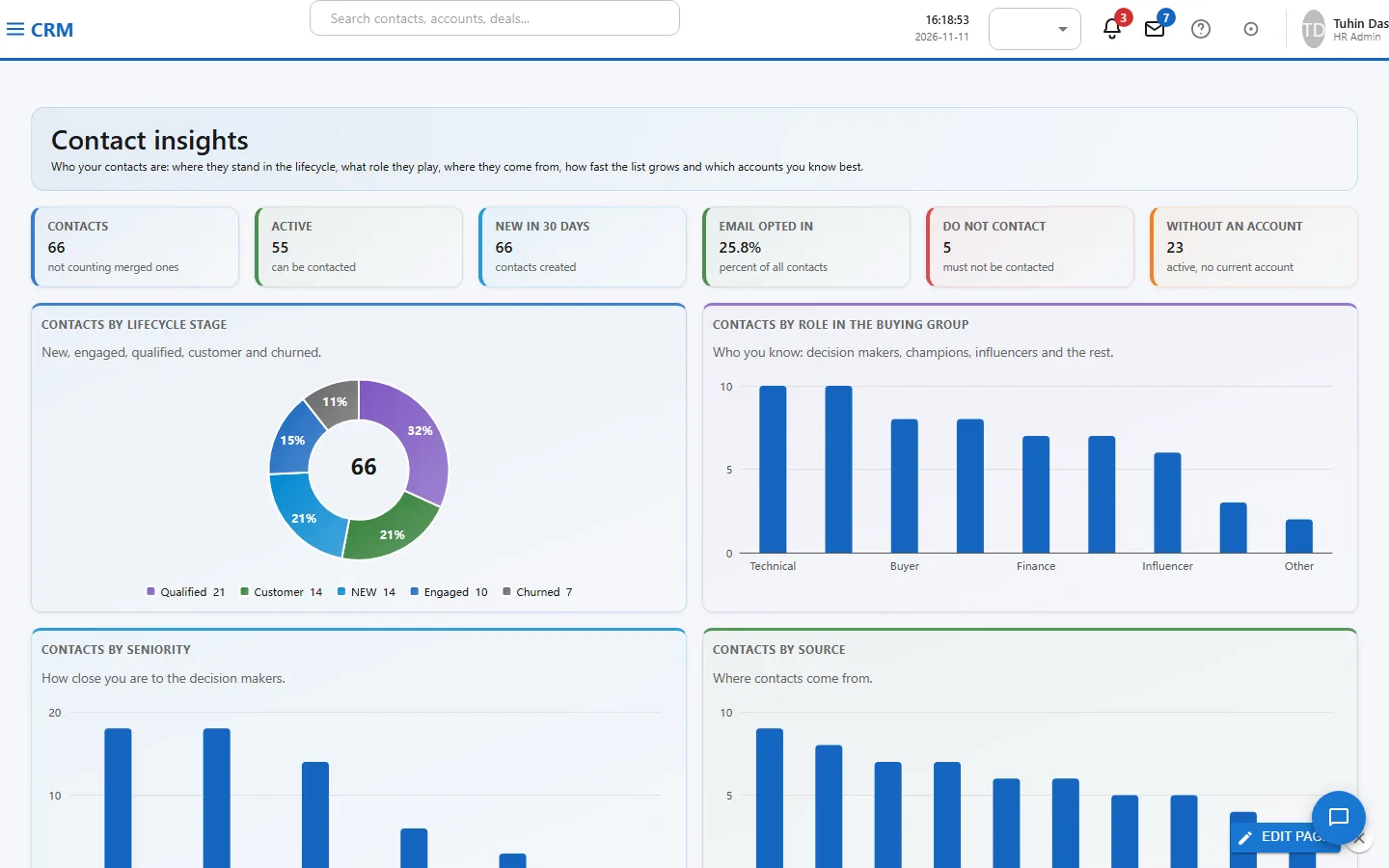
The tiles give the size of the list, how many contacts are active, new in 30 days, opted in for email, marked Do Not Contact and without an account. The charts show the contacts by lifecycle stage, role in the buying group, seniority, source, country, tag, the customers by source (which sources produce customers), the new contacts per month for the last twelve months and the ten accounts with the most current contacts.
Contact quality and consent
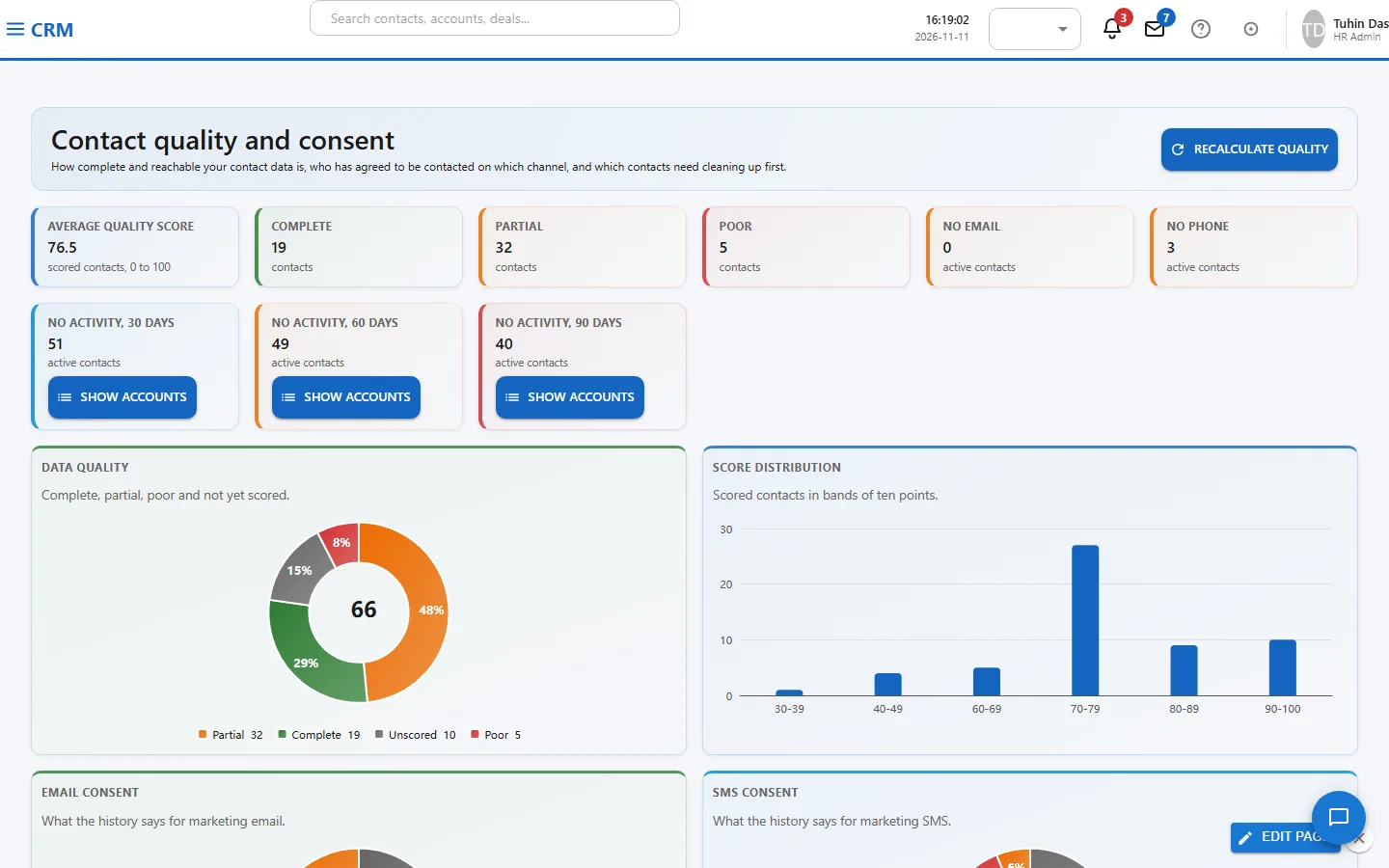
The data quality score runs from 0 to 100: reach (a plausible email 15, a phone or mobile number 10), profile (job title 7, a role or seniority 6, country 6, city or address 3, time zone or language 3), ownership and account (an owner 10, a current account 15) and recency (last activity within 30 days 25, 90 days 18, 180 days 10, a year 4). 80 and above is Complete, 50 and above Partial, below that Poor; only active contacts are scored. The charts show the quality split, the score distribution, the email and SMS consent split and the opted-in consents by lawful basis. The Cleanup watchlist lists poor contacts with what is missing, Consent expiring in 30 days lists opt-ins to renew, and Show accounts on an idle tile opens the contacts behind the number.
Duplicate contacts and merging
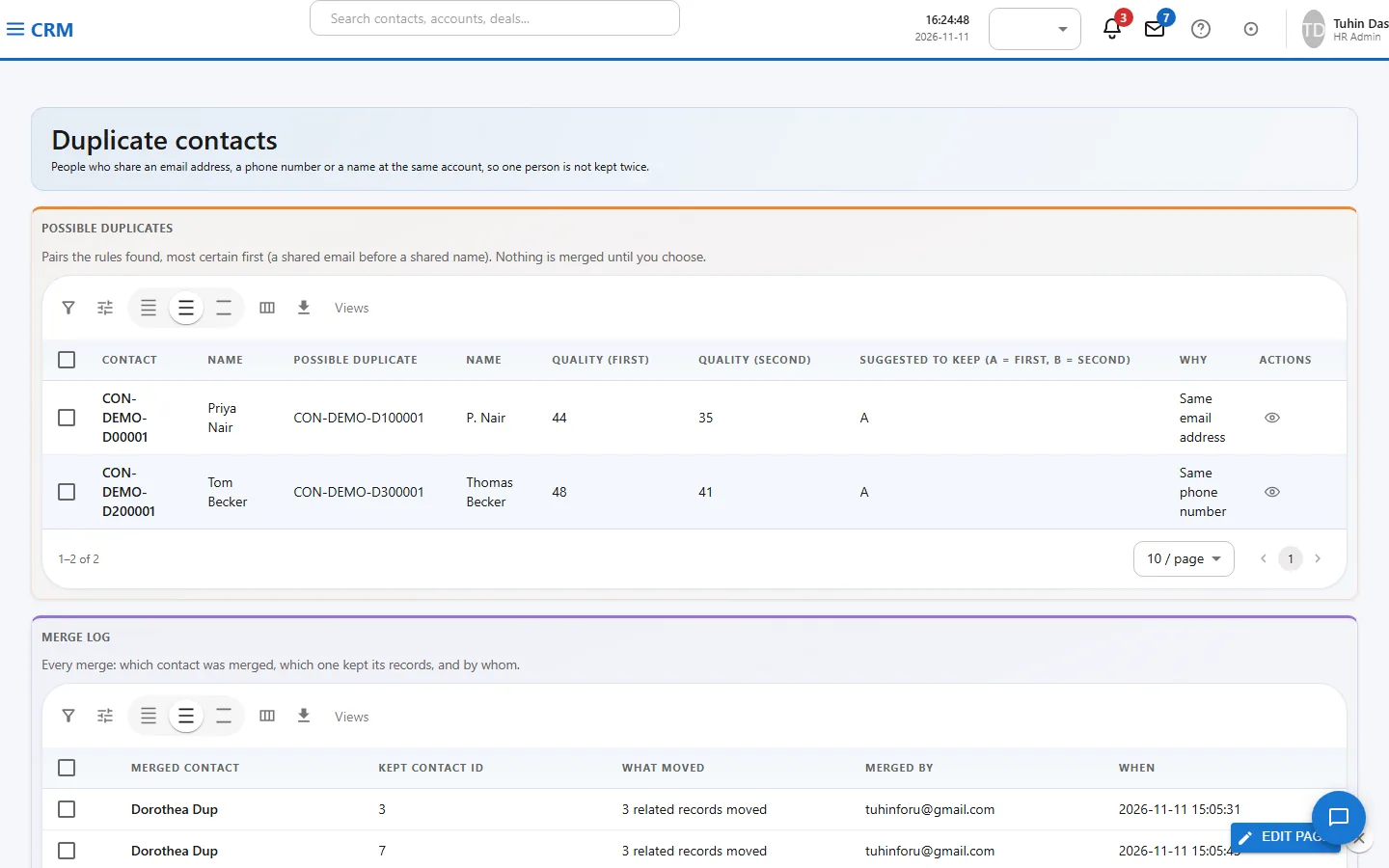
The list shows pairs of contacts that share an email address (either address), a phone number in international form, or the same name at the same account. Each side shows its data quality score and a suggested contact to keep (the more complete one, then the older). Review shows both sides. Merge keeps one contact and folds the other into it: account links (one primary stays), social handles, notes and the consent history move to the kept contact, empty fields are filled from the other, tags are united, and the other contact is marked merged. A contact marked Do Not Contact keeps that flag. A merge cannot be undone: look at both first. Only the CRM Contact Administrator can merge.
Industry and country packs
The module knows no country's or industry's rules; packs supply them as data (python tools/dev/apply-crm-pack.py --list).
- Country packs (India, United Kingdom, United States, Germany) hold the phone, postal and email patterns of the country under the Common Data settings
crm_phone_pattern_<COUNTRY>,crm_postal_pattern_<COUNTRY>andcrm_email_pattern_<COUNTRY>, withcrm_*_label_<COUNTRY>for the words people there use. The same settings serve Accounts and Contacts. A country without a pack is not checked, except that an email address must look like one. - Industry packs (banking, insurance, logistics) add fields on the More details tab through Custom Fields for the entity
crm_contact. Your own: define fields for the entitycrm_contactunder Custom Fields. - Phone numbers are kept in international form (+4915112345678) beside what was typed, from the calling code of the country; a number that cannot be normalised with confidence is left empty, never guessed.
- Consent rules by region (for example which regions expect double opt-in) are your policy: record the confirmation as evidence; confirmation emails belong to the Marketing module.
5. Charts, reports and exports
| Figure | What it counts |
|---|---|
| Contacts | All contacts except those merged into another. |
| Email opted in (percent) | Contacts whose email summary is opted in, as a percentage of all contacts. |
| Without an account | Active contacts with no current account link. |
| Quality score | The sum of the four parts, 0 to 100 (see above). |
| Opted-in consents by lawful basis | Marketing opt-in lines of the history, by basis. |
| Accounts with the most contacts | Current links per account, top ten. |
Every list can be downloaded with the download icon. The charts read the same data as the lists.
6. On a phone or tablet
The tiles stack, the lists become cards and the tabs scroll sideways. Everything on the desktop can be done on a phone; the two-column dialogs become one column.
7. Rules and limits
- Access is by role (section 1). Without a role the data is not returned, not just hidden. Personal data is only as private as the roles you give.
- Consent history is append-only. Deleting a contact keeps its consent lines; anonymising keeps them without the person's details.
- The email, phone and postal checks warn and still save.
- Phone normalisation covers the calling codes of the country packs (India, United States, Canada, United Kingdom, Germany, France, Spain, Australia, Singapore, United Arab Emirates, Brazil, Sweden); a number already written with + or 00 is kept as written. There is no full number library in the platform yet.
- Not built here: email sending and confirmation emails (Marketing), calls and meetings per contact (Activities), AI enrichment from third-party data providers (needs an Integration Designer provider account).
8. Troubleshooting
| Symptom | Cause | Fix |
|---|---|---|
| You open Contacts and are told you have no permission | The person has no CRM contact platform role | Assign a CRM Contact role in the user administration screen |
| A button answers "Contact.Edit is required" | The CRM application role is missing | Wait five minutes for the role mirror, or press it in CRM Roles |
| "Opting in again needs fresh consent" | The channel was opted out, or the contact is Do Not Contact | Fill in Evidence: what the person saw or said |
| A consent shows pending after an opt-in | The opt-in expired, or two lines carry the same moment and disagree | Record a new opt-in with evidence |
| Quality shows Unscored for everything | The score has not been calculated yet | Press Refresh quality (Contacts) or Recalculate quality (quality screen) |
| Phone in international form is empty | The number could not be normalised with confidence | Type it with the country code (+49 ...) or set the country |
| A rule warning appears for a correct number | The country pack's pattern is stricter than your numbers | Adjust crm_phone_pattern_<COUNTRY> in Common Data |
| An import row is rejected | See the reason in the answer; the rejected rows come back as CSV | Fix them and send again |
| A menu item is missing | It is not part of your SparkCRM edition, or your role does not allow it | Ask your administrator |
| Merge button missing or refused | Only the CRM Contact Administrator can merge | Ask for the role |
9. Related guides
- CRM Accounts: set up and daily use: roles, editions, packs and the account side of the link.
Influence, billing and support, and Contact intelligence
- Influence and billing tab: on the link of a contact to an account you can set authority (final, recommender, influencer), influence and stance (champion to blocker); a change of role keeps the earlier role in the notes of the link, and "End a link" dates the end instead of deleting it. The committee map and gaps (no final authority, no champion, a blocker, nobody supportive, single-threaded) are listed per account and across accounts.
- Billing: a contact can be the invoice recipient, payer, approver or dispute contact, with a delivery way; "Verify billing details" refuses a contact with no usable email, no responsibility, no delivery way or marked do not contact. Accounts with no billing contact are listed.
- Support: contacts have an escalation level (1 is called first) and a notification preference; accounts with a single support contact are listed.
- Documents (ID, signed consent form, business card, certificate) have a sensitivity, a version, a valid-until date and a portal flag.
- Merge keeps a snapshot, so a merge can be undone with Unmerge: both contacts, their account links, notes, social handles and consent records come back.