
Appearance
Leave Accrual & Carry Forward (HCM)
This page documents two shipped Leave Management processing screens (hcm-leave) — periodic, admin-run leave balance updates. Not for plugin developers.
Who this is for: HR admins running these processes (typically monthly or yearly, per your leave policies).
Leave Accrual
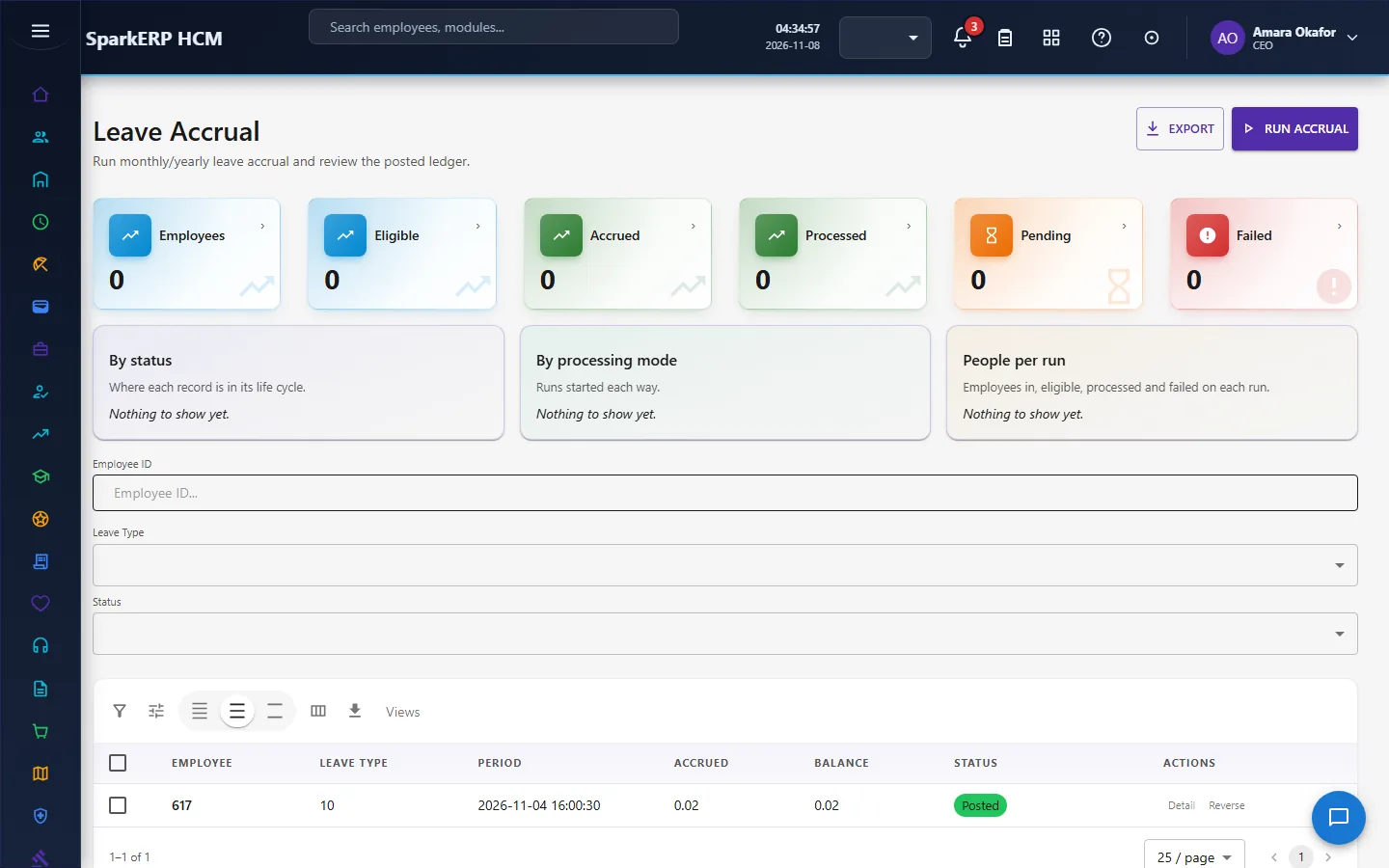
Run leave accrual for employees — preview what would be added to balances before you commit it, then post it for real. If you posted an accrual by mistake, Reverse undoes it. You can also drill into one employee's own accrual detail.
Open it at /hcm-leave/leave-accrual (or from the HCM menu).
- Sections: By status, By processing mode, People per run.
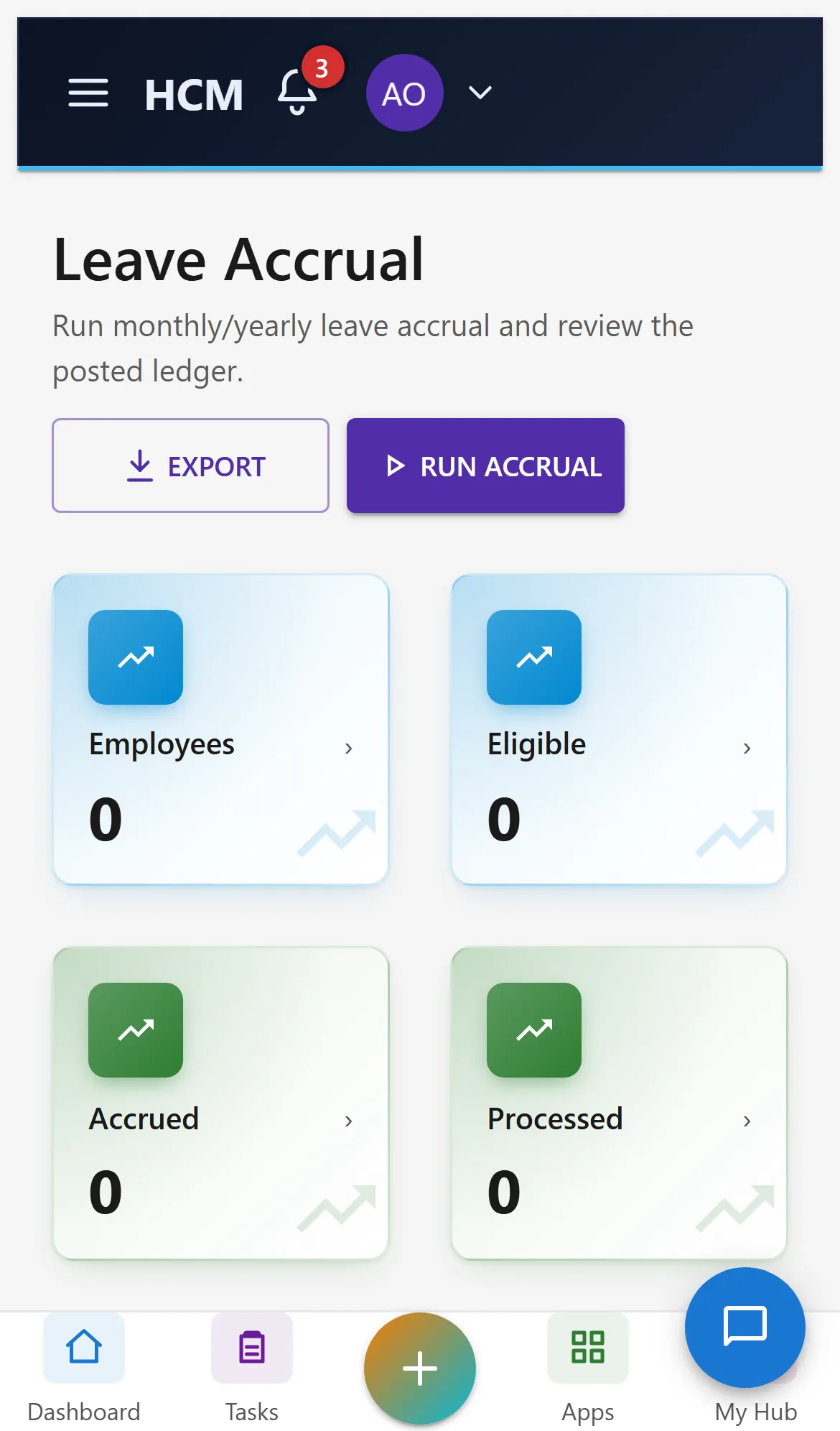
- Cards: Employees, Eligible, Accrued, Processed, Pending, Failed.
- Charts: Total.
- Table columns: Employee, Leave Type, Period, Accrued, Balance, Status, Actions.
- Actions: Export, Run Accrual, Cancel, Run, Close, Reverse.
How to: Run Accrual
- Open Leave Management > Leave Accrual.
- Select Run Accrual.
- In the window Run Leave Accrual fill in:
| Field | What to enter |
|---|---|
| Accrual Period Start | Pick a date. |
| Accrual Period End | Pick a date. |
| Accrual Date | Pick a date. |
| Leave Type | Type it. |
| Processing Mode | Choose one: Preview, Post |
- Select the confirm button.
- The window closes and the table refreshes with the result. If the screen shows a message instead, read it: it says what is missing.
How to: Reverse Accrual
- Open Leave Management > Leave Accrual.
- Select the record you want to change, or the button that adds a new one.
- In the window Reverse Accrual fill in:
| Field | What to enter |
|---|---|
| Reason for Reversal | Type it (for example: Reason for reversal...). |
- Select the confirm button.
- The window closes and the table refreshes with the result. If the screen shows a message instead, read it: it says what is missing.
Carry Forward
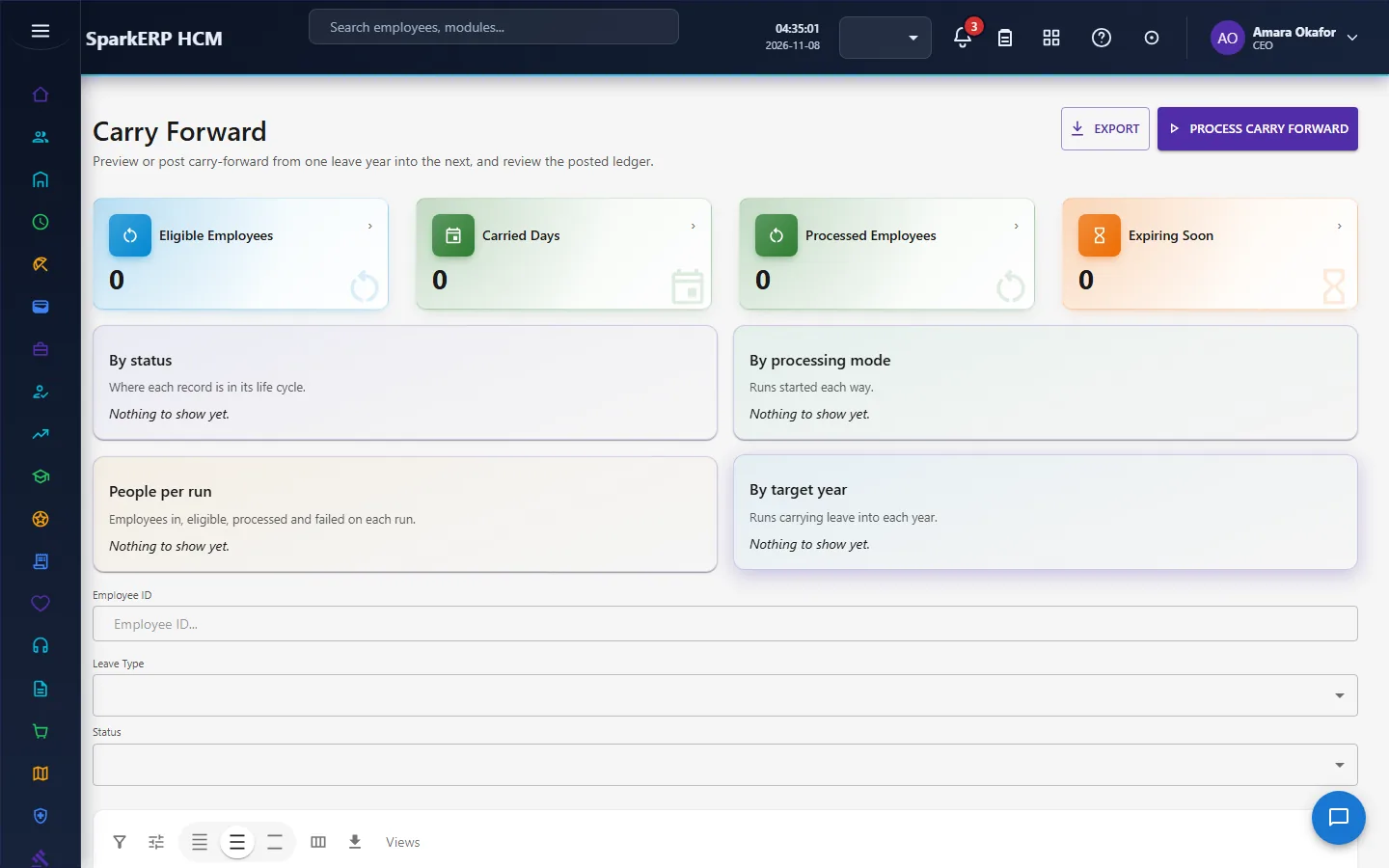
The year-end (or policy-defined period) process of carrying unused leave forward into the next period — same preview-then-post-then-reverse-if-needed pattern as Accrual, plus its own KPI summary and per-employee detail view.
Open it at /hcm-leave/leave-carry-forward (or from the HCM menu).
- Sections: By status, By processing mode, People per run, By target year.
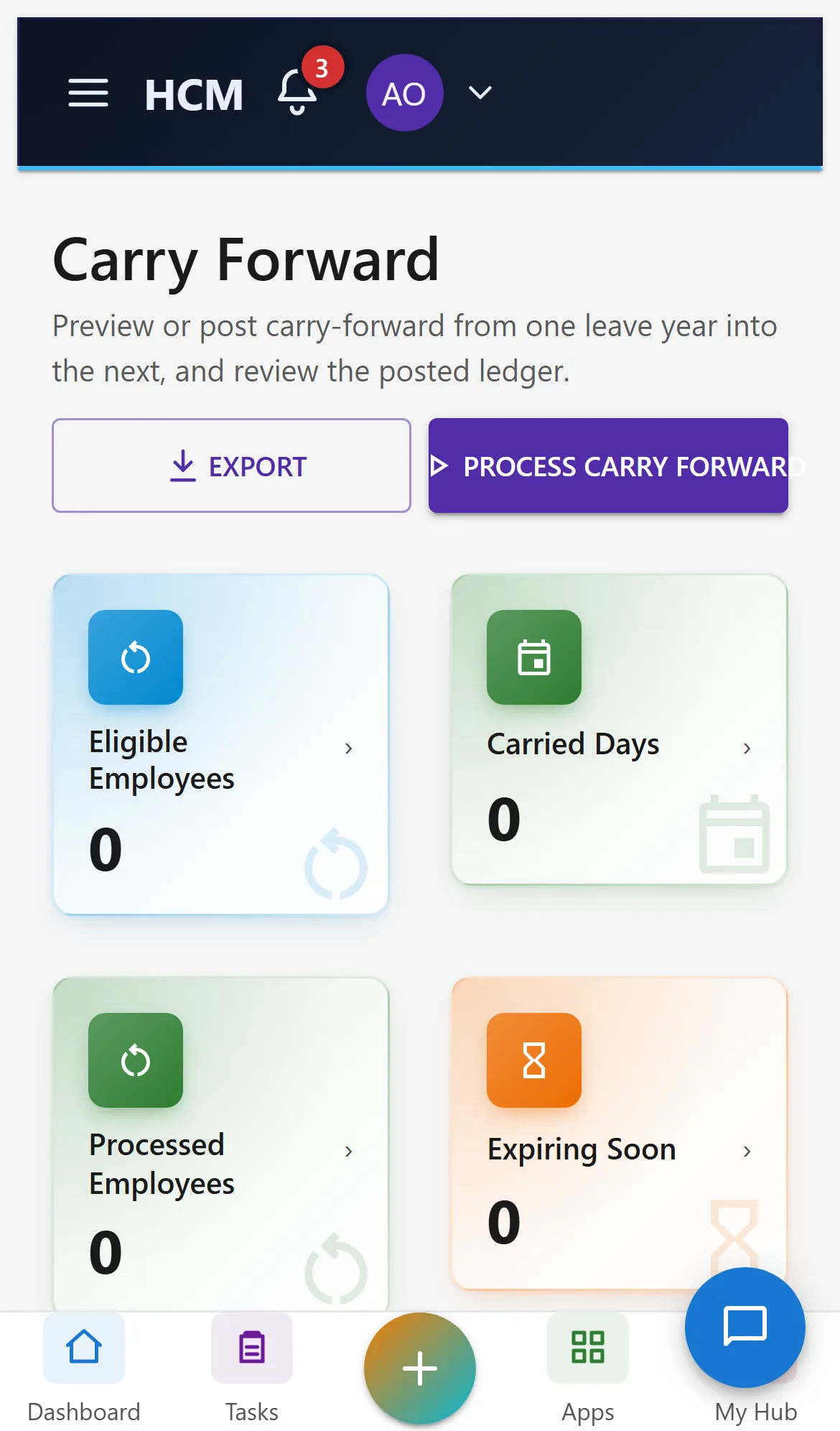
- Cards: Eligible Employees, Carried Days, Processed Employees, Expiring Soon.
- Charts: Total.
- Table columns: Employee, Leave Type, Date, Carried Forward, Balance, Expiry Date, Status, Actions.
- Actions: Export, Process Carry Forward, Cancel, Run, Close, Reverse.
How to: Process Carry Forward
- Open Leave Management > Carry Forward.
- Select Process Carry Forward.
- In the window Process Carry Forward fill in:
| Field | What to enter |
|---|---|
| From Year | Type it. |
| To Year | Type it. |
| Leave Type | Type it. |
| Processing Mode | Choose one: Preview, Post |
- Select the confirm button.
- The window closes and the table refreshes with the result. If the screen shows a message instead, read it: it says what is missing.
How to: Reverse Carry Forward
- Open Leave Management > Carry Forward.
- Select the record you want to change, or the button that adds a new one.
- In the window Reverse Carry Forward fill in:
| Field | What to enter |
|---|---|
| Reason for Reversal | Type it (for example: Reason for reversal...). |
- Select the confirm button.
- The window closes and the table refreshes with the result. If the screen shows a message instead, read it: it says what is missing.