
Appearance
Course Catalog, Learning Paths & Training Programs (HCM)
This page documents three shipped Learning screens (hcm-learning) covering what's available to learn. Not for plugin developers.
Course Catalog
The master catalog of courses.
Open it at /hcm-learning/course-catalog (or from the HCM menu).
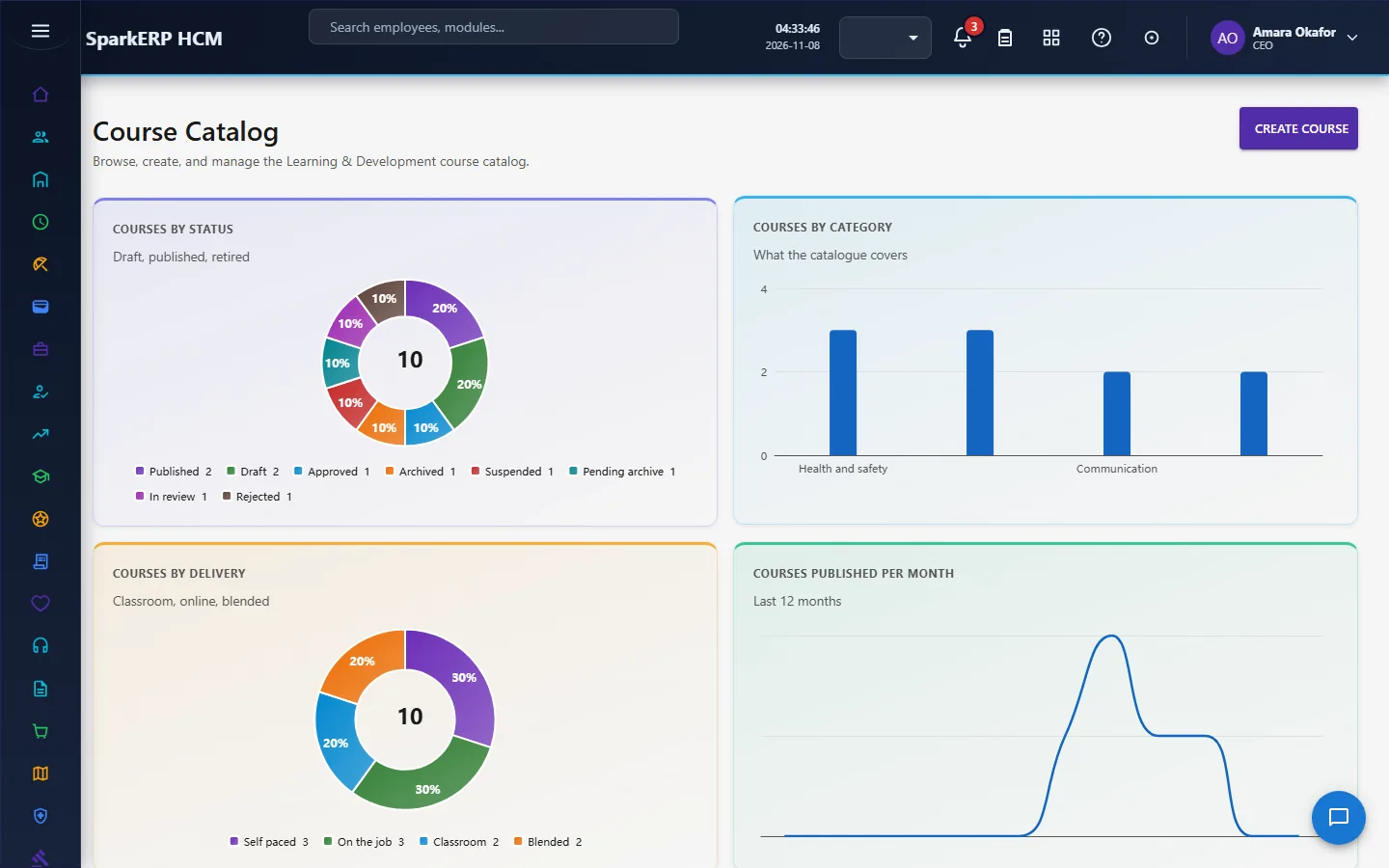
- Sections: Courses by status, Courses by category, What the catalogue covers, Courses by delivery, Courses published per month, Last 12 months.
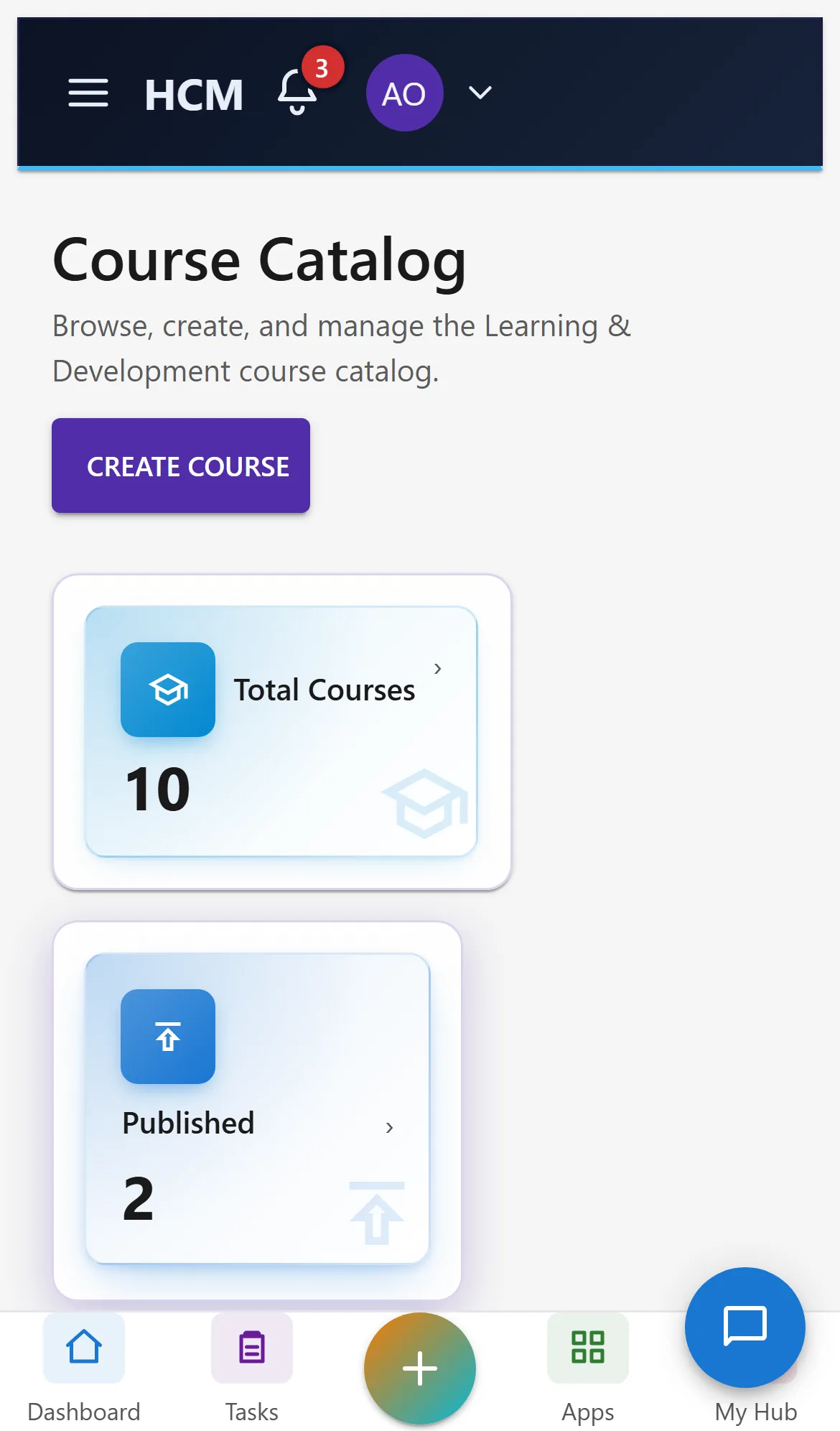
- Cards: Total Courses, Published, Drafts, Mandatory.
- Table columns: Course Name, Category, Type, Delivery Mode, Duration (hrs), Mandatory, Status, Actions.
- Actions: Create Course, Submit for Review, Back to Draft, Publish, Activate, Suspend, Archive, Cancel, Save.
How to: Create Course
- Open Learning & Development > Courses.
- Select Create Course.
- In the window Course fill in:
| Field | What to enter |
|---|---|
| Course Code | Type it (for example: Course code (e.g. LEAD-101)). |
| Course Name | Type it (for example: Course name). |
| Short Description | Type it (for example: Short description). |
| Description | Type it. |
| Course Type | Choose one: Internal, External, Compliance, Mandatory, Optional, Professional, Technical, Soft skill, Orientation, Safety... |
| Delivery Mode | Choose one: Classroom, Virtual, Self paced, Blended, External, On the job |
| Duration (hours) | Type it (for example: Duration in hours). |
| Capacity | Type it. |
- Select Submit for Review.
- The window closes and the table refreshes with the result. If the screen shows a message instead, read it: it says what is missing.
Learning Paths
Structured sequences of courses, grouped into a path toward a goal.
Open it at /hcm-learning/learning-paths (or from the HCM menu).
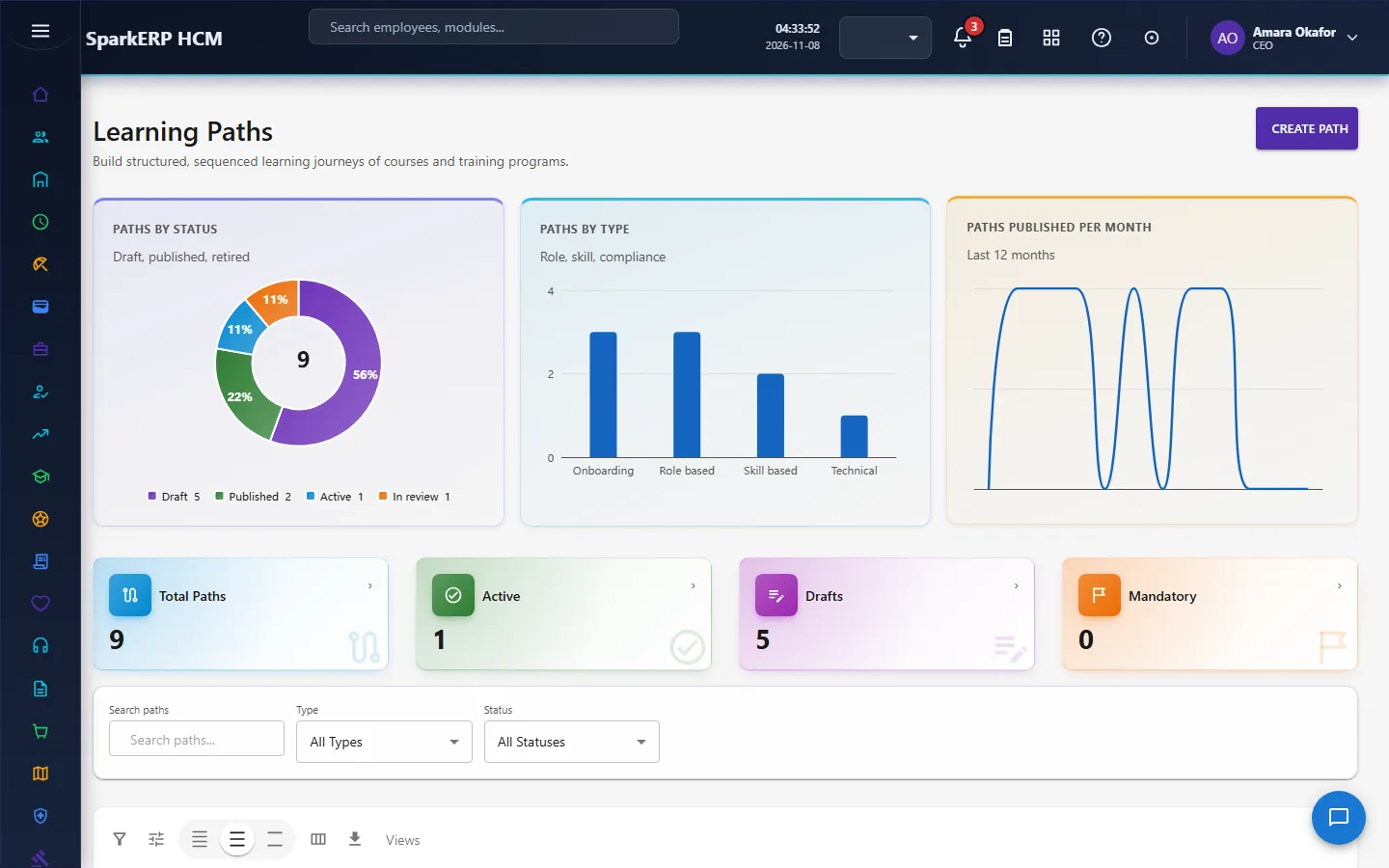
- Sections: Paths by status, Paths by type, Paths published per month, Last 12 months.
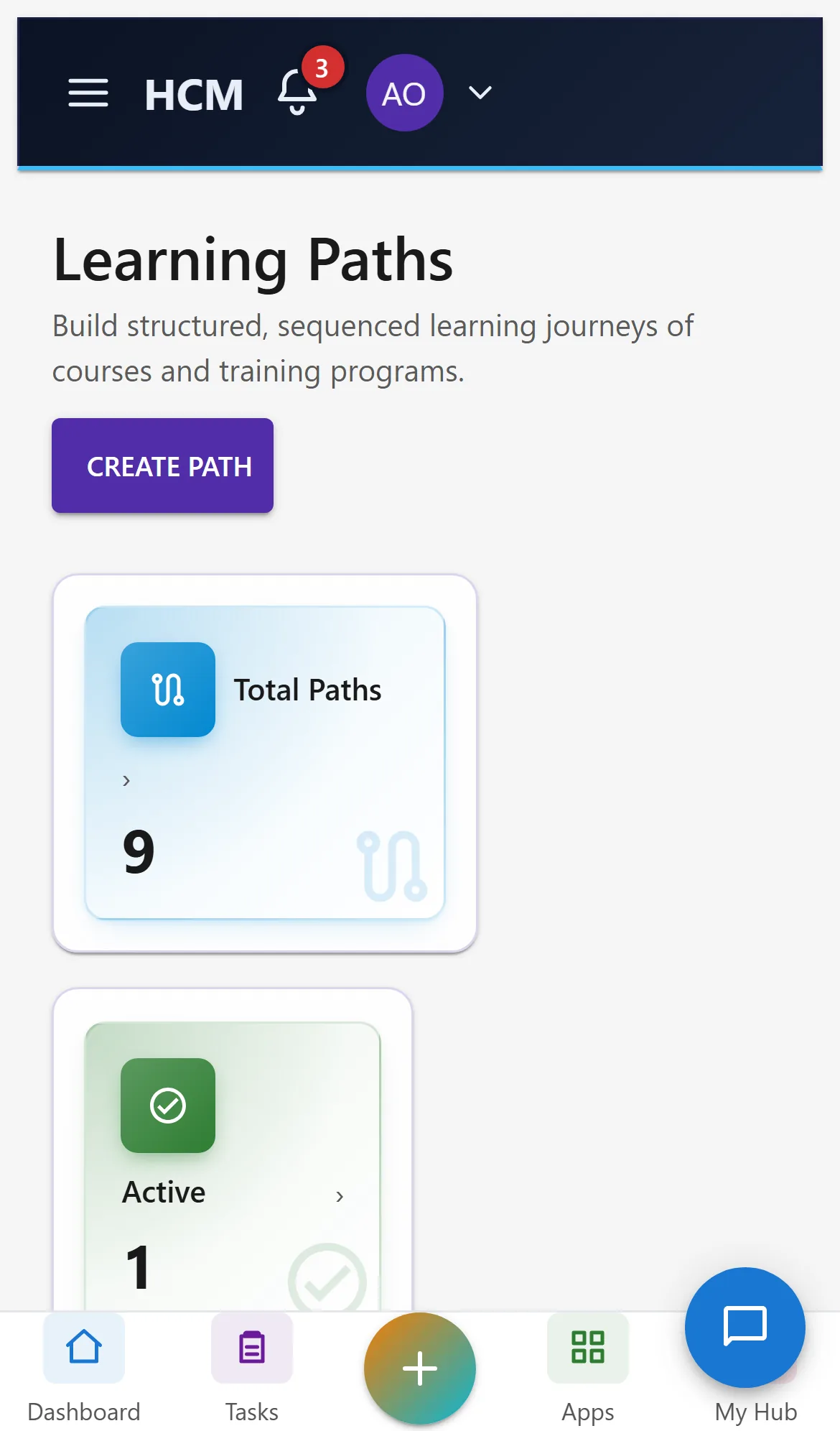
- Cards: Total Paths, Active, Drafts, Mandatory.
- Table columns: Path Name, Category, Type, Mandatory, Status, Actions.
- Actions: Create Path, Submit for Review, Back to Draft, Publish, Activate, Suspend, Reactivate, Archive, Cancel, Save.
How to: Create Path
- Open Learning & Development > Learning Paths.
- Select Create Path.
- In the window Learning Path fill in:
| Field | What to enter |
|---|---|
| Path Code | Type it (for example: Path code). |
| Path Name | Type it (for example: Path name). |
| Description | Type it. |
| Path Type | Choose one: Role Based, Career Based, Skill Based, Competency Based, Certification, Compliance, Mandatory, Onboarding, Leadership, Technical... |
| Objective | Type it. |
| Minimum Duration (days) | Type it (for example: Minimum duration (days)). |
| Expected Duration (days) | Type it (for example: Expected duration (days)). |
| Maximum Duration (days) | Type it (for example: Maximum duration (days)). |
| Learning Hours | Type it (for example: Learning hours). |
- Select Submit for Review.
- The window closes and the table refreshes with the result. If the screen shows a message instead, read it: it says what is missing.
Training Programs
Broader training programs, which can bundle courses and paths together.
Open it at /hcm-learning/training-programs (or from the HCM menu).
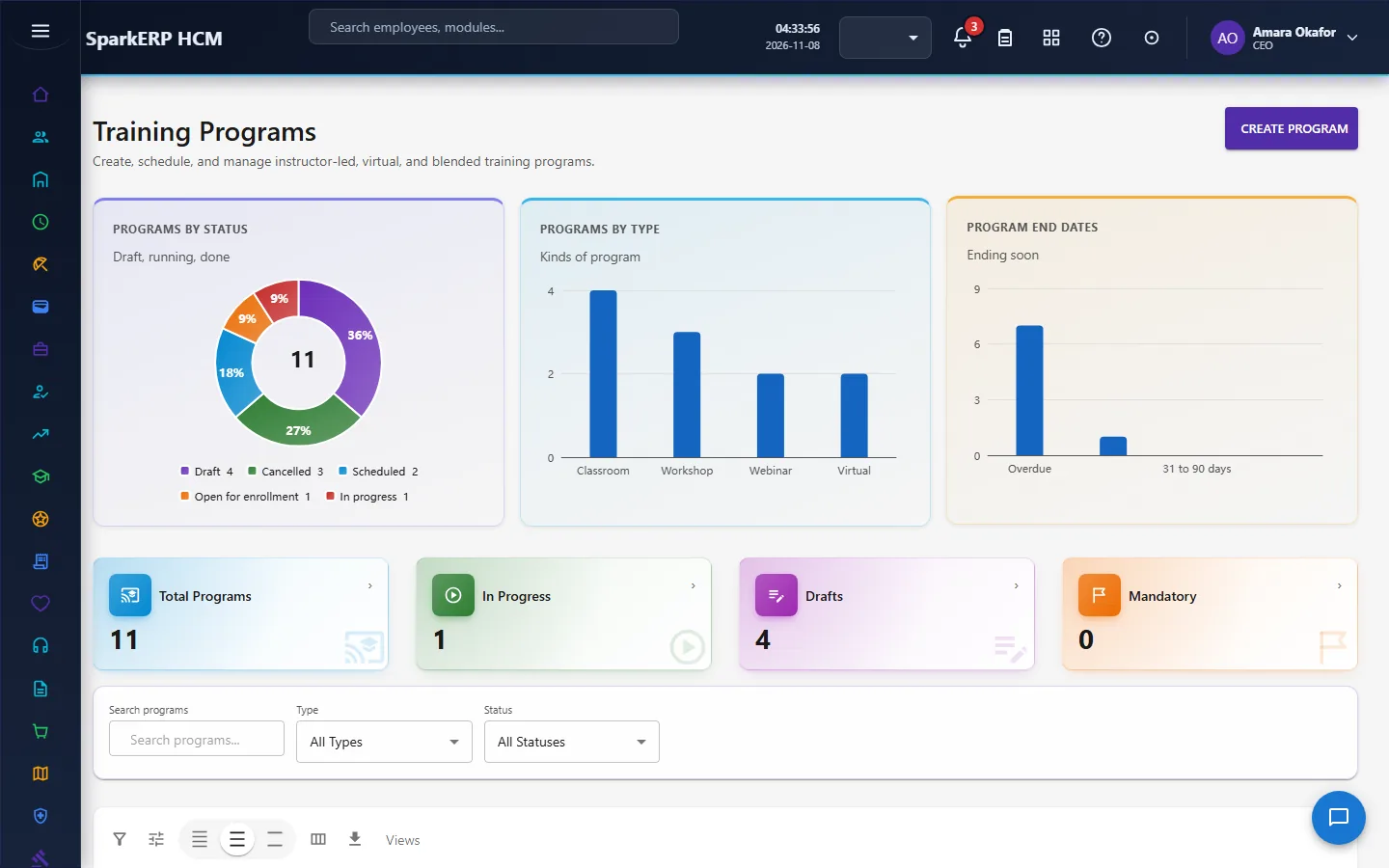
- Sections: Programs by status, Programs by type, Kinds of program, Program end dates, Ending soon.
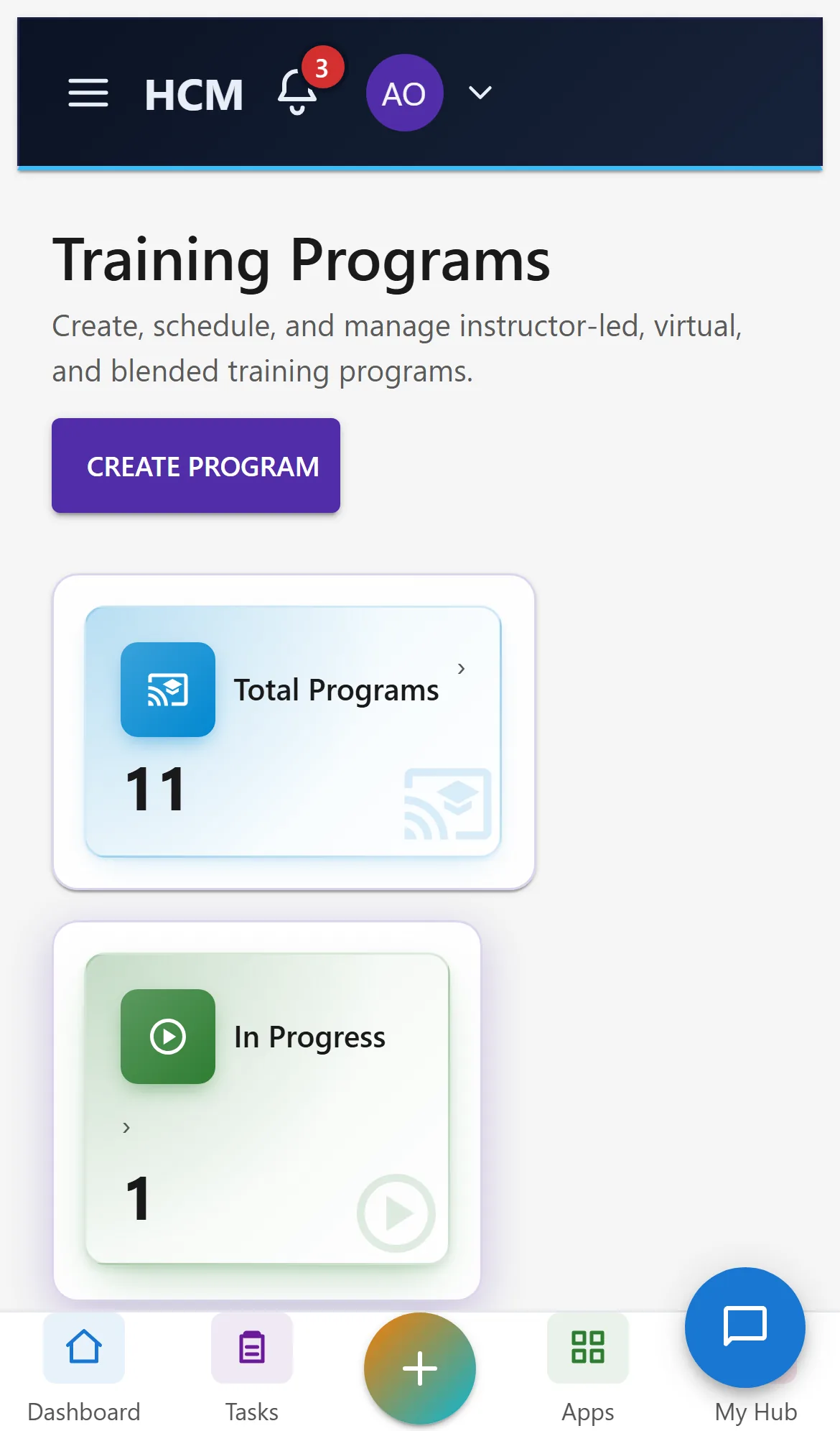
- Cards: Total Programs, In Progress, Drafts, Mandatory.
- Table columns: Program Name, Category, Type, Course, Start Date, Capacity, Mandatory, Status, Actions.
- Actions: Create Program, Submit, Back to Draft, Schedule, Open Enrollment, Start, Complete, Close, Cancel Program, Suspend, Resume, Archive and 2 more.
How to: Create Program
- Open Learning & Development > Training Programs.
- Select Create Program.
- In the window Training Program fill in:
| Field | What to enter |
|---|---|
| Program Code | Type it (for example: Program code). |
| Program Name | Type it (for example: Program name). |
| Description | Type it. |
| Objective | Type it. |
| Training Type | Choose one: Classroom, Virtual, Webinar, Blended, On The Job, Workshop, Seminar, Conference, Coaching, Mentoring... |
| Start Date | Pick a date. |
| End Date | Pick a date. |
| Duration (minutes) | Type it (for example: Duration in minutes). |
| Learning Hours | Type it (for example: Learning hours). |
| Capacity | Type it. |
- Select Submit.
- The window closes and the table refreshes with the result. If the screen shows a message instead, read it: it says what is missing.