
Appearance
Job Requisitions, Job Openings & Careers (HCM)
This page documents three shipped Recruitment screens (hcm-recruitment) covering where a hire starts — getting approval to hire, then publishing the vacancy. Not for plugin developers.
Job Requisitions
The starting point: request approval to hire for a role, including required skills. Goes through a real approval workflow, with a budget-threshold check along the way — a requisition above a certain budget needs an extra approval step.
Open it at /hcm-recruitment/job-requisitions (or from the HCM menu).
- Sections: Tenant Policy (from HCM Settings), Requisitions by status, From draft to closed, Requisitions by priority, How urgent the open ones are, Target fill dates, Requisitions per month, Last 12 months, Requisition Information, Organization, Job Information, Hiring Requirements and 2 more.
- Cards: Total, Draft, Pending Approval, Open, On Hold, Filled.
- Table columns: Requisition, Title, Department Id, Location, Openings, Filled, Recruiter Id, Priority, Target Start, Status, Fill %, Open positions.
- Actions: Export, New Requisition, Cancel, Save As Draft, Submit, Publish, Put On Hold, Resume, Record Hire, Close Requisition, Duplicate, Cancel Requisition and 3 more.
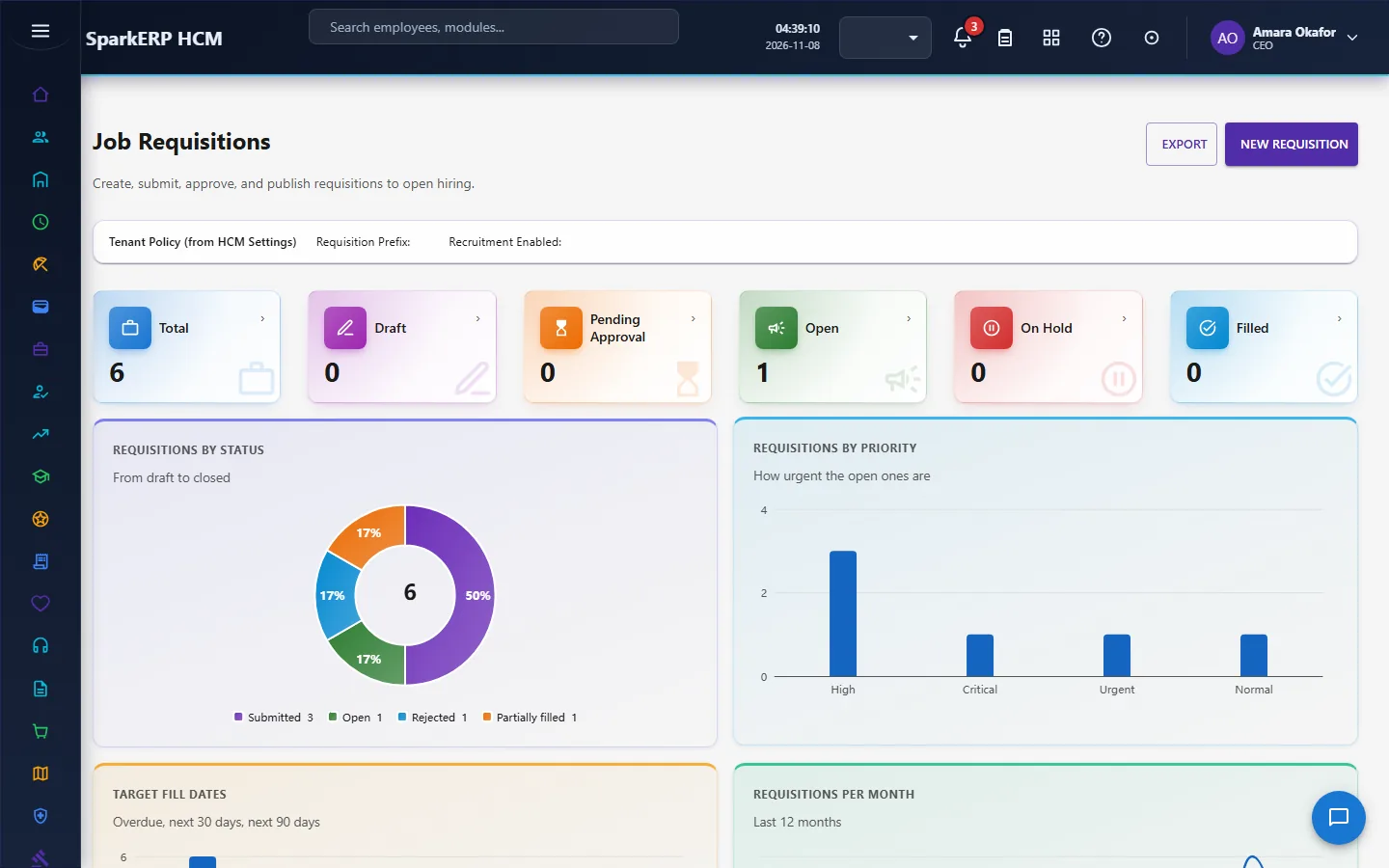
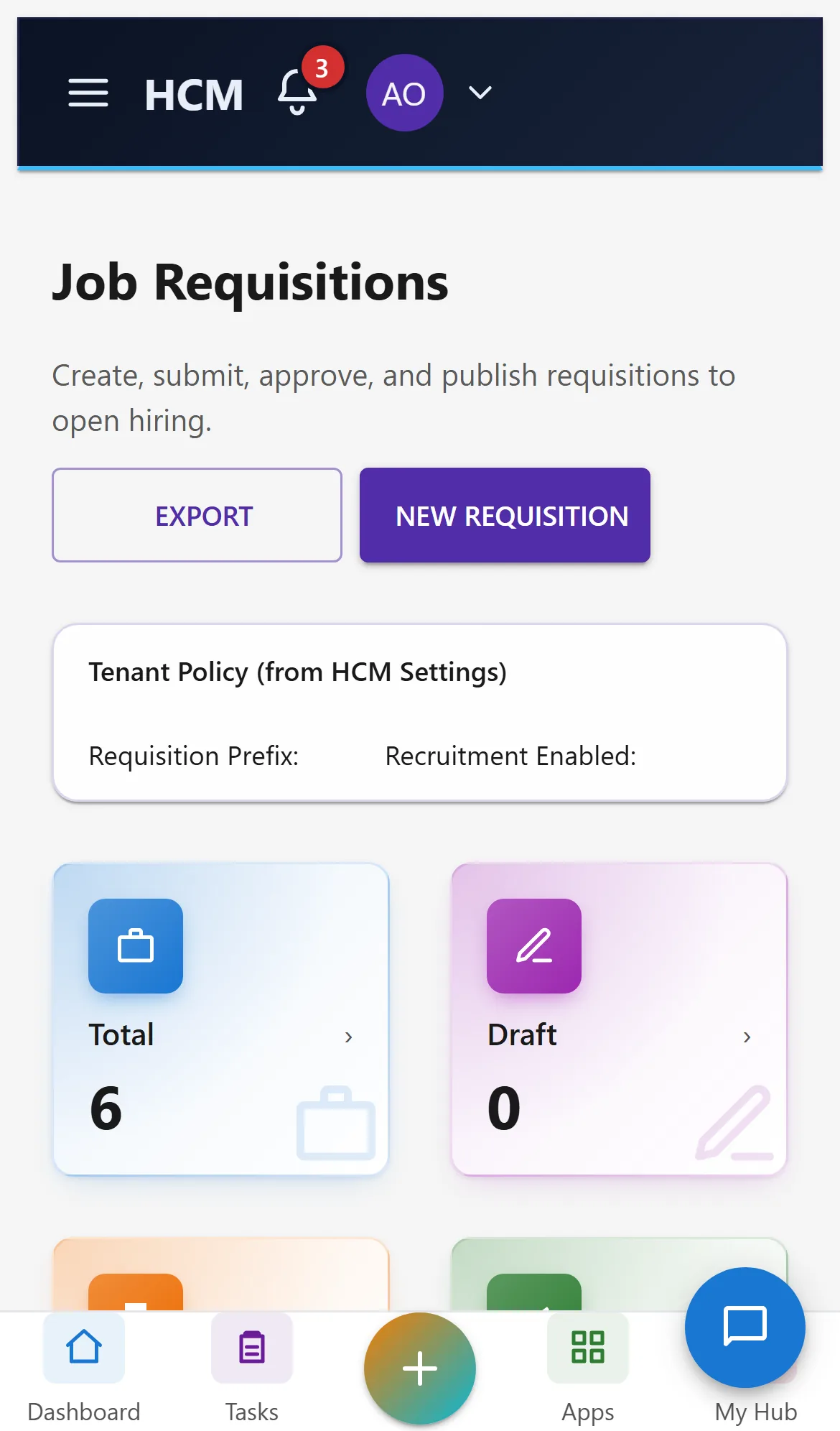
How to: New Requisition
- Open Recruitment > Job Requisitions.
- Select New Requisition.
- In the window New Job Requisition fill in:
| Field | What to enter |
|---|---|
| Requisition Title | Type it. |
| Requisition Type | Choose one: New Position, Replacement, Additional Headcount, Temporary, Contract, Internal |
| Priority | Choose one: Low, Normal, High, Urgent, Critical |
| Legal Entity Id | Type it. |
| Department Id | Type it. |
| Location | Type it. |
| Country Code | Type it. |
| Employment Type | Type it. |
| Work Mode | Choose one: On Site, Remote, Hybrid, Field |
| Number Of Openings | Type it. |
| Minimum Experience (Years) | Type it. |
| Maximum Experience (Years) | Type it. |
| Required Skills | Type it. |
| Currency | Type it. |
| Minimum Salary | Type it. |
| Maximum Salary | Type it. |
| Budgeted Cost | Type it. |
| Requested Date | Type it. |
| Target Start Date | Type it. |
| Target Fill Date | Type it. |
| Job Description | Type it. |
- Select Save As Draft.
- The window closes and the table refreshes with the result. If the screen shows a message instead, read it: it says what is missing.
How to: Cancel Requisition
- Open Recruitment > Job Requisitions.
- Select Cancel Requisition.
- In the window Cancel Requisition fill in:
| Field | What to enter |
|---|---|
| Cancellation Reason | Type it. |
- Select Confirm Cancel.
- The window closes and the table refreshes with the result. If the screen shows a message instead, read it: it says what is missing.
How to: Put On Hold
- Open Recruitment > Job Requisitions.
- Select Put On Hold.
- In the window Put Requisition On Hold fill in:
| Field | What to enter |
|---|---|
| Hold Reason | Type it. |
- Select Confirm Hold.
- The window closes and the table refreshes with the result. If the screen shows a message instead, read it: it says what is missing.
Job Openings
Once a requisition is approved, turn it into a publishable vacancy — what candidates actually see and apply to.
Open it at /hcm-recruitment/job-openings (or from the HCM menu).
- Sections: Openings by status, Openings by work mode, Target fill dates, How soon openings should be filled, Basic Information, Organization, Recruitment Team, Compensation, Timeline, Description, Overview, Job Requisition Id and 16 more.
- Cards: Total, Draft, Published, Open, On Hold, Filled.
- Table columns: Opening Code, Opening Title, Requisition Id, Type, Priority, Status, Target Fill Date.
- Actions: Export, New Opening, Cancel, Create Opening, Assign Recruiter, Assign Hiring Manager, Close, Mark Ready to Publish, Publish, Unpublish, Open for Candidates, Hold and 9 more.
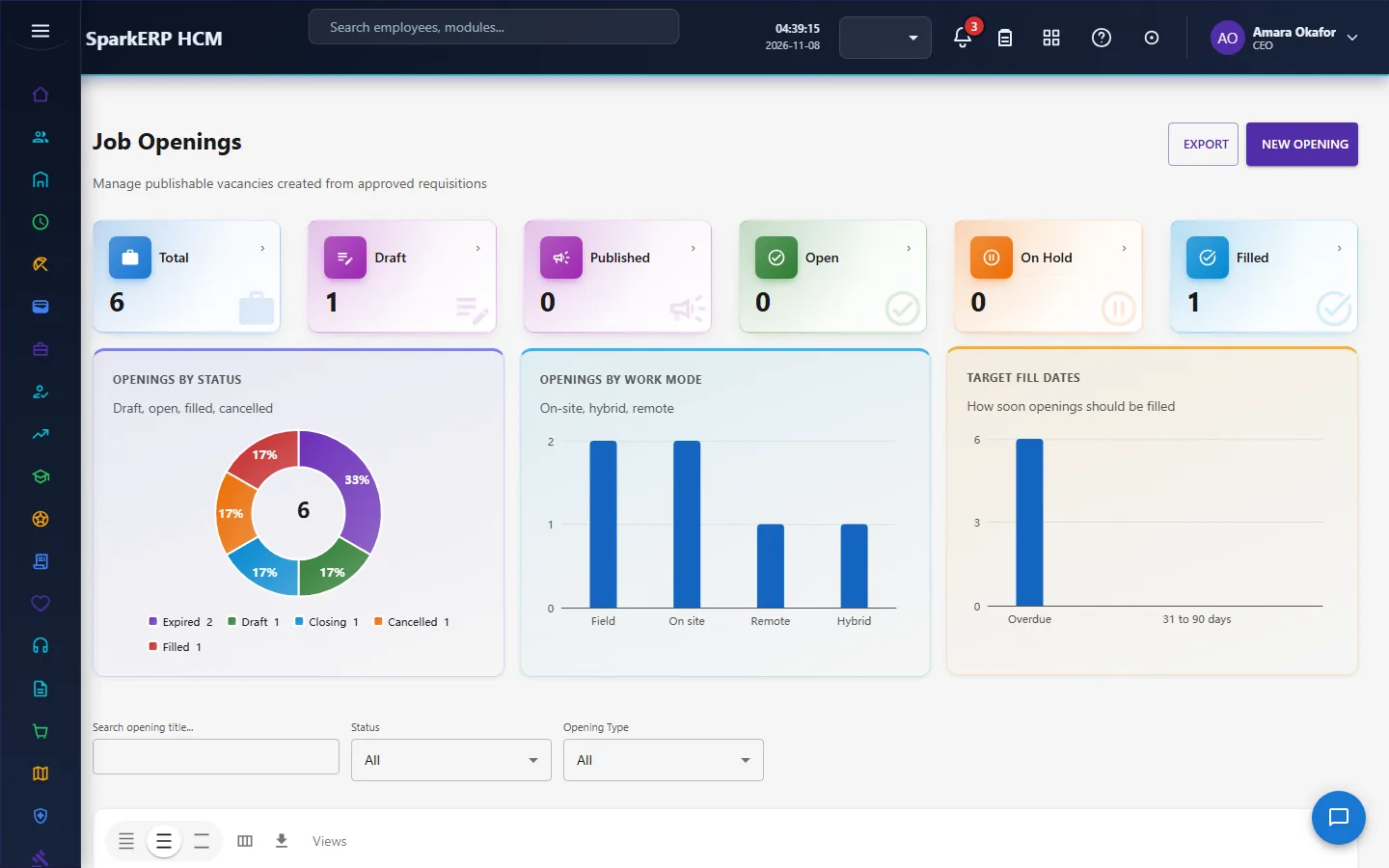
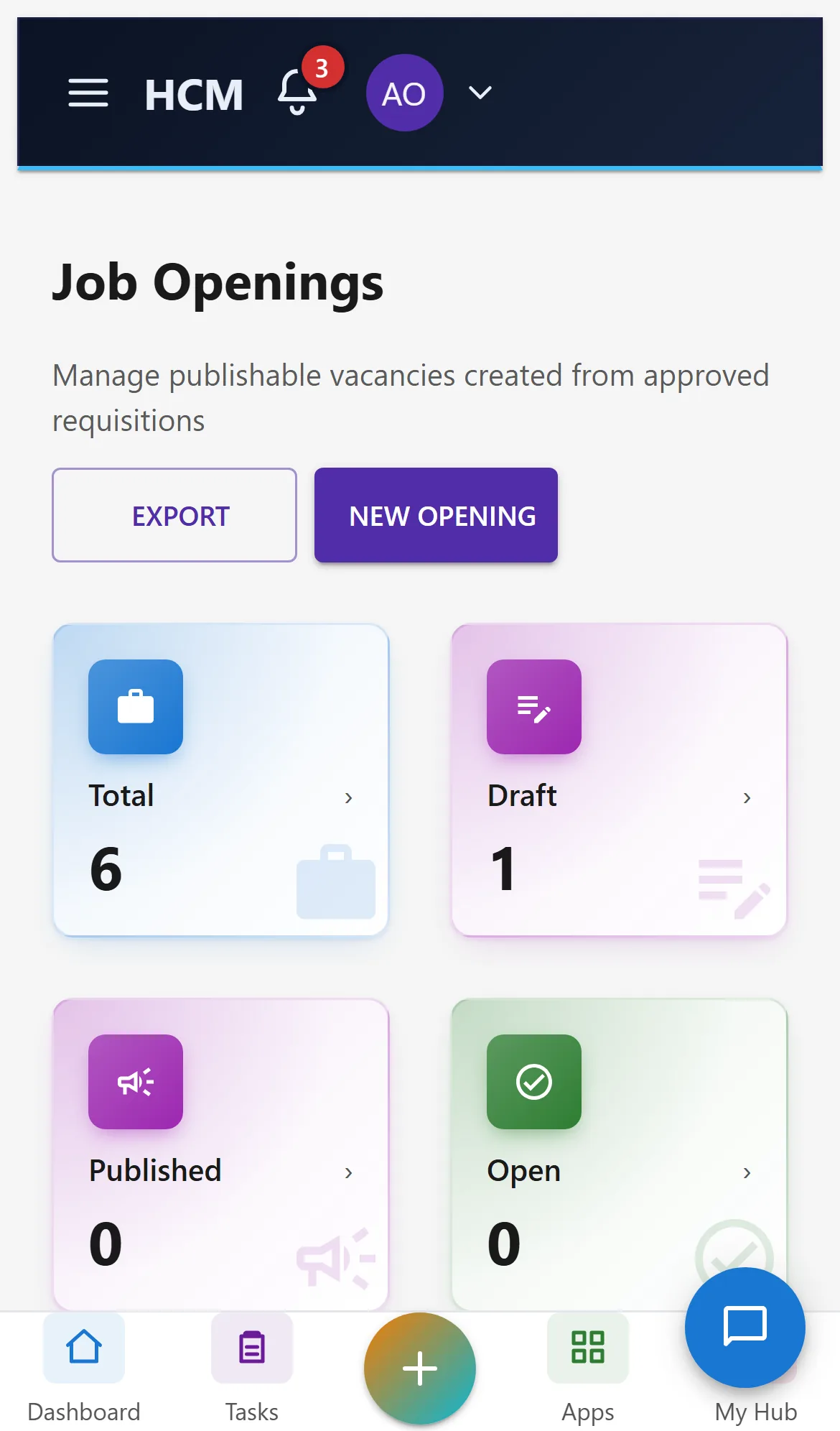
How to: New Opening
- Open Recruitment > Job Openings.
- Select New Opening.
- In the window New Job Opening fill in:
| Field | What to enter |
|---|---|
| Opening Title | Type it. |
| Opening Type | Choose one: EXTERNAL, INTERNAL, INTERNAL_AND_EXTERNAL, CONFIDENTIAL, AGENCY |
| Priority | Choose one: LOW, NORMAL, HIGH, URGENT, CRITICAL |
| Work Mode | Choose one: ON_SITE, REMOTE, HYBRID, FIELD |
| Legal Entity Id | Type it. |
| Department Id | Type it. |
| Location | Type it. |
| Currency | Type it. |
| Minimum Salary | Type it. |
| Maximum Salary | Type it. |
| Posting Start Date | Type it. |
| Posting End Date | Type it. |
| Job Description | Type it. |
- Select Create Opening.
- The window closes and the table refreshes with the result. If the screen shows a message instead, read it: it says what is missing.
How to: Hold
- Open Recruitment > Job Openings.
- Select Hold.
- In the window Hold Job Opening fill in:
| Field | What to enter |
|---|---|
| Hold Reason (required) | Type it. |
- Select Confirm Hold.
- The window closes and the table refreshes with the result. If the screen shows a message instead, read it: it says what is missing.
How to: Unpublish
- Open Recruitment > Job Openings.
- Select Unpublish.
- In the window Unpublish Job Opening fill in:
| Field | What to enter |
|---|---|
| Reason (optional) | Type it. |
- Select Confirm Unpublish.
- The window closes and the table refreshes with the result. If the screen shows a message instead, read it: it says what is missing.
Careers
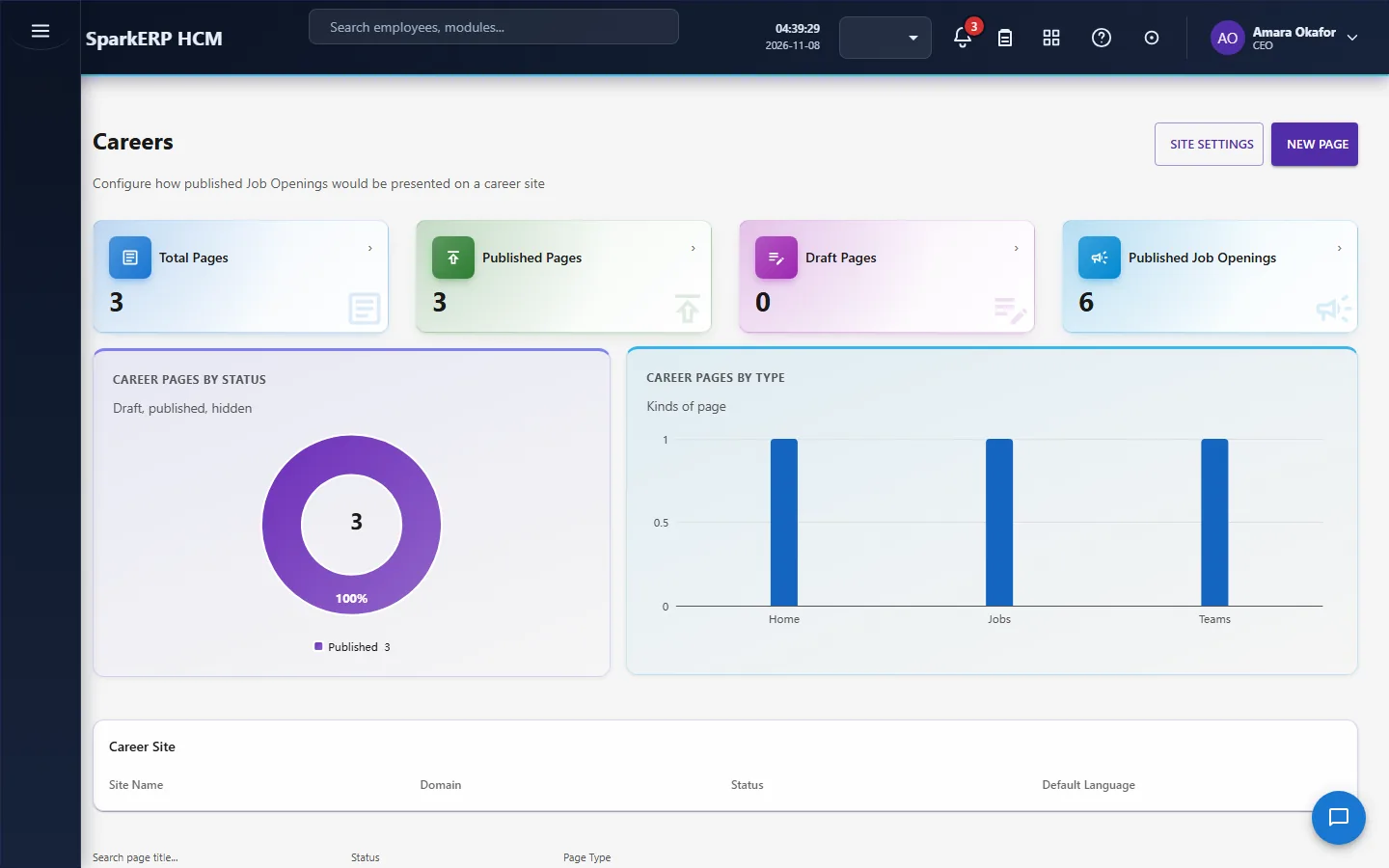
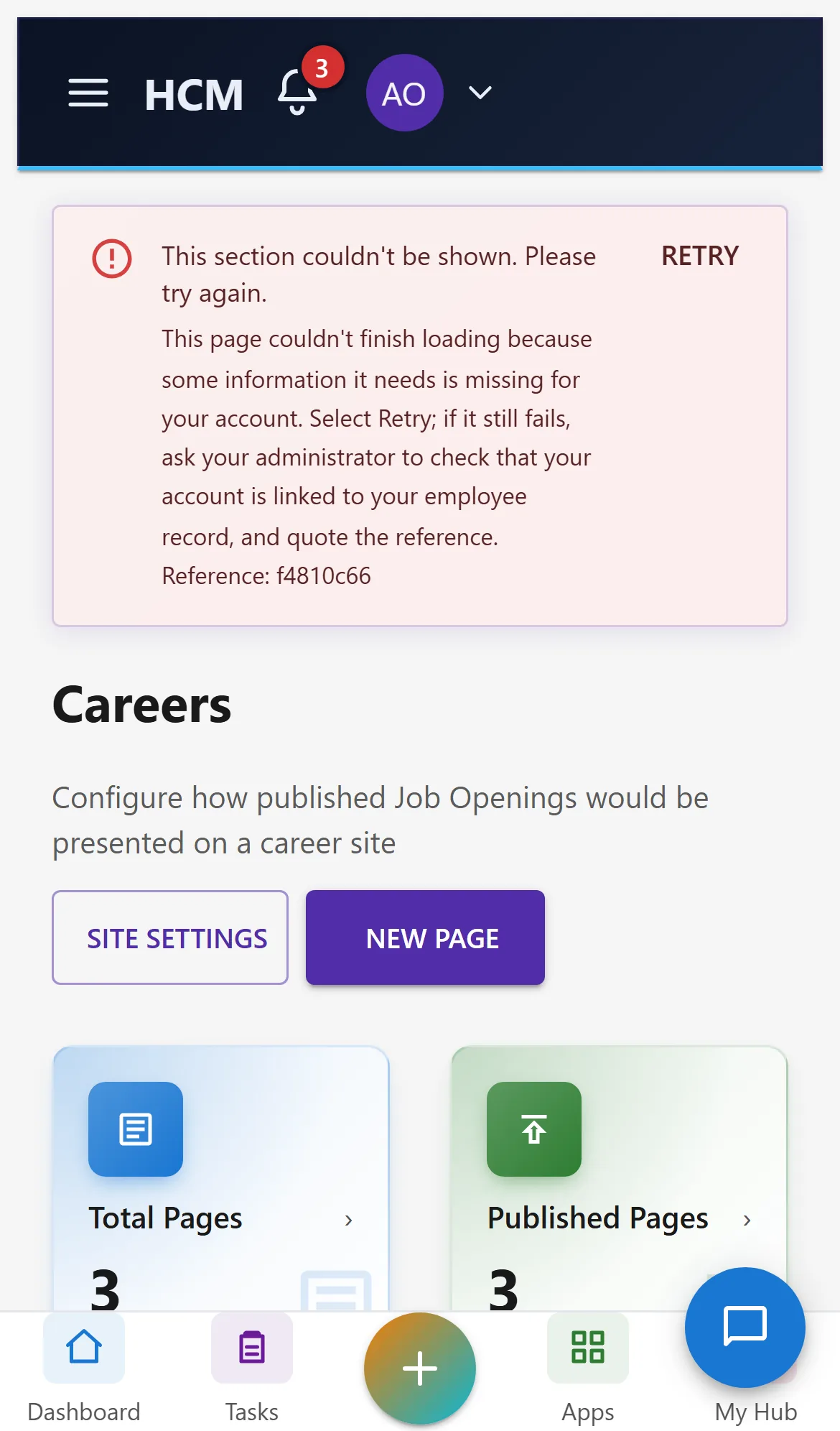
Admin-side configuration for your careers page — branding and which openings are published where. This configures the admin side of career site presentation over your real Job Openings; it's not itself a public website candidates browse directly.
Open it at /hcm-recruitment/careers (or from the HCM menu).
- Sections: Career pages by status, Career pages by type, Kinds of page, Career Site, Site Name, Domain, Status, Default Language, Basic Information, Localization, Content & SEO, Page Code and 7 more.
- Cards: Total Pages, Published Pages, Draft Pages, Published Job Openings.
- Table columns: Page Code, Page Title, Type, Status, Language, Country.
- Actions: Site Settings, New Page, Cancel, Save, Close, Publish, Unpublish.
How to: New Page
- Open Recruitment > Careers.
- Select New Page.
- In the window New Career Page fill in:
| Field | What to enter |
|---|---|
| Page Title | Type it. |
| Slug | Type it. |
| Page Type | Choose one: HOME, JOBS, JOB_DETAIL, TEAMS, LOCATIONS, LIFE_AT_COMPANY, BENEFITS, ABOUT_US, EMPLOYEE_STORIES, FAQ... |
| Language | Type it. |
| Country Code | Type it. |
| Content (JSON) | Type it. |
| SEO (JSON) | Type it. |
- Select Save.
- The window closes and the table refreshes with the result. If the screen shows a message instead, read it: it says what is missing.
How to: Site Settings
- Open Recruitment > Careers.
- Select Site Settings.
- In the window Career Site Settings fill in:
| Field | What to enter |
|---|---|
| Site Code | Type it. |
| Site Name | Type it. |
| Site Title | Type it. |
| Primary Domain | Type it. |
| Custom Domain | Type it. |
| Logo URL | Type it. |
| Favicon URL | Type it. |
| Hero Heading | Type it. |
| Hero Description | Type it. |
| Default Country | Type it. |
| Default Language | Type it. |
| Default Currency | Type it. |
- Select Publish.
- The window closes and the table refreshes with the result. If the screen shows a message instead, read it: it says what is missing.