
Appearance
Employee Categories, Employment Types & Skills (HCM)
This page documents four small shipped master data screens (hcm-employee) — the setup screens behind dropdowns you see elsewhere in HCM. Not for plugin developers.
Who this is for: HR administrators setting up reference data, usually once, before day-to-day use.
Employee Categories
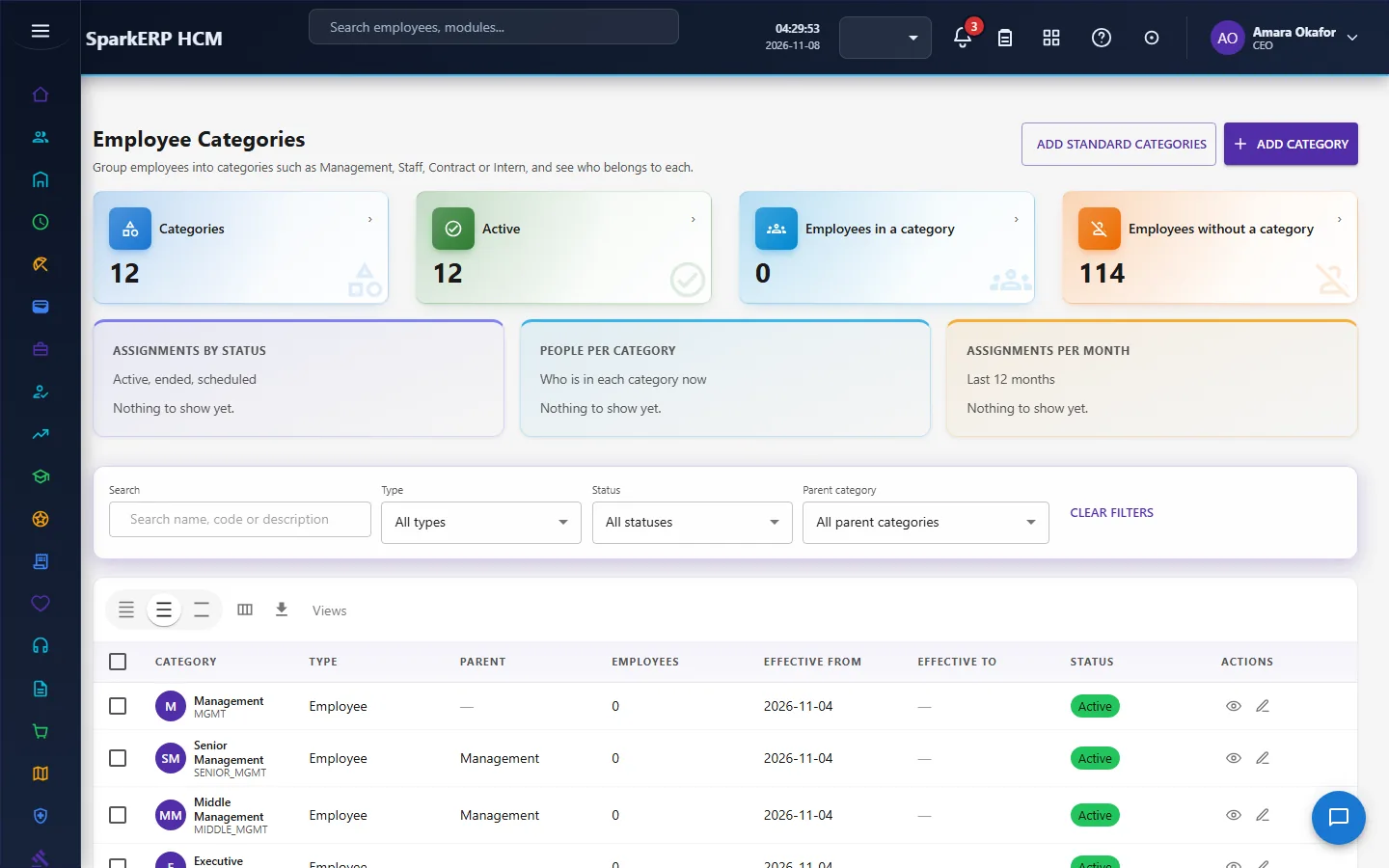
Define the categories employees can be grouped into (with an optional parent category, a category type, and an effective date range). Standard CRUD: KPI row, search/filter, create/edit/list.
Open it at /hcm-employee/employee-categories (or from the HCM menu).
- Sections: Assignments by status, People per category, Who is in each category now, Assignments per month, Last 12 months, Overview, Type, Status, Effective from, Effective to, Sort order, Employees and 5 more.
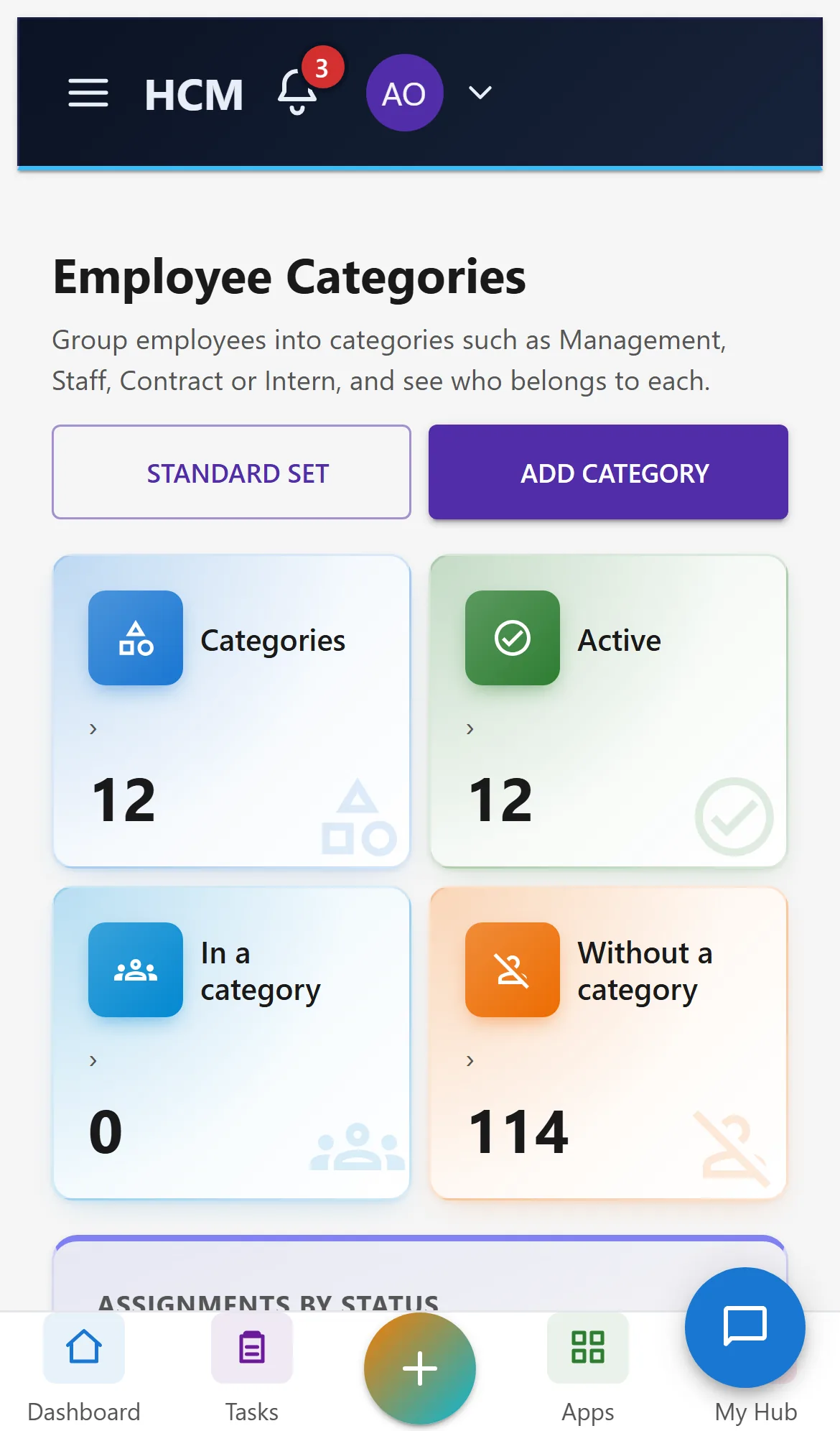
- Cards: Categories, Active, Employees in a category, Employees without a category, In a category, Without a category.
- Table columns: Category, Type, Parent, Employees, Effective from, Effective to, Status, Actions.
- Actions: Add standard categories, Add category, Clear filters, Edit, Assign employee, Move all employees, Deactivate, Activate, Delete, Cancel, Save, Assign and 2 more.
How to: Add category
- Open Core HR > Employee Categories.
- Select Add category.
- In the window Employee category fill in:
| Field | What to enter |
|---|---|
| Category name | Type it (for example: For example: Senior Management). |
| Category code | Type it (for example: For example: SENIOR_MGMT). |
| Category type | Choose one: Employee, Contract, Temporary, Intern, Apprentice, Consultant, Worker, Other |
| Parent category | Type it. |
| Description | Type it (for example: Optional). |
| Effective from | Pick a date. |
| Effective to (optional) | Pick a date. |
| Sort order | Type it (for example: Optional number). |
- Select Save.
- The window closes and the table refreshes with the result. If the screen shows a message instead, read it: it says what is missing.
How to: Assign employee
- Open Core HR > Employee Categories.
- Select Assign employee.
- In the window Assign an employee fill in:
| Field | What to enter |
|---|---|
| Effective from (leave empty for today) | Pick a date. |
| Reason (optional) | Type it (for example: For example: promoted to management). |
- Select the confirm button.
- The window closes and the table refreshes with the result. If the screen shows a message instead, read it: it says what is missing.
How to: Move all employees
- Open Core HR > Employee Categories.
- Select Move all employees.
- In the window Move all employees fill in:
| Field | What to enter |
|---|---|
| Move them to | Type it. |
| Effective from (leave empty for today) | Pick a date. |
| Reason (optional) | Type it (for example: For example: category retired). |
- Select the confirm button.
- The window closes and the table refreshes with the result. If the screen shows a message instead, read it: it says what is missing.
Employment Types
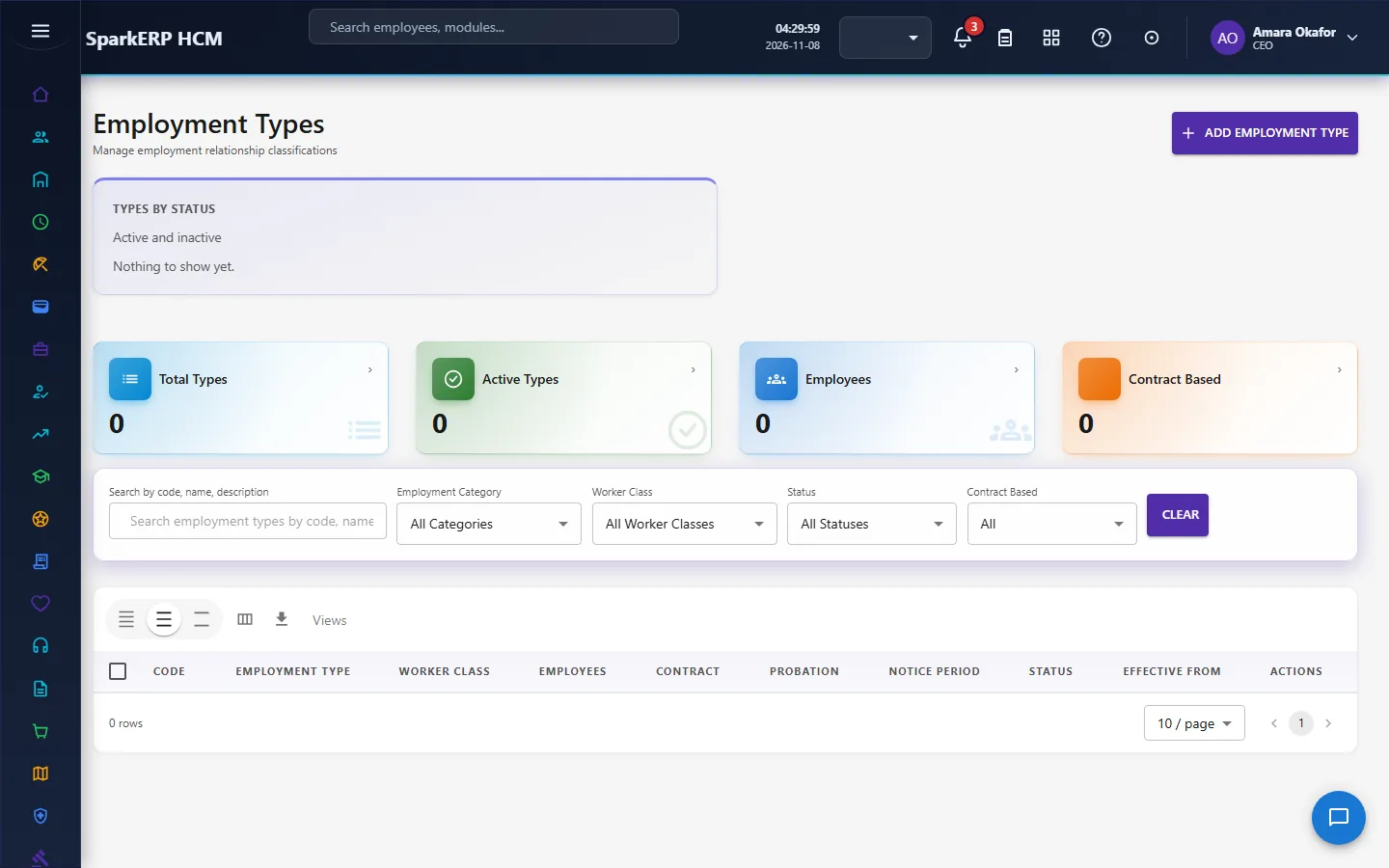
Define the employment types available elsewhere in HCM (e.g. Full-time, Part-time, Contract) — tenant-configurable rather than a fixed list.
Open it at /hcm-employee/employment-types (or from the HCM menu).
- Sections: Manage employment relationship classifications, Types by status, Active and inactive, Basic Information, Classification, Contract, Probation, Notice, Benefits / Payroll, Lifecycle, Description, Worker Class and 17 more.
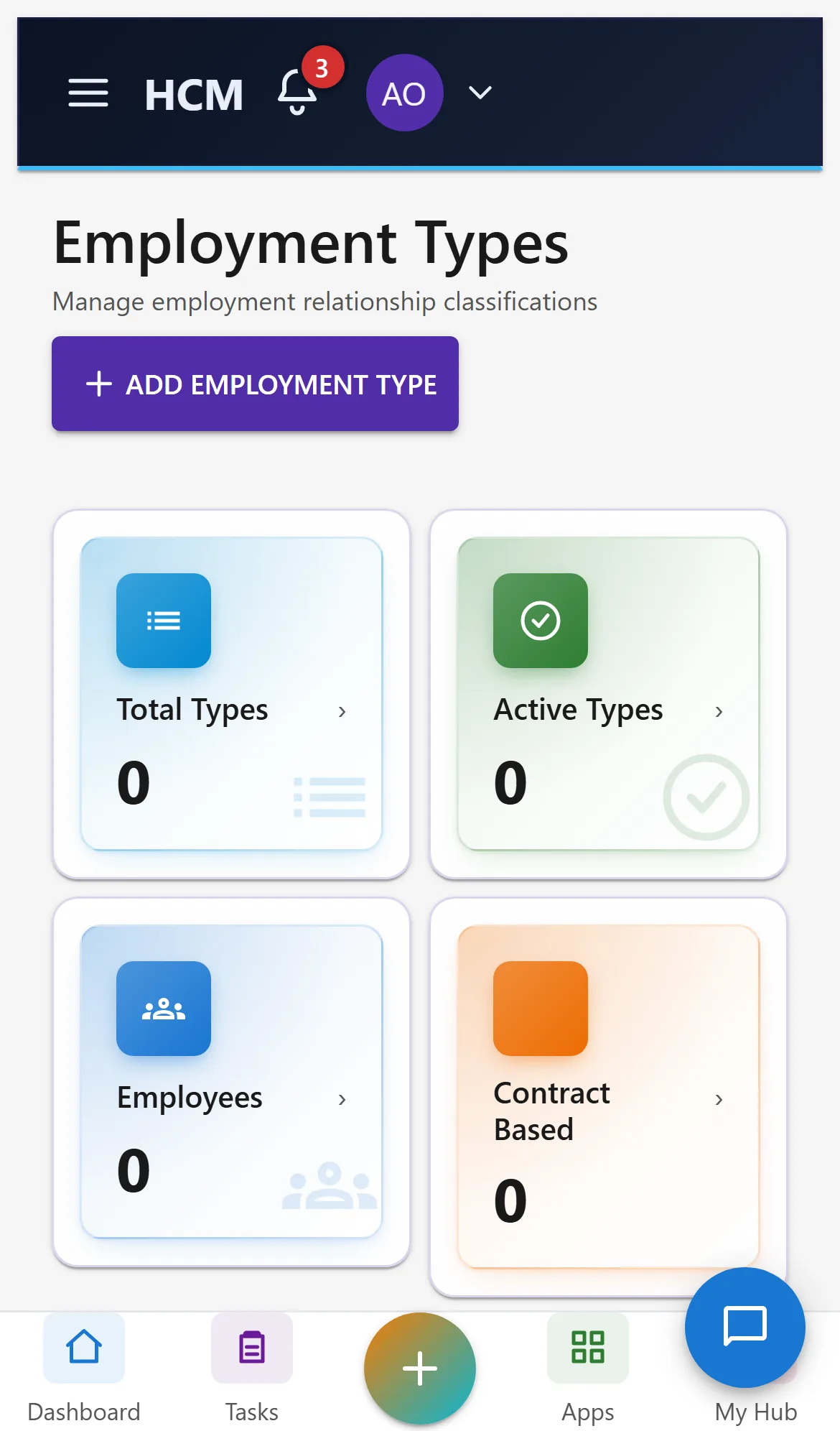
- Cards: Total Types, Active Types, Employees, Contract Based.
- Table columns: Code, Employment Type, Worker Class, Employees, Contract, Probation, Notice Period, Status, Effective From, Actions.
- Actions: Add Employment Type, Clear, Cancel, Save Type, Close, Activate, Deactivate, Edit, Filters, Hide filters.
How to: Add Employment Type
- Open Core HR > Employment Types.
- Select Add Employment Type.
- In the window Employment Type fill in:
| Field | What to enter |
|---|---|
| Type Code | Type it (for example: e.g. PERMANENT). |
| Type Name | Type it (for example: e.g. Permanent). |
| Short Name | Type it (for example: e.g. PERM). |
| Worker Class | Choose one: Staff, Worker, Executive, Trainee, Non-Employee |
| Employment Category | Choose one: Regular, Non-Regular |
| Employment Nature | Choose one: Permanent, Temporary, Contract, Intern, Consultant |
| Contract Based | Tick or untick. |
| Contract Type | Choose one: Indefinite, Fixed Term, Project Based, Agency |
| Fixed Term | Tick or untick. |
| Probation Applicable | Tick or untick. |
| Probation Period | Type it. |
| Probation Period Unit | Choose one: Days, Weeks, Months, Years |
| Notice Required | Tick or untick. |
| Notice Period | Type it. |
| Notice Period Unit | Choose one: Days, Weeks, Months, Years |
| Benefits Eligible | Tick or untick. |
| Payroll Eligible | Tick or untick. |
| Leave Eligible | Tick or untick. |
| Effective From | Pick a date. |
| Effective To | Pick a date. |
| Status | Choose one: Draft, Active, Inactive, Retired |
| Description | Type it (for example: Optional description...). |
- Select Save Type.
- The window closes and the table refreshes with the result. If the screen shows a message instead, read it: it says what is missing.
Skill Categories & Skills
Two related screens that together form a real skills taxonomy:
- Skill Categories — top-level groupings (e.g. "Technical", "Leadership").
- Skills — the actual skill catalog (e.g. "Python", "Project Management"), each belonging to a category. This is what powers the Skills & Expertise section on an Employee Profile — before this, skills were free-text only; now they're picked from this real, structured catalog.
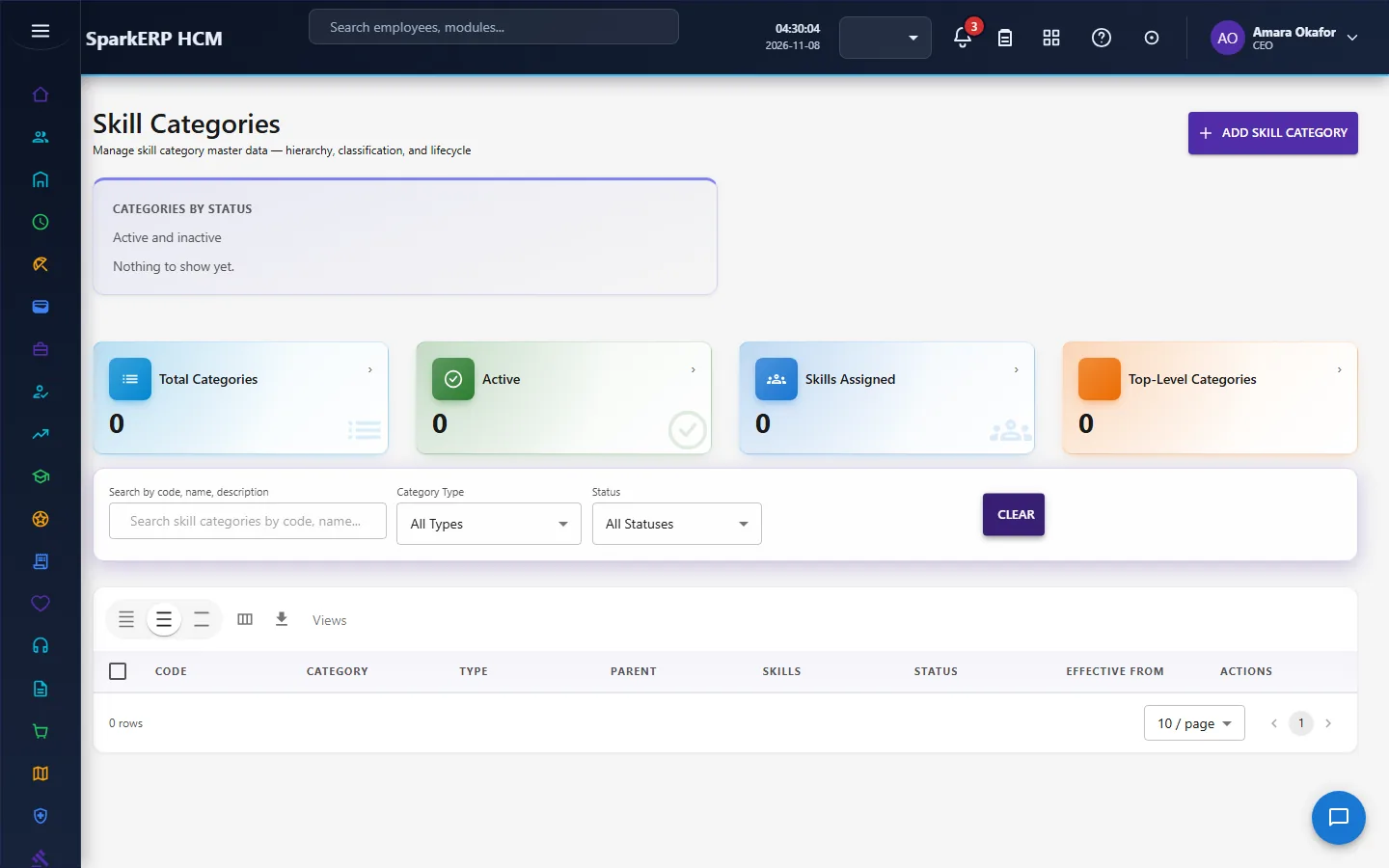
Open it at /hcm-employee/skill-categories (or from the HCM menu).
- Sections: Skill Categories, Categories by status, Active and inactive, Basic Information, Classification, Description, Effective Dates & Status, Code, Name, Type, Parent Category, Effective Dates and 2 more.
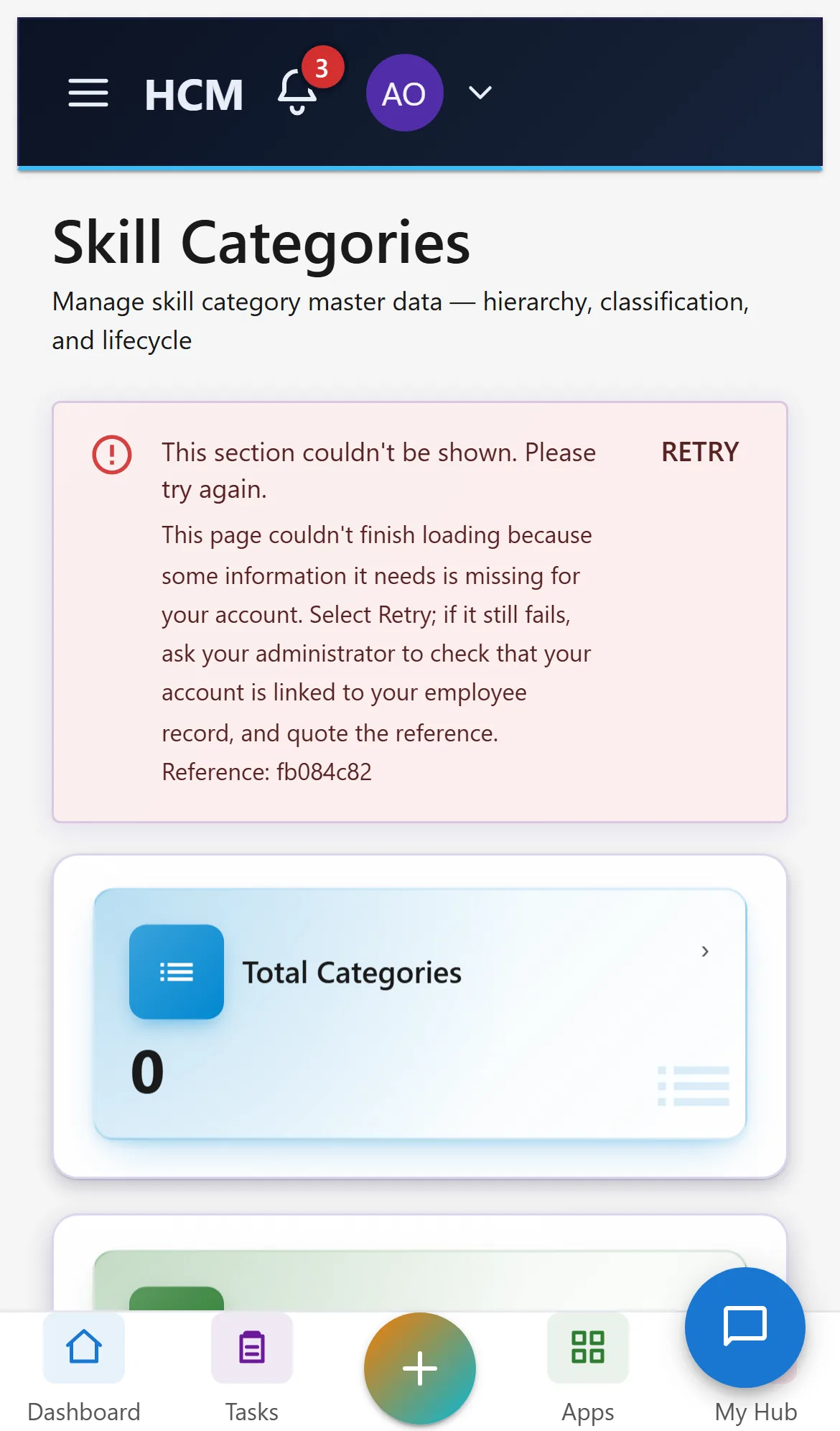
- Cards: Total Categories, Active, Skills Assigned, Top-Level Categories.
- Table columns: Code, Category, Type, Parent, Skills, Status, Effective From, Actions.
- Actions: Add Skill Category, Clear, Cancel, Save Category, Edit, Activate, Deactivate, Close.
How to: Add Skill Category
- Open Core HR > Skills & Competencies > Skill Categories.
- Select Add Skill Category.
- In the window Skill Category fill in:
| Field | What to enter |
|---|---|
| Category Code | Type it (for example: e.g. PERMANENT_STAFF). |
| Category Name | Type it (for example: e.g. Permanent Staff). |
| Category Type | Choose one: General, Technical, Functional, Industry, Soft Skill, Domain, Professional, Other |
| Parent Category | Pick from the list. |
| Display Order | Type it. |
| Description | Type it (for example: Optional description). |
| Effective From | Pick a date. |
| Effective To | Pick a date. |
| Active | Tick or untick. |
- Select Save Category.
- The window closes and the table refreshes with the result. If the screen shows a message instead, read it: it says what is missing.