
Appearance
Salary Components, Salary Structures, Earnings & Deductions (HCM)
This page documents four shipped Payroll setup screens (hcm-payroll) — the master data everything else in Payroll is built from. Not for plugin developers.
Who this is for: payroll administrators setting these up (and revisiting them when compensation rules change).
Salary Components
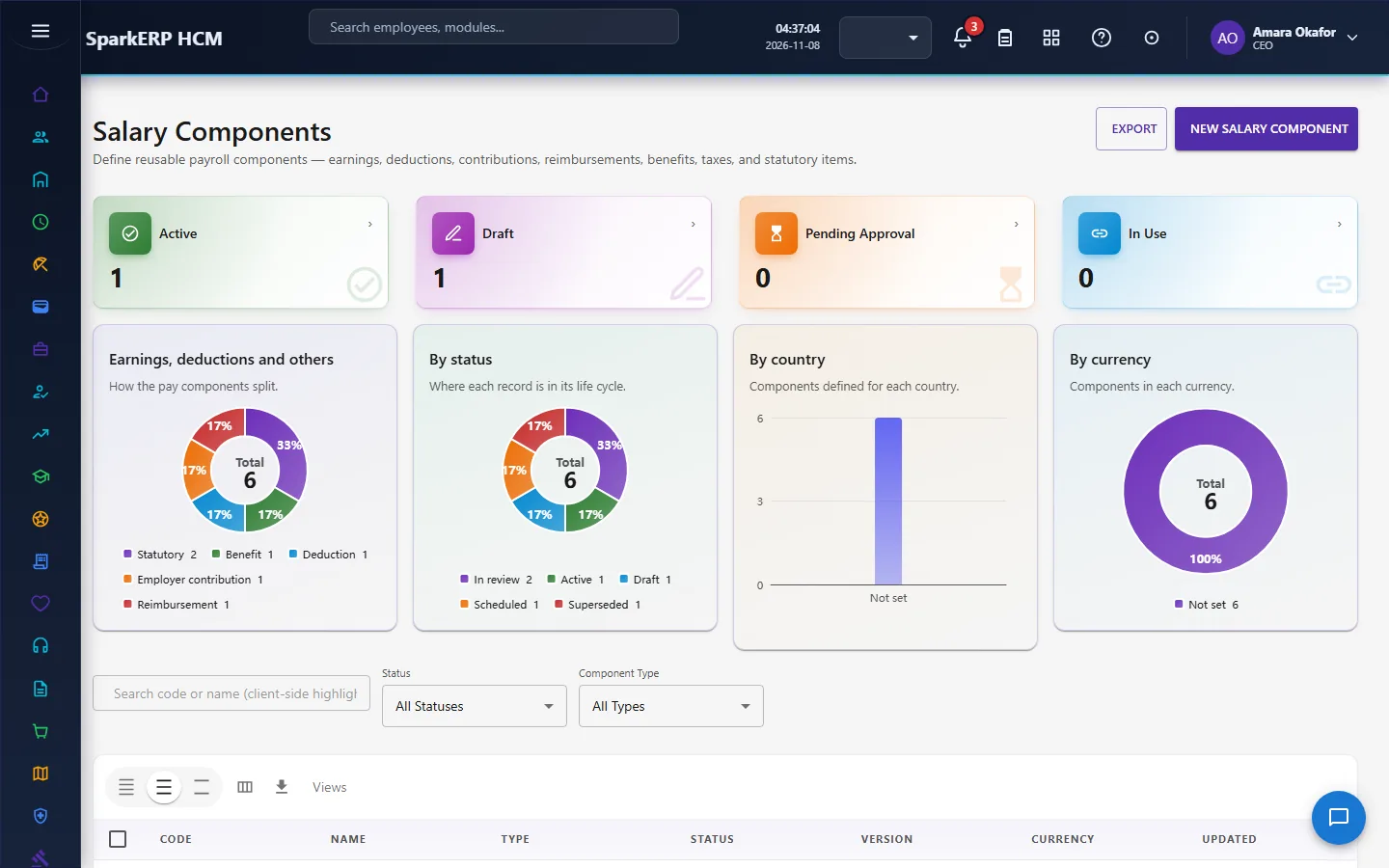
The building blocks of pay — define each individual component (e.g. Basic Pay, HRA, Provident Fund) with its own calculation rule and versioning. Changing a component goes through a single-stage approval before it takes effect.
Open it at /hcm-payroll/salary-components (or from the HCM menu).
- Sections: By status, By country, By currency, Recurring, Taxable, Pre-Tax, Included in Gross, Included in Net, Included in CTC, Proratable, Overtime Eligible, Code and 18 more.
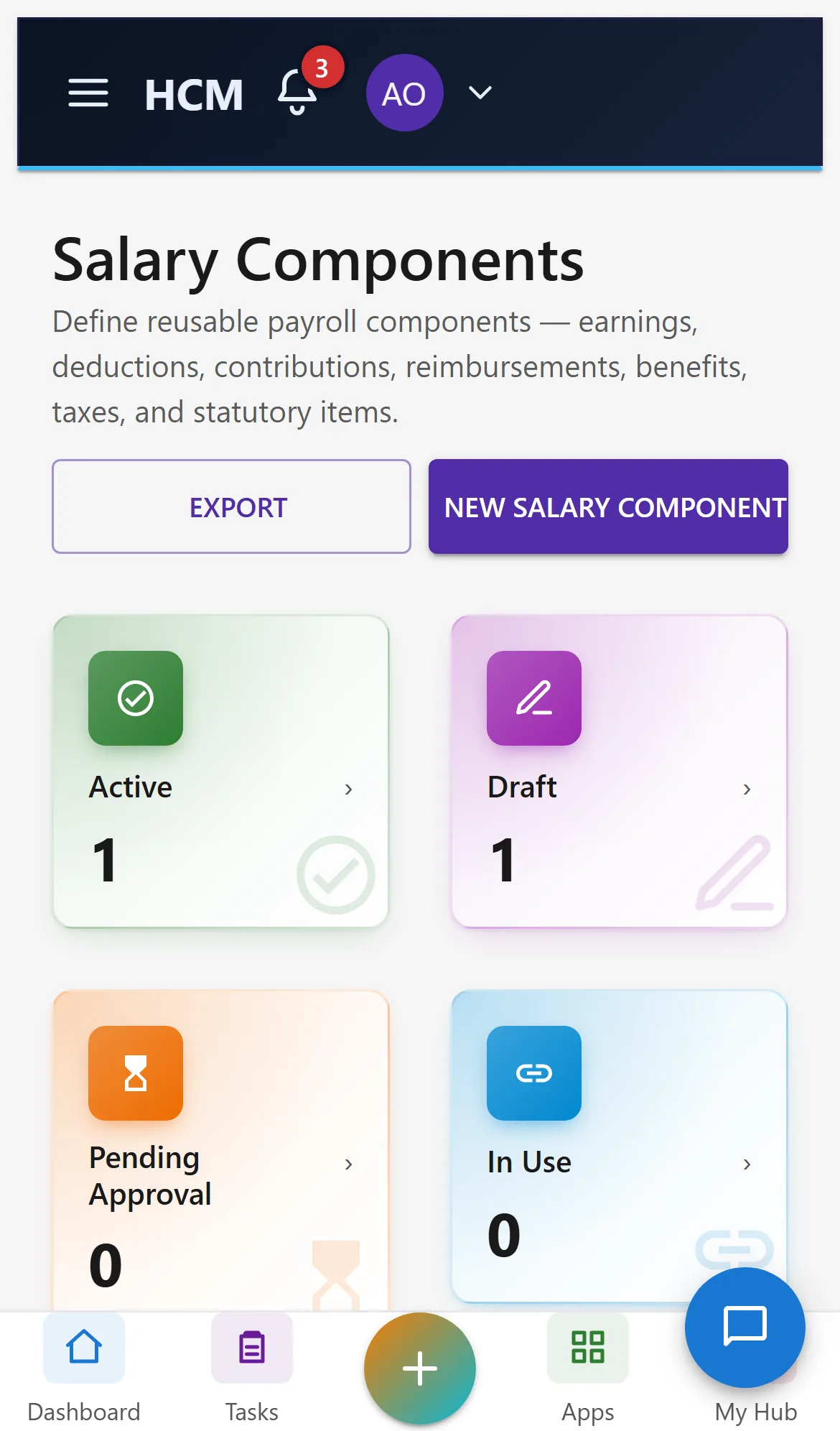
- Cards: Active, Draft, Pending Approval, In Use.
- Charts: Total.
- Table columns: Code, Name, Type, Status, Version, Currency, Updated.
- Actions: Export, New Salary Component, Test Calculation, Cancel, Save Draft, Edit, Submit for Approval, Activate, Deactivate, Archive, Create New Version, Add Dependency.
How to: New Salary Component
- Open Payroll > Salary Components.
- Select New Salary Component.
- In the window Salary Component fill in:
| Field | What to enter |
|---|---|
| Code | Type it (for example: e.g. HRA). |
| Name | Type it (for example: e.g. House Rent Allowance). |
| Short Label | Type it (for example: e.g. HRA). |
| Description | Type it. |
| Component Type | Choose one: Earning, Deduction, Employer Contribution, Reimbursement, Benefit, Tax, Statutory, Other |
| Statutory category (which line of a tax return) | Choose one: Salary, Bonus, Allowance, Commission, Overtime, Benefit In Kind, Reimbursement, Other Income, Employee Retirement, Employer Retirement... |
| Country | Type it (for example: e.g. US). |
| Currency | Type it (for example: e.g. USD). |
| Effective From | Type it (for example: YYYY-MM-DD). |
| Calculation Method | Choose one: Fixed Amount, Percentage, Formula, Quantity X Rate, Lookup, Derived, Manual |
| Fixed Amount | Type it. |
| Percentage | Type it. |
| Percentage Of | Type it (for example: e.g. baseSalary). |
| Rate | Type it. |
| Default Quantity | Type it. |
| Formula | Type it (for example: e.g. round(baseSalary * 0.4, 0)). |
| Rounding Mode | Choose one: None, Round, Floor, Ceiling |
| Rounding Scale (decimals) | Type it. |
- Select Save Draft.
- The window closes and the table refreshes with the result. If the screen shows a message instead, read it: it says what is missing.
How to: Salary Component Detail
- Open Payroll > Salary Components.
- Select the record you want to change, or the button that adds a new one.
- In the window Salary Component Detail fill in:
| Field | What to enter |
|---|---|
| Depends On Component Id | Type it. |
| Dependency Type | Choose one: Calculation, Eligibility, Tax, Limit, Proration |
- Select Submit for Approval.
- The window closes and the table refreshes with the result. If the screen shows a message instead, read it: it says what is missing.
Earnings & Deductions
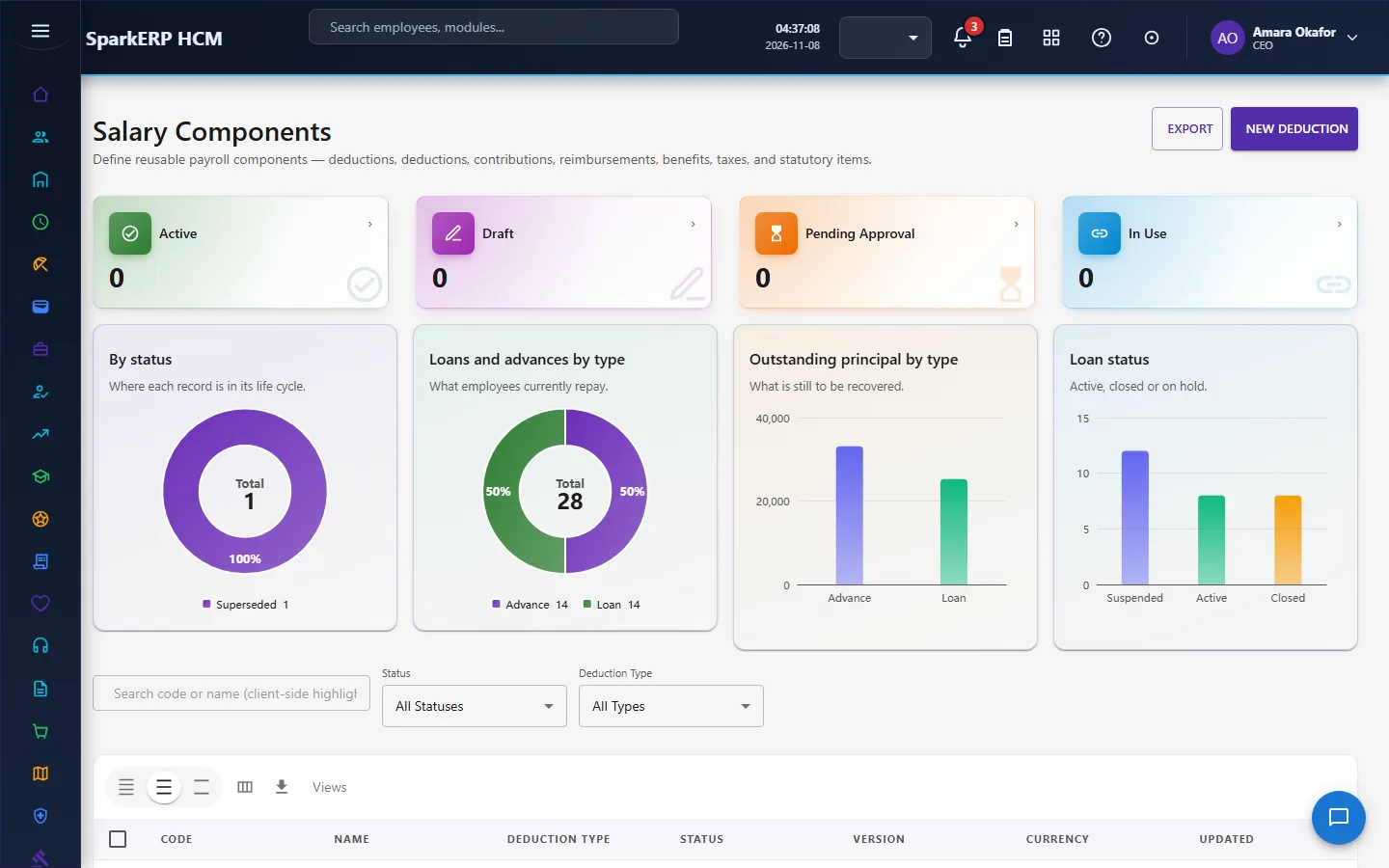
Two focused views over the exact same Salary Components data — Earnings shows only the components that add to pay, Deductions shows only the ones that subtract from it. Same create/edit/versioning/approval behavior as Salary Components; just filtered by type.
Open it at /hcm-payroll/deductions (or from the HCM menu).
- Sections: Salary Components, By status, Loans and advances by type, Outstanding principal by type, Loan status, Recurring, Taxable, Pre-Tax, Included in Gross, Included in Net, Included in CTC, Proratable and 20 more.
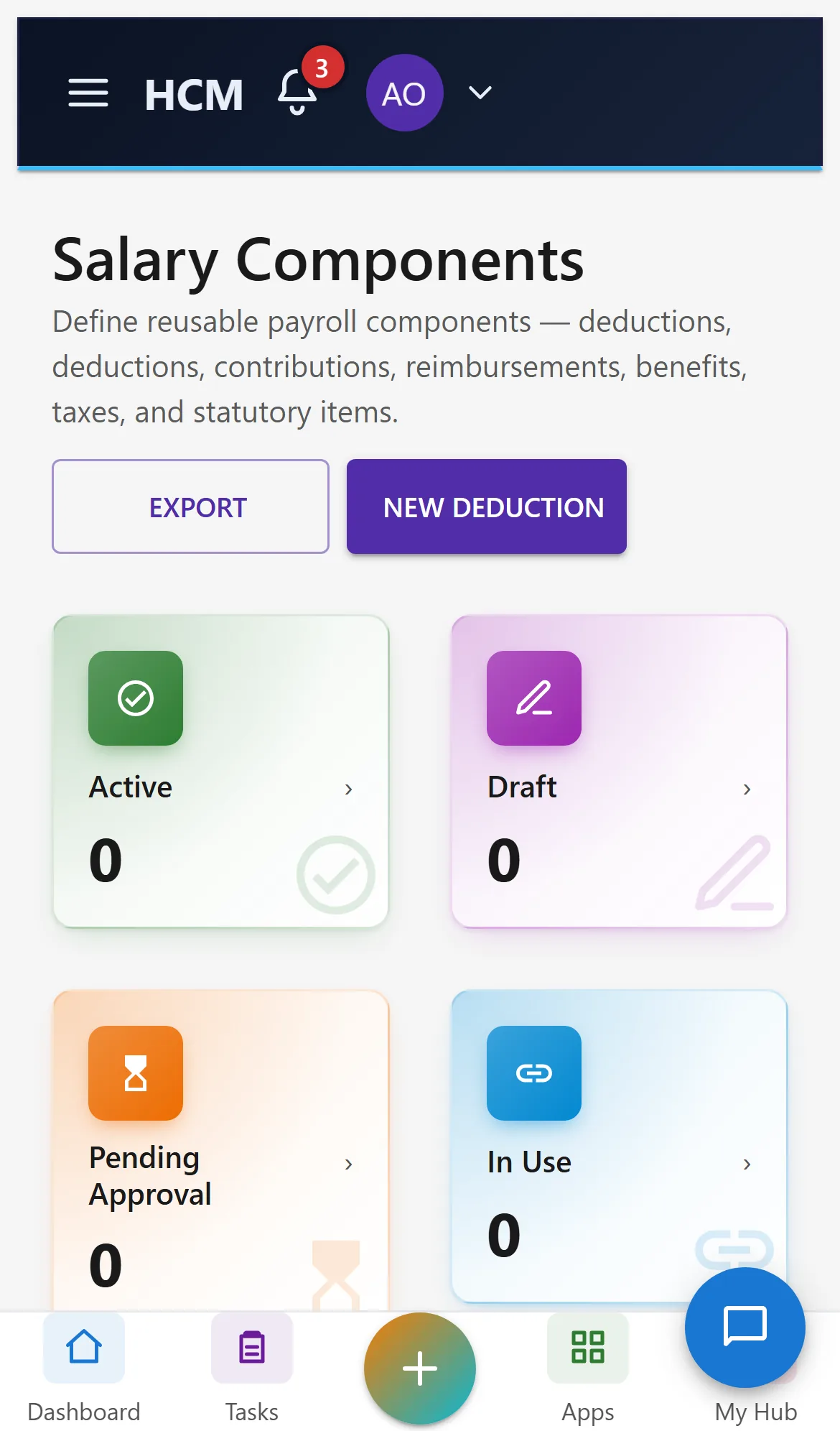
- Cards: Active, Draft, Pending Approval, In Use.
- Charts: Total.
- Table columns: Code, Name, Deduction Type, Status, Version, Currency, Updated.
- Actions: Export, New Deduction, Test Calculation, Cancel, Save Draft, Edit, Submit for Approval, Activate, Deactivate, Archive, Create New Version, Add Dependency.
How to: New Deduction
- Open Payroll > Deductions.
- Select New Deduction.
- In the window Deduction fill in:
| Field | What to enter |
|---|---|
| Code | Type it (for example: e.g. HRA). |
| Name | Type it (for example: e.g. House Rent Allowance). |
| Short Label | Type it (for example: e.g. HRA). |
| Description | Type it. |
| Deduction Type | Choose one: Deduction |
| Debit Account | Type it (for example: e.g. 5001-SAL-EXP). |
| Credit Account | Type it (for example: e.g. 2001-SAL-PAY). |
| Country | Type it (for example: e.g. US). |
| Currency | Type it (for example: e.g. USD). |
| Effective From | Type it (for example: YYYY-MM-DD). |
| Calculation Method | Choose one: Fixed Amount, Percentage, Formula, Quantity X Rate, Lookup, Derived, Manual |
| Fixed Amount | Type it. |
| Percentage | Type it. |
| Percentage Of | Type it (for example: e.g. baseSalary). |
| Rate | Type it. |
| Default Quantity | Type it. |
| Formula | Type it (for example: e.g. round(baseSalary * 0.4, 0)). |
| Rounding Mode | Choose one: None, Round, Floor, Ceiling |
| Rounding Scale (decimals) | Type it. |
- Select Save Draft.
- The window closes and the table refreshes with the result. If the screen shows a message instead, read it: it says what is missing.
How to: Deduction Details
- Open Payroll > Deductions.
- Select the record you want to change, or the button that adds a new one.
- In the window Deduction Details fill in:
| Field | What to enter |
|---|---|
| Depends On Component Id | Type it. |
| Dependency Type | Choose one: Calculation, Eligibility, Tax, Limit, Proration |
- Select Submit for Approval.
- The window closes and the table refreshes with the result. If the screen shows a message instead, read it: it says what is missing.
Salary Structures
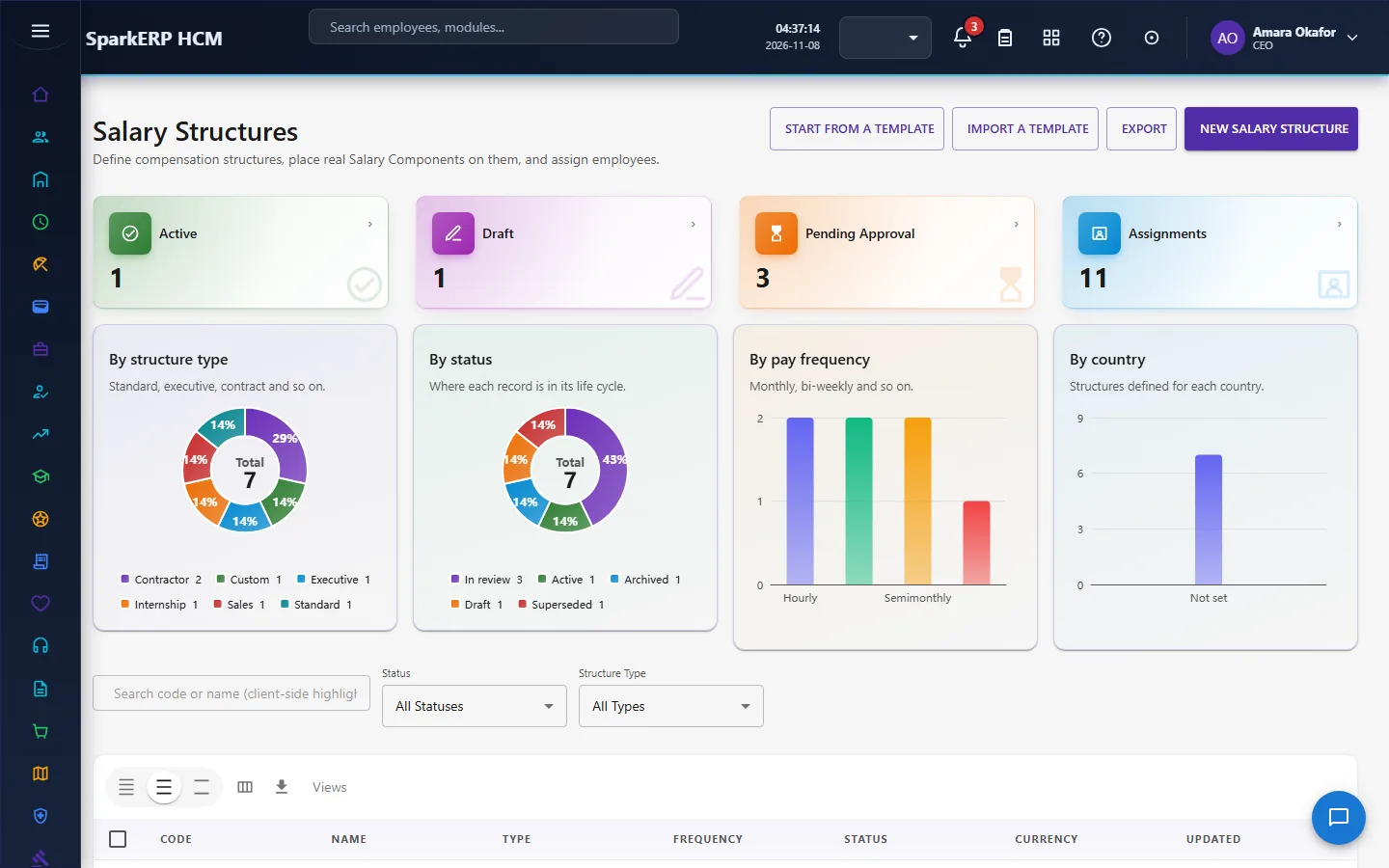
Combine components into a named structure (a template you assign to employees), so you don't have to pick components one by one for every person.
Open it at /hcm-payroll/salary-structures (or from the HCM menu).
- Sections: By structure type, By status, By pay frequency, By country, Required.
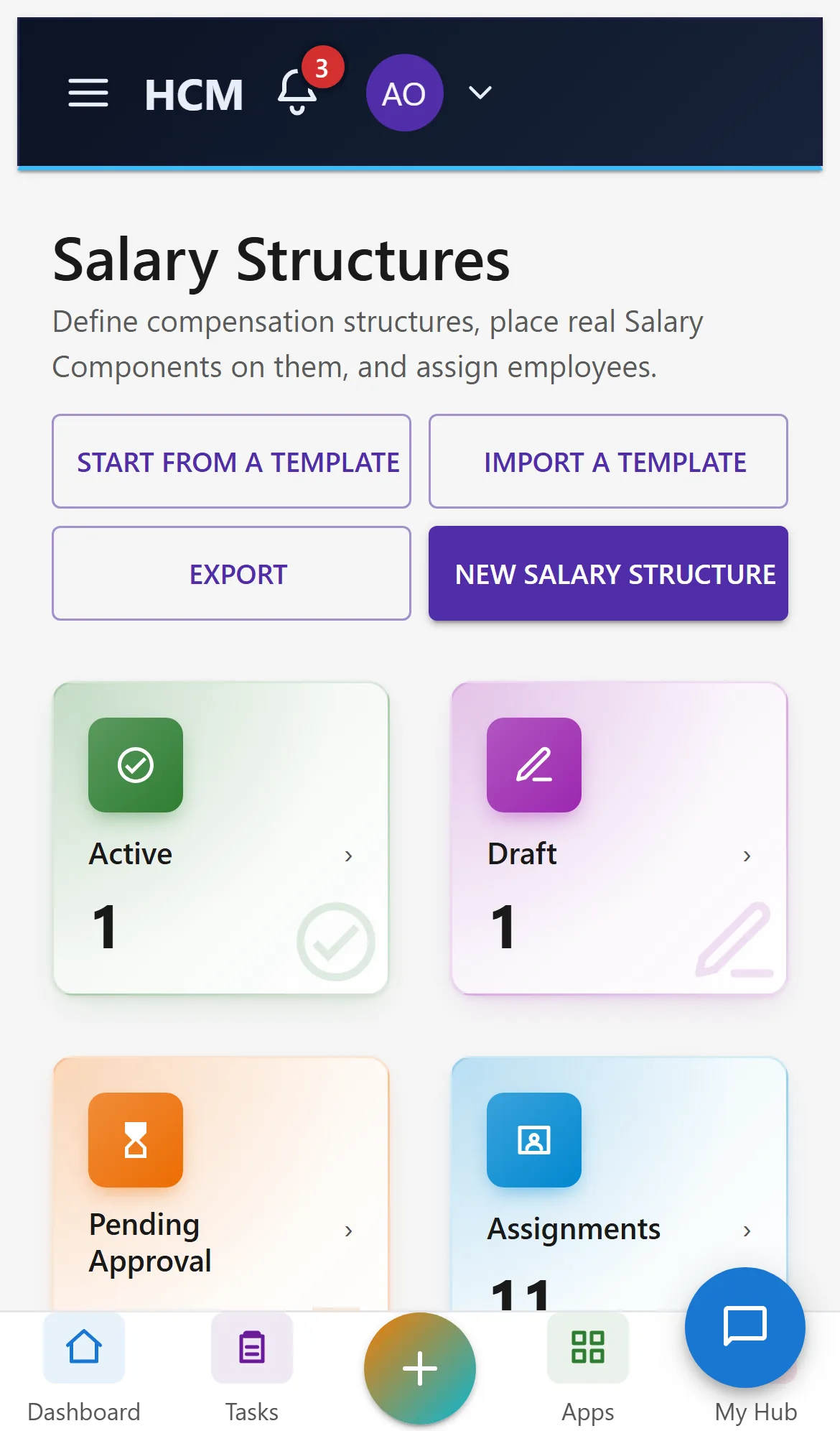
- Cards: Active, Draft, Pending Approval, Assignments.
- Charts: Total.
- Table columns: Code, Name, Type, Frequency, Status, Currency, Updated.
- Actions: Start from a template, Import a template, Export, New Salary Structure, Cancel, Save Draft, Submit for Approval, Activate, Deactivate, Archive, Create New Version, Duplicate and 7 more.
How to: New Salary Structure
- Open Payroll > Salary Structures.
- Select New Salary Structure.
- In the window Salary Structure fill in:
| Field | What to enter |
|---|---|
| e.g. STD-2026 | Type it. |
| e.g. Standard Employee Structure | Type it. |
| Description | Type it. |
| Structure Type | Choose one: Standard, Executive, Contractor, Hourly, Sales, Internship, Custom |
| Payroll Frequency | Choose one: Hourly, Daily, Weekly, Biweekly, Semimonthly, Monthly, Quarterly, Annual |
| e.g. US | Type it. |
| e.g. USD | Type it. |
| YYYY-MM-DDTHH:mm:ssZ | Type it. |
| Pay gross from this structure (its earnings and benefits become the payslip earnings; the base compensation is the total it is worked out from) | Tick or untick. |
| Scope Type | Choose one: Legal Entity, Payroll Group, Country, Location, Department, Job, Job Level, Grade, Employment Type, Worker Type... |
| Scope value (e.g. a department id) | Type it. |
- Select Save Draft.
- The window closes and the table refreshes with the result. If the screen shows a message instead, read it: it says what is missing.
How to: Salary Structure Detail
- Open Payroll > Salary Structures.
- Select the record you want to change, or the button that adds a new one.
- In the window Salary Structure Detail fill in:
| Field | What to enter |
|---|---|
| Salary Component Id | Type it. |
| Calculation Method | Choose one: Fixed Amount, Percentage, Formula, Quantity X Rate, Lookup, Derived, Manual, Balancing amount (makes the total add up) |
| Base Structure Component Id | Type it. |
| Percentage Rate | Type it. |
| Fixed Amount | Type it. |
| e.g. BASIC * 0.4 | Type it. |
| Minimum Amount | Type it. |
| Maximum Amount | Type it. |
| Rounding Rule | Choose one: None, Round, Floor, Ceiling |
| Proration Rule | Choose one: None, Calendar Days, Working Days |
| Test Base Salary | Type it. |
| Scope Type | Choose one: Legal Entity, Payroll Group, Country, Location, Department, Job, Job Level, Grade, Employment Type, Worker Type... |
| Scope value (e.g. a real department id) | Type it. |
| YYYY-MM-DDTHH:mm:ssZ | Type it. |
| Optional | Type it. |
- Select Submit for Approval.
- The window closes and the table refreshes with the result. If the screen shows a message instead, read it: it says what is missing.