
Appearance
Offer, Salary, Experience Letters, Certificates & Contracts (HCM Employee Documents)
This page documents five shipped document generation screens in the hcm-employee-documents module — each generates a real document for an existing employee, gated by its own real approval before it's issued. Not for plugin developers.
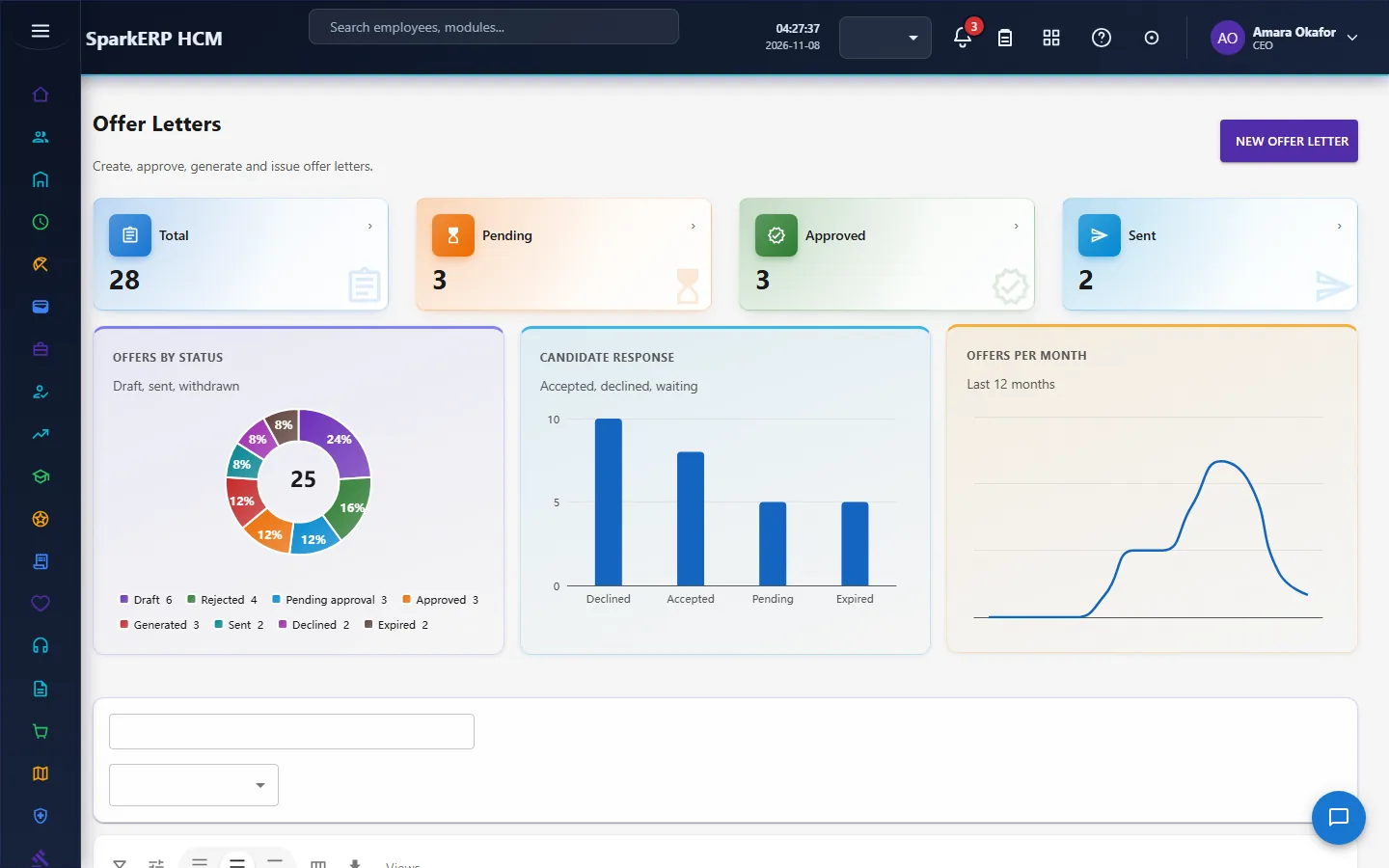
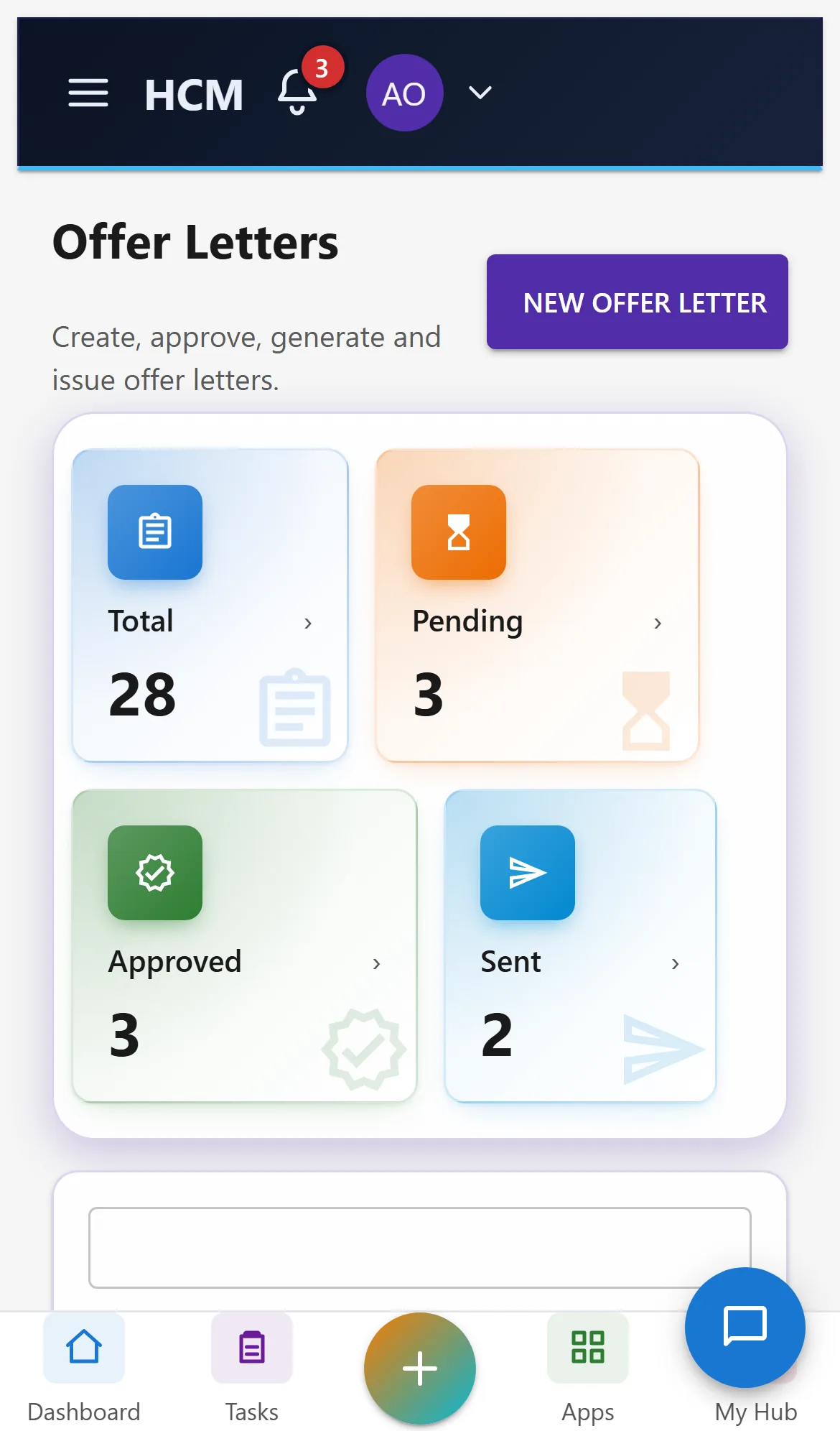
Offer Letters
Offer/appointment-style letters for an existing employee — internal transfer, promotion, rehire, or revised terms (not a new hire's original offer, which belongs to Recruitment).
Open it at /hcm-employee-documents/offer-letters (or from the HCM menu).
- Sections: Offers by status, Candidate response, Offers per month, Last 12 months, Offer Letter Details, Employee Id, Offer Type, Template Id, Offer Title, Department, Position Title, Offer Date and 13 more.
- Cards: Total, Pending, Approved, Sent.
- Table columns: Employee, Offer Number, Offer Type, Status, Response Status, Joining Date, Actions.
- Actions: New Offer Letter, Cancel, Save, Submit for Approval, Approve, Reject, Accept Offer, Decline Offer, Generate, Issue, Withdraw, Download and 2 more.
Salary Letters
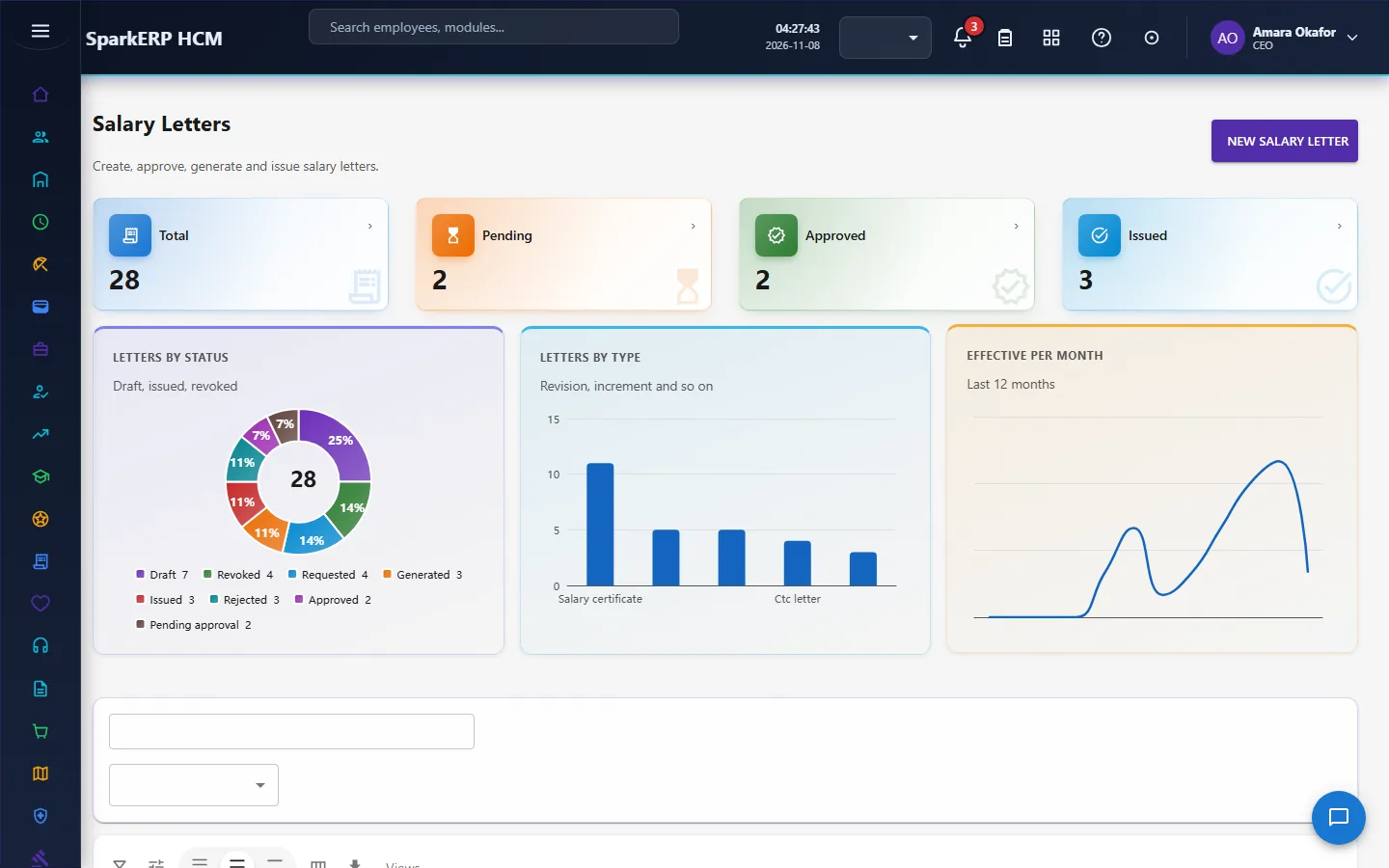
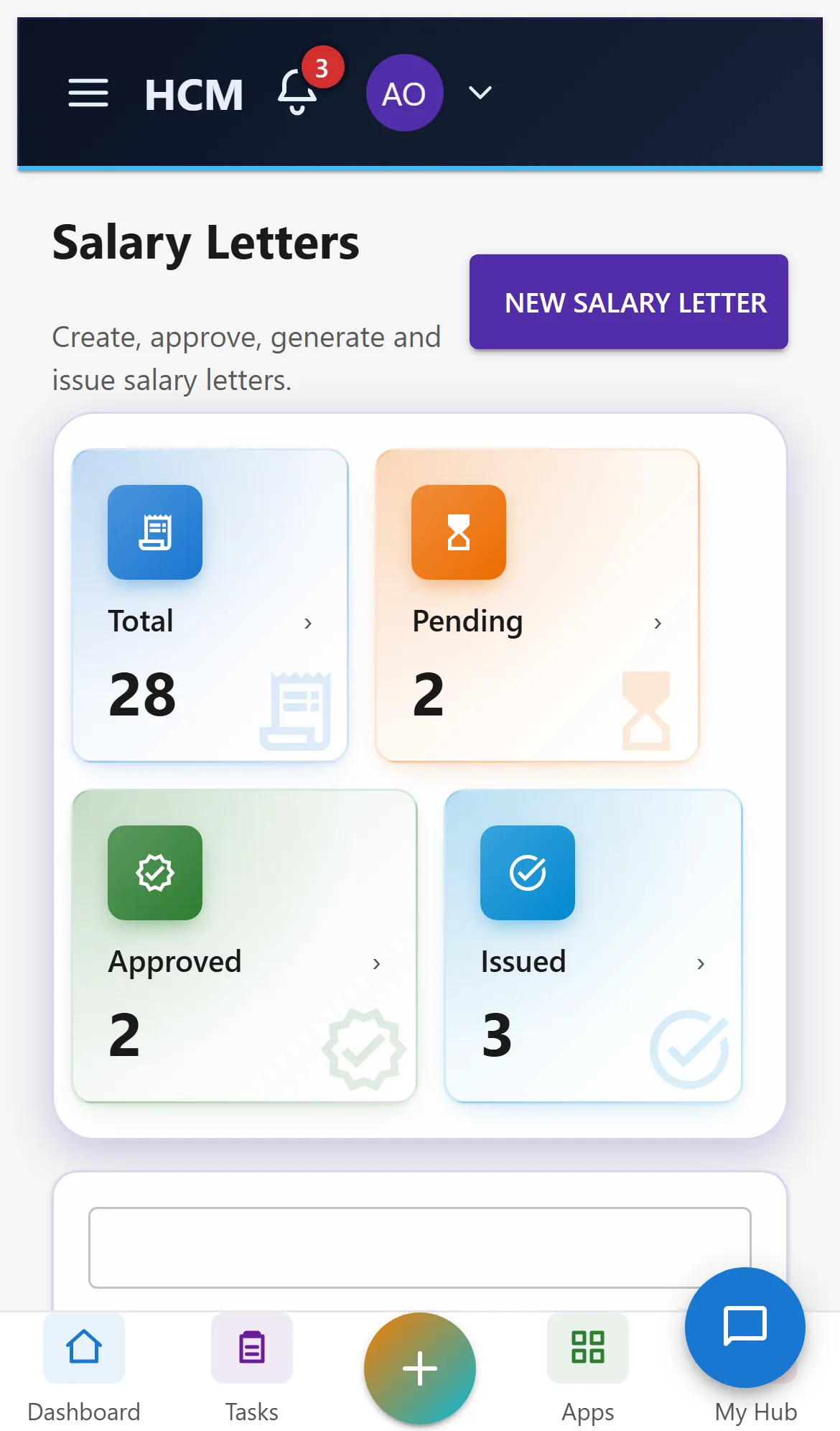
Salary Certificates, Revision Letters, Bank Certificates, and CTC Letters.
Open it at /hcm-employee-documents/salary-letters (or from the HCM menu).
- Sections: Letters by status, Letters by type, Effective per month, Last 12 months, Salary Letter Details, Employee Id, Letter Type, Template Id, Purpose, Revision Reason, Effective Date, Monthly Salary and 10 more.
- Cards: Total, Pending, Approved, Issued.
- Table columns: Employee, Letter Number, Letter Type, Status, Effective Date, Actions.
- Actions: New Salary Letter, Cancel, Save, Submit for Approval, Approve, Reject, Generate, Issue, Revoke, Download, Close.
Experience Letters
Experience Certificates, Relieving Letters, and Service Letters.
Open it at /hcm-employee-documents/experience-letters (or from the HCM menu).
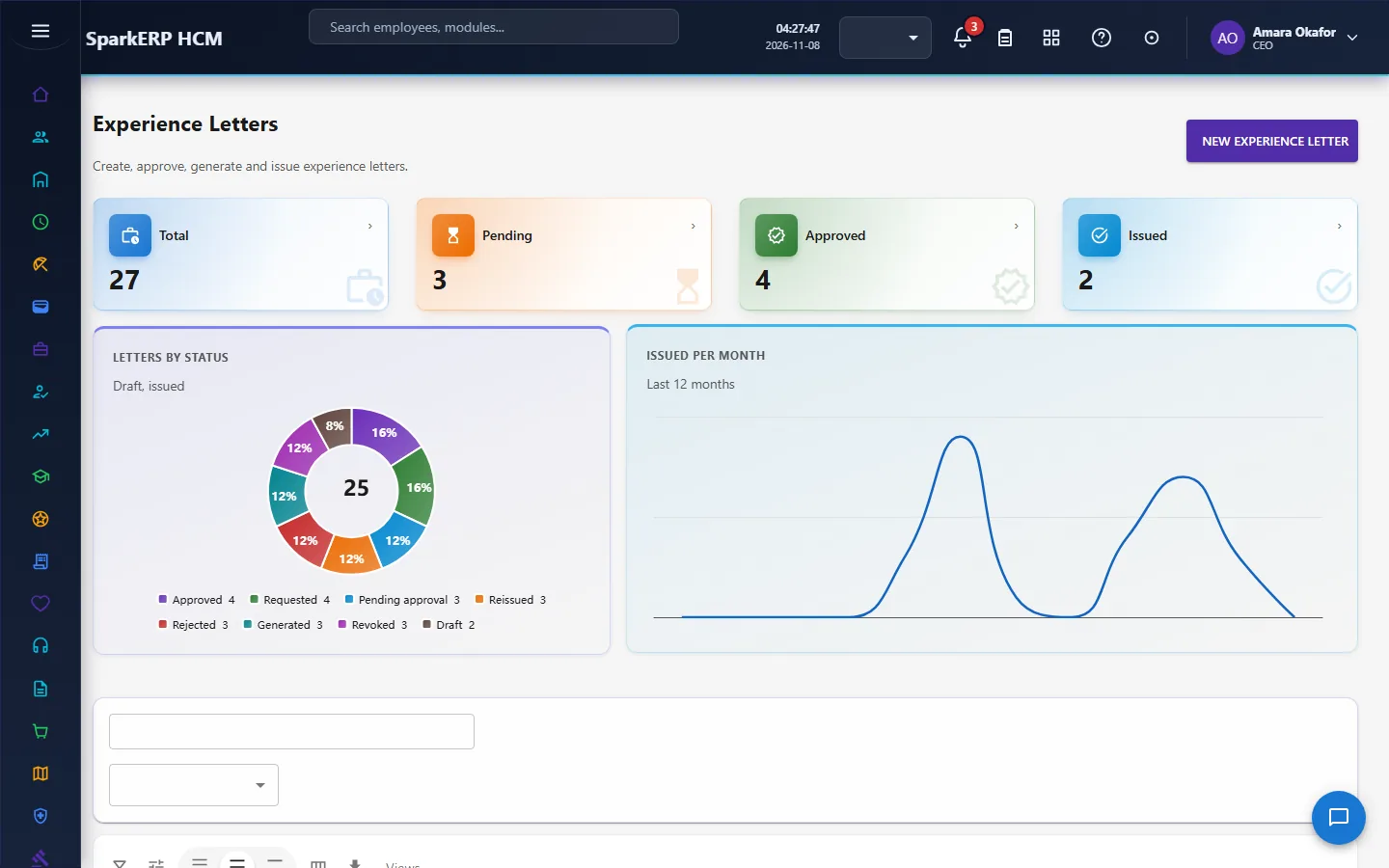
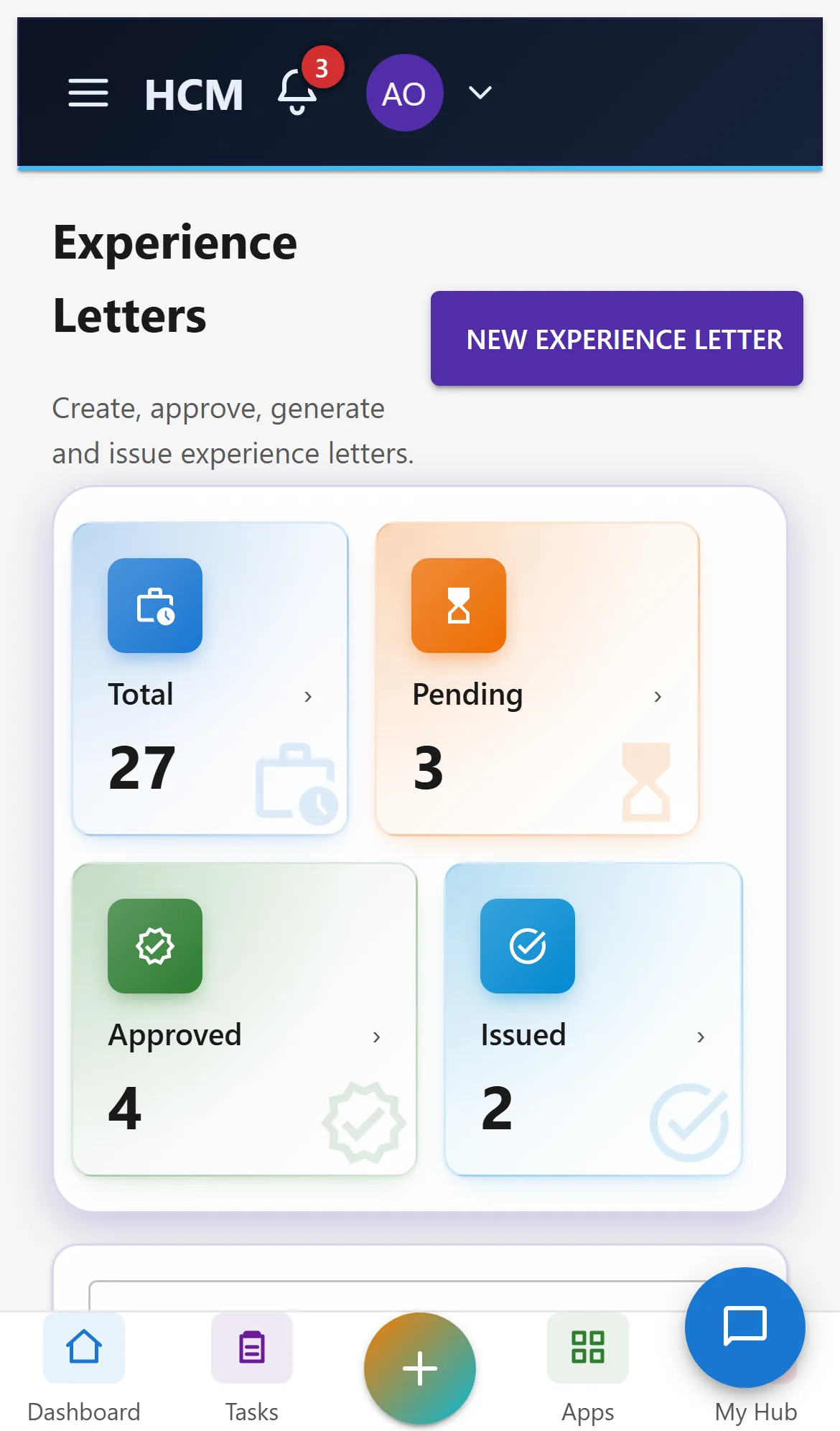
- Sections: Letters by status, Issued per month, Last 12 months, Experience Letter Details, Employee Id, Letter Type, Template Id, Designation, Department, Employment Start Date, Employment End Date, Reason For Leaving and 8 more.
- Cards: Total, Pending, Approved, Issued.
- Table columns: Employee, Letter Number, Letter Type, Status, Employment End Date, Actions.
- Actions: New Experience Letter, Cancel, Save, Submit for Approval, Approve, Reject, Generate, Issue, Revoke, Download, Close.
Certificates
General-purpose HR certificates — Employment, Service, Training, Appreciation, Promotion, Transfer, No-Objection Certificates, and more.
Open it at /hcm-employee-documents/certificates (or from the HCM menu).
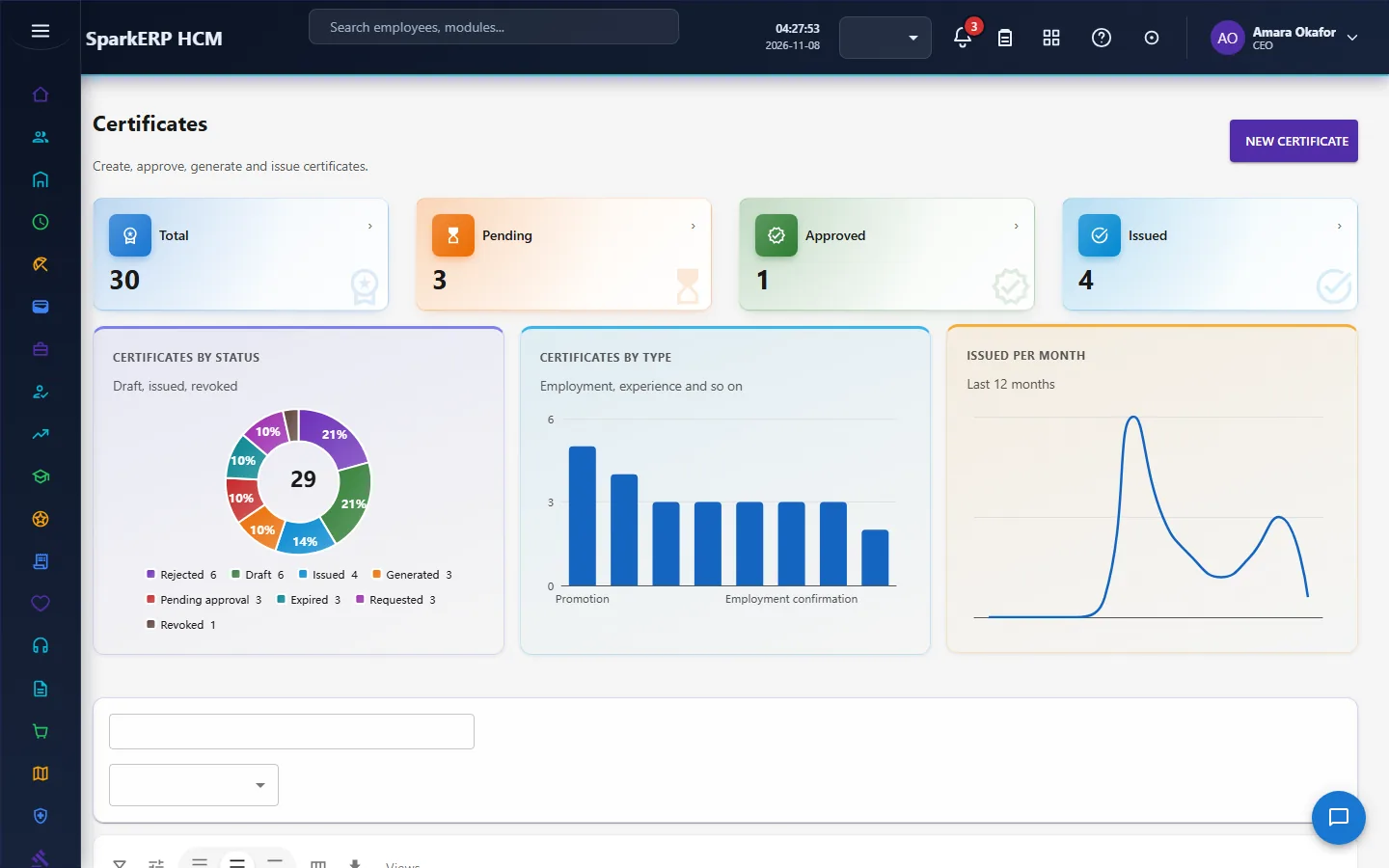
- Sections: Certificates by status, Certificates by type, Issued per month, Last 12 months, Certificate Details, Employee Id, Certificate Type, Document Type, Template Id, Purpose, Issue Date, Valid Until and 9 more.
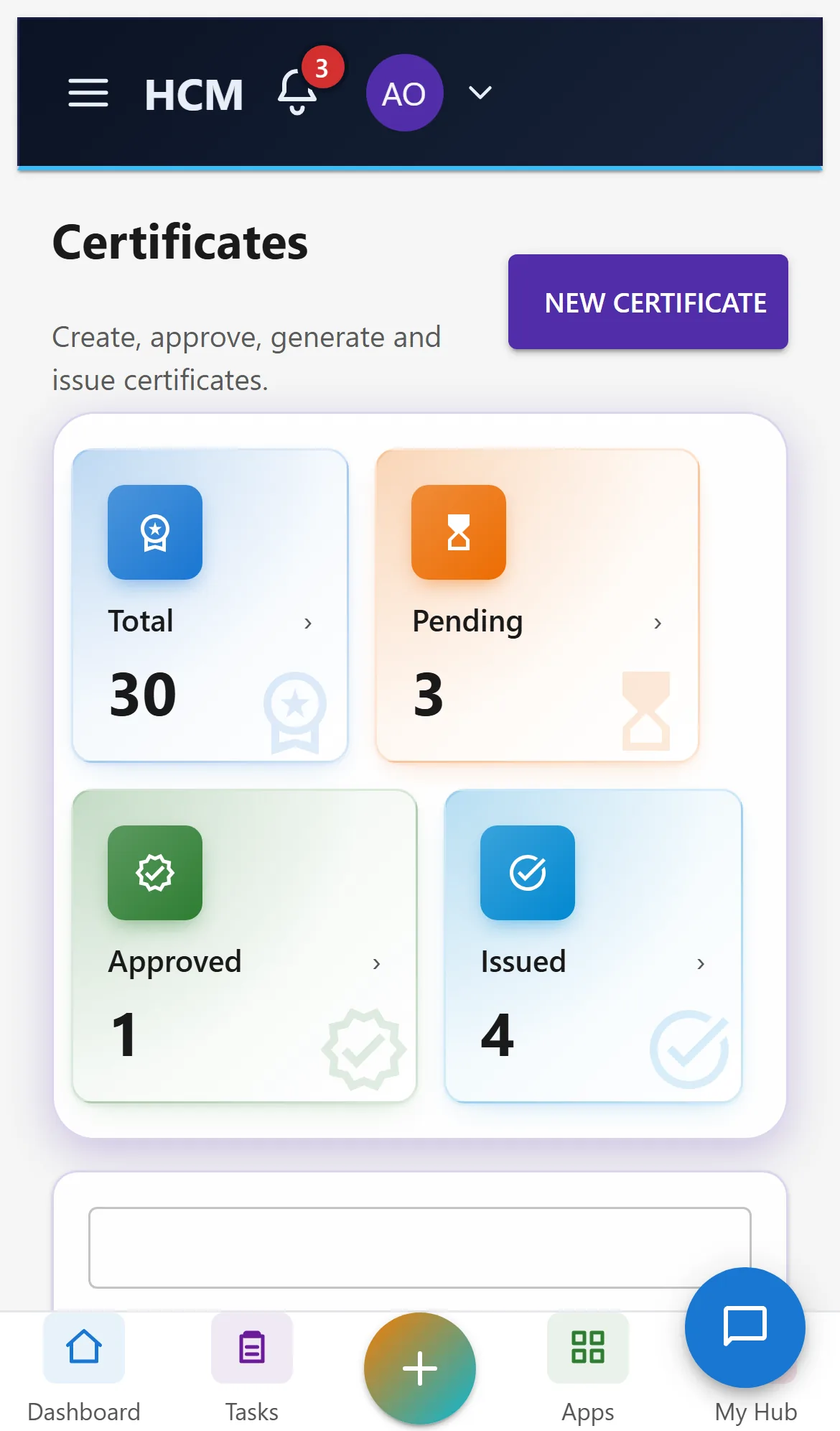
- Cards: Total, Pending, Approved, Issued.
- Table columns: Employee, Certificate Number, Certificate Type, Status, Issue Date, Actions.
- Actions: New Certificate, Cancel, Save, Submit for Approval, Approve, Reject, Generate, Issue, Revoke, Download, Close.
Contracts
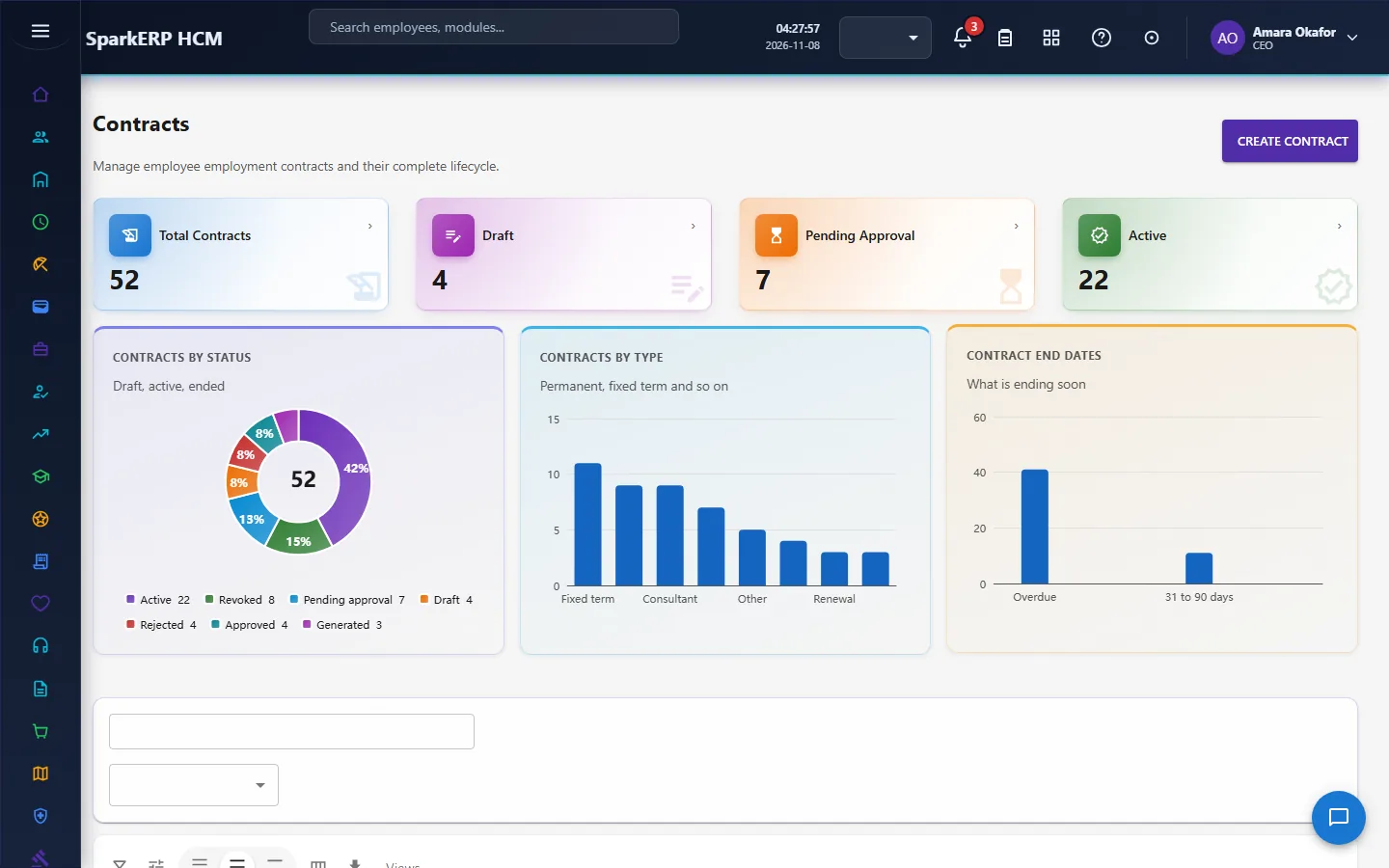
Employment contracts, with a full real lifecycle: Draft → Pending Approval → Approved → Generated → Active → Revoked.
Open it at /hcm-employee-documents/contracts (or from the HCM menu).
- Sections: Contracts by status, Contracts by type, Contract end dates, What is ending soon, New Contract, Employee, Contract Type, Template, Contract Title, Department, Position, Effective From and 14 more.
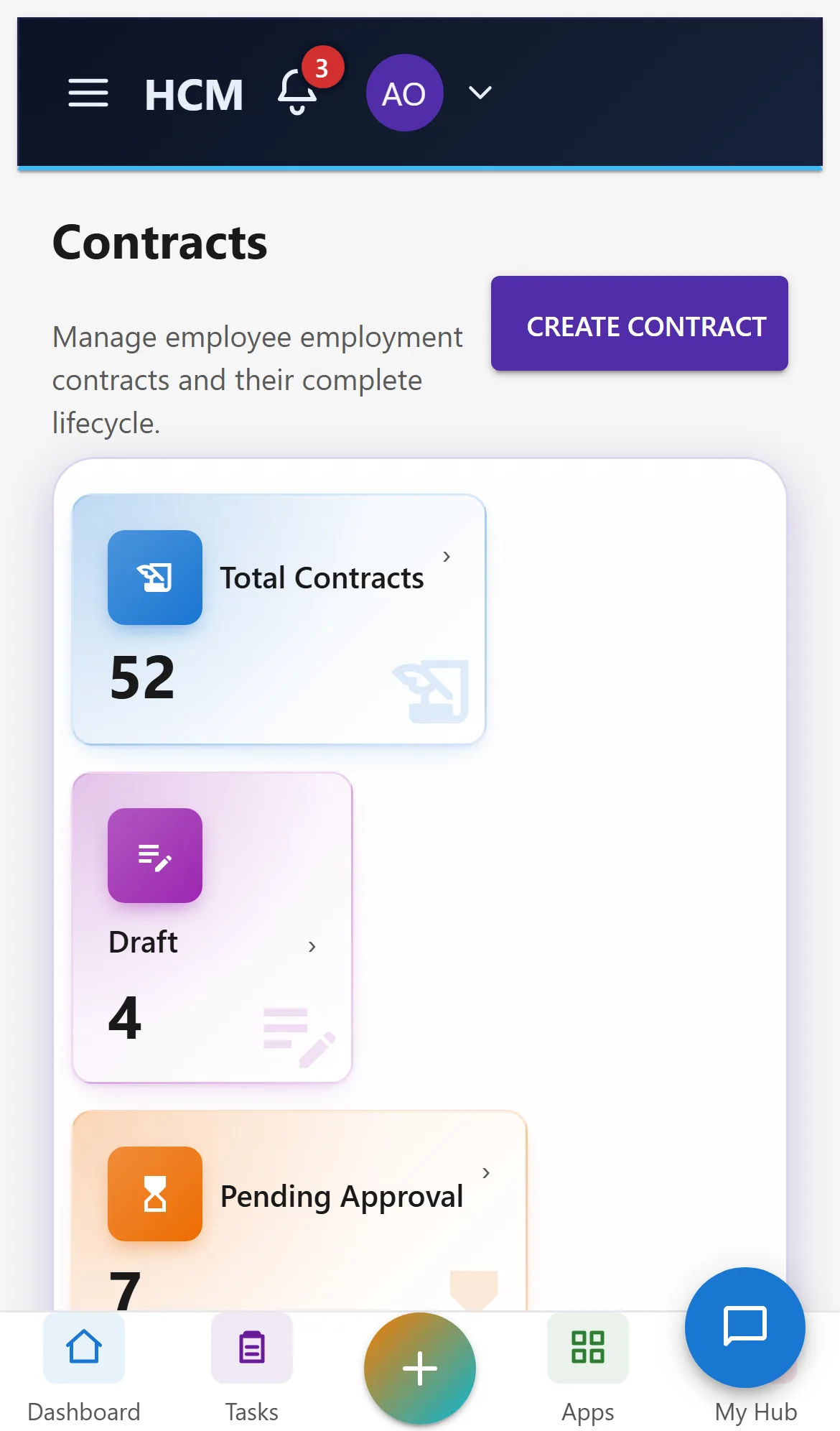
- Cards: Total Contracts, Draft, Pending Approval, Active.
- Table columns: Employee, Contract Number, Type, Status, Signature, Effective From, Effective To, Actions.
- Actions: Create Contract, Cancel, Save, Amend Contract, Approve Version, Apply Version, Submit, Approve, Reject, Generate, Activate, Revoke and 2 more.
How to: Contract Detail
- Open Employee Documents > Contracts.
- Select the record you want to change, or the button that adds a new one.
- In the window Contract Detail fill in:
| Field | What to enter |
|---|---|
| Version ID (badge above) | Type it. |
- Select Apply Version.
- The window closes and the table refreshes with the result. If the screen shows a message instead, read it: it says what is missing.