
Appearance
Employee Learning, Training Requests & Training Calendar (HCM)
This page documents three shipped Learning screens (hcm-learning) covering the learner's side of things. Not for plugin developers.
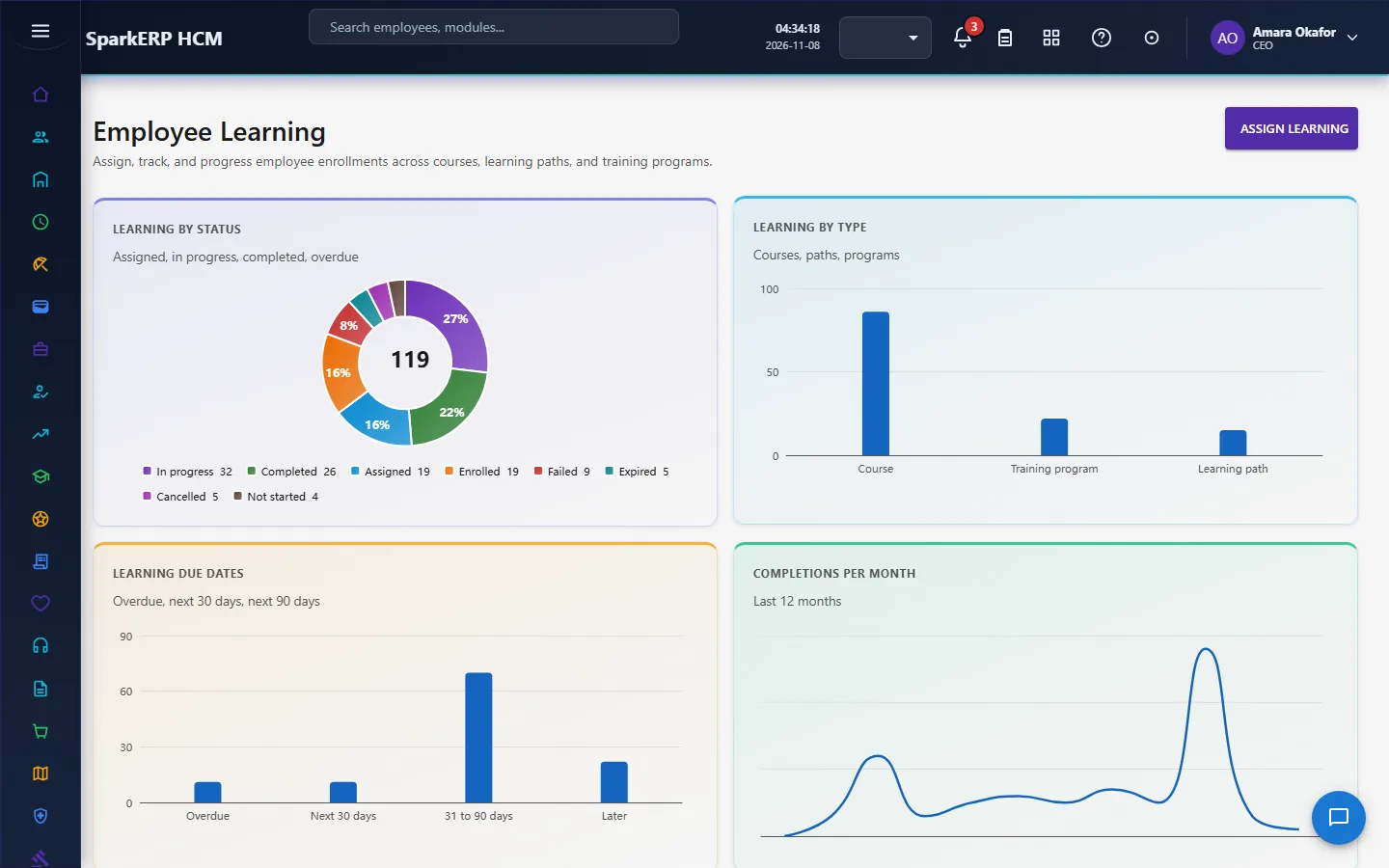
Employee Learning (Assignments)
Track what's been assigned to, enrolled in, or completed by each employee.
Open it at /hcm-learning/employee-learning (or from the HCM menu).
- Sections: Employee Learning, Learning by status, Learning by type, Learning due dates, Completions per month, Last 12 months.
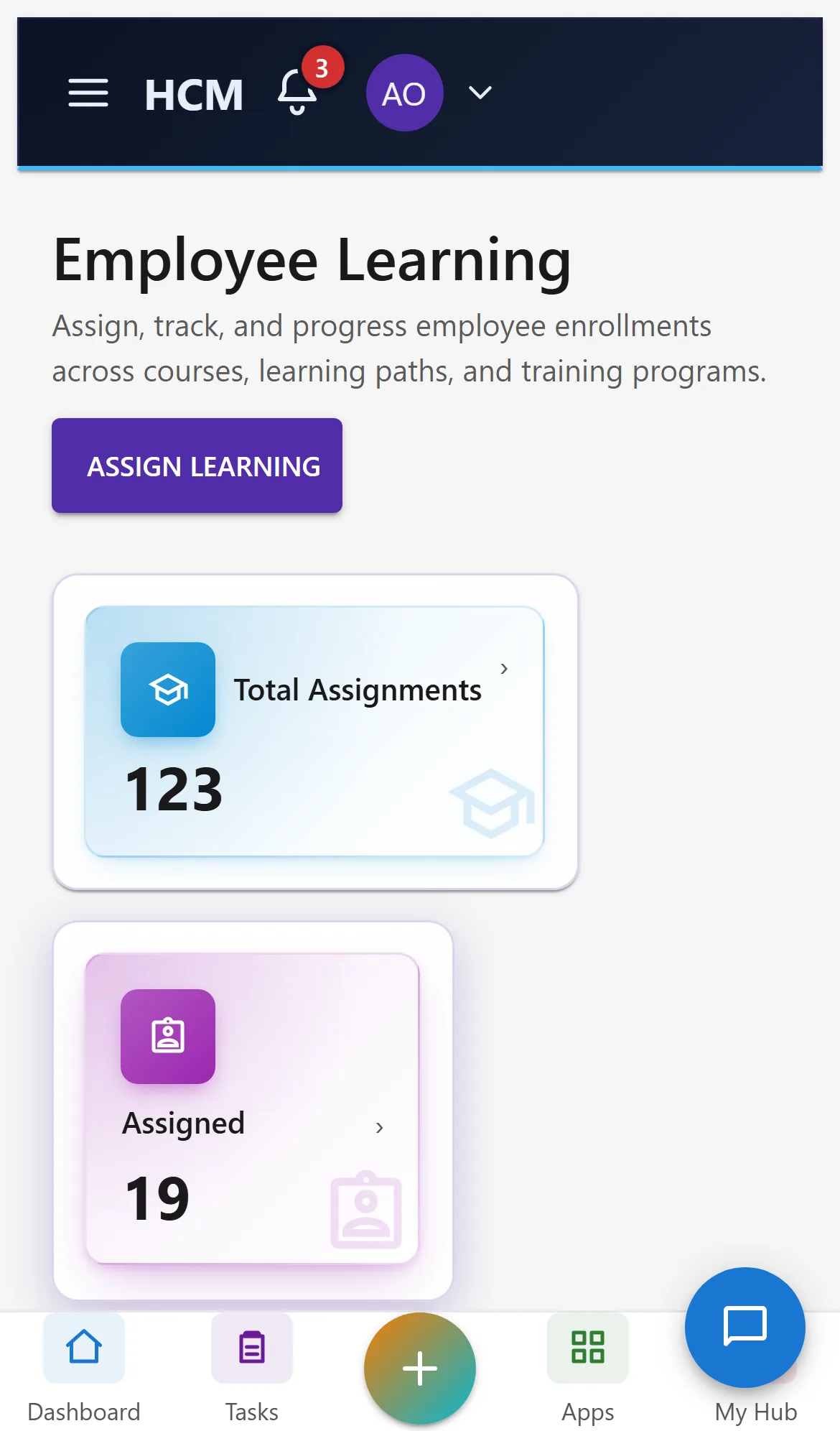
- Cards: Total Assignments, Assigned, In Progress, Completed, Mandatory.
- Table columns: Learning Item, Type, Source, Progress %, Due Date, Mandatory, Status, Actions.
- Actions: Assign Learning, Assign, Enroll, Waitlist, Start, Complete, Mark Failed, Withdraw, Cancel Assignment, Mark Expired, Cancel, Save.
How to: Assign Learning
- Open Learning & Development > Employee Learning.
- Select Assign Learning.
- In the window Learning Assignment fill in:
| Field | What to enter |
|---|---|
| Learning Type | Choose one: Course, Learning Path, Training Program |
| Assignment Source | Choose one: Self Enrolled, Manager Assigned, Hr Assigned, Mandatory |
| Priority | Choose one: Low, Medium, High, Critical |
| Assignment Date | Pick a date. |
| Start Date | Pick a date. |
| Due Date | Pick a date. |
| Completion Date | Pick a date. |
| Progress % | Type it. |
| Score | Type it. |
| Total Hours | Type it (for example: Total hours). |
- Select Save.
- The window closes and the table refreshes with the result. If the screen shows a message instead, read it: it says what is missing.
Training Requests
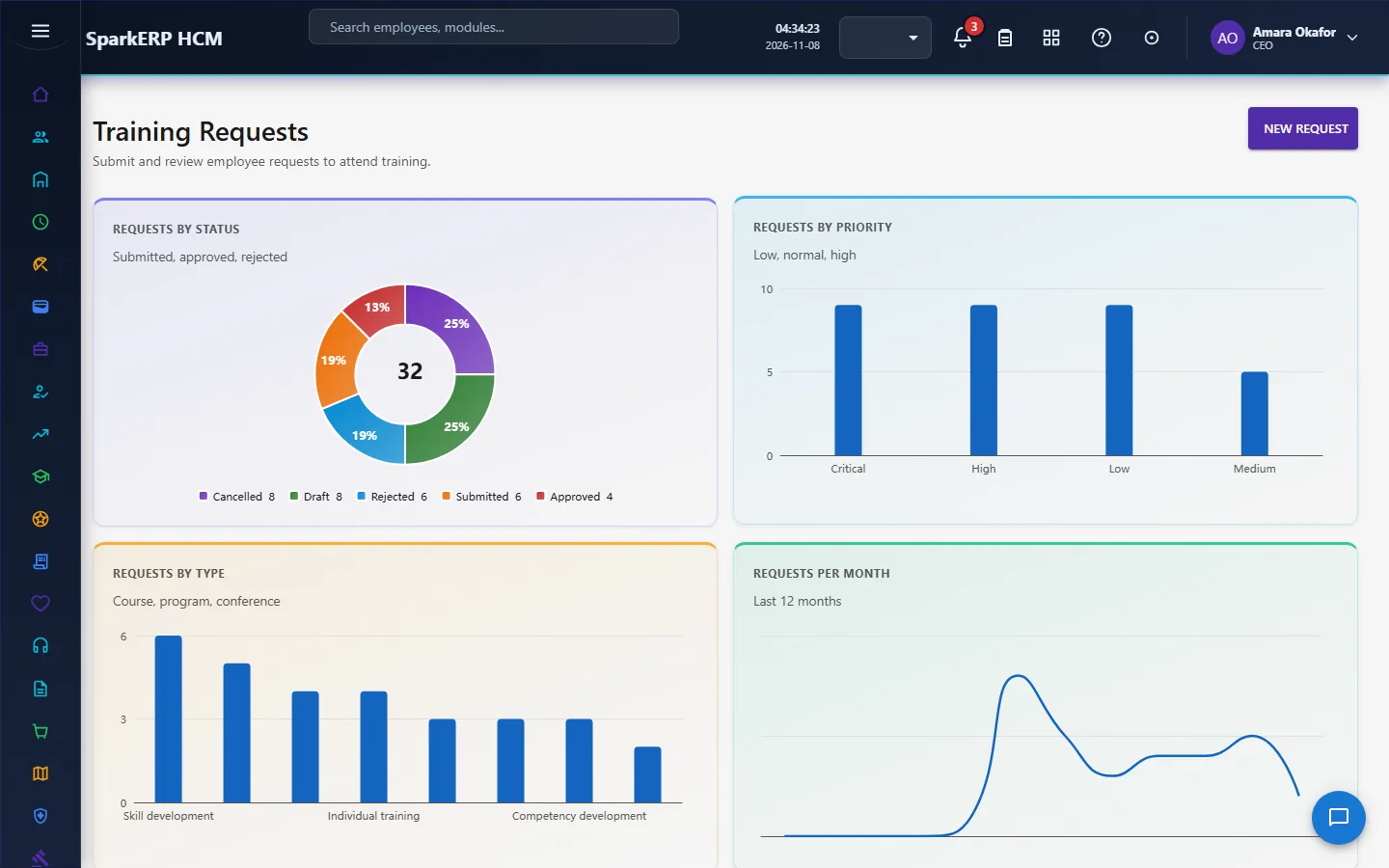
An employee-initiated request for training — ask for a specific course or program.
Open it at /hcm-learning/training-requests (or from the HCM menu).
- Sections: Requests by status, Requests by priority, Requests by type, Requests per month, Last 12 months.
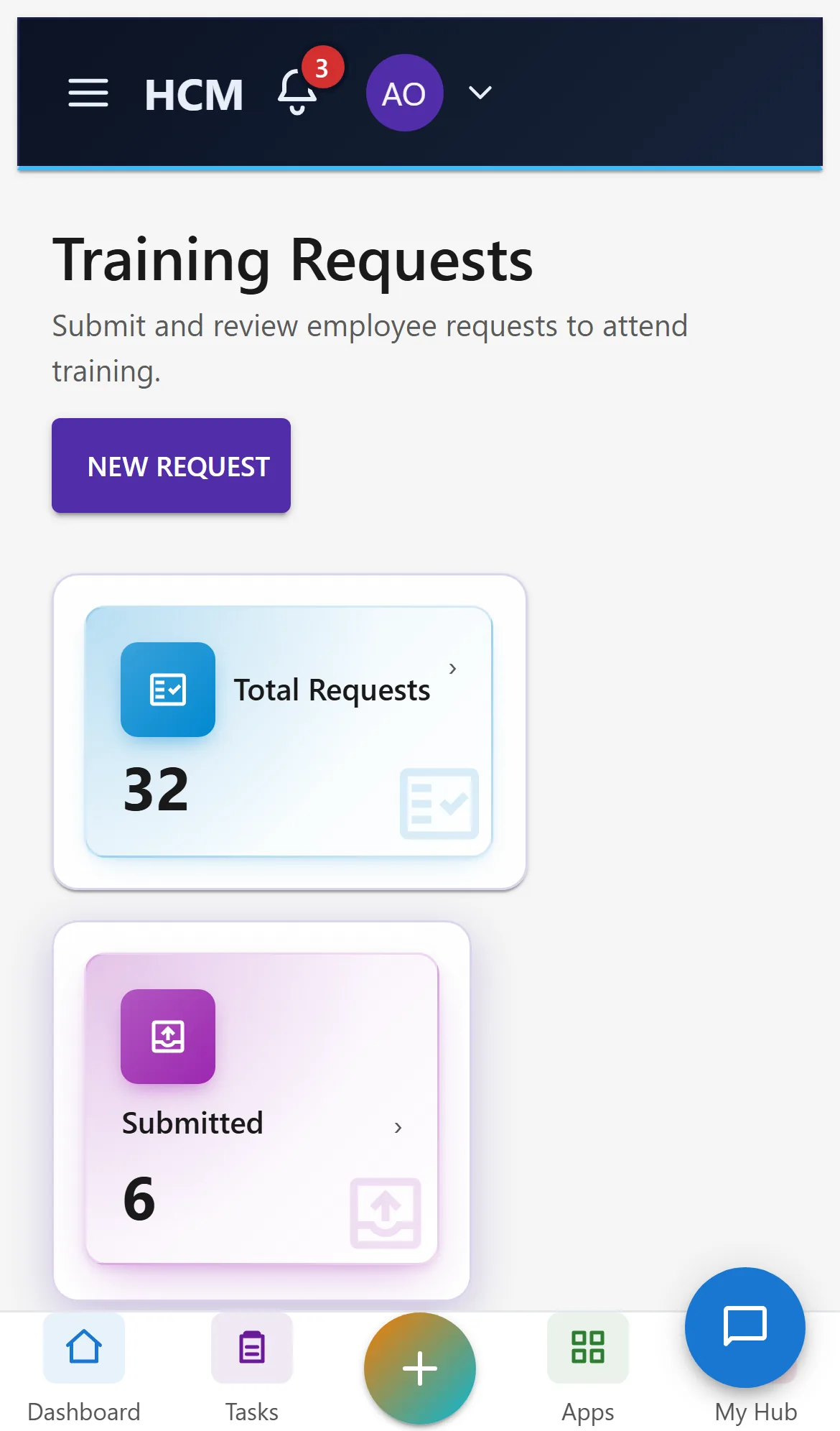
- Cards: Total Requests, Submitted, Approved, Rejected.
- Table columns: Request, Type, Requester, Priority, Preferred Start, Status, Actions.
- Actions: New Request, Submit, Back to Draft, Cancel Request, Withdraw, Cancel, Save.
How to: New Request
- Open Learning & Development > Training Requests.
- Select New Request.
- In the window Training Request fill in:
| Field | What to enter |
|---|---|
| Request Code | Type it (for example: Request code). |
| Request Type | Choose one: Individual Training, Team Training, Department Training, Course Request, Certification Request, External Training, Conference Request, Workshop Request, Skill Development, Competency Development... |
| Title | Type it. |
| Description | Type it. |
| Business Need | Type it (for example: Business need). |
| Priority | Choose one: Low, Medium, High, Critical |
| Preferred Start Date | Pick a date. |
| Preferred End Date | Pick a date. |
| Delivery Mode | Choose one: Classroom, Virtual, Self Paced, Blended, External, On The Job |
| Estimated Cost | Type it (for example: Estimated cost). |
- Select Submit.
- The window closes and the table refreshes with the result. If the screen shows a message instead, read it: it says what is missing.
Training Calendar
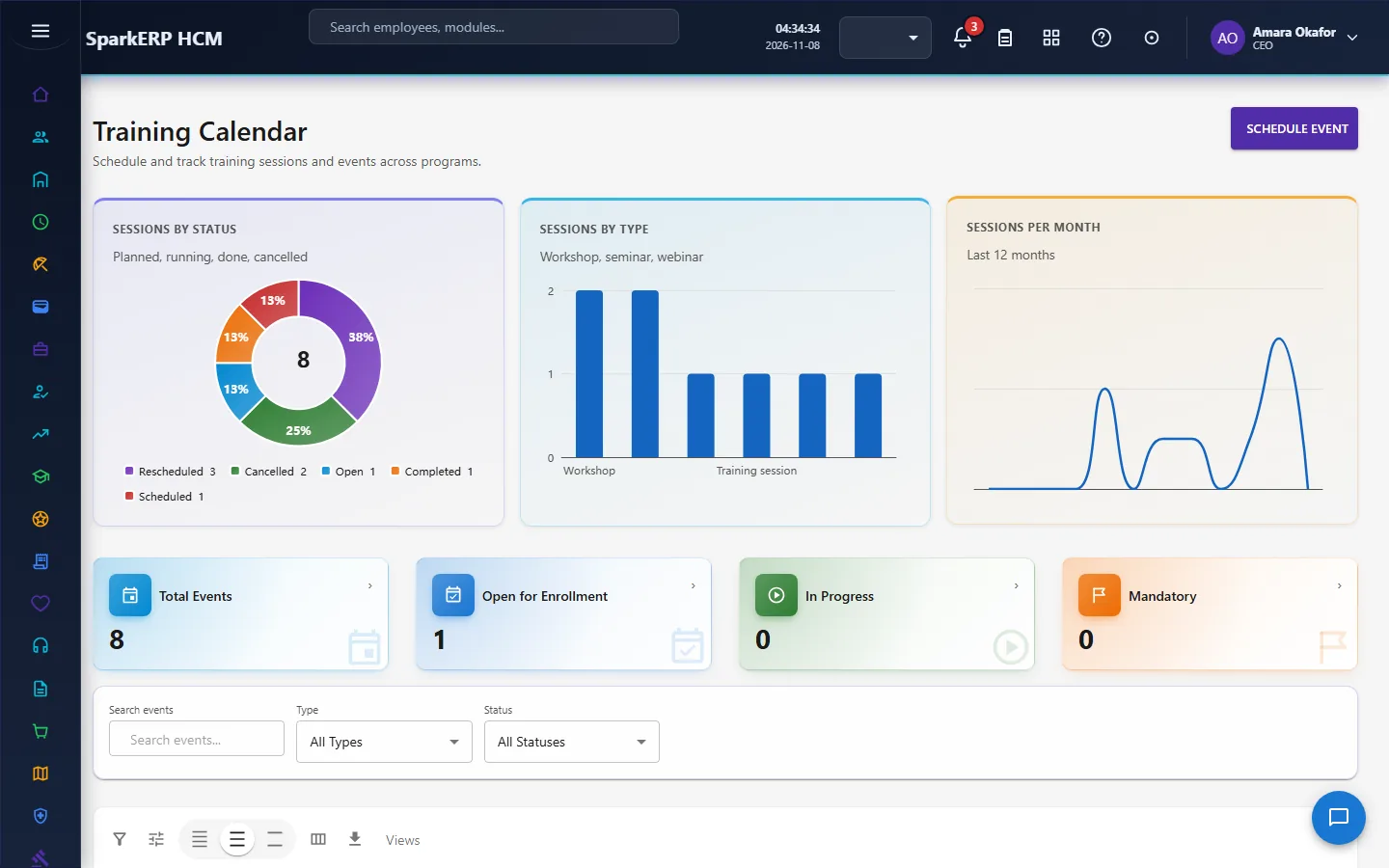
A real, genuine calendar of scheduled training events (not a mock).
Open it at /hcm-learning/training-calendar (or from the HCM menu).
- Sections: Sessions by status, Sessions by type, Sessions per month, Last 12 months.
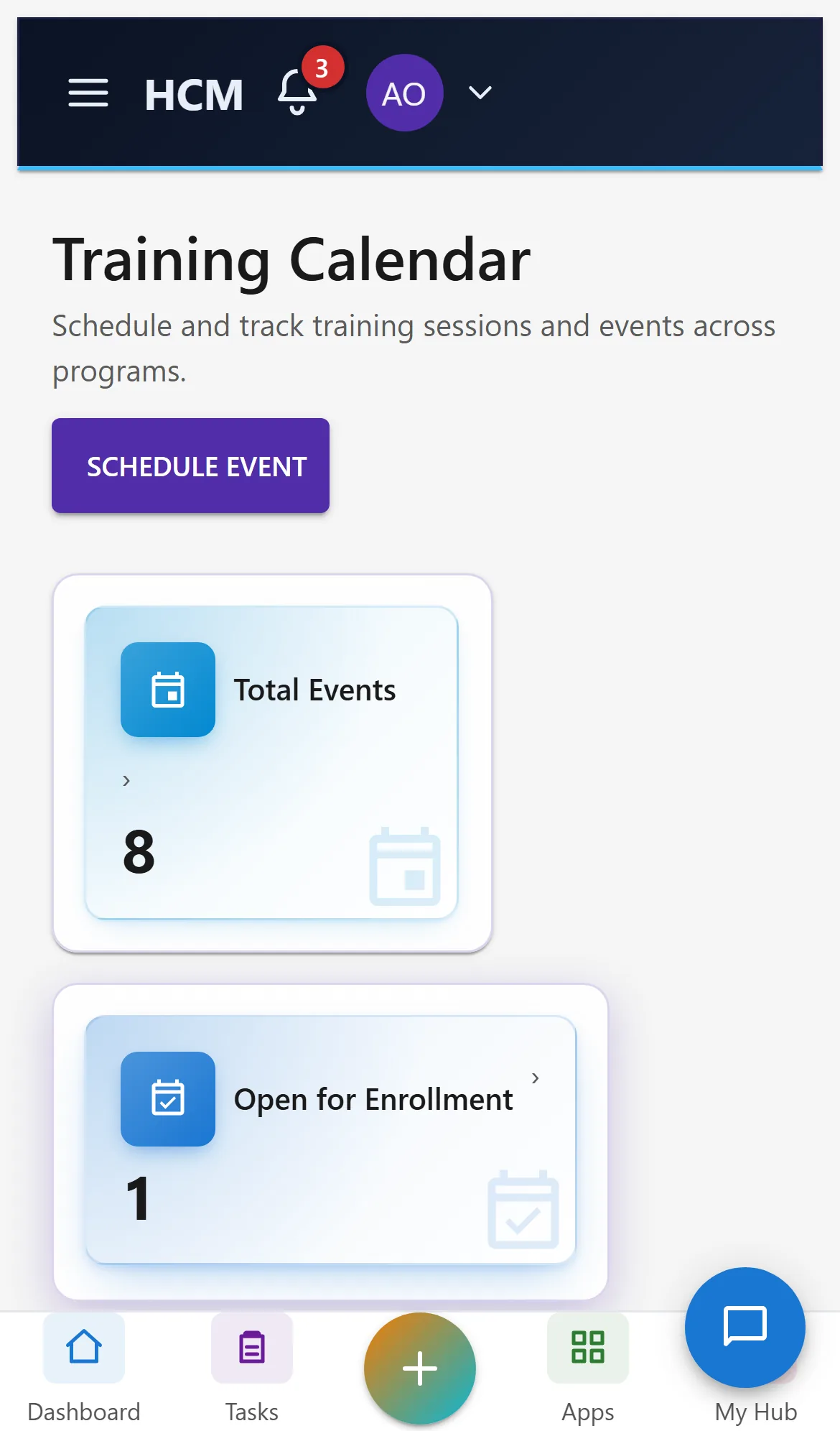
- Cards: Total Events, Open for Enrollment, In Progress, Mandatory.
- Table columns: Event, Type, Start, Trainer, Enrolled, Mandatory, Status, Actions.
- Actions: Schedule Event, Plan, Schedule, Open Enrollment, Start, Complete, Close, Cancel Event, Postpone, Resume, Reschedule, Cancel and 1 more.
How to: Schedule Event
- Open Learning & Development > Training Calendar.
- Select Schedule Event.
- In the window Training Calendar Event fill in:
| Field | What to enter |
|---|---|
| Title | Type it (for example: Event title). |
| Description | Type it. |
| Event Type | Choose one: Training Program, Training Session, Course, Workshop, Webinar, Classroom, Virtual, Blended, Certification, Compliance... |
| Start | Pick a date. |
| End | Pick a date. |
| Timezone | Type it (for example: e.g. Asia/Kolkata). |
| Trainer | Type it (for example: Trainer name). |
| Venue / Mode | Type it (for example: Venue / virtual link). |
| Meeting link | Type it (for example: Link people use to join (https://...)). |
| Delivery Mode | Choose one: Classroom, Virtual, Self Paced, Blended, External, On The Job |
| Capacity | Type it. |
| Enrolled Count | Type it (for example: Enrolled count). |
- Select Save.
- The window closes and the table refreshes with the result. If the screen shows a message instead, read it: it says what is missing.